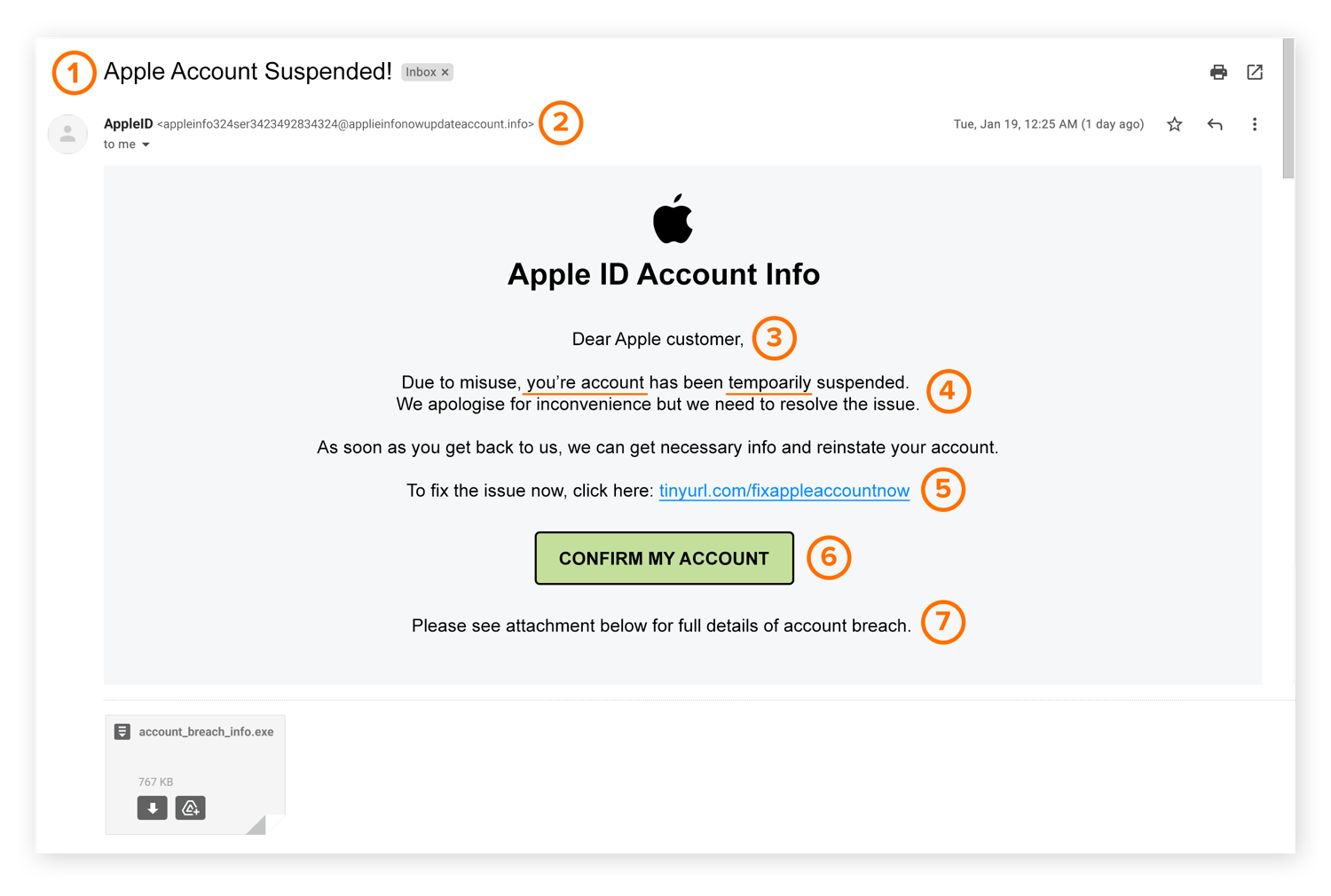
To spot an Apple virus scam, look for high-pressure alerts in your browser or calendar that demand immediate action, payment, or the installation of software. Apple never sends unsolicited pop-up warnings or phone calls to report viruses. To avoid these scams, never click links in suspicious windows; instead, force-quit your browser and clear your history.
Apple devices, including iPhones, iPads, and Macs, have a long-standing reputation for security due to their "walled garden" ecosystem and rigorous sandboxing. However, as we move through 2026, scammers have shifted their focus from technical exploits to social engineering. The "Apple Virus Scam" is a form of scareware designed to trick users into believing their device is compromised, eventually leading to identity theft, financial loss, or the installation of actual malware.
Understanding the Anatomy of an Apple Virus Scam
The core of an Apple virus scam is psychological manipulation. Unlike a legitimate system alert generated by macOS or iOS, these scams originate from external sources like websites, emails, or third-party calendar invites. The goal is to bypass the technical security of the device by convincing the user to lower their guard.
Scammers leverage three primary triggers:
- Urgency: "Your iPhone will be disabled in 2 minutes!"
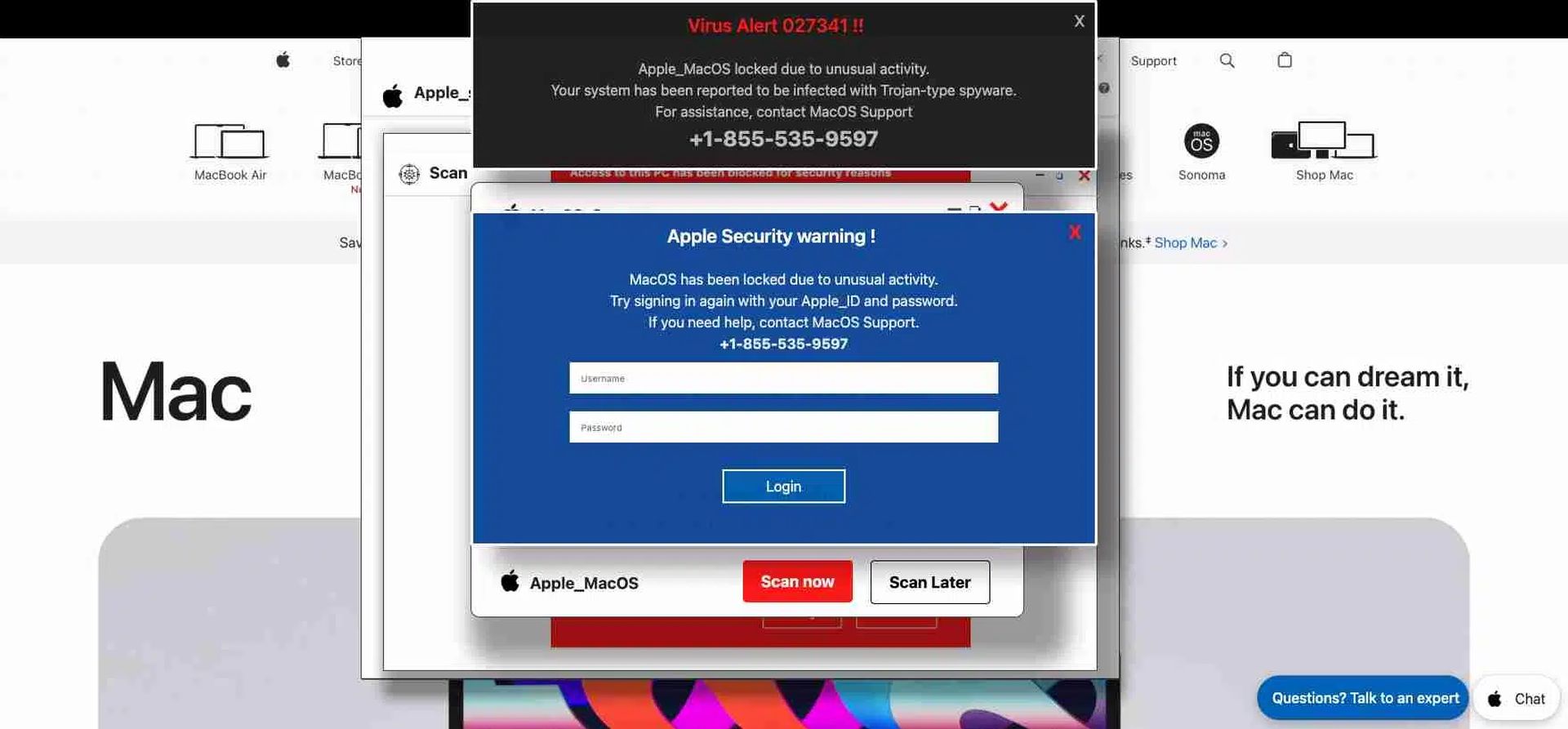
- Authority: Using Apple’s logos, fonts, and "System Alert" styling to mimic official communication.
- Fear: Claiming that private photos, bank details, or social media accounts are being "exported" by a hacker.
It is technically impossible for a website viewed in Safari or Chrome to perform a deep system scan of your Mac or iPhone. Because of Apple’s sandboxing architecture, a browser tab is isolated from the rest of the operating system. Any website claiming it has "detected 17 viruses" on your hardware is lying by definition; it simply does not have the permissions required to see your file system.
Common Delivery Methods for Scams in 2026
By 2026, the delivery methods for these scams have become more sophisticated, moving beyond simple pop-up windows into more integrated parts of the Apple ecosystem.
Browser-Based Pop-ups and Redirects
This is the most frequent encounter. While browsing, a user might be redirected to a page that triggers a JavaScript alert. This alert often locks the browser window, making it difficult to close the tab. These pages frequently use audio cues—like a computerized voice warning of a breach—to increase the user's panic.
iCloud Calendar Spam
Scammers often send mass "invitations" to email addresses. If you have "Automatically add invitations" enabled in your iCloud settings, these appear on your iPhone or Mac calendar as legitimate events. The event title might be something like "CLEAN YOUR IPHONE NOW," and the description will contain a link to a fraudulent security site.
Phishing via iMessage and SMS (Smishing)
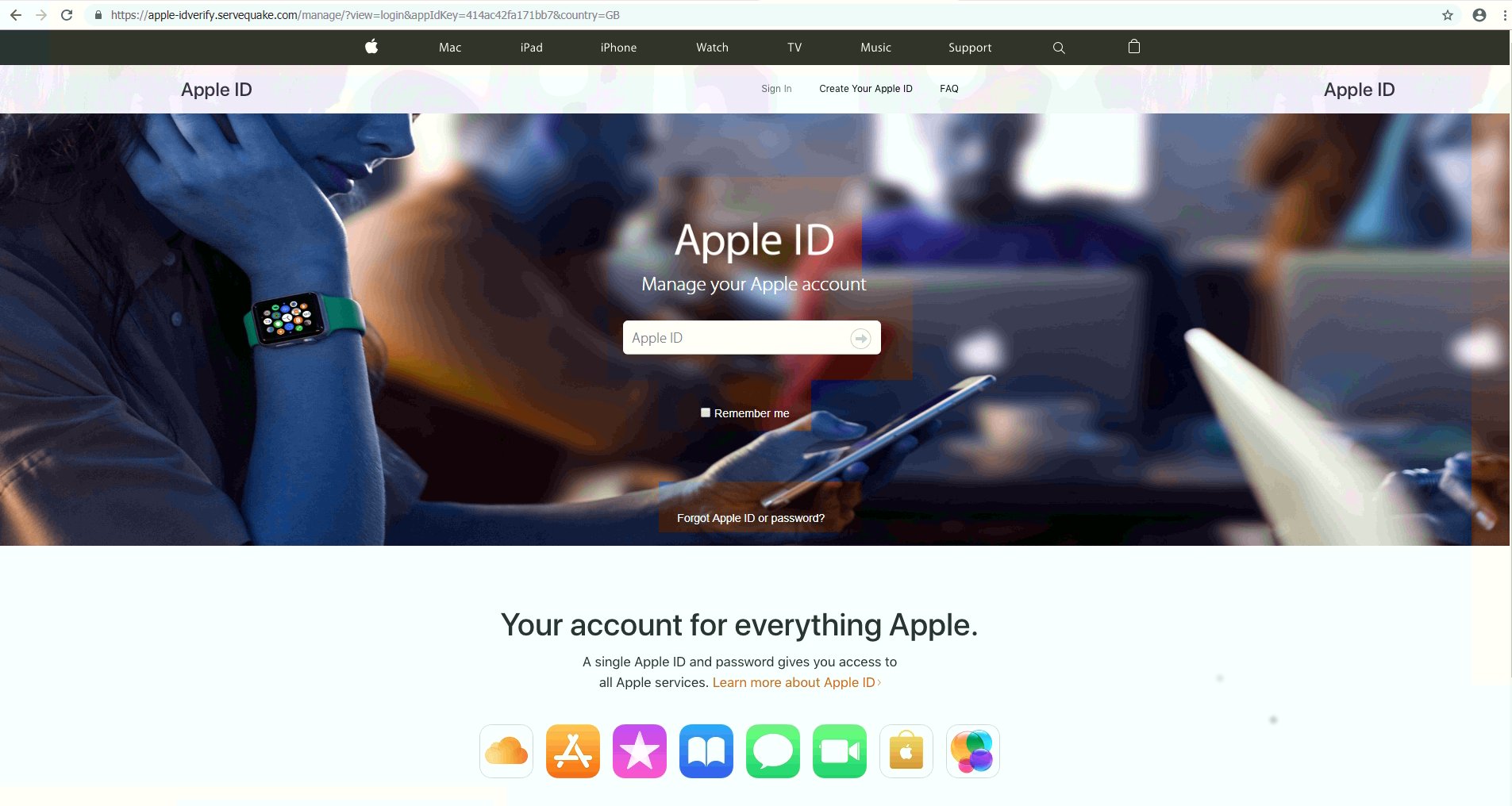
You may receive a text message appearing to be from "Apple Support" or "iCloud Security." These messages often claim there has been an unauthorized login from a distant location and provide a link to "verify your identity." The link leads to a spoofed iCloud login page designed to steal your Apple ID and password.
Fraudulent "System" Notifications
Advanced scammers use "Web Push Notifications." If you accidentally clicked "Allow" on a suspicious website in the past, that site can send notifications that look like macOS or iOS system banners. These appear in the top-right corner of a Mac or on the lock screen of an iPhone, making them appear to be coming from the OS itself.
Critical Red Flags: How to Spot a Fake Alert
Identifying a scam requires a calm assessment of the alert's characteristics. Real Apple security notifications are passive; they appear in the "Software Update" section of System Settings or as subtle banners that do not block your ability to use the device.
- Non-Apple URLs: Always look at the address bar. Official Apple communications will always use
apple.com,icloud.com, orsupport.apple.com. Scammers use variations likeapple-security-check.netoriphone-fixer.org. - Request for Remote Access: No legitimate Apple support representative will ever ask you to install apps like AnyDesk or TeamViewer to "scan for viruses."
- Grammatical Errors: While scammers have improved their professional appearance, many still contain subtle typos or awkward phrasing that an official Apple copywriter would never produce.
- Requests for Payment: Apple will never ask for payment via gift cards, cryptocurrency, or wire transfers to "clean" a device.
- The "Scan" Animation: If you see a progress bar "scanning" your files on a website, it is a pre-recorded animation. No browser has the right to scan your local storage in this manner.
Practical Steps to Avoid and Neutralize Scams
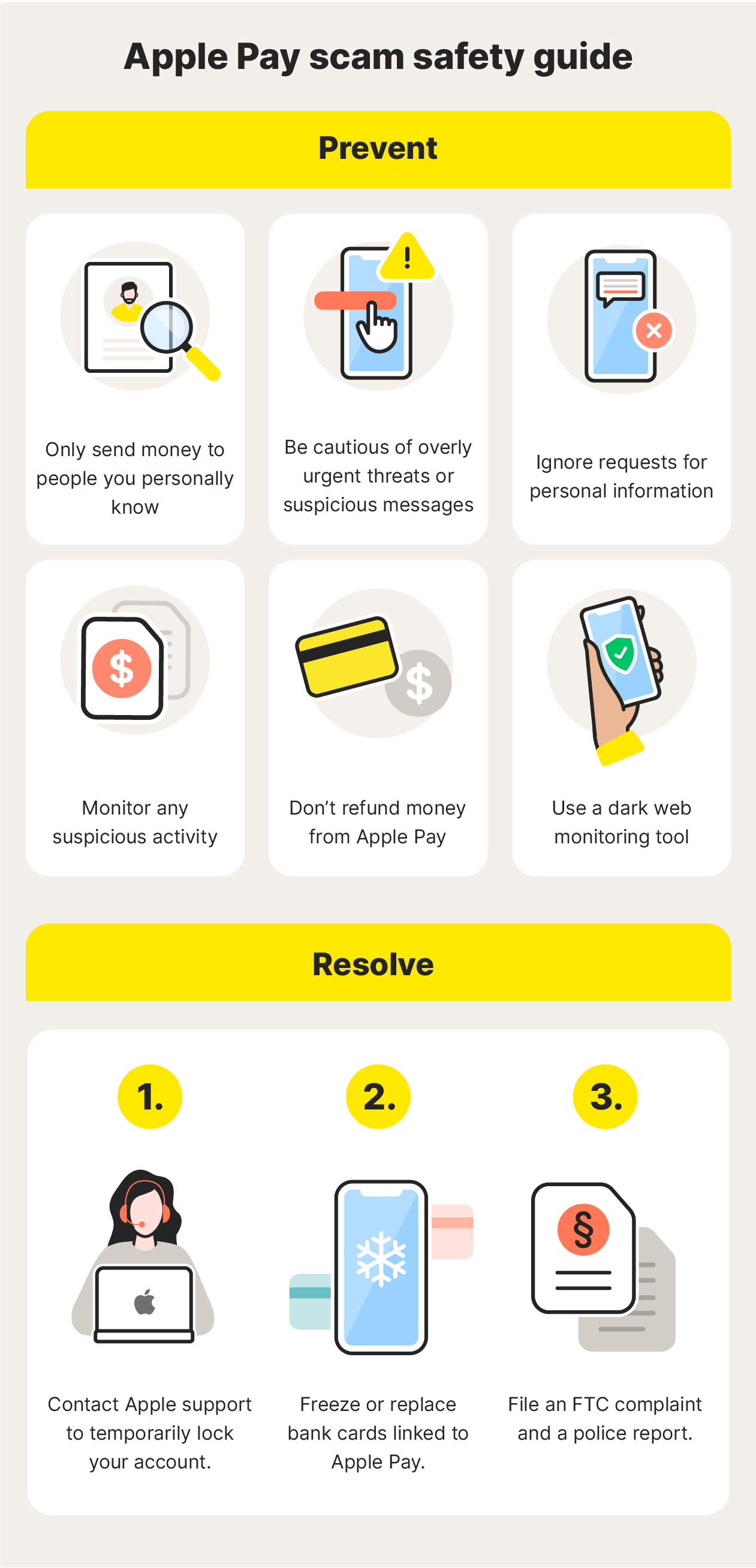
If you encounter an Apple virus scam, the most important rule is do not interact with it. Every click provides the scammer with more information, such as confirming that your phone number or email address is active.
Dealing with Browser Hijacks
If your browser is locked by a pop-up:
- On Mac: Press
Command + Option + Escto bring up the Force Quit menu. Select your browser (Safari, Chrome, etc.) and click Force Quit. When you reopen the browser, hold theShiftkey to prevent it from reloading the previous (malicious) tabs. - On iPhone/iPad: Swipe up from the bottom (or double-click the Home button) to enter the App Switcher. Swipe up on the browser app to close it. Go to Settings > Safari and tap Clear History and Website Data.
Removing Malicious Calendars
If your calendar is full of "Virus Detected" alerts:
- Open the Calendar app.
- Tap Calendars at the bottom of the screen.
- Look for a calendar you don't recognize (often labeled "Sponsors" or "Subscribed").
- Tap the (i) info button next to it and select Delete Calendar.
Checking for Malicious Profiles
In some cases, a scam might trick you into installing a "Configuration Profile." This is a high-level security risk.
- Go to Settings > General > VPN & Device Management.
- Check for any profiles you did not intentionally install (e.g., from your employer or school).
- If you find a suspicious profile, tap it and select Remove Profile.
Comparing Real Apple Security vs. Scams
| Feature | Real Apple Security Notification | Apple Virus Scam (Fake) |
|---|---|---|
| Origin | System Settings or App Store | Browser pop-ups, SMS, or Calendar |
| Language | Neutral, professional, and informative | Alarmist, urgent, and threatening |
| Action Required | Update software or change password | Call a number or download "cleaner" |
| Personal Info | Never asks for credit card or SSN | Often asks for payment or login credentials |
| Visuals | Integrated into the OS UI | Mimics UI but often has slight misalignments |
| Cost | Always free (part of the OS) | Requires a subscription or "service fee" |
Strengthening Your Defense in 2026
Prevention is the most effective tool against social engineering. By configuring your devices correctly, you can filter out the majority of scam attempts before they reach you.
Enable Advanced Data Protection
Introduced and refined by Apple over the last few years, Advanced Data Protection for iCloud uses end-to-end encryption to ensure that even if a scammer gains access to Apple’s servers, they cannot read your data. Enable this in Settings > [Your Name] > iCloud.
Utilize Lockdown Mode
If you believe you are being targeted by sophisticated attacks, Apple’s Lockdown Mode provides an extreme level of security. It blocks most message attachments, disables certain web technologies, and removes complex features that could be exploited. This is generally unnecessary for the average user but is a powerful tool for those at high risk.
Use Security Keys for Apple ID
In 2026, relying solely on a password is no longer sufficient. By using a physical FIDO-certified security key, you ensure that even if a scammer phishes your password, they cannot log into your account without the physical hardware key. This effectively ends the threat of remote account takeovers.
Block Pop-ups and Fraudulent Website Warnings
Ensure these settings are active in Safari:
- Navigate to Settings > Safari.
- Toggle Block Pop-ups to ON.
- Toggle Fraudulent Website Warning to ON. This uses Google Safe Browsing and Apple's own database to warn you before you land on a known scam site.
Frequently Asked Questions
Can an iPhone actually get a virus?
While it is extremely rare for an iPhone to have a traditional "virus" that self-replicates, it can be compromised by spyware or malicious profiles if the user manually grants permissions. Most "viruses" reported on iPhones are actually just malicious website redirects or calendar subscriptions, not actual infections of the operating system.
I called the number on the pop-up and gave them my info. What now?
If you provided financial information, contact your bank immediately to freeze your accounts. If you gave them your Apple ID credentials, go to iforgot.apple.com to reset your password and check your "Sign In with Apple" settings to see if any new apps have been authorized. Finally, report the incident to the Federal Trade Commission (FTC).
Why does my iPhone keep saying "13 Viruses Detected"?
This is a standard script used by scammers. The number "13" or "17" is often hard-coded into the fake website to create a sense of specific, localized danger. It is a fake message generated by a website and does not reflect the actual health of your device. Clearing your Safari cache will stop this message from appearing.
Is "CleanMyMac" or similar software a scam?
Legitimate optimization tools exist, but many "cleaner" apps advertised through pop-ups are "Potentially Unwanted Programs" (PUPs). They often report "fake" issues to encourage you to buy a premium version. Only download security software from the official Mac App Store or reputable developers like Malwarebytes.
Does Apple ever call users about security breaches?
No. Apple does not monitor individual devices for viruses and will never call you unsolicited to discuss security issues. If you receive a call from someone claiming to be "Apple Support" regarding a virus, hang up immediately. If you need support, initiate the contact yourself through the official Apple Support app or getsupport.apple.com.
Recommended Action Plan
If you encounter a suspicious alert, your first action should be to close the browser tab and ignore the message. For long-term protection, ensure that Two-Factor Authentication (2FA) is enabled on your Apple ID and that you are running the latest version of iOS or macOS available in 2026. Regularly reviewing your "Subscribed Calendars" and "Profiles" in settings will keep your device clean of the most common social engineering hooks used by today's scammers.