To use a web camera with Apple TV 4K, you must utilize Apple's Continuity Camera feature, which wirelessly connects your iPhone or iPad to the television. By leveraging the high-quality lenses of your mobile device, Apple TV supports FaceTime, Zoom, and Webex, providing a seamless, high-definition video conferencing experience in your living room.
For years, the Apple TV was strictly a consumption device—a gateway to movies, music, and games. However, with the introduction of tvOS 17 and subsequent refinements leading into 2026, the platform has evolved into a sophisticated communication hub. The "Apple TV web camera" is not a physical peripheral you plug into a USB port; rather, it is a sophisticated software integration that turns your most powerful portable camera into a stationary professional-grade lens for your television.
System Requirements and Compatibility
Before attempting to use video calling features on your Apple TV, it is essential to ensure your hardware ecosystem meets the necessary technical specifications. Because this feature relies on the high-speed wireless transfer of video data, older hardware lacks the processing power and wireless protocols required to maintain a stable connection.
Supported Apple TV Models
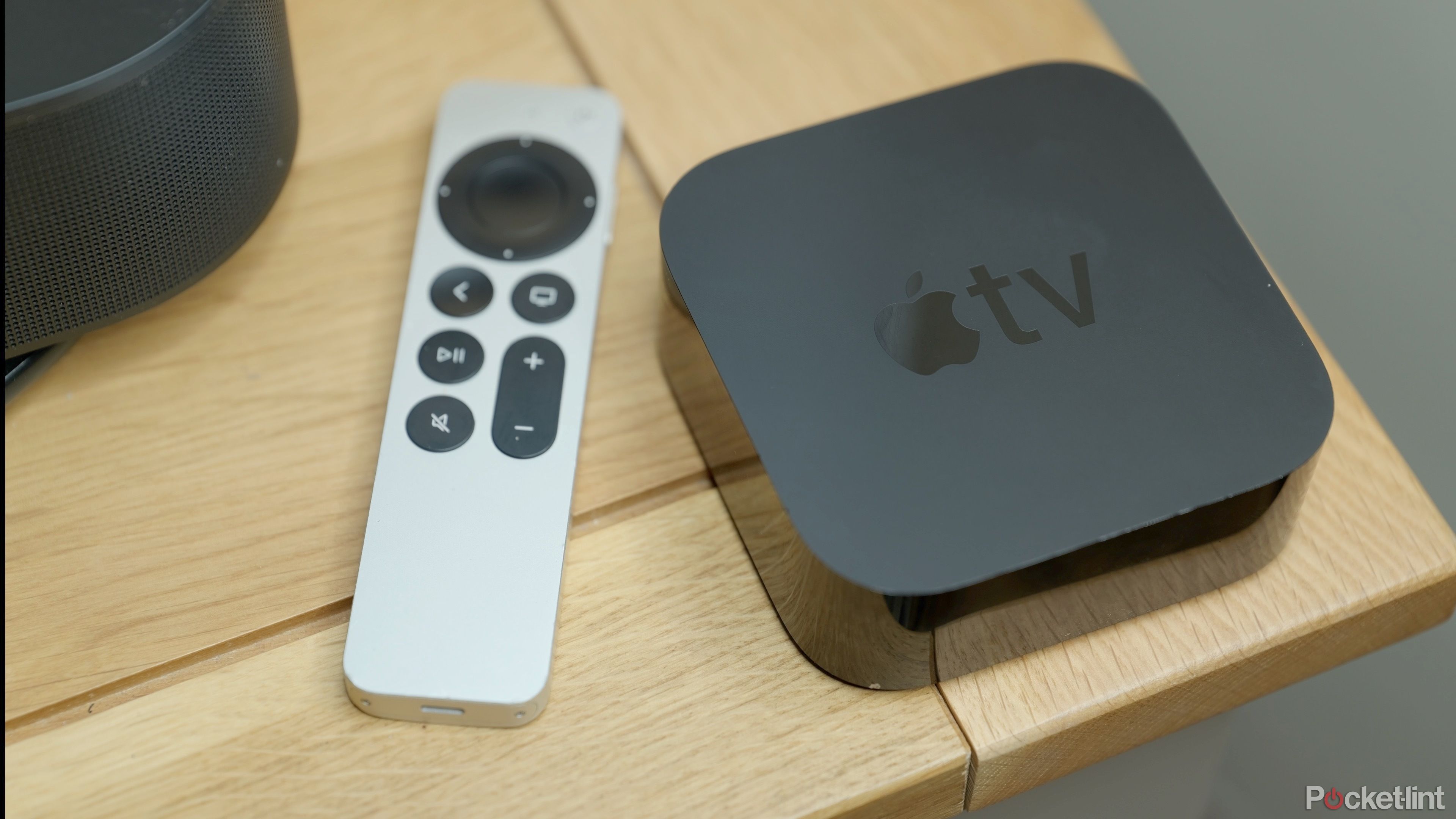
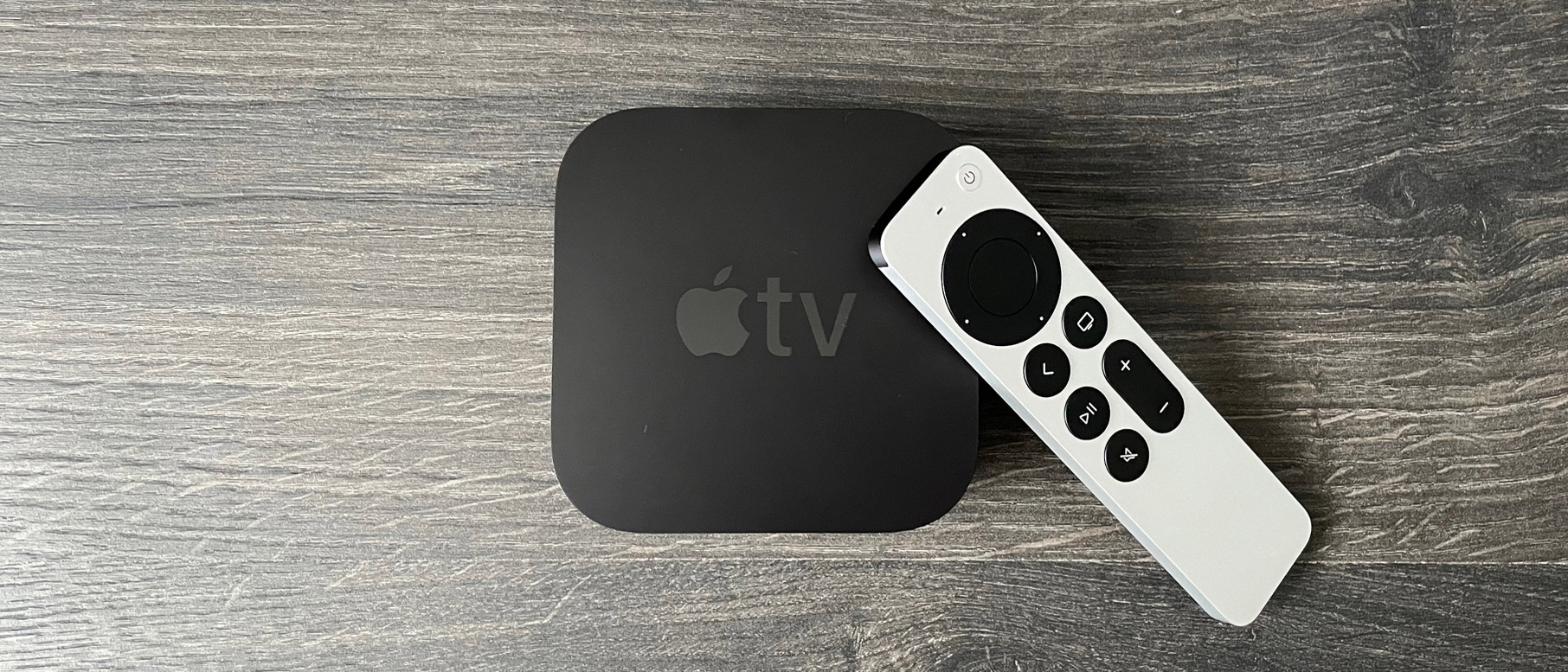
As of 2026, the Continuity Camera feature is exclusive to the Apple TV 4K series. The standard Apple TV HD (4th generation) does not support this functionality. Specifically, you need:
- Apple TV 4K (3rd Generation/2022 or newer): These models offer the best performance due to the A15 Bionic chip (or newer), which handles video decoding with minimal latency.
- Apple TV 4K (2nd Generation/2021): This model supports the feature but may experience slightly more heat generation during extended 4K video calls.
Supported iOS and iPadOS Devices
Your "web camera" is actually your iPhone or iPad. To act as a source, the device must be running at least iOS 17 or iPadOS 17. For the best experience, including the use of advanced features like Center Stage, the following devices are recommended:
- iPhone: iPhone XR or later.
- iPad: iPad Pro 12.9-inch (3rd generation or later), iPad Pro 11-inch (any generation), iPad (9th generation or later), iPad Air (4th generation or later), or iPad mini (6th generation or later).
Software and Account Prerequisites
Both the Apple TV and the iOS/iPadOS device must be signed into the same Apple ID using Two-Factor Authentication. Additionally, both devices must have Bluetooth and Wi-Fi enabled and be within close physical proximity to one another.
Understanding Continuity Camera for Apple TV
The term "web camera" in the context of Apple TV is often a point of confusion for users accustomed to traditional PC setups. Unlike a Mac or a PC, the Apple TV does not have a USB-A or USB-C port designed for data peripherals like external webcams.
Continuity Camera solves this hardware limitation by creating a dedicated, encrypted wireless bridge between the Apple TV and your iPhone. When you launch a supported communication app on tvOS, the Apple TV sends a "wake" signal to your nearby iPhone. Once you accept the prompt on your phone, the rear camera feed is streamed directly to the TV with remarkably low latency.
This approach offers several advantages over a traditional USB webcam:
- Superior Optics: Modern iPhone cameras far exceed the image quality of standard 1080p webcams, offering better dynamic range, low-light performance, and color accuracy.
- Computational Photography: Features like Portrait Mode (which blurs the background) and Studio Light (which brightens your face while darkening the background) are processed on the iPhone's Bionic chip before the image ever reaches the TV.
- Center Stage: Using the Ultra Wide lens on compatible iPhones and iPads, the camera can digitally pan and zoom to keep you in the frame even as you move around the room.
Step-by-Step Setup Guide
Setting up your Apple TV web camera experience is a three-phase process: preparation, initiation, and positioning.
Phase 1: Enabling the Feature
- Ensure your Apple TV is updated to the latest version of tvOS.
- Open the Settings app on your Apple TV.
- Navigate to Users and Accounts and ensure your primary profile is selected.
- Verify that your iPhone is unlocked and nearby.
Phase 2: Launching a Video Call
- Open FaceTime, Zoom, or Webex from the Apple TV Home Screen.
- Select your user profile when prompted.
- A notification will appear on your iPhone asking if you want to use it as a camera for your Apple TV. Tap Accept or Connect.
- On the TV, you will see a preview of the camera feed.
Phase 3: Positioning the Device
For a natural-looking video call, the placement of your iPhone is critical. If the phone is placed too low, the perspective will be unflattering for the caller. If it is placed to the side, you will appear to be looking away from your audience.
- Landscape Orientation: Always place the phone in landscape (horizontal) mode. This matches the aspect ratio of your television.
- Rear Camera Facing You: You must use the rear cameras (the high-quality ones), not the selfie camera.
- Screen Placement: Ideally, the phone should be mounted at eye level, centered either directly above or below the TV screen.
Essential Accessories for Apple TV Webcams
Since you cannot simply "clip" an iPhone to the top of a thin OLED or LED television without assistance, specialized mounts have become a necessity. In 2026, the market for MagSafe-compatible TV mounts has matured significantly.
| Accessory Type | Best Use Case | Key Benefit |
|---|---|---|
| MagSafe TV Mount | Thin-bezel LED/OLED TVs | Securely hooks over the top of the TV; uses magnets for easy attachment. |
| Desktop Tripod | TV stands or media consoles | Allows for precise height adjustment if the TV is mounted too high. |
| MagSafe Continuity Mount | MacBook/Monitor hybrid use | Versatile mounts that work for both laptops and thin televisions. |
| Powered MagSafe Stand | Long professional meetings | Keeps the iPhone charged via Qi2 or MagSafe while acting as a camera. |
Supported Applications and Use Cases
While FaceTime was the pioneer for this technology, the ecosystem in 2026 supports a variety of professional and recreational applications.
FaceTime on the Big Screen
FaceTime on Apple TV supports SharePlay, allowing you to watch movies or TV shows with friends while their video feeds appear as a picture-in-picture overlay. The integration also supports Gestures, where making a physical "thumbs up" or "heart" sign with your hands triggers 3D augmented reality effects on the screen.
Professional Conferencing: Zoom and Webex
For remote workers, using Zoom on Apple TV allows for a "telepresence" experience. By moving the meeting to the living room, you can avoid "Zoom fatigue" associated with sitting at a desk. These apps on tvOS support screen sharing (viewing) and gallery views that take full advantage of large 4K displays.
Apple Music Sing
One of the more unique uses for the Apple TV web camera is the karaoke feature in Apple Music. When using Apple Music Sing, the Continuity Camera allows you to see yourself on screen with various cinematic filters while the lyrics scroll past, effectively turning your living room into a high-tech karaoke bar.
Optimizing Video and Audio Quality
To ensure your video calls look professional, consider the following technical adjustments:
Lighting Best Practices
The primary weakness of any camera is a lack of light.
- Avoid Backlighting: Do not sit in front of a bright window, as this will turn you into a silhouette.
- Front-Facing Light: Ensure there is a light source behind the TV (facing you). Even a simple lamp can significantly improve the clarity of the video feed and reduce "noise" in the image.
Audio Routing
When using Continuity Camera, the Apple TV defaults to using the microphones on your iPhone or iPad. These microphones are sophisticated and use beamforming technology to isolate your voice. However, if you are sitting more than 10 feet away from the TV, you may want to consider using AirPods. By connecting AirPods to the Apple TV, you ensure that your voice is captured clearly while the audio from the callers remains private.
Troubleshooting Common Issues
Despite the seamless nature of the Apple ecosystem, users may occasionally encounter hurdles when trying to use their iPhone as an Apple TV web camera.
Connection Dropping
If the video feed stutters or disconnects:
- Wi-Fi Interference: Ensure both devices are on the 5GHz or 6GHz (Wi-Fi 6E/7) band rather than the more crowded 2.4GHz band.
- Battery Life: If the iPhone drops below 20% battery, it may throttle performance or disconnect to save power. Keep the device on a MagSafe charger during long calls.
iPhone Not Appearing as an Option
If the Apple TV does not "see" your iPhone:
- Handoff Settings: On your iPhone, go to Settings > General > AirPlay & Handoff and ensure Continuity Camera is toggled ON.
- Same Network: Confirm that both devices are not just on the "same Wi-Fi" but also on the same subnet (avoid "Guest" networks).
Overheating
Streaming high-definition video wirelessly while processing AI features like Center Stage is intensive. If your iPhone becomes hot to the touch, try disabling Studio Light or Portrait Mode to reduce the load on the A-series processor.
Privacy and Security Considerations
Apple has implemented several safeguards to ensure that the Continuity Camera feature cannot be used to spy on users.
- Physical Activation: The feature cannot be triggered remotely. You must physically accept the prompt on the iPhone every time a session begins.
- Visual Indicators: When the camera is active, a bright green LED (software-based) appears on the iPhone's Dynamic Island or status bar. Additionally, the Apple TV displays a prominent camera icon in the upper-right corner of the screen.
- End-to-End Encryption: Like all FaceTime calls, the video stream between the iPhone and the Apple TV is encrypted, and the data is not stored on Apple's servers.
Frequently Asked Questions
Can I use a third-party USB webcam with Apple TV?
No, as of 2026, Apple TV does not support standard USB Video Class (UVC) webcams. The operating system lacks the drivers to recognize hardware connected via the USB-C port (which is primarily for power and service). The only supported method for video input is via Continuity Camera using an iPhone or iPad.
Does using my iPhone as a webcam drain the battery quickly?
Yes, streaming 4K video wirelessly is a battery-intensive task. It is highly recommended to use a MagSafe charging stand or plug your iPhone into a power outlet if the video call is expected to last longer than 30 minutes.
Can I use Continuity Camera for apps other than FaceTime?
Yes, developers have access to the Continuity Camera API. Popular apps like Zoom and Webex have fully integrated this feature. Additionally, entertainment apps like Apple Music Sing use it for interactive experiences.
What happens if I receive a phone call while using the iPhone as an Apple TV camera?
If a cellular call comes in, the Apple TV will pause the video feed and notify you. You can choose to decline the call and continue your video session or answer the call, which will terminate the Continuity Camera link to the Apple TV.
Can I use the Apple TV web camera feature with an Android phone?
No, this is a proprietary feature within the Apple ecosystem. It requires the deep integration between tvOS and iOS/iPadOS to manage the wireless video handshake and synchronization.
Practical Recommendation for 2026
If you intend to use your Apple TV for regular video conferencing, the single best investment you can make is a dedicated MagSafe TV mount from a reputable manufacturer like Belkin or Twelve South. These mounts provide the stability and optimal height necessary to make video calls feel natural. Furthermore, for those using this setup for professional work, pairing the system with AirPods Pro or Max is recommended to eliminate echo and ensure that your room's acoustics do not interfere with your voice clarity.
The transition of the Apple TV from a simple media player to a communication hub via the Continuity Camera feature represents a significant shift in home technology. By removing the need for a dedicated, often inferior, television webcam, Apple has allowed users to maximize the utility of the high-end cameras they already carry in their pockets.