If your Apple TV remote feels overly sensitive, causing the cursor to fly across the screen or trigger unwanted selections, you can usually resolve the issue by adjusting the touch surface tracking settings in the tvOS menu, cleaning the physical glass surface, or recalibrating the Bluetooth connection between the remote and your Apple TV hardware.
The Siri Remote—whether you are using the original version with the glass touch surface or the more recent aluminum iterations—is designed for precision navigation. However, the high responsiveness of the capacitive touch-enabled clickpad can occasionally feel erratic or "jumpy" depending on your thumb’s moisture levels, physical debris on the glass, or software-side tracking sensitivity configurations.
Understanding the Mechanics of the Siri Remote
To address sensitivity problems effectively, it is helpful to understand how the remote interacts with the Apple TV. The remote uses a combination of an internal accelerometer for motion-based inputs and a capacitive touch-sensitive surface for gestures. The "sensitivity" you perceive is primarily a function of the touch surface’s firmware and your personal preference for how fast the focus moves across the interface.
When the remote feels "too fast," it is rarely a mechanical defect. Instead, it is typically a discrepancy between your muscle memory and the default tracking speed set within the tvOS software. Since the Apple TV is optimized for rapid navigation, the factory settings are set to a high gain by default.
Step 1: Adjusting Tracking Sensitivity in tvOS
The most direct way to resolve an overly sensitive remote is to lower the tracking speed within the system settings. Apple provides three levels of sensitivity for the clickpad, allowing you to tailor the experience to your preference.
- Navigate to the Settings app on your Apple TV home screen using the remote.
- Select Remotes and Devices.
- Scroll down to find the Touch Surface Tracking option.
- Toggle the setting from Fast to Medium or Slow.
By switching this setting to Slow, you increase the distance your finger must travel across the glass to move the focus one increment. This effectively adds a layer of dampening to your inputs, which is often the perfect solution for users who find the remote difficult to control during fine navigation, such as scrubbing through a timeline or selecting individual tiles.
Step 2: Cleaning and Maintaining the Touch Surface
The capacitive touch surface relies on small changes in electrical capacitance to detect your finger’s position. If the glass surface is covered in fingerprints, skin oils, or moisture, the remote may misinterpret these electrical fluctuations, causing erratic cursor behavior or "ghost" swipes.
To clean the remote:
- Use a dry, lint-free cloth: A microfiber cloth is ideal. Avoid using chemical cleaners, window sprays, or household soaps, as these can strip the oleophobic coating off the glass or leave a residue that interferes with the touch sensor.
- Remove debris: If you have been eating or working with your hands, ensure they are clean and dry before using the remote. Even subtle perspiration can significantly alter how the sensor reads your touch, leading to the perception of increased sensitivity.
- Check for obstruction: Ensure there is no protective case or sticker overlapping the edges of the touch-sensitive clickpad. Any physical contact with the perimeter of the pad can lead to unintended input registers.
Step 3: Troubleshooting Connectivity and Interference
If adjusting the settings does not resolve the issue, the sensitivity may be a byproduct of unstable Bluetooth communication. If the connection between the remote and the Apple TV is struggling, the Apple TV may receive "bursts" of input data when the signal stabilizes, making it appear as though the remote is jumping or moving too quickly.
- Check for external interference: Wireless routers, soundbars, and other high-frequency Bluetooth devices placed directly next to the Apple TV can cause signal degradation. Try moving the Apple TV slightly to ensure it has a clear line of sight or better spatial separation from other electronics.
- Restart the Remote: You can force a soft reset of the Siri Remote. Hold down the Back (or Menu) button and the Volume Up button simultaneously for about five seconds. The status light on your Apple TV will blink, indicating the remote is re-pairing.
- Charge the Remote: An extremely low battery can sometimes cause erratic behavior in Bluetooth peripherals. Connect your Siri Remote to a USB-C or Lightning cable (depending on your model) and let it charge for at least 30 minutes before testing it again.
Comparison of Sensitivity Adjustments
| Setting Level | Best For | Behavior |
|---|---|---|
| Slow | Precision tasks, timeline scrubbing | Requires larger finger movements |
| Medium | General navigation and mixed usage | Balanced response |
| Fast | Power users, rapid scrolling | Minimal thumb movement triggers action |
Advanced Software Solutions and Updates
If the remote continues to act erratically, verify that your Apple TV is running the latest version of tvOS. Apple frequently releases firmware updates for the Siri Remote that are bundled with the general tvOS system updates. These updates often include patches for touch-sensitivity algorithms and improved power management for the Bluetooth radio.
- Open Settings on your Apple TV.
- Go to System > Software Updates.
- Select Update Software. If an update is available, download and install it.
- Once the Apple TV restarts, the remote will automatically check for its own internal firmware update. Keep the remote within close range of the Apple TV for the first few minutes after the update to ensure the firmware installation completes successfully.
When to Consider Hardware Replacement
If you have adjusted the settings to "Slow," cleaned the glass thoroughly, and confirmed the device is updated, but the remote still feels uncontrollable, you may be experiencing a hardware failure. Over time, the capacitive sensor under the glass can become miscalibrated or suffer from physical damage if the remote has been dropped.
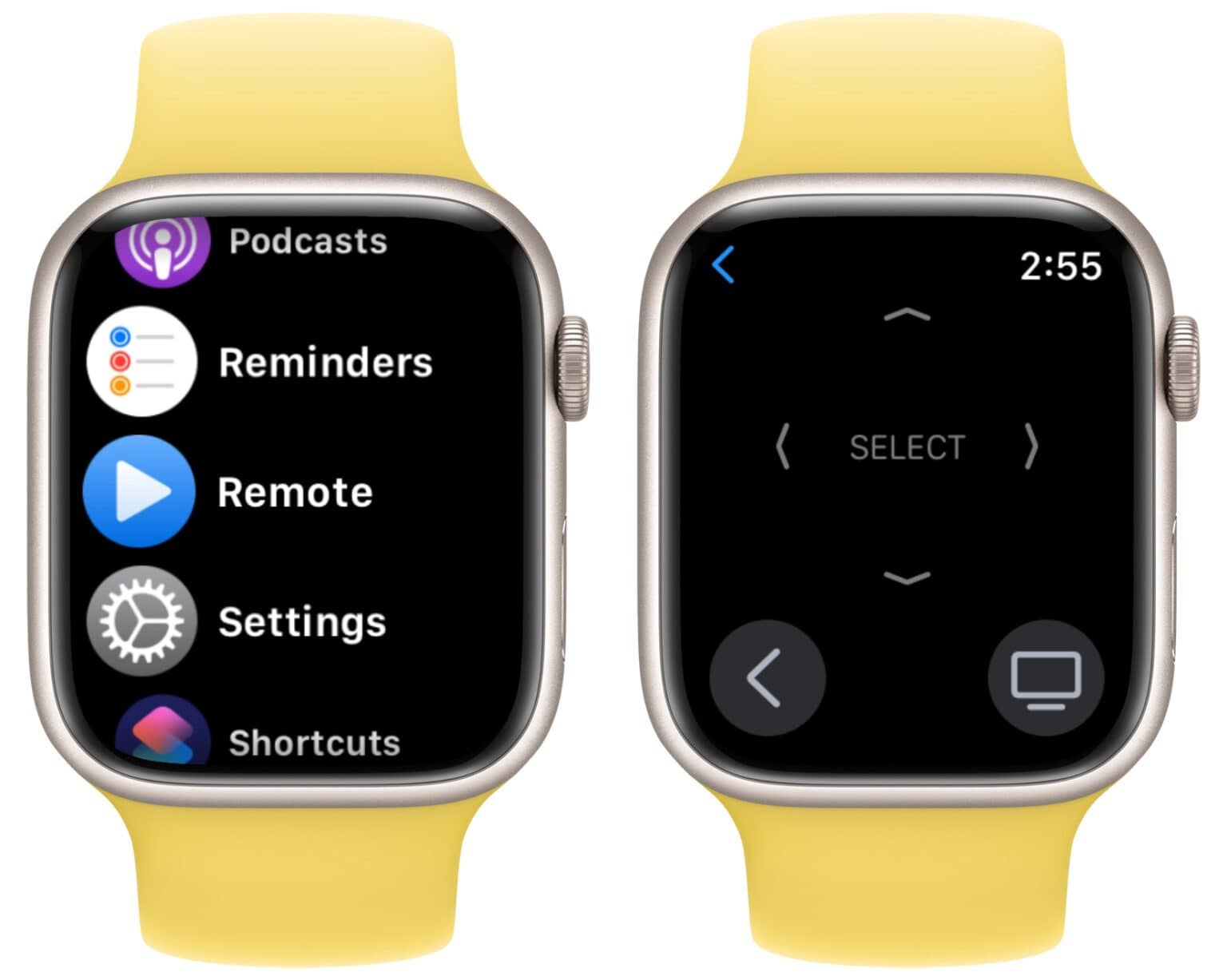
If the remote registers touches even when your thumb is hovering near the surface or triggers clicks without physical pressure, it is likely a hardware defect. In this scenario, you should test the Apple TV with a different controller, such as the Apple TV Remote app on an iPhone, to see if the "sensitivity" issue persists. If the problem disappears when using a different remote, your physical Siri Remote may require a replacement.
Frequently Asked Questions
Why does my Apple TV cursor jump across the screen when I barely touch the remote? This is usually caused by the "Touch Surface Tracking" setting being set to "Fast." The remote is highly sensitive to small gestures. Lowering this setting in the Settings menu is the standard way to fix this issue.
Does a screen protector on the TV affect the remote's sensitivity? No, the remote communicates via Bluetooth to the Apple TV, not via infrared or light, so the TV display itself has no bearing on the remote's input sensitivity.
Can I disable the touch surface entirely? No, you cannot disable the touch functionality completely, as it is a core feature of the Siri Remote's design. However, by selecting "Slow" tracking and utilizing the directional click buttons (pressing the edges of the clickpad rather than swiping), you can effectively limit the amount of accidental navigation.
Does high humidity affect the Siri Remote? Yes, high humidity or moisture on your fingertips can change the electrical conductivity of your skin. This can lead to the touch surface becoming over-sensitive or failing to register touch altogether. Always use the remote with clean, dry hands.
Is there a way to recalibrate the accelerometer? There is no manual recalibration option for the user. However, performing the remote restart sequence (holding the Back and Volume Up buttons) forces the system to re-establish the connection and can resolve minor data synchronization errors.
Final Next Steps
To immediately improve your experience, start by navigating to Settings > Remotes and Devices > Touch Surface Tracking and setting it to Slow. Spend 24 hours with this setting; often, the perceived "sensitivity" is simply a matter of adapting to the high-gain design of the hardware. If the behavior remains erratic after adjusting these settings and ensuring the surface is clean, test the Apple TV with the remote functionality built into your iPhone via the Control Center. This comparison will clarify whether the issue lies with your specific remote hardware or the system settings.