The Apple TV platform serves as a powerful hub for Apple Music, offering high-resolution lossless audio, spatial audio with Dolby Atmos, and deep integration with the Apple ecosystem. By connecting an Apple TV 4K to a high-quality sound system or television, users can access an expansive library of millions of songs, curated playlists, and live radio stations through a television-optimized interface.
Understanding the Apple TV Music Experience
When you use the Music app on an Apple TV, you are essentially leveraging the hardware’s ability to act as a high-fidelity media player. Unlike a mobile device or a laptop, the Apple TV is designed to integrate directly with home theater systems, soundbars, and external DACs (Digital-to-Analog Converters).
The primary value proposition of using Apple Music on Apple TV is the immersive listening environment. Because the platform supports Apple’s advanced audio codecs, it can output high-bitrate audio that exceeds standard streaming quality. For users with compatible multi-channel audio setups, the inclusion of Dolby Atmos allows for a "Spatial Audio" experience that places sounds in a 3D space, mimicking the acoustics of a professional recording studio or concert hall.
Hardware Requirements and Compatibility
To achieve the best possible performance, you must ensure your hardware is configured correctly. While the Music app is available on earlier models, the experience is optimized for the Apple TV 4K series.
The Apple TV 4K Advantage
The current iterations of the Apple TV 4K are built to handle the processing demands of Apple Music’s Lossless and Hi-Res Lossless files. To listen to these files, you need more than just the Apple TV unit itself. You must consider the signal chain:
- HDMI Connection: You must use a high-speed HDMI cable connected to a television or an AV receiver that supports the audio formats you intend to play.
- Audio Output: If you are using a soundbar or a traditional stereo system, ensure it supports the necessary input standards.
- Limitations: Standard Bluetooth speakers or headphones often introduce compression, which can negate the benefits of Apple’s Lossless streaming. For the highest quality, a wired connection to a high-quality amplifier or active speakers is recommended.
Navigating the Apple Music Interface on tvOS
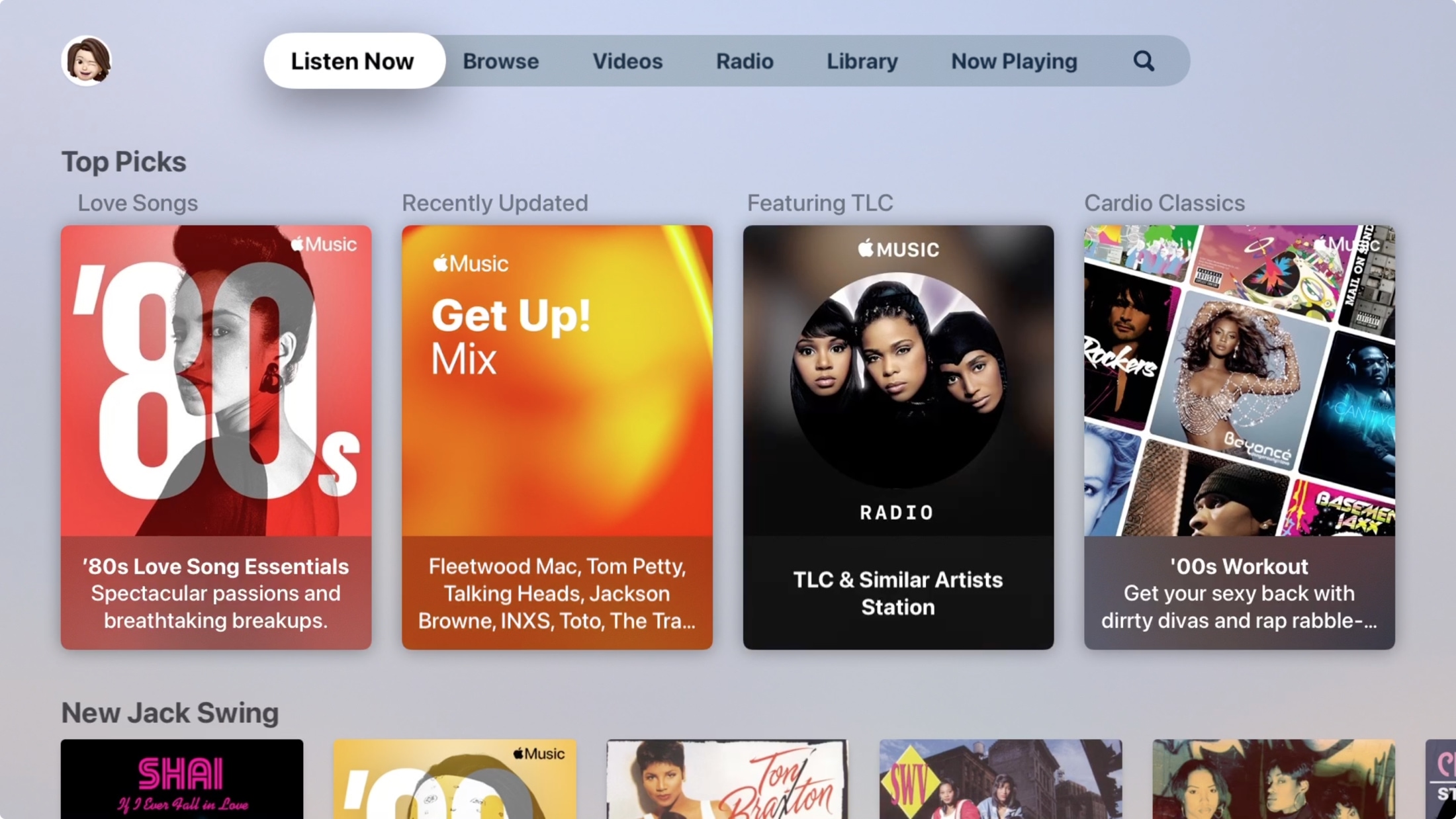
The tvOS interface for Apple Music is distinct from its counterparts on iOS or macOS. It is designed to be navigated with the Siri Remote, prioritizing visual elements like album art, artist imagery, and motion-based backgrounds.
- Listen Now: This is your personalized hub, featuring recommendations based on your listening history, recently played tracks, and new releases curated for your taste.
- Browse: This section provides access to trending songs, new genre-specific playlists, and chart-topping hits globally.
- Radio: Apple Music includes access to live broadcasts, including Apple Music 1, Apple Music Hits, and Apple Music Country. These provide a human-curated radio experience that functions similarly to traditional broadcast radio.
- Library: This section synchronizes with your iCloud Music Library. Any songs you have added or playlists you have created on your iPhone or Mac will appear here automatically.
Comparing Audio Quality Standards
Apple Music provides several tiers of quality. Understanding these is essential for users who want to maximize their hardware's potential.
| Format Type | Bitrate/Resolution | Ideal Use Case |
|---|---|---|
| HE-AAC | Up to 64 kbps | Cellular data saving |
| AAC (Standard) | 256 kbps | Everyday listening |
| Lossless ALAC | Up to 24-bit/48 kHz | Audiophile home systems |
| Hi-Res Lossless | Up to 24-bit/192 kHz | Dedicated high-end audio setups |
Note: Playing Hi-Res Lossless audio requires an external DAC connected to the Apple TV, as most internal television DACs cannot process 192 kHz signals.
Configuring Settings for Optimal Sound
To ensure your Apple TV is outputting the best possible audio, you should navigate to the Settings menu within the Apple TV interface.
- Video and Audio Settings: Navigate to Settings > Video and Audio.
- Audio Format: Check your "Audio Format" settings. If you want the Apple TV to automatically choose the highest quality available, ensure "Change Format" is set to "Off." This allows the device to output the signal as intended by the source file.
- Dolby Atmos: Ensure this is set to "Automatic" if you have a sound system capable of decoding Atmos signals. If you are using a basic stereo setup, you may prefer to disable this to prevent the device from trying to "downmix" a spatial signal, which can sometimes result in a loss of volume or clarity.
Common Troubleshooting Steps
If you encounter issues while using Apple Music on your Apple TV, the following steps generally resolve most connectivity and playback errors:
- Check Network Stability: High-resolution streaming requires significant bandwidth. If you experience buffering, ensure your Apple TV is connected via Ethernet rather than Wi-Fi.
- Restart the App: Force-close the Music app by double-clicking the TV button on your Siri Remote and swiping up on the Music app card.
- Sync Library: If your songs are not appearing, go to Settings > Users and Accounts > [Your Account] and ensure that "Sync Library" is toggled to "On."
- Update tvOS: Ensure your device is running the latest version of the operating system, as Apple frequently updates the Music app to improve compatibility with newer codecs and hardware.
Frequently Asked Questions
Can I listen to Apple Music on Apple TV without an Apple Music subscription?
Yes, but your experience will be limited. You can still access music you have purchased from the iTunes Store or music files you have uploaded to your personal iCloud Music Library. However, the expansive streaming catalog requires an active subscription.
Does Apple TV support playback for non-Apple Music files?
Apple TV supports common file types like MP3, FLAC, and WAV if they are added to your iCloud Music Library via a computer. Once uploaded, these tracks become available on your Apple TV, allowing you to stream your own high-quality files through your home sound system.
Why does my sound system show "PCM" instead of "Dolby Atmos"?
This typically happens when the Apple TV detects a handshake issue with your television or receiver. Ensure your HDMI cable is certified for the bandwidth required by Dolby Atmos (HDMI 2.0 or higher) and that your soundbar is set to the correct HDMI input mode.
Is there a visualizer for Apple Music on Apple TV?
Apple TV does not feature a traditional psychedelic visualizer, but it does use dynamic, motion-heavy album art and artist backgrounds. These are optimized to prevent "burn-in" on OLED televisions while providing a visually engaging backdrop during playback.
Can I use Siri to control music on Apple TV?
Absolutely. You can press the Siri button on your remote and ask to play specific albums, artists, or genres. Siri is deeply integrated with the tvOS version of the Music app, allowing for hands-free control of your playback queue.
Recommendation for New Users
For the best experience, start by ensuring your Apple TV is connected to your television via an HDMI cable that supports high-speed data transfer. If you prioritize audio quality, connect your Apple TV directly to an AV receiver or an external DAC before the signal reaches your speakers. If you are using a standard soundbar, prioritize the "Spatial Audio" settings within the tvOS menu, as this often yields a significantly wider soundstage than standard stereo playback. By properly configuring these settings, you turn the Apple TV into a central component of a high-fidelity home audio ecosystem.