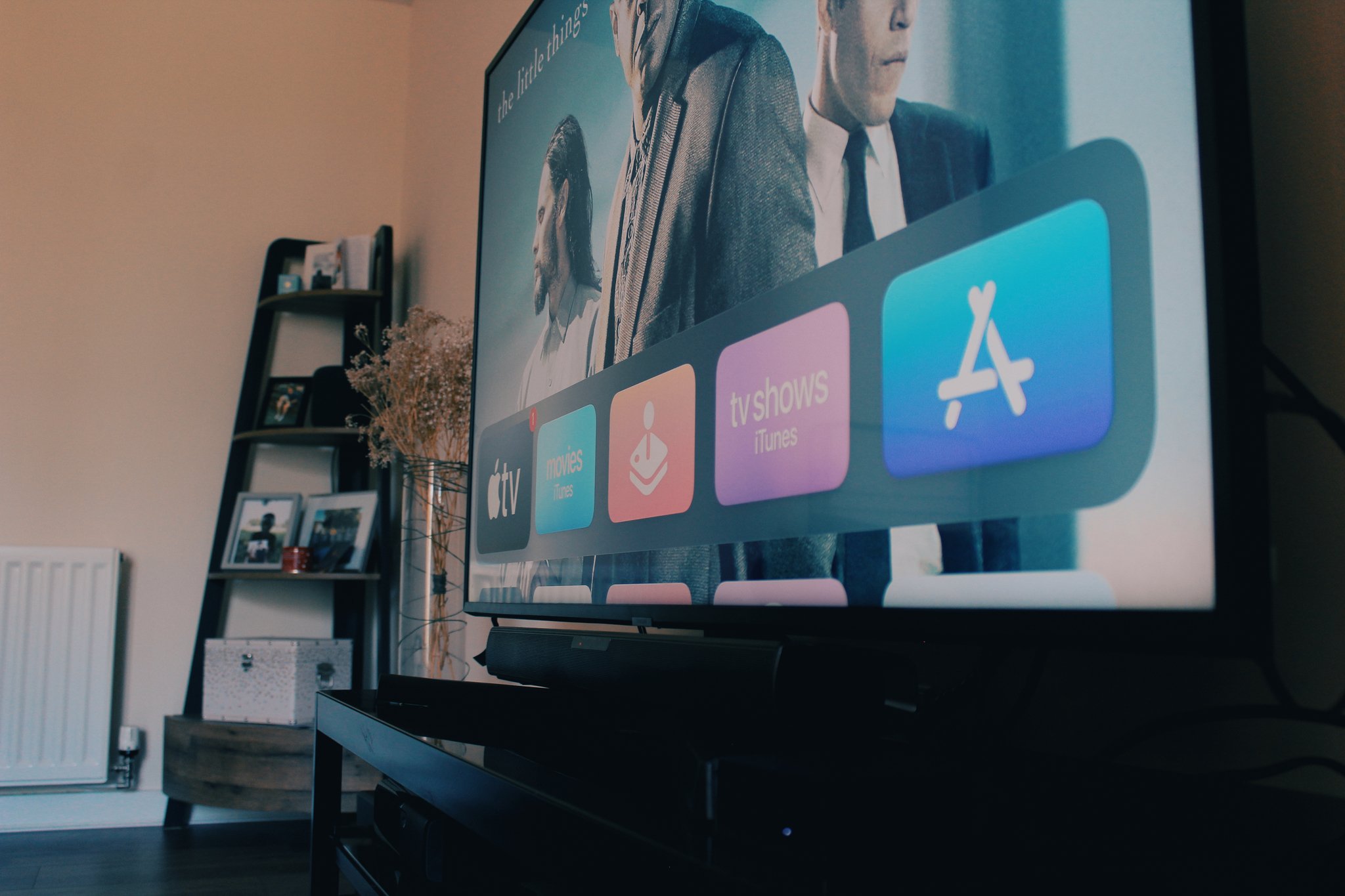
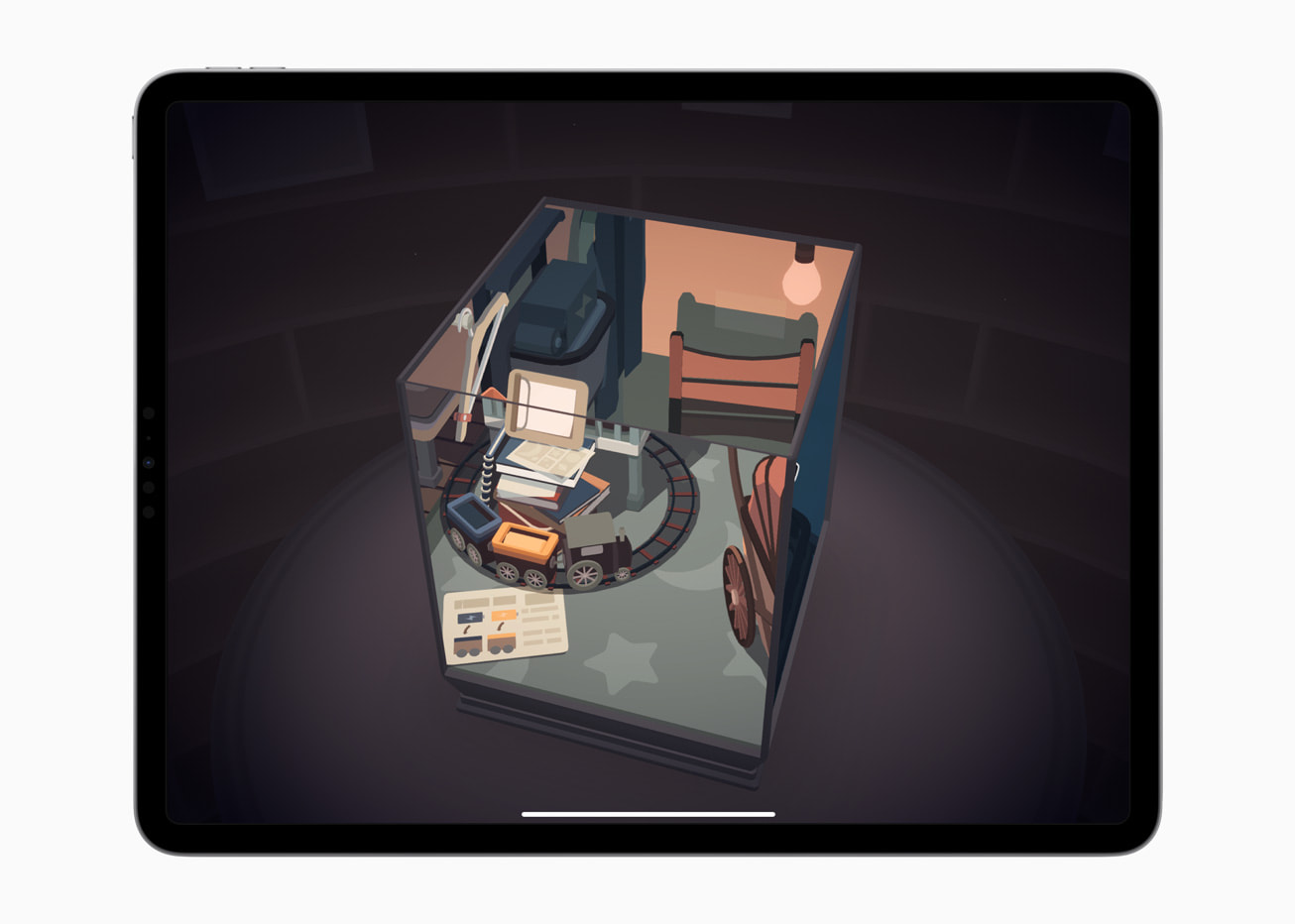
Transforming your Apple TV into a central gaming hub is an efficient way to modernize your home entertainment experience without requiring a dedicated console. By leveraging the processing power of the Apple TV 4K (3rd generation) and the expansive catalog available through Apple Arcade and the App Store, users can access a diverse library ranging from casual puzzle titles to visually demanding console-quality experiences, all integrated directly into the living room environment.
The Foundation: Apple TV Hardware Requirements
To achieve a seamless gaming experience in the modern home, the choice of hardware is paramount. The Apple TV 4K is the current standard for this ecosystem, and its performance is dictated primarily by the integrated A-series Bionic chips. The current iteration, the 3rd generation, utilizes the A15 Bionic chip, which provides the necessary thermal headroom and graphical processing power to render titles that were previously exclusive to dedicated gaming consoles.
Beyond the console itself, the quality of your gaming experience is highly dependent on your display and network infrastructure. Because Apple TV games can stream high-bitrate assets or utilize advanced HDR (High Dynamic Range) and Dolby Vision color grading, a television that supports a high refresh rate and low-latency modes (often labeled as "Game Mode" on modern smart TVs) is essential. Furthermore, ensure your Apple TV is connected to your local network via a wired Ethernet connection whenever possible; while Wi-Fi 6 is capable, a hardwired connection significantly reduces input lag and prevents frame drops during multiplayer sessions.
Controller Compatibility and Connectivity
One of the most common misconceptions regarding Apple TV gaming is that it is restricted to the Siri Remote. While the Siri Remote is excellent for navigation and specific touch-based games, it is not a primary input device for the majority of the platform’s library. For a modern gaming setup, a dedicated game controller is an essential investment.
Apple TV maintains broad compatibility with industry-standard Bluetooth controllers, including:
- PlayStation DualSense Wireless Controller: Offers refined haptic feedback and ergonomic triggers, making it a top choice for immersive titles.
- Xbox Wireless Controller: Widely considered the gold standard for ergonomics, it is highly compatible with the vast majority of controller-supported titles on the App Store.
- MFi (Made for iPhone/iPad/Apple TV) Controllers: These are third-party controllers specifically designed to bridge the gap between console-level controls and Apple's mobile-first gaming ecosystem.
To connect your controller, navigate to Settings > Remotes and Devices > Bluetooth on your Apple TV. Place your controller into pairing mode—usually indicated by a flashing LED—and select it from the list of available devices. Once paired, the Apple TV remembers the connection, allowing you to wake the console directly via the controller.
Navigating the Software Ecosystem: Apple Arcade vs. App Store
The modern Apple TV gaming library is bifurcated into two primary sources: the App Store and Apple Arcade. Understanding the distinction is key to managing your gaming budget and expectations.
Apple Arcade
Apple Arcade is a subscription-based service that grants access to a curated collection of titles. The primary advantage here is the "all-inclusive" nature: there are no in-app purchases, no advertisements, and no data tracking. For a modern home, this represents a family-friendly, secure environment where children or guests can pick up any game without the risk of accidental spending or predatory monetization schemes. Many Arcade titles also support cross-platform play, allowing you to start a game on your iPhone during a commute and pick up exactly where you left off on your living room television.
The Standard App Store
The App Store contains thousands of standalone games. Some are free-to-play titles that rely on microtransactions, while others are "premium" games that require a one-time purchase. When evaluating premium titles, look for games that emphasize "Controller Support" in their description. These titles are often ports of successful PC or mobile games that have been optimized to take advantage of the Apple TV's hardware, providing a depth of gameplay that rivals traditional console experiences.
Comparison of Gaming Setups
| Setup Component | Entry-Level | Enthusiast |
|---|---|---|
| Console | Apple TV 4K (2nd Gen) | Apple TV 4K (3rd Gen, 128GB) |
| Connection | Wi-Fi (5GHz) | Wired Ethernet (Gigabit) |
| Controller | Siri Remote | Xbox Series X/DualSense |
| Display | 1080p HDTV | 4K HDR TV w/ Game Mode |
| Audio | TV Speakers | HomePod (Stereo Pair) or Soundbar |
Enhancing the Atmosphere: Audio and Spatial Integration
Gaming is a sensory experience, and audio plays a critical role in immersion. The modern home setup for Apple TV gaming often utilizes the Apple ecosystem for audio, specifically through HomePod or HomePod mini stereo pairs. When paired with an Apple TV 4K, these speakers support Dolby Atmos, which creates a spatial audio environment that can track the direction of in-game sound effects, such as footsteps or gunfire, providing a tactical advantage in competitive titles.
To configure this, ensure your HomePods are in the same "Room" as your Apple TV within the Home app. When you initiate a game, the Apple TV will automatically route audio through the HomePod system, provided "Default Audio Output" is set to the HomePods in your Apple TV sound settings. If you prefer a more traditional setup, ensure your soundbar or receiver is connected via HDMI ARC/eARC to minimize the latency between the action on the screen and the sound in your ears.
Troubleshooting Common Issues
Even the most optimized home setups can encounter occasional friction. Below are the most common issues reported by users and their technical resolutions:
- Input Latency: If you feel like your controls are sluggish, the culprit is almost always the television’s image processing. Ensure your TV is set to "Game Mode" or "PC Mode." These modes bypass non-essential picture processing algorithms that add milliseconds of delay.
- Controller Disconnects: If your controller drops the connection, check for signal interference. Other 2.4GHz devices (like older routers or microwave ovens) can interfere with Bluetooth. Try unpairing the controller and performing a fresh re-pair through the Apple TV settings.
- Save File Synchronization: If you play on multiple devices, your game progress should sync via iCloud. If a save file does not appear on the Apple TV, verify that "Game Center" is enabled in Settings > Users and Accounts.
Frequently Asked Questions
Can I play online multiplayer games on Apple TV?
Yes, many titles on the App Store and Apple Arcade feature online multiplayer modes. Since these games utilize the Game Center framework, you can matchmake with players on other Apple devices, including iPhones, iPads, and Macs, ensuring a robust player base.
Do I need a high-speed internet connection for Apple TV games?
While many games run locally, many require an internet connection for initial authentication, leaderboard updates, and multiplayer components. A connection speed of at least 25 Mbps is recommended for smooth performance, particularly for downloading large game assets.
Are there any limitations to Apple TV gaming compared to a PlayStation or Xbox?
Apple TV lacks the raw GPU throughput of dedicated consoles, which is evident in highly complex, photorealistic AAA titles. However, for the vast majority of gaming styles—including platformers, racing, strategy, and indie-developed masterpieces—the performance is indistinguishable for the casual to mid-core user.
Is it possible to use a headset for chat in multiplayer games?
Yes, you can connect Bluetooth headphones, such as AirPods, to your Apple TV. This allows for both high-quality audio and the use of the integrated microphone for in-game voice chat, provided the specific game title supports voice communication functionality.
Next Actions for the Modern Gamer
To elevate your experience, start by auditing your current network stability. If you are experiencing jitter or lag, prioritize a wired Ethernet backhaul for your Apple TV. Next, invest in a dedicated controller if you are currently using the Siri Remote, as it fundamentally changes the mechanical feasibility of most games. Finally, explore the "Arcade" tab on your Apple TV home screen to sample a few high-production-value titles; this is the quickest way to verify the capability of your hardware setup. By treating the Apple TV as a legitimate gaming console rather than just a media streamer, you unlock a versatile and compact solution for modern home entertainment.