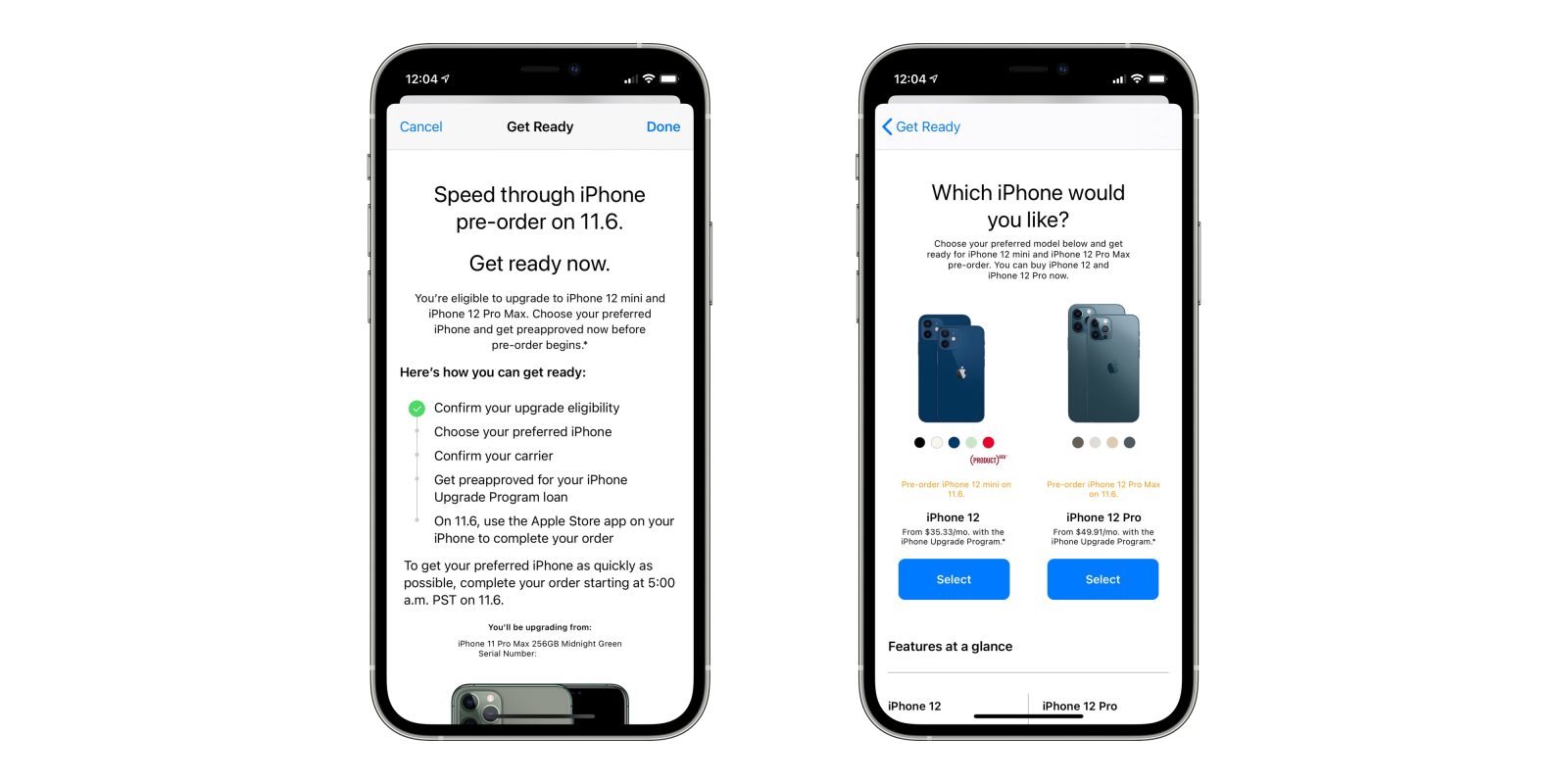
The Apple upgrade process involves selecting a hardware acquisition path—such as the iPhone Upgrade Program, Apple Card Monthly Installments, or the Apple Trade In program—and subsequently migrating data using Quick Start or iCloud. This systematic approach ensures financial flexibility while maintaining data integrity across your new devices.
Upgrading to a new Apple device in 2026 is no longer a simple retail transaction; it is a multi-stage ecosystem experience. Whether you are transitioning to the latest iPhone, iPad, or Mac, the process is designed to be cyclical, integrating financial incentives with seamless software transitions. Understanding the nuances of these programs is essential for maximizing the value of your old hardware and ensuring your digital life transfers without friction.
Understanding the iPhone Upgrade Program (iUP)
The iPhone Upgrade Program remains the most structured method for users who want the latest hardware every year. Managed through a 24-month installment loan (often facilitated by partners like Citizens One), this program is essentially a "subscription" to the iPhone.
How the iUP Financial Structure Works
When you enroll in the iUP, you are not buying the phone outright. Instead, you are taking out a 0% APR interest loan divided into 24 equal monthly payments. A key requirement of this program is the inclusion of AppleCare+, which is bundled into the monthly cost. This ensures that the device you eventually trade back to Apple is protected against accidental damage, which is a prerequisite for a successful upgrade.
To be eligible for an upgrade, you must have made the equivalent of 12 monthly payments. Once this milestone is reached, you are eligible to trade in your current device to Apple. Upon doing so, the remaining 12 months of your old loan are canceled, and you start a new 24-month loan for the latest model.
Eligibility and Credit Requirements
Because the iUP involves a line of credit, it requires a credit check. In 2026, as in previous years, this generally results in a "hard inquiry" upon initial enrollment, though subsequent annual upgrades usually only require a "soft check" to confirm continued eligibility. Users must also have a valid U.S. personal credit card (debit cards and prepaid cards are typically not accepted) to secure the loan.
The Apple Trade In Program: Value and Mechanics
If you prefer to own your devices outright or use a different financing method, the Apple Trade In program is the primary vehicle for recouping value from your current hardware. Unlike the iPhone Upgrade Program, the Trade In program applies to nearly all Apple products, including Macs, iPads, and Apple Watches.
Determining Trade-In Value
The value of your device is determined by its model, age, and physical condition. As of 2026, Apple’s diagnostic tools have become highly sophisticated. When you initiate a trade-in online or via the Apple Store app, you must answer several questions regarding:
- Power and Functionality: Does the device turn on and operate normally?
- Physical Integrity: Are there cracks on the screen or back glass? Is the frame bent?
- Liquid Damage: Are the liquid contact indicators (LCIs) tripped?
- Button and Camera Health: Do all physical inputs and lenses function as intended?
If a device is deemed to have no monetary value, Apple offers to recycle it for free, ensuring that hazardous materials are handled responsibly. However, for devices in good condition, the credit can be applied directly to a new purchase or issued as an Apple Gift Card for future use.
The "Instant Credit" vs. "Post-Purchase Credit"
If you trade in your device at a physical Apple Store, the credit is usually applied instantly to your new purchase. If you choose the mail-in option, Apple will charge you the full price of the new device and then issue a refund to your original payment method once they receive and verify the condition of your trade-in. This verification process typically takes 2–3 weeks.
Financing via Apple Card Monthly Installments (ACMI)
For many users in 2026, Apple Card Monthly Installments has replaced traditional carrier financing. This method offers a middle ground between the iPhone Upgrade Program and buying a device in full.
Benefits of ACMI
Using the Apple Card allows you to split the cost of a new device over 12 or 24 months (depending on the product category) with 0% APR. Unlike the iUP, AppleCare+ is optional, giving you more control over your monthly budget. Furthermore, you receive 3% Daily Cash back on the total purchase price upfront, even if you are paying in installments.
The Trade-In Integration
You can combine a trade-in with ACMI. When you buy a new iPhone using your Apple Card, the estimated trade-in value of your old device is deducted from the total financed amount. This lowers your monthly payment from day one. If the final inspection of your trade-in reveals issues that lower its value, Apple will simply charge the difference to your Apple Card.
Preparing Your Device for the Upgrade
Before the physical exchange happens, the most critical part of the upgrade process is data preservation and device sanitization. Failure to follow these steps can lead to data loss or the rejection of your trade-in.
1. Verification of Backups
Do not rely on a single backup source. Ensure that your device has completed a fresh iCloud Backup within the last hour. For those with massive photo libraries or local files, a secondary backup to a Mac or PC (encrypted to include health and password data) is highly recommended.
2. Disconnecting Ecosystem Links
Apple’s security features, specifically Find My and Activation Lock, are designed to prevent theft. However, they also prevent Apple from refurbishing or recycling a traded-in device. You must turn off "Find My" in your iCloud settings before handing over the device. Additionally:
- Unpair your Apple Watch if you are upgrading your iPhone.
- Sign out of iCloud/Apple Account.
- De-authorize your computer in Music/TV apps if you are upgrading a Mac.
3. Managing eSIMs and Cellular Plans
By 2026, physical SIM cards have become a legacy technology for most new Apple devices. When upgrading, you will likely be moving from one eSIM to another. Most major carriers now support "eSIM Quick Transfer," which allows you to move your cellular plan during the initial setup of your new device without contacting your service provider.
The Data Migration Process: Moving to Your New Device
Once you have your new hardware in hand, the migration process begins. Apple has streamlined this into a "Quick Start" experience that is largely automated.
Using Quick Start (Device-to-Device)
This is the most popular method for upgrading. By placing your old and new devices next to each other, they establish a secure peer-to-peer connection via Wi-Fi and Bluetooth.
- Turn on the new device and place it near the old one.
- An animation will appear on the new device; scan it with the old device's camera.
- Choose the "Transfer from iPhone/iPad" option.
- Keep the devices near each other and connected to power until the progress bar completes.
The advantage of this method is that it transfers almost everything, including system settings and app arrangements, exactly as they were. Note that you will still need to re-download apps from the App Store (this happens in the background) and re-authenticate certain high-security apps like banking or corporate VPNs.
Restoring from iCloud or Desktop
If you no longer have your old device (e.g., you mailed it in early), you will need to restore from a backup.
- iCloud Restore: Fastest to start, but slowest to finish. Your settings and basic data return quickly, but photos and large apps may take hours or even days to download depending on your internet speed.
- Desktop Restore: The fastest method for large data volumes. Using a USB-C cable to connect to a Mac or PC allows for high-speed data transfer that is not dependent on Wi-Fi stability.
Detailed Comparison of Upgrade Methods
The following table compares the three primary ways to manage the Apple upgrade process financially.
| Feature | iPhone Upgrade Program | Apple Card Installments | Apple Trade In (Outright) |
|---|---|---|---|
| Upgrade Frequency | Annual (after 12 payments) | Flexible (any time) | Flexible (any time) |
| Ownership | Loan-based (return to upgrade) | You own it (financed) | You own it (paid in full) |
| AppleCare+ | Mandatory (included) | Optional | Optional |
| Interest Rate | 0% APR | 0% APR | N/A |
| Credit Check | Yes (Hard/Soft) | Yes (Apple Card Approval) | No |
| Best For | Early adopters / Annual users | Budget-conscious owners | Those avoiding debt/loans |
Finalizing the Trade-In: The Handover
After your data is moved and verified, the final step is the physical handover. If you are doing this in person, an Apple Specialist will perform a visual inspection and run a quick diagnostic suite via a specialized URL or app.
If you are mailing your device:
- Use the provided kit: Apple ships a specific box designed to protect the device.
- Factory Reset: Go to Settings > General > Transfer or Reset [Device] > Erase All Content and Settings. This is the only way to ensure your data is permanently removed and the Activation Lock is lifted.
- Include only the device: Unless specified, do not include chargers, cables, or cases. Apple does not return these if you send them in.
- Proof of Postage: Always keep your tracking receipt. If the package is lost in transit, this receipt is your only protection to ensure you still receive your trade-in credit.
Frequently Asked Questions
Can I upgrade if my screen is cracked?
If you are in the iPhone Upgrade Program, you can still upgrade, but you must first pay the AppleCare+ deductible (typically $29 for screen damage) to have the device repaired or replaced before the trade-in is finalized. If you are using the standard Apple Trade In program, a cracked screen will significantly reduce the trade-in value, often bringing it down to a "Recycle" status with zero credit.
What happens to my old eSIM during the upgrade?
During the "Quick Start" process, the setup assistant will ask if you want to transfer your cellular plan. If you agree, the eSIM on your old device will be deactivated and a new one will be provisioned on your new device automatically. You do not need a physical SIM card. If the transfer fails, you can usually download your carrier's app on the new phone to re-install the eSIM profile.
Do I have to return my accessories like the power adapter or headphones?
No. Apple’s trade-in values and the iPhone Upgrade Program requirements only apply to the device itself. You should keep your chargers, cables, and cases. In fact, adding them to the trade-in box can sometimes lead to complications during the inspection process. Apple encourages users to reuse these accessories to reduce electronic waste.
How do I handle two-factor authentication (2FA) when switching phones?
This is a common pitfall. Before you erase your old phone, ensure your new phone is already signed into your Apple Account and is recognized as a Trusted Device. If the old phone is your only trusted device and you erase it too early, you may find yourself locked out of your account, requiring a lengthy account recovery process.
Is the iPhone Upgrade Program available for Mac or iPad?
As of 2026, the specific "Upgrade Program" (annual trade-in with bundled AppleCare+) is primarily focused on the iPhone. For Macs and iPads, users typically utilize Apple Card Monthly Installments or the Apple Trade In program. While there are some business-focused leasing options for Macs, the consumer-facing annual "subscription" model remains an iPhone-centric offering.
Practical Recommendation for Upgraders
For the most seamless experience, schedule an in-store appointment during a weekday morning. While the online process is convenient, the in-store "Instant Credit" removes the anxiety of mail-in delays and potential condition disputes. Always perform a local encrypted backup to a computer 24 hours before your upgrade; even in the age of 10Gbps Wi-Fi, a physical cable remains the most reliable way to ensure that 100% of your data—especially health data and saved passwords—makes the transition to your new device.