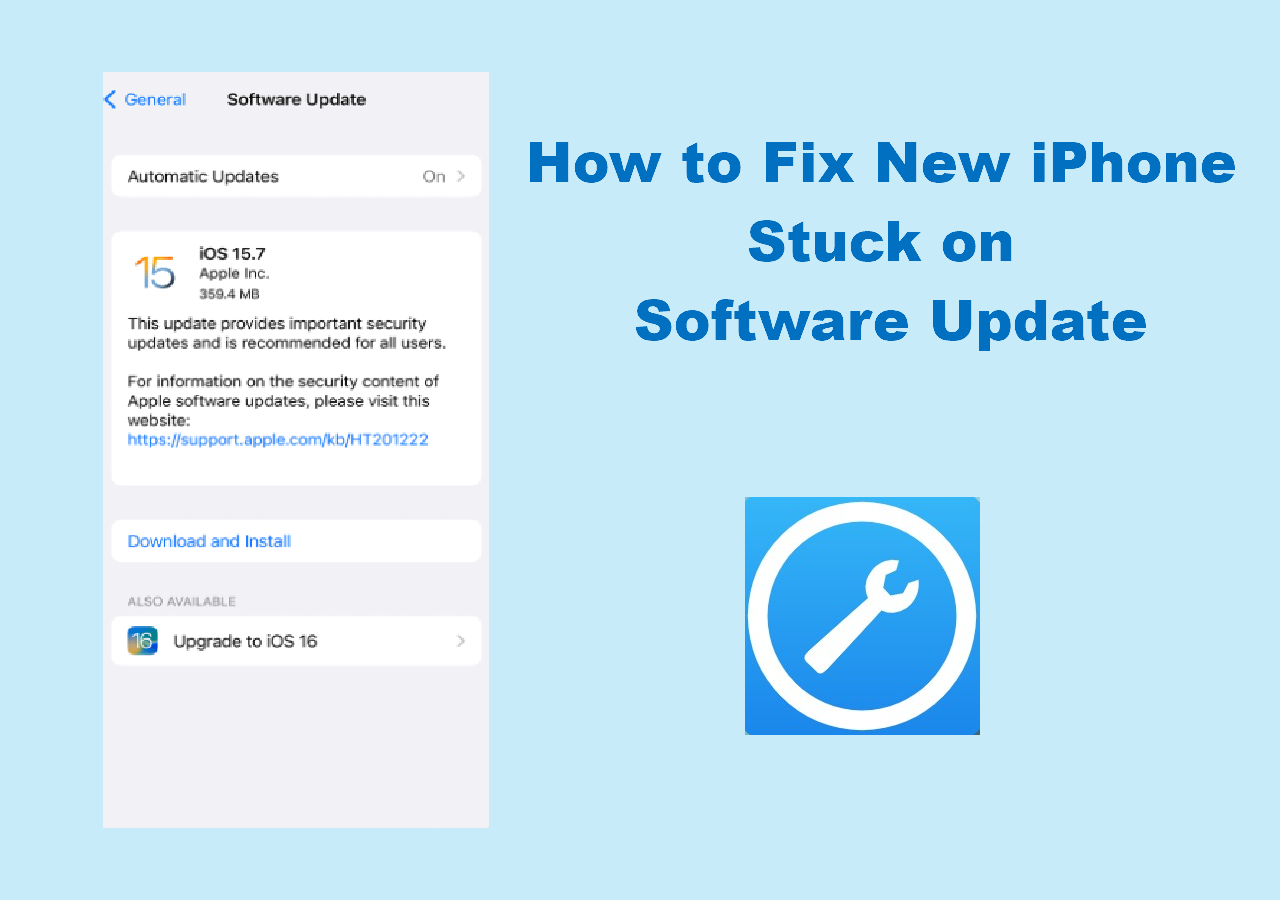
If your Apple update is stuck, the most effective solution is to force restart your device, ensure you have at least 10–15GB of free storage, and verify a stable Wi-Fi connection. If the progress bar remains unmoved for over an hour, delete the update file from your storage settings and attempt the download again.
Seeing a frozen progress bar or a "Preparing Update" screen that never ends is a frustrating experience, especially with the increasingly large file sizes of modern operating systems like iOS 19 or macOS Sequoia's successors. In 2026, Apple’s software updates have become more complex due to integrated AI cores and enhanced security layers, making the installation process more resource-intensive. However, a "stuck" update is rarely a sign of hardware failure; it is usually a manageable software conflict or a connectivity bottleneck.
Distinguishing Between a Slow Update and a Frozen One
Before taking corrective action, it is essential to determine if the update is truly stuck or simply processing a large volume of data. In the current ecosystem, system updates often exceed 6GB, and the subsequent "optimizing" phase can take significant time depending on your device’s processor.
The Progress Bar Test
Apple devices use a dynamic progress bar. If the bar has not moved for more than 30 minutes, even by a pixel, it is likely hung. However, during the "Preparing Update" phase, the device is decrypting and verifying files. This phase does not always show a moving bar. If you can still interact with the screen (on iOS) or move the cursor (on macOS), the system is likely still working.
Heat and Background Activity
It is normal for an iPhone, iPad, or Mac to become warm during an update. If the device is extremely hot and the progress bar is stationary, the system may have entered a thermal throttling state, pausing the update to protect the hardware. Conversely, if the device is cold and the bar hasn't moved in an hour, the process has likely crashed.
Essential Pre-Troubleshooting Checklist
Before moving to more aggressive fixes, ensure these fundamental requirements are met. Often, an update "sticks" because a background requirement was lost mid-process.
- Power Connection: Never attempt a major system update on battery power alone. Plug your device into a verified power source. Apple devices often pause updates if the battery drops below 50% (or 20% in some Low Power Mode scenarios).
- Network Integrity: A "stuck" download is frequently a result of a DNS error or a micro-interruption in Wi-Fi. Switch to a known stable network or try restarting your router.
- Storage Overhead: While an update might be 5GB, the device often needs 10-15GB of "working space" to move, decompress, and install files. If your storage is nearly full, the update will stall indefinitely during the installation phase.
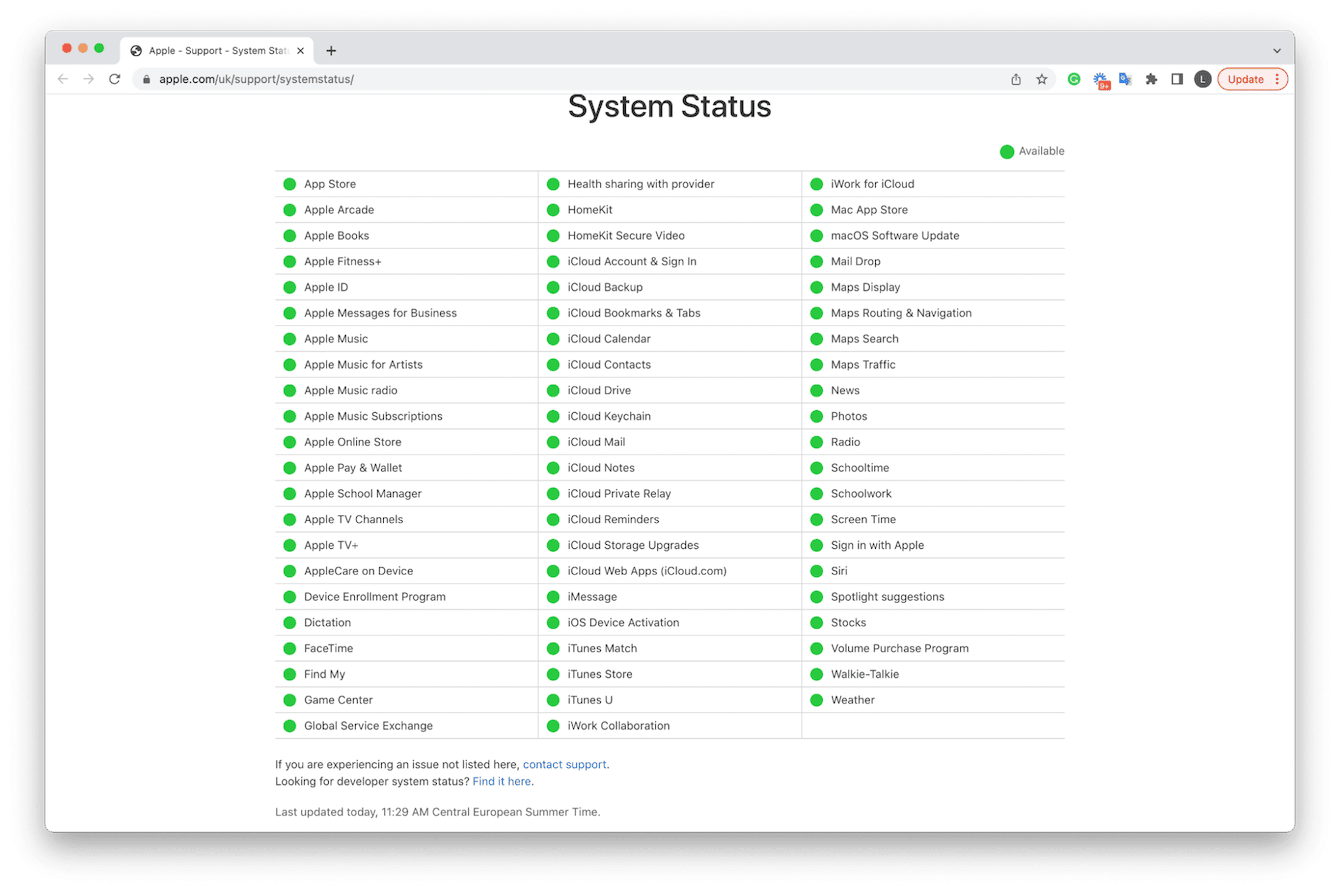
- Apple Server Status: Occasionally, Apple's signing servers experience downtime, particularly during the first 48 hours of a major release. Check the official Apple System Status page to ensure "macOS Software Update" or "iOS Software Update" is green.
How to Fix a Stuck iPhone or iPad Update
If your mobile device is unresponsive or the update screen is frozen, follow these steps in order.
1. Force Restart the Device
A force restart clears the temporary cache and stops any stalled processes without deleting your data.
- For iPhone 8 and later (including iPhone 15, 16, and 17 series): Press and quickly release the Volume Up button. Press and quickly release the Volume Down button. Press and hold the Side button until the Apple logo appears.
- For iPads without a Home Button: Press and quickly release the Volume Up button (closest to the top button). Press and quickly release the Volume Down button (farthest from the top button). Press and hold the Top button until the Apple logo appears.
2. Delete and Redownload the Update
If the update is stuck in the "Downloading" or "Preparing" phase, the downloaded file might be corrupted.
- Go to Settings > General > [Device] Storage.
- Find the update in the list of apps (it will look like a gear icon labeled with the version number).
- Tap the update and select Delete Update.
- Return to Settings > General > Software Update and attempt the download again.
3. Reset Network Settings
If the download repeatedly stalls, your device may have a corrupted network cache.
- Go to Settings > General > Transfer or Reset iPhone.
- Tap Reset > Reset Network Settings.
- Note: This will erase your saved Wi-Fi passwords, so ensure you have them handy.
Troubleshooting a Stuck macOS Update
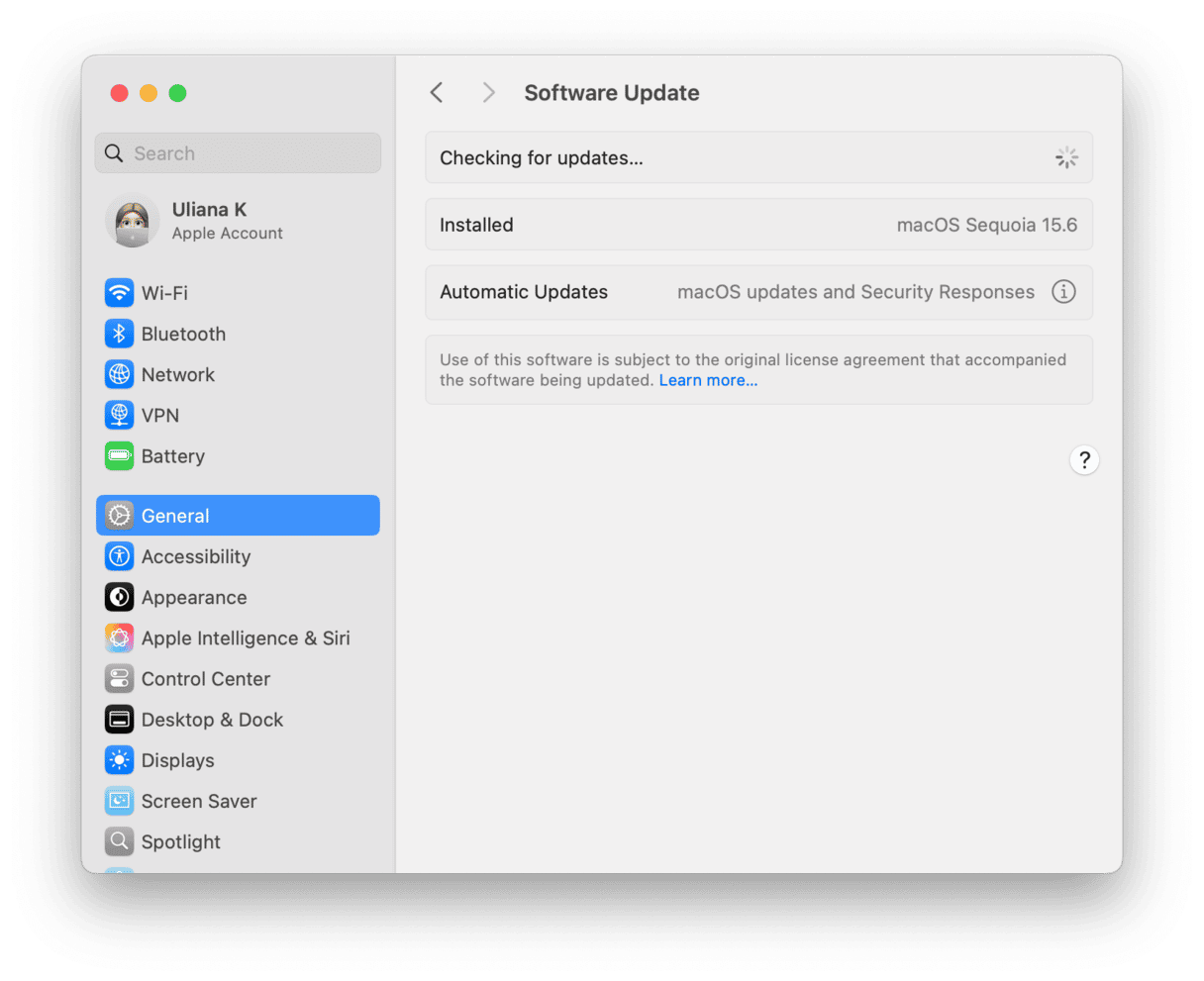
Mac updates are notoriously prone to "stalling" at the 1-minute remaining mark. This is usually when the system is moving files into protected system volumes.
Using Safe Mode
Safe Mode prevents unnecessary third-party drivers and startup items from loading, which often resolve update conflicts.
- Silicon Macs (M1, M2, M3, M4): Shut down your Mac. Press and hold the power button until "Loading startup options" appears. Select your disk, hold the Shift key, and click Continue in Safe Mode. Attempt the update again from System Settings.
- Intel Macs: Restart and immediately hold the Shift key until the login window appears.
The Terminal "Softwareupdate" Command
If the System Settings interface is frozen, the command line often provides a more robust path.
- Open Terminal (via Spotlight or Utilities).
- Type
softwareupdate -lto list available updates. - Type
sudo softwareupdate -iaRto install all available updates and restart automatically. You will need to enter your admin password.
Comparison of Troubleshooting Methods
| Method | Recommended For | Data Risk | Difficulty |
|---|---|---|---|
| Force Restart | Frozen screen/Logo | Very Low | Easy |
| Delete Update File | Stuck "Preparing" phase | None | Easy |
| Safe Mode (Mac) | Software conflicts | Low | Moderate |
| Recovery Mode | Persistent boot loops | Moderate | Advanced |
| Computer Update | Insufficient storage | Low | Moderate |
Advanced Fix: Updating via a Computer
When on-device updates fail, using a secondary computer (Mac or PC) provides a more stable environment because the computer handles the heavy lifting of decompression and verification.
- Connect your iPhone or iPad to a Mac (using Finder) or a Windows PC (using the Apple Devices app or iTunes).
- Locate your device in the sidebar.
- On the General/Summary tab, click Check for Update.
- If it says an update is available, click Update. This method is often successful because it downloads a "full" IPSW file rather than the "delta" update used by over-the-air (OTA) methods.
What to Do if the Device is Completely Unresponsive
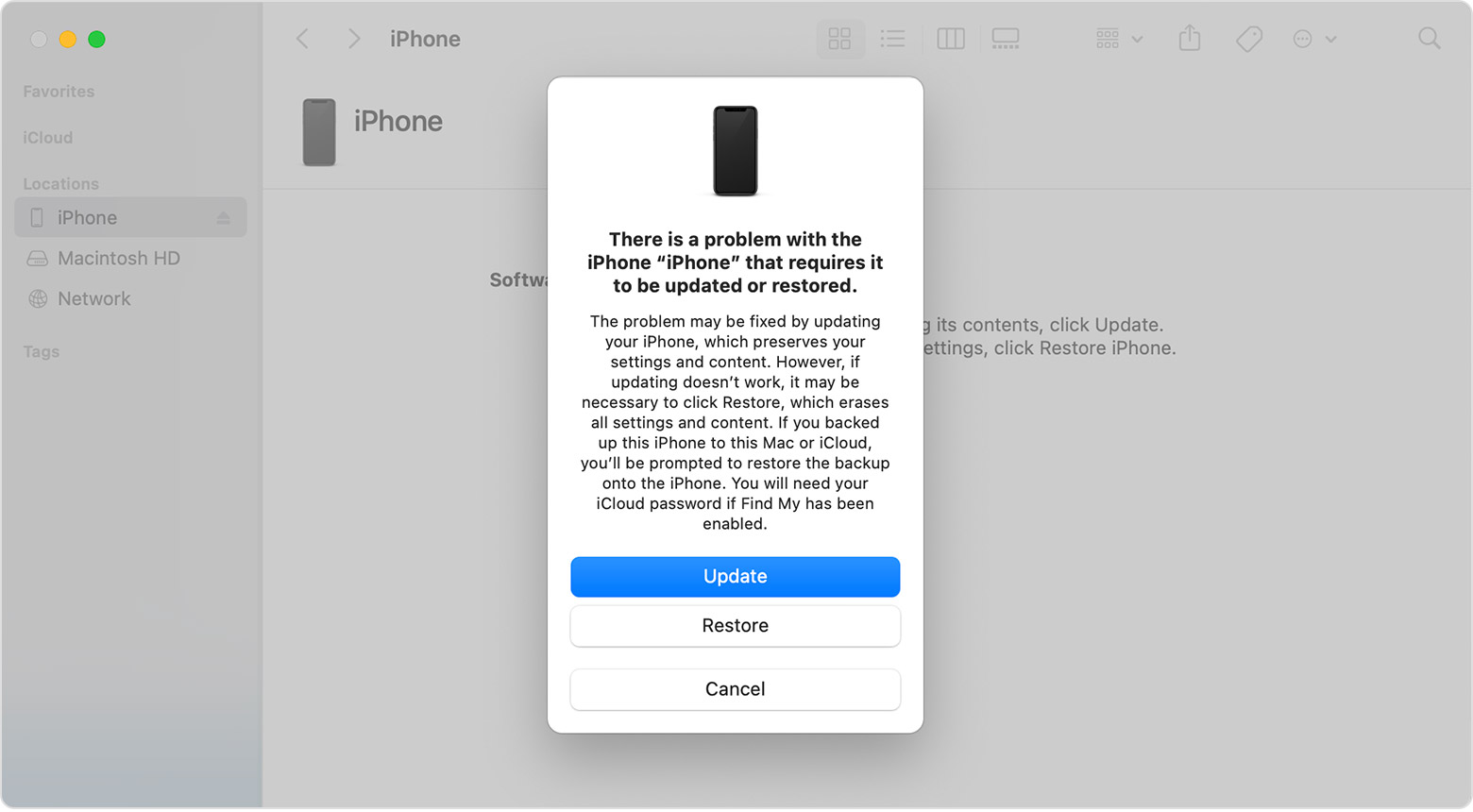
If your device is stuck on a black screen or the Apple logo and a force restart doesn't work, you must enter Recovery Mode. This allows you to reinstall the operating system without necessarily wiping your data (if you choose the "Update" option rather than "Restore").
- Connect your device to a computer.
- Perform the Force Restart button sequence (described above) but continue holding the final button even after the Apple logo appears.
- Keep holding until you see a screen showing a cable pointing toward a computer.
- On your computer, a prompt will appear asking if you want to Update or Restore. Choose Update to attempt to fix the OS while keeping your data.
Frequently Asked Questions
How long should an Apple update actually take in 2026?
A standard "point" update (e.g., iOS 19.1 to 19.2) typically takes 15–30 minutes on a modern connection. Major annual releases can take 45–90 minutes. If the process exceeds two hours without any visual progress, it is safe to assume it is stuck.
Will I lose my data if I force restart during an update?
A force restart during the download phase is completely safe. If you force restart during the installation phase (the black screen with the Apple logo), there is a small risk of OS corruption. However, if the device is already frozen, you have no other choice. This is why maintaining a current iCloud or local backup is critical before any update.
Why is my update stuck on "Verifying Update"?
This usually indicates a handshake issue between your device and Apple's servers. The device has finished the download and is trying to get a digital "signature" to authorize the install. Try toggling your Wi-Fi off and on, or switch to a different network to trigger a new verification request.
Can I use 5G or 6G to update if my Wi-Fi is slow?
By 2026, Apple allows "Update over Cellular" for most users with sufficient data plans. However, cellular signals are more prone to interference than Wi-Fi. If your cellular update is stuck, move to a location with better reception or switch back to a stable 5GHz/6GHz Wi-Fi band.
My Mac says "An error occurred while installing the selected updates." What now?
This is often a sign of a "stale" update cache. Restart your Mac, go to /Library/Updates in Finder, and delete the contents of that folder (you will need admin permissions). Then, re-run the update from System Settings.
Practical Recommendation
If you have tried a force restart and deleted the update file but the update still fails, the most reliable "next action" is to perform the update using a computer. The "over-the-air" update system can sometimes get stuck in a loop of corrupted cache files that only a wired connection and a fresh IPSW download can resolve. If the device remains stuck even after a Recovery Mode update attempt, it may indicate a hardware issue with the internal NAND storage, at which point an appointment at an Apple Authorized Service Provider is necessary.