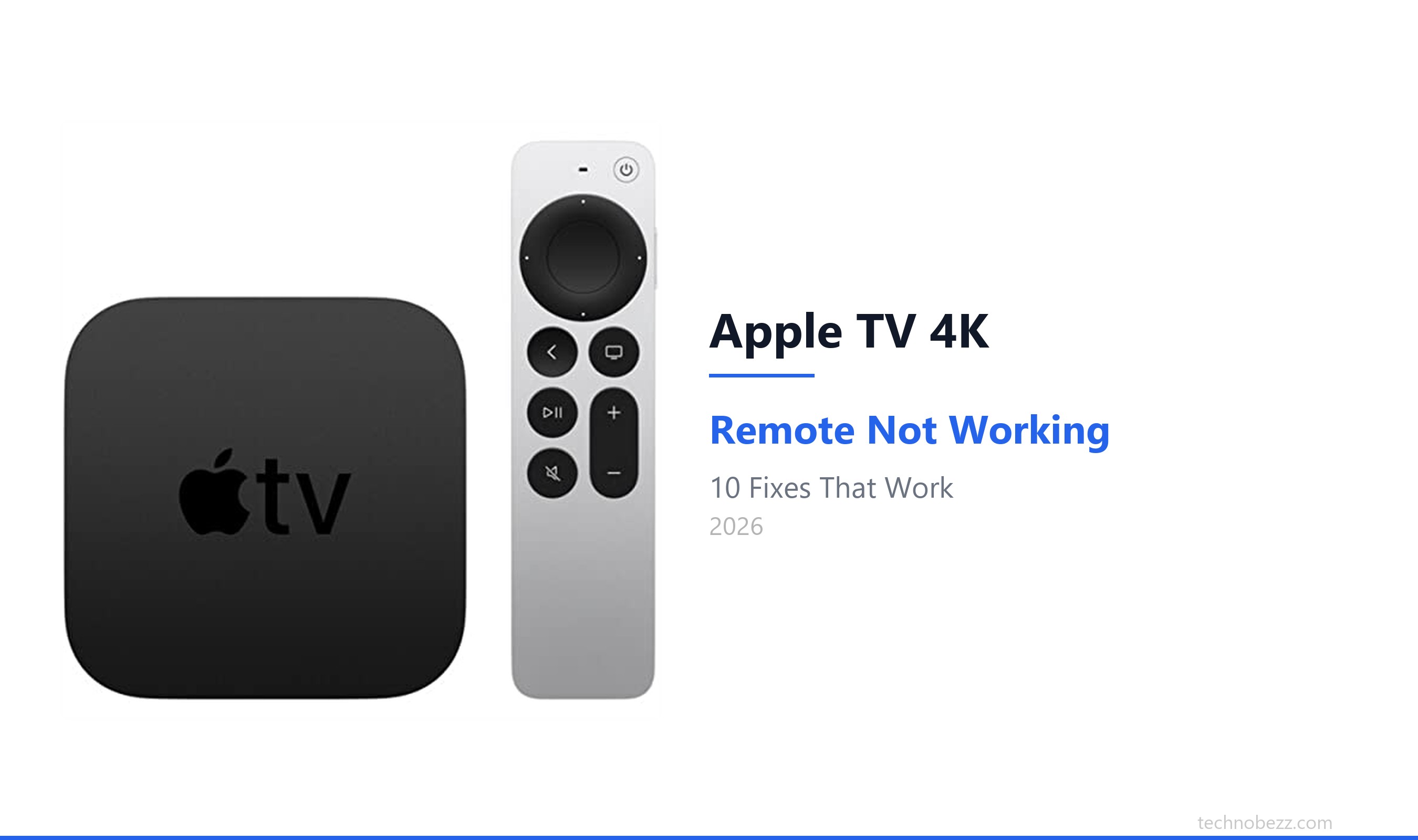
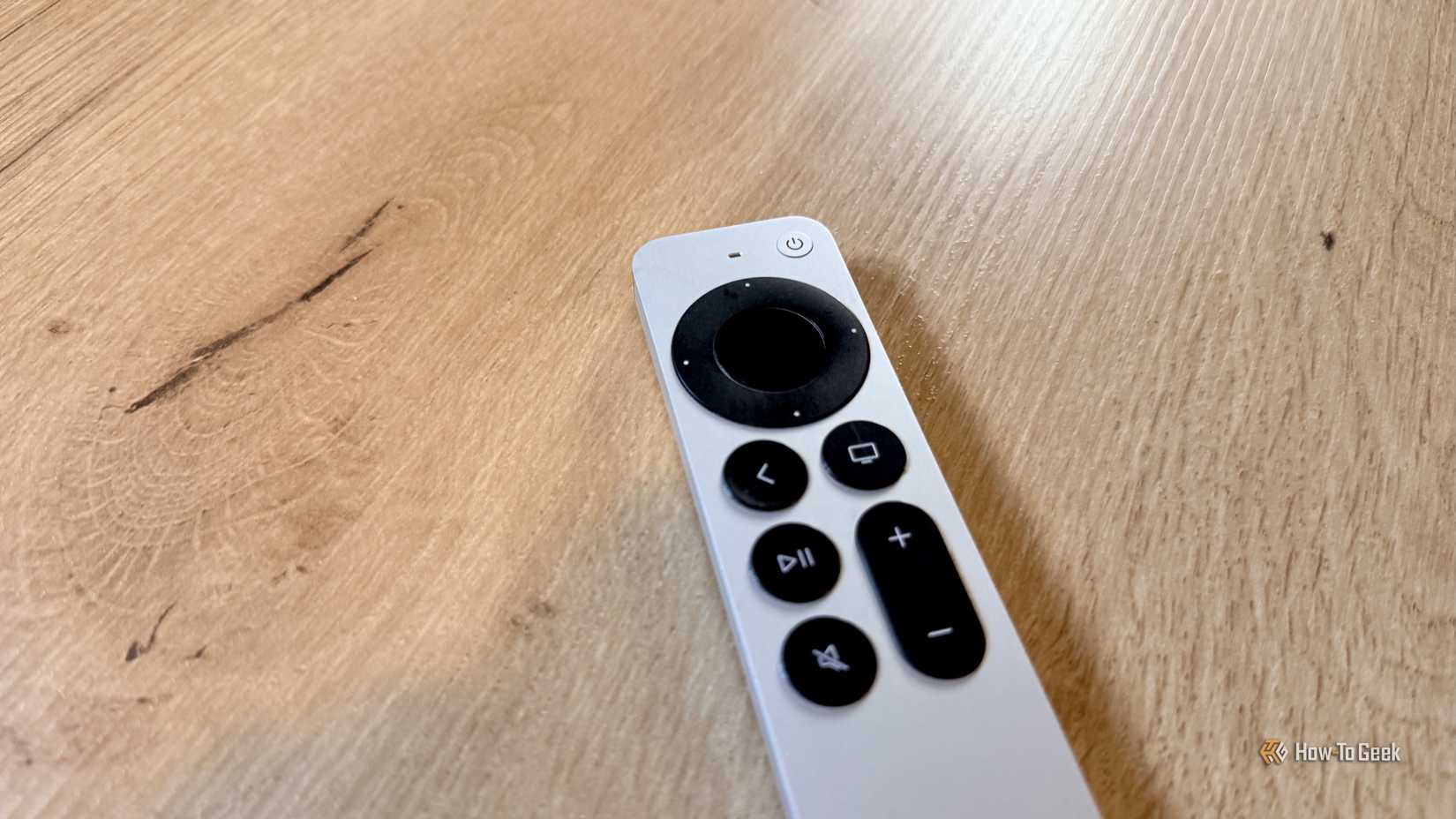
When your Apple TV remote fails to adjust the volume, the root cause usually lies in a breakdown of the communication between the Siri Remote, the Apple TV box, and your television or audio receiver via HDMI-CEC or infrared (IR) protocols. This common issue, which often manifests as unresponsive volume buttons or a failure to trigger the television's volume controls, can typically be resolved by reconfiguring your device settings, checking hardware connections, or performing a software reset.
Understanding the Volume Control Mechanism
To effectively troubleshoot why your Apple TV remote is not adjusting volume, it is essential to understand how the system functions. The Apple TV Siri Remote does not technically "control" volume through magic; it uses two primary methods to communicate with your home theater setup.
HDMI-CEC (Consumer Electronics Control)
Most modern televisions support HDMI-CEC. When enabled, this feature allows your Apple TV to send commands through the HDMI cable to your TV or soundbar. This is the preferred method because it is bidirectional, meaning your television can report its status back to the Apple TV. When this link fails, the remote will often still control navigation (up, down, left, right), but the volume rocker will be unresponsive because the command is not being translated by the television.
Infrared (IR) Signals
If your television or audio system does not support HDMI-CEC, or if the feature is disabled, the Apple TV remote uses an IR blaster to send commands directly to your TV’s sensor. This method is similar to a traditional legacy remote. If the IR emitter on the remote is blocked, or if the Apple TV is hidden behind a cabinet that prevents line-of-sight, the volume commands will fail.
Initial Verification and Basic Checks
Before diving into complex settings, start with the physical and environmental variables that frequently disrupt remote performance.
- Check Physical Obstructions: If you are relying on IR control, ensure there is a clear line of sight between the Apple TV remote and the IR sensor on your television or soundbar. Even slight obstructions, such as a soundbar partially blocking the TV's lower bezel, can interrupt the signal.
- Verify Remote Power: While the Siri Remote has a long-lasting battery, ensure it has been charged recently. A remote with a critically low battery may drop secondary functions like IR transmission before it loses Bluetooth connectivity for navigation.
- Inspect HDMI Connections: Ensure the HDMI cable is securely seated in both the Apple TV and the television’s HDMI (ARC/eARC) port. HDMI-CEC relies on a specific pin in the cable; if the cable is loose or damaged, the CEC signal is often the first to fail.
- Restart the Apple TV: A simple system reboot often clears transient software glitches that prevent the communication interface from responding to remote input. Navigate to Settings > System > Restart.
Configuring Volume Control Settings
If the hardware is physically sound, the issue likely resides in the software configuration of your Apple TV. Apple provides a dedicated menu for managing how the remote handles audio output.
Navigating the Remote Settings
Go to Settings > Remotes and Devices > Volume Control. Here, you will see a list of available methods for controlling volume.
- Auto (via HDMI-CEC): This is the default setting and the most reliable. If it is already selected, try switching it to another option and then back to "Auto" to force a handshake between the devices.
- TV via IR: If you do not have an HDMI-CEC compatible TV, select this option. The Apple TV will prompt you to "Learn New Device." You will need your original television remote to teach the Apple TV the volume up, volume down, and mute codes.
- Receiver via IR: If you are using a dedicated AV receiver or soundbar, select this option to map the volume commands specifically to your audio hardware.
Re-learning Remote Codes
If "Auto" mode is inconsistent, manually re-learning the remote codes is often the permanent solution. Within the Volume Control menu, select Learn New Device. The Apple TV will guide you through pressing the buttons on your original television remote. This process effectively bypasses the automated CEC negotiation and creates a custom IR profile for your specific television brand and model.
Troubleshooting Common Scenarios
| Scenario | Primary Cause | Recommended Action |
|---|---|---|
| TV is new or recently moved | HDMI-CEC handshake failure | Toggle "Control TVs and Receivers" setting off and on. |
| Using a Soundbar/Receiver | Improper audio routing | Ensure HDMI cable is connected to the ARC/eARC port. |
| Buttons click but no action | IR/CEC interference | Re-learn remote codes in the settings menu. |
| Remote unresponsive entirely | Bluetooth disconnection | Re-pair remote by holding 'Back' and 'Volume Up' for 5 seconds. |
Advanced Troubleshooting: HDMI-CEC Protocols
If you are confident that your television is HDMI-CEC capable, ensure the feature is actually enabled on the television side. Every manufacturer has a different name for this protocol. Check your television's input/system settings for:
- Samsung: Anynet+
- LG: SimpLink
- Sony: BRAVIA Sync
- Panasonic: Viera Link
- Philips: EasyLink
If this setting is turned off on the television, the Apple TV remote will be unable to control the volume regardless of how it is configured in the Apple TV settings.
Resetting and Re-pairing the Siri Remote
In some instances, the Apple TV remote may need a factory reset to clear internal logic errors. To perform a hard reset, hold down the Back (or Menu) button and the Volume Up button simultaneously for approximately five seconds. Place the remote close to the Apple TV unit during this process. You should see a notification on your television screen indicating that the remote is attempting to connect or has successfully paired. Once paired, return to the volume control settings to verify if the commands are being registered.
Software Updates and Compatibility
Always ensure that your Apple TV is running the latest version of tvOS. In 2026, many older firmware versions may face compatibility issues with newer smart TV handshakes. Navigate to Settings > System > Software Updates to check for and install any pending updates. Frequent software maintenance ensures that the database of IR codes stored on the Apple TV remains current for modern display models.
Limitations and Professional Assistance
While these steps resolve the vast majority of volume control issues, there are limitations. Some budget-tier soundbars or older plasma televisions use non-standard IR or CEC protocols that the Apple TV may not recognize. If you have exhausted all configuration options and the remote still fails to control volume, consider the following:
- Interference: High-intensity LED lighting or certain types of plasma display electromagnetic interference can degrade IR signals.
- Hardware Failure: If the volume buttons on the Siri Remote have physical damage—such as stickiness from spills or internal mechanical failure—the remote itself may require replacement.
- Manufacturer Support: Consult your television manufacturer’s support portal to see if a firmware update is required for the TV’s HDMI-CEC implementation.
For persistent issues, using the Apple TV Remote app on an iPhone or iPad provides a reliable workaround. The app communicates over your local Wi-Fi network rather than IR or Bluetooth, ensuring you can adjust volume even if the physical remote’s communication interface is permanently compromised.
Frequently Asked Questions
Why does my remote control navigation but not volume?
This usually indicates that the Apple TV is connected to the television via Bluetooth for general control, but the secondary link for volume—either HDMI-CEC or IR—has been interrupted. Check your "Volume Control" settings and ensure the television's HDMI-CEC setting is enabled.
Do I need to buy a new remote if volume buttons break?
Not necessarily. First, try re-pairing the remote by holding the Back and Volume Up buttons. If the buttons are physically stuck or unresponsive to the touch, you can often control volume via the Control Center on your iPhone or by using the HDMI-CEC feature on your television's original remote as a temporary bridge.
How do I enable HDMI-CEC on my TV?
Navigate to your TV's "Settings" or "System" menu. Look for terms like "Control for HDMI," "CEC," or the brand-specific name (e.g., Anynet+, SimpLink). Ensure this is set to "On" or "Enabled." Once enabled, the Apple TV should automatically detect it.
Can I control a soundbar that isn't connected via HDMI?
Yes, but you must use the IR learning method. Go to Settings > Remotes and Devices > Volume Control > Learn New Device. Point your soundbar's original remote at the Apple TV and follow the on-screen prompts to map the volume commands to your Siri Remote.
What should I do if my TV isn't in the list during setup?
If the Apple TV does not automatically recognize your TV model, select the "Learn New Device" option. This manual process allows you to program the remote using the IR codes from your television's original factory remote, which covers virtually every device that accepts infrared commands.
For the most immediate success, start by performing a hard restart of both your Apple TV and your television. In many cases, power-cycling the TV clears the HDMI-CEC buffer, allowing the Apple TV to re-establish a seamless volume control connection. If this does not work, proceed with the manual "Learn New Device" process in the remote settings, as this bypasses automatic detection and establishes a direct, reliable IR link.