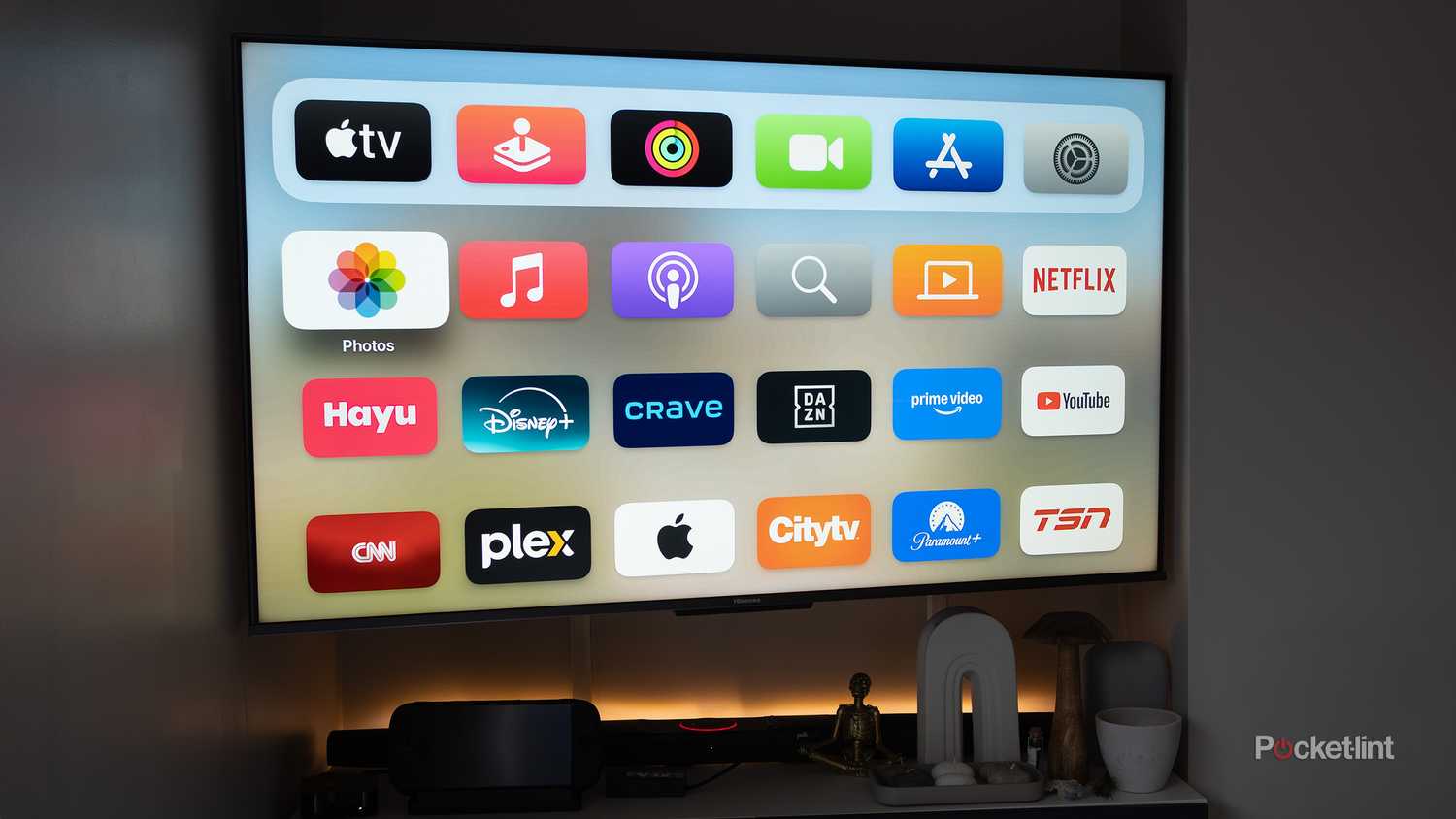
Accessing Apple TV on a computer is a straightforward process that allows you to enjoy Apple’s premium video streaming service, original programming, and your personal media library directly from your desktop or laptop. Depending on your operating system, you can use dedicated applications or browser-based platforms to stream content, manage your subscriptions, and purchase or rent films. Understanding these methods ensures you can watch your favorite shows regardless of whether you are using a macOS environment, a Windows-based PC, or a Linux-based setup.
Understanding the Apple TV Ecosystem on Computers
The term "Apple TV on computer" can refer to two distinct experiences: the Apple TV app, which serves as a hub for streaming content, and Apple TV+, which is the specific subscription-based original content service provided by Apple. On a computer, these are consolidated into a single interface that allows users to browse the Apple TV app store, manage parental controls, and view content purchased or rented through Apple.
Because Apple maintains a closed ecosystem, the experience varies significantly between hardware platforms. Apple users on macOS benefit from native, integrated support, while Windows and other OS users rely on either designated standalone applications or web browsers. Recognizing these distinctions is essential for troubleshooting playback issues, managing data consumption, and ensuring the highest possible video quality for your specific monitor or display.
Accessing Apple TV on macOS
For users operating on macOS, the Apple TV experience is native and deeply integrated into the operating system. Since the release of macOS Catalina, the "TV" app has replaced iTunes as the primary destination for all video media.
Using the Apple TV App
The Apple TV app on Mac provides the most robust experience, offering support for offline downloads, high-definition (HD) and 4K streaming, and seamless integration with the Apple ecosystem. To access it, you typically find the app pre-installed in your Applications folder or via the Dock.
- Sign-in: Launch the Apple TV app and navigate to the Account menu to sign in with your Apple ID. Ensure that your account is authorized for your computer to facilitate playback of protected content.
- Library Management: The library tab houses all your previous iTunes purchases, including movies and TV shows, as well as content synced from other devices using the same Apple ID.
- Downloads: Unlike web-based versions, the Mac app allows you to download certain titles to your local hard drive for offline viewing, which is ideal for travel or situations with unstable internet connectivity.
System Requirements and Optimization
To achieve the best playback, ensure your macOS is updated to the latest version. Apple often releases performance patches and security updates that affect digital rights management (DRM) protocols, which are required to stream copyrighted content. If you encounter a black screen or playback errors, check your display settings to ensure that your monitor supports HDCP (High-bandwidth Digital Content Protection), a standard requirement for streaming 4K and high-definition content from Apple.
Accessing Apple TV on Windows
If you are using a Windows computer, the approach to watching Apple TV has transitioned from web-only access to a more versatile, application-based experience.
The Apple TV App for Windows
As of 2026, Apple offers a dedicated Apple TV app via the Microsoft Store. This application mirrors the functionality of the macOS version, providing a native interface that handles subscriptions, renting, and streaming content more efficiently than a web browser.
- Installation: Open the Microsoft Store on your Windows PC and search for "Apple TV." Download and install the official app provided by Apple Inc.
- Configuration: Once installed, sign in using your Apple ID. If you have two-factor authentication enabled, you will need to verify the login via one of your trusted devices.
- Playback Performance: The app is designed to leverage hardware acceleration, which helps in streaming high-bitrate content without overburdening your processor. If you find the app running slowly, ensure your graphics drivers are up to date.
Browser-Based Access
If you prefer not to install software, you can access the service via a web browser at tv.apple.com. This method is universal and works on virtually any modern operating system, including ChromeOS and Linux distributions, provided the browser is up to date and supports modern media playback standards.
- Pros: Requires no installation; works on any computer with an internet connection.
- Cons: Limited to streaming; you cannot download files for offline viewing; occasional playback stutters may occur depending on browser efficiency.
Comparison of Apple TV Access Methods
| Feature | Apple TV App (macOS) | Apple TV App (Windows) | Web Browser (Any OS) |
|---|---|---|---|
| Native Integration | Yes | Yes | No |
| Offline Downloads | Yes | Yes | No |
| 4K/HDR Support | Yes | Yes | Dependent on Browser/HW |
| Resource Usage | Optimized | Optimized | Variable |
| Installation Required | Pre-installed | Yes | No |
Troubleshooting Common Issues
Even with official applications, users may occasionally experience technical hurdles. The most common issues involve playback errors, loading loops, or inability to sign in.
Playback and DRM Errors
If you receive an error regarding DRM or playback, the issue is often related to the connection between your graphics card and your monitor. This is common when using external displays or docking stations. Ensure your monitor is connected via a cable that supports HDCP, such as a high-quality HDMI or DisplayPort cable.
Network Connectivity
Streaming high-definition video requires consistent bandwidth. If your video quality is fluctuating, perform a speed test to ensure you meet the minimum requirements—typically at least 8 Mbps for HD and 25 Mbps for 4K content. Using a wired Ethernet connection is significantly more stable than Wi-Fi for sustained 4K streaming.
Account and Subscription Issues
If your content is missing, ensure you are signed into the correct Apple ID. Sometimes, users with multiple accounts accidentally sign into an older account that does not hold the current Apple TV+ subscription or purchase history. If you are experiencing billing or subscription errors, visit the official Apple support portal to verify your payment method status, as expired payment information is a frequent cause of access restriction.
Maximizing the Experience
To get the most out of Apple TV on a computer, consider the following best practices:
- Display Settings: If your computer monitor supports high refresh rates or specific HDR (High Dynamic Range) profiles, ensure they are enabled in your OS display settings. This can significantly improve the color accuracy and contrast of the content you are watching.
- Audio Output: If you are using external speakers or high-end headphones, check your system’s sound settings. Apple TV supports various spatial audio formats, and selecting the correct output device—and configuring it to handle high-fidelity audio—will enhance your immersion.
- Keyboard Shortcuts: Learn the keyboard shortcuts for the Apple TV app (such as spacebar for pause/play and arrow keys for skipping 10 seconds). This can make navigation faster than using a mouse or trackpad.
Frequently Asked Questions
Can I watch Apple TV on a Linux computer?
Yes, you can watch Apple TV content on Linux by using a modern, standards-compliant web browser such as Google Chrome or Firefox. Navigate to tv.apple.com and sign in with your Apple ID. Note that native apps are not available for Linux, meaning you will be limited to streaming and will not be able to download content for offline use.
Why is my video quality poor on my PC?
Poor video quality is often caused by internet congestion, outdated graphics drivers, or browser limitations. If you are using a browser, try switching to the dedicated Apple TV app from the Microsoft Store for better hardware optimization. Additionally, check your network bandwidth to ensure you have a stable connection.
Can I share my Apple TV subscription with family members?
Yes, Apple supports "Family Sharing," which allows you to share your Apple TV+ subscription with up to five other family members. Each member uses their own Apple ID, allowing everyone to maintain their own personal viewing history and recommendations. This can be configured in the Family Sharing settings within your Apple ID account menu.
Do I need an Apple device to sign up for Apple TV+?
No. While owning an Apple device simplifies the process, you can create an Apple ID and sign up for an Apple TV+ subscription directly through the web browser at tv.apple.com or via the Apple TV app on Windows or smart TVs. You only need a valid email address and a payment method.
How do I stop my computer from falling asleep during a movie?
Most operating systems will prevent the computer from sleeping while video is playing in a full-screen application. However, if your computer continues to sleep, check your system "Power & Sleep" settings. You may need to manually adjust the timer to a longer duration or use a third-party utility to prevent sleep during media playback.
Next Steps for Users
If you are currently setting up Apple TV on your computer, your next step should be to confirm that your hardware meets the minimum requirements for the resolution you intend to watch. If you have not already done so, download the official app for your platform rather than relying on browser-based streaming to ensure you have access to the full suite of features, including offline viewing. Regularly check for software updates within your app or system settings to ensure you are utilizing the most secure and efficient version of the software. For persistent technical difficulties that cannot be resolved through basic troubleshooting, consider contacting Apple Support with your device specifications ready to expedite the resolution process.