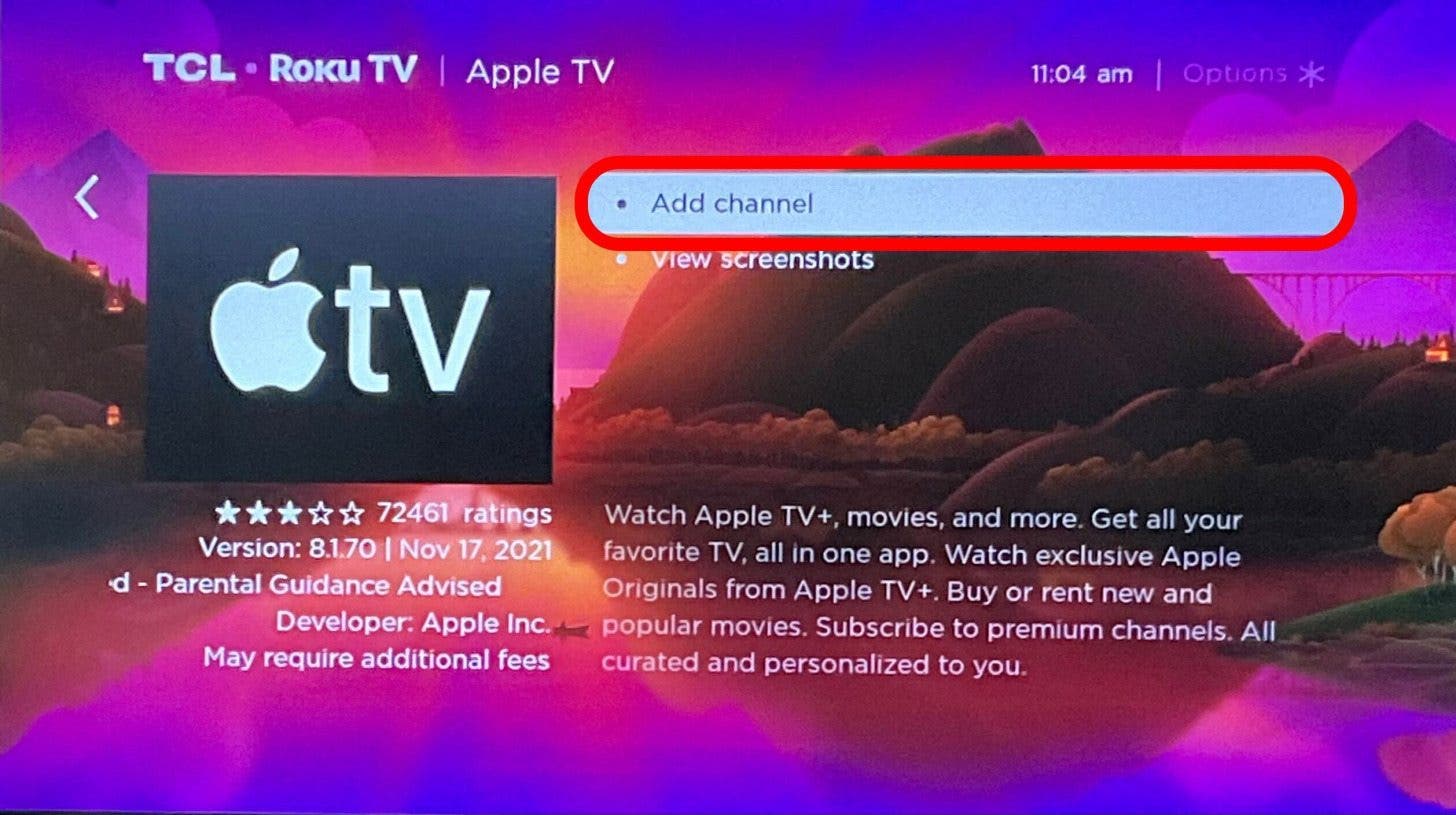
If your Apple TV app on Roku is not working, the most effective first steps involve force-restarting the Roku device, clearing the app cache, or removing and reinstalling the Apple TV channel to refresh the software environment. These issues usually stem from network interruptions, outdated software, or cached authentication data that has become corrupted.
Understanding the Apple TV and Roku Ecosystem
The Apple TV application is a service provided by Apple that allows users to access Apple TV+ content, rent or purchase movies, and manage subscriptions to other streaming channels. When this application fails to function on a Roku device, it creates a significant barrier to media consumption. Because Roku operates as an open-platform hardware environment while Apple TV functions as a software-as-a-service (SaaS) application, the potential for "handshake" failures between these two platforms is inherent to the technology.
To resolve these errors, it is essential to distinguish between the Roku operating system (Roku OS) and the Apple TV application itself. Often, the issue is not that the service is "down," but rather that the local instance of the application has encountered a state-conflict—a condition where the stored session data no longer aligns with the server’s requirements.
Prerequisites for Optimal Performance
Before performing intensive troubleshooting, ensure that your environment meets the basic requirements for high-definition and 4K streaming. Apple TV requires a stable, high-speed internet connection; for 4K streaming, Apple officially recommends a persistent connection speed of at least 25 Mbps.
Furthermore, verify that your Roku device is officially supported. While the Apple TV app is available on most modern Roku streaming players, Roku TVs, and Roku Streambars, older legacy models with limited processing power or outdated hardware might struggle to maintain the buffer requirements of the modern Apple TV interface. Checking for system updates is the foundational step that ensures your Roku OS has the latest drivers necessary to handle current API calls from Apple’s servers.
The Systematic Troubleshooting Workflow
If the Apple TV app is unresponsive, failing to load, or crashing back to the Roku home screen, follow this logical progression of steps to isolate and resolve the failure.
1. The Power Cycle (Hard Reboot)
A power cycle is not merely turning the TV off and on; it is a complete clearing of the volatile memory (RAM) on the Roku device.
- Procedure: Unplug your Roku device from the wall power outlet. Wait at least 60 seconds. This allows the capacitors to discharge fully. Plug the device back in and allow it to boot fully. This often clears stuck background processes that were preventing the Apple TV app from initiating correctly.
2. The Remove-Restart-Reinstall Sequence
This is the "gold standard" for fixing app-specific corruption on Roku. Simply deleting an app is not enough, as Roku OS often retains registry settings.
- Remove: Highlight the Apple TV tile on your Roku home screen, press the asterisk (*) button on your remote, and select "Remove channel."
- Restart: Navigate to Settings > System > Power > System Restart. It is critical to restart the system before reinstalling the app to ensure the registry is cleared.
- Reinstall: Navigate to Streaming Channels, search for "Apple TV," and add it again. Sign in with your Apple ID. This process clears corrupt authentication tokens.
3. Network and DNS Verification
Streaming services rely heavily on Domain Name System (DNS) lookups to resolve traffic to the correct content delivery network (CDN) nodes. If your ISP’s DNS is lagging, the app may time out.
- Check Network: Go to Settings > Network > Check connection.
- Advanced: If you frequently experience issues with streaming apps, consider changing your router’s DNS settings to a more robust provider like Cloudflare (1.1.1.1) or Google (8.8.8.8).
Comparison of Common Failure Symptoms
Different symptoms indicate different root causes. Understanding these distinctions saves time by preventing unnecessary steps.
| Symptom | Probable Cause | Recommended Action |
|---|---|---|
| Infinite Loading Spinner | Network latency or DNS congestion | Check internet speed; restart router |
| Crash to Home Screen | Corrupt app cache or OS conflict | Remove and reinstall Apple TV app |
| "Authentication Error" | Expired session token | Sign out and sign back into the app |
| Black Screen / Audio Only | HDMI handshake / HDCP failure | Reseat HDMI cable; try a different port |
| App missing from menu | Regional restriction or account region | Verify Roku account region settings |
Advanced Troubleshooting: HDMI Handshake Issues
High-bandwidth Digital Content Protection (HDCP) is a security protocol that prevents the illegal copying of digital content as it travels from your Roku device to your television. If the Apple TV app loads but the screen remains black, or if you receive an error message specifically citing HDCP, the communication between your Roku and your TV has failed.
To fix this, first, ensure your HDMI cable is securely seated at both ends. If the problem persists, unplug the HDMI cable from both the Roku and the TV, wait for 30 seconds, and plug it back in. If you are using a Roku Streaming Stick, ensure you are using the official power cable and not just the USB port on your TV, as the latter may not provide sufficient voltage for 4K video processing, leading to intermittent app performance.
Software Updates and OS Compatibility
Roku releases frequent updates for its operating system to improve compatibility with third-party apps. Even if your device is set to update automatically, it may not have checked for an update in the last 24 hours. Navigate to Settings > System > System Update > Check Now.
If your Roku device is several years old, check the "About" section in the System menu to verify your firmware version. Apple TV requires a specific version of Roku OS to function. If your hardware is officially at the "End of Life" (EOL) status, it may no longer receive the necessary security patches to support the current version of the Apple TV application, in which case a hardware upgrade is the only viable path to restoration.
When to Contact Support
If you have completed the remove/reinstall process, performed a system restart, verified your internet connection, and confirmed that your Roku OS is up to date, the issue may exist on the server side.
Check the official Apple System Status page to see if Apple TV+ or the Apple TV app services are experiencing an outage. If other streaming services are working perfectly and the Apple TV app remains completely inaccessible across your home network, you may need to contact Apple Support, as your specific Apple ID credentials might be flagged or restricted, which is a rare but documented issue that prevents sign-in on secondary devices.
Frequently Asked Questions
Why does my Apple TV app keep asking me to sign in repeatedly? This usually occurs when your Roku device cannot maintain a persistent connection to the Apple servers, causing your authentication token to expire. Ensure your Roku is not entering a deep-sleep mode or losing Wi-Fi connection when the TV is turned off.
Does the Apple TV app work on all Roku devices? No. While it works on the vast majority of devices produced since 2017, some very early Roku models or specific regional editions may lack the processing overhead required for the Apple TV user interface. Check your model number in the Roku settings against the compatibility list on the official Apple support website.
Can a VPN on my router cause Apple TV to fail? Yes. Apple enforces geo-blocking for certain content libraries. If your router is running a VPN that masks your location, the Apple TV app may fail to load content or block the connection entirely because it detects a non-residential IP address or a blacklisted server.
Why is the video quality poor in the Apple TV app compared to other apps? This is often related to "Adaptive Bitrate Streaming." The Apple TV app will automatically lower the resolution if it detects fluctuations in your network speed to prevent buffering. If this happens consistently while other apps remain in high quality, try connecting your Roku via an Ethernet cable rather than Wi-Fi to eliminate interference.
Is there a way to clear the cache without deleting the app? Roku does not provide a user-facing "Clear Cache" button for individual apps in the same way mobile phones do. The "Remove and Reinstall" method is the only way to effectively flush the app's cache and local storage files on a Roku device.
Recommendation
If you have exhausted all troubleshooting steps, the most common solution that yields results is the "Remove-Restart-Reinstall" cycle. By deleting the app, performing a full system reboot, and waiting for the system to clear its cache before downloading a fresh installation, you eliminate almost all software-based conflicts. If the problem persists after this, perform a factory reset of your Roku device as a final measure before concluding that there is a hardware-level failure or a regional service outage.