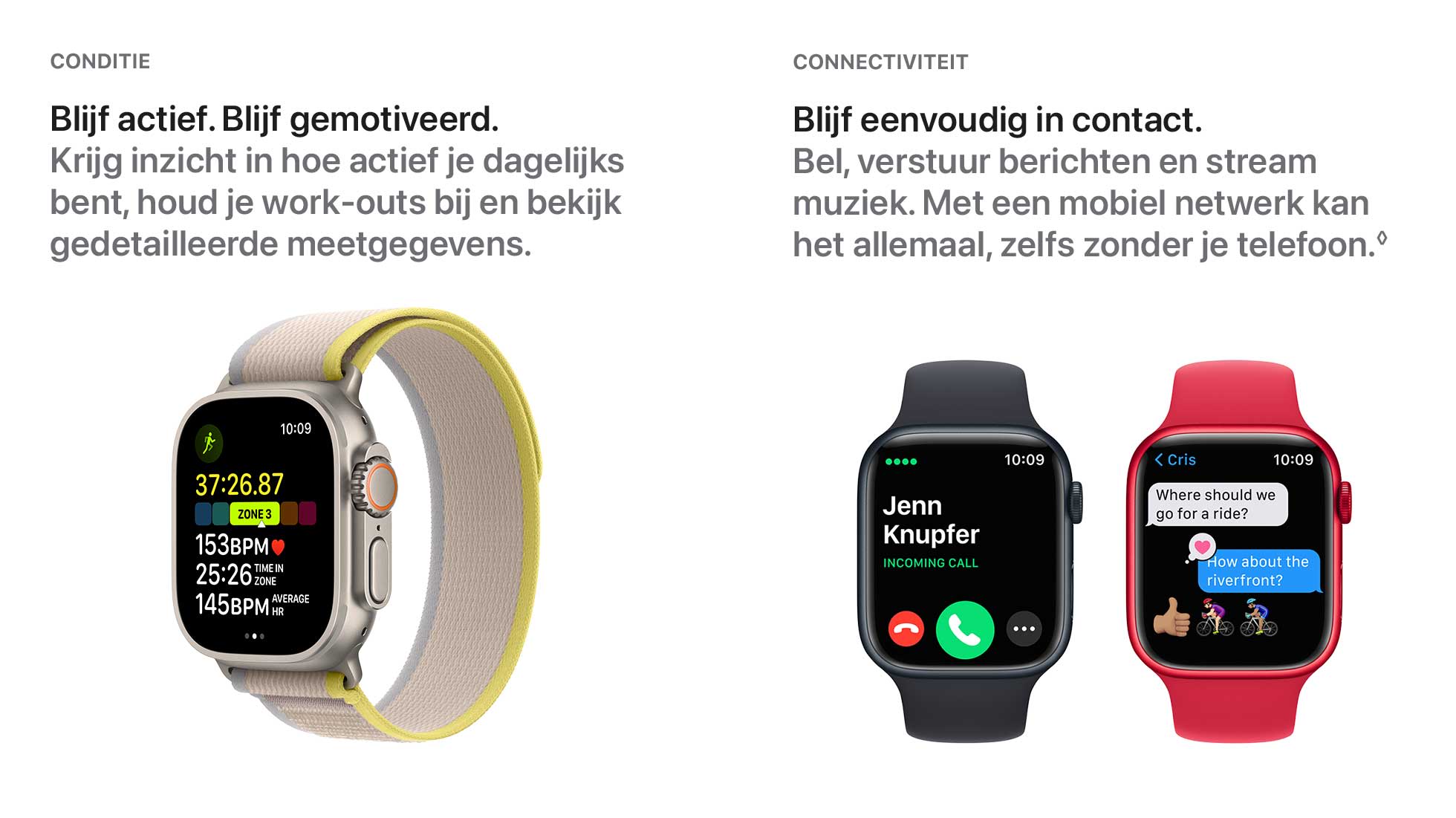
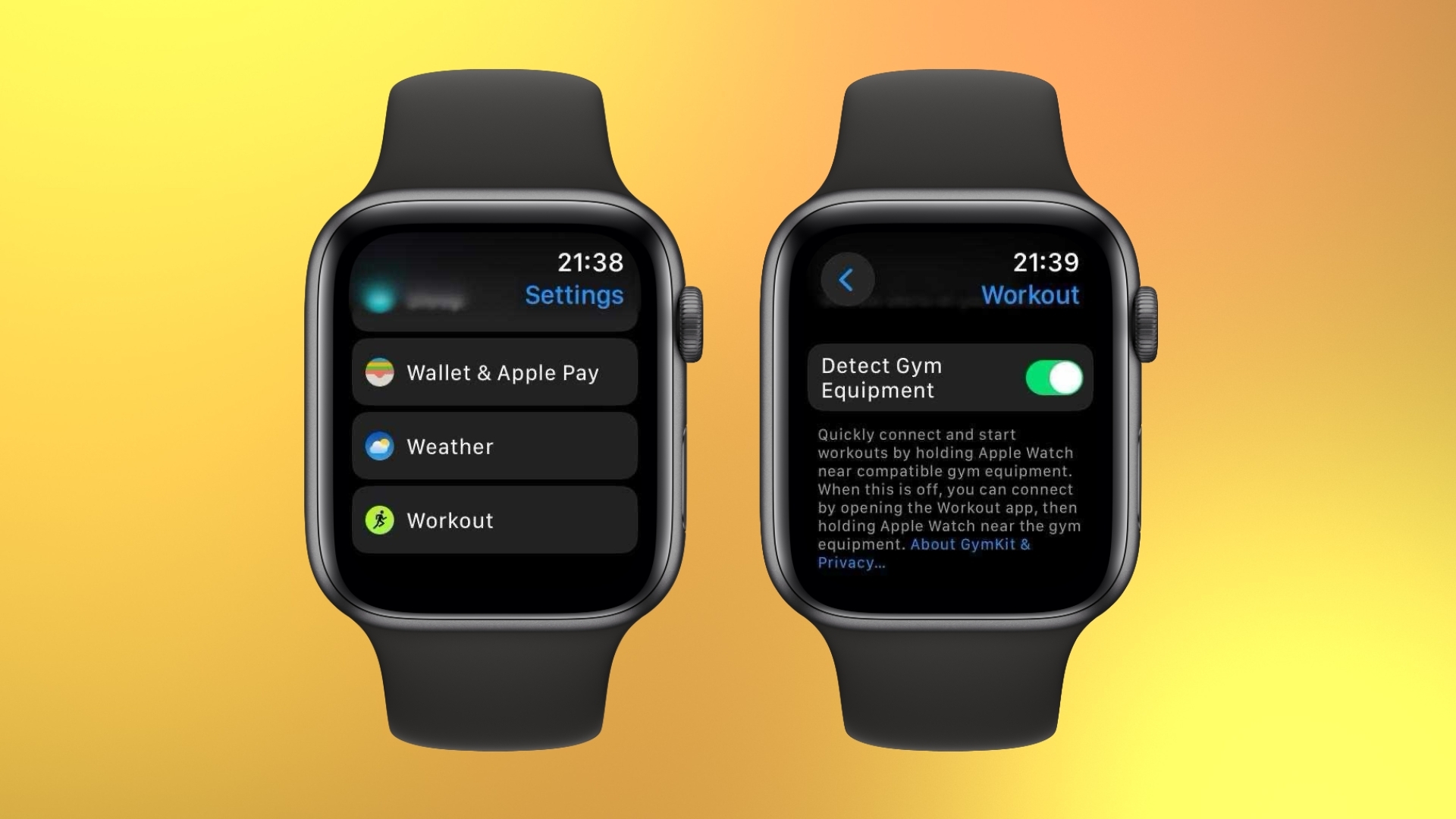
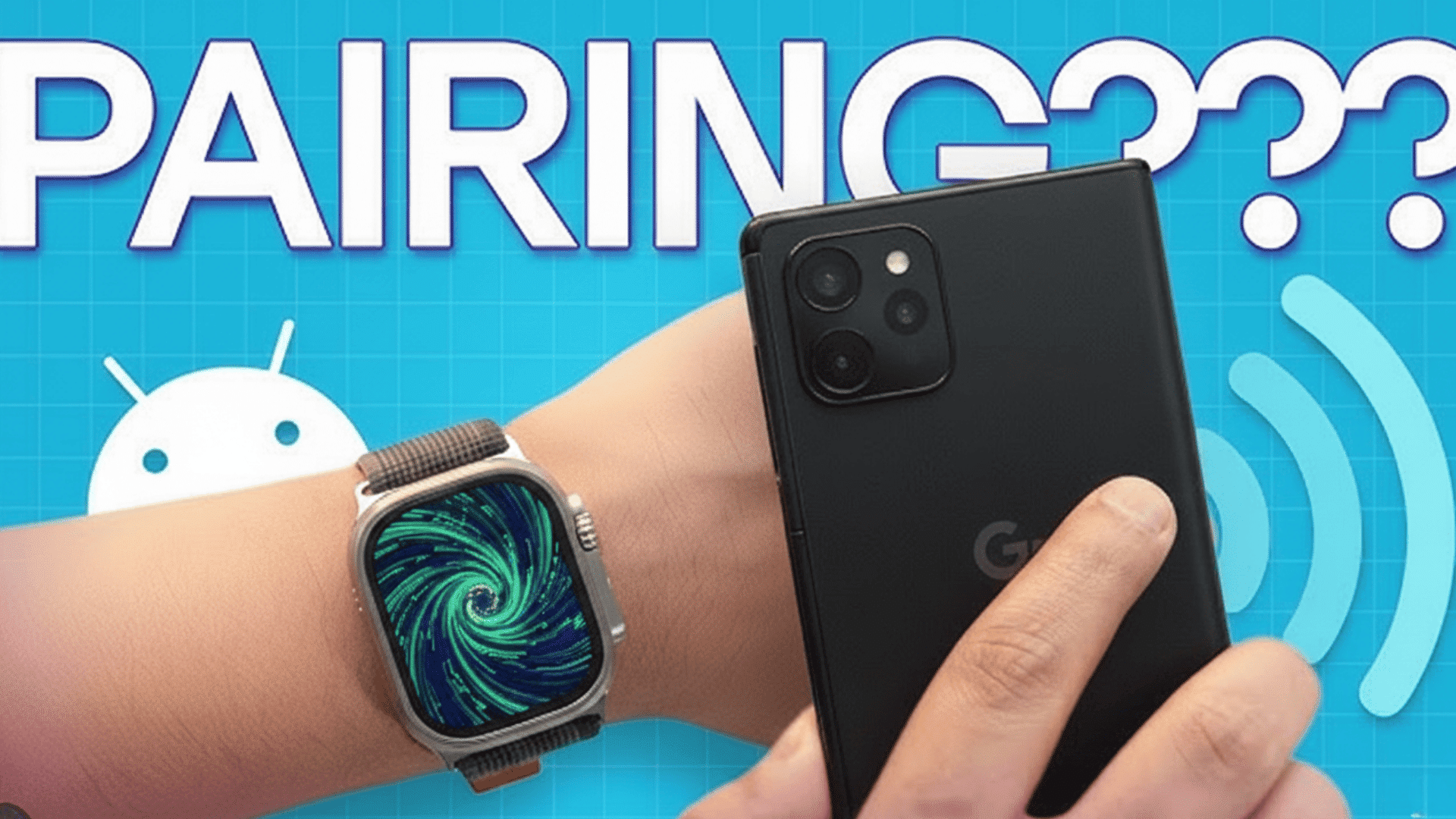
Apple Watch connectivity relies on a hierarchical system of Bluetooth, Wi-Fi, and Cellular signals to maintain a seamless link with your iPhone and the internet. By default, the watch prioritizes a power-efficient Bluetooth connection to your iPhone. If Bluetooth is unavailable, it switches to saved Wi-Fi networks, and Cellular-enabled models can transition to LTE or 5G networks for complete independence.
The Apple Watch is often perceived as a standalone piece of technology, but its true power lies in its sophisticated connectivity stack. In 2026, as the ecosystem has matured, understanding how these devices communicate is essential for maximizing battery life and ensuring you never miss a critical notification. Whether you are using a Series model, an SE, or the Ultra, the device is constantly making intelligent decisions about which "radio" to use based on signal strength, power consumption, and the specific task at hand.
The Hierarchy of Connectivity: How the Apple Watch Decides
The Apple Watch does not use all its communication tools simultaneously. To preserve its relatively small battery, watchOS follows a strict priority list. Understanding this logic helps users troubleshoot why certain features might feel slower or why their battery is draining faster than usual.
- Bluetooth (The Primary Link): Whenever your iPhone is within range (roughly 33 feet or 10 meters, though often further with modern Bluetooth standards), the Apple Watch uses Bluetooth Low Energy (BLE). This is the most power-efficient method. All data—notifications, messages, and app updates—is funneled through the iPhone and pushed to the watch.
- Wi-Fi (The Secondary Bridge): If you move out of Bluetooth range (e.g., leaving your phone on the charger downstairs while you go to the attic), the watch attempts to connect to a compatible Wi-Fi network. This allows the watch to continue receiving notifications and performing high-bandwidth tasks like streaming music or downloading software updates.
- Cellular (The Independent Mode): For models equipped with LTE/5G, the cellular radio only activates when both Bluetooth and Wi-Fi are unavailable. This is the most taxing connection for the battery but allows for total freedom during outdoor runs or errands where the iPhone is left behind.
Bluetooth: The Power-Efficient Foundation
Bluetooth is the umbilical cord of the Apple Watch. Since the original launch, Apple has utilized Bluetooth Low Energy to ensure that the constant "heartbeat" between the watch and the iPhone doesn't deplete the battery of either device in a few hours.
By 2026, the integration of Bluetooth 5.3 and newer iterations has significantly increased the stability and data throughput of this connection. When connected via Bluetooth, the iPhone handles the "heavy lifting." For example, if you ask Siri a complex question, the watch captures the audio, sends it to the iPhone via Bluetooth, the iPhone processes the request via the cloud, and the result is sent back to the watch. This distribution of labor is what allows the watch to remain slim and functional.
Limitations of Bluetooth
While efficient, Bluetooth has a limited bandwidth. This is why software updates for watchOS often prompt you to ensure Wi-Fi is active. If you try to transfer a large amount of data—such as syncing a large music playlist for offline use—doing so over Bluetooth alone can take a considerable amount of time and may be prone to interference from other 2.4GHz devices.
Wi-Fi Connectivity: Stretching the Range
The Apple Watch’s ability to use Wi-Fi is often misunderstood. The watch does not have a traditional Wi-Fi settings menu where you browse for new networks manually (though this has improved in recent watchOS versions). Instead, it "inherits" Wi-Fi networks from your iPhone.
If your iPhone has previously connected to a network using 802.11b/g/n 2.4GHz (or 5GHz on newer models starting with Series 6), your Apple Watch will automatically recognize that network. This is particularly useful in large homes or office buildings. You can leave your phone in a locker or at your desk and still receive iMessages and take calls on the other side of the building, provided both devices are on the same Wi-Fi infrastructure.
Wi-Fi Specifications and 5GHz Support
For years, the Apple Watch was limited to 2.4GHz Wi-Fi. This frequency offers better range and penetration through walls but is often crowded with interference. Modern iterations (Series 6 through the current 2026 models and Ultra series) support 5GHz Wi-Fi. This allows for much faster data transfer speeds, which is critical for the "App Store on the Watch" experience and the increasing size of standalone watch apps.
Cellular Connectivity: Breaking the Tether
The introduction of the "GPS + Cellular" models marked a turning point for the Apple Watch, transforming it from a peripheral into a standalone communicator. These models utilize an eSIM (embedded SIM) rather than a physical plastic card.
How eSIM Works
The eSIM is a tiny chip soldered onto the watch's logic board. It allows the watch to share the same phone number as your iPhone. This is a crucial distinction: your Apple Watch does not have its own unique phone number for consumer use; it acts as a clone of your primary line. When someone calls your iPhone, both the phone and the watch ring simultaneously, even if they are miles apart.
Carrier Requirements and Costs
To use cellular features, you must have a supported carrier. Most major global carriers offer an Apple Watch "add-on" plan. In 2026, these plans typically range from $5 to $15 per month. This fee covers the data usage of the watch and the "NumberShare" or "OneNumber" technology that syncs the two devices.
5G vs. LTE on Apple Watch
While the iPhone has embraced 5G for years, the Apple Watch was slower to adopt it due to the heat and power demands of 5G modems. Current high-end models now utilize low-power 5G bands, which provide better connectivity in congested urban areas and improved speeds for streaming high-fidelity audio through Apple Music or Spotify directly from the wrist.
GPS and Location Services
Every Apple Watch sold today includes built-in GPS. This is separate from the internet connectivity but equally vital for the device's functionality. The GPS allows the watch to track your distance, pace, and route during outdoor workouts without needing the iPhone's GPS sensor.
The Apple Watch uses a multi-constellation GNSS (Global Navigation Satellite System) approach, supporting:
- GPS (USA)
- GLONASS (Russia)
- Galileo (Europe)
- QZSS (Japan)
- BeiDou (China)
The Apple Watch Ultra series and later flagship models feature Dual-frequency GPS (L1 and L5). This is a significant technical leap. Standard GPS can be blocked by tall buildings (the "urban canyon" effect) or dense tree cover. By using two different signals from the satellites, the watch can better filter out signal noise, providing much more accurate maps of your runs or hikes.
Comparing Connectivity Types
The following table summarizes the operational differences between the three primary ways an Apple Watch communicates.
| Feature | Bluetooth | Wi-Fi | Cellular (LTE/5G) |
|---|---|---|---|
| Primary Purpose | Day-to-day iPhone sync | Medium-range fallback | Total independence |
| Battery Impact | Very Low | Moderate | High |
| Range | ~10-30 Meters | Local Network Area | Worldwide (Carrier dependent) |
| Best For | Notifications, Health data | App downloads, Home use | Running, Swimming, Emergencies |
| Requirement | iPhone nearby | Saved Network on iPhone | Monthly Carrier Plan |
| Speed | Low (Optimized for energy) | High (Up to 5GHz) | Variable (Dependent on signal) |
Family Setup: Connectivity for the Non-iPhone User
A unique aspect of Apple Watch connectivity is Family Setup. This feature allows a person who does not own an iPhone (such as a child or an elderly parent) to use a Cellular Apple Watch.
In this configuration, the watch is managed by a "Head of Household" iPhone. The watch gets its own separate phone number and its own cellular plan. This is a powerful safety tool, as it allows for GPS location tracking via the "Find My" app and communication via "Walkie-Talkie" or phone calls without requiring the user to carry a smartphone. This specific use case relies entirely on the Cellular and Wi-Fi radios, as the Bluetooth link to a primary iPhone is not present.
Troubleshooting Common Connectivity Issues
Even with sophisticated handoff logic, users may occasionally see the "disconnnected" icon (a red iPhone with a line through it) or the "red X" on their watch face.
1. The Red iPhone Icon
This indicates the watch has lost its Bluetooth link and cannot find a known Wi-Fi network. The most common fix is to ensure Bluetooth is toggled on within the iPhone's Settings (not just the Control Center) and to keep the devices within proximity.
2. Cellular Not Activating
If your Cellular model isn't connecting when you leave your house, check the Control Center on the watch (swipe up or press the side button depending on your watchOS version). If the Cellular button is white, it means the radio is on but not connected. If it's green, it's active. If it fails to turn green, you may need to "Update Carrier Settings" on your iPhone or restart the watch to re-establish a handshake with the cell tower.
3. Wi-Fi Ghosting
Sometimes a watch will "stick" to a weak Wi-Fi signal instead of switching back to a strong Bluetooth link. Toggling Airplane Mode on the watch for 10 seconds usually forces the device to re-evaluate the hierarchy and pick the most efficient connection.
Impact of Connectivity on Battery Life
Connectivity is the single largest variable in Apple Watch battery life.
- All-Day Bluetooth: Can typically last 18–36 hours depending on the model.
- Continuous GPS: Usually drains the battery in 7–12 hours (important for marathon runners).
- Continuous Cellular Talk Time: Can deplete a standard Series watch in as little as 1.5 to 3 hours.
To optimize battery, it is recommended to keep your iPhone nearby as much as possible. Using the watch's internal radios (GPS and Cellular) should be reserved for times when the iPhone is a burden to carry.
Frequently Asked Questions
Can I use my Apple Watch if I leave my iPhone at home?
Yes, but the functionality depends on your model. If you have a GPS+Cellular model with an active plan, your watch will work almost exactly like your phone. If you have a GPS-only model, you will only be able to use features that don't require internet (like tracking a workout or checking the time) unless you are connected to a known Wi-Fi network.
Does the Apple Watch support 5G?
As of 2026, recent flagship models like the Apple Watch Ultra and the latest Series models support low-power 5G bands. This improves performance in crowded areas, though the watch will still prefer LTE or Wi-Fi when available to save battery life.
Why does my Apple Watch need Wi-Fi if I have Bluetooth?
Wi-Fi is much faster than Bluetooth. Apple uses Wi-Fi for tasks that require moving large amounts of data, such as system updates, syncing music/podcasts, or when the iPhone is too far away for the Bluetooth connection to remain stable.
Can I connect my Apple Watch to public Wi-Fi networks?
Yes, newer versions of watchOS allow the Apple Watch to connect to "captive" Wi-Fi networks (networks that require a login or agreement to terms, like those in hotels or coffee shops). When you try to join, a small browser window will open on the watch face to allow you to tap "Accept" or enter a password.
Do I have to pay a monthly fee for my Apple Watch?
Only if you want to use the Cellular features. If you have a GPS-only model, or if you have a Cellular model but choose not to activate the data plan, there are no monthly fees. The watch will simply use your iPhone's data connection via Bluetooth or Wi-Fi.
Will my Apple Watch connect to my car's Bluetooth?
Generally, no. The Apple Watch is designed to connect to the iPhone, Bluetooth headphones, and heart rate monitors. It does not typically pair with car infotainment systems, as that role is reserved for the iPhone via CarPlay or standard Bluetooth audio.
Practical Recommendations
To get the most out of your Apple Watch connectivity, ensure that your iPhone’s Bluetooth is always on and that your "Home" and "Work" Wi-Fi networks are correctly saved on your iPhone. If you frequently exercise outdoors without your phone, investing in the Cellular model is highly recommended for the safety benefits of "Emergency SOS" and "Fall Detection," which can contact emergency services even without a nearby iPhone. For most users, however, the GPS-only model provides more than enough connectivity by leveraging the iPhone's power and data.