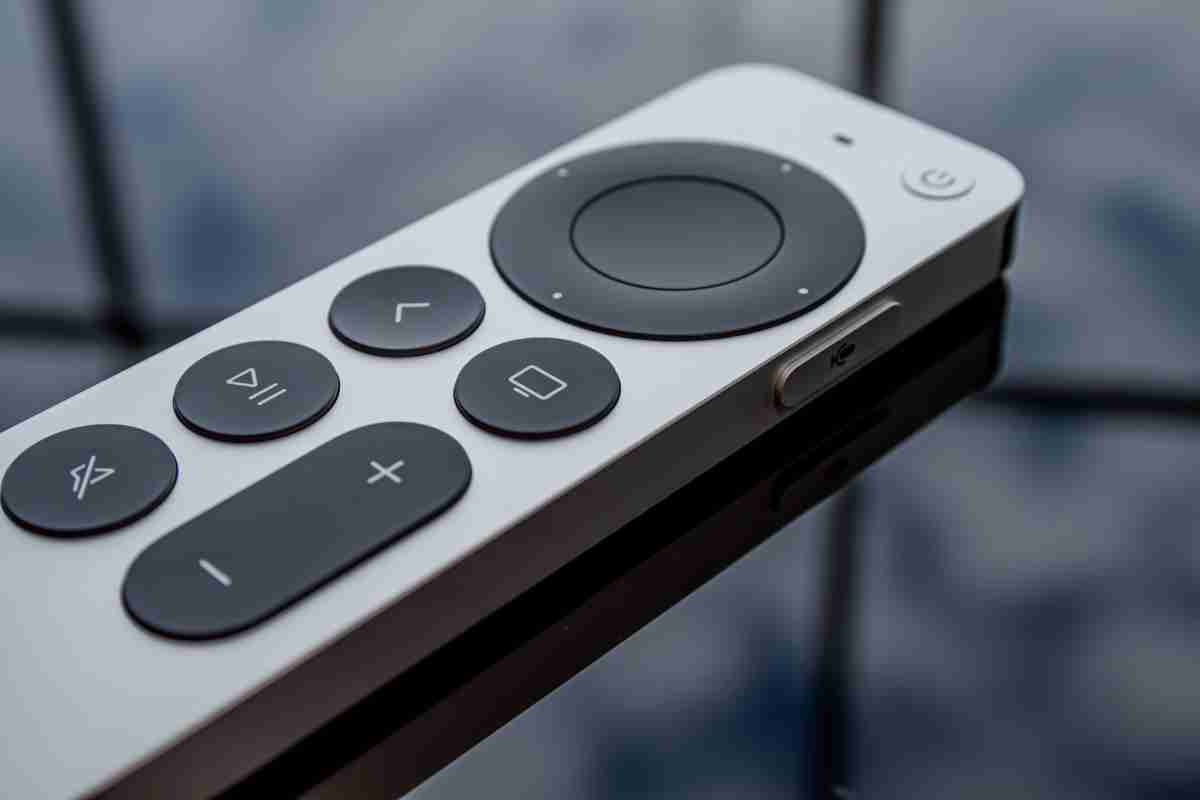
If you find yourself without your Siri Remote, you can still fully manage your Apple TV by leveraging your iPhone or iPad as a virtual control interface. By ensuring both devices are on the same local network, you can use the built-in Apple TV Remote feature within the Control Center to navigate menus, input credentials, and configure your streaming experience seamlessly.
Understanding the Control Center Method
The most direct and reliable way to interface with your Apple TV when the physical remote is missing is through the Apple TV Remote integration available on iOS and iPadOS. This system-level feature mimics the functionality of the physical Siri Remote, offering a touch-sensitive surface for navigation, a back button, a home button, and even a dedicated icon to invoke the app switcher.
To utilize this, your mobile device must be updated to a relatively current version of iOS. As of 2026, virtually all modern Apple devices support this protocol. The connection relies on your local network (Wi-Fi), meaning you must ensure your Apple TV is either already connected to your home network or capable of joining one via your mobile device's initial handshake.
Prerequisites for a Successful Connection
Before attempting to connect, verify that you meet the following technical requirements to ensure a smooth configuration process:
- Network Synchronization: Both your iPhone/iPad and the Apple TV must be connected to the exact same Wi-Fi network. If your router uses dual-band frequencies (2.4GHz and 5GHz), ensure both devices are strictly on the same SSID.
- Bluetooth Proximity: Keep your mobile device physically close to the Apple TV during the initial pairing phase to ensure the Bluetooth handshake is successful.
- Apple ID Consistency: While not strictly mandatory for navigation, having the same Apple ID signed into both the Apple TV and your iOS device often automates the network configuration and makes the "Control Other Devices" feature more responsive.
- iOS Update: Ensure your mobile device is running a recent software version. Older legacy versions may lack the specific Apple TV Remote protocol required for seamless pairing.
Step-by-Step Configuration Without a Remote
If you have just unboxed your Apple TV or performed a factory reset and find yourself at the initial "Set Up" screen without a remote, the process changes slightly. You must use the "Proximity Setup" feature.
- Bring your iPhone or iPad near the Apple TV: Ensure your mobile device is unlocked and has both Bluetooth and Wi-Fi enabled.
- Wait for the Setup Prompt: A pop-up should automatically appear on your mobile device screen labeled "Set Up New Apple TV."
- Follow the On-Screen Prompts: Tap "Continue" on your iPhone. Your phone will then securely transfer your Wi-Fi credentials and Apple ID information to the Apple TV.
- Complete the Pairing: Once the TV unit registers the information, it will initiate the primary configuration. After the initial boot-up, the Apple TV Remote icon will become permanently available in your Control Center.
If you are trying to connect to a device that is already set up but you simply lack the remote, follow these steps:
- Open Control Center: Swipe down from the top-right corner of your iPhone screen (on devices with Face ID) or swipe up from the bottom (on devices with a Home button).
- Locate the Remote Icon: Look for the small remote control icon. If it is not present, you must add it by navigating to Settings > Control Center on your iPhone and tapping the green plus sign next to "Apple TV Remote."
- Select Your Device: Tap the Apple TV Remote icon in the Control Center. A list of available devices will appear. Select your specific Apple TV unit.
- Enter the Pairing Code: A four-digit code will appear on your television screen. Enter this into your iPhone when prompted to finalize the secure connection.
Troubleshooting Connection Failures
It is common to encounter minor connectivity issues, particularly in environments with complex mesh network setups or guest Wi-Fi isolation enabled.
- Check Network Isolation: Many public or corporate networks utilize "Client Isolation," which prevents wireless devices from communicating with one another. Ensure you are on a private home network.
- Restart the Hardware: If the Apple TV is not appearing in your Control Center list, perform a "power cycle." Unplug the power cable from the Apple TV, wait 30 seconds, and plug it back in. Simultaneously, toggle the Wi-Fi on your iPhone off and back on.
- Bluetooth Interference: If your iPhone refuses to detect the Apple TV during the initial setup, ensure there are no other active Bluetooth devices causing interference or hijacking the pairing signal.
- Update your Firmware: If you can navigate to the Apple TV settings using a different method (such as a Bluetooth keyboard, detailed below), check for tvOS updates. Outdated firmware is a frequent cause of "ghosting" or connection drops.
Hardware Alternatives: The Bluetooth Keyboard Solution
If you find the iPhone/iPad method insufficient, you can connect a standard Bluetooth keyboard to the Apple TV. While not all keyboards are compatible, many HID (Human Interface Device) compliant wireless keyboards can pair with Apple TV hardware.
- Put your Bluetooth keyboard into pairing mode.
- Since you cannot navigate to the settings menu, this method is typically only viable if you have a secondary way to control the initial menu (like the official Apple TV app) or if you are using a device that supports a "plug-and-play" USB connection (applicable only to specific older Apple TV models).
- Once paired, you can use the arrow keys to navigate the interface, the Enter key to select, and the Esc key to act as a back button.
Comparative Methods for Control
The following table summarizes the different ways you can interact with your Apple TV when the physical Siri Remote is unavailable.
| Method | Ease of Use | Requirements | Compatibility |
|---|---|---|---|
| iPhone/iPad Control Center | Excellent | iOS Device, Wi-Fi | All Apple TV HD/4K models |
| Apple TV Remote App | Good | iOS/iPadOS | All Apple TV HD/4K models |
| Bluetooth Keyboard | Moderate | HID-compatible keyboard | Most Apple TV models |
| HDMI-CEC | Variable | TV remote with HDMI-CEC | Requires TV support |
Leveraging HDMI-CEC for Universal Control
HDMI-CEC (Consumer Electronics Control) is a feature that allows your television remote to control external devices connected via HDMI. If you have an Apple TV connected to a modern television, there is a high probability that your standard TV remote already works with your Apple TV.
To use this, simply point your regular TV remote at your television. If HDMI-CEC is enabled on both your TV and your Apple TV (it is enabled by default on most modern systems), the arrow keys and the "Select" button on your TV remote will automatically navigate the Apple TV interface. This is often the most overlooked solution for users who have lost their Siri Remote.
Frequently Asked Questions
Why does my Apple TV not show up in the Control Center? The most common cause is a mismatch between the Wi-Fi network the iPhone is using and the one the Apple TV is connected to. Verify that both are on the same SSID. If that fails, ensure your router does not have "AP Isolation" or "Guest Mode" enabled, as these settings prevent device-to-device communication.
Can I use an Android phone to control my Apple TV? Officially, Apple does not provide an Apple TV Remote app for Android. While some third-party apps exist, they are often unreliable, lack security, and are not recommended for basic setup tasks. It is best to use an Apple device or an HDMI-CEC enabled television remote.
What happens if I lose my Wi-Fi connection and my remote? If you lose your network connection, your iPhone will no longer be able to "see" the Apple TV, effectively locking you out. In this scenario, you must use an HDMI-CEC compatible TV remote. If your TV remote does not support CEC, you will unfortunately need to purchase a replacement Siri Remote to restore network settings.
Is there a way to hard-reset the Apple TV without a remote? You cannot perform a factory reset without a remote or a connection method. If you are entirely locked out and cannot use the methods above, you must acquire a replacement remote. Always keep your Apple ID signed in and your Wi-Fi settings saved to avoid this recovery dead-end.
Final Recommendations
For most users, the Control Center on an iPhone or iPad provides an experience indistinguishable from the physical remote. Before assuming you need to purchase a new piece of hardware, exhaust the HDMI-CEC option using your existing television remote. This is frequently the quickest way to regain control without needing to pair a new device. If you choose to invest in a replacement, the latest generation of the Siri Remote offers significant improvements in tactile feedback and integration, serving as a reliable backup even if you prefer using your mobile device for daily navigation.