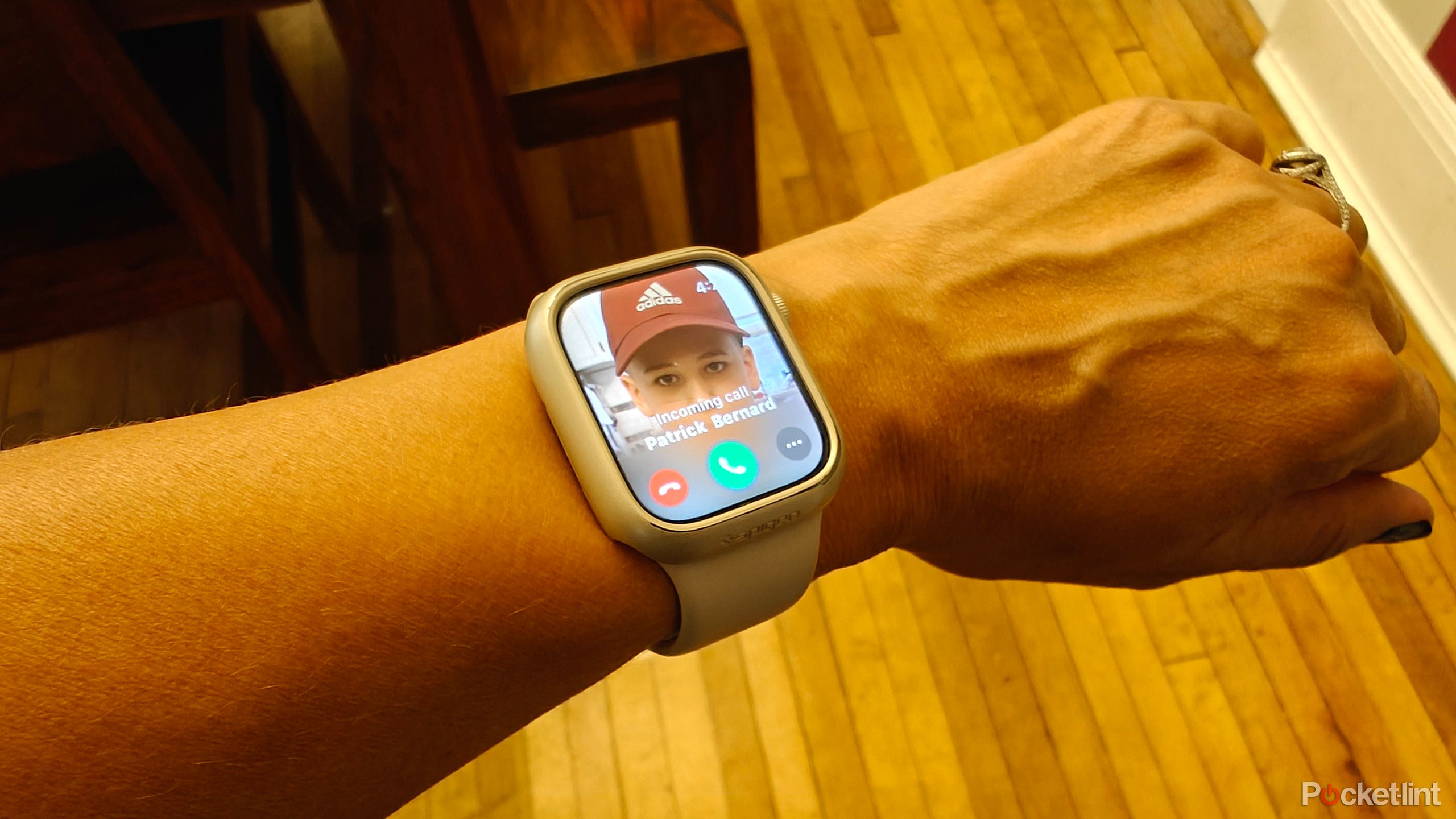
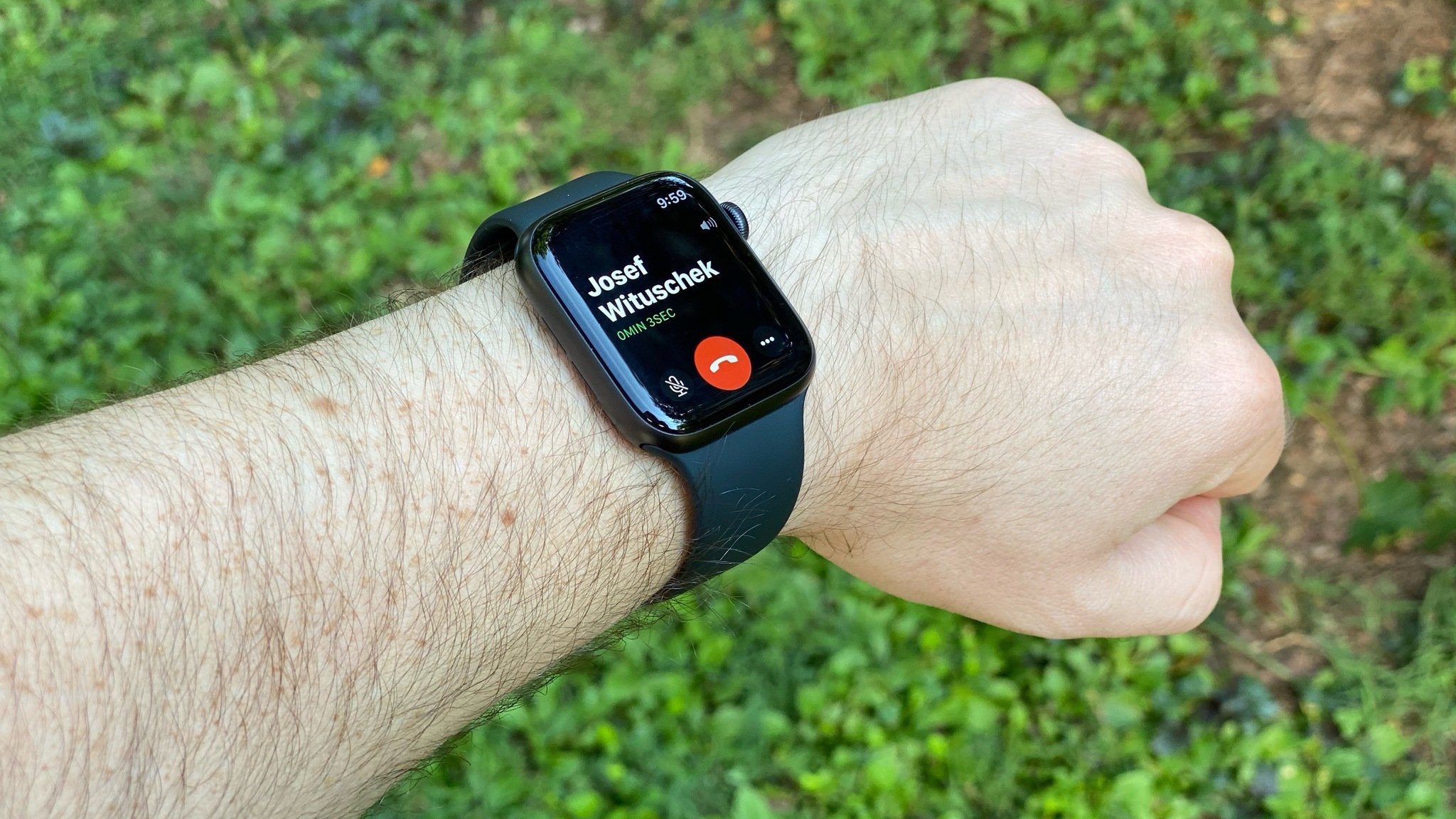
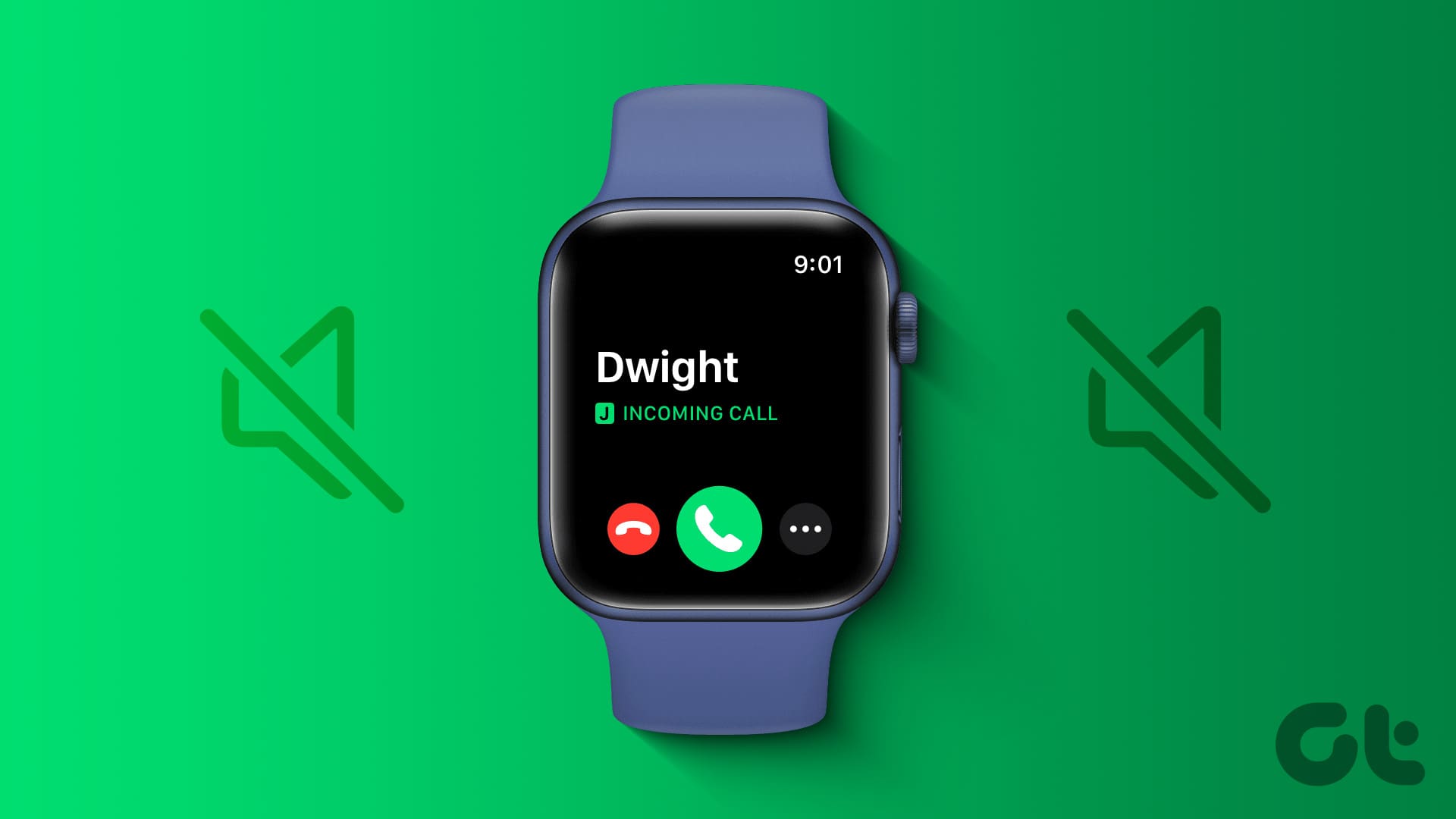
If your Apple Watch is not showing phone calls, the issue is typically caused by a connection break between the iPhone and Watch, an active Focus mode, or incorrect notification mirroring settings. Ensure Bluetooth is enabled, "Do Not Disturb" is turned off, and "Mirror my iPhone" is selected in the Watch app settings.
The Apple Watch has become an indispensable extension of the iPhone, particularly for its ability to provide immediate, glanceable alerts. However, few things are more frustrating than feeling your iPhone vibrate in your pocket or hearing it ring across the room while your wrist remains silent and your watch face remains blank. In 2026, with the integration of advanced haptics and sophisticated cross-device handoff protocols in watchOS 12 and iOS 19, a failure to display incoming calls is rarely a hardware defect and is almost always a configuration or synchronization error.
This guide provides a comprehensive, technical deep dive into why your Apple Watch may fail to display incoming calls and offers a step-by-step path to restoration.
Understanding the Notification Hierarchy
To solve the problem, it is essential to understand how Apple’s ecosystem decides which device should alert you. By design, notifications are routed to avoid redundancy. If your iPhone is unlocked and the screen is active, the Apple Watch will generally stay silent because Apple assumes you are already looking at the primary device. Conversely, if your iPhone is locked or in your pocket, the notification should be pushed to the Apple Watch.
When an incoming call arrives, the handshake between the iPhone and the Apple Watch happens via a combination of Bluetooth Low Energy (BLE) and Wi-Fi. If this handshake is delayed or the "logic" of the device state (locked vs. unlocked) is confused, the watch will not trigger the incoming call UI.
Initial Troubleshooting: The Connection Foundation
Before diving into complex settings, you must verify the physical and wireless bond between your devices. Even in 2026, with the high stability of Bluetooth 6.0 standards, interference or software "hangs" in the wireless stack can occur.
1. Verify Device Proximity and Bluetooth
The Apple Watch relies on a constant BLE connection to the iPhone. If you have wandered too far from your phone, or if there is significant physical interference (like thick walls or high-density electronic environments), the call signal may not reach the watch in time to trigger the alert before the caller hangs up or the call goes to voicemail.
- Action: Open the Control Center on your Apple Watch by pressing the side button (or swiping, depending on your configuration). Look for the green iPhone icon at the top. If you see a red iPhone icon or a red "X," the devices are disconnected.
- Fix: Toggle Bluetooth off and back on via the iPhone Settings > Bluetooth.
2. The Power Cycle (Hard Restart)
A standard restart clears the temporary cache and reinitializes the communication protocols. In 2026, modern processors are so efficient that we rarely restart our devices, leading to "zombie processes" that can interfere with background tasks like call mirroring.
- Action: Power off both the iPhone and the Apple Watch. Turn the iPhone back on first, wait for it to reach the home screen, and then power on the Apple Watch. This ensures the host device is ready to receive the client's handshake.
Auditing Notification and Phone Settings
If the devices are connected but the watch remains silent during calls, the issue is likely buried in the notification preferences.
3. Check Mirroring Settings
The Apple Watch is designed to "mirror" the behavior of your iPhone for calls. If this setting has been toggled off or switched to a "Custom" configuration that suppresses alerts, the watch will ignore incoming calls.
- Action: On your iPhone, open the Watch app.
- Path: Go to My Watch > Phone.
- Verification: Ensure Mirror my iPhone is selected. If you choose Custom, ensure that Allow Notifications is checked and that Alerts and Ringtone are toggled on.
4. Wrist Detection and Passcode Logic
Wrist Detection is a security feature that uses the sensors on the back of the watch to determine if it is being worn. If the watch doesn't think it's on your wrist, it will not show calls to protect your privacy.
- Technical Nuance: Tattoos on the wrist, a loose watch band, or dirty sensors can trick the watch into thinking it has been removed.
- Fix: Clean the back of the Apple Watch with a lint-free cloth. Ensure the band is snug. You can test this by navigating to Settings > Passcode on the watch and temporarily toggling Wrist Detection off to see if calls return (though keeping it on is recommended for security and Health features).
Focus Modes and "Do Not Disturb" Overrides
Apple’s Focus modes (Work, Sleep, Personal, etc.) have become highly granular. A common reason for the Apple Watch not showing calls is a Focus mode that is active on the iPhone and synchronized to the Watch.
5. Check Focus Mode Synchronization
By default, when you turn on a Focus mode on one device, it activates across all devices signed into the same iCloud account.
- The Conflict: You might have a "Focus Filter" enabled that allows calls from "Favorites" on your iPhone but somehow excludes the alert UI on the Watch.
- Action: Swipe into the Control Center on your Watch. Look for a crescent moon icon or any other Focus icon (like a bed or a work badge).
- Fix: Tap the icon to turn off the Focus mode. Furthermore, go to iPhone Settings > Focus > Share Across Devices if you want to prevent your Mac or iPad from accidentally silencing your Watch in the future.
6. Silence Mode vs. Cover to Mute
Check if "Silent Mode" (the bell icon in the Control Center) is active. While Silent Mode should still show the call visually, it is often paired with a setting called "Cover to Mute." If your sleeve is covering the watch or you have a habit of resting your hand over the face, you may be accidentally dismissing the call alert as soon as it arrives.
Advanced Network and Software Fixes
If the basic settings are correct, we must look at the underlying network configurations and the software state.
7. Reset Sync Data
Sometimes the database that manages the "handshake" between the iPhone and the Watch becomes corrupted. This doesn't delete your fitness data or apps, but it re-indexes the connection between the two devices.
- Path: iPhone Watch app > General > Reset > Reset Sync Data.
- Note: Nothing will appear to happen when you tap this button. However, the background process will restart the synchronization of contacts and notification settings. Give it 5-10 minutes to complete.
8. Wi-Fi and Handoff Considerations
For users with Cellular-model Apple Watches, the watch can receive calls even when the iPhone is away. However, for GPS-only models, the watch requires a stable Wi-Fi connection if Bluetooth is out of range.
- Verification: Ensure both devices are on the same Wi-Fi network (2.4GHz or 5GHz). Check that Handoff is enabled on both devices (iPhone Settings > General > AirPlay & Handoff and Apple Watch Settings > General > Handoff). Handoff is the fundamental technology that allows one device to "pick up" where another left off.
| Potential Cause | Quick Verification | Primary Fix |
|---|---|---|
| Bluetooth Link | Check Control Center for Green Phone icon | Toggle Bluetooth on iPhone |
| Focus/DND | Look for Moon/Focus icon on Watch face | Disable Focus in Control Center |
| Mirroring Settings | Watch App > Phone > Mirror my iPhone | Select "Mirror my iPhone" |
| Wrist Detection | Is the Watch locked? | Clean sensors and tighten band |
| Software Bug | Check for watchOS/iOS updates | Install latest 2026 security patches |
| iCloud Conflict | Are you signed into the same Apple ID? | Sign out and back into iCloud |
Common Scenarios and Specific Fixes
Calls Only Showing on iPhone, Not Watch
If your iPhone rings but the watch does nothing, it is frequently a "Logic Error" regarding the screen state. If your iPhone's "Always On Display" (available on Pro models since 2022) is active, the watch might occasionally believe the phone is "in use." Try disabling "Always On" temporarily on the iPhone to see if it forces the calls back to the watch.
Third-Party App Calls (WhatsApp, Messenger)
As of 2026, VOIP calls like WhatsApp and Telegram use the CallKit framework. This means they should behave like regular phone calls. If only third-party calls are failing:
- Go to Settings > Notifications on your iPhone.
- Find the specific app (e.g., WhatsApp).
- Ensure Show in Notification Center and Sounds are active.
- Check the Watch App > Notifications and ensure the toggle for that specific app is set to Mirror my iPhone.
When to Seek Professional Support
If you have performed a hard restart, reset the sync data, verified that no Focus modes are active, and ensured that "Mirror my iPhone" is selected, yet you still receive no call alerts, you may be facing a deeper firmware issue.
- Unpairing and Re-pairing: This is the "nuclear option." Go to the Watch App > All Watches, tap the "i" icon next to your watch, and select Unpair Apple Watch. This creates a fresh backup of your data, wipes the watch, and allows you to set it up again. This fixes 99% of persistent software-related communication errors.
- Hardware Inspection: If the haptic motor (Taptic Engine) is broken, you might be receiving calls but not feeling them. Test this by setting a timer on your watch. If it doesn't vibrate when the timer ends, it’s a hardware issue requiring an Apple Store visit or a certified 2026 repair provider.
Frequently Asked Questions
Why does my Apple Watch ring but the screen stays black?
This is usually related to Wake on Wrist Raise settings or a Focus mode that prevents the screen from waking (like "Theater Mode"). Open the Watch App > General > Wake Screen and ensure Wake on Wrist Raise is toggled on. Also, verify that Theater Mode (the two masks icon) is not enabled in the Control Center.
Can I receive calls on my Apple Watch if my iPhone is turned off?
Only if you have a Cellular (LTE) model with an active service plan. If you have a GPS-only model, the iPhone must be powered on and connected to either Bluetooth or the same Wi-Fi network for the watch to receive the call data relayed from the phone.
Why do calls show up on my watch but I can't answer them?
This typically points to a microphone or speaker permissions issue, or a temporary lag in the Handoff protocol. Ensure that "Handoff" is enabled in your General settings. If the "Answer on iPhone" button is accidentally pressed, the call will be placed on hold until you pick up the physical phone.
Does "Silence Unknown Callers" affect the Apple Watch?
Yes. If you have "Silence Unknown Callers" enabled on your iPhone (Settings > Phone), any call from a number not in your contacts will be sent straight to voicemail. The Apple Watch will mirror this behavior and will not ring or show a notification for those suppressed calls.
Why did my watch stop showing calls after a software update?
Major updates to iOS or watchOS can sometimes reset notification permissions or break the existing Bluetooth pairing. After an update, it is best practice to toggle Bluetooth off/on and perform a synchronized restart of both devices to re-establish the encrypted communication link.
Will my watch show calls if it's in Power Reserve or Low Power Mode?
In Low Power Mode (introduced in earlier versions of watchOS and refined in 2026), the watch will still receive calls, though some background features may be throttled. However, if the watch enters Power Reserve (where it only shows the time), all wireless radios are disabled, and it will not show or receive phone calls.
Final Recommendation
To maintain a reliable connection, ensure your devices are updated to the latest 2026 firmware versions (watchOS 12.x and iOS 19.x or later). Most "missing call" issues are resolved by simply toggling Bluetooth on the iPhone and disabling any active Focus modes. If the problem persists for more than 24 hours despite these fixes, perform the Unpair and Re-pair process to refresh the system's core communication files.