If your Apple Watch is unresponsive and refuses to charge, the issue usually stems from a depleted battery, a faulty charging cable, or a software crash that has frozen the device in a "black screen" state. Most users can resolve this by performing a forced restart or cleaning the charging contacts on the back of the watch and the magnetic puck.
An Apple Watch that appears "dead"—showing no signs of life even when placed on its charger—can be a source of significant frustration. Whether you are using a legacy Series 5 or the latest Apple Watch Ultra 3 in 2026, the underlying technology of inductive charging and watchOS remains consistent. When the device fails to boot or charge, it is rarely a sign of a total hardware "brick" and is more often a manageable technical glitch or a power delivery failure.
Identifying the Root Cause of Power Issues
Before attempting repairs, it is essential to distinguish between a device that is truly dead (hardware failure) and one that is simply "stuck" (software or power issue). In 2026, Apple Watches continue to utilize high-density lithium-ion batteries and magnetic inductive charging. These components are robust but sensitive to environmental factors and physical integrity.
There are three primary categories of failure:
- Charging Chain Failure: This involves the wall adapter, the USB-C cable, or the magnetic charging puck. If power never reaches the watch, the battery cannot replenish.
- Software Paralysis: Occasionally, watchOS may encounter a kernel panic or a background process loop that consumes battery rapidly and prevents the screen from turning on, even when power is applied.
- Physical/Environmental Barriers: Debris on the charging surface, extreme temperatures, or a deeply discharged battery (Deep Discharge State) can prevent the handshake between the charger and the watch.
Phase 1: Validating the Power Supply Chain
The most common reason an Apple Watch won't charge is a failure in the accessories. Over years of use, charging cables undergo "internal fatigue" where the copper wiring inside the sheath breaks due to repetitive bending.
Inspecting the Magnetic Charging Cable
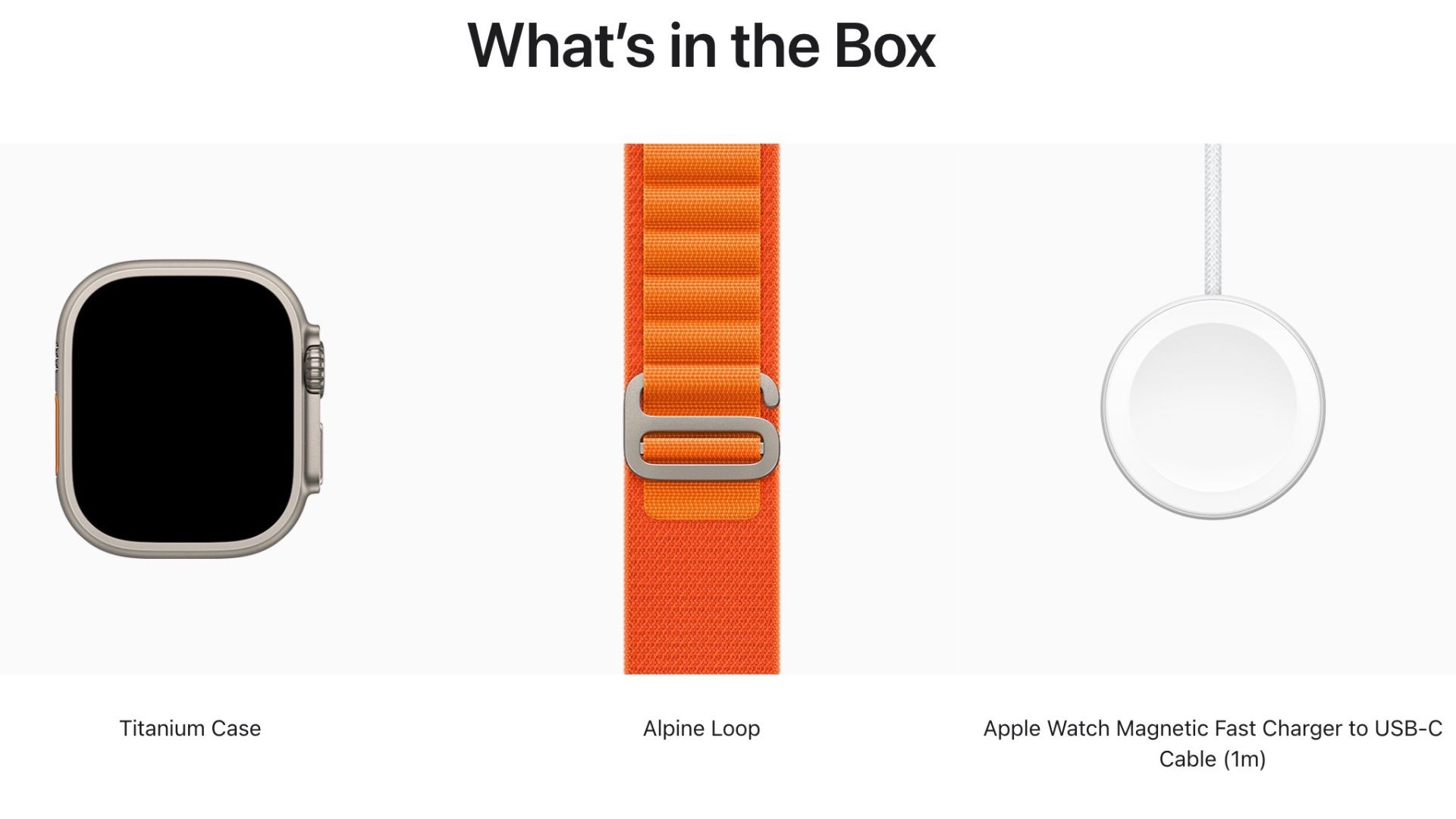
Examine the cable for any signs of fraying, kinks, or discoloration. If you are using a third-party charger that is not MFi (Made for iPhone/Watch) certified, the watchOS security protocol may block charging to prevent overheating. Always prioritize the official Apple USB-C Magnetic Fast Charger. In 2026, with the ubiquity of USB-C, ensure that your cable is firmly seated in the power brick. Even a millimeter of displacement can interrupt the circuit.
Testing the Power Adapter
The Apple Watch requires a consistent voltage to initiate the charging cycle. If you are plugging your USB cable into a laptop port or an old 5W "cube" adapter, it may not provide enough amperage to "wake" a completely dead watch. Try using a 20W USB-C power adapter (the standard for modern iPhones and iPads). This provides the necessary overhead to overcome the initial resistance of a deeply depleted battery.
Wall Outlets and Power Strips
It sounds elementary, but verify that the outlet is functional. Power strips with surge protection can sometimes trip, cutting off power to specific sockets. Plug a different device, like a lamp or a phone, into the same outlet to confirm it is active.
Phase 2: The Forced Restart (Hard Reset)
If your Apple Watch has plenty of battery but the screen remains black, it has likely crashed. A standard "off and on" won't work because the screen is unresponsive. You must perform a forced restart to clear the temporary memory (RAM) and reboot the processor.
How to Force Restart an Apple Watch:
- Locate the Digital Crown and the Side Button.
- Press and hold both buttons simultaneously.
- Keep holding them for at least 10 to 15 seconds.
- Release the buttons only when the Apple Logo appears on the screen.
This process does not delete your data. It acts as a hardware-level power cut that forces the device to reboot. If the Apple logo appears and then disappears, or if the watch goes back to a black screen, move to the next phase, as this indicates the battery is too low to sustain the boot sequence.
Phase 3: Cleaning the Contact Surfaces
The Apple Watch charges via induction, meaning power is transferred through magnetic fields between the puck and the back of the watch. This process is highly sensitive to the distance between the two surfaces.
Over months of wear, the back of the Apple Watch (composed of ceramic and sapphire crystal) accumulates a thin film of skin oils, sweat, lotions, and dead skin cells. This "bio-film" can act as an insulator, preventing the magnetic puck from making a clean connection.
Cleaning Protocol
- The Watch: Use a lint-free, microfiber cloth slightly dampened with fresh water. Gently wipe the circular back of the watch. If there is visible grime, use a 70% isopropyl alcohol wipe, but avoid getting moisture in the speaker or microphone ports.
- The Charger: Wipe the concave surface of the charging puck. Ensure there are no plastic films remaining on a new charger, as these are common culprits for charging interference.
Phase 4: Understanding the "Deep Discharge" State
If an Apple Watch is left uncharged for weeks or months, the lithium-ion battery enters a "Deep Discharge State." To protect the battery cells from becoming volatile, the onboard Battery Management System (BMS) disables normal operation.
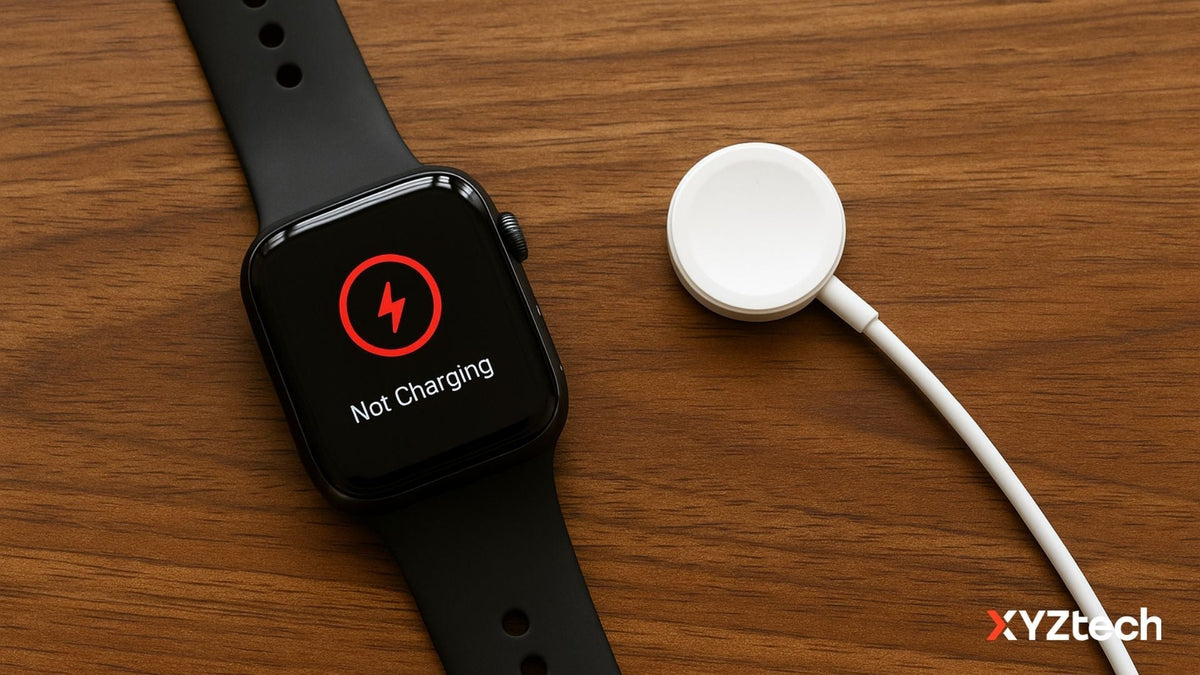
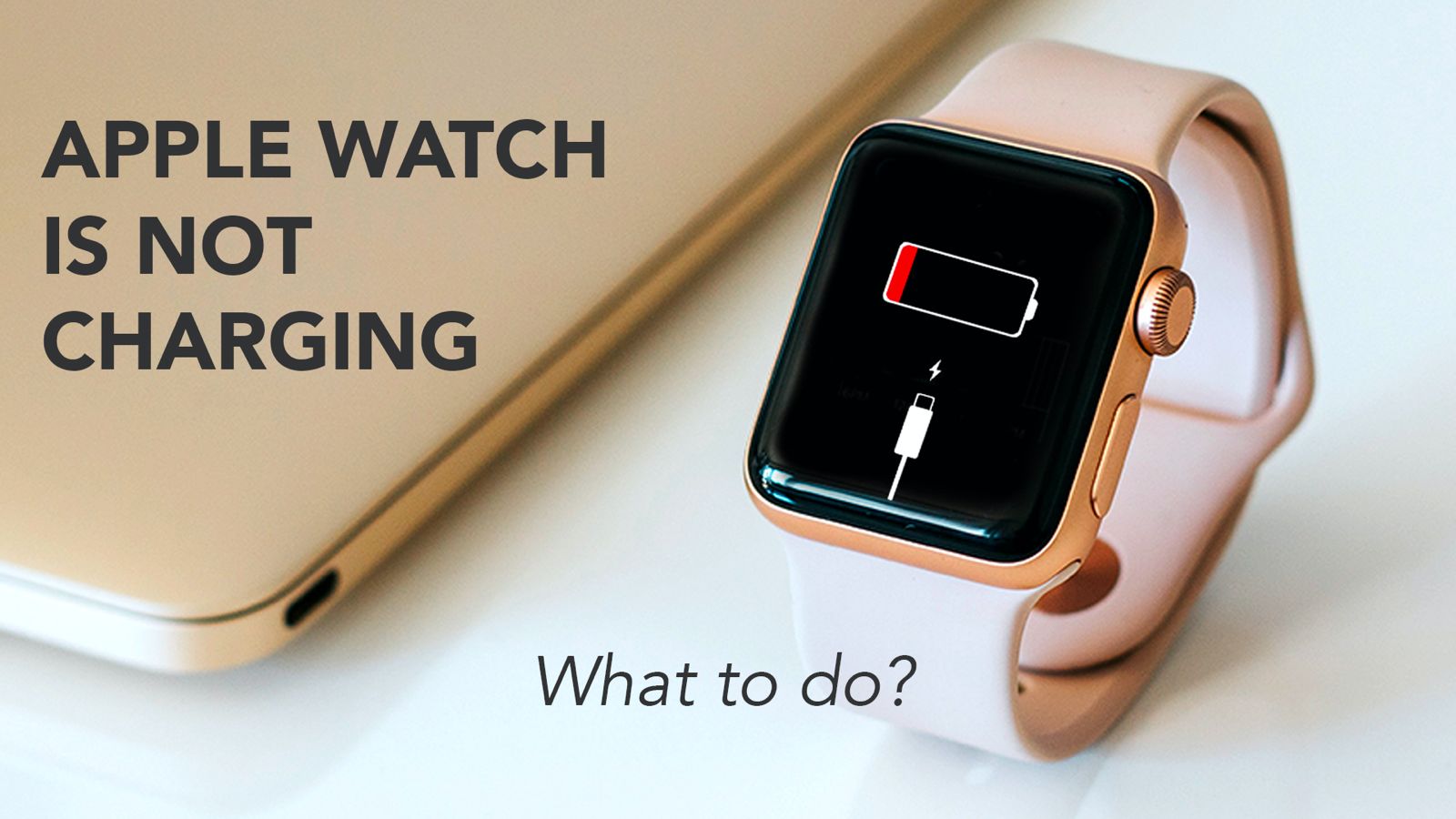
When you finally place a deeply discharged watch on a charger, it may not show any signs of life for a long time. You might see a faint red lightning bolt icon (the "Red Snake of Death") or nothing at all.
The 2-Hour Rule
In these instances, do not keep removing and replacing the watch on the charger. This resets the "handshake" process. Place the watch on a known-working 20W charger and leave it undisturbed for at least two to three hours. Often, the watch needs a low-current "trickle charge" to stabilize the battery chemistry before it can display the charging UI or boot the OS.
Comparison of Charging Icons and Symptoms
| Visual Symptom | Meaning | Recommended Action |
|---|---|---|
| Black Screen (No Response) | Total Power Loss or System Crash. | Force Restart; check power adapter. |
| Red Lightning Bolt (Snake) | Battery too low to boot; charging. | Leave on charger for 2+ hours. |
| Red Lightning Bolt + Cable Icon | Not currently charging. | Check cable connection and cleaning. |
| Apple Logo Boot Loop | Software corruption or hardware failure. | Force Restart; contact Apple Support. |
| Green Lightning Bolt | Charging normally. | No action required. |
| Thermometer Icon | Device is too hot to charge. | Move to a cooler environment. |
Phase 5: Environmental and Temperature Factors
Lithium-ion batteries are chemically sensitive to temperature. If your Apple Watch has been sitting in a hot car or under direct sunlight in 2026’s summer heat, it will refuse to charge to prevent a thermal runaway event. Conversely, extreme cold can temporarily increase internal resistance, making the battery appear dead.
If you see a red thermometer icon, or if the watch feels hot to the touch, remove it from the charger immediately. Let it cool down to room temperature for 30 minutes before attempting to charge it again. Charging a hot battery is one of the fastest ways to degrade its long-term health.
Phase 6: Software Glitches and "Screen Curtain"
In rare cases, the Apple Watch is actually "on" and charging, but the screen is disabled due to an accessibility feature called Screen Curtain. This is part of the VoiceOver suite, designed for visually impaired users, which turns off the display for privacy while the device remains functional.
To check if Screen Curtain is the issue:
- Open the Watch App on your paired iPhone.
- Navigate to Accessibility > VoiceOver.
- Toggle Screen Curtain to the Off position.
If the screen suddenly springs to life, your watch was never "dead" or "not charging"—it was simply in a specific display mode.
Battery Health and Hardware Longevity
By 2026, many Series 7, 8, and 9 devices may be showing signs of natural battery degradation. If your battery health (found in Settings > Battery > Battery Health) has dropped below 80%, the watch may struggle to maintain peak performance.
A failing battery can "swell." If you notice the screen of your Apple Watch slightly lifting or a gap appearing between the casing and the glass, stop charging it immediately. A swollen battery is a physical hardware failure and a potential fire hazard. This requires professional replacement through Apple’s official channels.
When Professional Repair is Unavoidable
If you have tried a different charger, performed a forced restart, cleaned the contacts, and left it charging for three hours without success, the issue is likely internal.
Potential Internal Failures:
- Failed Taptic Engine or Logic Board: Internal short circuits can prevent power distribution.
- Blown Charging Coil: The inductive coil inside the watch may have detached or failed due to a drop.
- Water Ingress: Despite "water resistance" ratings, seals can degrade over time (especially after 2-3 years), leading to internal corrosion.
In 2026, Apple’s diagnostic tools can quickly identify if the issue is the battery or the logic board. If your device is under AppleCare+, these repairs are typically covered. For out-of-warranty devices, weigh the cost of a battery service against the trade-in value for a newer model.
FAQ
How long does an Apple Watch take to turn on after it dies?
Typically, if the battery is just at 0%, it takes about 2 to 5 minutes of charging to show the Apple logo. However, if it has been dead for days, it may take 30 to 60 minutes before the screen responds.
Can I charge my Apple Watch with an iPhone MagSafe charger?
No. While both use inductive charging, the Apple Watch requires a specific, smaller coil alignment. A standard iPhone MagSafe or Qi charger will not charge an Apple Watch. You must use the dedicated Apple Watch charging puck.
My Apple Watch is stuck on the Apple Logo during charging. What do I do?
This is a "boot loop." It usually indicates a software update went wrong or there is a hardware fault. Try a forced restart while the watch is off the charger. If that fails, place it on the charger and try the forced restart again. If it persists, you may need to "Unpair" the watch via the iPhone Watch app to trigger a factory reset.
Why does my Apple Watch get hot while not charging?
If the watch is getting hot but the battery percentage isn't rising, there is likely a "rogue process" in the software or a short circuit. Remove it from the charger and perform a forced restart immediately to kill all active processes.
Does the 2026 Apple Watch support third-party chargers?
While third-party chargers work, Apple’s "Optimized Battery Charging" and "Fast Charging" features are most reliable with official MFi-certified accessories. Non-certified chargers often lack the thermal management chips necessary to protect the watch.
Final Recommendations
To prevent future "dead" issues, enable Optimized Battery Charging in your settings. This allows watchOS to learn your daily charging routine and wait to finish charging past 80% until you need it, significantly extending the chemical life of the battery. Additionally, ensure your watchOS is updated to the latest version, as Apple frequently releases patches for power management and charging bugs. If the device remains unresponsive after all steps, contact Apple Support for a Mail-In repair or a Genius Bar appointment.