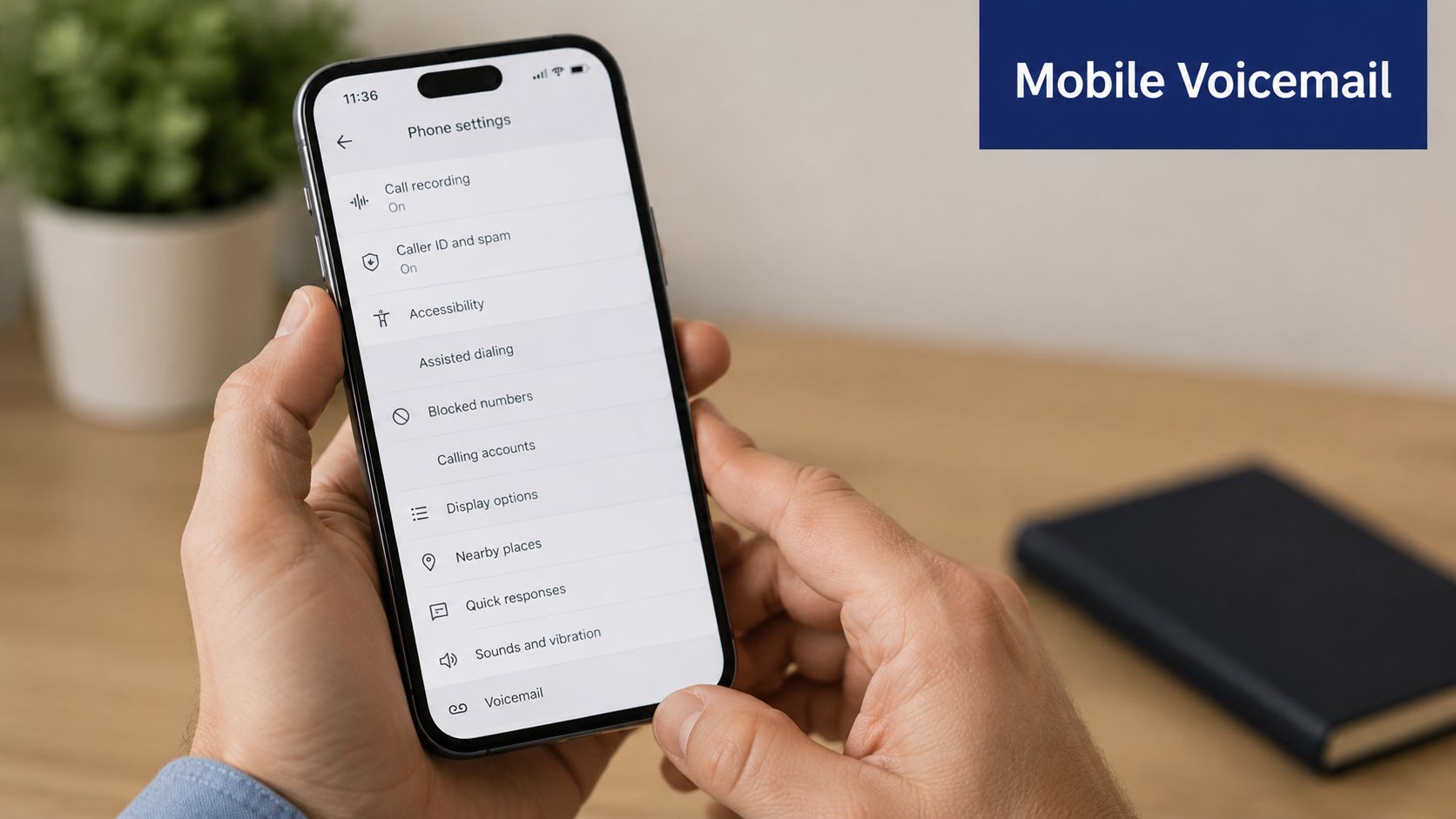
Apple voicemail transcription allows users to read text versions of audio messages directly within the Phone app. By leveraging on-device machine learning, iOS converts speech to text automatically. This feature requires a compatible iPhone, a supported carrier, and the correct regional settings to function seamlessly in 2026.
Understanding Apple’s Voicemail Ecosystem
To master voicemail transcription on an iPhone, it is essential to distinguish between the two primary technologies Apple uses: Visual Voicemail and Live Voicemail. While both result in text on your screen, they operate through different mechanisms and have distinct requirements.
Visual Voicemail Transcription
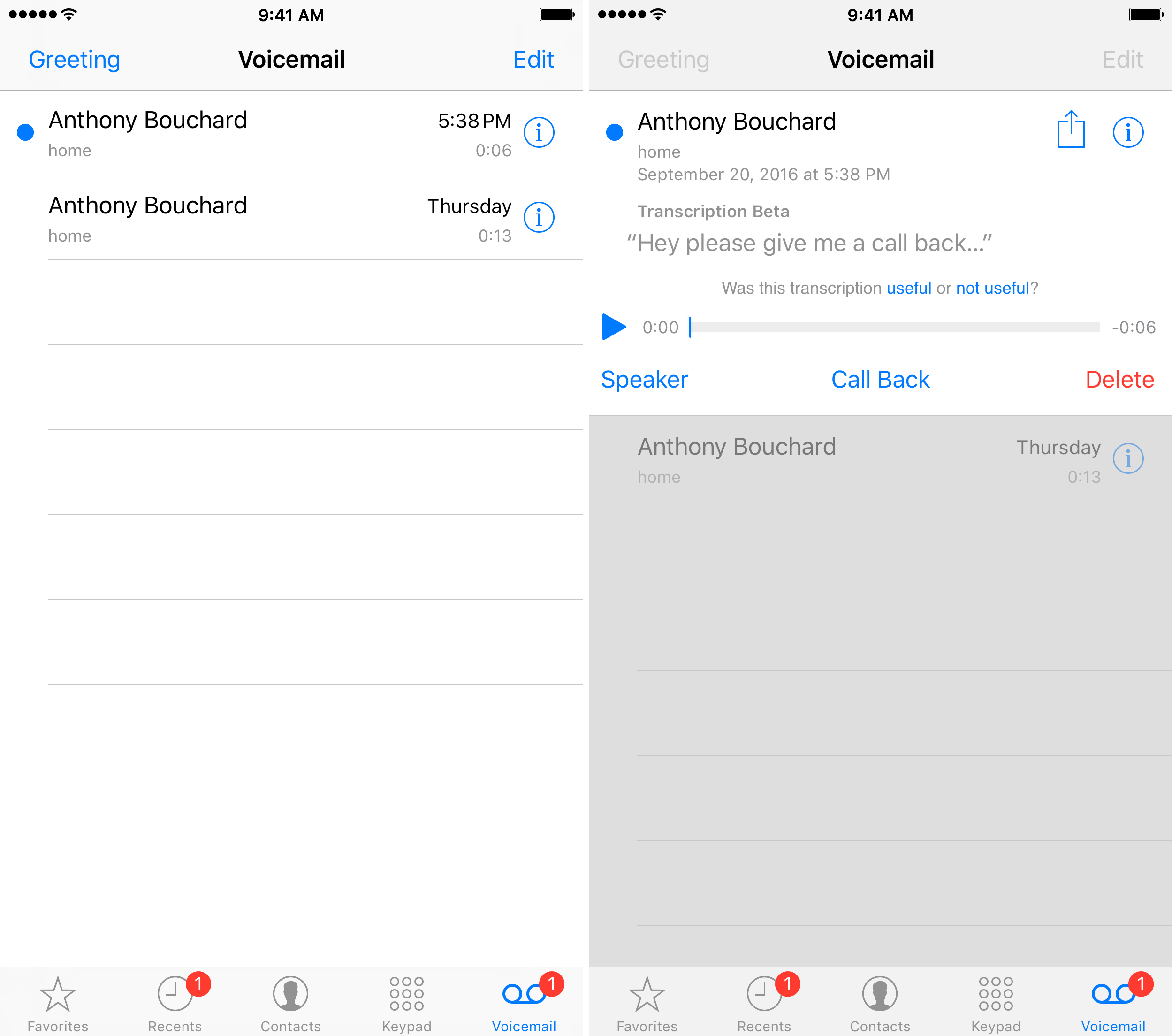
Introduced years ago, Visual Voicemail was the first step in moving away from the traditional "dial-in" voicemail system. With Visual Voicemail, your carrier sends the audio file to your device. Once the audio arrives, iOS attempts to transcribe it. This process is generally asynchronous; the caller leaves a message, the message is delivered, and then the transcription appears a few moments later.
Live Voicemail
Launched with iOS 17 and refined in subsequent updates through 2026, Live Voicemail changed the paradigm by providing real-time transcription. As a caller speaks into your recording machine, the iPhone displays a live text scroll on the Lock Screen or in the Phone app. This allows you to "screen" the call, deciding whether to pick up based on what the person is saying at that exact moment.
System Requirements and Prerequisites
Not every iPhone or cellular plan supports every form of transcription. Before troubleshooting why a transcript isn't appearing, verify that your hardware and service meet the following criteria.
Hardware and Software
As of 2026, the following hardware standards apply:
- Live Voicemail: Requires an iPhone XS, XR, or later. This is due to the processing power required by the Neural Engine to handle real-time speech-to-text.
- Operating System: While the feature debuted in iOS 17, current users in 2026 should be running the latest iteration of iOS (typically iOS 19 or iOS 20) to ensure the highest transcription accuracy and language support.
- Basic Transcription: Even older devices (iPhone 6s through iPhone X) can often display standard Visual Voicemail transcripts, provided the carrier supports the feature.
Carrier Support
This is often the "hidden" hurdle. For transcription to work, your cellular provider must support Visual Voicemail. Most major carriers in the United States, United Kingdom, Canada, and Australia support this, but smaller MVNOs (Mobile Virtual Network Operators) may not. If your voicemail screen only shows a "Call Voicemail" button, your carrier likely does not support the visual interface required for transcription.
How to Enable and Use Voicemail Transcription
In 2026, Live Voicemail is enabled by default in many regions, but it can be toggled manually. Standard Visual Voicemail transcription is an automatic background process that does not have a dedicated "On/Off" switch, provided the phone language is set to a supported dialect.
Steps to Toggle Live Voicemail
- Open the Settings app on your iPhone.
- Scroll down and tap on Phone.
- Tap on Live Voicemail.
- Toggle the switch to On or Off.
When Live Voicemail is active, you will see a "Voicemail" icon on the incoming call screen. Tapping this sends the caller to voicemail immediately while allowing you to watch the transcription.
Accessing Transcripts
To read a transcript of a message that has already been left:
- Open the Phone app.
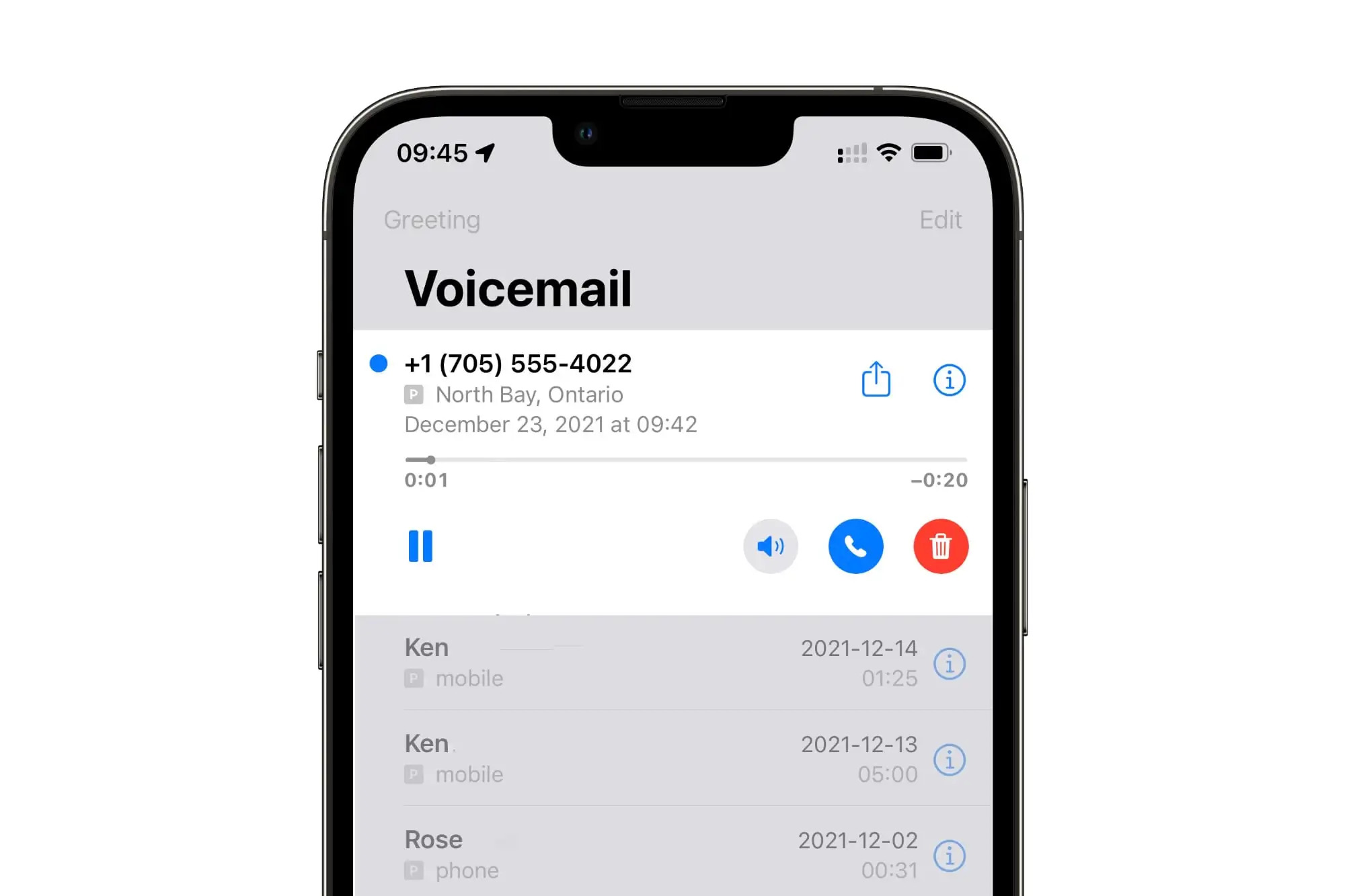
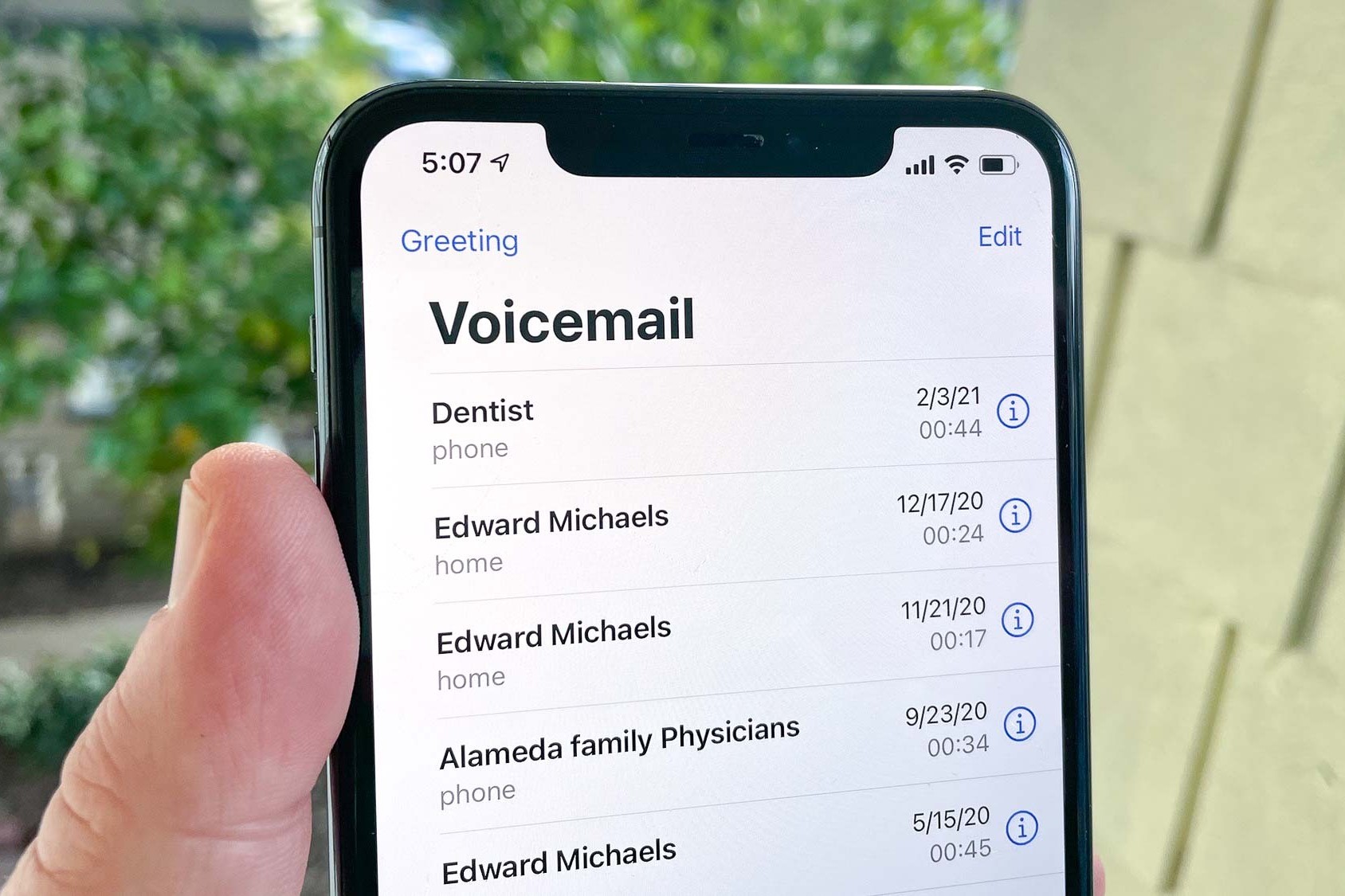
- Tap the Voicemail tab in the bottom right corner.
- Tap on a specific message.
- The transcript will expand automatically above the playback controls.
The Technical Depth: On-Device AI and Privacy
One of the most significant aspects of Apple’s voicemail transcription is where the processing happens. Unlike many cloud-based transcription services, Apple performs these calculations on-device.
The Role of the Neural Engine
The A-series chips in modern iPhones contain a dedicated Neural Engine designed for machine learning tasks. When a voicemail arrives, the audio data is fed into a localized language model. This model identifies phonemes, words, and context to generate text. Because this happens on your iPhone, the transcription is remarkably fast.
Privacy Implications
By keeping the transcription process on-device, Apple ensures that your private conversations are not uploaded to a server for processing. This is a critical distinction for users concerned about data privacy. The audio remains encrypted on the device or the carrier’s server, and the text data generated never leaves the handset unless you choose to share it via Messages or Mail.
Language and Regional Availability
As of 2026, Apple has expanded the language support for voicemail transcription significantly, but it is not yet universal. The feature relies on specific language packs that are optimized for the Neural Engine.
| Language | Live Voicemail Support | Visual Voicemail Transcription |
|---|---|---|
| English (US, Canada) | Full Support | Full Support |
| English (UK, Australia) | Full Support | Full Support |
| French (France, Canada) | Full Support | Full Support |
| German (Germany) | Full Support | Full Support |
| Spanish (Spain, Mexico, US) | Full Support | Full Support |
| Japanese | Full Support | Full Support |
| Mandarin Chinese | Partial / Beta | Full Support |
If your iPhone is set to a language or region not listed in Apple's officially supported documentation, the "Transcription" header simply will not appear in the Phone app. Users often find that changing their Siri Language and Region settings to a supported English dialect can force the feature to appear, though this may affect other localized services.
Troubleshooting Common Issues
Even with the advancements of 2026, users frequently encounter the "Transcription Not Available" placeholder. Here is how to resolve the most common technical glitches.
"Transcription Not Available"
This error usually means the iPhone has received the audio but hasn't finished processing it, or the audio quality is too poor for the AI to decode.
- Network Connection: Ensure you have a stable LTE, 5G, or Wi-Fi connection. While processing is on-device, the initial download of the audio file from the carrier requires data.
- Language Mismatch: If the caller speaks a language different from your phone’s primary setting, the transcriber may fail.
- Resetting the Process: Toggle Airplane Mode on and off to refresh the connection to the carrier’s voicemail server.
Transcripts Not Appearing at All
If the transcription header is missing entirely:
- Check Siri Settings: Voicemail transcription shares resources with Siri. Ensure Siri is enabled in Settings > Siri & Search.
- Reset Network Settings: Go to Settings > General > Transfer or Reset iPhone > Reset > Reset Network Settings. Note that this will erase saved Wi-Fi passwords.
- Check Carrier Updates: Go to Settings > General > About. If a carrier update is available, a prompt will appear within a few seconds.
Audio Quality and Accuracy
Machine learning is not perfect. Background noise, heavy accents, or poor cellular reception can lead to "hallucinations" in the text or missing words. If a transcript is vital for legal or professional reasons, always listen to the audio to verify the text.
Best Practices for Using Voicemail Transcription
To get the most out of this feature in 2026, consider the following expert tips:
- Custom Greeting: If you use Live Voicemail, your greeting should inform callers that they are being transcribed. This often encourages them to speak more clearly, which improves the accuracy of the text you see on your screen.
- Share and Save: You can share a transcript just like any other text. Long-press on the transcription text to copy it or share it to Notes. This is excellent for keeping a record of appointments or instructions.
- Manage Storage: While text takes up very little space, the accompanying audio files can add up. Periodically delete old voicemails to keep the Phone app running efficiently.
FAQ
Why can't I see the "Live Voicemail" option in my settings?
If you are using a supported iPhone model and the option is missing, it is likely due to your region. As of 2026, Apple still limits Live Voicemail to specific markets. Check if your Region is set to a supported country like the US, Canada, UK, or Australia in Settings > General > Language & Region.
Does voicemail transcription use my data plan?
Visual Voicemail requires a small amount of data to download the audio file from your carrier's server to your iPhone. However, the actual transcription process happens offline on your device and does not consume data.
Can I turn off transcription but keep Visual Voicemail?
No, there is currently no toggle to disable the text transcripts while keeping the visual interface for audio messages. If the language is supported, the iPhone will attempt to transcribe every message it receives. You can, however, turn off Live Voicemail specifically.
How accurate is the transcription in 2026?
Accuracy has improved significantly with the integration of newer transformer-based models in iOS. Under ideal conditions (clear voice, low background noise), accuracy exceeds 95%. However, it can still struggle with technical jargon, specific proper nouns, and overlapping speakers.
Is my voicemail transcription shared with Apple?
No. Apple’s privacy policy for 2026 maintains that voicemail transcriptions are processed locally on your iPhone’s Neural Engine. Unless you manually opt-in to share data for product improvement, the text and audio remain private to your device.
Final Recommendation
For the best experience with Apple voicemail transcription, ensure your iPhone is updated to the latest version of iOS available in 2026 and that you are using a carrier that fully supports Visual Voicemail. If you find the real-time scrolling of Live Voicemail distracting, you can disable it in the Phone settings while still retaining the ability to read transcripts of saved messages later. Always treat transcripts as a convenient summary rather than a perfect verbatim record.