An Apple security breach involving iOS cloud services typically refers to unauthorized access to an Apple ID or iCloud account rather than a fundamental flaw in Apple's server-side architecture. Users concerned about a breach must verify account integrity, revoke unauthorized device access, enable Advanced Data Protection, and audit secondary security settings to secure their personal information against potential exposure.
Understanding the Nature of iCloud Security
When users search for information regarding an "Apple security breach in the iOS cloud," they are often reacting to notifications about unrecognized sign-in attempts, data leaks from third-party services that share credentials with their Apple ID, or localized account compromises. It is essential to distinguish between a systemic failure of Apple’s infrastructure and individual account compromise.
Apple employs robust end-to-end encryption for sensitive data, including iCloud Keychain, Health data, and Home data. For these categories, data is encrypted using keys derived from the user's device passcode. Because Apple does not hold these keys, even in the event of a theoretical server-side breach, the data remains inaccessible to unauthorized parties. However, other data, such as iCloud Backups, may be encrypted with keys managed by Apple unless the user enables Advanced Data Protection. Understanding this distinction is the first step in auditing your personal security posture.
Prerequisites for Account Verification
Before attempting to resolve a suspected breach, you must confirm your current security status. You do not need specialized software or expensive third-party tools to perform these checks. The following prerequisites apply to any user managing an Apple ID in 2026:
- Access to a Trusted Device: You must have physical access to at least one primary device (iPhone, iPad, or Mac) that is currently signed into the Apple ID in question.
- Known Recovery Information: Ensure you have access to your primary email address and the trusted phone number associated with your account.
- Active Device List: A clear understanding of which devices you currently own and use is necessary to identify unauthorized hardware.
If you suspect your credentials have been compromised, do not attempt to log in on a public or untrusted computer. Always use your personal, secure devices to manage your Apple ID settings.
Step-by-Step Response to Account Compromise
If you suspect unauthorized access to your iOS cloud data, follow this structured process to regain control and limit potential damage.
1. Audit Active Devices
Unauthorized access is most commonly facilitated by a device that has been granted trust.
- On your iPhone, go to Settings and tap your name at the top.
- Scroll down to see the list of devices linked to your Apple ID.
- If you see any device you do not recognize, tap it and select Remove from Account. This immediately revokes its ability to sync or access your iCloud data.
2. Change Your Apple ID Password
If your account was accessed, the primary credential is no longer secure.
- Navigate to Settings > [Your Name] > Sign-In & Security.
- Select Change Password.
- Choose a unique, complex passphrase that you do not use on any other website or service.
3. Update Trusted Phone Numbers
Attackers sometimes attempt to change the recovery phone number to retain control of an account.
- Within the Sign-In & Security menu, review your Trusted Phone Numbers.
- If you see a number that does not belong to you, remove it immediately. Ensure your own current, active number is the primary one.
4. Review Security Keys and Account Recovery
If you have set up a recovery key or recovery contacts, verify that they have not been altered. A Recovery Key is a randomly generated 28-character code that provides a higher level of security but means that if you lose it and your password, your account may be permanently inaccessible. Ensure your key is stored in a secure, offline location.
Advanced Data Protection and Cloud Encryption
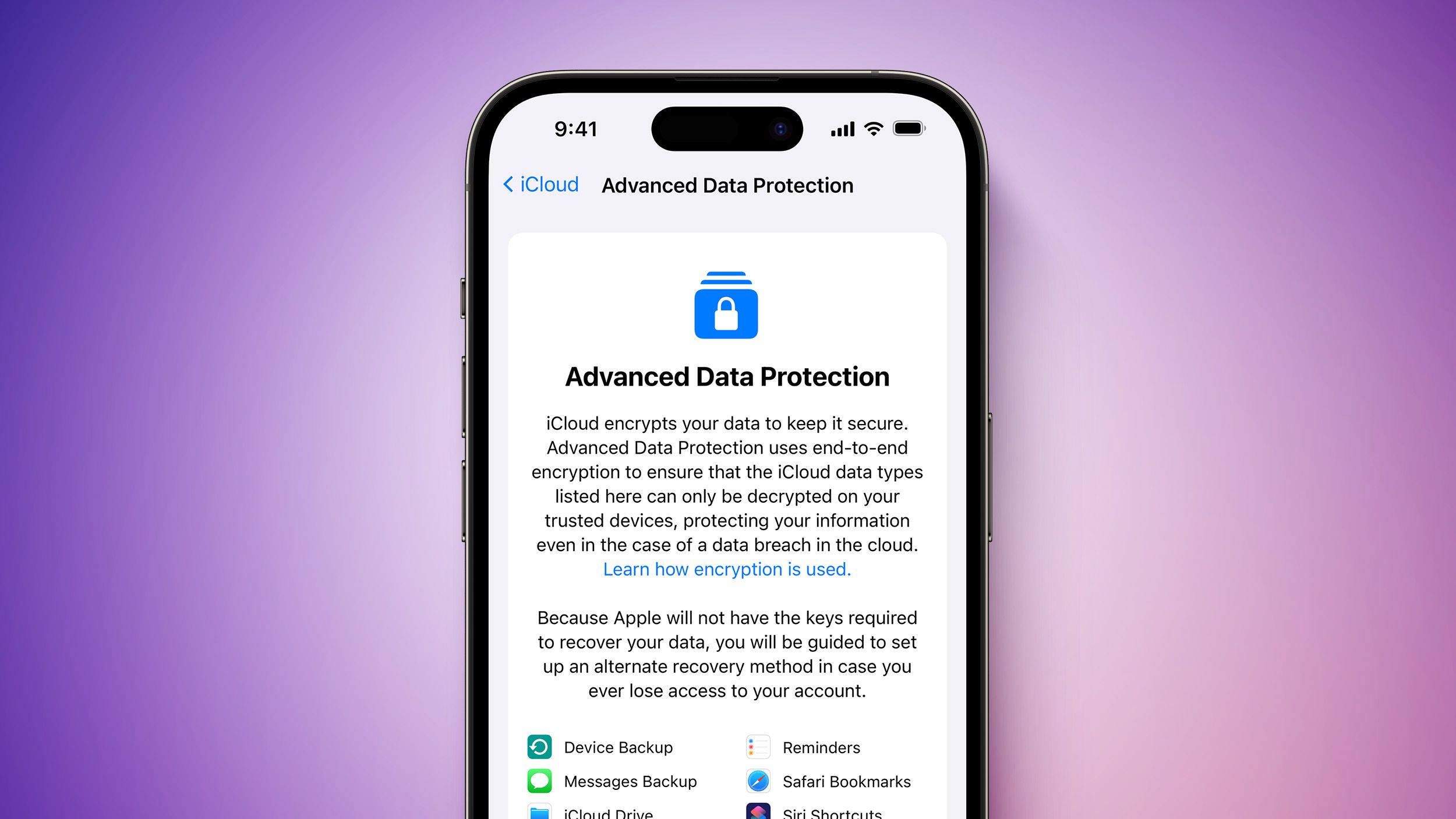
For users seeking the highest level of security, Apple provides a feature called Advanced Data Protection for iCloud. By default, Apple keeps the encryption keys for certain data in its cloud, which allows them to assist with account recovery. By enabling Advanced Data Protection, you move the responsibility for these encryption keys to your own devices.
- What it covers: iCloud Backups, Photos, Notes, Reminders, and Safari Bookmarks.
- The trade-off: If you lose access to your devices and your recovery methods, Apple cannot help you recover your data.
- When to use it: This is the most effective defense against a cloud-side breach, as it renders your backed-up data unintelligible to anyone, including Apple, without your device-level credentials.
| Feature | Standard Data Protection | Advanced Data Protection |
|---|---|---|
| Encryption Keys | Managed by Apple | Managed by User |
| iCloud Backup | Standard Encryption | End-to-End Encryption |
| Recovery Assistance | Available via Apple Support | Not Available |
| Security Level | High | Highest |
Common Mistakes During Security Recovery
Users often inadvertently lower their security while trying to "fix" a suspected breach. Avoid these common pitfalls:
- Sharing Authentication Codes: Never provide the six-digit verification code sent to your Apple device to anyone, even if they claim to be from "Apple Support." Apple will never request this code via phone, email, or chat.
- Using Weak Passwords: Reusing passwords from social media or shopping websites makes your Apple ID a high-value target for credential stuffing attacks.
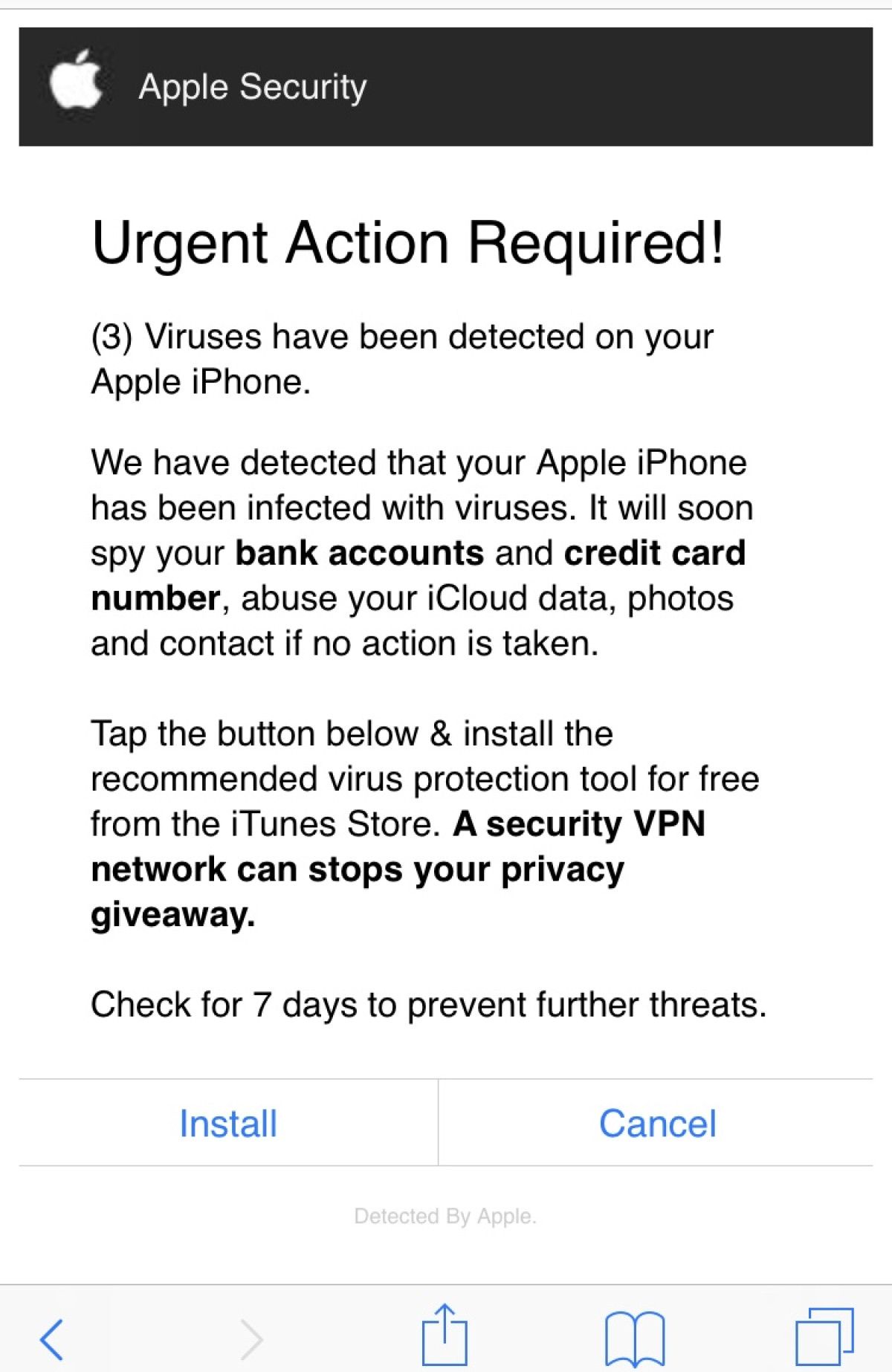
- Ignoring Suspicious Emails: Phishing remains the primary method for gathering Apple ID credentials. Before clicking any link in an email about your account, manually navigate to your Apple ID settings page through your device’s system settings rather than clicking provided links.
Frequently Asked Questions
What should I do if I get a notification about an unknown sign-in? Tap "Don't Allow" on the notification immediately. This prevents the sign-in attempt from proceeding. Follow this by changing your Apple ID password and reviewing your active devices list to ensure no unauthorized hardware remains logged in.
Does a breach of iCloud mean my device is infected with malware? No. An iCloud breach typically refers to the remote compromise of your account credentials. While you should check your device for unusual activity, an account compromise is usually limited to data stored in the cloud, such as photos, backups, or synced contacts.
Can Apple see my photos if my account is breached? If you have Advanced Data Protection enabled, Apple cannot view your photos even if your account is accessed. If you use standard protection, Apple holds the keys to your iCloud data, though they are legally restricted from accessing it without a lawful request or your permission.
How do I know if my Apple ID is truly secure? A secure account uses a unique, strong password, has Two-Factor Authentication (2FA) enabled, and is associated only with your own, verified phone numbers. Regularly auditing your "Devices" list in the Settings menu is the best way to maintain ongoing security.
What is the role of the "Account Recovery Contact"? A recovery contact is a trusted person you designate who can help you verify your identity if you ever lose access to your account. They cannot access your data; they only help prove who you are during the account recovery process.
Maintaining Long-Term Account Hygiene
Security is a continuous process rather than a one-time setup. To ensure your iOS cloud environment remains secure throughout 2026 and beyond, perform a security audit every six months. Check your linked email addresses, confirm that your 2FA trusted numbers are up to date, and rotate your Apple ID password if you have any reason to believe it may have been exposed in a third-party data breach. By taking these proactive steps, you align your personal data protection with the high-security standards provided by Apple's infrastructure, significantly reducing the risk of unauthorized access.