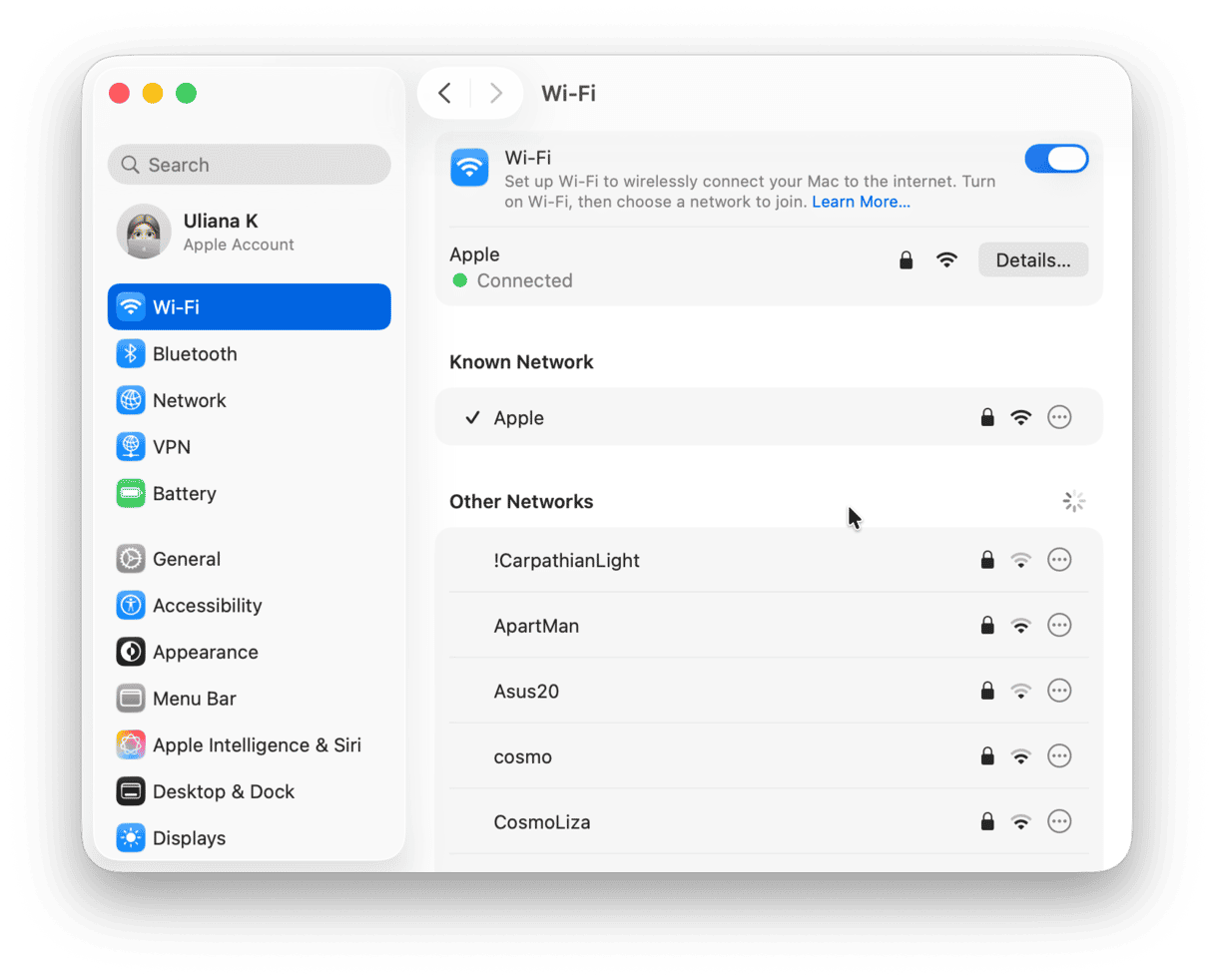
When you encounter an Apple server issue, it typically manifests as a failure to connect to services like iCloud, iMessage, the App Store, or Apple Music. These disruptions are often caused by temporary regional outages, scheduled maintenance, or localized authentication bottlenecks. To resolve these, verify your internet connection, check the official Apple System Status page, and clear local cache settings on your device.
The Anatomy of Apple Service Architecture
To understand why Apple services occasionally fail, one must recognize the complexity of the company’s infrastructure. Apple operates a massive, globally distributed network of data centers that manage trillions of requests daily. These servers handle everything from push notifications and iCloud synchronization to firmware validation and transactional data for the App Store.
Server issues are rarely the result of a single "switch" failing. Instead, they are usually categorized into three distinct layers:
- Edge Infrastructure: These are the points of presence (PoP) closest to the user. Issues here often manifest as high latency or slow content delivery, such as images failing to load in the Photos app.
- Authentication Servers: These are the gatekeepers. If these servers experience an issue, you will be unable to sign into your Apple ID or verify your identity for purchases. This is the most common cause of "Unable to connect to server" error messages.
- Database and Sync Clusters: These manage your personal data. Disruptions here usually prevent iCloud Drive, Notes, or Reminders from syncing across your devices.
Diagnosing the Root Cause of Connection Errors
Not every error message signifies a server-side problem. Many users mistakenly blame Apple’s backend when the issue is actually local to their network or device settings. Distinguishing between these two scenarios is the first step in troubleshooting.
Step 1: The System Status Verification
The absolute authority for identifying a widespread outage is the official Apple System Status page. Unlike third-party outage trackers that rely on crowdsourced reports, the Apple Status page tracks the health of internal components. If you see a yellow or red icon next to a service, the issue is confirmed as being on Apple’s end.
Step 2: Ruling Out Localized Network Interference
If the Apple Status page shows all services as green, the issue is likely within your control. Common local culprits include:
- DNS Configuration: If your router or computer is using an unstable DNS server, it may fail to resolve the address of Apple’s servers. Switching to a standard DNS provider, such as Google (8.8.8.8) or Cloudflare (1.1.1.1), can often bypass this.
- VPN and Security Software: VPNs and third-party firewalls often intercept encrypted traffic. If the security handshake between your device and Apple’s server is interrupted, the connection will be dropped. Temporarily disabling these tools is a quick way to verify if they are causing the obstruction.
- Date and Time Settings: Many Apple services rely on TLS (Transport Layer Security) certificates. If your device’s date and time are incorrect, the SSL handshake will fail because the device believes the security certificate is invalid. Ensure your device is set to "Set Automatically" in your Date & Time settings.
Troubleshooting Table: Common Scenarios and Solutions
| Symptom | Probable Cause | Recommended Action |
|---|---|---|
| "Cannot Connect to App Store" | Local Network/CDN Cache | Toggle Airplane Mode; flush DNS cache. |
| "iCloud Syncing Paused" | Account Authentication | Sign out and sign back into your Apple ID. |
| "Verification Failed" | Server-side Load or Time Sync | Correct System Date/Time; wait 15 minutes. |
| "iMessage Activation Error" | Carrier/Server Handshake | Check cellular settings; reset network settings. |
| "iCloud Drive Not Updating" | Storage Limits or API Glitch | Check available iCloud storage; check Apple Status. |
Advanced Troubleshooting for Persistent Issues
If you have verified that Apple’s servers are operational and you have ruled out local network issues, you may be dealing with a corrupted local state. In modern macOS and iOS, the system keeps temporary files and cached credentials that can sometimes become "stuck."
For Mac users, this might involve clearing the com.apple.appstore folder within the Library caches or resetting the trustd process that handles certificate management. On iOS, a "Reset Network Settings" action is the most common "nuclear" option, as it clears out corrupted Wi-Fi configurations and VPN profiles without deleting your personal data.
However, proceed with caution. Resetting network settings will wipe your saved Wi-Fi passwords and Bluetooth pairings. Only perform this step if you have confirmed that your device is behaving inconsistently across multiple different Wi-Fi networks and cellular connections.
The Role of Content Delivery Networks (CDNs)
Apple utilizes a hybrid approach to server management. While they maintain their own data centers, they also rely on third-party CDNs to serve static content—such as app icons, software update files, and media metadata—to users faster.
Sometimes, an "Apple server issue" is actually a failure within the CDN provider’s regional node. If you find that you can access some Apple services (like iMessage) but not others (like downloading apps), a specific CDN node might be struggling. In these cases, waiting is often the most effective solution, as traffic is automatically re-routed by load balancers once the system detects the failure.
Why Server Issues Spike During Major Releases
You may notice that server issues are significantly more common during the launch of a new version of iOS or macOS. This is due to "thundering herd" syndrome. Millions of users attempt to ping Apple’s servers simultaneously to verify their update eligibility and pull down several gigabytes of data.
Apple uses gated release strategies and regional throttling to manage this, but the infrastructure occasionally hits a bottleneck. If you are experiencing issues during a major software launch week, it is almost always best to delay your update by 24 to 48 hours. This allows the initial server strain to dissipate and ensures a smoother download and installation process.
Understanding Error Messages
Modern Apple devices are designed to provide feedback, but these messages are often vague. An error stating "A server error occurred" is intentionally non-specific to prevent bad actors from gaining information about the system's architecture.
When you see such a message:
- Note the exact wording: Is it "Cannot connect to server," "Authentication failed," or "The server is temporarily unavailable"?
- Test across platforms: Can you access the service on a different device using the same network? If the issue only exists on one device, the problem is local. If it exists across all devices, the problem is likely your account or the Apple server.
- Check for account-level restrictions: Sometimes, Apple will lock specific features for security reasons if they detect suspicious activity. If you can use the App Store but cannot use iCloud, check your account status at appleid.apple.com.
FAQ: Frequently Asked Questions
How long do Apple server outages usually last? Most temporary server issues last between 30 minutes and four hours. Apple’s engineering teams typically detect these issues automatically through monitoring, and restoration is usually a matter of rerouting traffic to healthy server clusters.
Does restarting my device actually fix server issues? Restarting your device clears volatile memory and refreshes network socket connections. If a connection was dropped due to a transient error, a restart forces the device to establish a fresh handshake with Apple’s servers, which often resolves the issue.
Why does my friend's iPhone work when mine doesn't? This is common during partial outages where Apple is serving data from different server clusters. Your device might be routed to a congested server node, while your friend’s device is routed to a healthy one in a different region or data center.
Should I change my DNS settings permanently? Switching to a third-party DNS like Cloudflare (1.1.1.1) is generally safe and often provides faster, more reliable resolution than a standard ISP DNS. However, it will not fix a true, widespread Apple outage.
What should I do if my Apple ID is locked during an outage? If your Apple ID is locked, wait until the System Status page shows all systems as "green" before attempting to unlock it. Attempting to force an account unlock while the authentication servers are unstable can lead to your account being flagged for security verification, adding further delays.
Final Recommendations
If you are currently experiencing connectivity issues with Apple services, start by confirming the service status on the Apple System Status dashboard. If all systems are green, restart your primary device and toggle your Wi-Fi or cellular connection to force a fresh handshake. If the problem persists, wait one hour before attempting significant changes, as many "server issues" are self-resolving as Apple's load balancers adjust to traffic. If you continue to encounter errors for more than 24 hours, contact Apple Support directly to rule out account-specific security holds.