Armoury Crate fan control is a software-based utility, primarily driven by the Fan Xpert module, that allows ASUS motherboard and laptop users to manage system cooling. It provides presets like Silent and Turbo, alongside manual curve editing, to balance thermal efficiency with acoustic performance by adjusting fan RPM based on real-time sensor data.
Effective thermal management is the cornerstone of system longevity and peak performance. For users within the ASUS ecosystem, Armoury Crate serves as the centralized command center for these adjustments. Whether you are using a high-end ROG (Republic of Gamers) desktop or a TUF Gaming laptop, understanding how the software interprets temperature data and translates it into fan speed is essential for maintaining a stable, quiet, and powerful machine.
Understanding the Core Logic of Armoury Crate Fan Control
At its heart, Armoury Crate fan control operates on a feedback loop. The software monitors various temperature sensors located across the motherboard, CPU, and GPU. Based on the selected profile or a user-defined manual curve, the software sends instructions to the fan controllers (either embedded in the chipset or via dedicated hardware headers) to increase or decrease the voltage (DC) or pulse-width modulation (PWM) signal.
In 2026, the complexity of these interactions has grown. Modern systems no longer rely solely on CPU temperature to dictate fan behavior. Instead, Armoury Crate can now aggregate data from multiple sources, such as the VRM (Voltage Regulator Module), the chipset, and even external thermal probes connected to specific motherboard headers. This holistic approach ensures that specific "hot spots" are addressed without necessarily ramping up every fan in the chassis to maximum speed.
The Role of Fan Xpert 4
On desktop systems, the fan control logic is often branded as Fan Xpert 4. This module is integrated into the Armoury Crate interface. It provides the granular controls needed to manage individual headers. For example, you can distinguish between your "CPU_FAN" header and "CHA_FAN1" (Chassis Fan). This distinction is vital because a chassis fan located at the rear of the case should react differently to heat than the fans attached directly to a liquid cooling radiator.
Prerequisites and Initial Setup
Before you can effectively use fan control within Armoury Crate, your hardware must be correctly configured. This begins in the BIOS/UEFI. Most ASUS motherboards feature a "Q-Fan Control" section. While Armoury Crate can override many of these settings, it is best practice to ensure your fan types are correctly identified.
- PWM Mode: Used for 4-pin fans. This mode sends a constant 12V signal and uses a separate wire to communicate speed instructions, allowing for very low RPMs without the fan stalling.
- DC Mode: Used for 3-pin fans. This mode controls speed by varying the voltage. If the voltage drops too low, the fan may stop entirely.
Once the hardware is confirmed, you must perform a Fan Tuning or "Optimization" process within Armoury Crate.
The Importance of Fan Tuning (Calibration)
When you first open the Fan Xpert section, you will see a button labeled "Fan Tuning." Clicking this triggers a diagnostic sequence where the software gradually increases the voltage/signal to every connected fan until it reaches maximum RPM, then slowly decreases it until the fan stops spinning (the "stall point").
This process is critical because every fan model has a unique "operational range." By calibrating the fans, Armoury Crate learns the exact minimum and maximum RPM for your specific hardware. Without this calibration, manual curves may be inaccurate, and the "Silent" profile might fail to spin the fans at all or, conversely, keep them spinning louder than necessary.
Preset Modes: From Silent to Full Speed
ASUS provides four primary presets designed to cover the vast majority of use cases. These are highly optimized and generally sufficient for users who do not want to manage manual curves.
- Silent Mode: This profile prioritizes low noise levels. It allows temperatures to rise slightly higher before ramping up the fan speeds. On many modern ASUS boards, this mode may even support "Zero RPM" technology, where fans remain completely stationary until a specific temperature threshold (usually 55°C–60°C) is reached.
- Standard Mode: This is the default balanced profile. It provides a linear increase in fan speed as temperatures rise, offering a middle ground between acoustic comfort and thermal headroom.
- Turbo Mode: Designed for sustained workloads like video rendering or intensive gaming. The fans ramp up more aggressively and much earlier in the temperature curve to prevent thermal throttling before it starts.
- Full Speed: This locks all fans at 100% RPM. While rarely used for daily tasks due to the noise, it is an excellent tool for testing the maximum cooling potential of your setup or for clearing heat quickly after a heavy benchmark.
Deep Dive into Manual Fan Curves
For enthusiasts, the Manual Mode is where Armoury Crate provides the most value. This mode presents a graph where the X-axis represents Temperature (°C) and the Y-axis represents Fan Speed (%).
By clicking on the nodes (dots) on the graph, you can drag them to create a custom "curve." A common strategy is to create a "flat" curve at a low RPM for temperatures between 30°C and 50°C to ensure the PC remains nearly silent during web browsing, followed by a steep "ramp" that hits 100% speed if the CPU reaches 85°C.
Temperature Sources and Hysteresis
One of the most powerful features in the manual section is the ability to select the Temperature Source. If you have a front intake fan that primarily cools the GPU, you can set that specific fan to trigger based on the "GPU Temperature" sensor rather than the CPU. This prevents the case fans from spinning up unnecessarily if the CPU is under a light load while the GPU is working hard.
Another technical term you will encounter is Hysteresis (or "Fan Step Up/Down Time"). This setting controls how quickly the fan reacts to a change in temperature.
- High Hysteresis (Slow Reaction): Prevents the fans from "revving" up and down rapidly when the CPU temperature fluctuates momentarily (a common occurrence with modern processors that boost frequently).
- Low Hysteresis (Fast Reaction): Ensures the fans react immediately to heat spikes, providing maximum protection for sensitive components.
Laptop vs. Desktop: Key Distinctions
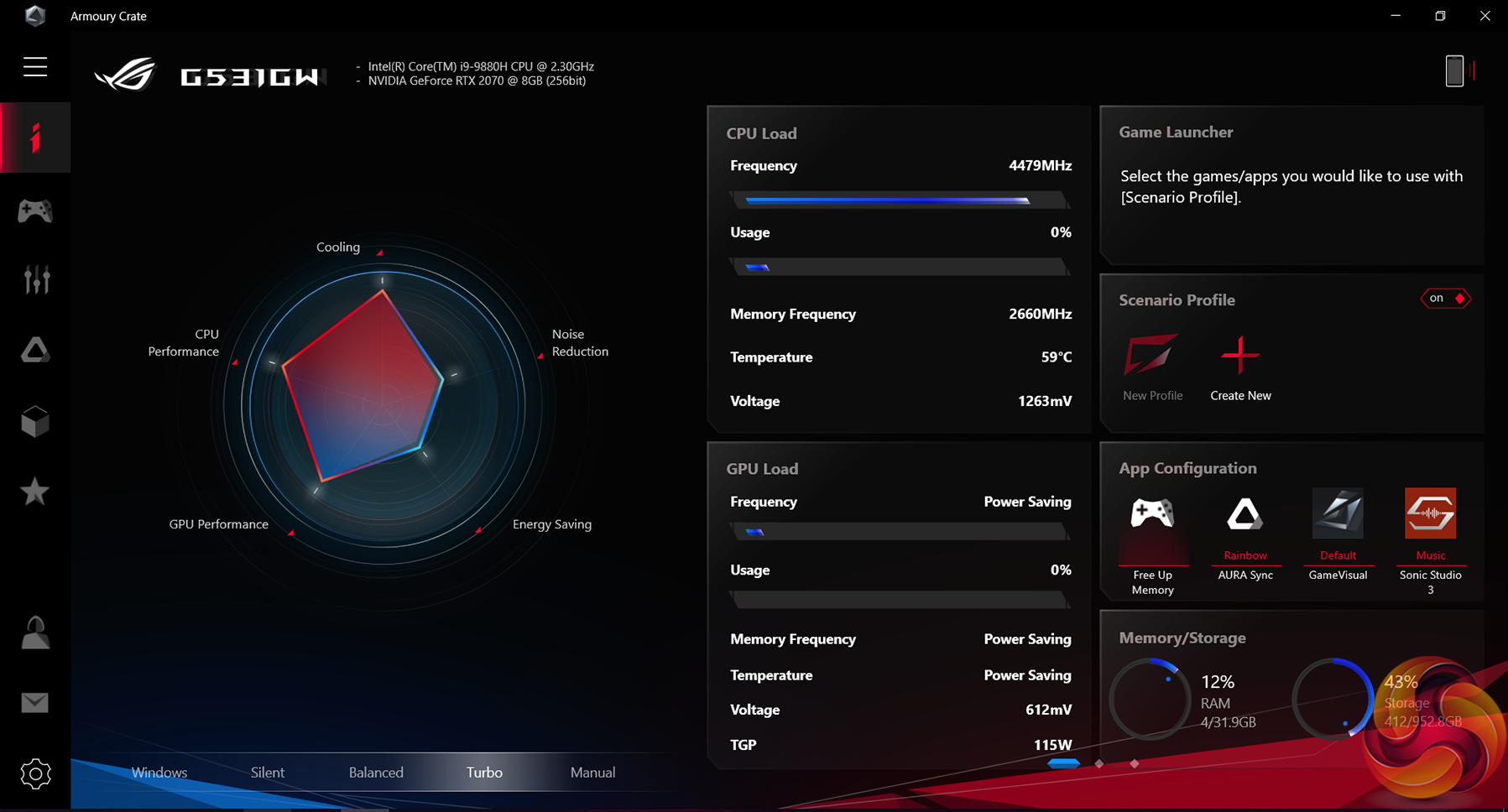
While the underlying branding is the same, Armoury Crate behaves differently on laptops. On an ROG or TUF laptop, fan control is tied directly to System Profiles (Silent, Performance, Turbo, and Manual).
- Integrated Power Limits: In a laptop, changing the fan profile also changes the PL1 and PL2 power limits of the CPU and the TGP (Total Graphics Power) of the GPU. Selecting "Turbo" doesn't just make the fans louder; it actually allows the components to draw more wattage.
- Manual Mode (Laptop): In the Manual profile for laptops, you can adjust the "Fan Offset." This adds a specific percentage of speed on top of the base curve. ASUS also allows for "CPU and GPU Overclocking" sliders in this same window, emphasizing that cooling and power are inextricably linked in mobile form factors.
AI Cooling II: Automated Thermal Intelligence
Introduced and refined leading up to 2026, AI Cooling II is an intelligent algorithm that automates the balancing act. It works by monitoring the system under load and learning how long it takes for a fan speed increase to result in a temperature decrease.
AI Cooling II aims to reduce fan noise by up to 5dB by ensuring that fans only spin as fast as absolutely necessary to maintain a target temperature. It is particularly effective at managing the "spin-down" phase; instead of keeping fans high for minutes after a game is closed, the AI calculates the fastest way to return to silence without letting heat soak into the chassis.
Comparison of Fan Control Profiles
The following table summarizes the typical behavior of Armoury Crate's fan profiles for a standard desktop configuration.
| Profile | Noise Level | Cooling Efficiency | Ideal Use Case | Zero RPM Support |
|---|---|---|---|---|
| Silent | Very Low | Low/Moderate | Web browsing, Office work, Movies | Yes |
| Standard | Moderate | Moderate | General use, Light gaming | Limited |
| Turbo | High | High | Competitive gaming, 3D Rendering | No |
| Full Speed | Extreme | Maximum | Benchmarking, Thermal testing | No |
| Manual | User Defined | User Defined | Enthusiasts and Quiet-PC builders | Optional |
Troubleshooting Common Fan Control Issues
Even with the advancements in 2026, software-based fan control can encounter hurdles. Here are the most common issues and their solutions.
Fans Not Detected or Grayed Out
If Armoury Crate does not show your fans, it is usually due to a communication error between the software services and the hardware.
- Check the BIOS: Ensure the fan headers are set to "Auto," "PWM," or "DC." If a header is disabled in the BIOS, Armoury Crate cannot see it.
- Re-run Fan Tuning: Often, the software just needs to re-map the fans to recognize they are connected.
- Update Services: Armoury Crate relies on several background processes (like the ROG Live Service). Ensure all components are updated via the "Update Center" in the bottom-left corner of the app.
High CPU Usage by Armoury Crate
A common complaint is that the software itself consumes too many system resources. To mitigate this, once you have set your manual curves, you can often close the main Armoury Crate window. The background services will continue to apply the curves. If the usage remains high, using the official Armoury Crate Uninstall Tool provided by ASUS Support and performing a clean reinstall is the most effective fix.
Fans Revving Up and Down (Oscillation)
If your fans are constantly changing speed, your manual curve nodes are likely too close together, or your hysteresis is set too low. To fix this, increase the Fan Step Up time to 2.0 seconds or higher. This creates a "delay" that smooths out the fan's response to short-lived temperature spikes.
Best Practices for 2026 Systems
To get the most out of Armoury Crate fan control, consider these expert recommendations:
- Prioritize GPU Sensors for Intake: Most modern gaming PCs are GPU-bound. Setting your front intake fans to react to the GPU temperature ensures that your graphics card gets fresh air exactly when it needs it, regardless of what the CPU is doing.
- Utilize "Fan Stop" for Case Fans: Many high-quality 140mm fans can spin as low as 300 RPM. Setting a "Zero RPM" point for temperatures below 45°C can significantly reduce dust buildup inside your case.
- Avoid Conflicting Software: Do not run Armoury Crate alongside other fan control utilities like FanControl (Open Source) or SpeedFan. Having two programs fighting for control of the same fan header can cause the fans to lock at 100% or stop entirely.
- Regular Calibration: If you add a new fan or move a fan to a different header, always re-run the Fan Tuning diagnostic. The software needs to know the physical limits of the new hardware to apply your profiles accurately.
FAQ
1. Can I use Armoury Crate fan control on a non-ASUS motherboard?
No. Armoury Crate and its Fan Xpert module are proprietary to ASUS hardware. The software requires the specific embedded controller (EC) found on ROG, TUF, and Prime motherboards to function. For non-ASUS boards, you would need to use the motherboard manufacturer's specific software or a third-party utility.
2. Is it better to control fans in the BIOS or Armoury Crate?
BIOS control is more "stable" because it functions regardless of the operating system. However, Armoury Crate offers a much more user-friendly interface and the ability to change profiles on the fly without restarting the PC. Most users prefer Armoury Crate for its convenience and the ability to use GPU temperature as a source, which most BIOS versions cannot do.
3. Does Armoury Crate fan control affect my warranty?
No. Using the software to adjust fan speeds is a standard feature and does not void your warranty. However, consistently running your fans at "Full Speed" may lead to the fan bearings wearing out faster over several years, but this is a hardware limitation, not a legal one.
4. Why does my fan speed stay high even after my game is closed?
This is usually due to "Heat Soak." Even if the CPU usage drops, the liquid in an AIO cooler or the metal fins of a large heatsink remain warm for several minutes. Armoury Crate will keep the fans spinning until the sensor reaches the threshold defined in your curve. You can adjust the "Fan Step Down" time to make them quiet down faster.
5. Can I control my GPU fans through Armoury Crate?
If you have an ASUS ROG or TUF graphics card, you can often see its fan speed in Armoury Crate, but granular control is usually handled through the "GPU Tweak" software or by linking case fans to the GPU temperature sensor within Fan Xpert.
Practical Recommendation
For the best balance of performance and quiet operation in 2026, run the Fan Tuning diagnostic first, then select the Standard profile for daily use. If you find the noise profile distracting, switch to Manual Mode, set your CPU fan to a 12V PWM curve with a 3.0-second Step-Up delay, and link your chassis intake fans to your GPU temperature sensor. This ensures your cooling system is intelligent, responsive, and tailored to the specific thermal demands of your hardware.