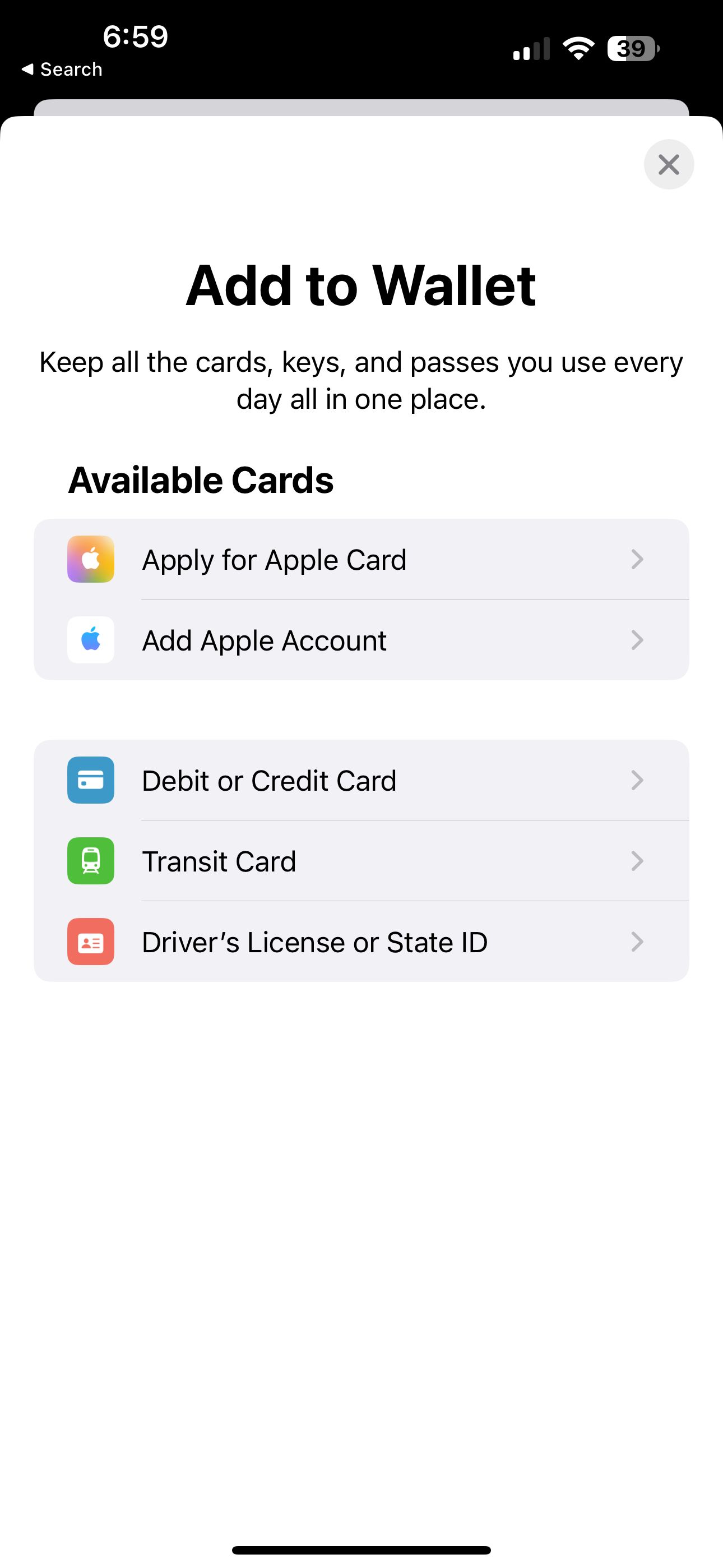
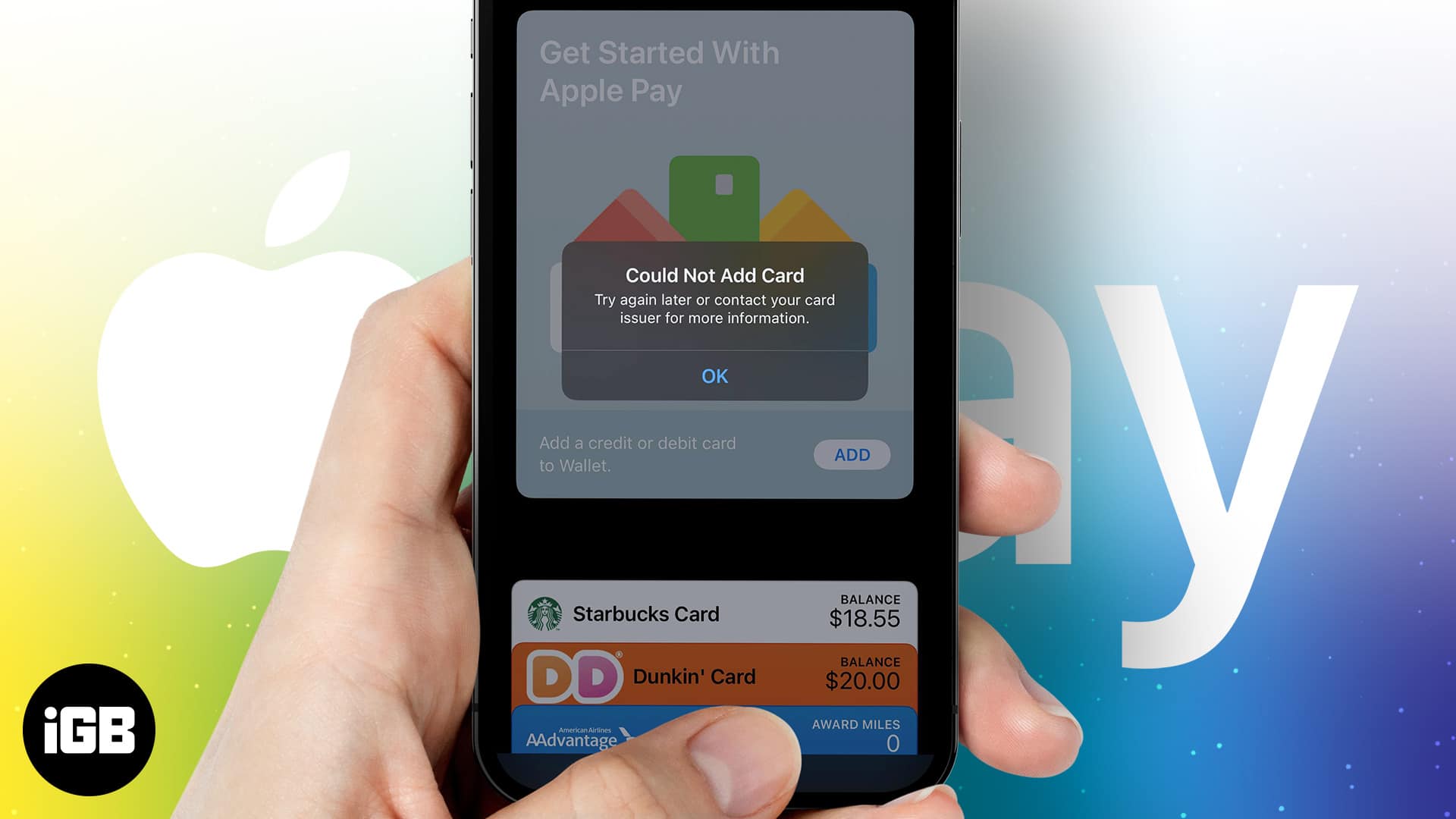
When you receive the message "Could Not Add Card" while attempting to link a debit or credit card to your Apple Wallet, it typically indicates a communication breakdown between your device, the issuing bank, or Apple’s verification servers. This issue often stems from outdated device software, incorrect region settings, temporary network instability, or security restrictions imposed by your financial institution that require manual authorization.
Understanding the Apple Pay Architecture
Apple Pay functions as a tokenization service. When you add a card to your Wallet, your iPhone, iPad, or Apple Watch does not store the actual card number. Instead, the device communicates with the payment network (such as Visa, Mastercard, or American Express) and the issuing bank to request a "Device Account Number." This encrypted token is then stored in the Secure Element—a dedicated, isolated chip on your device.
If the "Could Not Add Card" error appears, the handshake process between these three entities—your device, the issuing bank, and the payment network—has failed. Understanding this tripartite relationship is essential for troubleshooting, as the failure might occur at any point in the digital chain.
Prerequisites for Successful Card Addition
Before troubleshooting, ensure that your environment meets the baseline requirements established for Apple Pay. Many users encounter errors simply because they are operating outside of the service’s supported framework.
Geographic and Institutional Eligibility
- Regional Support: Apple Pay is not available in every country or territory. Ensure your Apple ID region matches the country where your card was issued.
- Participating Banks: Even if your bank operates in a supported region, not all specific card products (such as certain corporate, prepaid, or regional cooperative cards) are compatible with Apple Pay.
- Software Versioning: Always ensure your device is running the latest version of iOS, iPadOS, or watchOS. Apple updates its payment security protocols frequently, and outdated firmware may lack the necessary cryptographic handshake capabilities.
Device Readiness
- Region Settings: Navigate to Settings > General > Language & Region. Ensure the Region is set correctly to your current location.
- Security Requirements: Your device must be protected by a passcode. Face ID or Touch ID must be enabled to authorize payments. If these security features are disabled, the Wallet app will prevent the addition of new cards to protect your financial data.
Step-by-Step Troubleshooting Sequence
When the standard card-adding process fails, follow this systematic approach to isolate the cause. Start with the simplest fixes and progress to more complex administrative checks.
1. Network and Connectivity Verification
A stable, non-restricted internet connection is mandatory. Avoid using public Wi-Fi networks that require a portal login (captive portals), as these often block the encrypted traffic required for Apple Pay authentication.
- Toggle Wi-Fi/Cellular: Switch from Wi-Fi to cellular data to rule out local network firewalls or DNS issues.
- VPN and Proxy Servers: If you use a Virtual Private Network (VPN), disable it. VPNs often trigger security alerts at banking endpoints, causing them to reject your device’s connection attempt as a potential fraud risk.
2. The Bank’s Role in Authentication
The most common cause for the "Could Not Add Card" error is a security hold placed by the issuing bank. Banks often flag the initial attempt to link a card to a digital wallet as suspicious activity.
- Direct Contact: Call the number on the back of your card. Specifically ask the representative to check if there is an "Apple Pay tokenization request" that was blocked.
- Verification Methods: Most banks require a secondary layer of verification. If you are trying to add the card, ensure you have access to the mobile app of your bank or your email/SMS to receive a verification code. If the bank’s system is experiencing an outage, you will be unable to add the card regardless of your device’s settings.
3. Reviewing the Wallet App and Account State
Sometimes, corrupt cache data within the Wallet app prevents a new card from registering properly.
- Clear the Cache: While you cannot manually clear the Wallet app cache like a standard application, restarting your device forces a refresh of the Apple Pay services. Perform a hard restart (Power + Volume button sequence) to clear temporary memory.
- Remove Pending Cards: If you have multiple failed attempts, go to the Wallet app and ensure there are no "Pending" or partially added cards. Delete any incomplete entries before attempting to add the card again.
Comparative Troubleshooting Table
| Error Symptom | Likely Cause | Recommended Action |
|---|---|---|
| "Card Not Eligible" | Bank does not support Apple Pay | Check Apple’s official list of participating banks |
| "Could Not Add Card" | Security block or verification failure | Call your bank to authorize the digital wallet token |
| "Server Error" | Apple system outage or DNS issue | Check the Apple System Status page; wait and retry |
| "Request Timed Out" | Poor internet or active VPN | Disable VPN, switch to cellular, or change networks |
Advanced Diagnostic Steps
If the basic troubleshooting steps do not resolve the issue, you may need to look at more specific configurations.
Checking Apple System Status
It is rare, but possible, that Apple’s servers for Apple Pay are experiencing temporary downtime. Visit the official Apple System Status page online. If there is a yellow or red indicator next to "Apple Pay & Wallet," the issue is on Apple's end, and no amount of troubleshooting on your device will resolve the error. You must wait for their engineering teams to restore service.
Removing and Re-Adding the Apple ID
In rare cases, the account credentials associated with your iCloud profile may have become unsynchronized with the Wallet service.
- Go to Settings > [Your Name] > Sign Out.
- Restart your device.
- Sign back into iCloud. Caution: Ensure you have your passwords and data backed up before signing out, as this removes local synced data.
Resetting Network Settings
If you have verified that your bank is not blocking the request and your internet connection is sound, your device's network configuration might be interfering with secure connections.
- Go to Settings > General > Transfer or Reset iPhone > Reset > Reset Network Settings.
- Note: This action will erase saved Wi-Fi passwords and Bluetooth pairings, but it will clean up corrupted network configuration files that might be blocking the secure server handshake.
Frequently Asked Questions
Why does my bank tell me they don't see an attempt?
If your bank states they have no record of the attempt, the communication failed before it reached their server. This usually points to a device-side issue, such as an incorrect region setting, an active VPN, or a system-wide date and time setting that is not set to "Set Automatically."
Can I use a card that was previously removed?
Yes. If you previously removed a card, you can add it back. If you encounter the "Could Not Add Card" error on a previously used card, it is likely that the previous token is stuck in a "suspended" state within your Apple ID. Signing out of iCloud and back in often clears these ghost tokens.
Does the age of my device affect Apple Pay?
Yes. Apple Pay requires the Secure Element, which is only present in specific iPhone and iPad models (typically iPhone 6 and later). If you are using an older device that is no longer receiving security updates, you may be unable to complete the handshake with modern payment gateways.
Is it safe to provide my card information to Apple?
Apple does not store your actual card number on their servers, nor do they share your full card number with the merchant. When you add a card, a unique Device Account Number is created. This ensures that even if a merchant is compromised, your actual card details remain secure.
What if I am traveling internationally?
Adding a card while traveling can trigger location-based security blocks. If you are in a different country than your card's issuing bank, the bank’s fraud detection system may block the digital tokenization. You may need to use a domestic network (or a trusted home VPN) to verify the card.
Final Recommendations
If you have exhausted these steps—checked your software, verified your region, disabled VPNs, and confirmed with your bank that they are not blocking the request—the problem is likely a deep-seated communication error between your Apple ID and the Apple Pay server. In this scenario, contact Apple Support directly. They have access to diagnostic logs that can determine if your specific Apple ID has been restricted from adding new payment methods.
When you contact support, have your device's serial number ready and describe the exact error message provided by the wallet application. They can verify if there is an account-level restriction that requires manual lifting.