Apple Pay configuration is the process of setting up Apple’s proprietary digital wallet service on a compatible device or integrating its payment processing capabilities into a merchant’s point-of-sale system. Users perform this by adding debit, credit, or prepaid cards to the Wallet app, while merchants configure it via payment gateways to accept contactless and in-app transactions securely.
Understanding the Two Dimensions of Apple Pay Configuration
The term "Apple Pay configuration" typically refers to one of two distinct workflows. For the average consumer, it implies the setup of a personal device—such as an iPhone, Apple Watch, or Mac—to facilitate contactless payments at retail terminals or secure checkout online. For a business owner or developer, it implies the technical integration of Apple Pay as a payment method on a website, within an app, or at a physical point-of-sale terminal.
Distinguishing between these two pathways is essential. If you are an individual attempting to pay for your groceries, you do not need to configure an API or register a merchant ID; you simply need to provision your existing payment cards into your Apple Wallet. Conversely, if you are a merchant, you must navigate Apple’s developer portal and collaborate with your payment processor to enable Apple Pay as a verified payment option for your customers.
Configuration for Personal Use: The Digital Wallet Workflow
For personal users, the configuration of Apple Pay revolves around the Wallet application. This process relies on the Secure Element, a dedicated chip in Apple hardware that stores payment information in an encrypted format, ensuring that your actual card numbers are never stored on the device or Apple’s servers.
Prerequisites for Consumers
Before starting, ensure your device meets these requirements:
- Hardware Compatibility: You must be using an Apple device with Touch ID, Face ID, or a passcode. This includes most iPhone models released since 2014, iPad models with Touch ID/Face ID, and Apple Watch Series 1 or later.
- Regional Availability: Ensure Apple Pay is supported in your current country or region.
- Supported Financial Institutions: Not every bank or credit union supports Apple Pay. Check the official Apple list of participating banks to ensure your specific card issuer is compatible.
- Apple ID: You must be signed in with your Apple ID on your device.
Step-by-Step Device Setup
- Open the Wallet App: Locate the Wallet app on your iPhone or iPad. If it is not on your home screen, search via Spotlight.
- Initiate Card Addition: Tap the plus (+) sign in the upper-right corner of the interface.
- Authentication: Select "Debit or Credit Card." You may be prompted to scan your card using the device camera, or you can choose to enter the card details manually.
- Verification: Your bank will verify the card. This often requires a verification code sent via SMS, email, or a phone call to the bank’s support line. Once verified, the bank authorizes the device to create a "Device Account Number."
- Setting the Default: If you have multiple cards, navigate to Settings > Wallet & Apple Pay to designate your preferred card for quick access.
Merchant Integration: Configuring Apple Pay for Business
For businesses, Apple Pay configuration is a more rigorous technical process. It requires establishing a secure connection between your commerce platform and the Apple Pay servers.
The Merchant Infrastructure
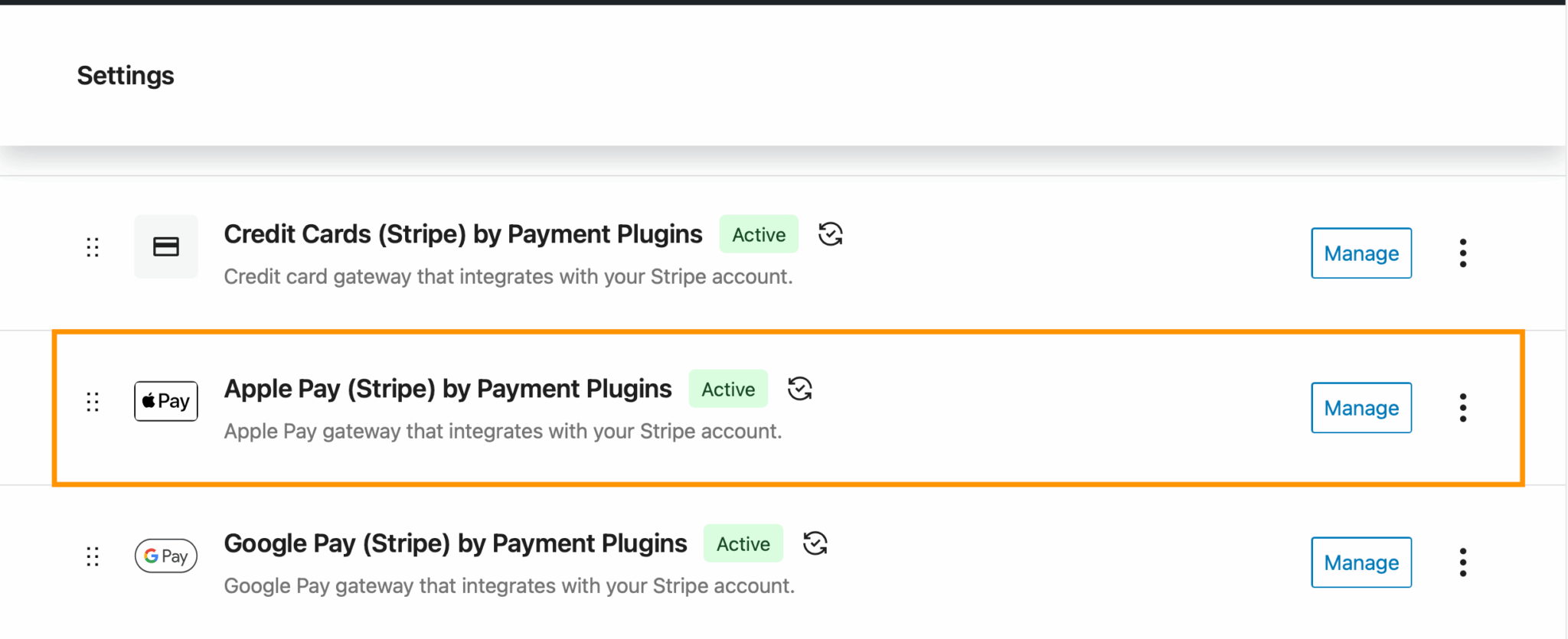
To accept Apple Pay online or in-app, your business must utilize a payment processor that supports Apple Pay (such as Stripe, Adyen, or Square). These providers simplify the heavy lifting of tokenization and cryptographic communication with Apple.
Technical Configuration Steps
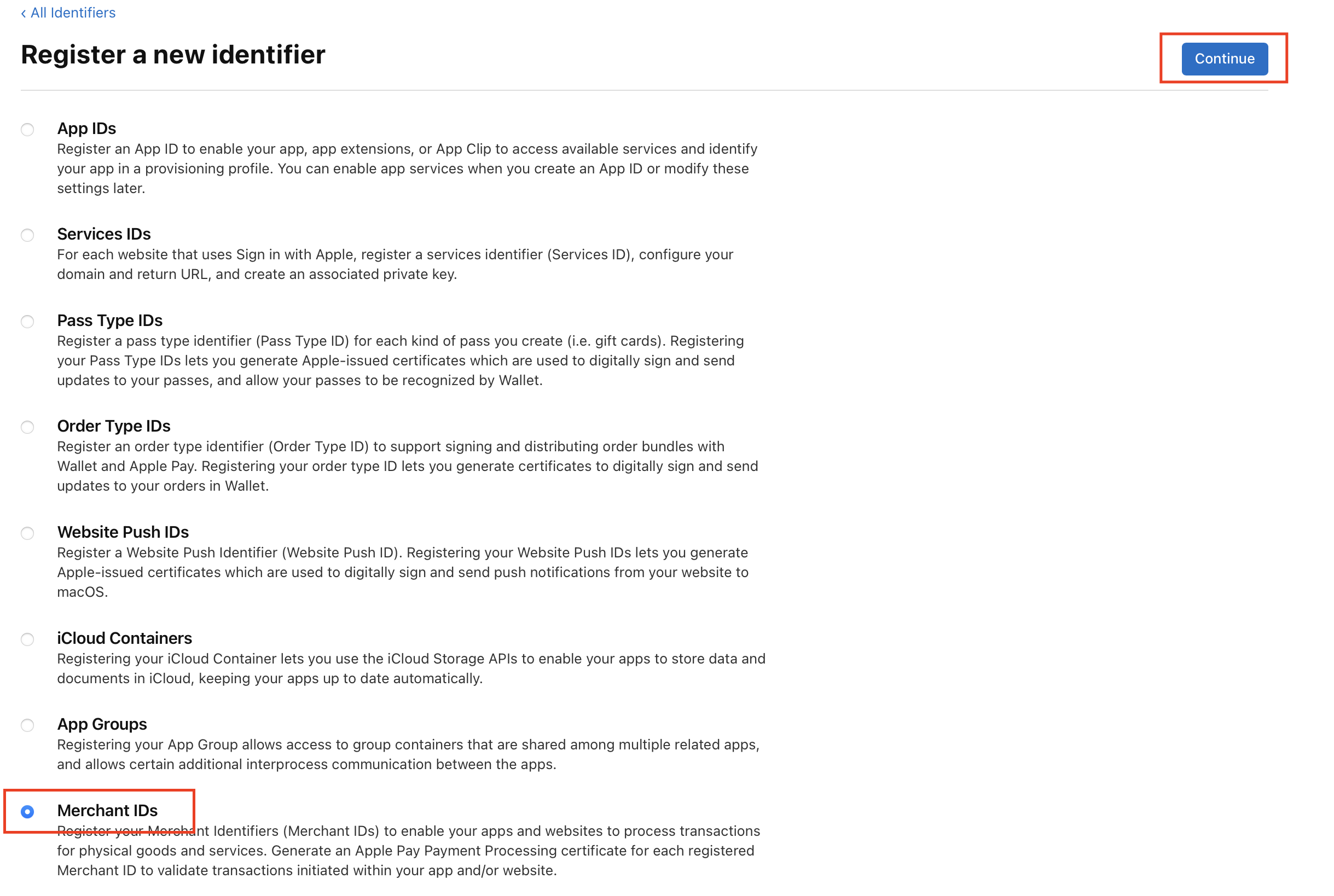
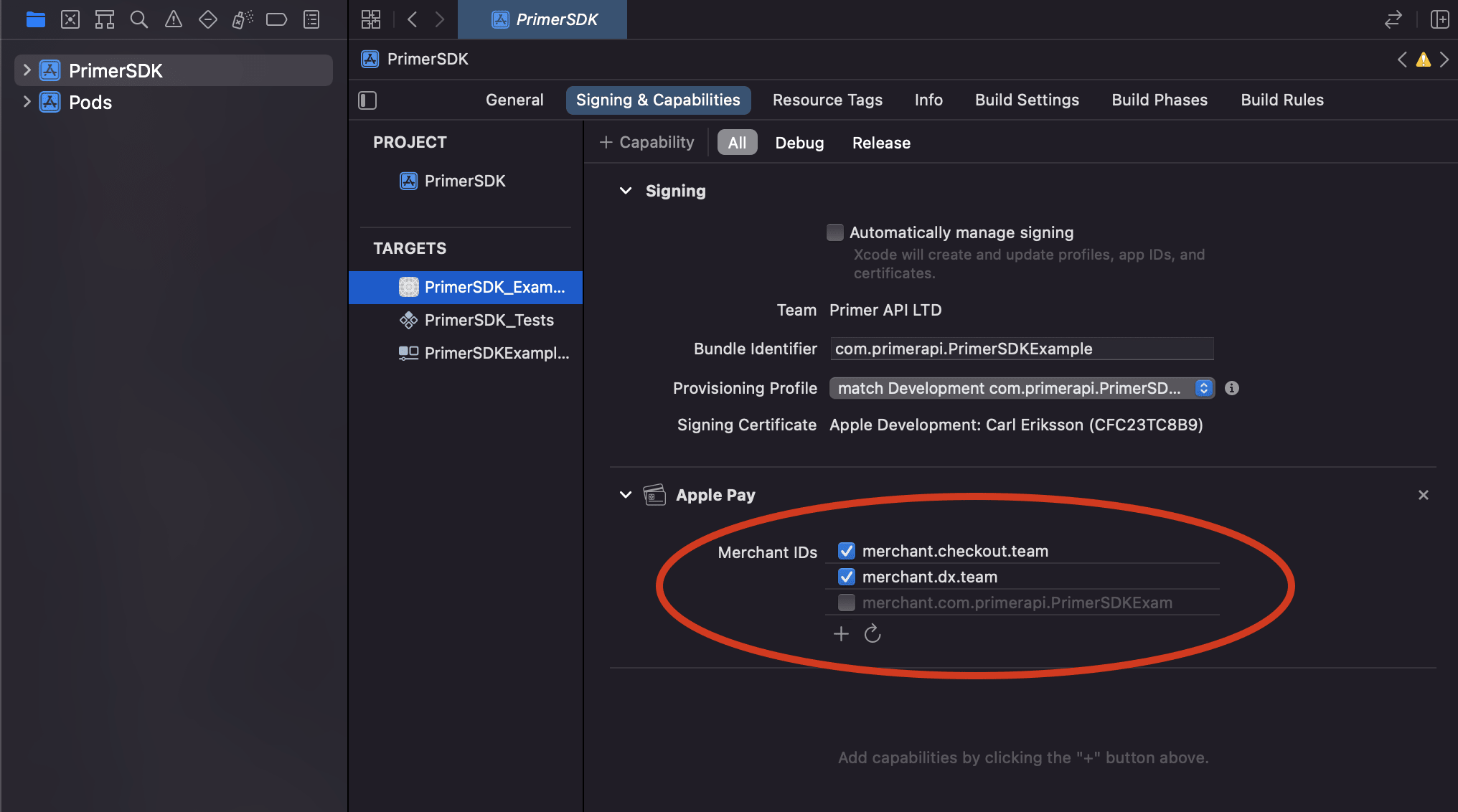
- Merchant ID Registration: You must register a unique Merchant ID through your Apple Developer account. This ID serves as a persistent identifier for your business when communicating with Apple's servers.
- Payment Processing Certificate: You must generate a Certificate Signing Request (CSR) to obtain a Payment Processing Certificate. This certificate allows you to encrypt the payment data sent from the customer’s device to your server.
- Domain Verification: If you are implementing Apple Pay on the web, you must verify your domain. This involves uploading a provided verification file to a specific path on your web server (
/.well-known/apple-developer-merchantid-domain-association). This ensures that only authorized domains can trigger the Apple Pay payment sheet. - Backend Integration: Your developer must use the Apple Pay JS library (for web) or the PassKit framework (for iOS) to initiate the payment sheet, request the user’s token, and send that token to your payment processor for decryption and processing.
Comparison of Configuration Environments
| Feature | Consumer Wallet Setup | Merchant API Integration |
|---|---|---|
| Primary Tool | Wallet App (iOS/macOS) | Payment Gateway API / Apple Developer Portal |
| Authentication | Face ID / Touch ID / Passcode | Merchant Identity Certificate / SSL |
| Primary Task | Tokenization of personal card | Cryptographic handshake with processor |
| Regulatory Burden | Minimal (Terms of Service) | High (PCI-DSS compliance) |
| Maintenance | None (Automatic) | Regular certificate renewal |
Common Configuration Challenges and Troubleshooting
Troubleshooting Personal Setup
- "Card Not Supported": This is the most frequent error. If your bank is not on the list, you cannot add the card. Contact your financial institution to ask if they plan to support Apple Pay in the future.
- Verification Errors: If the verification code fails, ensure your device has a stable internet connection. If the issue persists, the bank may have a security hold on the account that requires a manual override by a representative.
- Regional Restrictions: If you travel abroad, your Apple Pay will generally continue to function, but some transit features or local store-specific cards may not be available depending on the issuer's policies.
Troubleshooting Merchant Issues
- Domain Verification Failures: The most common cause is failing to place the association file in the exact directory requested or using an HTTP protocol instead of HTTPS. Apple Pay requires HTTPS for all production environments.
- Certificate Expiration: Apple Pay payment certificates expire periodically. If your configuration stops working suddenly, check your Apple Developer portal to see if your certificate has lapsed and needs to be renewed.
- Tokenization Errors: If the payment sheet appears but the transaction fails, the error often lies in the communication between your server and the payment processor, rather than the Apple Pay configuration itself. Check your gateway’s error logs for status codes.
Security Considerations for 2026
By 2026, Apple Pay has solidified its place as a high-security payment standard. The primary security advantage of proper Apple Pay configuration is tokenization. When you configure a card, Apple does not share your actual primary account number with the merchant or store it on its servers. Instead, a unique device-specific token is created. Even if a merchant’s database is compromised, the stolen data cannot be used to recreate your actual credit card details.
For merchants, the primary responsibility is maintaining the integrity of the communication channel. Utilizing outdated libraries or failing to update your server’s root certificates can lead to "Handshake Failures," where the device and the payment server cannot agree on a secure protocol. Always ensure your web servers are using updated TLS (Transport Layer Security) standards.
Frequently Asked Questions
Can I use Apple Pay on a device that is not an Apple product?
No. Apple Pay configuration is strictly limited to Apple’s ecosystem. The process relies on the proprietary Secure Element chip located in specific Apple hardware, which handles the cryptographic verification of transactions.
Does Apple charge a fee for configuring Apple Pay for my business?
Apple does not charge a direct fee for the use of Apple Pay. However, your payment processor (e.g., your bank or gateway provider) may charge standard transaction processing fees for any payment accepted through Apple Pay, just as they would for a physical card swipe.
What happens to my Apple Pay configuration if I lose my device?
If you lose your device, you should use the "Find My" service to place the device in Lost Mode. This action immediately suspends the ability to pay with the cards stored in that specific Apple Wallet. You do not necessarily need to cancel your actual credit or debit cards, as the Device Account Numbers are unique and independent of your physical card.
Is Apple Pay configuration permanent once completed?
No. Your configuration is bound to the security of your device. If you reset your device to factory settings, remove your iCloud account, or turn off your device passcode, all Apple Pay tokens are automatically wiped from the Secure Element for security reasons. You will need to re-add your cards manually.
How do I update my payment card information if my card expires?
In most cases, if your financial institution supports it, the update happens automatically via the Apple Pay network. If your bank issues a new card number, you may need to remove the old card from the Wallet app and re-add the new one by following the initial setup steps.
Final Recommendations for Success
For personal users, the best advice is to maintain a secure device passcode. The strength of Apple Pay is its integration with your device's biometric security; without a passcode or Face ID, the service will not activate. Periodically review the cards in your Wallet app to remove expired entries to prevent transaction errors at the point of sale.
For merchants, success depends on proactive certificate management. Create a calendar reminder for your team to check the status of your Apple Pay certificates annually. Furthermore, always perform testing in the Apple Pay Sandbox environment before deploying changes to your live checkout page to ensure the end-to-end integration is functioning correctly. If you are struggling with a complex integration, focus your debugging efforts on the connection between your backend server and the payment gateway, as this is the most common point of failure for professional implementations.