Apple Family Sharing allows up to six family members to share access to Apple services, subscriptions, and purchased content using their own individual Apple Accounts. By designating one adult as the "Family Organizer," a group can seamlessly share iCloud storage, Apple Music, Apple TV+, Apple Arcade, and News+ without needing to share individual passwords or personal data. This system is designed to streamline digital life while maintaining account privacy, ensuring that each family member retains their own unique preferences, game progress, and personal files.
Understanding the Structure of Apple Family Sharing
At the core of Apple Family Sharing is the distinction between the "Family Organizer" and other "Family Members." The organizer serves as the administrative lead for the group, possessing the authority to invite members, remove them, or disband the family group entirely. Crucially, the organizer is also responsible for the billing side of the group. If the family chooses to share purchases or group subscriptions, the payment method on file for the organizer is typically charged for these shared expenses.
A "family member" in this context is an individual aged 13 or older (depending on regional age requirements) who has been invited to join the group. When a person accepts an invitation, they connect their personal Apple Account to the group. This does not merge their data with the organizer’s or other members’ data; rather, it creates a digital "umbrella" that allows for the sharing of resources. Each member’s iCloud photo library, messages, notes, and contacts remain completely private and inaccessible to others in the family group.
Prerequisites for Setting Up a Family Group
Before initiating a family group, it is essential to ensure that all participants meet the necessary technical requirements. In 2026, the ecosystem remains highly integrated across devices, but connectivity and software versions play a role in functionality.
- Active Apple Account: Every family member must have their own Apple Account (formerly referred to as an Apple ID). It is strongly discouraged to share a single account among multiple people, as this causes data synchronization issues and privacy concerns.
- Device Compatibility: Most features, including iCloud+ sharing and purchase sharing, function across current versions of iOS, iPadOS, macOS, and watchOS. Ensure all devices are running up-to-date software to avoid compatibility gaps.
- Regional Consistency: All family members must have their Apple Account set to the same country or region. If a member’s account is registered in a different country, they will not be able to join the family group until they update their account region and payment methods.
- Payment Method: The family organizer must have a valid, accepted payment method set up in their Apple Account settings. This is required for verifying eligibility and for processing shared purchases if that feature is enabled.
Setting Up and Managing Family Members
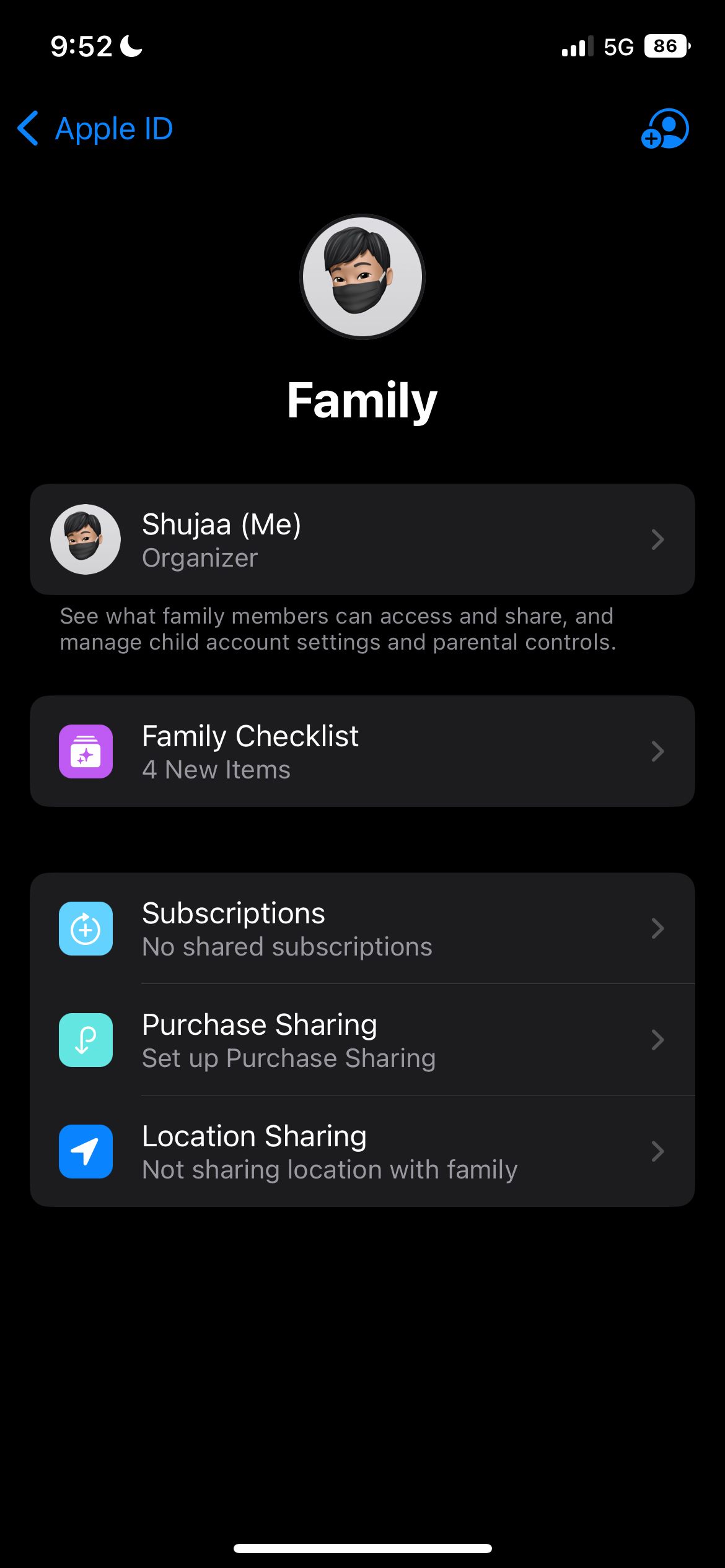
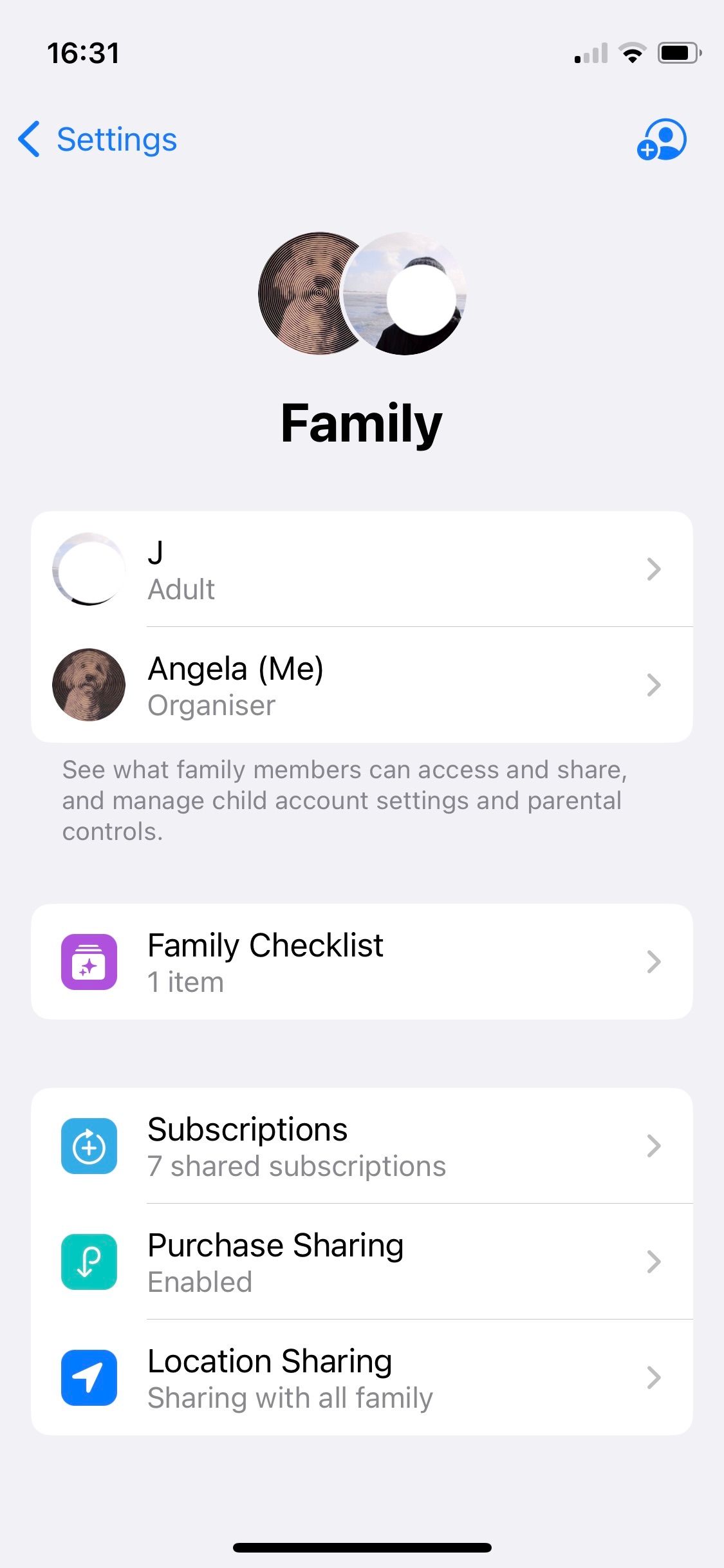
To establish a family, the organizer starts the process through their device settings. On an iPhone or iPad, this is found in Settings > [Your Name] > Family Sharing. From here, the organizer can tap "Set Up Your Family" and follow the on-screen prompts.
Inviting New Members
Once the group is created, the organizer can invite others. Invitations can be sent via Messages, Mail, or, if the family member is physically present, by having them sign in directly on the organizer's device.
- Invitations: If sent via Message, the recipient must tap the link and follow the prompts to accept.
- Account Creation: If the family member does not have an account (e.g., a child), the organizer can create a child account within the family setup. This allows the organizer to manage screen time, parental controls, and content restrictions for that specific member.
Removing Members
If a situation changes, an organizer can remove a member at any time. Once removed, the member loses access to the shared subscriptions and the family’s iCloud storage. Similarly, any member aged 13 or older can choose to leave the family group on their own by navigating to the Family Sharing settings and selecting "Leave Family."
Shared Resources and Their Operational Limits
The true utility of Apple Family Sharing lies in the collective access to services. However, it is important to understand the boundaries of what is shared and what remains siloed.
1. Purchases
If the organizer enables "Purchase Sharing," members can download apps, music, movies, and books purchased by other family members. While this is convenient, it is important to note that some items are not eligible for sharing, such as in-app purchases or specific software that has been hidden by the original purchaser.
2. Subscriptions
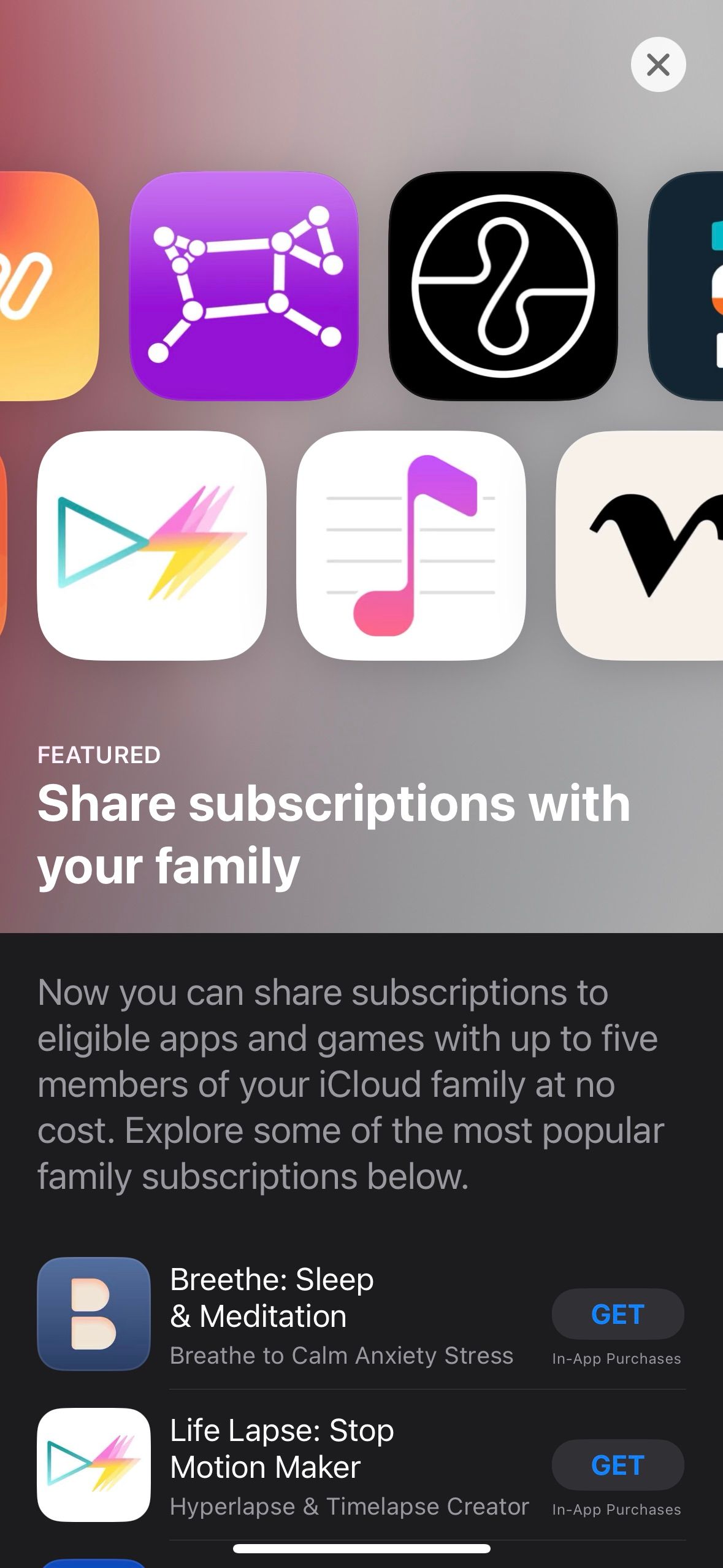
Services like Apple Music, Apple TV+, and Apple Arcade can be shared with up to five other people. When the organizer subscribes to these services, the entire family benefits from a single plan. Each member continues to see their own curated recommendations and playlists, ensuring that their personal preferences are not muddied by others in the household.
3. iCloud+ Storage
Perhaps the most popular feature is the ability to share a single iCloud+ plan (e.g., 200GB or 2TB). The family pool of storage is shared among all members, but everyone’s files remain invisible to others. If a member uses a large portion of the storage, the others will see less available space, making it a good practice to monitor storage usage in the Family Sharing dashboard.
Comparison of Shared Features
| Feature | Shared Access | Privacy Level |
|---|---|---|
| iCloud+ Storage | Yes (Pooled) | Files are private |
| Apple Music | Yes (Individualized) | Playlists are private |
| App Store Purchases | Yes (Eligible items) | Purchase history private |
| Screen Time | Optional (Organizer to child) | Managed by parent |
| Photos/Files | Optional (Shared Library) | Selective sharing |
Troubleshooting Common Issues
Despite the seamless nature of the ecosystem, users occasionally encounter friction. Below are the most common scenarios and how to address them in 2026.
The "Member Cannot Join" Error
This usually occurs because the family member’s account region does not match the organizer’s. Verify that all members are logged into the same store region. Additionally, ensure that the potential member is not already part of another family group, as an Apple Account can only belong to one family at a time.
Shared Storage Not Appearing
If a member is not seeing the shared iCloud storage, they may not have accepted the invitation or may be logged into a different Apple Account than the one invited. Check the "Family" section in Settings to confirm that the member is listed as "Active."
Purchase Sharing Hiccups
If a family member cannot download a purchase made by another, ensure that the original purchaser has not hidden the item from their purchase history. Additionally, confirm that the item remains available in the regional App Store or iTunes Store.
Privacy Considerations and Parental Controls
For parents, the "Family" structure is a robust tool for digital safety. The organizer can manage "Ask to Buy," a feature that requires a child to send a request for approval before they can download a new app or make an in-app purchase. This provides a layer of fiscal oversight that is essential for families with younger users.
Furthermore, "Screen Time" can be used to set downtime, app limits, and content restrictions remotely. Because these settings are tied to the child's individual account, they are applied consistently across every device the child signs into, whether it is an iPhone, iPad, or Mac.
Expert Guidance for Family Maintenance
To maintain a healthy digital ecosystem, the family organizer should periodically review the "Family" settings. Over time, family members may change devices or stop using certain services.
- Review Subscriptions: Regularly audit which subscriptions are active to ensure you are getting the best value.
- Check Storage Usage: If the family is reaching their iCloud+ limit, you may need to upgrade to a higher tier or encourage members to purge unnecessary backups.
- Update Payment Methods: Always keep the organizer's payment method current. If a credit card expires, it can trigger a suspension of shared services, causing frustration across the entire group.
Effective family management in the Apple ecosystem is less about strict control and more about leveraging shared resources for collective convenience. By maintaining individual accounts while pooling subscriptions and storage, families can enjoy the full depth of Apple’s services while preserving the privacy of each individual user.
Frequently Asked Questions
Can I share my Apple Account password with family members?
No. Sharing an Apple Account password is a significant security risk. It causes personal data such as messages, call logs, and photos to sync across devices, violating privacy. Always use the Family Sharing feature to grant access to content instead.
What happens if I leave a family group?
When you leave a family group, you immediately lose access to shared subscriptions, pooled iCloud storage, and the ability to download past purchases made by other family members. Any data you created while using a shared service remains yours, but you will need to start your own individual subscriptions or move your data to your own iCloud plan.
Can an adult join more than one family?
No. An Apple Account is limited to being part of one family group at any given time. If you wish to join a different family, you must leave the current one first.
Are in-app purchases shared automatically?
Generally, no. In-app purchases, such as game currency or specific subscriptions within a third-party app, are often tied to the specific user account and cannot be shared across the family group, even if the base app is shared.
How does the Family Organizer pay for shared items?
When purchase sharing is enabled, all purchases initiated by family members are charged directly to the organizer’s payment method. This is why it is vital for organizers to be aware of the "Ask to Buy" settings, especially for younger members of the group.
Next Actions for Family Groups
If you are ready to get started, the best first step is to sit down with your family and identify which services you wish to share. Once you have a consensus, the organizer should log into their device, navigate to the Family Sharing settings, and send invitations to each family member. Confirm that each member accepts the invite promptly to ensure all features—from storage to streaming—become active simultaneously.