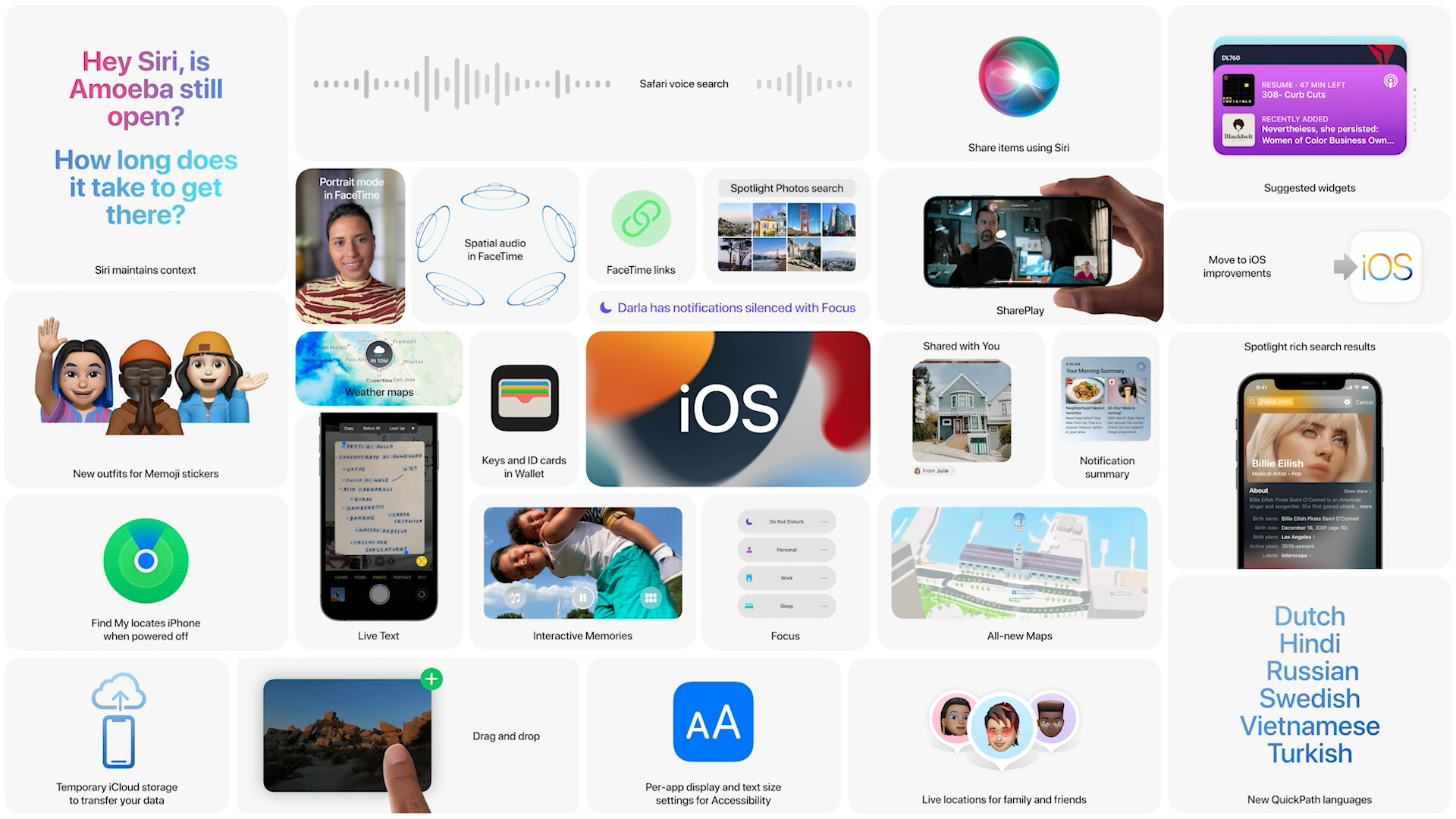
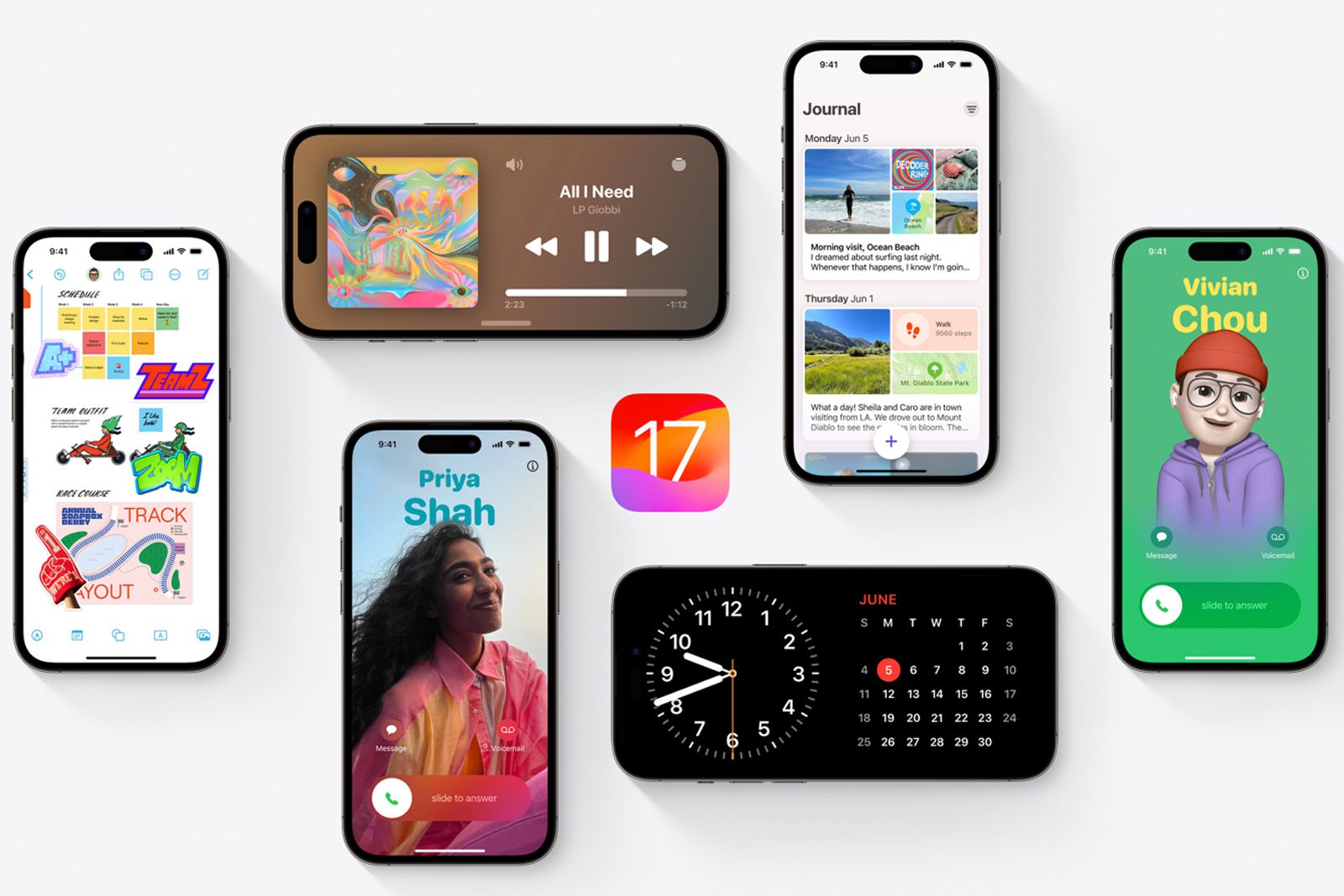
Maintaining your iPhone with the latest Apple iOS updates ensures your device benefits from critical security patches, performance optimizations, and the newest feature sets developed by Apple. As of 2026, the update process is designed to be streamlined, whether performed wirelessly over a network or via a secondary computer, allowing users to keep their hardware running in alignment with Apple’s current software standards.
The Importance of iOS Updates
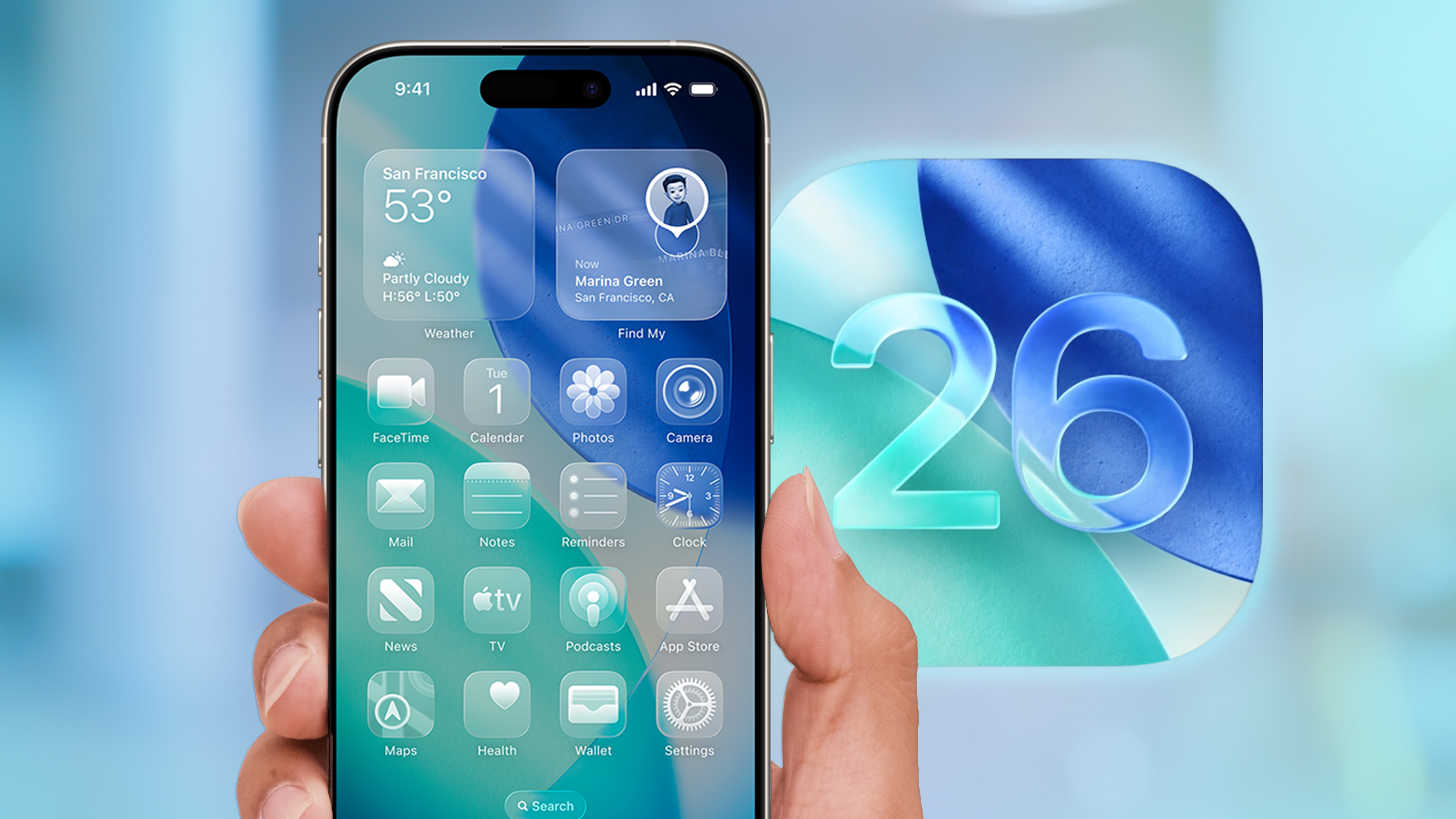
Apple releases iOS updates to address a wide variety of requirements. These updates are categorized generally into major version releases—which typically introduce significant interface changes and functional features—and minor "point" releases, which focus on security enhancements, bug fixes, and stability improvements.
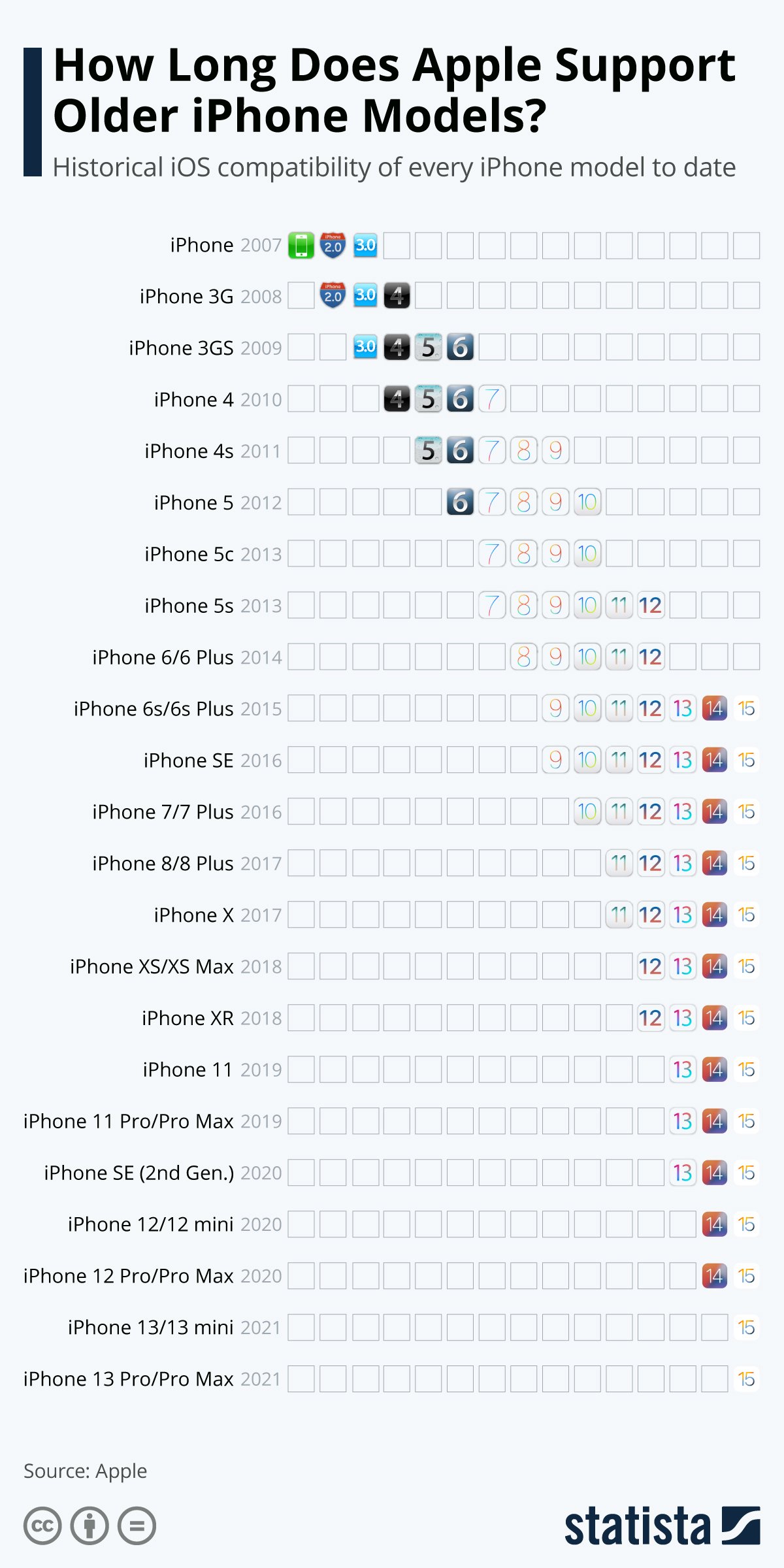
Security is the primary driver for timely updates. Apple regularly issues patches for vulnerabilities that could potentially be exploited by unauthorized parties. By failing to update, a user leaves their device exposed to known threats that the engineering team has already mitigated. Beyond security, performance optimization is a constant goal. As new apps and background services evolve, iOS updates often refine how the system manages memory, battery life, and thermal output, ensuring that older supported hardware continues to function within acceptable performance parameters.
Prerequisites for a Successful Update
Before initiating an iOS update, several environmental and technical conditions must be met to prevent data corruption or an interrupted installation process.
- Network Connectivity: A stable Wi-Fi connection is required for over-the-air (OTA) updates. Attempting to download large installation packages over cellular data can lead to unstable connections or significant data usage charges.
- Battery Power: If the battery level is below 50%, it is essential to connect the iPhone to a power source. The update process is resource-intensive, and a sudden power failure during the firmware write phase can result in a device that will not boot, requiring a full restoration.
- Storage Space: iOS requires a temporary buffer of local storage to decompress and install update files. If your device is nearly full, the system will prompt you to manage storage before it allows the download to proceed.
- Data Backup: While data loss is rare, a hardware failure or network glitch during a system-level update can result in data loss. Maintaining a current backup via iCloud or a local computer (using Finder or iTunes) is a non-negotiable best practice.
Step-by-Step Update Methods
Users have two primary methods to update their devices: the native settings menu and a computer-assisted update.
Over-the-Air (OTA) Updates
This is the most convenient method for most users.
- Navigate to Settings > General.
- Tap Software Update.
- The device will automatically check with Apple’s servers for any available firmware.
- If an update is found, tap Download and Install. You may be required to enter your device passcode to authorize the operation.
Computer-Assisted Updates
For users with limited local storage or those experiencing issues with OTA updates, a computer connection is the preferred alternative.
- Using macOS (Finder): Connect your iPhone to your Mac via a Lightning or USB-C cable. Open a Finder window, select your iPhone from the sidebar, and click "General" to check for updates.
- Using Windows (Apple Devices App or iTunes): Ensure you are using the latest version of the Apple Devices app or iTunes. Connect the phone, select the device icon, and navigate to the "Summary" or "General" tab to click "Check for Update."
Comparison of Update Strategies
Choosing the right approach depends on the state of your device and the amount of available storage.
| Feature | Over-the-Air (OTA) | Computer (Finder/iTunes) |
|---|---|---|
| Convenience | High; no cables required | Medium; requires physical connection |
| Storage Need | Higher; needs room to extract files | Lower; files extract on the computer |
| Reliability | Good for standard updates | Best for corrupted installations |
| Data Safety | Requires active backup | Automatically includes backup cycle |
Troubleshooting Common Update Failures
Sometimes, an update may fail to complete. This is usually indicated by a message stating "Unable to Check for Update" or "Update Failed."
- Insufficient Storage: The most common cause. Delete high-definition videos, unused large applications, or clear cached data in apps like Safari or Podcasts to free up space.
- Server Congestion: Immediately following a major release, Apple’s servers experience high demand. Waiting a few hours often resolves "Server Unreachable" errors.
- Connection Timeouts: A sluggish network will cause the update to fail the integrity check. Restart your router and ensure no other high-bandwidth activities (like 4K streaming) are occurring on the network during the download.
- Recovery Mode: In the rare event that the phone becomes unresponsive after an update attempt, you can force the device into Recovery Mode using physical button combinations specific to your iPhone model to perform a clean restoration via a computer.
Long-Term Management and Beta Software
As a user, you should decide whether you want to remain on the "General Release" track or participate in the Apple Beta Software Program. The General Release track is stable and recommended for all users. The Beta program allows access to upcoming features before they are publicly released but carries a higher risk of bugs, reduced battery life, and third-party app incompatibility. It is never recommended to install Beta software on a primary device used for critical work or communication.
Frequently Asked Questions
Why does my iPhone say "Update Requested" but nothing happens? This indicates that your device has successfully communicated with Apple's servers, but the download queue is waiting for a clear window of bandwidth. Ensure the device remains on Wi-Fi and the screen remains locked to expedite the background download process.
Can I downgrade my iOS version if I don't like the new update? Generally, no. Apple stops "signing" older versions of iOS shortly after a new release. Once a device is updated, it is typically locked to that version or a newer one to ensure security and prevent the installation of vulnerable, legacy firmware.
Does updating my iPhone slow it down? While older hardware may feel slower due to the increased computational demands of newer OS features, Apple provides "performance management" features that prevent unexpected shutdowns on aging batteries. If your phone is noticeably slow, check your battery health in Settings > Battery > Battery Health. A depleted battery is more often the culprit than the software itself.
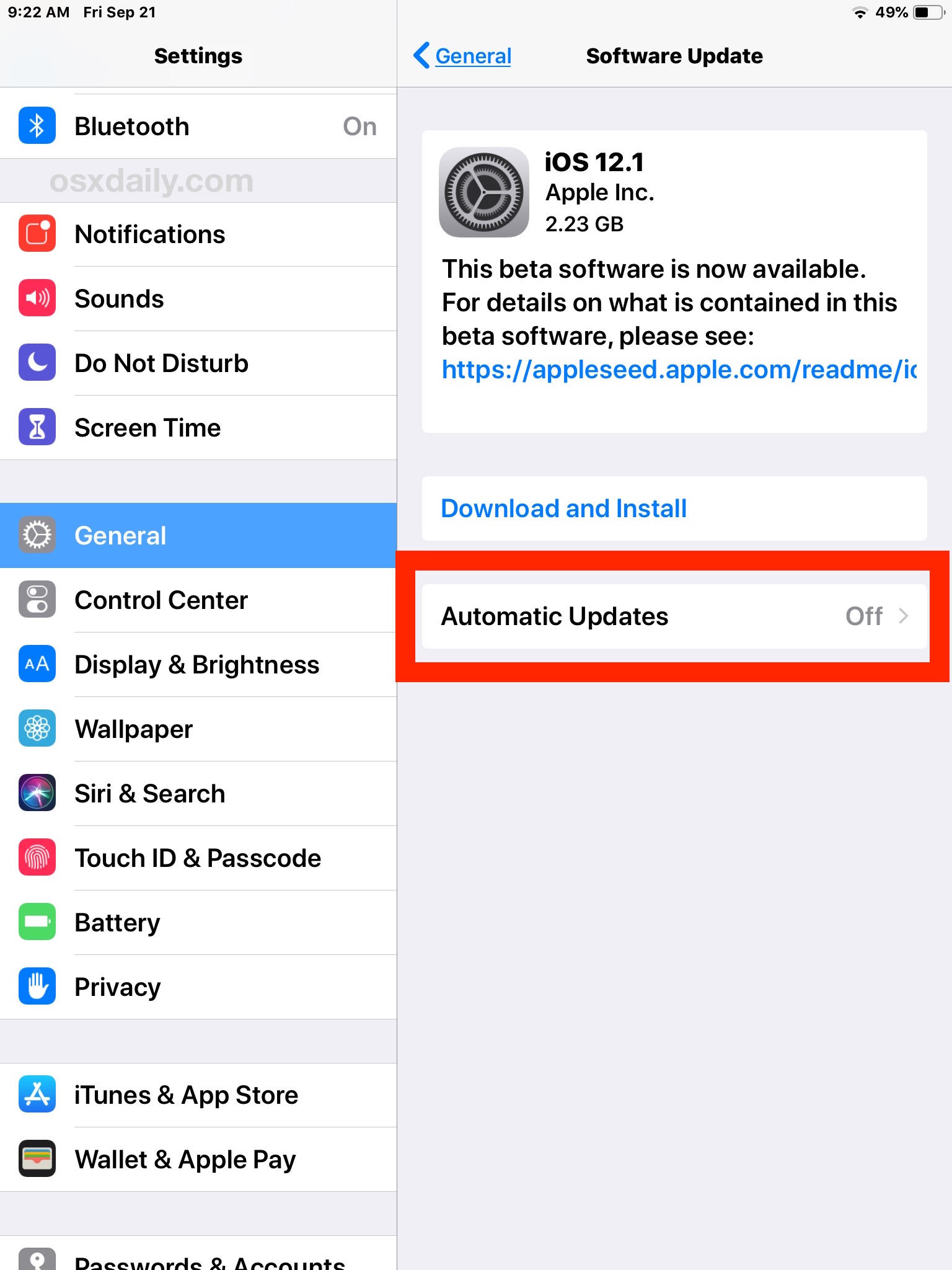
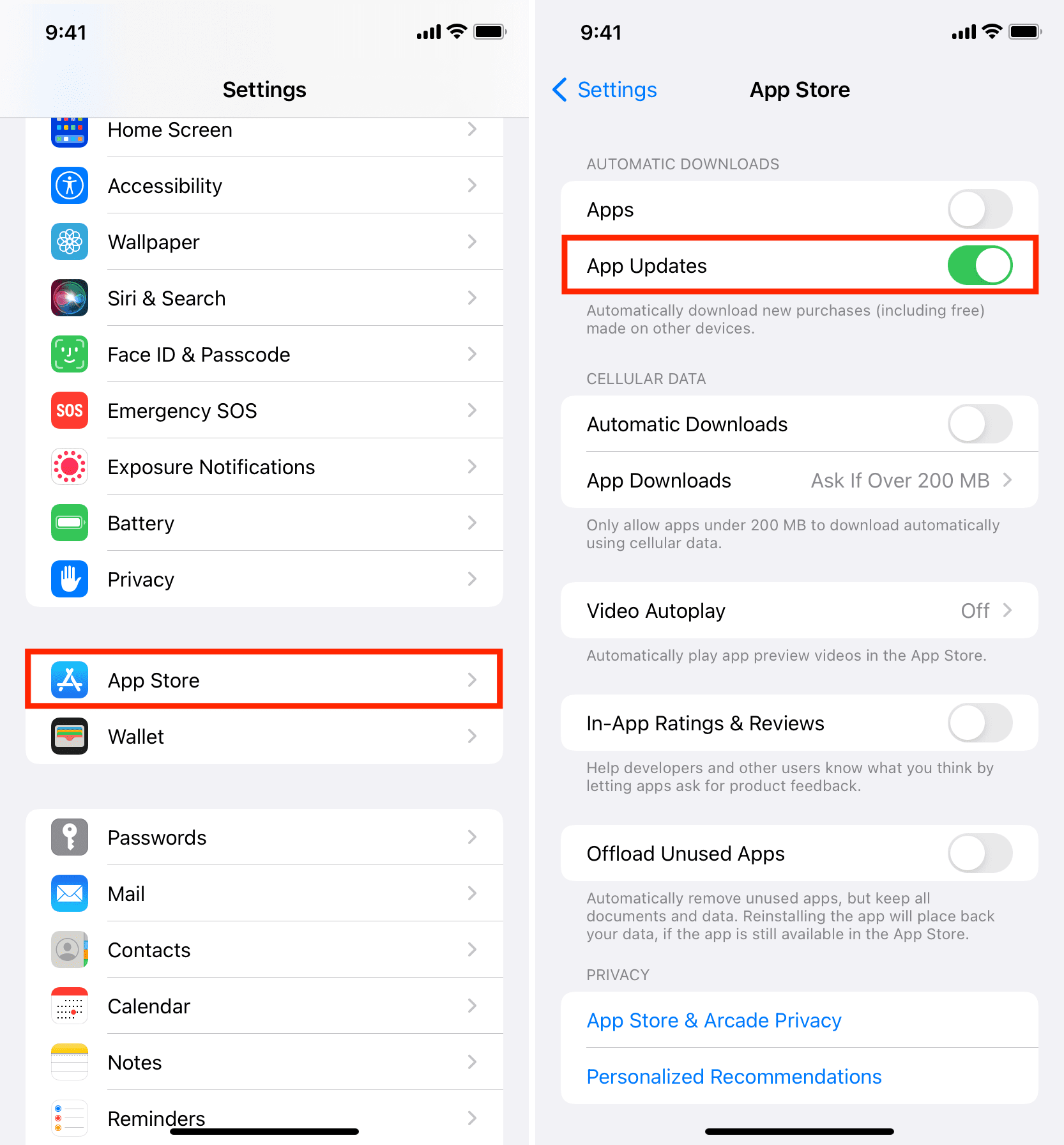
How do I stop my iPhone from updating automatically? Navigate to Settings > General > Software Update > Automatic Updates. Here, you can toggle off "Download iOS Updates" and "Install iOS Updates." While not recommended for security reasons, this gives you manual control over when changes are applied.
Is it safe to update via public Wi-Fi? It is generally safe to download updates over public networks, as the update files are cryptographically signed by Apple. However, it is always safer to use a private network to avoid potential connection drops that could leave an update in a partial, non-functional state.
Final Recommendations
For the best experience, keep your iPhone configured to perform "Automatic Updates" while connected to power and Wi-Fi overnight. This allows the system to manage the update lifecycle without requiring your manual intervention. If you encounter persistent issues, verify your remaining storage capacity and ensure your Apple ID is signed in properly. By maintaining current software, you ensure the longevity, security, and peak performance of your iPhone throughout its service life.