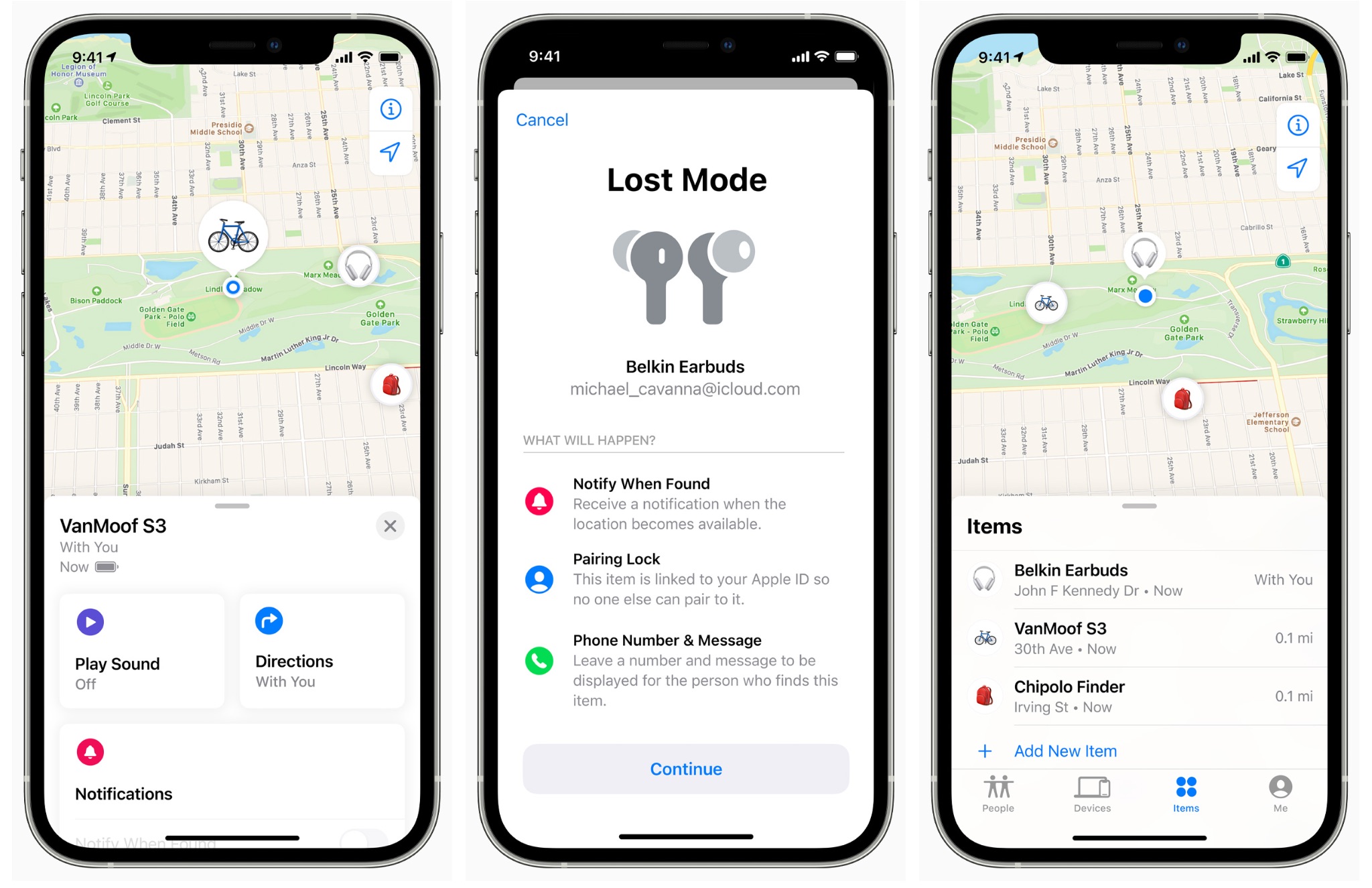
If you have lost an Apple device but do not have immediate access to another iPhone, iPad, or Mac, you can still utilize the Apple Find My service through a web browser on your Android device. By navigating to the iCloud website, you can track your device's location, play a sound, enable Lost Mode, or remotely erase your data, provided your Apple ID is known.
Understanding the Limitations of Cross-Platform Integration
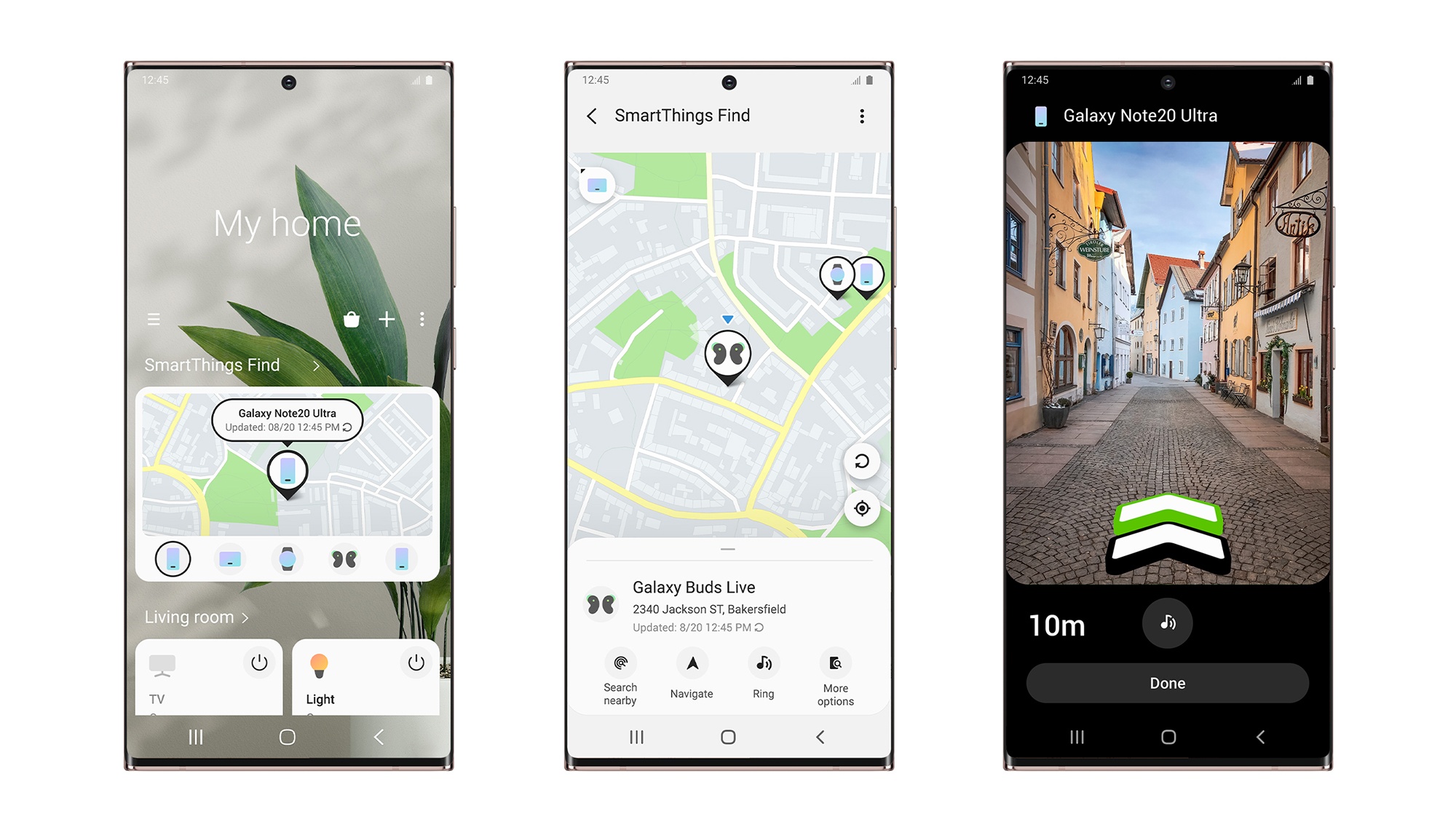
It is important to clarify that Apple does not offer a native "Find My" application for the Android operating system. Unlike services that offer dedicated cross-platform apps, Apple maintains its Find My ecosystem as a closed-loop system integrated into iOS, iPadOS, macOS, and watchOS. Consequently, you cannot download an APK or a Play Store app that provides the full, native experience of the Find My interface on an Android smartphone or tablet.
However, Apple provides a robust web-based portal via iCloud.com. This portal is designed to be accessible from any device with a modern web browser, including those running Android. While this browser-based version lacks some of the advanced, low-latency features of the native app—such as offline finding using the broader Apple Find My network—it provides the core administrative tools necessary to manage, locate, and secure your lost hardware.
Prerequisites for Accessing iCloud on Android
To successfully locate an Apple device using your Android phone, you must satisfy several prerequisites. Without these, the remote management features will remain inaccessible regardless of the device you are using.
- Apple ID Credentials: You must have the email address and password associated with the Apple ID signed into the lost device.
- Two-Factor Authentication (2FA) Access: If you have 2FA enabled, which is standard for most Apple IDs, you will need a way to receive the verification code. If your only trusted device is the one you have lost, you may encounter a "catch-22." In this specific scenario, you may need to use the "Find My" link on the Apple sign-in page, which allows limited access to the Find My service even if you cannot fully authenticate your identity for other iCloud features.
- Active Internet Connection: Both your Android device and the target Apple device (if it is to be tracked in real-time) must have a stable internet connection.
- Enabled Find My Settings: The lost device must have had the "Find My" feature enabled in the iCloud settings before it was lost. If this feature was disabled, iCloud.com cannot track the device.
Step-by-Step: Tracking Your Device via Browser
If you have confirmed that your Apple ID is active and the Find My feature was enabled on your device, follow these steps to initiate the tracking process from your Android device.
- Open a Mobile Browser: Launch Google Chrome or any other standard web browser on your Android device.
- Navigate to iCloud.com: Type
www.icloud.com/findinto the address bar. Using this direct link is more efficient than navigating the main iCloud login page. - Sign In: Enter your Apple ID and password. If prompted for two-factor authentication, follow the on-screen instructions. If you cannot receive the code on your lost device, look for the "Find My" link provided on the authentication page, which is designed to bypass full account access for the sole purpose of locating hardware.
- View Your Devices: Once logged in, a map will appear, and a list of your connected devices will be displayed. Select the device you are trying to locate from the list.
- Utilize Available Tools: Once the device is selected, you will see a menu of options, including "Play Sound," "Lost Mode," and "Erase Device."
Comparing Web-Based Access vs. Native App Features
Understanding the difference between the native app and the web portal helps manage expectations during a stressful situation. The table below outlines the functionality available via an Android browser.
| Feature | Available via Android Browser | Purpose |
|---|---|---|
| Live Location | Yes | Displays the current map coordinates of the device. |
| Play Sound | Yes | Triggers an audible alert to help you find a nearby device. |
| Lost Mode | Yes | Remotely locks the device and displays a contact number on the screen. |
| Erase Data | Yes | Permanently wipes all personal data from the device. |
| Offline Finding | No | Relies on proximity to other Apple devices; requires a native app environment. |
| Precision Finding | No | Requires U1/U2 chip integration found only on Apple hardware. |
The "Lost Mode" Advantage
One of the most critical features accessible via the web portal is "Lost Mode." When you activate this from your Android phone, you are doing more than just tracking; you are actively securing your information.
When Lost Mode is enabled, the device locks immediately. You can enter a phone number and a custom message. This message will appear on the lock screen of your lost device, which is an essential step if you believe a Good Samaritan may have found it. This provides a direct channel for someone to contact you without them needing access to your private photos, messages, or apps. Furthermore, if the device was offline when you activated Lost Mode, Apple’s servers will track it and notify you as soon as the device connects to a network.
Troubleshooting Common Access Issues
If you find yourself unable to reach the Find My portal, it is usually due to one of several common configuration or browser-related hurdles.
Browser Compatibility and Desktop Mode Some mobile browsers may attempt to load a simplified version of the site that hides the map. If you are struggling to see the interface, tap your browser’s menu button (usually three dots) and select "Desktop site." This forces the browser to render the page as it would on a computer, which often resolves display errors for complex mapping applications.
Apple ID Authentication Loops If you are caught in a loop where the site constantly asks for a verification code that you cannot receive, you may need to use a friend’s device or contact Apple Support via a different channel. Remember that Apple Support cannot provide you with your device's location, but they can verify your account status if you are locked out.
Device Not Showing Up If your device does not appear in the list on iCloud.com, it is likely that "Find My" was never enabled. In this case, you cannot track the device through Apple’s services. You should immediately change your Apple ID password to protect your data and contact your cellular carrier to report the device as lost, which may prevent it from being used on cellular networks.
Privacy and Security Considerations
When using a web browser on an Android device that you do not own—for example, if you are borrowing a friend's phone to find your lost iPhone—always prioritize your account security.
- Avoid "Remember Me": Never check the "Remember me" box when logging into iCloud on a device that is not your own.
- Use Incognito/Private Mode: Open an Incognito window in your browser before navigating to iCloud.com. This ensures that your Apple ID cookies, session tokens, and cached data are wiped the moment you close the browser tab.
- Sign Out Manually: Once you have finished the task, manually sign out of iCloud.com. Do not rely solely on closing the window to end your session.
What to Do If the Device Cannot Be Found
If the map shows the device in an unknown location or if the device appears offline indefinitely, you must shift your strategy from recovery to damage control.
- Change Passwords: Immediately change the password for your Apple ID, as well as any email or sensitive accounts logged in on the device.
- Contact Your Carrier: Your cellular service provider can blacklist the device's IMEI (International Mobile Equipment Identity) number, rendering it useless on cellular networks.
- File a Police Report: If you believe the device was stolen, document the situation with local law enforcement. While they may not be able to track the phone for you, a report is often necessary for insurance claims.
- Insurance Claims: If you have AppleCare+ with Theft and Loss or a third-party device insurance policy, use the documentation from your police report to file a claim.
Expert Recommendations for Future Prevention
To avoid the stress of being unable to track your device, consider these preventative measures:
- Family Sharing: Configure "Family Sharing" with a trusted contact. Family members can see the location of each other's devices in their own Find My app, providing a backup tracking method if you lose your primary device.
- Maintain Trusted Numbers: Keep your list of trusted phone numbers for Apple ID authentication current. Ensure you have at least one secondary number that you can access even if your main device is stolen.
- Use AirTags: For items like keys or wallets, AirTags provide another layer of tracking that is independent of the device itself.
- Enable Find My Network: Ensure the "Find My network" setting is turned on in your iCloud settings. This allows your device to be located even when it is offline, provided it is near other Apple devices that can relay its location securely and anonymously.
By understanding the capabilities of the iCloud web portal and maintaining your account security settings, you can effectively use an Android device as a tool to manage your Apple ecosystem, even in the unfortunate event of a lost device.