Updating the M4 iPad Pro typically results in a seamless transition to the latest iPadOS version, but users may occasionally encounter installation hurdles, such as update verification failures, insufficient storage prompts, or unresponsive devices. Resolving these issues requires a systematic approach involving network verification, storage management, and, if necessary, recovery through a computer.
The M4 iPad Pro, launched as the pinnacle of Apple’s tablet engineering, utilizes the advanced M4 silicon architecture. While this chip provides immense processing power, the software ecosystem—specifically iPadOS—must remain stable to leverage that hardware effectively. When an update fails to initiate or completes with errors, it is usually due to software-level conflicts, connectivity instability, or localized cache corruption rather than a failure of the M4 silicon itself.
Assessing Connectivity and Server-Side Variables
The most frequent cause for an update stalling on the M4 iPad Pro is a fragile internet connection. iPadOS update files are significant in size; a momentary drop in bandwidth during the "Preparing Update" phase can corrupt the downloaded package.
Network Stability Requirements
Your iPad Pro requires a stable, high-speed Wi-Fi connection to download and verify updates. Avoid using captive portals, such as public hotel or airport Wi-Fi, which often restrict the protocols required to communicate with Apple’s servers. If you are behind a corporate firewall or using a VPN, temporarily disable these services. These tools often mask the device's location or security certificates, leading the "Verify Update" process to time out.
Verifying Apple System Status
Before troubleshooting your device, confirm that Apple’s servers are operational. You can view the official Apple System Status page to ensure that "Apple Developer Center" or "Software Update" services are not undergoing maintenance or experiencing outages. While rare, regional server disruptions can prevent your device from establishing a secure handshake, leading to an "Unable to Check for Update" error message.
Resolving Storage and Resource Constraints
The M4 iPad Pro offers various storage tiers, but even with high capacity, the system requires a specific "buffer" of free space to decompress and install new firmware.
The Storage Buffer Necessity
If you receive a notification stating that you do not have enough storage space to install an update, simply deleting a few photos may not suffice. The iPadOS installer needs to unpack the update file, copy system files, and reorganize existing data. A common mistake is clearing just enough space to match the size of the update download. Aim to have at least 10–15 GB of free space beyond the update size to ensure the installation process can run without triggering a "Disk Full" error mid-process.
Managing System Data and Cache
If your storage settings show a massive allocation for "System Data," this is often cached logs or interrupted update remnants. If an update has failed multiple times, the corrupted remnants occupy space. Navigate to Settings > General > iPad Storage. If you see a pending update file listed in the apps list, select it and tap "Delete Update." This clears the corrupted installation package, allowing you to trigger a fresh, clean download.
Advanced Recovery and Manual Installation
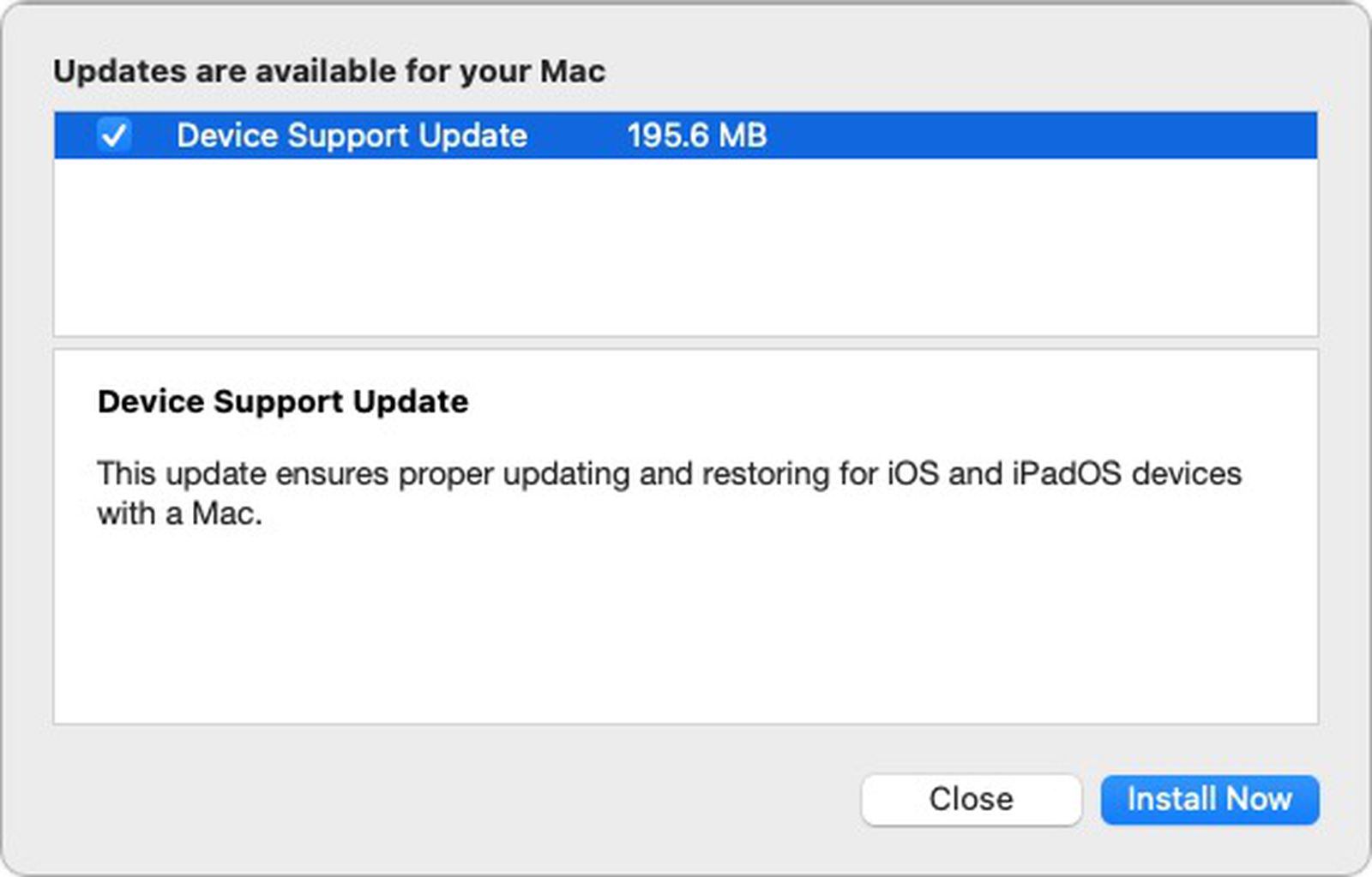
When standard over-the-air (OTA) updates fail repeatedly, the internal installation mechanism may be stuck in a loop. In such cases, using a Mac or a PC with iTunes (or Apple Devices app) is the most reliable method for rectification.
Utilizing Recovery Mode
If your M4 iPad Pro becomes unresponsive or stuck on the Apple logo during an update, you may need to force a restart and, if that fails, use Recovery Mode:
- Connect your iPad to your computer.
- Quickly press and release the Volume Up button.
- Quickly press and release the Volume Down button.
- Press and hold the top power button until the recovery screen (a cable pointing to a computer) appears.
- In the computer application, select "Update" rather than "Restore." An update will attempt to reinstall iPadOS without erasing your personal data, whereas a restore will wipe the device to factory settings.
Importance of Firmware Integrity
The benefit of using a computer for the update is that the installation file is downloaded entirely before being pushed to the iPad. This avoids the wireless stability issues associated with OTA updates. The computer performs a checksum verification of the IPSW file (the firmware package) before the installation starts, significantly reducing the probability of a "bricked" or hung state during the write process.
Comparative Troubleshooting Strategies
Different update issues require different intervention strategies. Use the table below to identify the appropriate path based on the error symptom you encounter on your M4 iPad Pro.
| Symptom | Primary Cause | Recommended Action |
|---|---|---|
| "Unable to Check for Update" | Network/Server | Check Wi-Fi; toggle VPN off; check Apple status page. |
| "Insufficient Storage" | Cache/Files | Delete old update files; clear large media/app data. |
| Installation Loop/Freeze | File Corruption | Force restart; perform an update via computer. |
| "Verification Failed" | Security/Time | Ensure system time is set to "Automatic" and date is correct. |
| Update Stuck at "Preparing" | Background Task | Leave device on charger; restart iPad; re-download update. |
Addressing Unresolved Performance Issues
If your M4 iPad Pro is updated successfully but displays erratic behavior—such as UI stutters, thermal throttling, or battery drain—the issue is likely a result of background indexing or an incompatible third-party app.
Post-Update Indexing
Immediately after a major iPadOS update, the system performs a re-indexing of files and metadata to support new features and search functionality. This process is intensive and can consume significant CPU cycles and battery for the first 24 to 48 hours. If your device feels warm or sluggish, leave it plugged into a charger overnight to allow the background processes to complete without interruption.
Analyzing Third-Party Conflicts
If issues persist beyond the initial index period, identify apps that have not been optimized for the latest version of iPadOS. Navigate to Settings > Battery to see if a specific application is consuming an abnormal percentage of your power. If an app is frequently crashing, it may be causing the system to hang. Updating your applications through the App Store or temporarily removing the offending software can stabilize the device’s performance.
When to Seek Professional Support
If you have attempted an update via computer, cleared all storage, and verified your network, yet the device remains in a non-functional state, there may be a hardware-level failure or a critical corruption of the NAND flash storage. At this point, do not attempt further software overrides. Contact official Apple Support or visit an Authorized Service Provider. The M4 iPad Pro is covered by a limited hardware warranty; unauthorized attempts to force firmware modifications beyond standard recovery modes may impact your support eligibility.
Frequently Asked Questions
Why does my M4 iPad Pro say "Verification Failed" during an update? This usually occurs when the device cannot communicate securely with Apple’s servers or when the system time is incorrect. Ensure your date and time settings are set to "Set Automatically" in General settings. If the error persists, it is often a transient network issue; switch from Wi-Fi to a different network or wait one hour and attempt the update again.
Will I lose my data if I update using a computer? If you choose the "Update" option within the Apple Devices app or Finder, your data will be preserved. This process simply overwrites the operating system files. However, you should always maintain a current backup via iCloud or a local computer backup before performing any major system intervention to protect against catastrophic failure.
Is it safe to use a beta version of iPadOS on the M4 iPad Pro? While beta software provides access to new features, it is inherently unstable and not recommended for devices used in mission-critical workflows. M4 iPad Pros are highly optimized; beta firmware can interfere with these specific optimizations, leading to thermal issues or battery drain that standard users should avoid.
How much storage should I keep free on an M4 iPad Pro to ensure updates work? As a general rule of thumb, you should maintain at least 15% of your total storage capacity as "free space." For a high-capacity M4 model, this ensures that the system has sufficient overhead for file management, temporary swap files, and update installations without requiring you to manually clear space before every minor software patch.
Should I charge my iPad while updating? Yes. It is highly recommended to keep your M4 iPad Pro connected to a power source during any software update. If the battery dies during the installation process, it can lead to a corrupted system state that may require a full factory restore, resulting in data loss.
Recommended Next Actions
If you are currently experiencing an update failure, begin by deleting any partially downloaded update files under your iPad Storage settings. Once cleared, ensure your iPad Pro is connected to a stable Wi-Fi network and a power source. If a second attempt at an OTA update fails, skip further wireless attempts and immediately use a computer to perform the update via the recovery process. This ensures the highest probability of a clean, successful installation.