Apple iPhone dual SIM support allows users to utilize two phone numbers simultaneously on a single device, providing a practical solution for separating work and personal communications, managing international roaming, or switching between local data providers. Since the introduction of eSIM technology alongside the physical nano-SIM slot, Apple has evolved this feature to support multiple eSIMs, offering significant flexibility for modern connectivity.
Understanding the Dual SIM Architecture on iPhone
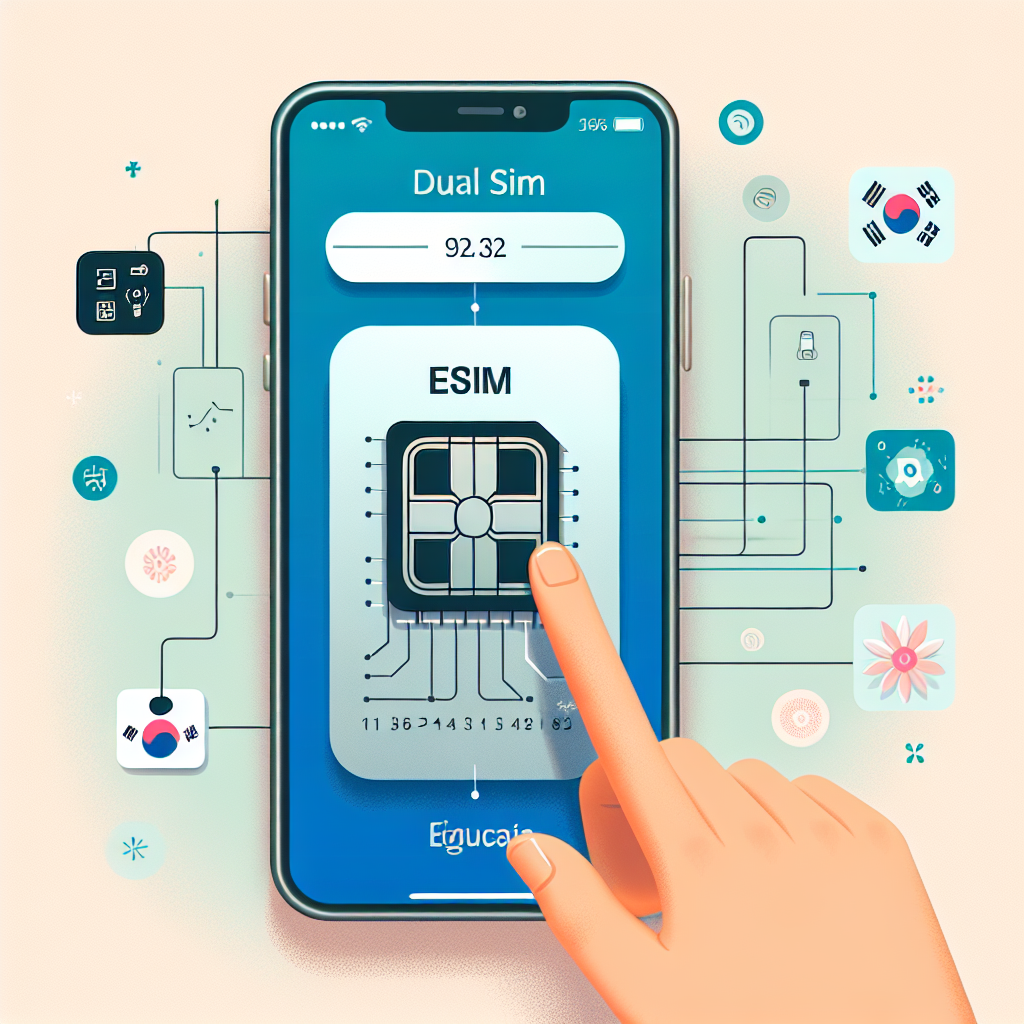
Dual SIM functionality on the iPhone is defined by the coexistence of two distinct mobile network identifiers. Historically, this required a physical nano-SIM card and an eSIM. However, modern iterations of the iPhone support Dual eSIM, which allows users to store and activate two eSIMs simultaneously without the need for a physical card.
The system is designed to provide a seamless user experience. Once both SIMs are activated, the device maintains contact with both cellular networks. The operating system manages incoming calls and data usage based on user-defined settings, allowing for a primary line for cellular data and a secondary line for calls, or vice versa.
Hardware Requirements and Regional Variations
It is important to recognize that not all iPhone models or regions support the same SIM configurations. While the iPhone XS, iPhone XS Max, and iPhone XR were the first to introduce eSIM capability, later models—specifically the iPhone 13 series and newer—expanded this to include support for Dual eSIM.
Regional factors also play a significant role. For instance, in mainland China, Hong Kong, and Macau, certain iPhone models are equipped with two physical nano-SIM card slots to accommodate specific market requirements. Understanding your specific device model is the first step in determining how you can configure your secondary line.
Configuring Your Dual SIM Setup
Setting up Dual SIM on an iPhone involves either inserting a physical nano-SIM card or adding an eSIM via a QR code, an app provided by your carrier, or manual entry.
Step-by-Step Activation
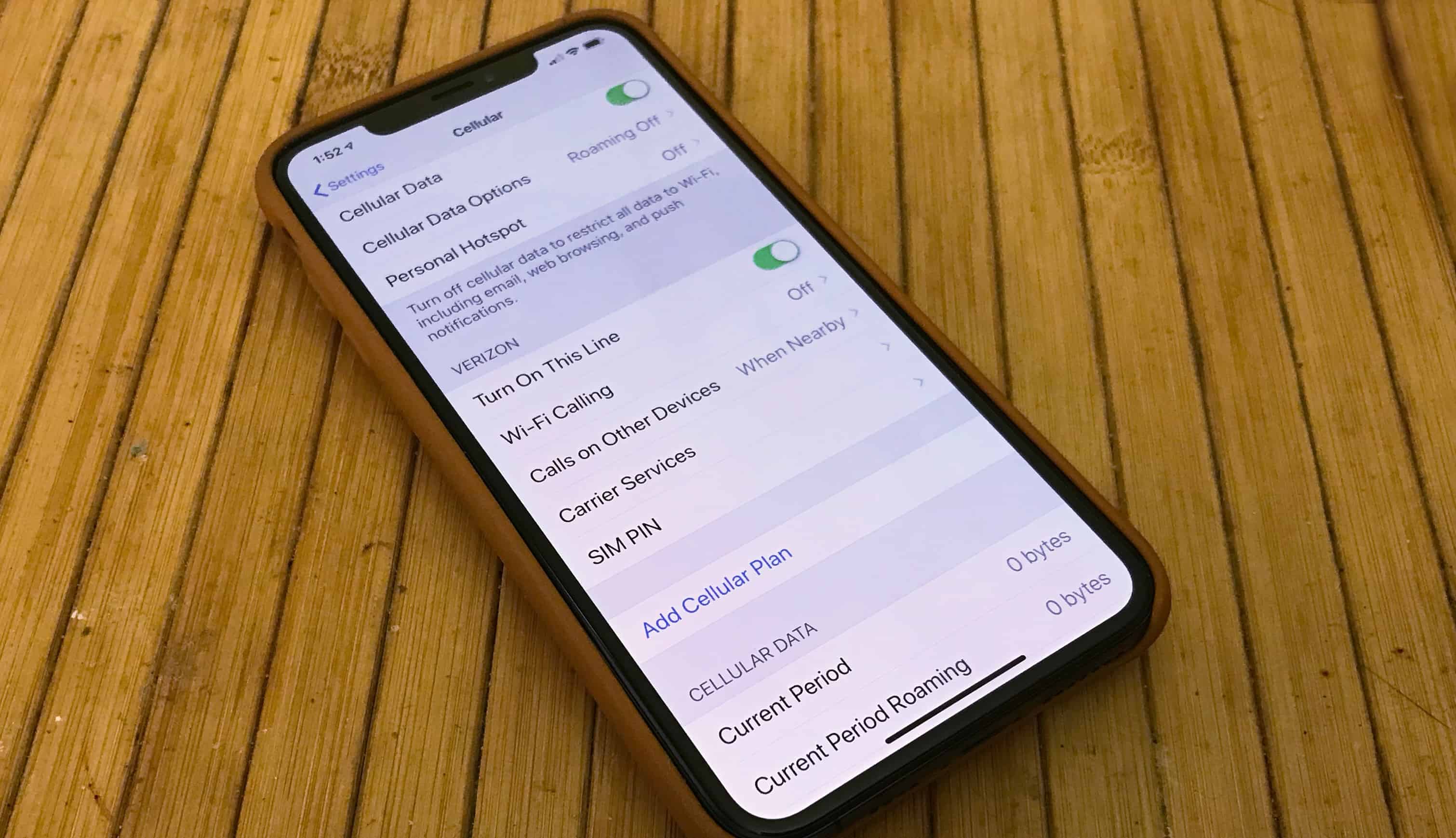
- Prepare the Lines: Ensure both plans are active and compatible with the iPhone. If using a physical SIM, insert it into the tray. For an eSIM, navigate to Settings > Cellular > Add eSIM.
- Assign Labels: iOS will prompt you to label your plans (e.g., "Personal," "Business," "Travel"). These labels are essential for identifying which line is being used for calls or data when you see the status bar icons.
- Set Default Lines: Once activated, you must designate a "Default Line" for voice calls and SMS. You can also configure a line specifically for cellular data, which is useful if one plan offers a more cost-effective or faster data package.
- Data Switching: You can enable "Allow Cellular Data Switching" in the settings, which allows your iPhone to automatically switch data between lines if the primary line is currently busy with a voice call.
Managing Dual SIM Daily Operations
Once your lines are configured, the iPhone interface provides clear indicators for both networks. The status bar at the top of the screen displays two signal bars. When you access the Control Center, you will see a detailed view of the network status for both connections.
Handling Calls and Messages
When initiating a call, the iPhone defaults to the last number used for that specific contact. However, you can toggle between lines manually before placing a call. For contacts, you can assign a preferred line in the "Contacts" app, ensuring that you always communicate with specific individuals using the intended number.
Incoming calls are indicated with the label of the line being called, allowing you to prioritize your responses. If you are already on a call with one line and receive an incoming call on the other, the phone will display the second call, and you can choose to put the first on hold or decline the second.
Cellular Data Considerations
Cellular data can only be active on one line at a time. If you receive a call on the "Voice" line while the "Data" line is active, the iPhone will attempt to use the data connection of the line currently on the call if you have "Cellular Data Switching" enabled. Be aware that data usage on both lines counts toward your carrier billing; monitor these settings in Settings > Cellular to avoid unexpected overage charges.
Comparison of SIM Configurations
The following table outlines the different ways to utilize dual connectivity on iPhone devices.
| Feature | Physical Nano-SIM | eSIM | Dual eSIM |
|---|---|---|---|
| Physical Requirement | Card slot access | Digital activation | Digital activation |
| Supported Models | All models | iPhone XS and newer | iPhone 13 and newer |
| Regional Variance | Standard globally | Limited by carrier | Limited by carrier |
| Hardware Slot Usage | Occupies tray | None | None |
| Setup Process | Insert physical card | Scan QR or via App | Scan QR or via App |
Troubleshooting Common Issues
While dual SIM technology is robust, users may occasionally encounter connectivity issues. The most common problems relate to network registration and data handoffs.
- Missing Signal: If one line shows "No Service," restart the device. This forces the iPhone to re-register with both cellular towers.
- Data Connectivity Failures: Ensure that "Cellular Data Switching" is enabled if you are having trouble receiving data while on a call. Also, verify that the line intended for data is correctly selected in the Cellular settings.
- Carrier Restrictions: Some carriers lock their eSIMs to their network. If you intend to use two different carriers, ensure that your device is unlocked for use with multiple networks.
- Carrier Settings Updates: Periodically, carriers release updates to improve connectivity. Go to Settings > General > About to check if a carrier settings update is available for either of your active lines.
Frequently Asked Questions
Can I use Dual SIM for international travel?
Yes, using an eSIM for a local data plan while keeping your home number active for calls is a popular way to avoid high roaming fees. Ensure your primary carrier supports Wi-Fi calling to keep your home number active even when using another line's data.
Does Dual SIM affect battery life?
Maintaining two active cellular connections requires more power than a single connection. Expect a slight increase in battery drain, particularly in areas with weak signal strength where the modem must work harder to stay connected to two different towers simultaneously.
Can I use two different carriers?
Absolutely. The iPhone is designed to support different carriers on each line. You are not required to use the same provider for both physical or digital SIMs, provided the device is not network-locked by a carrier contract.
What happens if I lose my phone?
If your iPhone is lost, your ability to manage your lines depends on your security settings. Use the "Find My" service to lock the device. Since eSIMs are tied to the hardware and your account, they cannot be easily transferred to another device without authorization from your carrier.
Is there a cost to activate a second SIM?
The cost is determined by your wireless carrier. While many providers offer eSIM activation as part of their standard service, some may charge a fee for a second line or require a separate contract. Review your billing statements and carrier terms of service before adding a new plan.
Next Steps and Practical Advice
Before committing to a dual SIM setup, verify your carrier's eSIM support status. Contact your providers to confirm that both plans allow for simultaneous use on a single device. If you are a frequent traveler, consider researching local data-only eSIM providers that offer temporary, cost-effective plans.
To optimize your experience, spend time customizing your labels and default settings. Properly naming your lines—such as "Home" and "Work"—will minimize confusion and prevent accidental usage of the wrong number for professional correspondence. Periodically monitor your data usage in the Cellular settings to ensure that your primary data line remains within its allocated limits, particularly if you rely on that line for professional tasks.