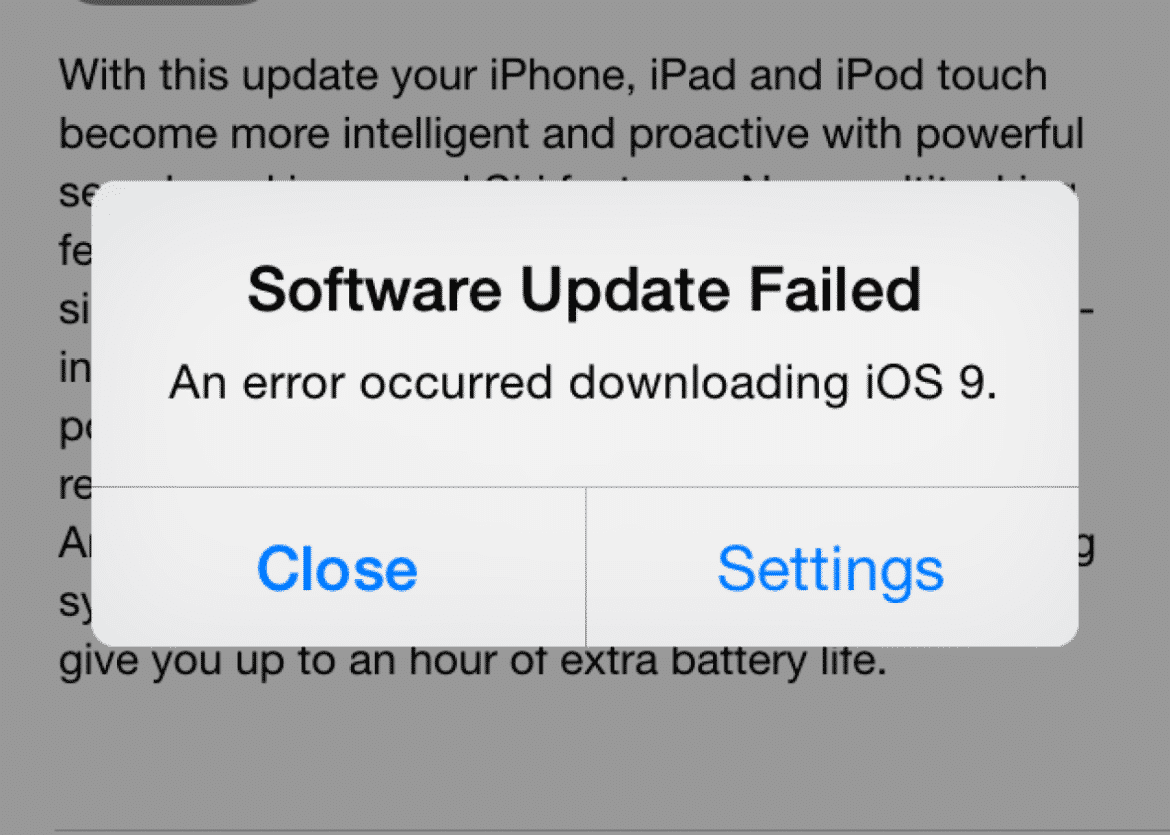
When your iPhone fails to update, the issue usually stems from insufficient storage, unstable network connectivity, or temporary software conflicts. Most problems can be resolved by freeing up space, verifying your internet connection, or using a computer to perform a forced recovery, ensuring your device remains secure and functional with the latest iOS features.
Understanding the Mechanics of iOS Updates
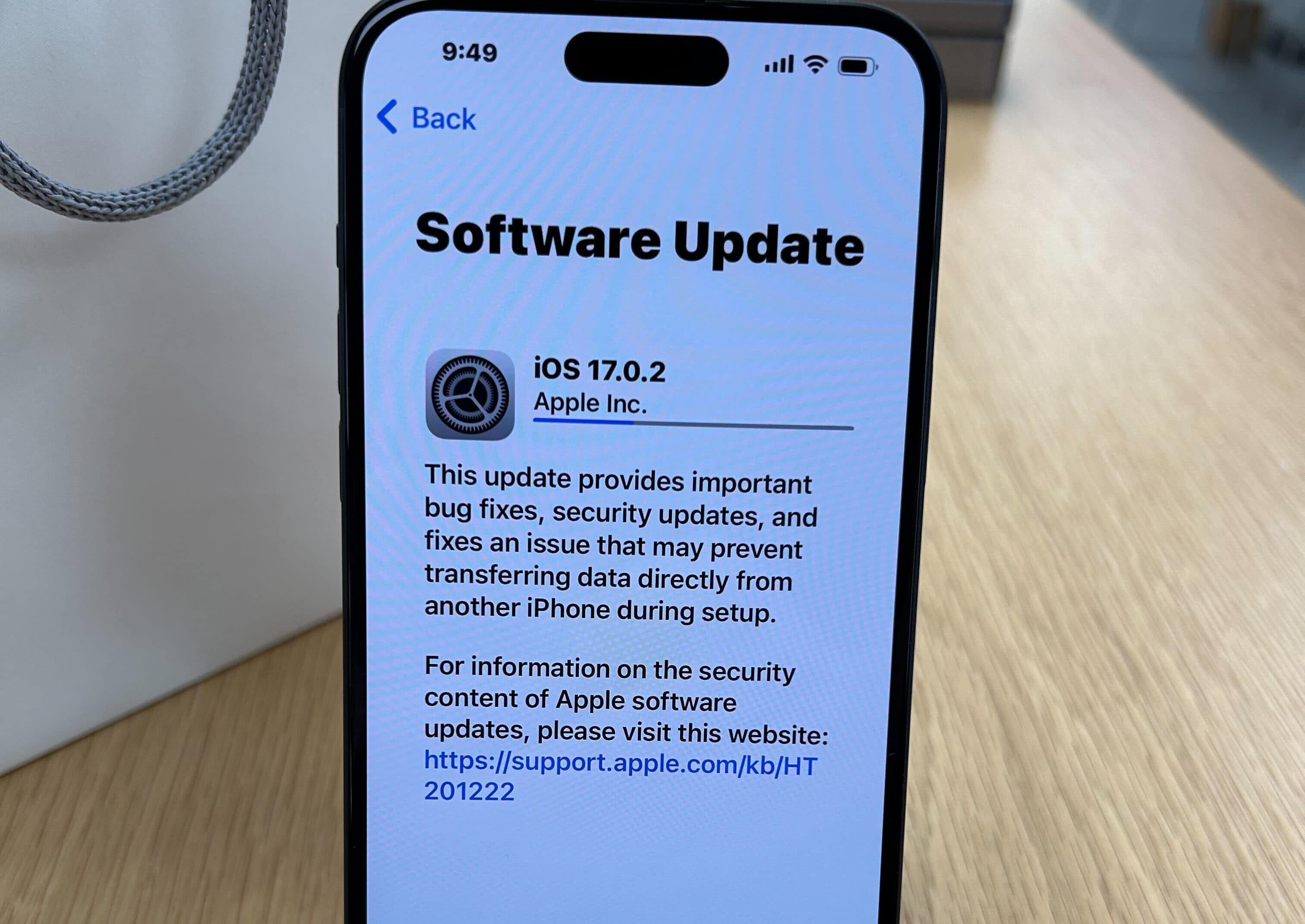
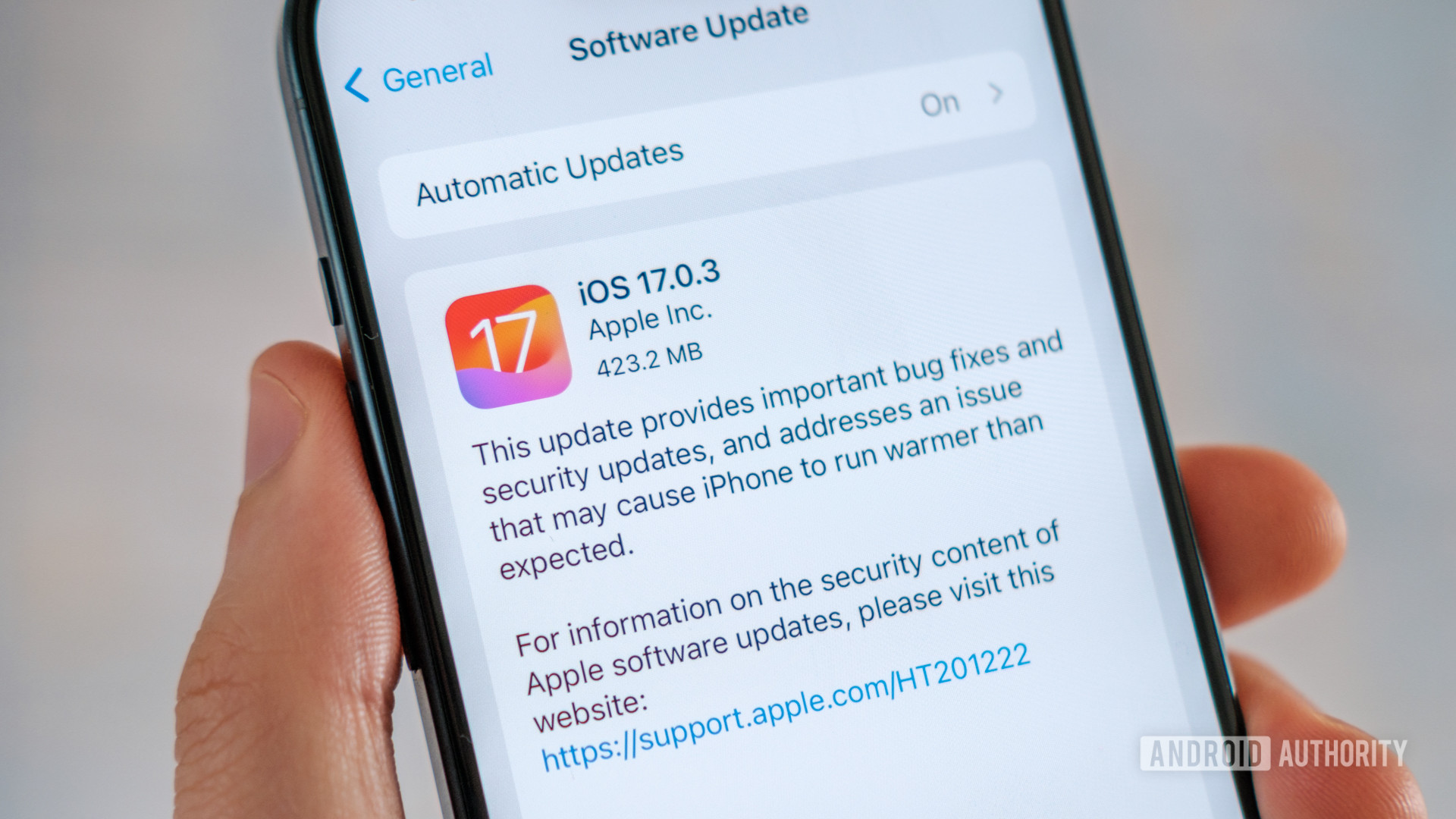
Apple releases periodic software updates to enhance security, introduce new features, and optimize system performance. These updates are typically delivered over-the-air (OTA). While the process is designed to be seamless, several variables must align for a successful installation. An update requires the download of a compressed file, the verification of its integrity against Apple’s servers, and finally, the extraction and application of the code to your device's flash storage.
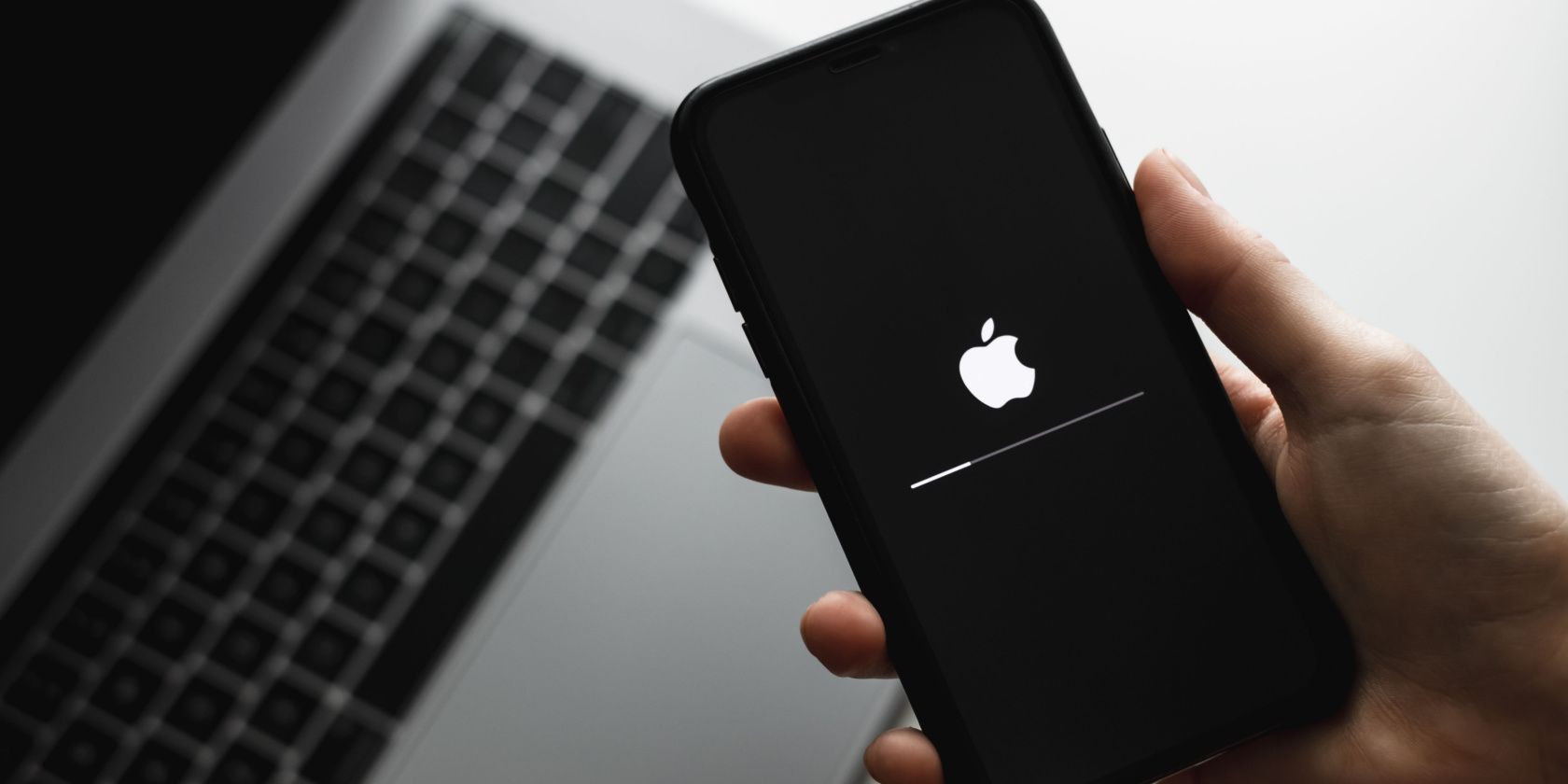
If any stage of this pipeline is interrupted—by a network drop, a power failure, or an incomplete file download—the iPhone may become stuck on a progress bar, display an error message, or fail to restart. Understanding that an update is not merely a file transfer but a system-level modification is the first step in troubleshooting persistent issues.
Preliminary Checks Before Troubleshooting
Before attempting advanced recovery steps, you must rule out the most common environmental and configuration errors. Many users assume their device is malfunctioning when the issue is simply a lack of resources.
- Battery Levels: Ensure your iPhone is charged to at least 50% or, ideally, connected to a power source. Apple's installation scripts may prevent an update from proceeding if the battery level is too low to guarantee the process will finish.
- Storage Availability: A major iOS update can require several gigabytes of free space. If your iPhone is nearly full, the system cannot unpack the installation files. Check this by navigating to Settings > General > iPhone Storage. If you are near capacity, offload unused apps or back up and delete large media files.
- Network Stability: Avoid using public Wi-Fi or cellular data for large system updates. A stable, private 5GHz Wi-Fi connection is recommended to prevent data corruption during the download phase.
- Server Traffic: During the release window of a major new iOS version, Apple’s servers experience heavy load. If you receive a "Server Unreachable" error, waiting a few hours before retrying can often solve the problem without further action.
Troubleshooting Persistent Installation Errors
If you have verified your internet connection and storage, and the update still fails, you must transition to more direct troubleshooting methods. The following table provides a reference for common error states and their recommended solutions.
| Issue Description | Potential Cause | Recommended Action |
|---|---|---|
| Update Stuck on "Verifying" | Corrupt update file | Delete the update and re-download. |
| "Unable to Install Update" | Insufficient local storage | Clear 5GB+ of space; restart phone. |
| Stuck on Apple Logo | Failed system boot | Force restart the device. |
| Error Code 4000/1100 | USB/Driver communication | Use an official Apple cable on a PC/Mac. |
| Device Loop/Black Screen | Recovery mode requirement | Perform a DFU or Recovery restore. |
Removing and Re-downloading the Update
If a download is interrupted, the resulting file might be "corrupted"—meaning it is incomplete but recognized by the system as existing. To fix this:
- Navigate to Settings > General > iPhone Storage.
- Locate the iOS update in the list of applications.
- Tap the update and select "Delete Update."
- Restart your iPhone, then go to Settings > General > Software Update to trigger a fresh download.
Forcing a Restart
A forced restart is a non-destructive way to clear the memory and exit a frozen update screen.
- iPhone 8 and later: Press and quickly release the Volume Up button, press and quickly release the Volume Down button, and then press and hold the Side button until the Apple logo appears. This command forces the processor to stop its current task and reboot, which often clears temporary software "hiccups."
Advanced Recovery: Using a Computer
When an iPhone is unresponsive or fails to complete an update via the interface, the next step is to use a computer. For macOS users, this is managed via Finder; for Windows users, it requires the Apple Devices app or iTunes.
- Connect the Device: Connect your iPhone to the computer using an Apple-certified Lightning or USB-C cable.
- Put the Device in Recovery Mode: While the device is connected, perform the button sequence for your specific iPhone model (the same sequence as the force restart, but keep holding until the recovery screen appears showing a cable pointing to a computer icon).
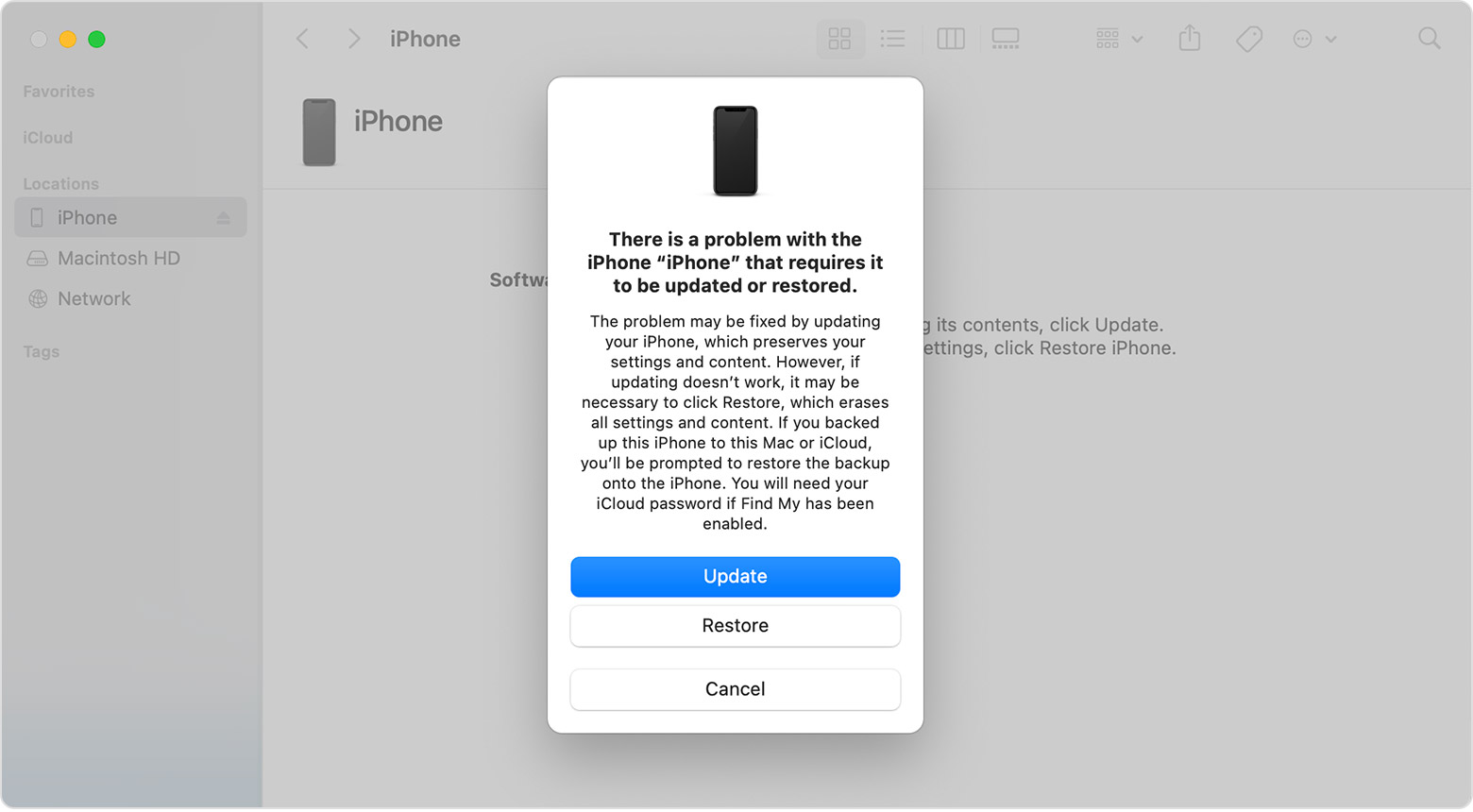
- Select "Update" (Not Restore): When the computer detects the device in Recovery Mode, it will prompt you with the option to Update or Restore. Selecting "Update" will attempt to reinstall the iOS software without deleting your personal data.
Caution: If "Update" fails, you may be forced to select "Restore." A restore will wipe the device to its factory settings. Only proceed with a restore if you have a current backup in iCloud or on your local computer.
Managing Software Profiles and Beta Versions
One frequently overlooked cause of update failure is a remaining Beta profile. If you previously opted into the Apple Beta Software Program and never removed the configuration profile, your device may be looking for an update server that is no longer active or is incompatible with the public release.
To check this:
- Go to Settings > General > VPN & Device Management.
- Look for an "iOS Beta Software Profile."
- If it exists, tap it and select "Remove Profile."
- Restart your device and attempt to check for the update again.
Frequently Asked Questions
Why does my iPhone say it is "Checking for Update" for a long time? This indicates that your device is struggling to communicate with Apple's servers. This is usually due to network latency, a VPN connection, or high server traffic. Turn off any active VPNs and switch to a different network, or try again later in the day.
Does an update failure pose a security risk? Yes, if your device is running an outdated version of iOS, it remains vulnerable to security exploits patched in newer releases. If you cannot update, your priority should be backing up your data to ensure you do not lose it should the software stability degrade further.
Can I use a third-party tool to fix update errors? While many third-party software suites claim to "repair" iOS, be cautious. These tools often attempt to force an install of a firmware file (IPSW). Unless you are comfortable with technical risks, it is safer to use official Apple methods, as third-party software can occasionally cause irreversible damage to the file system.
How do I know if the update actually installed? Go to Settings > General > About and check the "iOS Version" field. If it displays the version number you were attempting to install, the process was successful.
What should I do if my iPhone is completely bricked after an update? If the device does not turn on and does not respond to the button sequence for Recovery Mode, it may have suffered a hardware-level failure during the firmware rewrite. Contact Apple Support or visit an Authorized Service Provider, as this may require professional diagnostic tools to resolve.
Final Recommendations
To maintain a healthy device, always ensure your iPhone is backed up via iCloud or a computer before beginning any major update. If you encounter an issue, work through the steps systematically: check your storage, remove old beta profiles, and use the computer-based update method before resorting to a factory restore. If these steps fail to yield a resolution, reaching out to Apple support provides the safest path forward, as they can determine if the failure is software-related or a symptom of an underlying hardware malfunction.