Managing your digital communication while traveling requires a reliable, synchronized, and secure system that works seamlessly across all your hardware. Using Apple Mail integrated with iCloud provides a robust solution for travelers, ensuring that your emails, folders, drafts, and preferences remain consistent whether you are checking your inbox from a hotel computer, a tablet, or your primary iPhone. By leveraging the iCloud architecture, you effectively decouple your email identity from a single physical device, allowing for a fluid transition across different network environments and geographical locations.
The Architecture of iCloud Mail Synchronization
At its core, the Apple Mail application acts as a client that interfaces with the iCloud mail server using the IMAP (Internet Message Access Protocol) and SMTP (Simple Mail Transfer Protocol) standards. When you use an @icloud.com, @me.com, or @mac.com address, Apple’s servers maintain the master record of your inbox. Every action you take—such as marking an email as read, moving a message to a folder, or deleting a conversation—is pushed to the iCloud server and subsequently synchronized to every other device signed into that same Apple ID.
For the traveler, this architecture is a significant advantage. You do not need to worry about manually backing up your mail files or transferring local mailboxes from one machine to another. As long as your internet connection allows for a handshake with Apple’s servers, your Mail client will update to reflect your latest activity. This remains true even if you access your messages via the web interface at iCloud.com, which serves as an essential safety net for travelers who may find themselves without their primary hardware due to loss, theft, or technical failure.
Preparing Your Devices Before Departure
Efficiency during travel starts with rigorous preparation before you leave home. Reliability is rarely a product of chance; it is the result of verifying your authentication methods and offline settings while in a stable network environment.
Authentication and Two-Factor Security
Traveling often involves logging in from unrecognized devices or public networks. Apple’s security protocols, specifically Two-Factor Authentication (2FA), are designed to protect your account, but they can be a hurdle if you lose access to your primary phone number or trusted device. Before leaving:
- Verify that your primary Apple ID is logged in on all devices you are taking with you.
- If you are traveling internationally and expect to lose access to your SIM card or phone number, update your trusted phone numbers in your Apple ID settings to include a number that will be active or ensure you have a recovery key enabled.
- Keep at least two trusted devices with you, as the second device can act as a way to approve sign-in attempts if the first is unavailable.
Configuring Offline Access
Apple Mail does not download every single email to your device by default, especially if you have thousands of messages. To ensure you have access to critical travel documents—such as flight confirmations, hotel bookings, and train tickets—you must verify your offline settings.
- Open Mail on your Mac or iOS device.
- Check the Mailbox Behaviors settings.
- Ensure that "Keep copies of messages for offline viewing" is enabled or set to "All messages" if your local storage capacity allows. This ensures that even in areas with poor or no connectivity, you can review your trip itinerary.
Accessing Apple Mail Without Your Primary Device
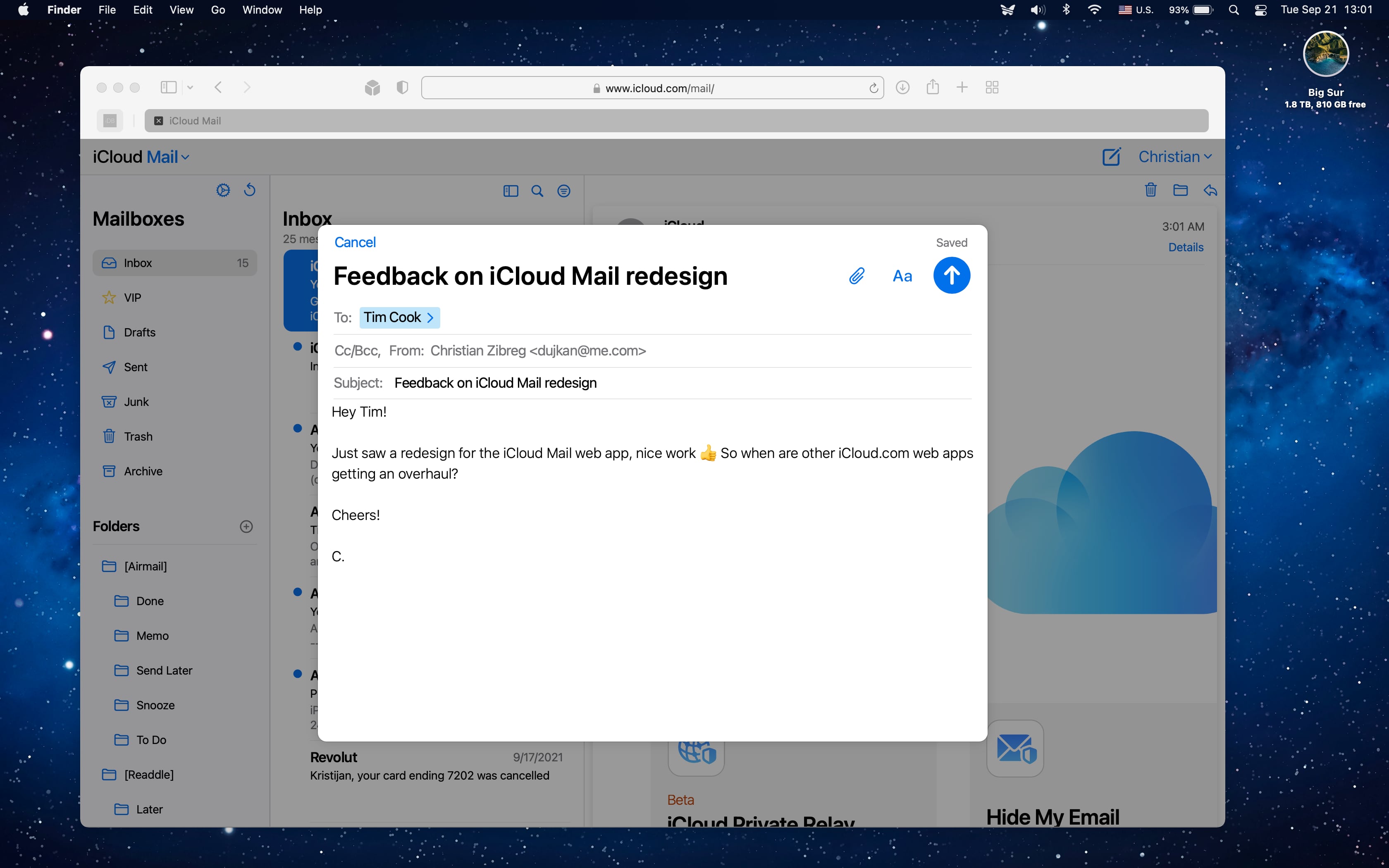
A common scenario for travelers is the loss or failure of their primary hardware. Should you find yourself without your iPhone or MacBook, iCloud.com provides a near-identical experience to the native Mail application.
To access your mail:
- Navigate to iCloud.com from any modern web browser.
- Authenticate using your Apple ID and password.
- If this is a public terminal, always ensure you use the "Private Browsing" or "Incognito" mode to prevent your credentials from being cached in the browser's history or local storage.
- Select the Mail icon. You will have full access to your folders, sent items, and incoming mail.
When using a public machine, be hyper-aware of the physical environment. Keyloggers on hotel business center computers are a genuine risk. If you suspect the security of the hardware you are using, prioritize accessing only the most urgent information, and as soon as you regain access to a trusted device, change your Apple ID password and review your active sessions.
Managing Data and Connectivity Costs
Data roaming and high-latency public Wi-Fi can degrade the performance of the Apple Mail app. The app is optimized to sync frequently, which can consume significant data if you are receiving high-resolution attachments.
Controlling Background Sync
If you are on a restricted data plan or using a slow network, you can throttle how much data Mail uses:
- Disable Push: Go to Settings > Mail > Accounts > Fetch New Data. Change this from "Push" to "Manual" or "Fetch" with a longer interval (e.g., every hour). This prevents the device from constantly pinging the server for new mail, saving both battery life and data.
- Limit Attachment Downloads: In the same settings menu, you can restrict the size of downloads, ensuring that your device does not try to pull large attachments until you specifically request them.
Public Wi-Fi Risks
Travelers frequently rely on airport or cafe Wi-Fi. While Apple’s encryption protocols for iCloud mail are robust, the network itself may be compromised. Using a reputable Virtual Private Network (VPN) creates an encrypted tunnel between your device and the VPN server, ensuring that your mail traffic remains unreadable to anyone monitoring the local network traffic.
Comparison of Access Methods
| Method | Security Level | Offline Capability | Complexity |
|---|---|---|---|
| Native App (iPhone/iPad) | High | Full (if cached) | Low |
| Native App (MacBook) | High | Full (if cached) | Low |
| iCloud Web Portal | Medium (Device Dependent) | None | Medium |
| Third-Party Client | Variable | Depends on App | High |
Troubleshooting Common Issues While Traveling
Even with perfect preparation, issues can arise. Understanding how to diagnose them is vital when you are far from home.
1. Verification Failures
If Apple Mail continuously asks for your password and rejects it, do not attempt to log in repeatedly, as this may trigger a security lock on your account. First, check if your local date and time are synchronized to the local time zone. If your device time is manually set incorrectly, the secure handshake between your device and Apple’s servers will fail due to certificate mismatches. Set your device to "Set Automatically" in Date & Time settings.
2. Stuck Outbox
If you are trying to send an email with a large attachment and the connection drops, the email may get stuck in the Outbox. This can prevent subsequent messages from sending.
- Navigate to the Outbox folder.
- If the message is visible, move it to the Drafts folder or delete it.
- Once the Outbox is empty, check your connection strength and attempt to send the email again, perhaps after reducing the file size of the attachment.
3. Server Timeouts
In regions with significant internet censorship or poor infrastructure, the connection to imap.mail.me.com may timeout. If you are experiencing constant failures, switching between Wi-Fi and cellular data—or toggling your VPN on and off—can often resolve these routing issues.
Strategic Workflow for Travelers
To maintain an organized digital life while on the move, establish a routine. Upon arriving at a new destination, check your connectivity. Use the "Flagged" and "VIP" features in Apple Mail to prioritize important communications from travel providers, hotels, or family. By starring these messages, they appear in a dedicated smart mailbox, allowing you to access critical trip details without digging through newsletters or spam that may have accumulated in your inbox.
Furthermore, utilize the "Archive" feature rather than "Delete" for travel-related correspondence until the trip is fully concluded. This ensures that you have a searchable record of receipts and confirmations should you need to dispute a charge or reference a booking detail months later.
Frequently Asked Questions
Can I access my iCloud mail if I forget my password while traveling? Yes, but you will need your recovery method. If you have a recovery key enabled, you can use it to regain access. Alternatively, you can use a secondary trusted device or a verified account recovery contact if you have set one up in advance. Without these, recovering an account from a foreign location is difficult and time-consuming.
Should I use Apple Mail with a third-party email provider while traveling? Apple Mail is a client; it can handle Gmail, Outlook, or other IMAP accounts just as easily as iCloud. However, the synchronization behavior remains dependent on that specific provider's server settings. For the most seamless "push" experience and highest reliability, staying within the iCloud ecosystem is recommended.
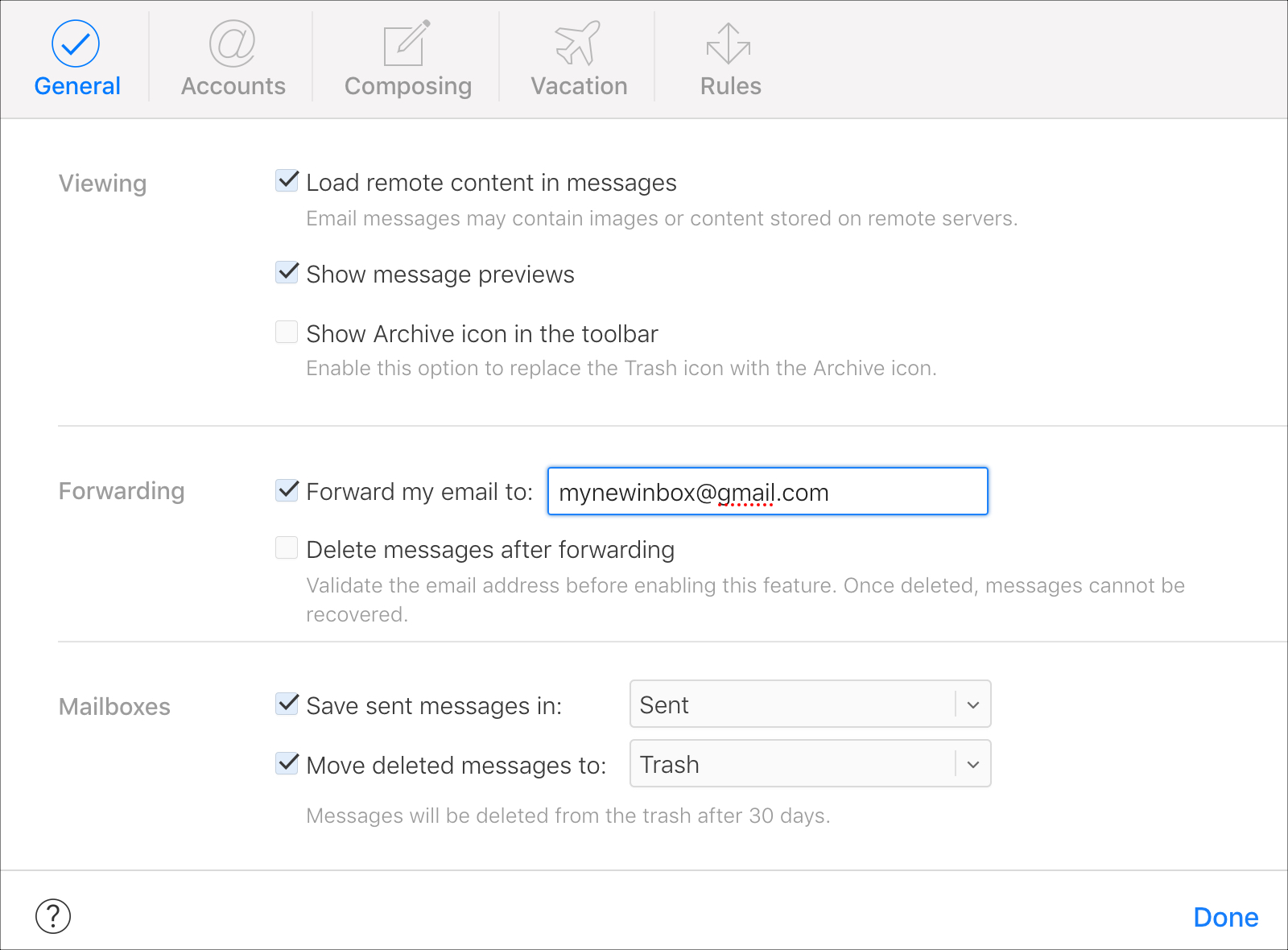
Why are my images not loading in emails while abroad? Apple Mail has a "Protect Mail Activity" feature that hides your IP address and blocks remote content loading to protect your privacy. If your connection is very weak, the server may fail to load these images entirely. You can choose to "Load Remote Content" manually for trusted senders, which will speed up your workflow.
Is it safe to log into iCloud Mail on a hotel computer? It is generally discouraged due to the risk of malware or keyloggers. If it is your only option, only use it for emergencies. Never save your password in the browser, and ensure you clear the site data and cache before logging out. Always use 2FA to ensure an unauthorized person cannot access your session even if they have your credentials.
How do I manage large attachments in Apple Mail when roaming? Apple Mail allows you to use "Mail Drop" if you are sending files larger than 20MB. Instead of sending the file directly, it uploads the file to iCloud and sends a secure link. This is significantly more efficient for your outgoing data usage when traveling on limited cellular plans.
Final Recommendations for the Traveling Professional
To ensure your Apple Mail usage is flawless, perform a "dry run" a few days before your departure. Put your device in Airplane Mode and ensure you can still view your critical emails, then check your Outbox behaviors. Always carry a secondary, low-power device capable of 2FA authentication, as this is your ultimate insurance policy against account lockout. Keep your software updated to the latest available version before your trip to ensure that any security patches or stability fixes are applied. By treating your email access as a critical component of your travel logistics, you remove the stress of digital disconnection and keep your focus on your journey.