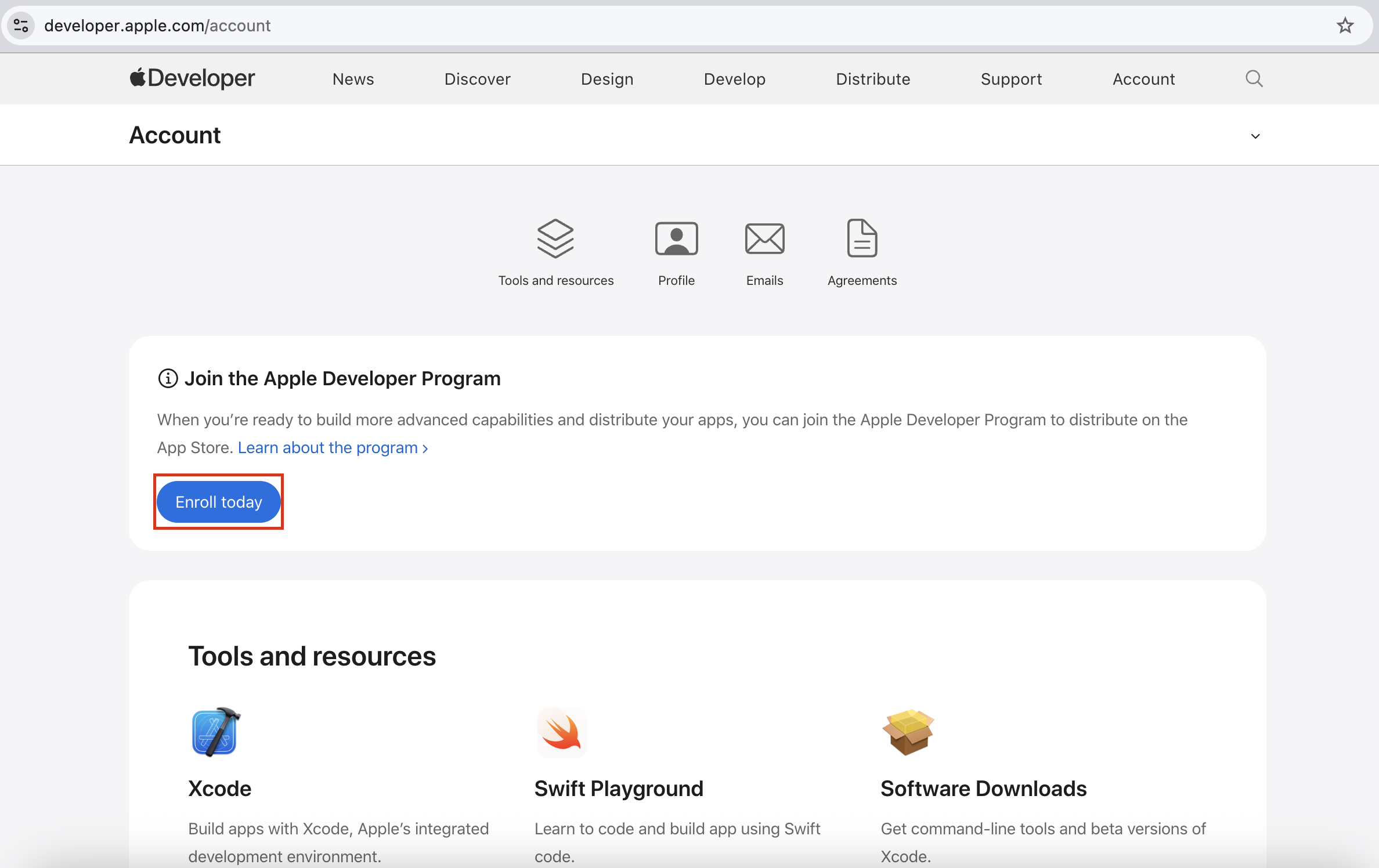
Enrolling in the Apple Developer Program provides access to the tools, beta software, software development kits (SDKs), and distribution channels required to build and deploy applications across iOS, iPadOS, macOS, watchOS, tvOS, and visionOS. The process requires choosing between an Individual or Organization account, verifying legal identity, paying the annual $99 USD fee, and completing setup through either the Apple Developer app or the web portal.
Account Types and Eligibility: Individual vs. Organization
Selecting the correct account type during Apple Developer account enrollment is a critical decision. Apple structures memberships around legal accountability, team access management, and public developer identity on the App Store. Changing an account type after enrollment requires submitting a formal support request to Apple, so choosing the appropriate track at the beginning prevents administrative delays.
Individual Developer Accounts
An Individual account is registered to a single person using their legal personal name. When apps created under an Individual account are published on the App Store, the developer's legal first and last name appears as the seller of record.
- Best Suited For: Independent developers, freelancers, sole proprietors operating without a registered corporate entity, and solo creators prototyping software.
- Team Access: Individual accounts cannot add team members to the main Apple Developer portal for code signing or certificate management, though they can invite users to App Store Connect for testing, analytics, and customer support management.
- Identity Verification: Requires verifying personal identification (such as a passport or driver's license) and personal contact information.
Organization Developer Accounts
An Organization account is intended for legally recognized entities, including corporations, limited liability companies (LLCs), partnerships, non-profit organizations, educational institutions, and government bodies. The organization's legal name—not an individual's name—appears as the seller on the App Store.
- Best Suited For: Registered businesses, enterprises, agencies publishing apps on behalf of clients, and teams requiring multiple administrative or development roles.
- Team Access: Allows administrative accounts to invite multiple team members, grant role-based permissions (such as Developer, Admin, App Manager, or Finance), and manage corporate code-signing certificates collectively.
- Identity Verification: Requires verification of legal entity status, official authorization to legally bind the company, and a valid Data Universal Numbering System (D-U-N-S) number.
Fee Waivers and Regional Cost Structures
The standard cost for an Apple Developer Program membership is $99 USD per membership year (or local currency equivalent, which includes localized tax rates where applicable).
Apple offers annual fee waivers for qualifying entities. To be eligible for a fee waiver, an organization must be an accredited educational institution, a non-profit organization with tax-exempt status (such as a 501(c)(3) in the United States), or a government entity located in an approved country. Fee waivers apply exclusively to non-commercial apps made available on the App Store for free. Organizations can request a fee waiver during the enrollment process or during annual renewal through the Apple Developer Support Portal.
Essential Prerequisites Before You Begin
Preparing the necessary documentation and account settings prior to initiating enrollment avoids common failure points during identity verification and payment processing.
1. Apple ID Configuration and Two-Factor Authentication
Every enrollment begins with an Apple ID. Apple requires Two-Factor Authentication (2FA) to be enabled on the account before enrollment can start.
To configure your Apple ID properly:
- Ensure the personal details on your Apple ID match your legal government identification (for Individual accounts) or your legal authority documents (for Organization accounts).
- Turn on 2FA via your device settings (Settings > Apple ID > Sign-In & Security on iOS/macOS).
- Use a monitored email address, as Apple sends critical tax, contractual, and app security notices to this primary email address.
2. Legal Entity Verification Documents
For Individual accounts, ensure you possess a valid, government-issued photo ID (such as a driver’s license, national identity card, or passport). Automated identity verification through the Apple Developer app may capture a facial photo and scan your ID document.
For Organization accounts, prepare the following official information:
- Legal Entity Name: Must match the exact corporate name listed on official state or national registers. Trade names, DBAs ("doing business as"), fictitious names, or branch names are not accepted as legal entity names.
- Legal Authority: The person completing the enrollment must be the owner, founder, executive officer, or an employee with explicit legal authority granted by an executive officer to bind the organization to Apple’s legal contracts.
- Company Website: A publicly accessible website with a domain name registered to the legal entity.
3. D-U-N-S Number Acquisition
A D-U-N-S Number is a unique nine-digit identifier assigned by Dun & Bradstreet to verify the legal status and corporate identity of an organization. Apple uses this number to confirm that your organization exists as a legal entity.
- Checking Existing Assignment: Many registered businesses already have a D-U-N-S number. You can verify your company’s number using the Apple D-U-N-S Lookup Tool.
- Requesting a New Number: If your business does not have a D-U-N-S number, you can request one for free through Apple’s portal or directly via Dun & Bradstreet.
- Data Consistency: The organization’s legal name, street address, zip code, and telephone number in the Dun & Bradstreet database must match the information provided to Apple character for character. Discrepancies (e.g., "Inc." vs. "Incorporated" or "Suite" vs. "Ste.") can trigger automated verification rejections.
- Processing Time: Obtaining a new D-U-N-S number typically takes up to 5 business days from Dun & Bradstreet, plus an additional 2 business days for Dun & Bradstreet to share the updated record with Apple’s global database.
Step-by-Step Enrollment Guide
Apple allows enrollment through two primary channels: the Apple Developer App (recommended for iOS and macOS users) and the Apple Developer Web Portal. Using the Apple Developer app streamlines identity verification by enabling native biometric validation and local payment processing.
- Enrollment Preparation Phase
- Enable 2FA on Apple ID
- Gather legal photo ID (Individuals) or D-U-N-S (Organizations)
- Select Channel & Begin
- Option A: Apple Developer App (Fastest, automated ID check)
- Option B: Web Portal (Standard browser setup)
- Identity & Entity Verification
- Capture photo ID / live selfie (App enrollment)
- Submit D-U-N-S & corporate authority details (Organizations)
- Payment & Agreement Approval
- Review Developer Program License Agreement
- Submit $99/year payment (or apply for qualified fee waiver)
- Account Activation Complete
- Access Certificates, Identifiers & Profiles
- Log into App Store Connect to configure tax & team settings
Method 1: Enrolling via the Apple Developer App (iOS / iPadOS / macOS)
Apple encourages developers to use the Apple Developer app for enrollment because it leverages device hardware for rapid identity verification.
- Download the App: Install the Apple Developer app from the App Store on an iPhone, iPad, or Mac.
- Sign In: Open the app, navigate to the Account tab, and sign in with your 2FA-enabled Apple ID.
- Initiate Enrollment: Tap Enroll Now.
- Review Requirements: Read the overview of requirements and tap Continue.
- Enter Personal Information: Enter your legal name, physical address, and phone number.
- Verify Identity: When prompted, scan your government photo ID using your device’s camera and complete the liveness check (facial scan) if requested.
- Select Entity Type: Choose Individual or Organization. If selecting Organization, enter your D-U-N-S number, corporate website, and corporate phone number.
- Submit for Review: Confirm the entered details. For individual accounts, verification is often completed within minutes. For organizations, Apple will review the D-U-N-S data.
- Complete Payment: Once approved, process the annual subscription payment using Apple Pay or your stored App Store payment method. Turn on auto-renewal to prevent service disruption.
Method 2: Enrolling via the Web Portal
If you do not have access to an iOS or macOS device, you can register directly through the web browser.
- Navigate to the Portal: Visit the Apple Developer Program Web Page.
- Start Enrollment: Click the Enroll button in the upper right corner.
- Authenticate: Log in using your Apple ID with two-factor authentication.
- Choose Account Type: Select whether you are enrolling as an Individual/Sole Proprietor or an Organization.
- Fill Out Entity Details:
- For Individuals: Enter legal name, address, and legal tax identity details.
- For Organizations: Input the full legal entity name, D-U-N-S number, headquarters address, domain website, and authorized signatory contact information.
- Submit for Manual Review: Web-based submissions for organizations enter an enrollment queue. An Apple representative may call or email the listed corporate contact to verify authority.
- Accept Agreement and Pay: Once Apple approves the application, log back into the portal to review and accept the Apple Developer Program License Agreement (PLA), then submit your payment details.
Verification Bottlenecks and Troubleshooting
Enrollment delays are usually caused by documentation mismatched against official public registers. Here is how to handle common enrollment roadblocks:
1. D-U-N-S Record Discrepancies
- Symptom: The Apple Developer portal reports that the D-U-N-S number does not match company records, or rejects the submission outright.
- Solution: Compare your entry directly against the Dun & Bradstreet database entry using the Apple D-U-N-S Lookup Tool. Ensure the company name, suite numbers, and zip codes match perfectly. If you recently created or updated your D-U-N-S record, wait 24 to 48 hours for Dun & Bradstreet to push updates to Apple's integration servers.
2. Legal Authority Challenge
- Symptom: Apple contacts the applicant stating they cannot verify the authority to sign agreements on behalf of the company.
- Solution: Ensure the applicant's corporate email domain matches the organization's domain name (e.g.,
alex@company.comrather than a genericgmail.comaddress). If the applicant is not an executive officer (CEO, President, Owner), provide written confirmation or authorization from an executive during Apple’s phone/email verification follow-up.
3. Identity Verification Failures (App Enrollment)
- Symptom: The Apple Developer app states that identity verification could not be completed or requires additional documentation.
- Solution: Ensure that government photo IDs are unexpired, clearly legible without light glare, and physically present (do not photograph screen images or paper copies). Check that the personal name on the Apple ID matches the ID card exactly.
4. Payment Processing Issues
- Symptom: Payment fails or remains in a pending status indefinitely.
- Solution: Payments must be made using a credit card or payment method registered in the same country or region as the Apple ID. Corporate purchasing cards with billing addresses that differ from the Apple ID's home country can cause transaction flags.
Technical and Operational Differences
Understanding the operational differences between Individual and Organization memberships clarifies what each account type provides.
| Feature / Requirement | Individual Account | Organization Account |
|---|---|---|
| Public Seller Name on App Store | Personal legal name | Corporate/Legal Entity Name |
| D-U-N-S Number Required | No | Yes |
| Annual Fee | $99 USD (or local equivalent) | $99 USD (Fee waivers available for qualified non-profits) |
| Developer Portal Access | Account Owner only | Multiple custom role-based members |
| App Store Connect Access | Multiple users (limited administrative roles) | Full administrative access & role management |
| Identity Verification Method | Government Photo ID + Facial Scan | D-U-N-S Verification + Identity & Legal Authority Check |
| Transfer to Another Entity | Requires manual migration support request | Native app transfer within App Store Connect |
| Enterprise Provisioning Options | Standard App Store / TestFlight distribution | Standard + Custom App Distribution / Ad-Hoc / Enterprise |
Post-Enrollment Account Setup
Completing payment and receiving your enrollment confirmation email grants access to Apple's developer ecosystems. Follow these steps to configure your account for deployment:
1. Navigating the Apple Developer Portal vs. App Store Connect
Apple splits development and operational administrative tasks across two main platforms:
Apple Developer Portal (
developer.apple.com): Used to manage technical assets, including cryptographic certificates, App IDs, Device IDs for testing, provisioning profiles, and merchant identifiers.App Store Connect (
appstoreconnect.apple.com): Used to manage app store product pages, upload app builds via Xcode or Transporter, configure in-app purchases and subscriptions, set pricing, view analytics, respond to reviews, and enter tax and banking documentation.Apple Developer Program
- Apple Developer Portal (
developer.apple.com)- Certificates & Signing Keys
- App IDs & Bundle Identifiers
- Test Device Registrations
- Provisioning Profiles
- App Store Connect (
appstoreconnect.apple.com)- Store Listing & Metadata
- Binary Uploads & TestFlight
- Tax, Banking & Payout Settings
- In-App Purchase & Subscriptions
- Apple Developer Portal (
2. Setting Up Financial Agreements and Tax Documentation
If you intend to sell paid applications or offer in-app purchases, you must complete Apple's banking and tax requirements inside App Store Connect:
- Log into App Store Connect and navigate to Agreements, Tax, and Banking.
- Request and accept the Paid Apps Agreement.
- Add your organization's legal banking credentials to receive direct deposit electronic payouts.
- Complete the automated U.S. tax forms (W-8BEN for foreign entities or W-9 for domestic U.S. entities) and relevant regional tax declarations. Apps cannot collect revenue until these forms are verified.
3. Team Member Onboarding (Organization Accounts)
To grant your development team access without sharing primary login credentials:
- Open App Store Connect and select Users and Access.
- Click the plus (+) button to add a new user.
- Input their name, business email address, and select appropriate role permissions:
- Admin: Full administrative control over provisioning, app submissions, user roles, and team settings.
- App Manager: Authorized to manage app metadata, upload builds, edit product pages, and submit apps for review.
- Developer: Can upload builds to TestFlight, configure code-signing credentials, and manage technical profiles.
- Finance: Granted access to view financial reports, monthly statements, and bank payout logs.
- The user receives an automated email invitation to link their personal Apple ID to the team account.
For step-by-step guidance on role permissions, refer to the App Store Connect Support Documentation.
Frequently Asked Questions
Can I convert an Individual account to an Organization account later?
Yes. If you start as an Individual developer and later form an LLC or corporation, you can request an account type migration. You must provide your new legal entity name, a valid D-U-N-S number, and evidence that you have authority to represent the organization. Contact Apple Support via the developer portal to initiate the transfer process.
How long does Apple Developer account enrollment take?
Enrollment for an Individual account through the Apple Developer app using automated identity verification can take anywhere from a few minutes to 24 hours. Organization enrollments take longer—typically between 2 and 7 business days—because Apple manually verifies D-U-N-S records, corporate status, and signatory authority.
What happens if I let my Apple Developer membership expire?
If your annual membership lapses:
- Your existing published applications will be removed from download on the App Store.
- Currently installed apps using push notifications, iCloud integration, or In-App Purchases may lose functionality.
- You will lose access to software betas, distribution certificates, and new app submissions in App Store Connect.
- Existing customer data, store reviews, and app historical data are preserved, and your apps will reappear on the App Store once you renew the subscription.
Do I need a paid Apple Developer Account just to test apps on a physical device?
No. Apple allows developers to build and test applications on personal physical devices using a free Apple ID connected to Xcode. However, a paid enrollment is mandatory if you want to deploy apps via TestFlight, distribute apps publicly on the App Store, issue enterprise deployments, or access advanced capabilities like Push Notifications and Sign in with Apple.
Is the $99 annual fee charged per application or per account?
The $99 annual fee covers your entire Apple Developer Program account. You can publish an unlimited number of applications across all Apple platforms under a single developer membership without paying additional per-app fees.
Summary and Next Steps
To ensure a smooth enrollment process:
- Verify your Apple ID configuration: Turn on two-factor authentication and confirm your account information matches your official documentation.
- Obtain your credentials early: If registering as an organization, check your D-U-N-S number status using the Dun & Bradstreet database before submitting your application.
- Use the Apple Developer app: Complete identity checks natively on an iOS or macOS device to expedite approval times.
- Prepare post-enrollment requirements: Set up your banking, tax, and user permission frameworks within App Store Connect immediately after activation to avoid delays when publishing your software.
For official updates on developer policies and agreement updates, monitor the central Apple Developer Support Center.