Attaching your proof of auto insurance requires submitting an official document—such as a digital insurance card, policy declaration page, or temporary binder—in an accepted file format (typically PDF, JPEG, or PNG) to a requesting portal, email, or application. Ensure the document clearly displays the policyholder's name, Vehicle Identification Number (VIN), effective dates, and policy number to prevent rejection.
What Qualifies as Valid Proof of Auto Insurance?
When a Department of Motor Vehicles (DMV), auto lender, court, or employer requests proof of financial responsibility, submitting the correct document type is critical. Insurance documents serve distinct administrative functions, and providing an unapproved format can lead to registration suspensions, loan force-placed insurance, or rejected claims.
Digital vs. Paper Insurance Cards
An auto insurance identification card is the most common form of proof for routine traffic stops and vehicle registrations. As of 2026, nearly all U.S. states and Canadian provinces permit drivers to display digital insurance cards on mobile devices during traffic stops or present downloaded digital files for electronic state registration systems.
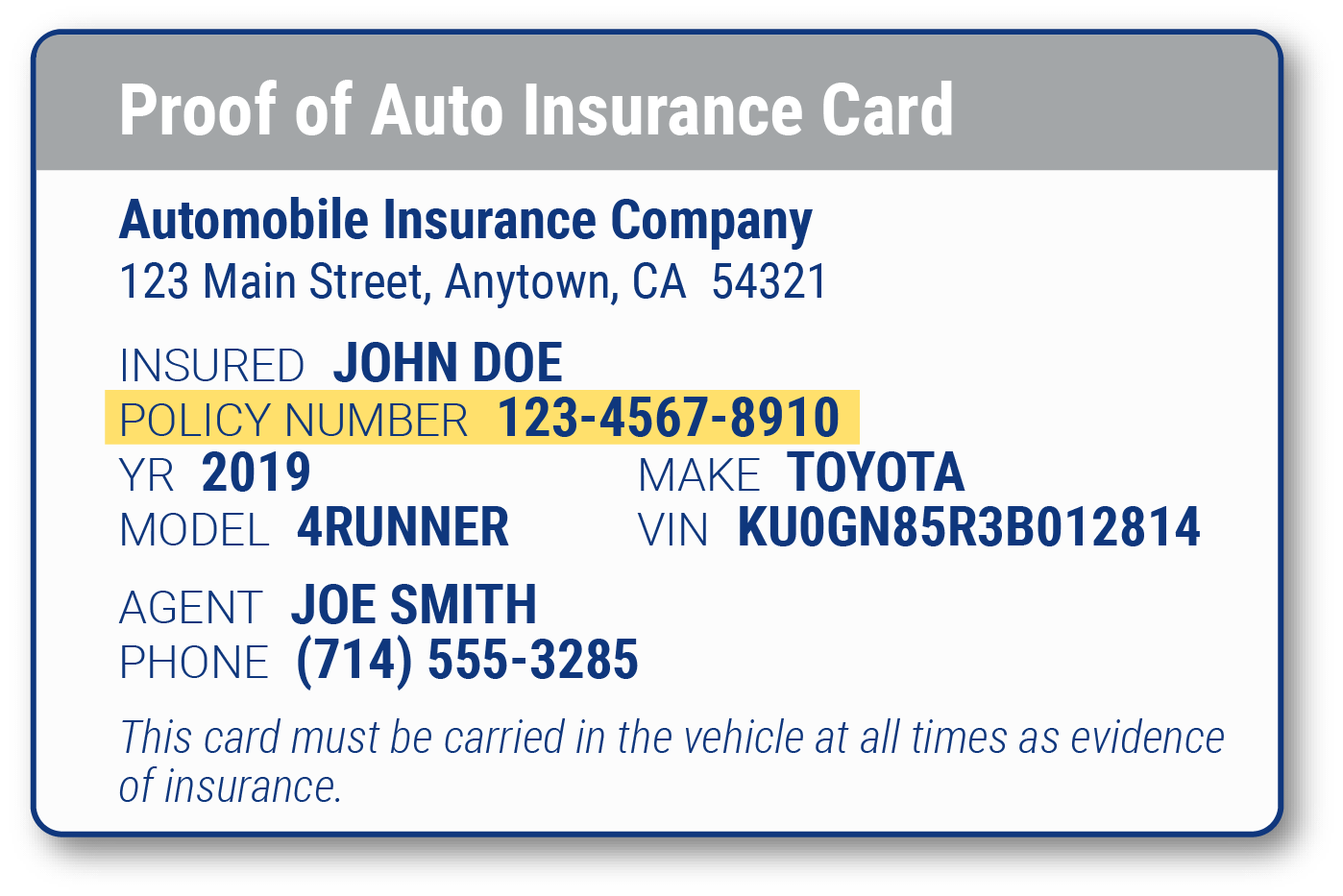
A standard insurance card must contain:
- Named Insured(s): The primary policyholder and listed drivers.
- Policy Number: The active policy identifier.
- Effective and Expiration Dates: The precise timeframe during which coverage is active.
- Vehicle Information: Year, make, model, and the complete 17-character Vehicle Identification Number (VIN).
- Insurance Company Details: Official carrier name, NAIC (National Association of Insurance Commissioners) number, and contact details.
While a physical card printed on cardstock or paper remains universally accepted, digital proof stored as a PDF or accessible via an official carrier application is standard across most digital web portals.
Policy Declaration Pages vs. Insurance Binders
For comprehensive verification—such as financing a vehicle purchase, refinancing, or adjusting coverage after an accident—an insurance card is often insufficient because it does not detail specific coverage limits or deductibles.
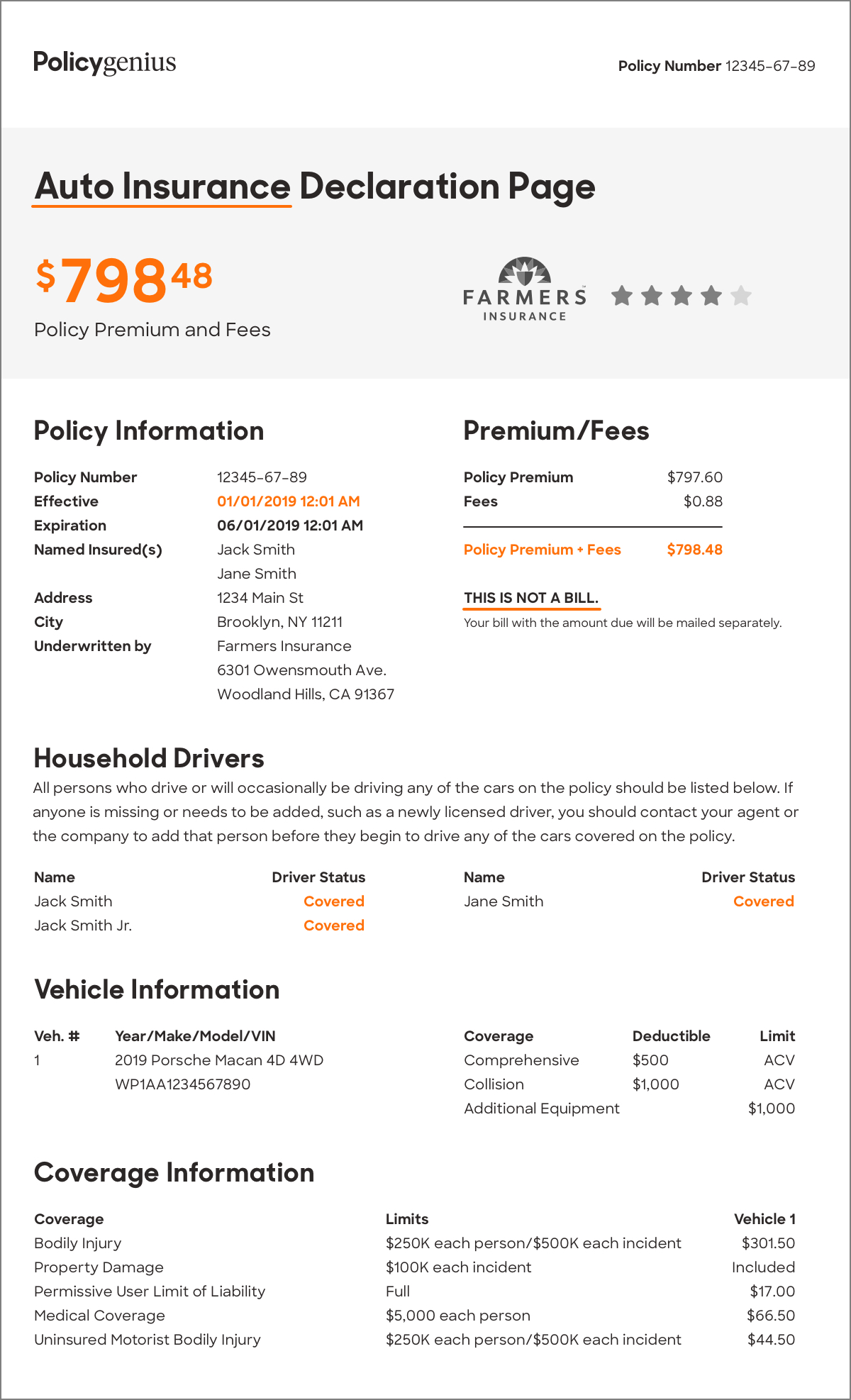
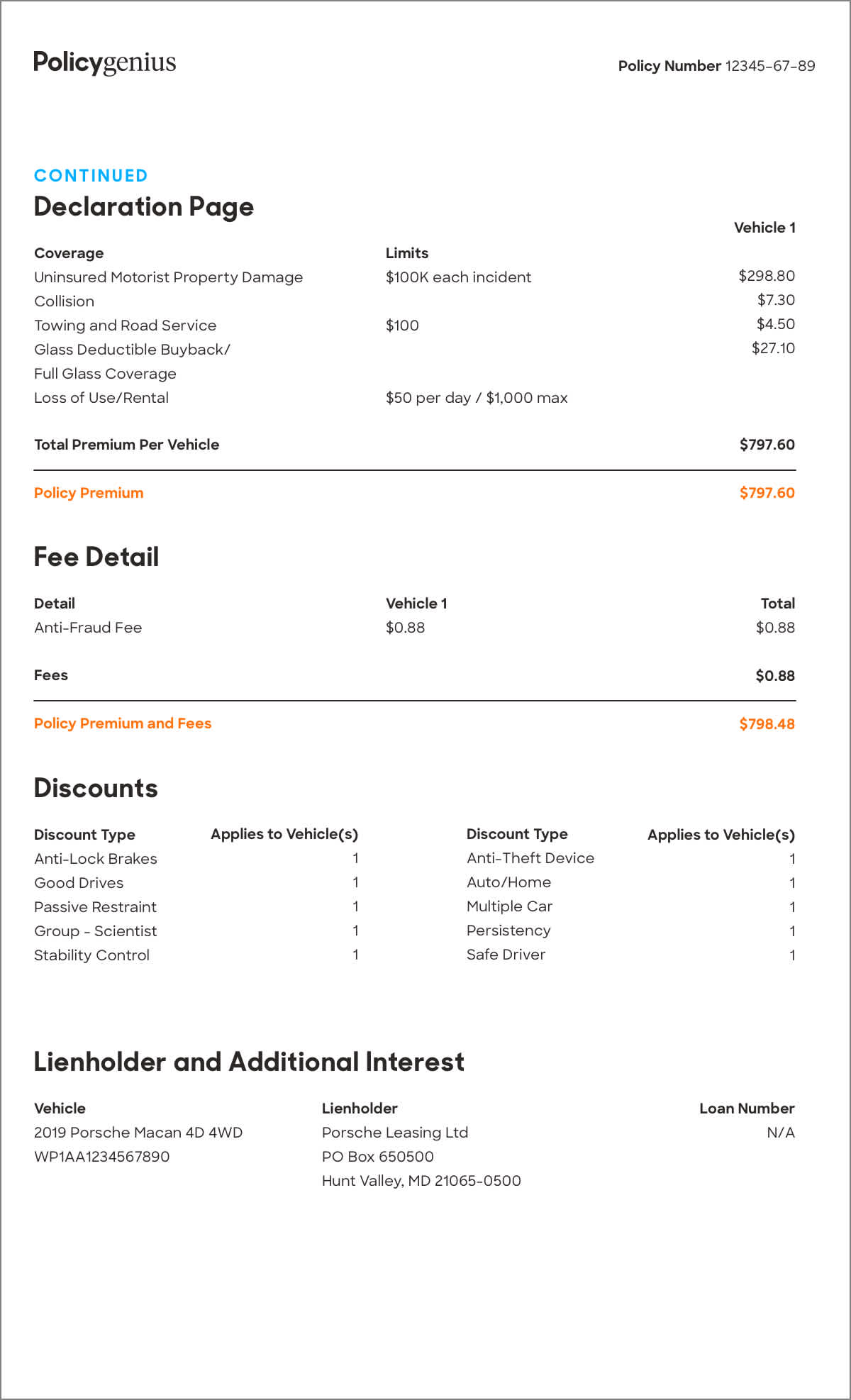
- Policy Declaration Page ("Dec Page"): This document provides a complete summary of your active insurance policy. It lists specific liability limits (e.g., $100,000/$300,000/$50,000), comprehensive and collision deductibles, optional endorsements, and named lienholders or loss payees. Lenders specifically require the Declaration Page to confirm that physical damage coverage (comprehensive and collision) meets the loan contract requirements.
- Insurance Binder: An insurance binder is a temporary contract that serves as immediate legal proof of insurance before the final policy policy contract and declaration page are formally issued. Binders are usually issued by insurance agents or brokers when you purchase a new policy or add a new vehicle at a dealership. Binders are valid for a specified window (typically 30 to 60 days) and carry the full legal weight of a permanent policy until the official declaration page is generated.
Special Filings: SR-22 and FR-44 Forms
In cases involving serious traffic violations, driving under the influence (DUI), or driving without insurance, state licensing agencies may mandate a specialized certificate of financial responsibility, such as an SR-22 or FR-44 (used in states like Virginia and Florida).
Unlike standard insurance cards, an SR-22 or FR-44 is not a standalone insurance policy. It is an official endorsement form attached to an active policy that your insurance carrier files directly with the state motor vehicle department. If you are required to upload proof of an SR-22 filing to a court portal or reinstatement system, you must attach the official state-stamped certificate provided by your insurer, rather than a standard insurance card.
Primary Scenarios Requiring Insurance Document Attachment
Understanding who is requesting your insurance documentation and why helps ensure you attach the correct document in the proper format.
| Recipient | Primary Document Needed | Key Verification Point |
|---|---|---|
| DMV / BMV Agency | State ID Card / SR-22 | Active VIN & State Coverage |
| Auto Lender / Bank | Declaration Page / Binder | Comprehensive/Collision Caps |
| Rideshare / Gig App | Digital ID Card / Dec | Named Driver & Active Dates |
| Traffic Court | ID Card / Dec Page | Active Status on Citation Date |
State Motor Vehicle Agencies (DMV / BMV)
State departments of motor vehicles require verified proof of auto insurance to complete initial vehicle registrations, perform annual registration renewals, transfer license plates, or lift administrative suspensions.
Many state electronic registration systems use automated Electronic Insurance Verification (EIV) databases to cross-reference VINs directly with insurance carriers. However, when automated systems fail to detect coverage—or during manual web uploads—drivers must attach a clear digital copy of their insurance card or binder. State portals usually require files to be uploaded in PDF or high-resolution image formats.
Auto Lenders and Leasing Companies
When you finance or lease a vehicle, the lender holds a financial interest in the car as collateral. Lease and loan agreements strictly mandate that borrowers maintain continuous primary coverage, including specified maximum deductibles (often $500 or $1,000) for collision and comprehensive risks.
Lenders systematically monitor compliance using automated document intake web portals (such as MyInsuranceInfo or carrier-specific verification sites). When a lender requests proof of coverage, attaching only a basic insurance card will often result in a rejection. You must attach the full Declaration Page listing the lender as the Lienholder or Loss Payee, alongside the appropriate vehicle lienholder address. Failure to attach valid proof can cause the lender to issue Collateral Protection Insurance (CPI)—a costly insurance policy added directly to your monthly car payment.
Rideshare, Delivery, and Commercial Fleet Platforms
Companies operating in the transportation and gig economy—such as Uber, Lyft, DoorDash, and commercial courier services—require driver applicants and active contractors to maintain personal auto insurance that meets state minimums.
When onboarding or renewing credentials within gig economy smartphone apps, drivers must upload photos or PDF files of their auto insurance card. The platform's automated document verification technology checks the document to confirm that:
- The driver's name is explicitly listed as a named insured or covered driver.
- The VIN on the insurance document perfectly matches the VIN registered on the platform.
- The insurance policy expiration date extends past the upload date.
Insurance Claims and Traffic Courts
- Filing Claims: Following an auto accident, insurance adjusters require documentation to open third-party claims or process subrogation actions. Attaching a digital copy of the counterpart’s insurance card and your own declaration page via the claims portal speeds up liability determinations and rental car authorizations.
- Court Dismissals: If you receive a traffic citation for driving without proof of insurance ("failure to present financial responsibility"), most court jurisdictions allow you to submit evidence online or via email prior to your court date. You must attach proof showing that valid insurance was active at the exact date and time the citation was issued. An updated insurance card issued after the traffic stop will not suffice; you must attach a declaration page or letter of verification from your insurer explicitly covering the date of the offense.
Technical Specifications and Formatting Guidelines for Document Uploads
Technical errors during document attachment are the leading cause of verification delays and administrative rejections. Adhering to standard digital document rules ensures rapid processing by automated Optical Character Recognition (OCR) systems and manual reviewers.
Accepted File Formats
Most online portals and web forms support a narrow set of standard file formats:
- PDF (.pdf): The universally preferred format for text legibility, multi-page declaration documents, and digital security. Vector-based PDFs generated directly from insurer portals offer the highest processing accuracy.
- JPEG / JPG (.jpeg, .jpg): Standard image formats suitable for mobile phone photos of printed insurance cards.
- PNG (.png): High-quality lossless image format ideal for screenshots taken from insurance mobile apps.
Avoid uploading file types such as HEIC (Apple default image format on some devices unless auto-converted), TIFF, DOCX, ZIP files, or web pages saved as HTML, as most secure intake servers automatically block these file extensions.
Image Quality, Crop, and Clarity Standards
When capturing a photograph of a physical card or scanning a paper document to attach:
- Capture All Four Corners: Ensure the entire document or card is visible within the frame. Occluding margins, cutting off text, or covering logos with fingers will trigger automated rejection.
- Maintain Flat Lighting: Avoid direct flash glare on glossy plastic insurance cards, which can obscure critical text like policy numbers or VIN characters.
- High Contrast: Place dark cards on a light background or white paper cards on a dark, non-reflective surface before scanning or photographing.
- Resolution: Aim for a minimum resolution of 300 DPI (dots per inch) for scans, or a clear photo taken under bright, indirect lighting. Text must remain crisp when zoomed to 100%.
File Size Limits and Security Precautions
- Size Restrictions: Web intake portals usually enforce file size limits ranging between 5 MB and 25 MB. If your scanned PDF exceeds the maximum allowed file size, compress the PDF using built-in operating system tools or trusted PDF management software prior to submission.
- Security and Redaction: Insurance documents contain sensitive Personally Identifiable Information (PII), including your home address, driver’s license number, and policy details. Submit documents only through encrypted web portals (
https://) or secure upload links provided directly by the institution. Avoid emailing unencrypted attachments containing sensitive PII over public Wi-Fi networks. Do not redact policy numbers, VINs, or named insureds, as doing so invalidates the proof.
Step-by-Step Guide: How to Attach Proof of Auto Insurance Online
Follow these systematic steps to successfully retrieve, format, and attach your auto insurance documents to any online portal, application, or email interface.
- Download Official PDF / Image from Insurer Portal
- Verify Key Data Points (VIN, Dates, Named Insured, Deductibles)
- Format & Rename File (e.g., "Insurance_Declaration_2026_VIN1234.pdf")
- Upload / Attach File via Secure Intake Portal or Email Interface
- Capture Upload Confirmation Receipt & Check Status
Step 1: Obtain the Official Digital Copy
Do not rely on informal emails or unofficial notes from an agent. Log into your insurance provider's web portal or mobile application (such as State Farm, GEICO, Progressive, Allstate, or Liberty Mutual). Navigate to the Documents, Policy Details, or ID Cards section, and select the option to download the official PDF version of your current insurance card or Declaration Page directly to your local device (computer or smartphone storage).
Step 2: Verify Key Information on the Document
Before attaching the file, open the downloaded document and visually verify the following critical data points:
- Effective Dates: Confirm the policy is active today and covers any future effective dates required by the requesting entity.
- VIN Match: Check every single character of the 17-digit VIN against your vehicle's registration or title. A single typo (such as confusing the letter "I" or "O" with numbers "1" or "0") will cause automated cross-referencing checks to fail.
- Listed Names: Ensure the person requesting verification (or the registered owner of the vehicle) is explicitly listed as an Insured or Named Driver.
- Lienholder Endorsement (If Applicable): If submitting to a bank or leasing company, check that the lender’s exact legal name and loss-payee address appear on the declaration page.
Step 3: Format and Rename the File
Save the file with a clear, descriptive file name that makes identification simple for portal administrators or automated intake systems. Avoid generic file names like scan123.pdf or image.jpg.
- Recommended Naming Format:
LastName_FirstName_ProofOfInsurance_2026.pdforInsurance_Declaration_VIN[Last6Digits].pdf.
If you took a photo of a physical card on an iPhone or Android device, convert or export the image to standard PDF or JPEG format if your camera saves files in proprietary or high-efficiency formats (like .heic).
Step 4: Upload or Attach via Portal or Email
Uploading to a Web Portal or App:
- Navigate to the upload section of the DMV, lender, court, or employer portal.
- Click the Choose File, Upload Document, or Attach Document button.
- Use the system file browser to navigate to your saved location and select your verified PDF or JPEG file.
- Wait for the file upload progress bar to reach 100% and ensure the file preview appears clearly.
Attaching to an Email:
- Open your email client and compose your message to the verified recipient.
- Click the Paperclip / Attach File icon.
- Select your renamed PDF document.
- Confirm that the attachment is fully loaded (not showing a pending upload status) before clicking Send.
Step 5: Confirm Receipt and Verification Status
Submitting an attachment does not automatically guarantee administrative approval. Always complete the submission flow to receive a confirmation reference code, receipt number, or confirmation email.
Save a screenshot or PDF copy of the submission confirmation screen. Re-check the portal status within 24 to 72 hours to ensure the recipient's intake team or system has marked your proof of insurance status as Approved, Verified, or Compliant.
Comparison Matrix: Acceptable Proof Documents by Recipient Type
The table below outlines which specific insurance document format you should attach based on the recipient and administrative objective:
| Recipient / Requesting Entity | Acceptable Document Types | Minimum Required Information | Key Unacceptable Documents |
|---|---|---|---|
| State DMV / BMV | Insurance Card (Digital/Paper), State E-Binder, SR-22/FR-44 Certificate | Policy Number, 17-digit VIN, Effective Dates, NAIC Code, State Minimum Liability | Payment Receipts, Premium Quotes, Expired ID Cards |
| Auto Lender / Bank | Policy Declaration Page, Official Insurance Binder | Full Coverage Limits, Collision/Comp Deductibles, Lienholder/Loss Payee Clause, VIN | Standard Insurance ID Cards (lacks deductible info), Quotes |
| Gig Apps (Uber/Lyft/Delivery) | Digital ID Card, Policy Declaration Page | Driver Name as Listed Insured, Vehicle Make/Model/VIN, Active Policy Dates | Cards listing another family member without driver named |
| Traffic Court (Citation Dismissal) | Letter of Verification, Historical Dec Page covering citation date | Proof of Active Coverage specifically covering the exact date and time of violation | ID Cards showing policy purchase after the citation date |
| Dealership (New Car Purchase) | Active Policy Binder, Updated Dec Page, Valid Card for existing policy | Transferable coverage or newly added VIN, Active Liability and Physical Damage | Expired Cards, Unverified application summaries |
Troubleshooting Common Attachment and Verification Failures
Even when an attachment successfully uploads, background verification checks can return an error or rejection notice. Review these common issues and their resolutions:
1. The VIN Verification Error
- The Cause: Automated verification systems match the 17-character VIN on your uploaded document against state databases or title records. A single mistyped character, transposed digit, or missing letter causes an automatic system mismatch.
- The Solution: Compare your insurance document against your physical vehicle registration or driver-side dashboard VIN plate. Contact your insurance agent or carrier immediately to issue an corrected ID card or declaration page if a typo exists.
2. Name Discrepancy Rejections
- The Cause: The name on your insurance card does not match the name on your vehicle registration, driver's license, or loan agreement (e.g., using a maiden name, nickname, or omitting a secondary co-signer).
- The Solution: Ensure that all vehicle co-owners or loan co-signers are explicitly listed on the policy as either a Named Insured or Additional Driver. Have your insurer issue an updated Declaration Page reflecting the exact legal names on the vehicle title.
3. "Document Unreadable" or Image Processing Failures
- The Cause: The upload portal uses automated Optical Character Recognition (OCR) that cannot parse text from blurry photos, dark images, cropped edges, or non-standard file types (like HEIC).
- The Solution: Download the native PDF version directly from your insurer's customer portal rather than uploading a photo of a printed sheet. If using a photo, retake it in bright daylight against a dark background, ensuring the entire document is flat, clear, and saved as a high-resolution JPEG.
4. Lender Mandates Missing Loss Payee Clause
- The Cause: You uploaded a standard insurance card or Declaration Page, but it does not list your bank’s specific financial clause (e.g., "Capital One Auto Finance, ISAOA/ATIMA, PO Box...").
- The Solution: Call your insurance company and request that they add your lender as the Lienholder / Loss Payee on the policy. Download and attach the revised Declaration Page displaying the lender clause.
5. Policy Renewal Gaps or Future Effective Dates
- The Cause: Uploading an insurance card for an upcoming policy term that has not yet taken effect, or submitting a card that expired recently.
- The Solution: Upload your current, actively effective card along with the upcoming renewal card if you are near the expiration window. For continuous coverage audits, provide a historical coverage record or a formal Letter of Experience from your insurer proving no gaps in coverage occurred.
Frequently Asked Questions
Can I attach a screenshot of my insurance card taken from my phone?
Yes, in most cases, a clear screenshot of your digital insurance card taken from your provider’s official mobile app is acceptable for gig-economy platforms and basic web uploads. However, ensure the screenshot captures all critical text (VIN, policy number, dates, named insured) without truncating edges. For lenders and state registration portals, an official downloaded PDF is strongly preferred over a mobile screenshot.
What should I do if my insurance card lists my spouse's name instead of mine?
If you are submitting proof for a vehicle registered in your name or applying for a driver profile, your name must be explicitly visible on the document. If your spouse is the primary policyholder, request an updated Declaration Page or ID card from your insurer that lists you as a "Named Insured" or "Listed Driver." Submitting a document where your name is absent will result in verification rejection.
Why did my lender reject my insurance ID card attachment?
Lenders reject standard auto insurance ID cards because cards only confirm basic liability coverage. Financial institutions require proof that the car is protected against physical loss or damage (collision and comprehensive coverages) and that the lender is listed as the loss payee. To satisfy a lender's requirement, you must attach the Policy Declaration Page or an official Insurance Binder.
How do I attach proof of auto insurance if I just bought a new car at the dealership?
If you are purchasing a vehicle, your insurer can issue a temporary document known as an Insurance Binder. The agent or broker can email this binder directly to you or the dealership. You can then download the PDF binder and attach it to your lender's portal or present it to the state motor vehicle authority as valid temporary proof until your permanent declaration page is issued.
Is an email confirmation of payment considered valid proof of auto insurance?
No. A receipt showing you paid your insurance premium or an order confirmation email is not legal proof of insurance. Payment receipts do not detail coverage types, effective policy parameters, deductibles, or vehicle VINs. You must attach an official insurance card, binder, or declaration page issued by the insurance carrier.
Essential Next Steps
To successfully attach and verify your proof of auto insurance without delay:
- Retrieve Native Files: Log into your insurance carrier portal and download the official PDF Declaration Page and Digital Insurance Card directly to your device rather than taking photos of paper documents.
- Audit Key Details: Perform a manual check of the 17-digit VIN, effective dates, driver names, and deductible amounts against the requesting agency's guidelines.
- Submit and Retain: Upload the file in standard PDF or JPEG format, complete the submission process, and retain a screenshot or PDF copy of the submission confirmation receipt for your administrative records.
Disclaimer: Insurance documentation guidelines, electronic verification rules, and minimum legal requirements vary by jurisdiction, state law, and individual lending institution contract terms. Consult your local motor vehicle authority, financial lender, or licensed insurance agent for specific compliance mandates.