In 2026, managing an Apple wall calendar involves bridging the gap between the digital iCloud ecosystem and physical visibility. You can achieve this by printing high-resolution layouts from macOS/iOS or by installing a dedicated, wall-mounted smart display that syncs in real-time. Both methods require specific configurations of iCloud Shared Calendars and compatible hardware to ensure seamless family or office coordination.
Understanding the "Apple Wall Calendar" Concept in 2026
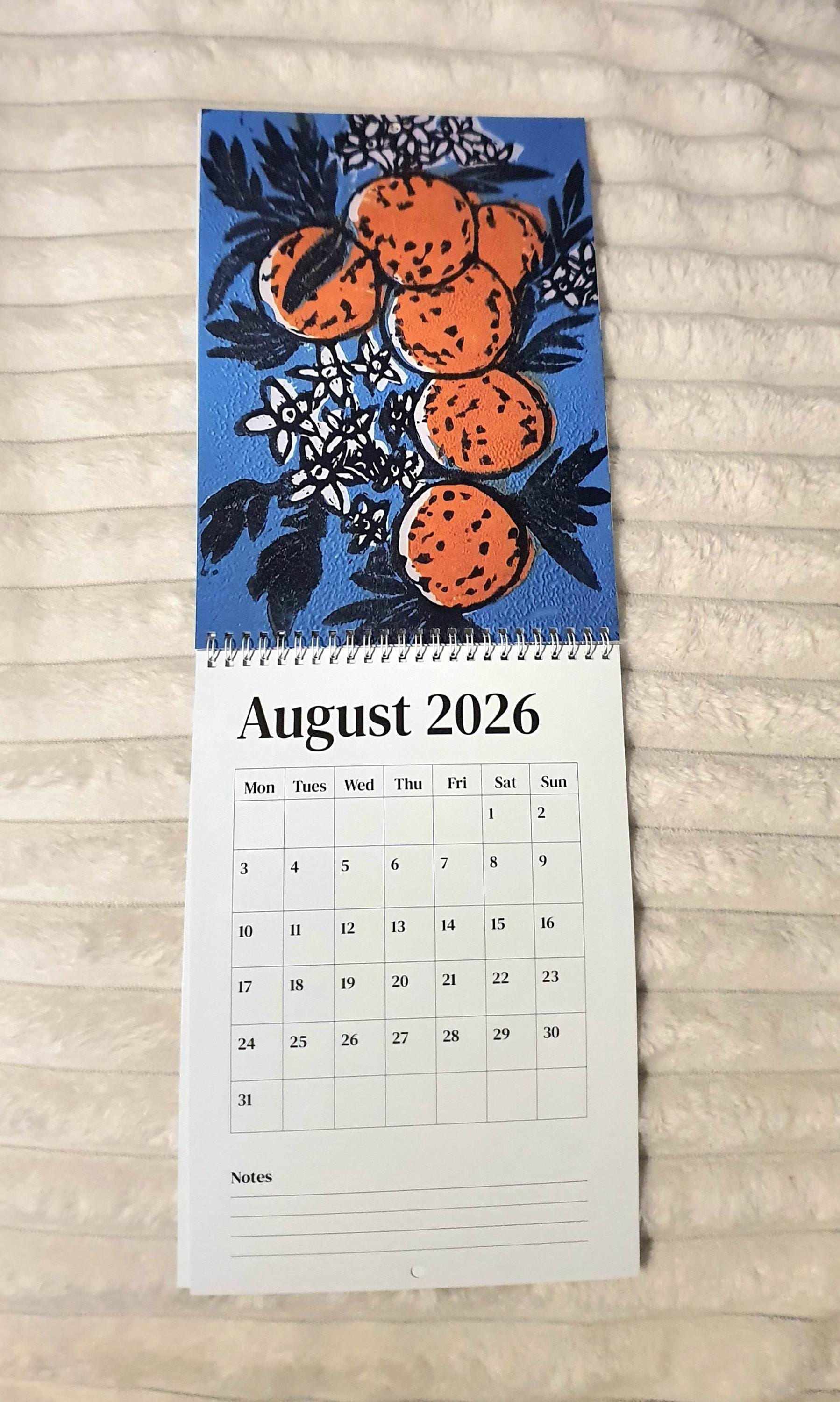
The term "apple wall calendars" carries a dual meaning that requires immediate disambiguation. For some, it refers to traditional physical stationery featuring botanical photography of apple varieties. However, for the vast majority of users in 2026, the term identifies the technical challenge of taking the Apple Calendar app (iCloud) and making it a persistent, large-format visual fixture on a wall.
This guide focuses on the technical execution of the latter—transforming your digital Apple ecosystem into a functional wall-piece. In a world where digital fatigue is real, having a "glanceable" schedule that doesn't require unlocking a phone has become a cornerstone of modern productivity and household management. Whether you prefer the tactile nature of paper or the live updates of an E-ink or LED screen, the goal remains the same: persistent visibility of your time.
The Apple ecosystem, known for its "walled garden" approach, offers specific pathways for wall integration. Unlike generic calendar systems, an Apple-centric wall calendar must navigate iCloud’s security protocols, including two-factor authentication (2FA) and app-specific passwords, to ensure that shared family events are synchronized without compromising personal data.
Method 1: Creating a Physical Apple Wall Calendar via Printing
Despite the proliferation of screens, many users in 2026 still prefer the reliability and "offline" feel of a printed calendar. Printing your Apple Calendar requires more than just hitting Cmd + P. To create a professional-grade wall calendar, you must consider layout, density, and paper stock.
Preparing Your iCloud Data for Print
Before printing, you must curate what appears on the "wall." Most users have a dozen or more calendars (Work, Personal, Health, Kids, Holidays). For a wall calendar, visibility is key.
- Filter Calendars: Open the Calendar app on macOS. On the left sidebar, uncheck any calendars that are not essential for the household or office.
- Color Coding: Ensure each family member or department has a distinct, high-contrast color. In 2026, the macOS Calendar app allows for custom Hex codes; use bold colors like "International Orange" or "Electric Blue" that stand out on white paper.
- Time Blocking: Ensure all "All Day" events are correctly categorized, as these take up the most visual real-estate in a "Month" view.
Technical Print Specifications
To achieve a "wall-sized" presence, standard 8.5x11 (Letter) paper is often insufficient.
- Large Format Printing: Use a printer capable of 11x17 (Tabloid/Ledger) or A3 sizes. If you do not own one, export the calendar to a PDF and use a professional print service.
- Native macOS Printing: Go to
File > Print. Select the "Month" view. In the settings, you can toggle "Calendar Keys" (the legend at the bottom) and "Options" to include or exclude event times. - Third-Party Layout Tools: For a more aesthetic "Apple-style" design, apps like Calendar 366 or Fantastical offer more robust printing templates than the native Apple app. They allow for larger font sizes and the inclusion of "Task" lists (Reminders) alongside calendar events, which the native print engine often struggles to format elegantly.
Method 2: The Digital Apple Wall Calendar (Smart Displays)
The most advanced way to maintain an Apple wall calendar in 2026 is through a dedicated digital display. This provides real-time updates—if you add a dentist appointment on your iPhone while at the office, it instantly appears on the kitchen wall.
Hardware Options for Digital Displays
There are three primary hardware paths to a digital Apple wall calendar:
- The Mounted iPad Solution: Using a 12.9-inch or the newer 14-inch iPad Pro/Air. This is the most "native" experience. By using a flush VESA wall mount and a recessed power outlet, the iPad becomes a dedicated calendar hub.
- E-Ink Displays: Devices from companies like Visionect or custom Raspberry Pi builds using 13-inch to 32-inch E-ink panels. These are preferred for their "paper-like" quality and zero-glare, though they usually require an iCal (.ics) feed rather than a native app interface.
- Large Format Smart Monitors: Using a standard 24-inch or 27-inch monitor paired with a small compute stick or a hidden Apple TV. This allows for a "command center" feel, often integrated with services like Dakboard or Skylight, which sync directly with iCloud.
Connectivity and Syncing Protocols
To get your Apple Calendar onto a non-Apple smart display, you must use the iCalendar (.ics) sharing protocol or a dedicated sync service.
- Public Sharing: In the iCloud Calendar settings, you can set a calendar to "Public." This generates a URL starting with
webcal://. This URL can be pasted into almost any smart display software. Caution: This makes the calendar data accessible to anyone with the link. - Private Sync (App-Specific Passwords): For 2026 security standards, most professional display softwares (like Dakboard) support secure iCloud login. You will need to log into
appleid.apple.com, generate an App-Specific Password, and use that instead of your primary Apple ID password to grant the display access to your data.
Technical Comparison of Apple Wall Calendar Solutions
The following table compares the three most common implementations of an Apple-synced wall calendar to help you decide which fits your environment.
| Feature | Printed iCloud Calendar | Mounted iPad (Native) | Dedicated Smart Monitor |
|---|---|---|---|
| Update Frequency | Manual (must re-print) | Instant (Real-time) | Instant (via API/iCal) |
| Initial Cost | Low ($5 - $20) | High ($600 - $1,100) | Moderate ($300 - $600) |
| Visibility | High (No glare) | Moderate (Screen glare) | High (Adjustable brightness) |
| Interactivity | None (Write-on only) | Full Touchscreen | Limited (depends on model) |
| Power Needs | None | Continuous (USB-C) | Continuous (AC Power) |
| Aesthetic | Traditional/Minimalist | Modern/Tech-heavy | Customizable/Dashboard |
Advanced Configuration: Managing Family and Shared Calendars
The primary utility of an Apple wall calendar is often "Family Sharing." In 2026, Apple has refined the Family Sharing Group permissions, making it easier to manage what appears on a communal wall.
Setting Up the "Household" Calendar
Do not display your personal, private calendar on a wall where guests or children might see confidential work entries. Instead:
- Create a new calendar named "Household Wall."
- Invite all family members to this calendar with "View & Edit" permissions.
- Move communal events (soccer practice, dinners, vacations) to this specific calendar.
- Configure your wall display (digital or print) to prioritize this calendar while hiding your private "Work" or "Health" calendars.
Handling Reminders and Tasks
Apple Wall Calendars are often most effective when they include Apple Reminders. On a digital display like a mounted iPad, you can use Split View or Stage Manager (in iPadOS 19/20) to keep a list of "Grocery Items" or "Chore Lists" permanently visible next to the calendar grid. For printed versions, you must manually export Reminders to a PDF or use a third-party app like GoodNotes to create a hybrid calendar/planner page that incorporates your iCloud tasks.
Installation and Aesthetics: Making it "Apple-Level" Quality
An Apple wall calendar should match the aesthetic of the hardware it originates from. Installation is just as important as software configuration.
Mounting Digital Displays
- Flush Mounting: For iPads, avoid bulky plastic brackets. Use magnetic mounting systems that allow the tablet to sit flush against the drywall.
- Cable Management: The biggest detractor from a digital wall calendar is a dangling white power cable. Use a Power-over-Ethernet (PoE) to USB-C adapter if you have Ethernet in your walls, or a recessed "clock outlet" that allows the transformer to stay hidden behind the screen.
- Orientation: Most calendar views are optimized for Landscape (horizontal) orientation. When mounting a monitor or iPad, ensure the power port is accessible in landscape mode.
Choosing Paper for Printed Calendars
If opting for the physical route, avoid standard 20lb office paper.
- Cardstock (60lb - 80lb): This provides the rigidity needed to hang on a wall without curling at the edges.
- Matte Finish: Avoid glossy paper, which creates reflections under overhead kitchen or office lighting, making the calendar hard to read at an angle.
- Lamination: For a "reusable" Apple wall calendar, print the month's layout and laminate it. You can then use dry-erase markers for temporary notes while the core Apple events remain printed underneath.
Troubleshooting Common Sync Issues
In 2026, the complexity of iCloud's encryption can occasionally cause "Sync Hangs" on wall displays.
- Credential Expiration: App-specific passwords for third-party smart displays typically expire or require re-validation every 90 to 180 days. If your wall calendar stops updating, check your Apple ID security settings.
- Time Zone Mismatches: If events appear an hour off, verify that both your iCloud account and the physical display device (iPad or Monitor) are set to the same "Primary Time Zone." Avoid "Automatic Time Zone" settings on wall-mounted devices, as Wi-Fi triangulation can occasionally glitch.
- 2FA Interference: If you are using an older iPad (e.g., iPad Air 2 or 3) as a wall calendar, ensure it is updated to the latest possible OS to support contemporary Two-Factor Authentication prompts, otherwise, it may frequently disconnect from iCloud services.
FAQ
Can I display my Apple Calendar on a non-Apple Smart TV?
Yes. Most Smart TVs in 2026 feature a built-in web browser. You can log into icloud.com/calendar, though the interface is not optimized for TV remotes. A better solution is using a "Dashboard" service (like Dakboard or Mango Display) that formats your iCloud data into a TV-friendly URL.
How do I make my Apple wall calendar show "Busy" instead of event titles for privacy? On a digital display, this depends on the software. In the native Apple Calendar app, you cannot easily mask titles. However, if you share your calendar via a "Public Link" to a smart display service, many of those services offer a "Privacy Mode" that replaces event titles with the word "Busy."
What is the best screen size for a digital Apple wall calendar? For a kitchen or small office, a 12.9-inch to 15-inch display is standard. For a "Command Center" that a whole family needs to see from 10 feet away, a 24-inch or 27-inch monitor is recommended.
Can I use an old iPad as a permanent wall calendar? Absolutely. This is a popular way to recycle older hardware. Ensure the iPad is plugged into a "Smart Plug" that cycles the battery (charging to 80%, then letting it drop to 20%) to prevent battery swelling from being constantly connected to power.
Does the Apple Wall Calendar support "Focus Filters"? In 2026, if you are using an iPad-based wall calendar, you can use Focus Filters to automatically change which calendars are visible based on the time of day. For example, it can show "Work + Family" during the day and switch to "Family Only" after 6:00 PM.
Final Recommendation
For the most reliable and aesthetically pleasing Apple wall calendar experience in 2026, the mounted iPad (13-inch or larger) remains the gold standard. It offers the most "subject-faithful" representation of the Apple Calendar app, supports native touch interaction for adding events on the fly, and maintains the highest security standards. If you prefer a larger, non-touch "Dashboard" experience, invest in a 24-inch monitor powered by a dedicated sync service using an App-Specific Password for the most stable connection to your iCloud data.