If your Apple Watch apps are not opening, crashing, or failing to sync, the most effective solution is usually a sequence of restarting both the watch and its paired iPhone, followed by checking for watchOS updates. If the issue persists, deleting and reinstalling the problematic application or resetting the sync data typically resolves the underlying software conflict.
The Apple Watch has evolved significantly by 2026, yet the intricate relationship between the wearable, the paired iPhone, and cloud services remains a common source of friction. When an app fails to launch or "hangs" on a loading screen, it is rarely a sign of hardware failure. Instead, it is usually a breakdown in communication protocols or a software version mismatch. This guide explores the systematic steps to restore functionality and examines the inherent hardware and software limitations that may prevent certain apps from working on older devices.
Diagnostic First Steps: Identifying the Root Cause
Before diving into complex resets, it is essential to determine whether the problem is localized to a single app or is a systemic failure across watchOS. In 2026, with the prevalence of standalone apps that do not require an iPhone to be nearby, the diagnostic process has shifted slightly toward verifying independent network connectivity.
Distinguishing Between App Crashes and System Lag
If an app opens and immediately closes, it is likely a software crash caused by a corrupted cache or an incompatible update. If the app opens but shows a spinning loading icon indefinitely, the issue is likely data synchronization or network-related. Understanding this distinction saves time by narrowing down whether you need to fix the app itself or the connection it relies on.
The Role of the Paired iPhone
Despite the "untethering" of the Apple Watch in recent years, many apps still rely on the iPhone for heavy data processing or as a gateway for specific security tokens. If your iPhone is in "Low Power Mode" or has its Bluetooth disabled, the Watch app may fail to fetch the necessary background data, leading to a "Not Working" state.
Fundamental Troubleshooting Procedures
When apps stop responding, a tiered approach to troubleshooting is the most efficient way to resolve the issue without losing data.
Force Quitting the Application
Just like on an iPhone or Mac, apps on watchOS can get stuck in an unresponsive loop.
- Open the problematic app.
- Press and hold the side button (not the Digital Crown) until the power menu appears.
- Release the side button, then press and hold the Digital Crown until the app disappears and the home screen or watch face returns. This kills the active process and clears the immediate RAM allocated to that application, forcing a fresh state upon the next launch.
The Dual-Device Restart
Many users make the mistake of only restarting their Apple Watch. Because the Watch and iPhone share a persistent encrypted Bluetooth and Wi-Fi link, a "handshake" error on the iPhone side can manifest as a broken app on the Watch.
- Restart the iPhone: Power it down completely, wait 30 seconds, and restart.
- Restart the Apple Watch: Hold the side button, tap the Power icon in the top right, and slide "Power Off." By restarting both simultaneously, you refresh the communication bridge (the "Watch Connectivity" framework) used by developers to pass data between the devices.
Verifying Connectivity and Permissions
By 2026, most Apple Watch models (Series 7 through Series 11 and Ultra 1-3) rely heavily on 5GHz Wi-Fi and LTE. If an app requires location data or heart rate info and those permissions were revoked during an iOS update, the app may simply fail to launch.
- Check Permissions: On your iPhone, go to Settings > Privacy & Security and ensure the specific app has access to the sensors it needs.
- Toggle Radios: Turn Airplane Mode on for both devices for 10 seconds, then turn it off to force a reconnection to the nearest cell tower or Wi-Fi node.
Advanced Software Fixes
If basic restarts do not solve the problem, the issue likely resides in the app’s installation package or the system’s sync database.
Deleting and Reinstalling the App
This is the most reliable way to fix a corrupted app. In 2026, you can do this directly on the Watch:
- Press the Digital Crown to view your apps.
- Long-press any app icon until they begin to jiggle.
- Tap the "X" on the app you wish to remove.
- Open the App Store on the Watch, search for the app, and tap the cloud icon to reinstall. Reinstalling ensures you have the version specifically optimized for your current watchOS version, bypassing any legacy "thinning" issues that occurred during an over-the-air update.
Resetting Sync Data
This is a "hidden" fix for apps like Contacts, Calendar, or third-party fitness trackers that appear to have no data.
- Open the Watch app on your iPhone.
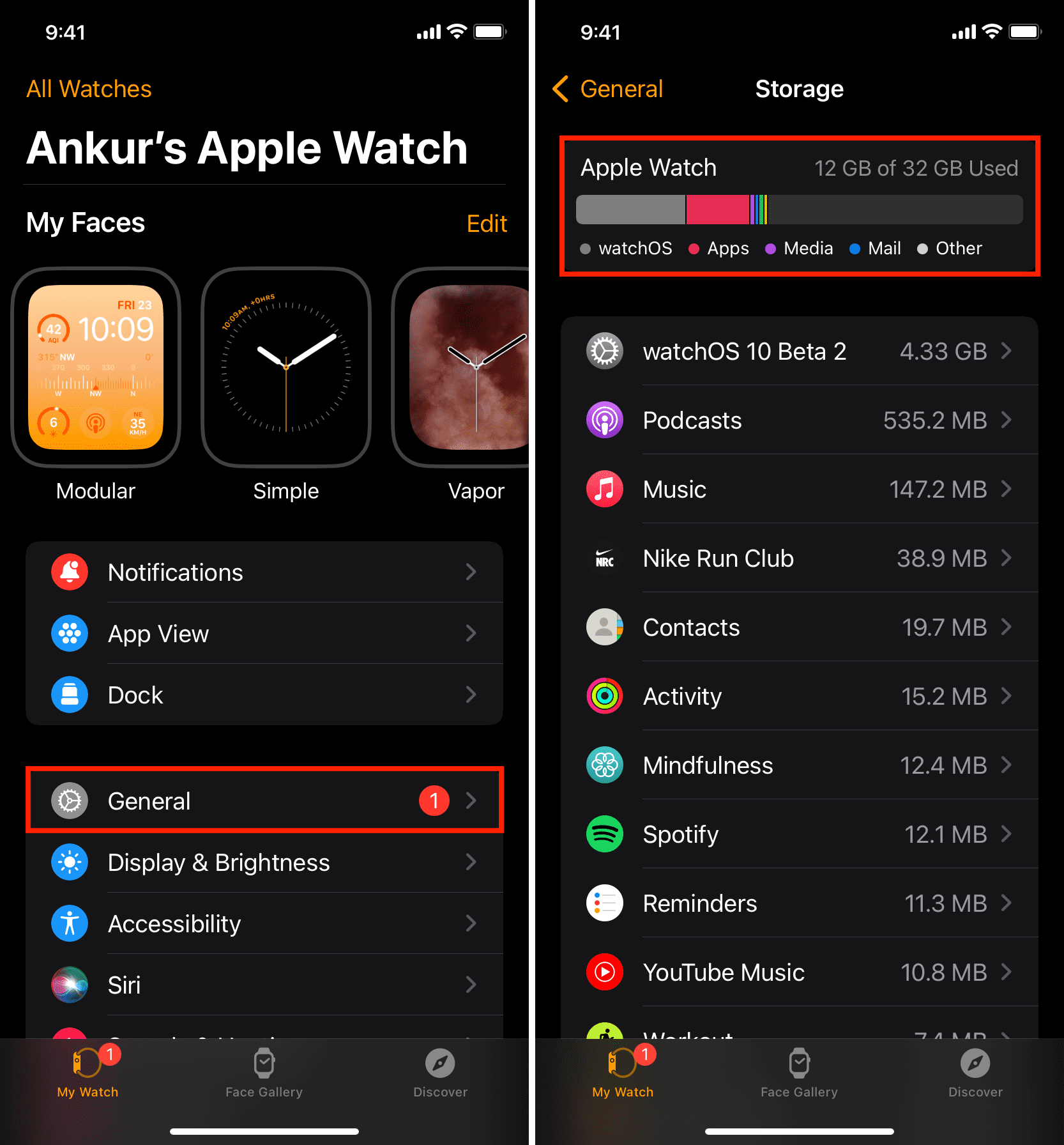
- Go to General > Storage (wait for it to load).
- Scroll to the bottom and tap Reset.
- Tap Reset Sync Data. Nothing will appear to happen on your iPhone, but in the background, the Watch will erase its local contacts and calendar databases and re-index them from the iPhone. This often fixes apps that are "working" but showing blank screens.
Technical Table: Troubleshooting Symptoms and Solutions
| Symptom | Likely Cause | Primary Fix |
|---|---|---|
| App crashes on launch | Corrupted Cache / Version Mismatch | Delete and Reinstall App |
| Infinite Loading Spinner | Network or Bluetooth Timeout | Restart iPhone and Watch |
| "App Not Installed" Error | Storage is Full | Clear Media (Music/Photos) from Watch |
| Missing Data (Contacts/Workouts) | Sync Database Corruption | Use "Reset Sync Data" in Watch App |
| App Disappeared after Update | Deprecated Hardware Support | Check watchOS Compatibility |
Hardware and Software Limitations in 2026
It is important to recognize that not every app failure is "fixable." As Apple advances watchOS, older hardware eventually hits a ceiling.
Legacy Hardware Constraints (Series 4, 5, and 6)
As of 2026, the Series 4 and Series 5 are considered legacy devices. While they may still run the latest or a recent version of watchOS, their processors (S4 and S5 chips) struggle with the high-resolution assets and complex background tasks of modern 2026 applications. If an app is extremely sluggish or crashes frequently on these models, it may simply be a result of RAM exhaustion. Modern apps often require more than the 1GB of RAM found in older models to maintain stability.
Developer Abandonment
The Apple Watch ecosystem has seen shifts in developer interest. Some major companies have moved away from "Watch-side" apps in favor of simple rich notifications. If a third-party app hasn't been updated in several years, it may rely on outdated APIs (Application Programming Interfaces) that are no longer supported in watchOS 12 or 13. In these cases, there is no fix other than seeking an alternative application that is actively maintained.
Standalone vs. Dependent Apps
Some apps are designed to be "Standalone" (working entirely on the Watch via Wi-Fi/LTE), while others are "WatchKit Extensions" (requiring the iPhone to do the heavy lifting). If you are using an LTE-enabled Watch without your iPhone nearby, dependent apps will fail to function. Always check the App Store description to see if an app is listed as "Works on Apple Watch" (dependent) or "Supports Standalone" (independent).
The "Nuclear" Option: Unpairing and Repairing
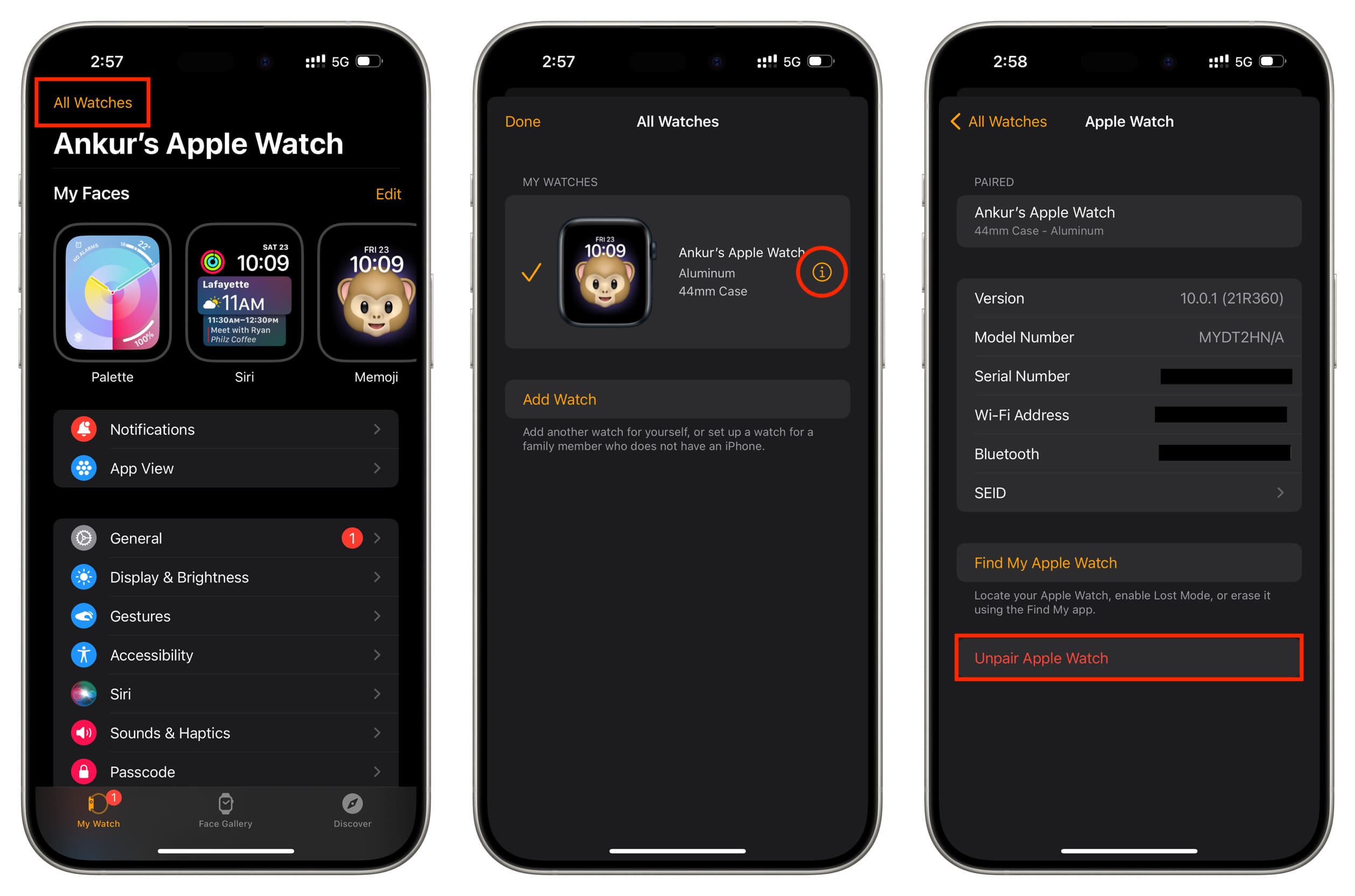
If multiple apps are failing and the system feels unstable, the final step before seeking professional repair is unpairing the Watch. This process creates a full backup of your Watch on your iPhone, wipes the Watch to factory settings, and then restores the data.
- Keep your Watch and iPhone close together.
- Open the Watch app on iPhone and tap My Watch > All Watches.
- Tap the "i" icon next to your watch.
- Select Unpair Apple Watch.
- Once the process is complete, pair the Watch again and choose Restore from Backup.
This process clears deep-seated system partitions that a standard restart cannot touch, often resolving persistent "Not Working" issues that stem from a botched watchOS installation.
Frequently Asked Questions
Why do my Apple Watch apps keep closing automatically?
This usually happens because the system is low on memory (RAM). When you open a heavy app, watchOS may automatically close background apps to free up resources. If the active app is closing, it is likely crashing due to a bug. Ensure your watchOS is updated to the latest version, as Apple frequently releases "point" updates (e.g., watchOS 12.4.1) specifically to address memory leak bugs.
Can I fix an app that won't install from the iPhone Watch app?
If an app stays in the "Installing" state indefinitely, it is usually a storage issue or a stuck download. First, check that your Apple Watch has at least 1GB of free space. If storage is not the issue, cancel the install, restart both the iPhone and Watch, and attempt the installation while both devices are connected to their respective chargers.
Does "Low Power Mode" affect how apps work?
Yes, significantly. In Low Power Mode, the Apple Watch disables background app refresh and restricts sensor data. Some apps may fail to update their complications or fetch new data in the background, which can make the app appear "broken" when you finally open it. If apps aren't working as expected, ensure Low Power Mode is turned off in the Control Center.
Why did my favorite app disappear from the Watch after a watchOS update?
In 2026, Apple occasionally removes support for older app architectures. If a developer has not updated their app to the latest SwiftUI or WatchKit standards, watchOS may remove the incompatible version during a system update. Check the App Store on your iPhone to see if the developer has released a new, separate version for the Watch.
How do I fix the "Account Required" error on Watch apps?
This typically occurs with apps like Spotify, Strava, or banking apps. Even if you are logged in on your iPhone, the security token may not have passed to the Watch. The fix is usually to log out of the app on your iPhone, restart the iPhone, and log back in. This forces the creation of a new security token that is then synced to the Apple Watch.
Final Recommendation for 2026
If you have performed a full unpair/repair and reinstalled your apps, yet they continue to fail, the issue may be a hardware-level sensor failure or a specific bug within a third-party developer's server. Your next action should be to check the Apple Support app for any service programs related to your specific model. In 2026, most diagnostics can be run remotely by Apple Support to determine if the internal flash storage or the S-series chip is underperforming. For third-party apps, reaching out to the developer via the "App Support" link in the App Store is the most direct way to report bugs that may be unique to the latest watchOS version.