Returning a device through the Apple Trade In program involves a precise, multi-step process designed to ensure your hardware reaches their inspection facilities safely and securely. Whether you are upgrading to a new model or trading in an older device for credit, following the official Apple Trade In kit instructions is essential to prevent transit damage, ensure accurate appraisal, and expedite your payment or gift card issuance.
This guide provides a step-by-step walkthrough for preparing, packing, and shipping your Apple device using the provided trade-in materials. By correctly disabling security features like Find My, backing up your data, and following the specific packing configurations required for your device type, you ensure a smooth transaction from start to finish.
Prerequisites: Preparing Your Device for Trade-In
Before you touch the shipping materials or box your device, you must perform several critical software operations. Apple cannot process a device that is still linked to your Apple ID, as security features prevent the hardware from being resold or refurbished.
1. Back Up Your Data
Never rely on the device remaining in your possession once it has been handed to a courier. If you are upgrading to a new iPhone, Mac, or iPad, ensure you have a current backup. Use iCloud or a local computer backup via Finder (macOS) or iTunes (Windows). Verify that the backup finished successfully by checking the timestamp of your last sync.
2. Disable Find My
This is the most critical step. Find My is an activation lock that renders the device useless to anyone but the owner. If you ship a device with Find My enabled, Apple will be unable to inspect it, and they will likely return the item to you, potentially voiding your trade-in offer.
- For iPhone/iPad: Go to Settings > [Your Name] > Find My and toggle off "Find My [Device]." You will be prompted to enter your Apple ID password.
- For Mac: Go to System Settings > [Your Name] > Find My, or use the Apple menu > System Settings > iCloud > Find My Mac.
3. Sign Out of Services
Navigate to your device settings and sign out of your Apple ID, iCloud, and iMessage. This process effectively unlinks the hardware from your digital account and resets it to factory defaults. For macOS, ensure you have also signed out of iMessage and FaceTime, and if you are using a device with an Intel processor, ensure that the T2 security chip and any firmware passwords are disabled.
4. Erase All Content and Settings
Once the device is backed up and signed out, perform a factory reset. This ensures your personal data, such as photos, emails, and sensitive documents, is wiped from the internal storage.
- iPhone/iPad: Settings > General > Transfer or Reset [Device] > Erase All Content and Settings.
- Mac: Use the Erase Assistant found in System Settings to wipe the drive safely.
Understanding Your Trade-In Kit Components
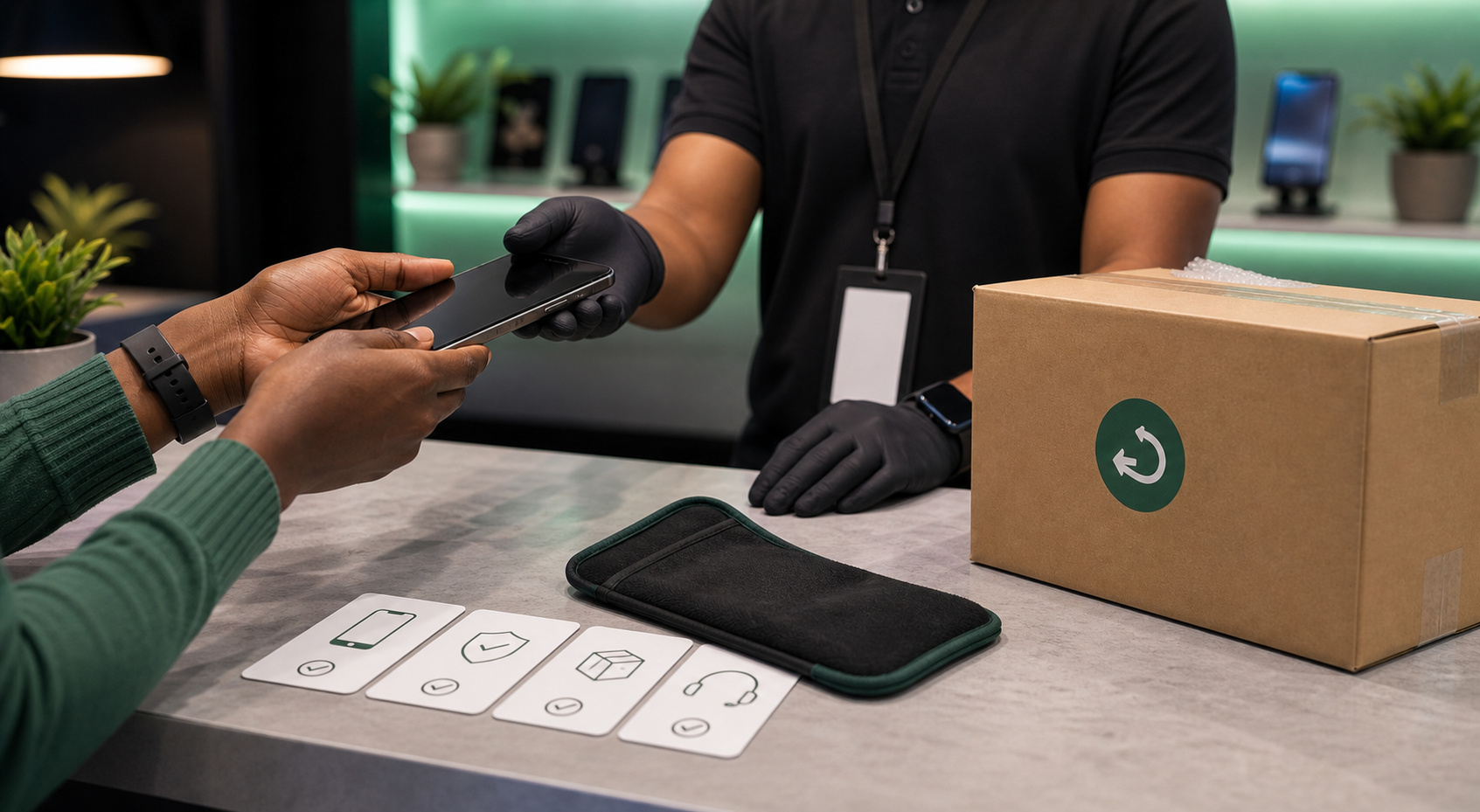
When Apple approves your trade-in request, they will either provide a shipping label via email or send a physical Trade In Kit to your mailing address. The kit typically contains:
- Shipping Box: A custom-sized box designed to cradle your specific device model.
- Shipping Label: A prepaid label, often with a QR code or barcode, used to track the shipment.
- Instructions Card: A brief, model-specific guide on how to place the device within the provided packaging.
If you received a shipping label without a box, you are responsible for providing your own packaging. Use a sturdy cardboard box with sufficient bubble wrap or protective padding to ensure the device does not move during transit.
Step-by-Step Packing Instructions
The physical safety of your device during shipping is your responsibility. Even if Apple provides a box, you must ensure the device is secured inside it correctly.
Packing an iPhone or iPad
- Remove Accessories: Do not send cases, screen protectors, cables, or power adapters. Apple only evaluates the device itself. Any accessories sent in the box will be recycled or discarded and will not be returned to you.
- Positioning: Place the device in the center of the provided cardboard insert or tray. The tray is designed to keep the screen from touching the floor of the shipping box.
- Securing the Tray: Fold the flaps of the cardboard insert over the device. This creates a suspension buffer that protects the screen and back glass.
- Closing the Box: Slide the insert into the shipping box. Ensure the box is not bulging. If you are using your own box, ensure at least two inches of packing material surrounds the device on all sides.
Packing a Mac or Monitor
Computers require more care due to their weight and the fragility of the display.
- Detach Components: If you are trading in an iMac or a Mac Pro, do not ship cables or peripherals like mice and keyboards unless explicitly requested.
- Protective Wrapping: If you lack the original box, wrap the computer in several layers of bubble wrap. Focus on the corners, as these are the most common points of impact damage.
- Heavy Duty Box: Use a double-walled corrugated box. A single-walled box may collapse under the weight of an iMac during automated sorting at the courier facility.
Shipping and Tracking Your Package
Once the device is packaged and the box is taped shut, you must affix the shipping label securely. If the label has a clear sleeve, slide it in; otherwise, ensure it is taped flat on the largest side of the box, avoiding the seams where the box opens.
Dropping Off the Package
You have two main options for shipping:
- Courier Drop-off: Take the package to the designated carrier (e.g., UPS or FedEx, depending on the label provided by Apple). Always ask for a receipt as proof of drop-off.
- Scheduled Pickup: You may be able to schedule a pickup through the courier’s website using the tracking number provided on the shipping label.
Monitoring the Status
Use the trade-in portal on the official Apple website to monitor your device’s status. You will see updates such as "Kit Sent," "Package Received," and "Inspection Complete." Keep the tracking number in a safe place until you receive confirmation that your trade-in has been finalized and any credit has been applied to your account or issued via gift card.
Comparison of Trade-In Methods
Understanding your options helps in choosing the right path for your specific device and schedule.
| Feature | Apple Trade In (Mail-in) | Apple Store (In-person) |
|---|---|---|
| Speed of Credit | Days to Weeks | Immediate |
| Convenience | High (Ship from home) | Variable (Travel required) |
| Safety | Courier-dependent | Handed directly to staff |
| Inspection | Performed at facility | Performed on the spot |
| Eligibility | Wide range of devices | Selected models |
Troubleshooting Common Issues
Even with careful preparation, issues can arise. Understanding these scenarios will help you resolve them without panic.
What if the device is damaged?
If your device is damaged (e.g., a cracked screen or non-functioning buttons), report this honestly during the initial online trade-in valuation. Apple will adjust the trade-in value accordingly. If you fail to report damage, the inspection team will catch it, and you will receive a revised offer. You then have the option to accept the lower value or have the device returned to you.
What if I missed the shipping window?
Apple provides a specific window (usually 14–30 days) to send your device after you initiate the trade-in. If you exceed this window, your trade-in offer may expire. If this happens, you will need to re-evaluate the device online, which may result in a different quoted value based on the current market conditions in 2026.
What if the tracking hasn't updated?
If your package shows as "shipped" but hasn't moved for several days, contact the carrier using the tracking number. If the package is lost, contact Apple Support immediately. They have protocols for lost trade-in shipments, provided you have your drop-off receipt.
Frequently Asked Questions
1. Do I need to include the charging cable or power adapter? No. Apple only needs the device itself. Accessories included in the box are discarded or recycled and will not be returned, nor will they increase the trade-in value of your device.
2. What happens if I forget to sign out of my Apple ID? Apple will contact you via email to inform you that they cannot process the device. You will be required to remotely remove the device from your account via the "Find My" website or have the device shipped back to you to unlock it manually.
3. Is it safe to mail my device? Yes, provided you use the provided shipping materials or high-quality, professional packaging. The shipping labels provided by Apple typically include insurance coverage for the trade-in value of the device, provided you get a drop-off receipt.
4. How long does the inspection process take? Once the package arrives at the Apple facility, inspection typically takes 3 to 5 business days. During peak seasons—such as the release of new iPhone models—this timeframe may extend slightly.
5. Can I trade in a device that doesn't turn on? In many cases, yes. Apple offers a recycling program for devices that have no monetary value. You can still use the trade-in kit to send it in for responsible, environmentally friendly recycling, ensuring the lithium-ion batteries and rare earth metals are recovered safely.
Final Recommendations
To ensure your trade-in is successful, prioritize the "Find My" deactivation and the factory reset. These two steps are the most frequent causes of delayed payments. Always document the condition of your device with photos or a short video before you place it in the box. This provides you with objective evidence of the device's state at the time of shipment, which can be invaluable if a shipping carrier damages the package. Finally, always obtain a formal receipt from the shipping provider; this simple piece of paper is your only proof that the device left your possession, protecting you from liability should the package go missing in transit.