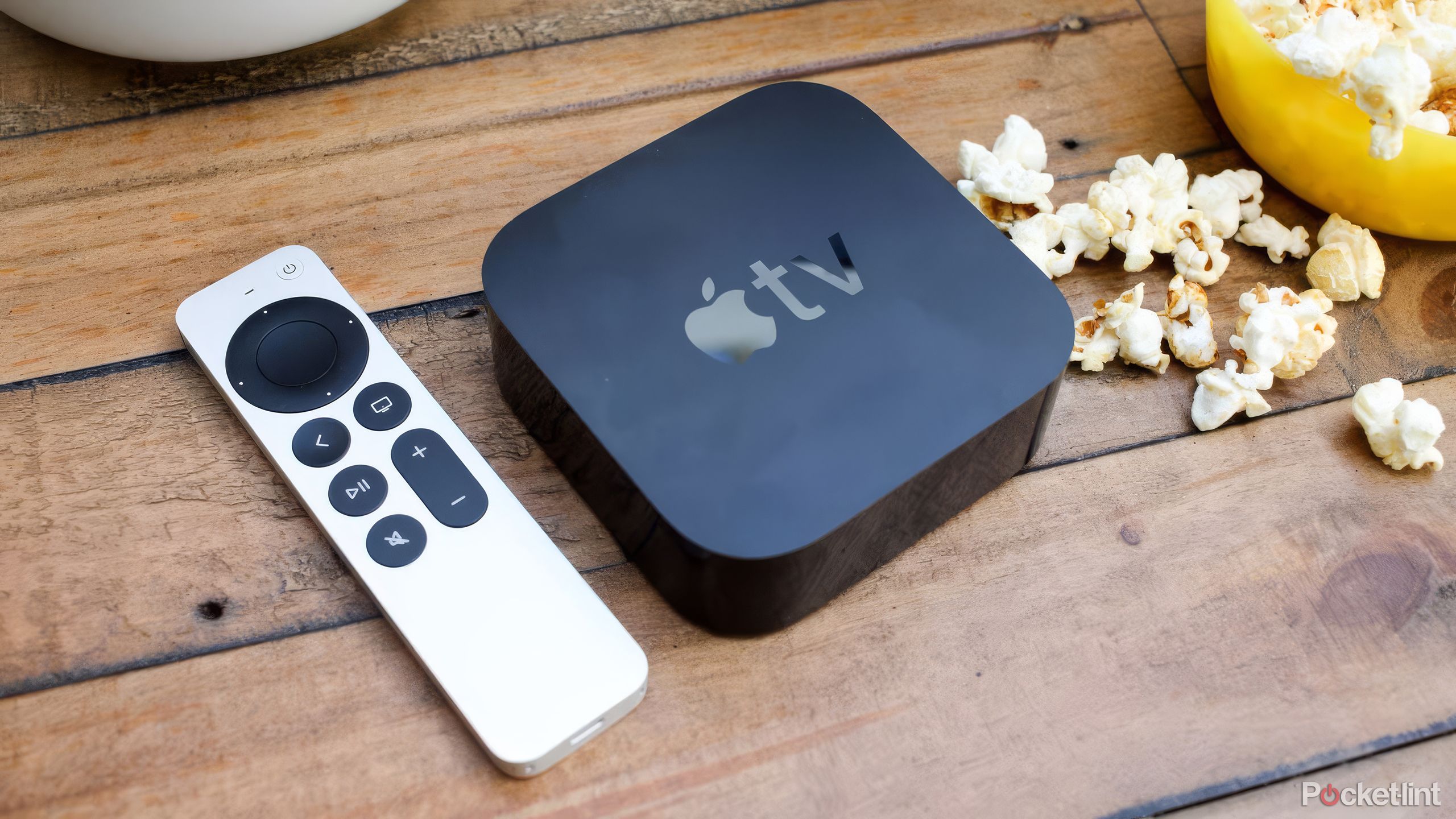
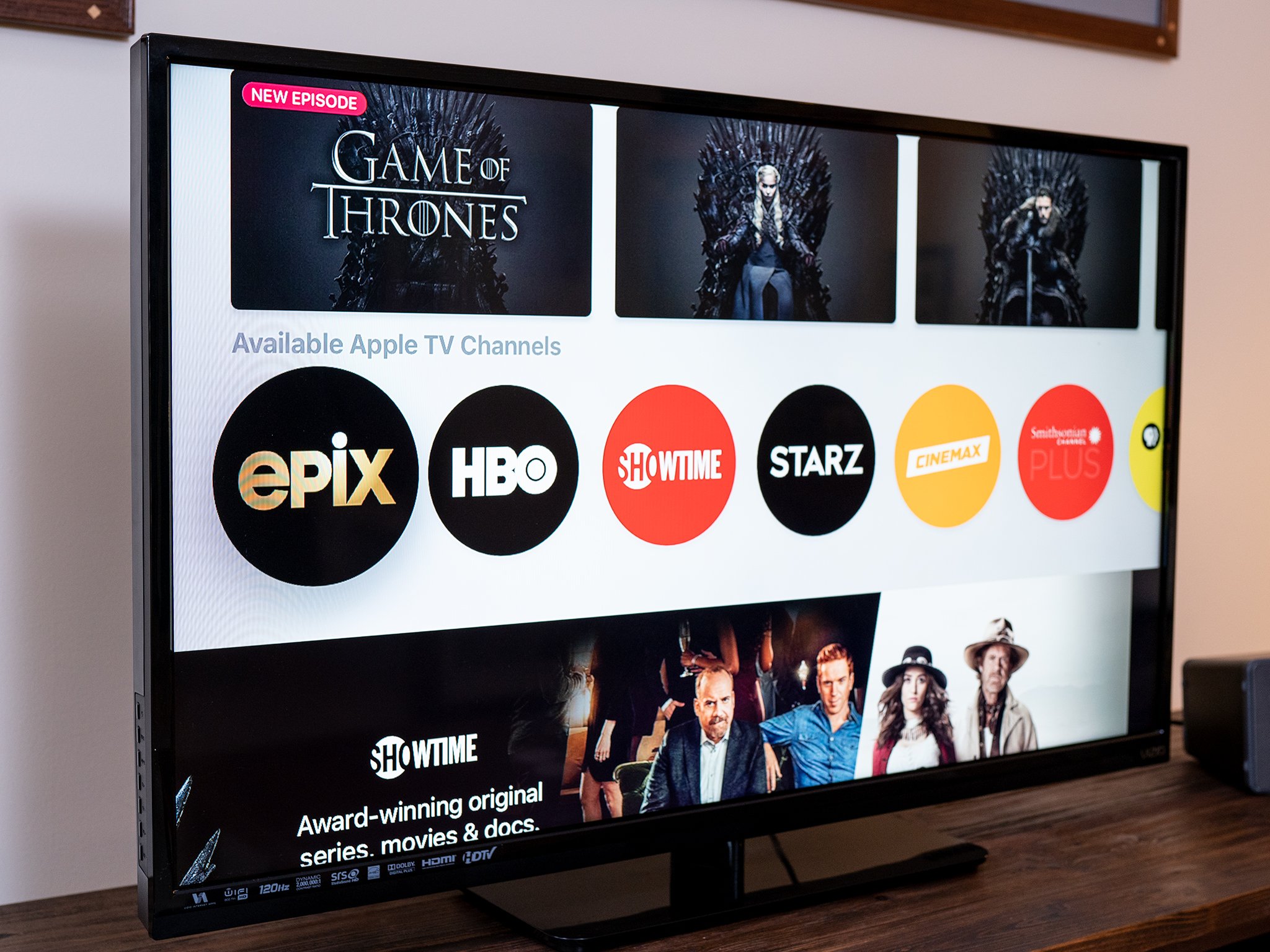
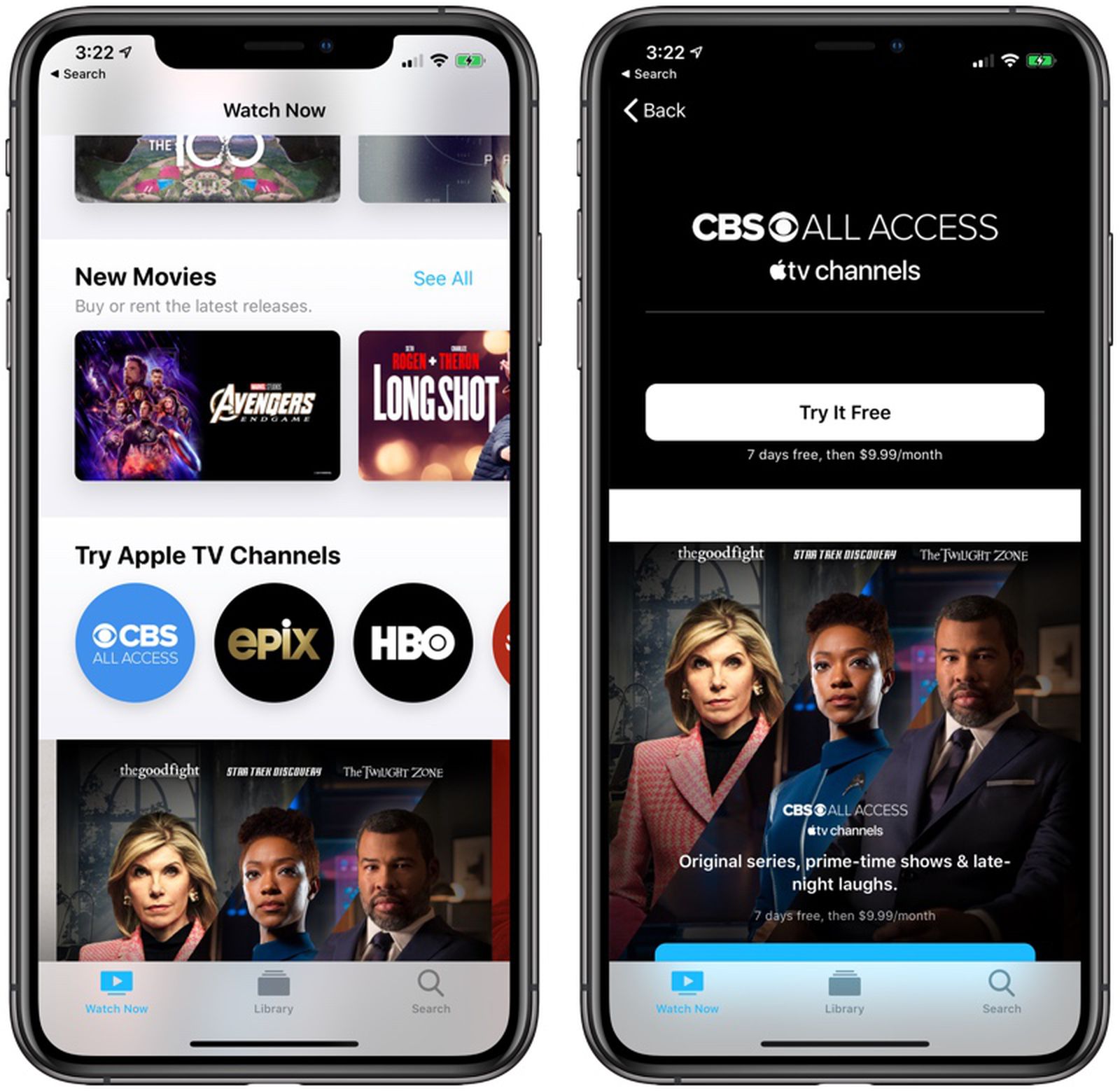
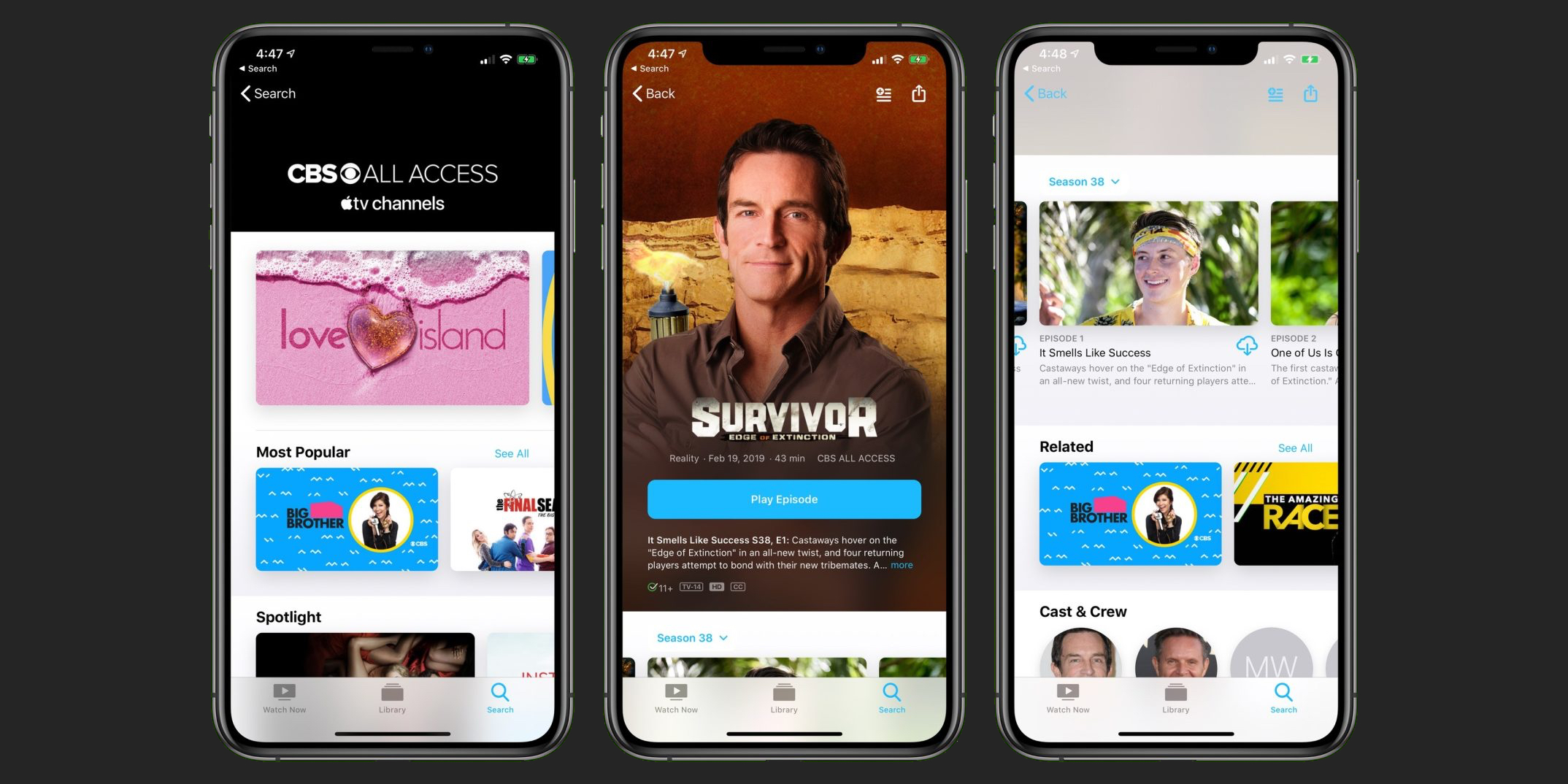
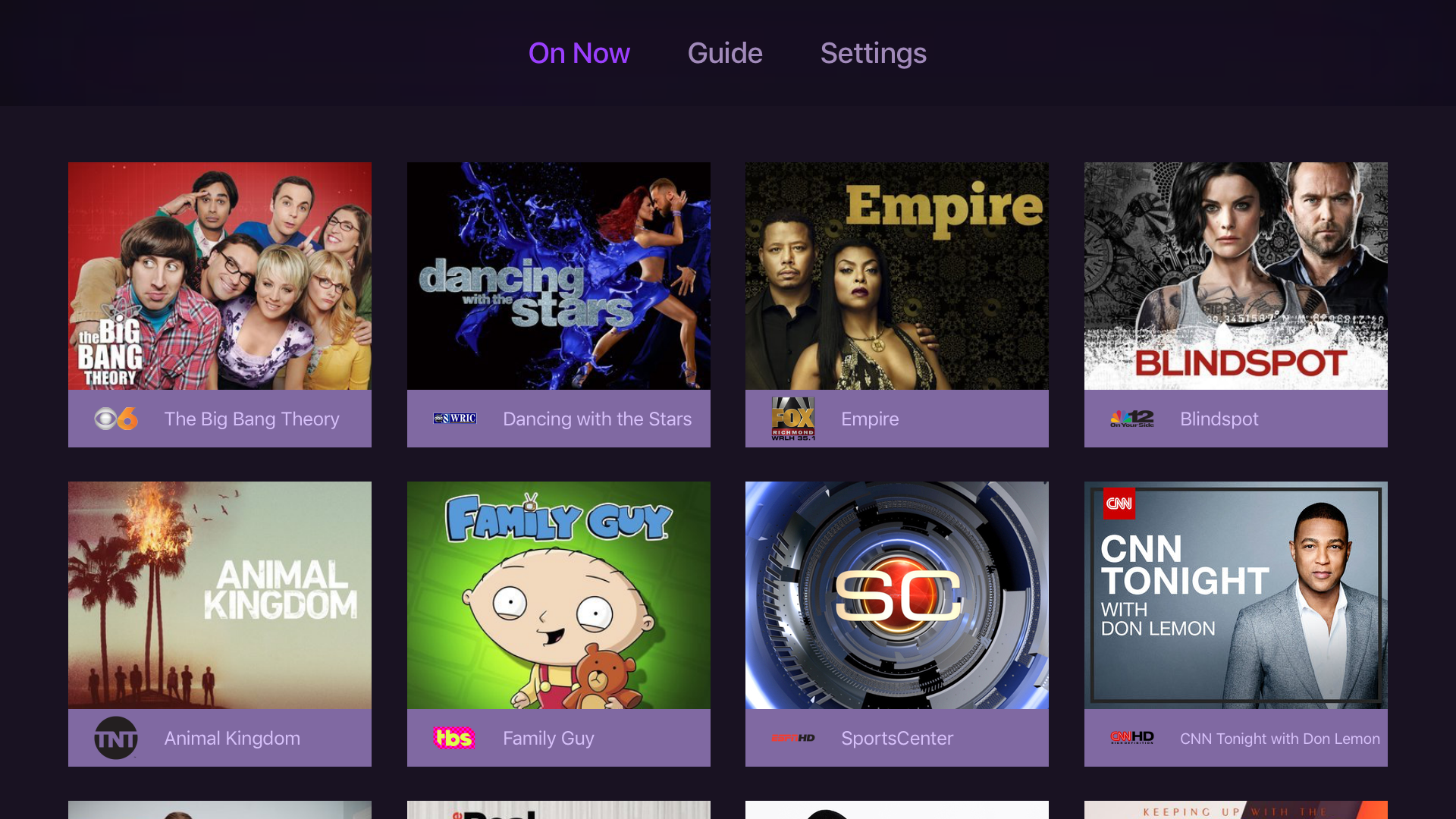
Apple TV channels are premium video services that you can subscribe to directly within the Apple TV app. This feature allows you to access content from various third-party networks, such as Paramount+, AMC+, and Starz, without needing to download separate applications or manage individual logins for each service. All your subscriptions are consolidated under your Apple ID, providing a unified interface for discovery, playback, and billing.
Understanding the Apple TV Channel Ecosystem
The Apple TV app serves as a centralized hub for your streaming experience. When you subscribe to a channel through this ecosystem, you are utilizing "Apple TV Channels." This is distinct from the Apple TV+ service, which is Apple’s own original content platform. While Apple TV+ is a single subscription, the "Channels" feature acts as an aggregator for premium networks and niche streaming services.
By subscribing through Apple, the content is delivered via the native Apple TV app player. This means you benefit from consistent playback features, such as Apple’s proprietary video codec optimization, cross-device synchronization (allowing you to start a show on an iPhone and finish it on a living room Apple TV 4K), and system-level parental controls. Furthermore, all billing is processed through your Apple account, meaning you can manage, renew, or cancel every channel subscription in a single location within your device settings.
Prerequisites and Hardware Requirements
To access these channels, you must have an active Apple ID with a valid payment method on file. The service is accessible across a wide range of hardware, provided the device supports the Apple TV app.
Supported devices include:
- Apple Hardware: Apple TV 4K, Apple TV HD, iPhone, iPad, and Mac computers running recent iterations of their respective operating systems.
- Smart TVs and Streaming Devices: Many modern Smart TVs (Samsung, LG, Sony, Vizio, etc.), Roku devices, Amazon Fire TV sticks, and gaming consoles (PlayStation 4/5 and Xbox One/Series X/S) feature the Apple TV app.
- Web Browsers: Users can access content via tv.apple.com on Chrome, Firefox, or Microsoft Edge.
One significant advantage of subscribing to a channel through the Apple TV app is the ability to share the subscription with your family. Through "Family Sharing," you can share your Apple TV channel subscriptions with up to five other family members. Each member uses their own Apple ID, ensuring personalized recommendations and watch histories while keeping the billing centralized to the family organizer’s account.
Available Channels and Content Varieties
As of 2026, the list of available channels varies by region. The service focuses on providing ad-free, high-quality, on-demand libraries for the participating networks. While not every streaming service is available as an "Apple TV Channel," most major premium networks have integrated this functionality.
Popular categories include:
- Premium Entertainment: Channels like Starz, AMC+, and MGM+ provide a rotating library of movies, series, and exclusive programming.
- Niche and Specialty Content: Platforms like CuriosityStream (documentaries), Shudder (horror), and BritBox (British television) cater to specific genres.
- Sports and Live Events: Certain channels offer live access to sports broadcasts, which are integrated directly into the Apple TV app's "Up Next" queue, ensuring you don't miss live game starts.
How to Subscribe and Manage Channels
Subscribing is a streamlined process designed to minimize friction. Because your payment information is already linked to your Apple ID, you can typically sign up with just a few taps.
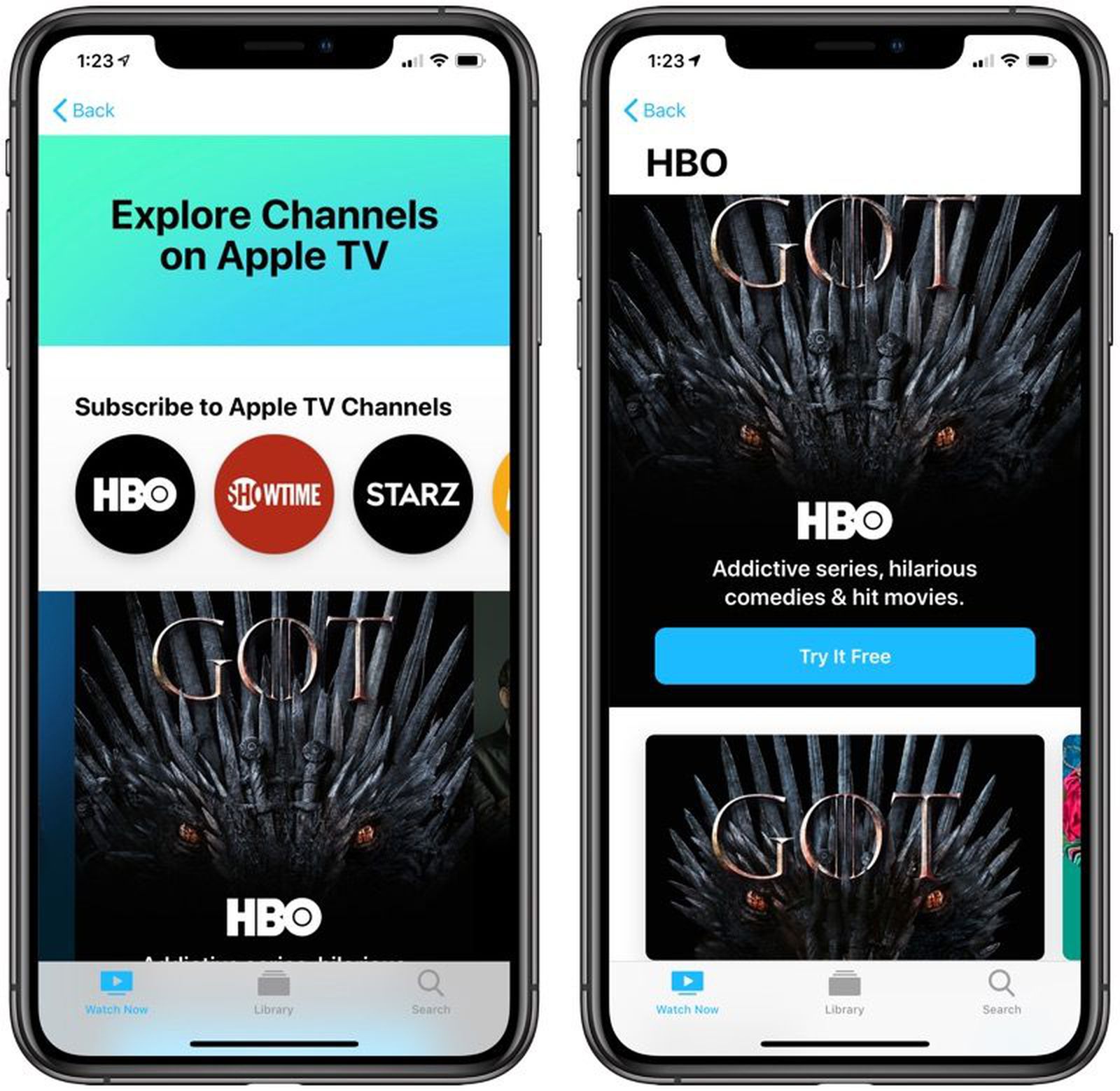
- Open the Apple TV App: Navigate to the "Store" tab or the "Channels" section within the app.
- Select the Channel: Browse the available networks. Each channel has its own dedicated page showcasing current series and movies.
- Initiate Subscription: Select the "Subscribe" or "Try Free" button. You will be prompted to confirm the purchase using your device’s authentication method (Face ID, Touch ID, or passcode).
- Verification: Once confirmed, the channel content becomes immediately available in your library. You will see the channel icon in the "Channels" section of the app.
Managing these subscriptions is equally simple. If you find yourself wanting to cancel a service, you do not need to hunt for an account settings page on an obscure website. Instead, go to your device’s "Settings," tap your name at the top, select "Subscriptions," and tap on the specific channel you wish to modify. You can cancel at any time, and you will generally retain access until the end of the current billing cycle.
Comparison of Subscription Methods
| Feature | Apple TV Channels | Standalone App Subscription |
|---|---|---|
| Interface | Native Apple TV app | Separate app interface |
| Billing | Consolidated (Apple ID) | Various (App Store, Web, CC) |
| Playback | Unified Apple Video Player | App-specific player |
| Family Sharing | Native/Integrated | Dependent on Provider |
| Device Support | Apple devices + TV app ecosystem | Platform specific |
Technical Advantages and Limitations
Choosing to subscribe through Apple TV Channels offers several technical benefits, primarily centered on performance. The Apple TV app’s playback engine is optimized to utilize hardware-level decoding, which results in lower battery consumption on mobile devices and smoother 4K HDR playback on supported televisions. Furthermore, the "Up Next" feature aggregates shows across all your subscribed channels. If you are watching a series on AMC+ and a movie on Starz, both will appear in your "Up Next" queue, effectively removing the need to switch between different apps to track your progress.
However, there are limitations. Some third-party providers may offer content or features on their standalone apps that are not mirrored in the Apple TV channel version. For example, some standalone apps include live linear channels or specific interactive content that may not be supported by the Apple TV interface. If you require a feature specific to an app—such as a proprietary social-viewing party function—check if it is available within the Apple TV version before subscribing. Additionally, offline downloads are supported for most Apple TV channels, but verify your device storage before downloading high-definition or 4K assets.
Troubleshooting Common Issues
If a channel is not appearing or content is failing to play, start by checking your internet connection. Streaming premium video, especially in 4K, requires a stable and high-bandwidth connection.
- Account Issues: Ensure you are signed in with the same Apple ID used to purchase the subscription. If you share a device, the Apple TV app may be logged into a different user’s account.
- Content Availability: Licensing agreements change periodically. If a show disappears, it is likely due to the expiration of the content contract between the network and Apple.
- App Updates: Always ensure your Apple TV app or the device’s OS is updated to the latest version, as older versions may lack the compatibility patches required for updated channel interfaces.
- Billing Errors: If your subscription is not active, verify your payment method in your Apple ID settings. Expired cards or insufficient funds will lead to an automatic suspension of the channel subscription.
FAQ: Frequently Asked Questions
Can I watch Apple TV channels on a device that isn’t made by Apple? Yes, you can watch these channels on any smart TV, gaming console, or streaming stick that supports the Apple TV app. Once you have subscribed through your Apple ID, simply sign in with that same account on your non-Apple device to access your channels.
Will my subscription fees increase because I pay through Apple? No. The pricing for Apple TV channels is set by the content providers themselves. Apple does not add a markup to the subscription price. In many cases, the pricing is identical to what you would pay if you subscribed directly through the provider’s website or their standalone app.
Are these channels live or on-demand? Most Apple TV channels are primarily on-demand services, mirroring the catalogs found on their respective streaming apps. However, some channels do include access to live linear feeds or live sports broadcasts when available through that specific network’s agreement with Apple.
What happens if I cancel a channel subscription? If you cancel a subscription, you will typically continue to have access to the channel’s content until the end of your current billing period. After that date, the channel will no longer appear in your "Up Next" or "Channels" lists, and you will not be charged again.
Can I subscribe to a channel if I already have a login for that network? Generally, no. Subscriptions initiated through Apple TV Channels are separate from subscriptions created directly on a network's website. If you already have a direct subscription, you cannot link it to the Apple TV app. You would need to cancel your existing direct subscription and then resubscribe through the Apple TV app if you prefer the unified experience.
Next Steps for Optimizing Your Experience
To get the most out of your subscriptions, spend time curating your "Up Next" list. By adding shows and movies from your various channels to this list, you create a personalized dashboard that ignores brand boundaries and focuses purely on what you want to watch. If you find your monthly subscription total creeping too high, periodically review your "Subscriptions" menu in settings to identify channels you haven't watched in the last month; canceling unused channels is a simple process that keeps your digital entertainment costs manageable.