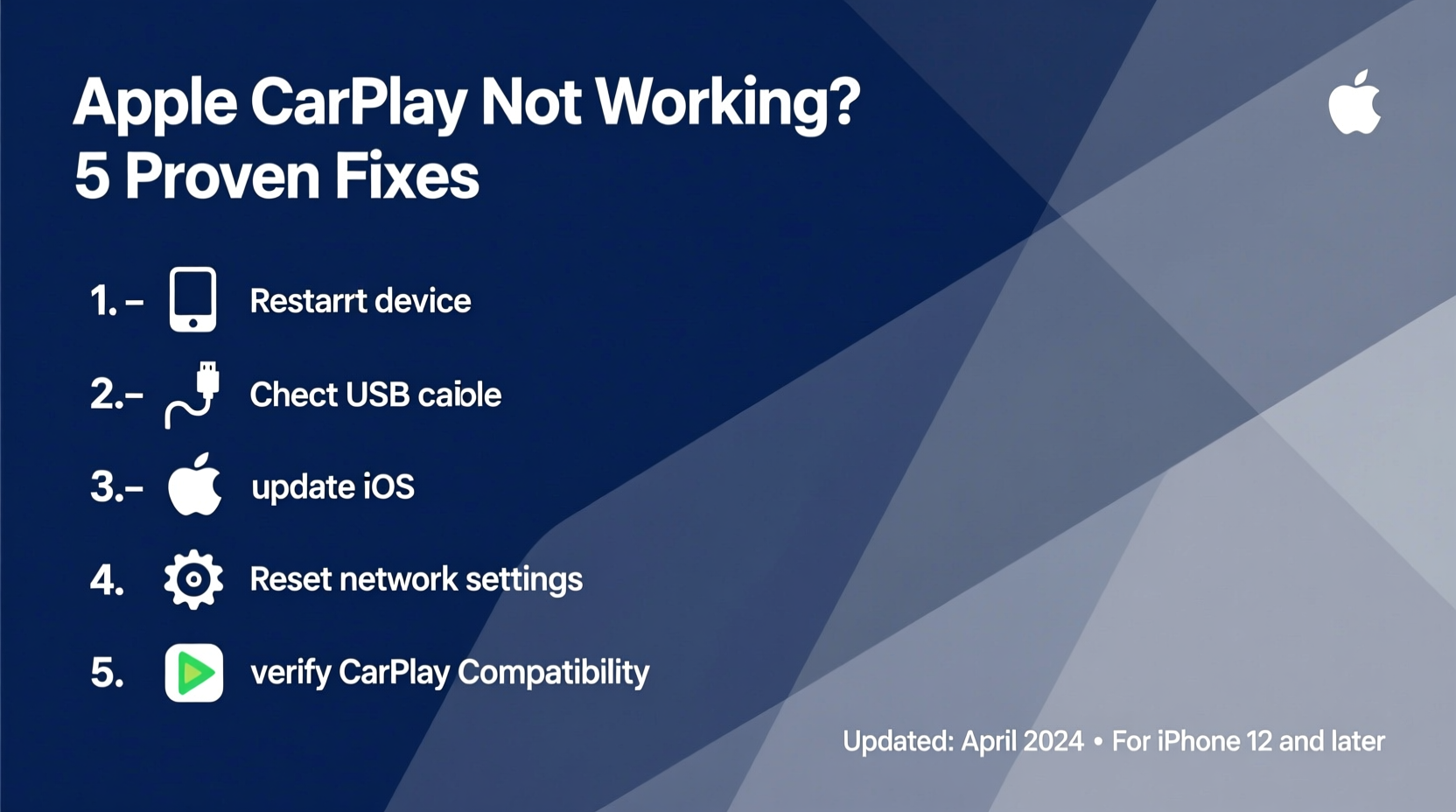
When your Apple devices face network interruptions, the solution often lies in systematically isolating the connection point between your hardware, the local router, and Apple’s integrated software services. By resetting specific network configurations, verifying IP address assignment, and cycling hardware communication, you can resolve the vast majority of Wi-Fi and Ethernet connectivity issues without needing professional repair intervention.
Understanding the Apple Network Architecture
To effectively troubleshoot network issues on Apple devices—whether you are using a Mac, iPhone, iPad, or Apple TV—it is essential to understand that these devices rely on a layered communication stack. At the foundation is the physical hardware (the Wi-Fi radio or Ethernet port), followed by the data link layer (your local router and DHCP server), and finally the application layer (Apple’s network services like iCloud, iMessage, and the App Store).
Most connectivity issues are not hardware failures but rather "handshake" errors where the device and the router fail to negotiate a stable session. When an Apple device reports "No Internet Connection" or "Wi-Fi Connected, No Internet," the problem is almost always in the negotiation between the device’s network interface card and the router's assignment of an IP address.
Step 1: The Power Cycle Protocol
The most effective and commonly overlooked step in any network troubleshooting process is the power cycle. This is not merely turning devices off and on; it is about clearing the temporary memory (RAM) where network sockets and routing tables are stored.
- The Router: Power off your modem and wireless router. Disconnect them from the wall outlet. Wait exactly 60 seconds. This duration is critical as it allows the capacitors in the power supply to fully discharge and the ISP’s server to recognize your device has disconnected, which often triggers a fresh IP address assignment.
- The Apple Device: Perform a forced restart. On modern iPhones and iPads without a Home button, press and quickly release the volume up button, press and quickly release the volume down button, then hold the side button until the Apple logo appears. On a Mac, shut down completely through the Apple Menu, wait 30 seconds, and restart.
- The Sequence: Power on the modem first, wait for the lights to indicate a stable internet connection, then power on the router, and finally, reboot your Apple device.
Step 2: Evaluating Network Settings on iOS and iPadOS
If power cycling does not restore connectivity, your device may have corrupted cached network settings. iOS and iPadOS provide a dedicated "Reset Network Settings" feature that is highly effective for clearing out misconfigured Wi-Fi profiles, VPN configurations, and cellular settings.
- Warning: This process will remove all saved Wi-Fi passwords and paired Bluetooth devices. Ensure you have your Wi-Fi credentials documented before proceeding.
- The Procedure: Navigate to Settings > General > Transfer or Reset [Device] > Reset > Reset Network Settings.
- Why it works: This action deletes the
com.apple.networkextensionpreferences and forces the device to rebuild its network stack from the factory default configuration. Once the device reboots, it will treat your home network as a brand-new connection, often bypassing localized errors or corrupted DNS pointers.
Step 3: Advanced macOS Network Diagnostics
Mac users have access to more granular control over network interfaces via System Settings. If your Mac is connected to Wi-Fi but cannot reach specific websites or Apple services, check for interference from third-party firewall software or outdated network profiles.
- Remove Old Wi-Fi Networks: Sometimes, a device tries to connect to an older, saved version of your network that may have had a security protocol change. Go to System Settings > Wi-Fi, find your network, click the "..." (more) icon, and select "Forget This Network." Re-join the network as if it were a new connection.
- Renew DHCP Lease: A Dynamic Host Configuration Protocol (DHCP) lease error occurs when the router fails to give your Mac a valid address. Navigate to System Settings > Network > Wi-Fi > Details > TCP/IP and click "Renew DHCP Lease." This forces the Mac to request a fresh identifier from the router.
- Check DNS Settings: If you can ping an IP address but cannot load a website, your DNS (Domain Name System) is likely failing. Under the same TCP/IP tab, you can manually input reliable public DNS servers, such as those provided by Cloudflare (1.1.1.1) or Google (8.8.8.8), to see if the issue is with your ISP’s resolution service.
Comparison of Common Network Failure Indicators
| Symptom | Primary Cause | Recommended Initial Action |
|---|---|---|
| "Unable to join network" | Wrong password or MAC filtering | Forget network and re-enter credentials |
| "Connected, No Internet" | DHCP/DNS conflict | Renew DHCP lease and restart router |
| Slow speeds/High latency | Signal interference or congestion | Switch to 5GHz band; move closer to AP |
| Intermittent drops | Firmware or hardware conflict | Reset Network Settings; update firmware |
Addressing Interference and Band Management
In 2026, many homes are saturated with IoT devices, all fighting for space on the 2.4GHz and 5GHz frequency bands. If you are experiencing "practical" network instability, you may be dealing with channel congestion.
Most modern routers are dual-band. The 2.4GHz band travels further through walls but is highly susceptible to interference from microwave ovens, cordless phones, and neighbor networks. The 5GHz band is faster and cleaner but has a shorter range. If your Apple device is struggling, force it to use the 5GHz network by giving your bands different SSIDs (network names). This prevents the device from constantly "roaming" between frequencies, which causes momentary drops in connection quality.
Verified Firmware and Update Requirements
A frequent cause of persistent network issues on Apple hardware is a mismatch between the router's firmware and the device’s software. Apple occasionally updates its network drivers to support newer security standards like WPA3. If your router is running firmware from several years ago, it may not be able to negotiate these newer handshakes.
Check your router manufacturer's support portal to ensure you are running the latest firmware version. For Apple devices, ensure you are on the latest version of macOS or iOS, as these updates contain critical patches for the CoreWLAN and NetworkExtension frameworks that manage how your device talks to your router.
Next Actions for Persistent Issues
If you have performed the power cycles, reset your network settings, and verified your router firmware without success, the issue may move from "practical" to "hardware/ISP-related."
- Isolate the Device: Does the problem occur on other devices in the home? If other devices work fine, the issue is likely isolated to your specific Apple device’s network antenna.
- Test a Different Network: Take your Apple device to a different location—a public Wi-Fi hotspot or a mobile hotspot from your phone. If it connects there, your home router is likely the source of the conflict.
- Contact ISP/Support: If no devices can connect, your ISP may be experiencing a localized outage, or the router hardware itself may be failing. Contact your provider to run a remote diagnostic on your modem.
If the problem persists only on one device across multiple networks, it is advisable to contact Apple Support. When you do, be prepared to provide the specific error message, the steps you have already taken, and the results of your connectivity tests. This will bypass the standard script and get you to a higher tier of technical assistance more quickly.
Frequently Asked Questions
Why does my Mac show that it is connected to Wi-Fi but cannot access the internet? This usually indicates a failure in DNS resolution. Your computer is connected to the router, but the router is failing to translate domain names (like apple.com) into IP addresses. Try restarting your router and, if that fails, manually configuring your DNS settings to a reliable public provider.
Does a VPN interfere with Apple network connectivity? Yes, VPNs work by intercepting all network traffic and routing it through a private tunnel. If the VPN server is slow or if there is a conflict between the VPN protocol and your router's security settings, it can cause complete connectivity loss. Temporarily disable any VPN profiles in your System Settings to rule them out as the culprit.
How do I know if my router is the problem? The best way to verify is to connect a device via Ethernet cable directly to the modem. If the internet works there but not via Wi-Fi, your router's wireless radio or internal routing table is likely malfunctioning.
Will resetting network settings erase my data? No, resetting network settings does not erase your personal files, photos, or apps. It only resets settings related to Wi-Fi, Bluetooth, VPN, and cellular data. You will simply need to rejoin your Wi-Fi networks and re-pair your Bluetooth devices afterward.
Is it safe to use public DNS servers? Yes, using public DNS services like those from Cloudflare or Google is generally considered safe and can often improve browsing speeds. These providers do not track your traffic in the same way an ISP might, and they provide a robust way to bypass ISP-side resolution errors.