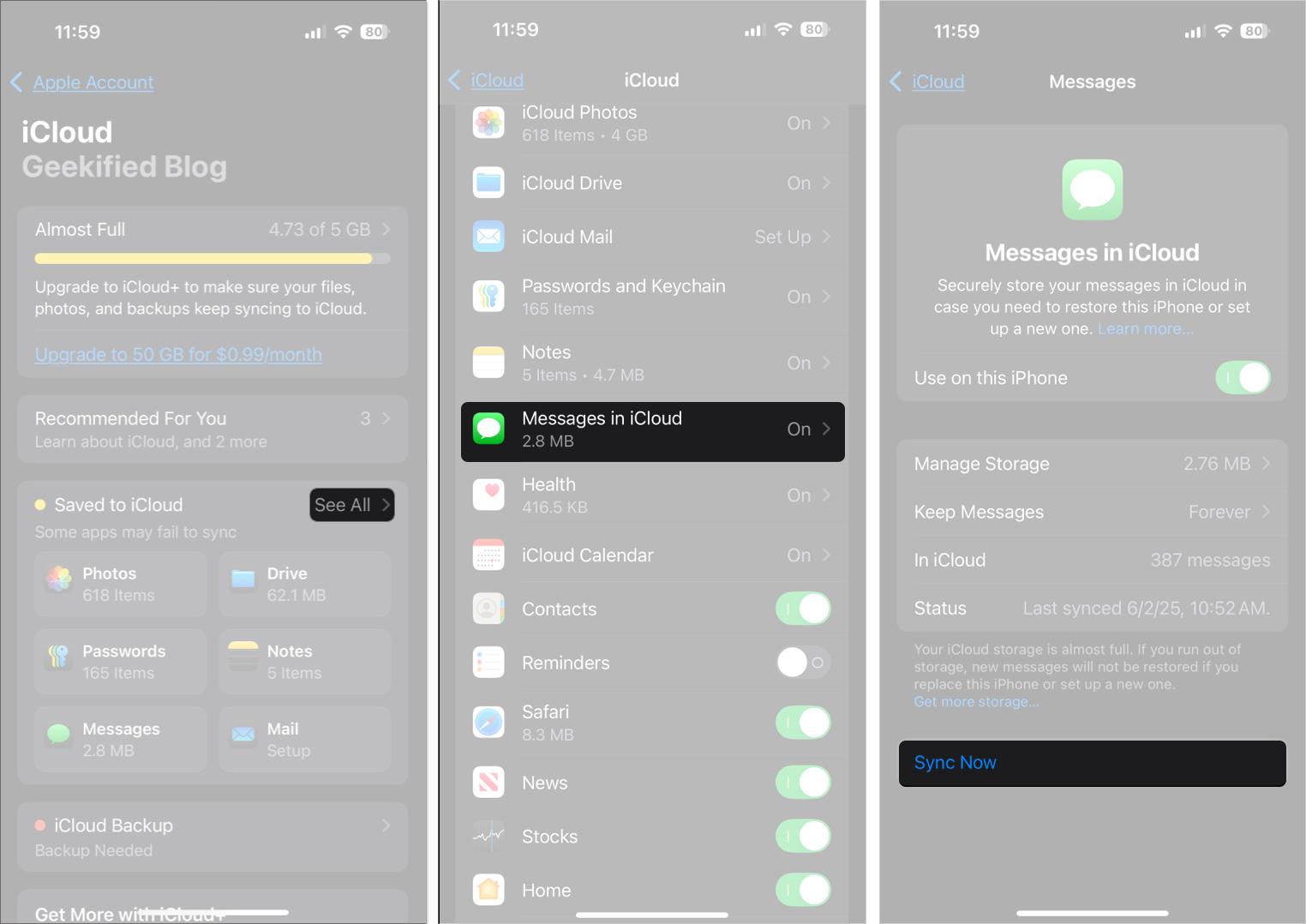
Apple iCloud Messages syncing ensures your iMessage history, SMS, and MMS conversations remain identical and up to date across all your signed-in Apple devices, including iPhone, iPad, Mac, and Apple Vision Pro. By leveraging end-to-end encrypted cloud storage, this feature allows you to view the same message threads, attachments, and deletions everywhere, while also optimizing local storage on individual devices.
Understanding the iCloud Messages Architecture
At its core, "Messages in iCloud" is not a traditional cloud backup but a synchronization service. When you enable this feature, your message database is offloaded to iCloud. Instead of every device maintaining its own independent copy of every message, each device pulls the current state of your conversations from the cloud.
When you send a message, delete a conversation, or move a message on one device, that change is pushed to the cloud and subsequently reflected across all other linked devices. This architecture provides two distinct advantages: seamless cross-device continuity and storage efficiency. Because the messages live in the cloud, you no longer need to restore a full device backup to recover a specific text thread; your history is automatically populated when you sign in to a new device.
Prerequisites for Successful Synchronization
Before attempting to troubleshoot or set up iCloud synchronization for your messages, you must ensure your environment meets the strict requirements set by Apple. These prerequisites ensure that data integrity is maintained and that your end-to-end encryption remains secure.
- Apple Account Requirements: You must be signed in to the same Apple Account (Apple ID) on all devices. You cannot sync messages across separate accounts.
- Two-Factor Authentication: For security, iCloud requires that your Apple Account is protected by two-factor authentication. This is non-negotiable, as it guards the end-to-end encryption keys used for your messages.
- Device Software: Ensure all devices are running current, compatible software. While legacy versions may support basic syncing, consistent synchronization behavior is only guaranteed on modern releases.
- iCloud Storage: Your iCloud account must have sufficient free storage. If your message database exceeds your remaining storage quota, syncing will pause or fail until you clear space or upgrade your iCloud+ plan.
- Network Connectivity: Synchronization requires a stable internet connection. While background syncs happen over cellular data if permitted, a stable Wi-Fi connection is recommended for initial syncing or when downloading large attachments.
Enabling Messages in iCloud
The setup process is straightforward, but it must be performed on every device you wish to participate in the sync ecosystem.
On iPhone or iPad:
- Open the Settings app.
- Tap your name at the top to access your Apple Account settings.
- Tap iCloud.
- Tap Show All under the "Apps Using iCloud" section.
- Locate Messages and ensure the toggle is set to On.
On Mac:
- Open System Settings (or System Preferences on older macOS versions).
- Click your name, then click iCloud.
- Under "Apps Using iCloud," click Show More Apps or Show All.
- Turn on the toggle for Messages.
Once enabled, your device will begin the "uploading" or "downloading" phase. If you have years of message history, this process can take several hours, especially if you have high-resolution photos and videos within your threads. The system operates in the background, but it may pause if your device detects that it is overheating or if battery levels are critically low.
Managing Storage and Performance
A common misconception is that Messages in iCloud always saves space. While it does enable "Optimize iPhone Storage" for messages, it still counts toward your total iCloud storage limit. If you have several gigabytes of attachments, you must monitor your cloud storage usage closely.
To check how much space your messages are consuming:
- iOS/iPadOS: Go to Settings > [Your Name] > iCloud > Manage Account Storage > Messages.
- macOS: Go to System Settings > [Your Name] > iCloud > Manage.
If you find that your messages are taking up too much room, you can delete large conversations or clear old attachments from within the Messages app. Because of the sync architecture, deleting a large video attachment on your Mac will remove it from your iPhone as well. This is a powerful feature for centralized storage management, but it carries the risk of accidental permanent data loss if you are not careful.
Comparison of Sync Methods
The following table clarifies the differences between traditional backups and the synchronization service.
| Feature | iCloud Backup | Messages in iCloud (Sync) |
|---|---|---|
| Data Scope | Entire device state | Message database only |
| Availability | Requires full restore | Real-time across devices |
| Deletions | Restore rolls back changes | Deletions sync everywhere |
| Encryption | Standard or Advanced | Always End-to-End |
| Storage Usage | Included in device backup | Separate cloud quota |
Troubleshooting Common Sync Issues
If your messages are not updating across devices, the issue usually stems from a connectivity interruption or a temporary authentication token mismatch. Before performing drastic measures, follow this logical troubleshooting sequence:
- Check Sync Status: In the Messages app, scroll to the bottom of your conversation list. You may see a status bar indicating if your messages are currently uploading or downloading. If it is stuck, tap "Sync Now" if the option is available.
- Verify Network Quality: Ensure your device is connected to a stable network. Captive portals, such as those in hotels or offices, often block the Apple services required for cloud synchronization.
- Toggle the Service: If syncing is hung, turn off the "Messages" toggle in iCloud settings, wait 30 seconds, and turn it back on. This forces the background synchronization daemon to re-authenticate and re-scan the message database.
- Sign Out and In: As a last resort, sign out of your Apple Account in the main settings menu and sign back in. This clears cached session tokens that may be causing authentication errors.
- Check Date and Time: Ensure your devices are set to "Set Automatically" in Date & Time settings. Incorrect time stamps can cause synchronization conflicts with Apple’s secure servers.
Security and Privacy Considerations
Messages in iCloud utilizes end-to-end encryption. This means that Apple does not hold the keys to decrypt your messages. Even if Apple’s servers were compromised, your private conversations remain inaccessible.
If you have enabled Advanced Data Protection for your Apple Account, your Messages in iCloud are protected by an even higher standard of security, ensuring that only your trusted devices can access the database. Because of this, it is critical that you have a recovery method—such as a recovery key or a designated recovery contact—configured for your account. If you lose all your devices and forget your account password, Apple cannot help you recover your encrypted messages, as they do not have the decryption keys.
Expert Guidance for Daily Use
For power users managing a large number of messages, it is advisable to audit your threads periodically. Because Messages in iCloud syncs everything, including "deleted" items (which are moved to a Recently Deleted folder for 30 days), this folder can continue to consume storage until it is purged.
Regularly check your Recently Deleted folder within the Messages app to permanently purge items you no longer need. This ensures that you aren't paying for cloud storage space for items you have already decided to discard. Furthermore, if you are planning to sell or give away a device, you do not need to worry about manually deleting your messages. Simply signing out of your Apple Account will remove your local database, and the cloud copy remains safe for your other devices.
Frequently Asked Questions
Why are my photos in messages taking up so much space? Messages in iCloud stores every image and video sent or received in high resolution. These files count toward your iCloud storage. If you need more space, consider deleting large attachments from long-standing conversation threads.
Can I sync messages to an Android device? No. Messages in iCloud is an Apple-proprietary service and is not compatible with Android or Windows, other than through web-based interfaces or specific manufacturer integrations that do not utilize the Apple iCloud sync protocol.
Does turning off iCloud Messages delete my history? When you toggle the setting off, your device will ask if you want to disable and download your messages or just disable the service. If you choose to keep your messages, they remain on that specific device, but they will stop syncing with your other devices.
What happens if I run out of iCloud storage? If your iCloud storage is full, your devices will stop uploading new messages to the cloud. You will still be able to send and receive messages on individual devices, but they will not propagate to other devices until space is made available.
Is there a way to sync messages without using iCloud? Only by performing local encrypted backups using a computer. However, this does not provide real-time synchronization; it only provides a snapshot of your data that can be restored if you replace your device.
Next Steps for Optimal Syncing
To ensure your messaging experience remains seamless, confirm that your iCloud storage plan is sufficient for your data footprint. If you frequently share high-quality media, consider upgrading to an iCloud+ plan. Maintain your device software to ensure compatibility with evolving Apple protocols, and periodically review your "Recently Deleted" folder to maximize your available cloud storage. By maintaining these simple hygiene habits, you can rely on the Messages in iCloud service to keep your communications organized and accessible, no matter which Apple device you reach for.