Modern tablets run specialized builds of standard Android optimized for large screens, originating with the Android 12L feature drop and continuing through Android 13, 14, and 15. These operating system versions provide dedicated tablet capabilities, including persistent taskbars, multi-window split-screen layouts, enhanced notification shades, and automatic app-letterboxing controls. You can verify and update your tablet's OS build directly within system settings.
Understanding Tablet-Specific Android Releases
The operating system environment on Android tablets has undergone several major architectural pivots. When Google originally launched Android 3.0 (Honeycomb) in 2011, it established a dedicated, tablet-only operating system branch. However, maintaining separate codebases for handheld smartphones and wide-screen tablets created fragmentations for software developers. Google subsequently merged phone and tablet operating systems into a single codebase starting with Android 4.0 (Ice Cream Sandwich).
For nearly a decade following that unification, tablet-specific interface enhancements lagged behind phone features. Standard Android builds treated tablets largely as oversized smartphones, stretching handheld user interfaces across 10-inch to 14-inch displays without utilizing the additional screen real estate effectively.
Evolution of Android for Tablets:
- Android 3.0 (Honeycomb): Dedicated tablet-only OS branch
- Android 4.0 - Android 11: Unified OS codebase (Phone focus)
- Android 12L: Dedicated large-screen branch
- Android 13 - Android 15+: Native integrated tablet features
This dynamic shifted dramatically with the release of Android 12L (where "L" stands for Large screens). Android 12L introduced deep structural optimizations tailored specifically for tablets, foldable devices, and ChromeOS devices running Android apps. Instead of treating large displays as an afterthought, Android 12L redesigned core system components, including the lock screen, notification shade, home screen grid, and multitasking interface.
Subsequent major updates—Android 13, Android 14, and Android 15—integrated and expanded upon these large-screen foundations natively. Developers no longer treat tablet features as a separate side-project. Instead, application programming interfaces (APIs) built into modern Android versions automatically adapt layouts based on window size, screen orientation, and display density. For comprehensive technical background on large-screen API implementation, visit the Google Android Large Screens Developer Guide.
Key Tablet Features in Modern Android Operating Systems
When evaluating an Android version for tablets, specific functional capabilities distinguish modern large-screen builds from legacy versions. These features focus on productivity, application scaling, multi-tasking performance, and hardware peripheral support.
1. Persistent Taskbar and Seamless Switching
Introduced in Android 12L and refined in Android 13 and 14, the taskbar sits at the bottom of the tablet display. It allows users to launch frequently used applications instantly without returning to the home screen. Users can drag any icon directly from the taskbar into the main viewport to initiate split-screen multitasking. Modern builds allow the taskbar to remain persistently visible or to auto-hide dynamically depending on user preference and active application state.
2. Multi-Window and Split-Screen Multitasking
Standard Android versions for tablets enable side-by-side app executions with adjustable divider ratios. You can run two apps in a 50/50 or 30/70 split configuration, or use picture-in-picture and floating window overlays. The OS saves active multitasking pairs in the Recent Apps overview, allowing users to return to complex workflows—such as a web browser paired alongside a note-taking application—with a single tap.
3. App Scaling and Letterboxing Enhancements
A major issue historically affecting Android tablets was unoptimized mobile apps scaling poorly across high-resolution, wide-aspect-ratio screens. Modern Android operating systems resolve this through advanced letterboxing and aspect ratio overrides:
- Compatibility Modes: The operating system centers unoptimized smartphone apps on the screen, presenting them in native phone aspect ratios (such as 9:16 or 9:20) surrounded by blurred or solid pillars.
- User-Defined Aspect Ratios: Android 14 and Android 15 allow users to force unoptimized applications to render in 16:9, 4:3, or full-screen modes through system developer and accessibility settings.
- Dual-Pane System Interfaces: System applications (Settings, Files, Contacts, and Clock) use a two-column layout on tablets. Navigation menus remain visible on the left side while detailed selection panes render on the right.
4. Advanced Stylus and Keyboard Integration
Tablet versions of Android feature native low-latency stylus APIs, palm rejection algorithms, and predictive stroke rendering. System settings include key-remapping options for physical keyboard accessories, customizable system shortcuts (such as Alt + Tab app switching or Search + Key triggers), and unified clipboard management across active windows.
How to Check and Update Your Tablet's Android Version
Determining the exact software release running on your tablet is necessary for software compatibility, security patching, and troubleshooting app features.
Finding Your Installed Android Version
While custom hardware manufacturer interfaces (such as Samsung One UI or Lenovo ZUI) alter visual layouts, the process for locating software version details follows a standard procedure:
- Open the Settings application on your tablet.
- Scroll to the bottom of the left-hand navigation menu and select About Tablet (or System on select stock interfaces).
- Tap Android Version.
- View the primary numbers listed under Android Version, Build Number, and Android Security Update Level.
- Settings
- System / About Tablet
- Android Version
- OS Release Number (e.g., 14 or 15)
- Android Security Update Level
- Build Number / Baseband Details
- Android Version
- System / About Tablet
To review detailed software release logs and security patch levels for specific releases, refer to the Android Security Bulletins.
How to Perform an Over-the-Air (OTA) System Update
Updates deliver security patches, bug fixes, performance updates, and major operating system feature upgrades. To check for available software updates:
- Connect your tablet to a reliable Wi-Fi network and ensure battery level exceeds 50% (or plug the device into power).
- Open Settings.
- Select System (or Software Update directly on custom skins).
- Select System Update or Check for Updates.
- If an update is detected, review the patch notes and select Download and Install.
- Allow the tablet to restart completely. Do not power off the device during an active firmware flash.
OEM Tablet Interfaces vs. Stock Android
Unlike Apple’s iPadOS, which maintains visual uniformity across devices, the Android tablet ecosystem is divided between stock Android implementations and heavily customized manufacturer skins.
| Manufacturer | Interface Name | Primary Unique Features |
|---|---|---|
| Samsung | One UI for Tab | DeX Desktop Mode, Multi-Window Pro |
| Stock / Pixel UI | Hub Mode, Material You Layouts | |
| Lenovo | ZUI / Android OS | One Vision, Freestyle Display Ext. |
| Amazon | Fire OS (Forked) | Amazon Appstore, No Google Services |
Samsung One UI for Tab
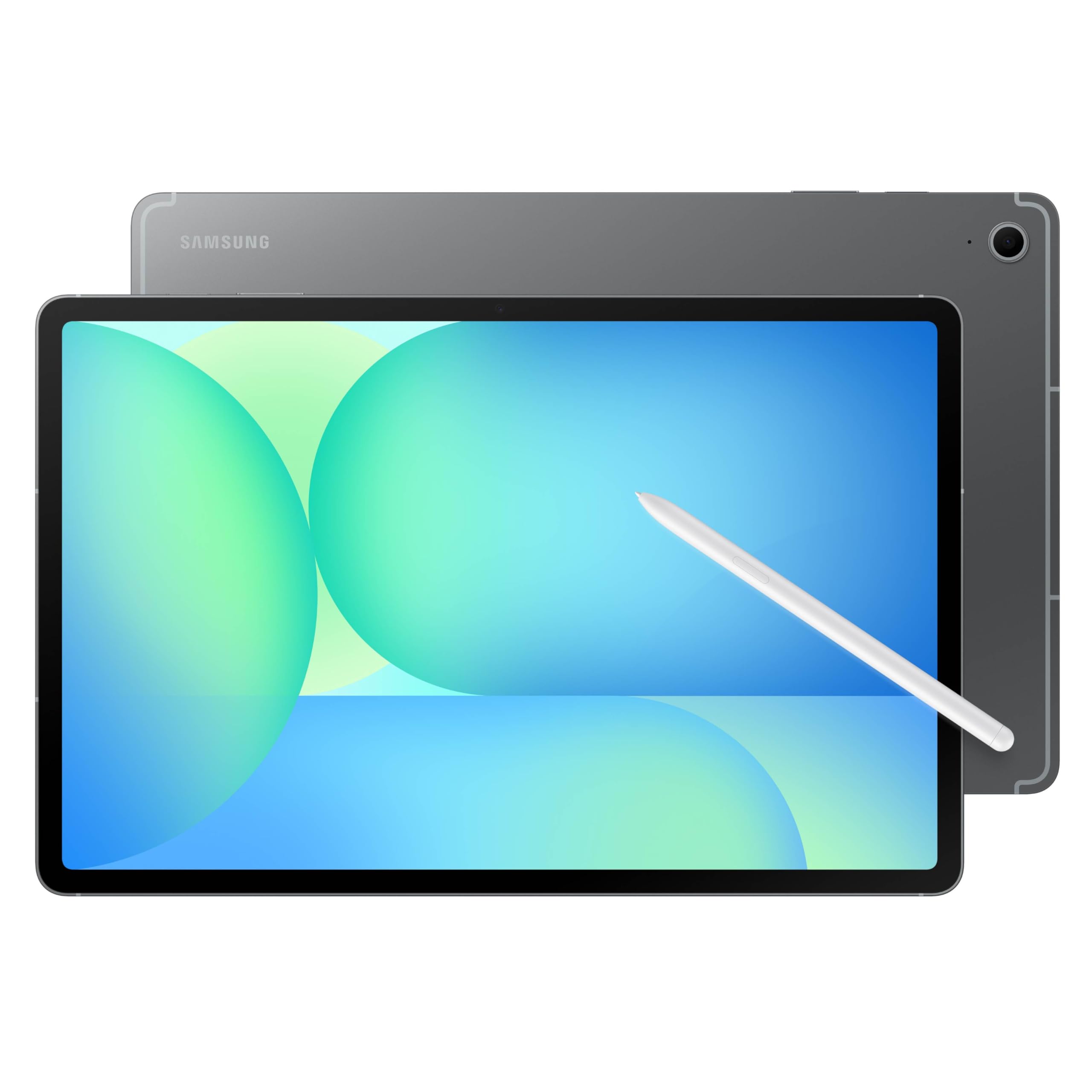
Samsung is the largest manufacturer of Android tablets, equipping its Galaxy Tab lineup with One UI for Tab. Beyond standard Android tablet features, One UI includes Samsung DeX, an integrated desktop environment. DeX converts the standard mobile interface into a windowed desktop environment complete with a start menu, overlapping application windows, and taskbar tray controls without requiring external hardware modification.
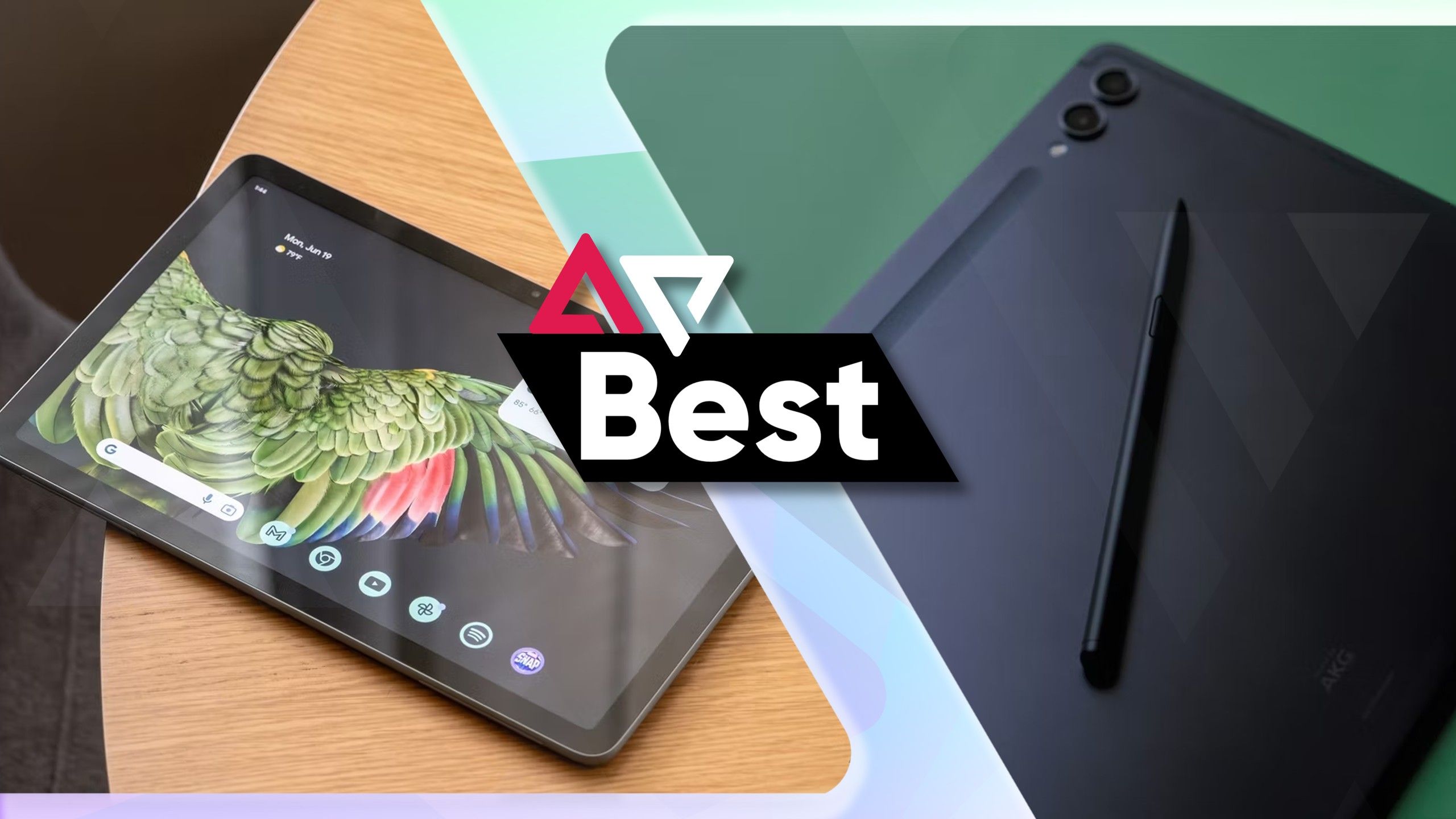
Google Pixel Tablet Experience
Google's hardware implementation relies on stock Android builds featuring clean Material You design standards. The software emphasizes context-aware widget placement, dynamic color palettes extracted from wallpapers, and transition animations between dock modes and handheld usage. Pixel Tablet software relies heavily on native Google Play Services frameworks rather than third-party desktop overlays.
Lenovo ZUI and Productivity Mode
Lenovo tablets run a modified Android version incorporating a dedicated "Productivity Mode." When enabled—or when attached to an official keyboard dock—Productivity Mode converts app cards into floating desktop windows and grounds open applications on a simplified navigation dock. Lenovo software also supports PC external monitor extension protocols (via Lenovo Freestyle).
Amazon Fire OS (Android Fork)
Amazon Fire tablets do not run official, Google-certified Android. Instead, they run Fire OS, an open-source Android fork. Fire OS lacks the Google Play Store, Google Play Services, and official Android tablet multitasking APIs, relying instead on the Amazon Appstore and an Amazon-centric user interface. While low-cost, Fire OS devices do not receive Google Android version upgrades.
Software Support Lifespans and Update Policies
Support cycles vary across hardware vendors. Understanding update commitments is critical when purchasing a device or deploying tablets across enterprise environments.
Historically, Android tablets received only one or two major OS upgrades throughout their functional lifecycle. However, policy changes by primary manufacturers have extended update windows:
- Google: Guarantees 7 years of major Android OS updates, feature drops, and security patches for modern Pixel tablet hardware.
- Samsung: Provides up to 7 years of OS upgrades and security maintenance for flagship devices (Galaxy Tab S series), and 4 years of OS upgrades for mid-range tiers (Galaxy Tab A series).
- Lenovo: Offers 2 to 3 years of major OS updates alongside 3 to 4 years of security updates depending on whether the tablet is classified under consumer or business lines.
- Budget/Generic Manufacturers: Unbranded or low-cost white-label tablets frequently ship with a fixed Android version and receive no software upgrades or security patches.
Feature Matrix Across Android Tablet Versions
The table below highlights key functionality introduced across major Android versions for tablets, helping users verify if their installed version supports specific features.
| Android Version | Primary Tablet Focus | Multitasking Features | Aspect Ratio / App Scaling | Desktop / External Display |
|---|---|---|---|---|
| Android 11 & Earlier | Legacy unified phone OS code | Basic 50/50 split screen | Fixed smartphone rendering; stretching | Vendor-dependent (Samsung DeX only) |
| Android 12L | Dedicated large-screen rebuild | Taskbar introduced, side-by-side app pairs | Automatic letterboxing, pillared scaling | Basic secondary screen mirroring |
| Android 13 | Taskbar & drag-drop refinements | Drag app from taskbar to split screen | Per-app language settings, dual-column UI | Improved stylus palm rejection APIs |
| Android 14 | Display density & accessibility | Enhanced multi-window windowing | User-forced aspect ratio controls (16:9/4:3) | Native DisplayPort over USB-C support |
| Android 15 | Desktop mode & privacy controls | App Archiving, Private Space multitasking | Full-screen app forcing defaults | Advanced desktop windowing APIs |
Troubleshooting Update Failures and App Compatibility
Even on supported hardware, software updates can fail, or applications may exhibit rendering bugs after upgrading the Android OS.
Common Tablet OS Troubleshooting Steps:
- Storage Insufficient: Clear cached files; free 5GB+ space
- Update Loop / Freeze: Perform System Cache Partition Clear
- App Display Glitches: Adjust App Aspect Ratio Settings
- Play Store Misbehave: Clear Play Services Cache & Data
Insufficient Storage Errors During Updates
Major Android version upgrades require between 2 GB and 6 GB of unallocated internal storage to download and decompress installation packages. If your system reports insufficient space:
- Open Settings > Storage and select Free Up Space.
- Delete cached data, temporary downloads, and offline media files.
- Remove unused games or heavy applications prior to triggering the download.
App Displaying in Narrow Phone Format
If an application displays as a narrow column in the middle of your screen after updating to modern Android versions:
- Go to Settings > Display (or Advanced Features on Samsung devices).
- Select App Aspect Ratio or Labs.
- Locate the specific misbehaving app from the list.
- Change the rendering mode from App Default to Full Screen or 16:9.
System Freeze or Boot Loop During Update Installation
If an over-the-air update hangs during reboot:
- Press and hold the Power Button and Volume Down Key simultaneously for 10–15 seconds to force a hardware reset.
- If the device boots into System Recovery Mode, use the volume keys to highlight Wipe Cache Partition and confirm with the Power button. Note: Clearing the cache partition does not erase user data.
- Select Reboot System Now.
Frequently Asked Questions
Can I manually upgrade an older tablet to a newer Android version?
If your tablet manufacturer has ended official software support for your device, you cannot install newer official Android versions via standard over-the-air updates. While advanced users sometimes flash custom ROMs (such as LineageOS) onto unlocked bootloaders, this process requires technical expertise, carries risks of bricking the device, and may break DRM compliance (preventing high-definition streaming on platforms like Netflix).
What is the difference between Android 12 and Android 12L?
Android 12 was designed primarily for standard smartphone form factors. Android 12L was an intermediate feature release built specifically for large-screen hardware, introducing the multi-app persistent taskbar, dual-pane notification shades, optimized lock screen layouts, and letterboxing app compatibility layers. All features introduced in Android 12L are included natively in Android 13 and later versions.
Why do some apps look stretched or unoptimized on Android tablets?
Apps appear stretched when developers design their user interface exclusively for vertical smartphone aspect ratios without implementing Android's responsive layout APIs. Modern Android versions (Android 12L through Android 15) mitigate this issue by allowing users to force specific display aspect ratios or run the app inside centered compatibility windows.
Do Android tablets support desktop monitor setups?
Yes. Modern tablets running Android 14 or Android 15 with hardware support for DisplayPort Alternate Mode over USB-C can output video signals directly to external monitors. Devices running custom interfaces like Samsung One UI (DeX) or Lenovo ZUI (Productivity Mode) switch into multi-window desktop operating system interfaces when connected to external displays.
Is Amazon Fire OS considered a real Android version for tablets?
Amazon Fire OS is built upon the Android Open Source Project (AOSP), but it is a "forked" operating system. It lacks Google certification, does not ship with the Google Play Store, and lacks standard Google Play Services APIs. Consequently, Fire OS does not receive standard Google Android version updates or modern stock Android tablet UI features.
Recommended Next Steps
If you are managing an Android tablet or preparing to acquire a new device, complete the following actions to ensure hardware longevity and optimal software performance:
- Verify Your Current OS Build: Access Settings > About Tablet > Android Version to verify your active version, security patch level, and feature availability.
- Audit Application Aspect Ratios: For apps that fail to use your full screen width, navigate to system developer/display settings to set application overrides manually.
- Review Support Commitments Before Purchasing: If buying a new device, prioritize manufacturers providing extended update lifespans (such as Google or Samsung) to ensure access to upcoming software upgrades and security updates over a 4- to 7-year lifecycle.
- Maintain Storage Overheads: Reserve at least 10% of internal storage capacity free at all times to allow background operating system optimizations, app compilation, and automated system security patch installations.