Spotting Android malware requires recognizing key indicators like unexplained battery drain, unexpected pop-up ads, spikes in mobile data usage, unauthorized app installations, and device overheating. While actual self-replicating viruses are rare on Android, malicious applications, trojans, adware, and spyware frequently compromise device security. Inspecting app permissions and running system scans helps confirm infections quickly.
Understanding Android Malware: Viruses vs. Malicious Apps
When users ask whether an Android phone has a "virus," they are usually dealing with malware. In computer science terminology, a virus is a specific program that replicates itself by attaching code to existing executable files. On Android, true self-replicating viruses almost never exist because of the operating system's architecture.
Android relies on application sandboxing. Every app runs inside its own isolated environment with restricted permissions, controlled by the underlying Linux kernel. One application cannot directly access or alter the system files or memory space of another application without explicit user permission or an unpatched operating system vulnerability.
However, malicious actors circumvent sandboxing by tricking users into granting broad permissions or by exploiting system vulnerabilities. Android threats generally fall into several distinct categories of malware:
- Trojans: Applications that disguise themselves as legitimate software (such as utility tools, games, or media players) while carrying a hidden malicious payload.
- Adware: Malicious software designed to flood your device with unwanted advertisements, often displaying ads outside of the application context, such as directly on your lock screen or home screen.
- Spyware and Stalkerware: Programs designed to run silently in the background, harvesting sensitive personal data, tracking GPS locations, reading text messages, recording calls, or logging keystrokes.
- Banking Trojans: Advanced malware that displays deceptive overlay screens over legitimate banking apps to steal login credentials, credit card details, and two-factor authentication (2FA) codes.
- Fleeceware and SMS Fraud: Apps that silently subscribe users to expensive premium services or transmit paid SMS messages without user consent.
Understanding this distinction is practical: removing Android malware does not require complex disk-formatting routines intended for classic PC computer viruses. Instead, it involves revoking administrative privileges, removing compromised applications, and cleaning up persistent background services.
8 Clear Symptoms of an Android Malware Infection
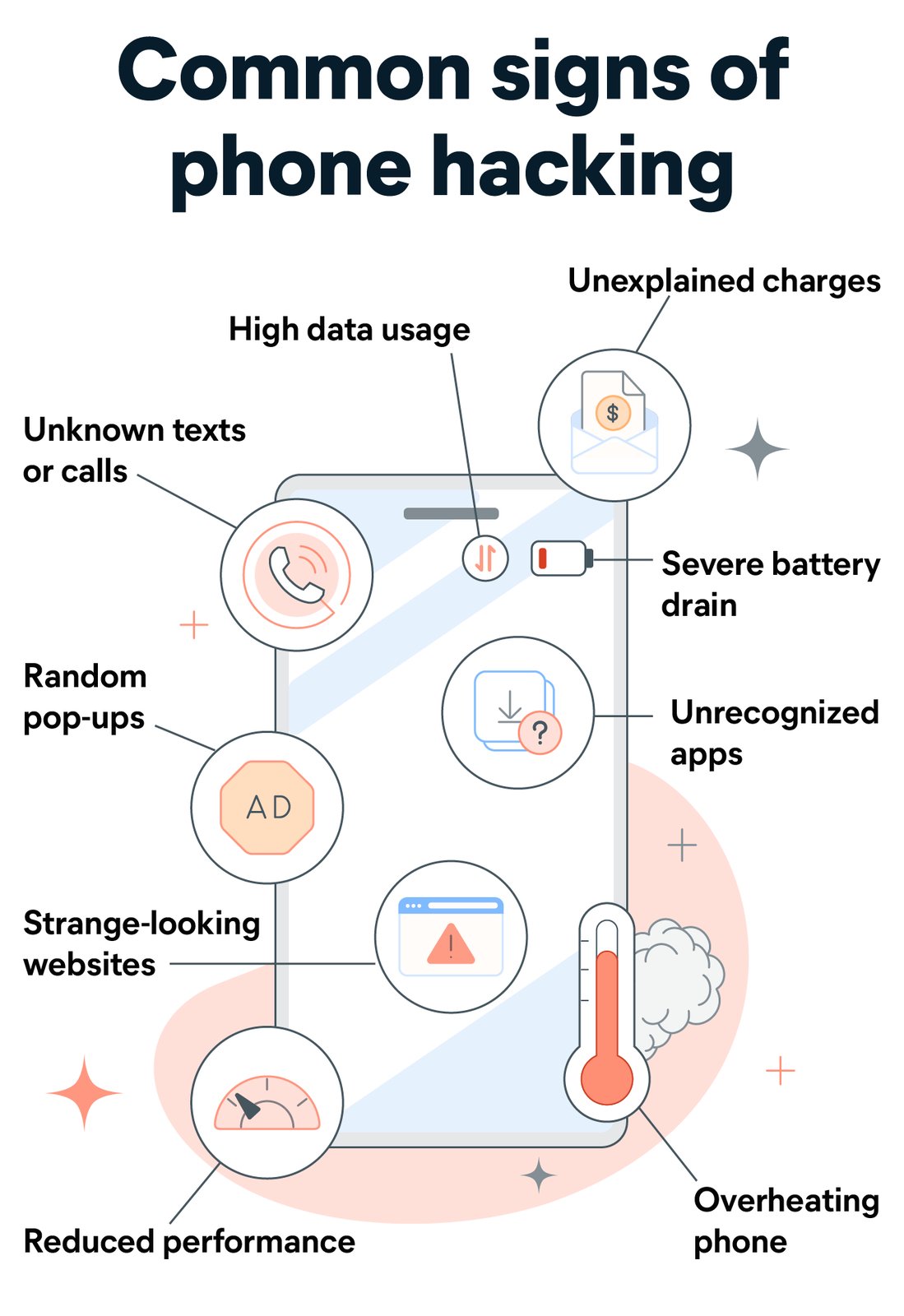
Malware requires system resources to perform unauthorized tasks—such as mining cryptocurrency, broadcasting advertisements, communicating with command-and-control (C2) servers, or transmitting personal files. These background activities produce noticeable symptoms.
Recognizing Android Malware Symptoms:
- Hardware Signals
- Rapid Battery Drain
- Thermal Overheating
- Sluggish Performance
- Software Behaviors
- Unexpected Pop-Ups
- Unfamiliar Icons
- App Crashing & Freezing
- Financial/Data
- Unauthorized Charges
- Mobile Data Spikes
- Mysterious SMS Texts
1. Unexplained Battery Drain and Thermal Overheating
Every process executed by the Android central processing unit (CPU) consumes electrical power and generates heat. If your phone rapidly loses charge while sitting idle, or if the back panel feels warm to the touch when no heavy applications are active, a persistent background service may be running. Malicious background tasks—such as crypto-mining scripts or continuous location tracking—keep the CPU in a high-power state, preventing the processor from entering low-power sleep modes.
2. Excessive Mobile Data Usage Spikes
Malware often exfiltrates collected data to remote servers or streams background advertisements. If your cellular data consumption surges unexpectedly without any change in your browsing, streaming, or download habits, review your data metrics immediately. High background data usage by an unfamiliar app is a strong indicator of malicious activity.
3. Intrusive Pop-up Ads Outside of Apps
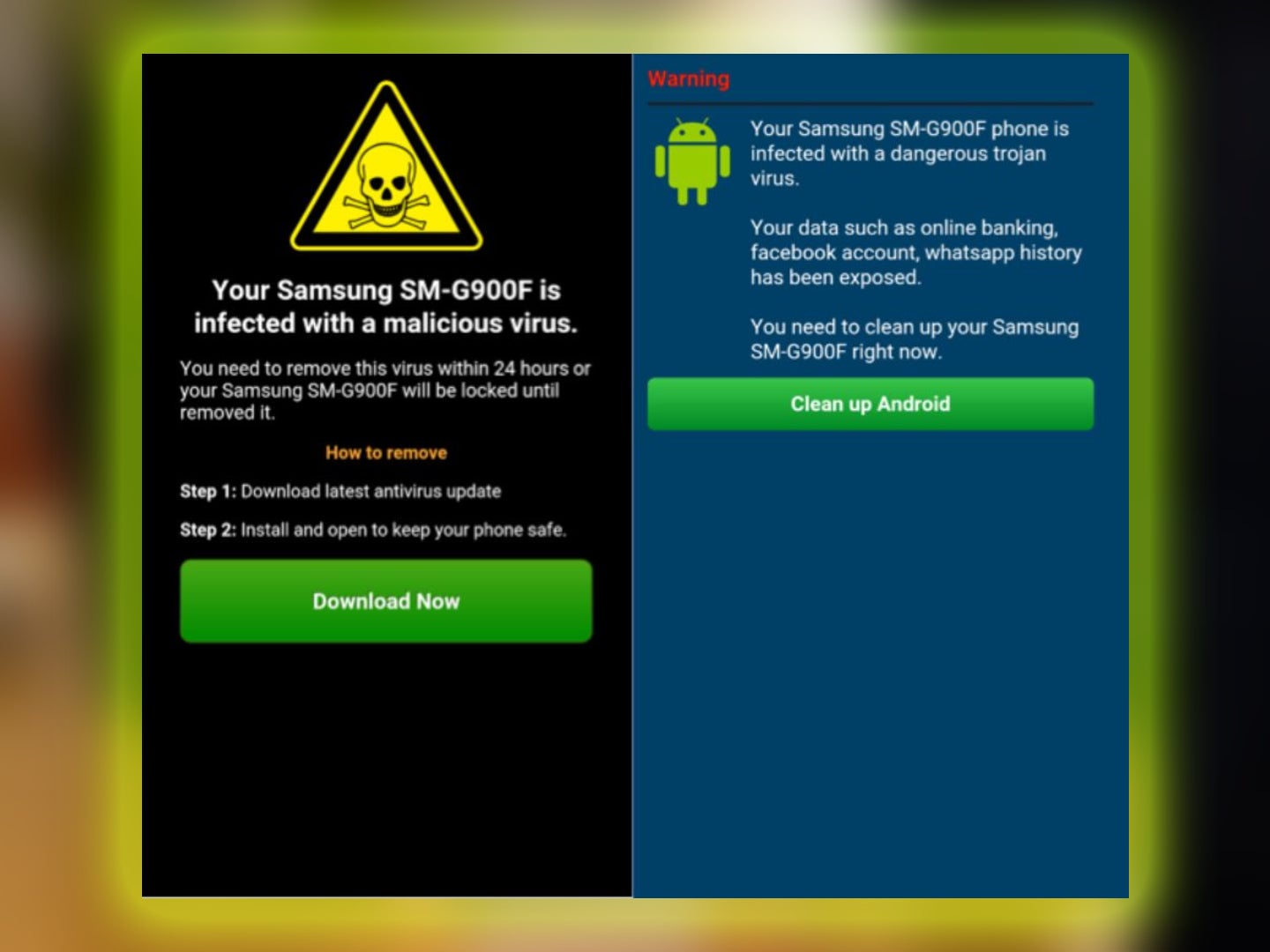
While ads are standard within many free legitimate applications, intrusive pop-up ads that appear directly on your home screen, lock screen, or over other unrelated applications indicate adware infection. These ads often employ aggressive tactics, displaying fake system warnings claiming your device is infected and prompting you to download additional malicious software.
4. Unfamiliar Apps Installed Without Your Consent
Malicious apps often act as "droppers." Once installed, a dropper application contacts an external server to download and install secondary payloads without explicit user permission. If you notice app icons on your app drawer that you do not recall downloading, your phone may have been compromised by a dropper trojan or abusive third-party app store installer.
5. Frequent App Crashes and System Instability
Malware written by cybercriminals often lacks optimization and testing. It can conflict with your phone’s legitimate services, consume excessive RAM, or cause native applications to freeze and crash repeatedly. If system apps like Settings or Google Play Store crash consistently, malicious code may be attempting to interfere with security operations.
6. Unauthorized Charges on Your Mobile Bill or Financial Accounts
Check your monthly mobile carrier statements and credit card bills. "Fleeceware" applications charge hidden subscription fees through in-app purchases, while SMS trojans secretly send messages to premium-rate numbers that bill directly to your phone contract. Similarly, banking trojans can initiate fraudulent transfers directly from compromised financial apps.
7. Excessive App Permissions Demanded
Malware relies on abusive permissions to operate effectively. If a simple calculator app, flash light utility, or wallpaper app requests access to your SMS messages, contacts, location, microphone, camera, or Accessibility Services, it is highly suspect. Accessibility Services, in particular, allow an app to read screen text and automatically perform touch interactions, making it a frequent target for malware abuse.
8. Unintended Messages Sent to Contacts
Some SMS-based malware uses your phone as a spam distribution hub. If your friends or contacts inform you that they received strange SMS messages or messaging app links originating from your phone number, malware may be using your messaging framework to infect other devices.
Comparative Overview of Common Android Malware Types
Different classes of Android malware produce distinct technical behaviors and carry varying severity levels. The following table summarizes the key attributes of primary Android threat types:
| Malware Type | Primary Symptoms | Threat Level | Common Distribution Vector | Removal Complexity |
|---|---|---|---|---|
| Adware / Clickers | Pop-up ads, home screen overlays, sudden battery drain | Low to Medium | Unverified utility apps, third-party APK downloads | Easy (Uninstall host app) |
| Banking Trojans | Fake login screens over financial apps, stolen 2FA codes | Critical | Phishing links, fake app updates, dropper apps | Moderate to High |
| Spyware / Stalkerware | Silent background tracking, GPS usage, rapid data consumption | High | Direct physical device access, modified side-loaded apps | Moderate (May require Safe Mode) |
| Ransomware / Screen Lockers | Locked home screen, ransom demands, blocked system settings | High | Malicious file downloads, deceptive adult sites | High (Safe Mode or Factory Reset) |
| SMS Fleeceware | Premium bill charges, outgoing texts sent to unknown numbers | Medium | Deceptive Play Store utility apps, hidden trial subs | Easy to Moderate |
Step-by-Step Guide: How to Spot and Confirm Malware on Your Phone
If you suspect your device has been compromised, perform the following step-by-step audit to identify the culprit before taking removal measures.
MALWARE DETECTION FLOWCHART:
- Step 1: Inspect Battery & Data Usage
- Step 2: Audit Sensitive Permissions (Accessibility, Admin Apps, Display Over Apps)
- Step 3: Perform Google Play Protect Scan
- Step 4: Check Device Admin Applications
Step 1: Inspect Battery and Data Usage Statistics
Android provides native analytics that track hardware usage per app.
- Open your phone’s Settings app.
- Navigate to Battery > Battery Usage (wording varies slightly across Samsung One UI, Pixel Android, and Xiaomi MIUI).
- Review the list of apps consuming the highest percentage of battery since the last full charge. Look for apps with generic names, blank icons, or tools you rarely open.
- Go back to Settings > Network & Internet (or Connections) > Data Usage > Mobile Data Usage.
- Check for unknown applications consuming megabytes or gigabytes of background data.
Step 2: Audit Sensitive App Permissions
Pay close attention to high-risk permissions that malware frequently abuses.
- Go to Settings > Privacy > Permission Manager (or Apps > Special App Access).
- Inspect Accessibility: Malware uses Accessibility features to automate screen clicks and grant itself further permissions. Ensure only trusted screen readers or system utilities have access.
- Inspect Display Over Other Apps: Adware and overlay trojans rely on this permission to draw fake interfaces over legitimate apps.
- Inspect SMS and Contacts: Verify that basic utilities (like games or flashlight tools) do not hold permission to send or read SMS messages.
Step 3: Run Google Play Protect and Antivirus Scans
Google Play Protect automatically scans apps on Android devices. You can also trigger a manual scan:
- Open the Google Play Store app.
- Tap your profile icon in the upper right corner.
- Select Play Protect.
- Tap the Scan button to force an immediate analysis of all installed applications.
For additional verification, consider scanning your device with a reputable mobile security app from recognized cybersecurity vendors such as Bitdefender, Malwarebytes, or Avast. Detailed guidelines on identifying and preventing phishing and mobile threats can also be reviewed at the Federal Trade Commission Consumer Advice.
Step 4: Check Device Administrator Apps
Certain advanced malware grants itself "Device Administrator" status to prevent users from pressing the "Uninstall" button in Settings.
- Go to Settings > Security & Privacy > More Security Settings.
- Tap Device Admin Apps (or Device Administrators).
- Review the list. Legitimate admin apps usually include Find My Device or enterprise device management tools (MDM). If an unrecognized application has active admin privileges, take note of it.
How to Remove Malware from Your Android Device
Once you have spotted malicious behavior or identified a suspicious app, follow these procedures to clean your device.
Step 1: Boot into Safe Mode
Safe Mode disables all third-party applications, allowing you to troubleshoot and remove malicious files without interference from active malware code.
- For most modern Android devices (Android 10 through Android 16):
- Press and hold the Power button (or Power + Volume Up buttons, depending on your device configuration) until the power menu appears.
- Touch and hold the Power Off or Restart icon on the screen.
- A prompt will appear asking to Reboot to Safe Mode. Tap OK or confirm.
- Your phone will restart, and the words "Safe Mode" will appear in the bottom corner of your screen.
If the malware was actively locking your screen or triggering pop-up ads, Safe Mode prevents those background scripts from starting.
Step 2: Revoke Device Administrator Status
If an app refuses to uninstall or has grayed-out options:
- While in Safe Mode, open Settings > Security > Device Admin Apps.
- Tap the suspicious app.
- Select Deactivate this device admin app.
Step 3: Uninstall the Malicious Application
- Go to Settings > Apps > See all apps.
- Scroll through the list to find the suspicious app, utility, or recently installed third-party software. Look out for apps with invisible icons or names like "System Update" that do not match official Android system packages.
- Tap the application name and select Uninstall.
- Confirm the uninstallation.
Step 4: Clear Web Browser Cache and Redirect Data
If pop-up ads appear strictly while using Google Chrome, Samsung Internet, or Firefox, the issue may be malicious browser notifications or hijacked scripts rather than an installed app.
- Open Settings > Apps > Chrome (or your primary web browser).
- Tap Storage & Cache.
- Tap Clear Cache, then tap Manage Space (or Clear Storage) and select Clear All Data.
- Reopen your browser, open Settings within the browser app, and ensure that notifications from unfamiliar or suspicious websites are revoked.
Step 5: Perform a Factory Reset (The Last Resort)
If malware persists after attempting manual uninstallation—or if you suspect a critical banking trojan or persistent rootkit has compromised system integrity—a factory reset completely erases the phone’s internal storage and reinstalls the operating system.
Warning: A factory reset deletes all local data, including photos, downloads, messages, and un-synced contacts. Ensure critical data is backed up to secure cloud storage before proceeding.
- Ensure your device is plugged into power or has adequate battery.
- Open Settings > System > Reset Options.
- Select Erase all data (factory reset).
- Enter your PIN or passcode and confirm the operation.
- After the phone reboots, set up the device as a new phone rather than immediately restoring a full backup that might contain the malicious app installer.
Best Practices for Preventing Future Android Infections
Preventing malware on Android relies primarily on reducing your exposure to unverified code and practicing sound digital hygiene.
ANDROID MALWARE PREVENTION CHECKLIST:
- Keep "Install Unknown Apps" disabled for browsers and file managers.
- Stick to the Google Play Store or verified vendor app repositories.
- Read app reviews, check developer info, and review downloaded counts.
- Avoid granting Accessibility Services to basic utility tools.
- Keep your phone updated with the latest Android security patches.
- Use strong multi-factor authentication (MFA) for financial accounts.
Stick to Official App Repositories
While Android allows sideloading (installing applications via standalone APK files), third-party app stores and unverified websites lack robust security auditing. Stick to the official Google Play Store or manufacturer stores (such as the Samsung Galaxy Store). For enterprise environment security guidelines, refer to resources provided by the Cybersecurity and Infrastructure Security Agency (CISA).
Keep "Install Unknown Apps" Disabled
By default, Android blocks apps from installing software from unknown sources. Ensure this safety setting remains enabled:
- Go to Settings > Apps > Special App Access > Install unknown apps.
- Confirm that all applications (especially browsers like Chrome and file manager utilities) are marked as Not allowed.
Inspect Permissions Before Granting Access
When installing a new app, consider whether its requested permissions make operational sense:
- Does a offline single-player game need access to your Contacts or SMS? No.
- Does a PDF reader require your fine location or Accessibility privileges? No.
If an application demands unnecessary sensitive permissions to function, uninstall it immediately.
Maintain System Updates and Security Patches
Device manufacturers and Google release monthly security patches to fix vulnerabilities that malware could exploit to gain root privileges or bypass sandboxing.
- Go to Settings > System > System Update (or Software Update).
- Install available security updates promptly.
If your phone hardware manufacturer has officially stopped supporting your device model with security patches, consider upgrading to a supported device to ensure your personal data remains protected against unpatched operating system exploits.
Frequently Asked Questions (FAQs)
Can an Android phone get infected just by visiting a website?
Drive-by downloads on modern Android browsers are exceptionally rare because mobile browsers operate within secure sandboxes. Simply visiting a webpage typically cannot install malware without your interaction. However, malicious websites can trick you into downloading harmful APK files or accepting intrusive notification permissions that mimic system alerts. Never open or run downloaded files from untrusted websites.
Does restarting my Android phone remove malware?
Restarting your device clears temporary system RAM, which can temporarily stop active background malware processes. However, restarting does not remove the underlying malicious app from your storage. Most malware is configured to launch automatically upon system boot. You must uninstall the offending app or boot into Safe Mode to remove it permanently.
How do I know if my phone has spyware instead of regular adware?
Adware is intentionally noisy—it floods your screen with visible pop-ups and notifications to generate ad revenue. Spyware, on the other hand, operates silently to avoid detection. Key indicators of spyware include rapid data exfiltration spikes, unexpected GPS battery drain, audio interference during voice calls, or unexplained modifications to your account credentials.
Is Google Play Protect enough to keep my Android device secure?
Google Play Protect provides robust baseline security by scanning billions of apps daily across the ecosystem. However, cybercriminals occasionally bypass Play Protect filters temporarily using dropper tactics—publishing a clean app to the Play Store that downloads malicious code after installation. While Play Protect is sufficient for standard usage, maintaining cautious browsing habits and checking app permissions remains necessary.
What should I do if a banking trojan stole my login credentials?
If you confirm or strongly suspect a banking trojan was active on your phone:
- Immediately log into your online banking accounts using a clean, uncompromised device (such as a secure desktop PC).
- Change your passwords and banking PINs right away.
- Contact your financial institution to freeze compromised cards or report unauthorized transactions.
- Perform a complete factory reset on your infected phone to guarantee complete malware removal before logging into sensitive accounts again.
Next Steps and Final Security Audit
If you suspect your Android phone is behaving strangely, take control of your device security today by following this quick audit:
- Run a Google Play Protect Scan: Open the Play Store, tap your profile, select Play Protect, and tap Scan.
- Review High-Risk Permissions: Navigate to Settings > Privacy > Permission Manager and check which apps hold access to Accessibility, SMS, and Device Admin privileges.
- Isolate and Remove: If an app appears suspicious, restart your device in Safe Mode and uninstall it immediately.
- Update System Software: Verify that your phone is running the latest Android security patch under Settings > System Update.
Taking these preventative measures ensures your personal data, banking details, and mobile hardware remain secure against evolving cyber threats.