Having your Android phone read text messages aloud improves hands-free convenience while driving, working, cooking, or managing visual impairments. Android offers several built-in methods to speak text messages, including Google Assistant voice prompts, accessibility features like Select to Speak, Android Auto integration, and spoken notification settings for connected Bluetooth headphones.
Understanding Text-to-Speech (TTS) on Android
Android handles spoken text through an integrated system architecture powered primarily by Speech Services by Google (or manufacturer-specific engines like Samsung Text-to-Speech). Instead of relying on pre-recorded audio files, the operating system converts written text strings into spoken audio dynamically using speech synthesis markup and deep neural network voice models.
Before configuring specific tools to read your incoming messages, it helps to understand how the operating system processes text-to-speech operations:
- The TTS Engine: Converts stored or incoming text strings into an audio stream using installed language packs.
- The Trigger Mechanism: The event or command that prompts the system to read—such as a hands-free "Hey Google" query, an incoming notification event, or a manual screen gesture.
- Audio Focus System: Manages how your device pauses background music, podcasts, or radio broadcasts to prioritize spoken text over speaker or Bluetooth channels.
Android provides options ranging from completely automated readout of incoming notifications to on-demand reading of existing message threads.
Method 1: Hands-Free Voice Control via Google Assistant
The most common way to make Android speak text messages without touching your device is using Google Assistant. This method works for reading new unread messages as well as pulling up older conversations.
Setting Up Google Assistant
To ensure Google Assistant can read your messages aloud, verify that voice activation and notification permissions are correctly configured:
- Open the Settings app on your Android device.
- Navigate to Google > All Services > Settings for Google apps > Search, Assistant & Voice.
- Tap Google Assistant and select Hey Google & Voice Match.
- Enable Hey Google and follow the prompts to train your voice model if you have not already done so.
- Return to the main Settings screen, tap Apps > Special app access > Notification access, and verify that Google (or Google Assistant) is granted access.
Spoken Commands for Reading Text Messages
Once activated, you can trigger message playback using natural language commands:
- "Hey Google, read my text messages." Assistant checks for unread SMS and RCS messages, reads the sender's name or number, states the time received, and reads the content aloud.
- "Hey Google, read my last message." Reads only the single most recent text message received.
- "Hey Google, do I have any messages?" Provides a summary of unread notifications across supported messaging platforms.
After reading each message, Google Assistant automatically prompts you: "Do you want to reply?" You can speak your reply directly, and Assistant transcribes your response, reads it back to verify accuracy, and asks for verbal confirmation before sending.
Method 2: Android Accessibility Features (Select to Speak & TalkBack)
For users who want on-demand reading of text displayed on-screen—or for those with visual impairments—Android includes built-in accessibility services that read text messages without needing voice commands.
Configuring and Using Select to Speak
Select to Speak allows you to highlight specific text messages or tap anywhere on your screen to hear items read aloud.
- Open Settings on your device.
- Scroll down and tap Accessibility.
- Under the vision settings, select Select to Speak.
- Toggle Select to Speak shortcut to the On position.
- Grant the necessary system permissions when prompted. An accessibility button (a floating icon or a person figure on the navigation bar) will appear.
To read text messages using Select to Speak:
- Open your messaging app (such as Google Messages or Samsung Messages).
- Tap the Select to Speak floating icon or shortcut button.
- Tap a specific message bubble, or drag your finger across multiple text messages to create a selection box.
- Android reads the highlighted text aloud through the main device speaker or connected earpiece. You can pause, play, or adjust playback speed using the on-screen accessibility control panel.
Full-Screen Reading with TalkBack
TalkBack is Android's comprehensive screen reader designed for blind or low-vision users. Unlike Select to Speak, TalkBack changes the navigation interface entirely:
- Go to Settings > Accessibility > TalkBack.
- Switch Use TalkBack to On.
- Navigate to your text messaging app. As you swipe left or right across the screen, TalkBack announces each focused item, including sender names, timestamps, and message contents.
Method 3: Spoken Notifications on Wireless Headphones
When wearing wireless earbuds or headsets—such as Google Pixel Buds, Sony WF series, or Galaxy Buds—Android can announce incoming text messages automatically in your ear without interrupting nearby people.
Enabling Spoken Notifications for Bluetooth Audio
- Pair and connect your Bluetooth headphones to your Android phone.
- Open Settings > Connected devices and tap the settings gear next to your paired headphones.
- Select Spoken notifications (or Read notifications aloud, depending on the manufacturer app installed).
- Toggle the main master switch to On.
- Scroll down to your installed messaging app (e.g., Google Messages, WhatsApp, Signal) and enable notification permissions specifically for that app.
When a text message arrives, your audio source temporarily lowers current media playback, plays a gentle alert tone, announces the sender's name, and reads the message text. Many supported earbuds allow you to press and hold the capacitive touch sensor to dictate an immediate reply.
Method 4: Hands-Free Driving with Android Auto
Driving requires complete visual focus on the road. Android Auto integrates message text-to-speech functionality directly into your vehicle’s infotainment console.
How Android Auto Handles Incoming Text Messages
When connected via USB cable or wireless Android Auto:
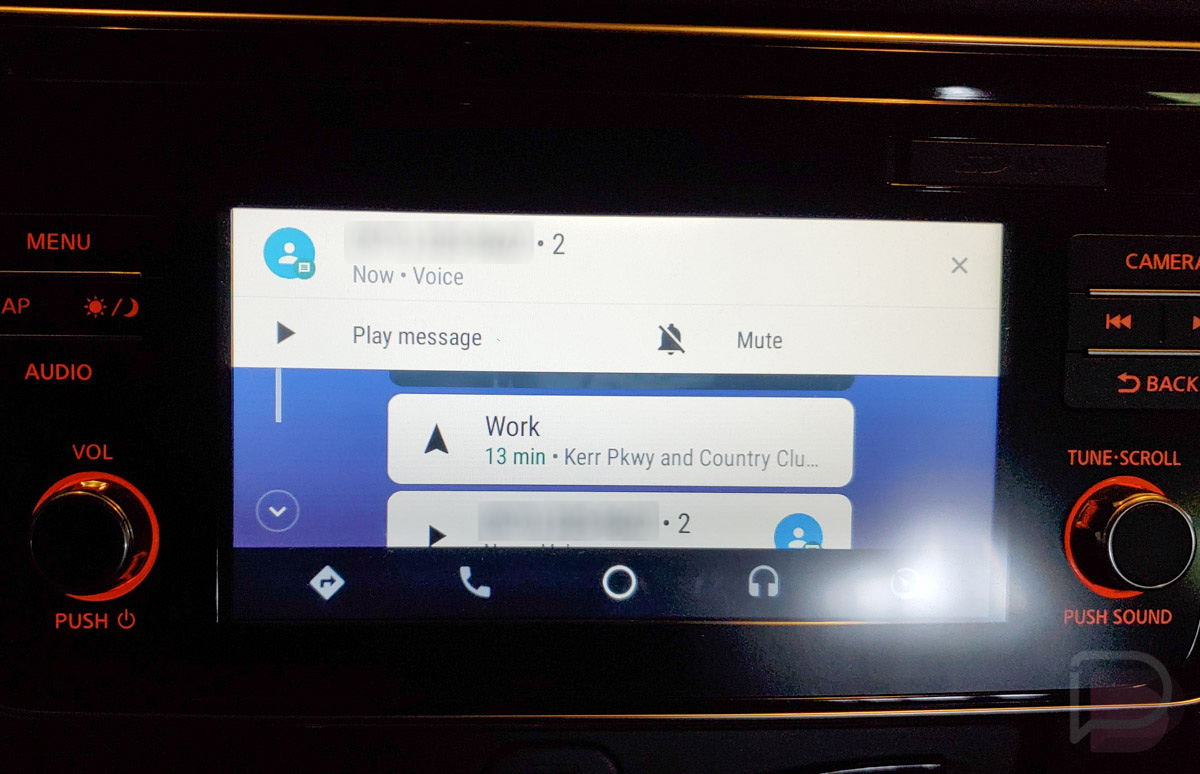
- Incoming text messages trigger a silent visual banner at the top of your car's display screen, hiding full text content to minimize driver distraction.
- A voice prompt or tap on the notification banner causes Android Auto to read the message aloud through your car's speaker system.
- After reading, the system asks if you wish to reply. You can dictate a message hands-free, confirm the transcribed text verbally, and send it without looking at a screen.
To customize message behavior inside Android Auto:
- Open Settings on your phone > Connected devices > Android Auto.
- Under the Notifications section, toggle Play conversational chime and Show first line of received messages according to your privacy and safety preferences.
Customizing Speech Settings: Engine, Speed, and Pitch
You can adjust how the voice sounds when your device reads text messages aloud. Android lets you customize speech rate, pitch, language dialects, and the underlying text-to-speech engine.
Changing Primary Text-to-Speech Settings
- Open your phone's Settings app.
- Navigate to System > Languages & input (or General management on Samsung devices).
- Tap Text-to-speech output.
- Adjust the Speech rate slider left (slower) or right (faster) based on your listening comprehension preference.
- Adjust the Pitch slider to make the synthesized voice deeper or higher.
- Tap Play to listen to an audio sample of your modifications.
Selecting Engines and Offline Voice Packs
By default, most non-Samsung phones use Speech Services by Google. You can install alternative voices or download offline languages to ensure text-to-speech functions without an active cellular data connection:
- In the Text-to-speech output menu, tap the gear icon next to Preferred engine.
- Select Install voice data.
- Choose your native language and preferred dialect (for example, English (United States) or English (United Kingdom)).
- Download the high-quality voice pack. Offline voice packages consume local storage (typically 20 MB to 100 MB) but prevent delays during weak cellular connectivity.
Method Comparison: Android Text-to-Speech Options
The following table summarizes the primary ways to make an Android phone speak text messages, comparing activation methods, offline capabilities, and ideal use cases.
| Method | Activation Mechanism | Data Connection Required? | Hands-Free Operation | Primary Use Case |
|---|---|---|---|---|
| Google Assistant | Voice command ("Hey Google") | Yes (for initial request parsing) | Fully hands-free | Driving, cooking, or multithreading household tasks |
| Select to Speak | On-screen button / Gesture | No (if offline TTS pack installed) | Requires touch | Reading long messages or specific text sections on-demand |
| TalkBack | System-wide accessibility mode | No (if offline TTS pack installed) | Touch-gesture based | Visual impairment and full blind navigation |
| Spoken Earbud Alerts | Automatic on incoming SMS | Variable by device app | Fully hands-free | Commuting, running, working in open offices |
| Android Auto | Vehicle steering wheel button / Touch | Yes (for Assistant processing) | Fully hands-free | Safe vehicle operation during transit |
Troubleshooting Common Text-to-Speech Issues
If your Android device fails to speak text messages aloud, check these common fixes for typical system configuration issues.
1. Google Assistant Says "You Have New Messages, But First You Need to Allow..."
This error occurs when notification access is blocked at the system level for Google services.
- Fix: Go to Settings > Apps > Special app access > Notification access. Ensure the toggle switch next to Google is set to Enabled. Also, verify under Settings > Lock screen that notification content is set to "Show all notifications" rather than "Hide sensitive content."
2. Audio is Silent or Distorted During Readout
If text-to-speech triggers visually on screen (such as showing the Google Assistant wave animation) but produces no sound:
- Fix: Check your device media volume. Android separates notification volume, call volume, and media volume. Speech readout operates on the Media volume stream. Press your physical volume up key, tap the three dots to expand volume sliders, and increase the Media level.
3. Text-to-Speech Cuts Off or Skips Words
This issue frequently stems from corrupted local cache files within the speech engine after a system update.
- Fix: Go to Settings > Apps > See all apps > Speech Services by Google. Tap Storage & cache, then select Clear Cache. Restart your device to force the OS to rebuild its speech synthesis buffers.
Frequently Asked Questions
Can Android read text messages aloud automatically when I receive them?
Yes. You can read incoming messages automatically by using Bluetooth headphone spoken notifications, connecting to Android Auto, or configuring third-party automation apps like Tasker or ReadItToMe. Native stock Android without accessories requires an Assistant trigger command or screen reader interaction to initiate playback.
Will Google Assistant read messages from third-party apps like WhatsApp or Signal?
Yes, Google Assistant can read messages from third-party messaging services. Use specific voice commands such as "Hey Google, read my WhatsApp messages" or grant notification reading access to your Assistant app so it can pull in messages from non-SMS platforms.
Does text-to-speech work without an active internet connection?
Yes, provided you have downloaded an offline language pack for your default Text-to-Speech engine. While Google Assistant requires internet connectivity to parse voice requests, accessibility features like Select to Speak process speech synthesis locally using downloaded voice files.
Why does my phone read contact phone numbers instead of contact names?
If your phone reads out digits instead of names, your messaging app or Google Assistant lacks permission to access your address book. Navigate to Settings > Apps > Google (and your SMS app) > Permissions, and set Contacts permission to Allow.
Is private message content read aloud if the screen is locked?
By default, Android protects personal data on locked screens. If Google Assistant refuses to read messages while locked, open Settings > Google Assistant, tap Lock Screen, and switch Assistant responses on lock screen to On. Be aware that anyone near your device can trigger playback if this setting is enabled.
Recommendations for Everyday Use
To get the best experience from Android's text-to-speech features, set up your device based on how you plan to use it:
- For Daily Drivers: Train your Voice Match model under Google Assistant settings. Keep a secondary Bluetooth earbud connected during commutes so incoming messages read aloud without pulling your phone from your pocket.
- For Privacy-Conscious Users: Avoid enabling lock-screen voice responses. Instead, rely on Select to Speak or wear encrypted Bluetooth earbuds that require biometric authentication before announcing text notifications.
- For Low-Connectivity Environments: Open Settings > Text-to-speech output, tap the engine gear icon, and download your primary language's offline voice package to ensure reliable playback anywhere.