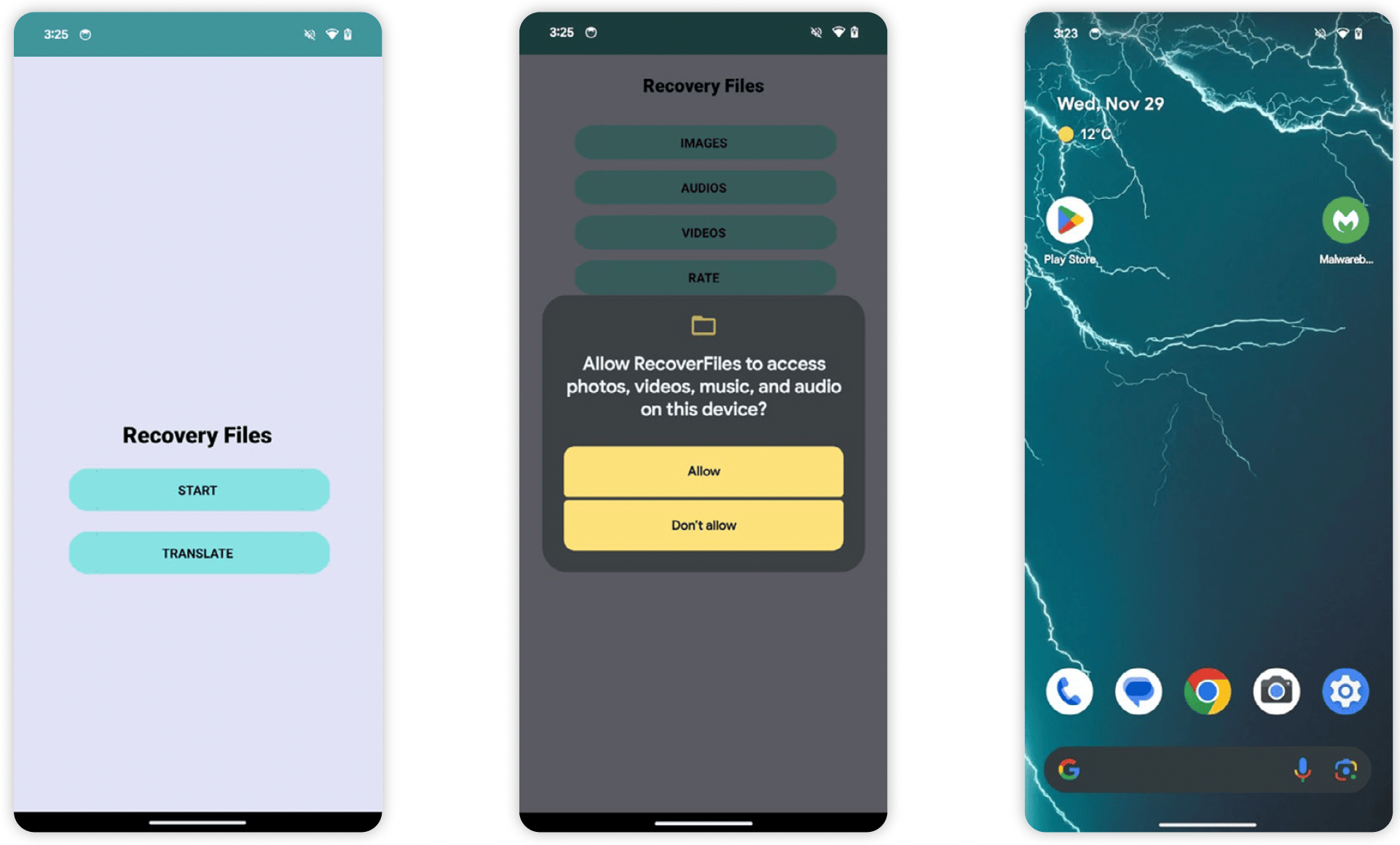
An Android trojan is malicious software disguised as a legitimate application that tricks users into downloading and installing it on an Android device. Once active, these trojans can steal sensitive financial information, monitor user keystrokes, intercept two-factor authentication codes, or remotely control the infected phone or tablet.
What Is an Android Trojan?
In mobile security, an Android trojan derives its name from the classical Trojan Horse. Unlike computer worms, trojans do not self-replicate or spread independently across networks. Instead, they rely on social engineering, deception, and deceptive packaging to convince users to install them manually.
Once executed, an Android trojan operates behind the scenes while the user interacts with a decoy app—such as a fake utility app, a free game, a PDF scanner, or a battery optimizer. The threat actor behind the trojan leverages Android's open application delivery ecosystem and system permissions to establish unauthorized control over the host device.
Android trojans represent one of the most widespread malware threats facing mobile operating systems. Because Android powers billions of devices globally and permits application installation from secondary third-party markets (a process known as sideloading), threat actors continuously refine their trojan delivery frameworks to bypass security protections like Google Play Protect.
Technical Mechanics: How Android Trojans Infect and Operate
To understand how to defeat Android trojans, it is necessary to examine how they gain access to a system, elevate privileges, and communicate with external servers.
| Typical Trojan Lifecycle | Details |
|---|---|
| 1. Delivery | Masquerades as legitimate APK (app store or third party). |
| 2. Installation | User installs APK and grants initial system permissions. |
| 3. Staging/Dropper | Connects to Command & Control (C2) server to fetch payload. |
| 4. Privilege Abuse | Requests Accessibility Services or Device Admin privileges. |
| 5. Execution | Intercepts SMS, deploys overlay screens, or logs keys. |
| 6. Exfiltration | Sends stolen credentials, 2FA codes, or media to C2 server. |
1. Delivery Vectors and Droppers
Trojans enter Android devices through several primary avenues:
- Third-Party App Stores and Sideloading: Unregulated repositories often lack rigorous code audits, allowing malicious Android Package (APK) files to masquerade as popular cracked games or paid applications.
- Malicious Droppers on Google Play: Threat actors bypass official app store review mechanisms by uploading a benign application (a "dropper") that contains no malicious code during inspection. Once installed on a victim's device, the app downloads the actual trojan payload from an external server via an app update or hidden download channel.
- Malvertising and Smishing: Malicious online advertisements and text messages (SMS phishing or "smishing") trick users into downloading fake system updates or urgent banking security tools directly from malicious websites.
2. Privilege Escalation and Accessibility Service Abuse
Modern Android operating systems enforce strict sandboxing, isolating each app's processes and data from others. To bypass these limitations, Android trojans heavily exploit Android Accessibility Services.
Originally created to help users with visual or physical impairments navigate their devices, Accessibility Services allow an application to interact directly with the user interface, read text displayed on screen, auto-click buttons, and grant permissions dynamically.
When a trojan tricks a user into enabling Accessibility Services, it gains administrative-like capabilities without needing traditional "root" access. The trojan can then automatically grant itself additional permissions, suppress system notifications, click through security warnings, and read sensitive data across all installed applications.
3. Overlay Attacks and Keystroke Logging
One of the most dangerous capabilities of mobile banking trojans is the overlay attack. Using the system permission to draw over other applications (SYSTEM_ALERT_WINDOW), the trojan detects when a user opens a targeted app, such as a mobile banking app, a cryptocurrency wallet, or a social media platform.
The trojan immediately launches a fake, pixel-perfect login screen over the real application. When the user enters their credentials, PIN, or credit card details, the information is captured directly by the malware rather than the legitimate financial app. Combined with automated keylogging, these overlays allow attackers to harvest full credentials in real time.
4. Intercepting Two-Factor Authentication (2FA)
Many Android trojans specifically target One-Time Passwords (OTPs) sent via SMS or generated by authenticator apps. By requesting permissions to read SMS messages (RECEIVE_SMS and READ_SMS) or abusing Accessibility Services to capture screen contents, the malware extracts login verification codes and immediately transmits them to the attacker’s Command and Control (C2) server, completely neutralizing two-factor authentication protections.
Common Types of Android Trojans
Mobile malware developers build specialized trojans designed for distinct operational objectives. Identifying the specific variant helps in understanding the risks to personal data and device integrity.
| Trojan Type | Primary Objective | Key Mechanisms Used | Risk Level |
|---|---|---|---|
| Banking Trojans | Financial theft, account takeover | HTML overlay screens, SMS interception, keylogging | Critical |
| Remote Access Trojans (RATs) | Complete device surveillance, data theft | Screen streaming, mic/camera access, file system reading | Critical |
| Dropper Trojans | Payload delivery, bypassing app store controls | Staged dynamic code loading, disguised utility apps | High |
| SMS & Premium Subscription Trojans | Financial fraud via premium billing | Background SMS sending, direct carrier billing abuse | Medium–High |
| Spyware Trojans | Intelligence gathering, stalking | Location tracking, contact list exfiltration, audio recording | High |
Banking Trojans
Banking trojans are built specifically for monetary extraction. Prominent families such as Anatsa, Xenomorph, and Alien continuously evolve to bypass modern banking security controls. Beyond overlay attacks, contemporary banking trojans include Automated Transfer System (ATS) frameworks. ATS capabilities allow the malware to manipulate transactions directly within a legitimate banking app—modifying account numbers and transfer amounts in the background without user intervention.
Remote Access Trojans (RATs)
Mobile RATs—such as SpyNote, CraxRAT, and Hydra—provide remote attackers with an administrative control panel for the victim’s phone. A RAT can silently record audio using the phone's microphone, capture photos from the front and rear cameras, retrieve GPS location coordinates, extract WhatsApp and Telegram message databases, and upload personal photos and documents directly to a command server.
Dropper Trojans
Droppers act as initial infection vectors. They are designed to look like harmless utility software—such as a QR code reader, flashlight, or file manager—and often function as advertised to build trust. However, once established on the device, the dropper fetches a payload containing a banking trojan or RAT, prompting the user to install a "required plugin" or system update that executes the real attack.
SMS and Subscription Trojans
SMS trojans (often associated with malware families like Joker or Hydra) specialize in covert monetization. These trojans silently send SMS messages to premium-rate numbers owned by the attacker or subscribe the victim to paid direct-carrier billing services. Victims usually discover the infection only after receiving a significantly inflated mobile phone bill.
Indicators of Compromise: How to Spot an Android Trojan
Because trojans prioritize secrecy to maximize data theft, they frequently attempt to run hidden processes. However, their background activities leave distinct digital footprints and operational anomalies on the device.
1. Rapid Battery Drain and Thermal Spikes
Trojans constantly communicate with C2 servers, record screen activity, log keystrokes, and run background scripts. If your phone experiences sudden battery degradation or becomes uncomfortably hot while idling, background malicious activity may be occurring.
2. Excessive Mobile Data Consumption
Exfiltrating sensitive files, streaming live screen contents, or downloading secondary malware payloads requires significant network bandwidth. Check your device's cellular and Wi-Fi data usage logs located under Settings > Network & internet > Data usage. Look for unfamiliar apps that consume high volumes of background data.
3. Unexpected System Overlay Prompts
If an app displays persistent pop-ups, requests approval for Accessibility Services repeatedly, or asks for permissions unrelated to its function (e.g., a flashlight app demanding permission to read SMS messages), it is a major warning sign of a trojan installation.
4. Unrecognized Device Administrator Apps
Trojan developers often request Device Administrator privileges to prevent users from uninstalling the application. If an app cannot be deleted through the standard menu or hides its app icon entirely from the home screen, check the active administration list under Settings > Security > Device admin apps.
5. Suspicious Financial Activity or Unauthorized Messages
The clearest indicator of an active trojan is unrecognized charges on your credit card, unauthorized bank transfers, or text messages sent from your phone that you did not compose.
Step-by-Step Guide: How to Detect and Remove an Android Trojan
If you suspect your device has been compromised by an Android trojan, follow this practical removal procedure to isolate and eliminate the threat.
- Step 1: Disconnect Network Access (Enable Airplane Mode)
- Step 2: Reboot Device into Safe Mode (Disables 3rd-Party Scripts)
- Step 3: Revoke Device Administrator & Accessibility Permissions
- Step 4: Uninstall the Malicious Application
- Step 5: Run a Mobile Antivirus Scan
- Step 6: Post-Remediation (Change Passwords, Monitor Accounts)
Step 1: Isolate the Device
Immediately isolate the phone to prevent the trojan from sending stolen data to its C2 server or receiving new commands.
- Turn on Airplane Mode to disable all cellular and Wi-Fi connections.
- Disconnect from Bluetooth networks and paired devices.
Step 2: Reboot into Safe Mode
Safe Mode prevents all third-party apps from running automatically at startup, executing only core operating system processes. This stops the trojan from running background scripts while you remove it.
- For most Android devices: Press and hold the Power Button. Touch and hold the Power Off option on the screen until the "Reboot to Safe Mode" prompt appears, then tap OK.
- Alternative method: Turn off the phone. Press the Power Button to turn it on, then immediately press and hold the Volume Down button as the boot animation plays until "Safe Mode" appears at the bottom of the screen.
Step 3: Revoke Device Administrator Privileges
Many trojans lock the "Uninstall" button by establishing themselves as Device Administrators. You must remove this permission before uninstalling the app.
- Open Settings.
- Navigate to Security & privacy > More security settings > Device admin apps (menu paths may vary slightly depending on your manufacturer UI, such as Samsung One UI or Pixel Android).
- Review the list for unknown or suspicious apps.
- Select the suspicious application and tap Deactivate or Turn off this device admin app.
Step 4: Revoke Accessibility Services
Ensure the malware cannot automatically re-grant itself privileges.
- Go to Settings > Accessibility.
- Scroll to Downloaded apps or Installed services.
- Toggle off permissions for any unfamiliar apps.
Step 5: Uninstall the Malicious App
- Go to Settings > Apps > See all apps.
- Look for the application associated with the infection, apps installed right before the issues began, or apps with blank names and icons.
- Select the app and tap Clear Data and Clear Cache under Storage & cache.
- Tap Uninstall.
Step 6: Run a Mobile Antivirus Scan
After manual removal, reconnect to Wi-Fi, open the official Google Play Store, download a reputable mobile security tool (such as Malwarebytes, Bitdefender, or Sophos Intercept X), and execute a full system scan to ensure no secondary payloads remain in system storage.
Step 7: Post-Infection Remediation
If the trojan had access to your device, consider all credentials used on that phone compromised:
- Change passwords for all online accounts (banking, email, social media) from a separate, clean device.
- Revoke active sessions across all web services.
- Notify your bank to monitor or block cards if a banking trojan was detected.
- If the malware cannot be removed through Safe Mode, perform a complete Factory Reset via Settings > System > Reset options > Erase all data (factory reset).
Defensive Strategies: Protecting Android Devices Against Trojans
Securing an Android system requires combining built-in operating system security features with safe downloading habits.
Rely on Official Application Sources
Avoid downloading .apk files directly from web browsers, forums, or alternative marketplaces. Stick strictly to the Google Play Store or recognized enterprise app repositories. While droppers occasionally breach official stores, the probability of encountering malware is exponentially higher on unverified third-party platforms.
Maintain Device and App Updates
Google routinely releases monthly security patches for Android that address privilege escalation vulnerabilities used by trojans. Ensure automatic system updates are enabled in Settings > System > System update.
Verify Google Play Protect Status
Google Play Protect automatically scans apps on your device for harmful behavior before and after installation.
- Open the Google Play Store app.
- Tap your profile icon at the top right.
- Select Play Protect.
- Ensure the status displays active scanning and tap Scan to run a manual check.
- Google Play Protect System
- On-Device Real-Time Scanning
- Verifies APK installation
- Monitors behavioral anomalies
- Revokes dangerous permissions
- Cloud Threat Database
- Compares app hashes
- Identifies known droppers
- Blocks malicious URLs
- On-Device Real-Time Scanning
Audit App Permissions Periodically
Never grant permissions that exceed an app's functional requirements. A file manager does not need access to your phone call history or SMS logs.
- Regularly navigate to Settings > Privacy > Permission manager to review which apps have access to sensitive capabilities like your Camera, Microphone, Location, and SMS.
- Pay extra attention to apps with permission to Install unknown apps or access Accessibility. Disable these permissions for all non-essential applications.
Frequently Asked Questions
Can an Android trojan survive a factory reset?
In almost all standard cases, a factory reset completely wipes the user partition and removes the trojan. However, extremely advanced malware that gains root access could theoretically modify the underlying system partition (/system) to persist after a reset. For non-rooted devices running modern Android versions, a complete factory reset remains a reliable method to clean an infected device.
What is the difference between an Android trojan and an Android virus?
Technically, a virus infects existing files and automatically spreads from system to system by attaching itself to other code. True mobile viruses are extremely rare due to Android's app isolation model. A trojan, on the other hand, relies on social engineering to trick the user into installing a malicious standalone package under false pretenses.
How do trojan apps bypass Google Play Store security checks?
Threat actors use "dropper" frameworks. They submit a completely clean application for review that passes automated and manual scans. Once the app is published and installed by users, the attacker uses an internal update mechanism or an encrypted command channel to download the malicious payload from a remote server, bypassing initial static analysis.
Can an Android trojan steal passwords saved in Google Chrome or Password Managers?
If a trojan successfully tricks the user into granting Accessibility Services permissions, it can read text on the screen regardless of the app displaying it. This means it can potentially capture plain-text passwords as they are auto-filled or displayed on screen. However, modern password managers utilize secure keyboard APIs and overlay prevention flags (FLAG_SECURE) to block keyloggers and unauthorized screen reads.
Does turning off "Install from Unknown Sources" completely block trojans?
Disabling sideloading ("Install unknown apps") significantly reduces your risk profile by blocking direct installation of unverified APK files from browsers, messaging apps, and file managers. However, it does not fully guarantee protection against droppers that manage to sneak into official app stores before detection.
Final Guidance and Security Checklist
Defending against Android trojans requires maintaining strict operational security habits alongside technical system controls. To keep your mobile environment secure, implement this baseline checklist:
- Keep Sideloading Disabled: Block the installation of unverified software from outside official app repositories.
- Audit Accessibility Access: Treat any prompt requesting Accessibility permissions with extreme caution. Only grant it to trusted assistive technologies.
- Review App Permissions: Routinely check the Permission Manager and remove unnecessary access to SMS, Contacts, and Device Admin features.
- Keep Play Protect Enabled: Ensure real-time app scanning remains active through Google Play Protect.
- Act Quickly Upon Infection: If you observe indicators of compromise, immediately disconnect from network access, enter Safe Mode, revoke elevated privileges, and remove the offending software.
For detailed security advisories, vulnerability tracking, and safe device management guides, reference official resources provided by the Cybersecurity and Infrastructure Security Agency (CISA) and Google's Android Security Center.