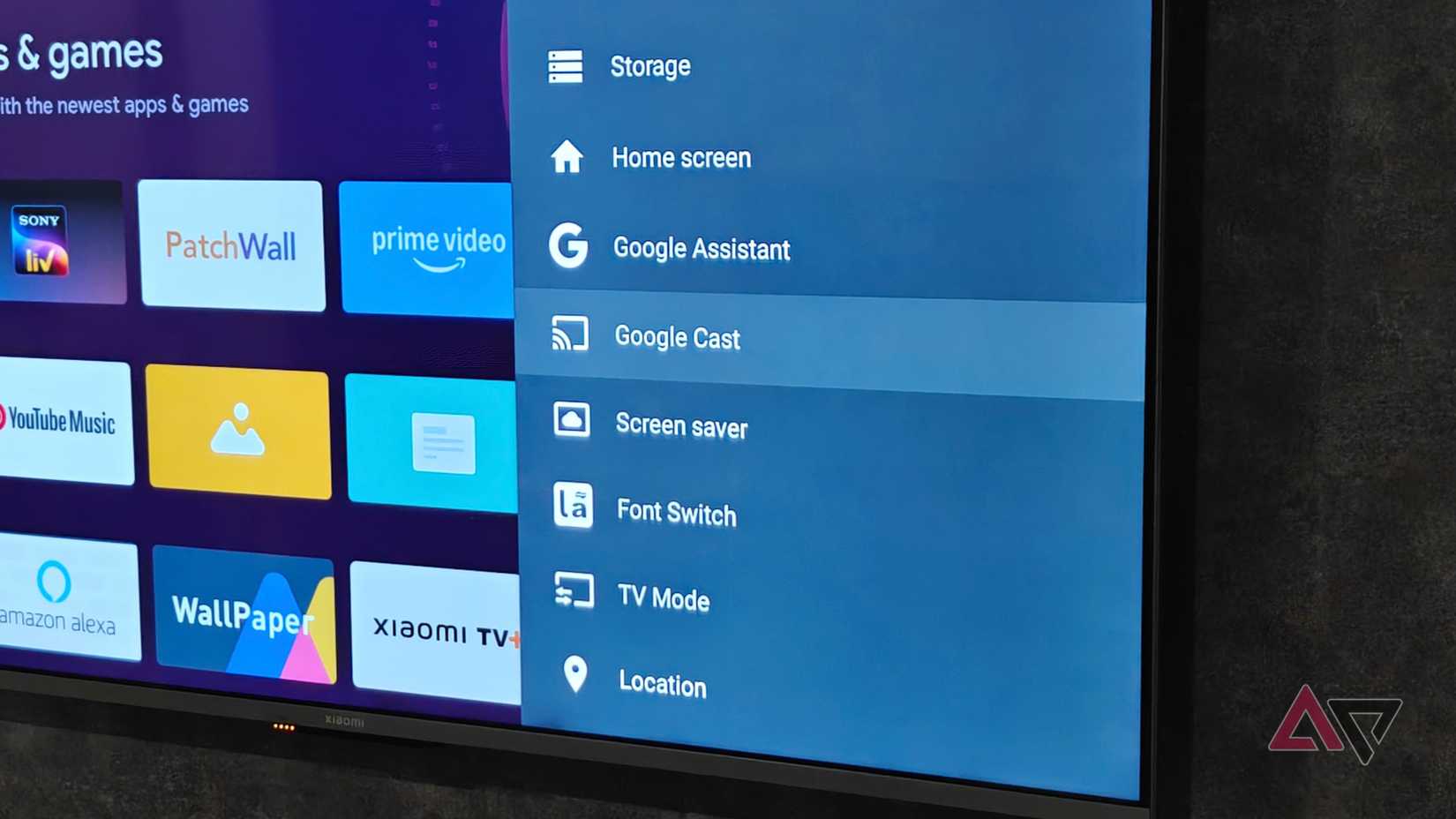
Connecting an Android smartphone to a television screen seems like a seamless way to watch lectures, stream movies, or present slides in a university room. However, most college students actively skip wireless screen mirroring from their phones. This decision stems from campus Wi-Fi security restrictions, privacy risks in shared dorms, poor aspect ratio compatibility, heavy battery drain, and the superior functionality of laptop connections or native smart TV applications.
- Why Students Skip Android-to-TV Casting:
- Campus Wi-Fi Barriers: AP Isolation & 802.1X block mDNS protocol
- Aspect Ratio Distortion: 19.5:9 phone screens pillarbox on 16:9 TV
- Privacy Risks: Private texts display on shared screens
- Performance Drain: Severe battery drain & thermal throttling
- Preferred Alternatives: Laptop HDMI, Native Smart TV Apps, Travel Router
Technical Barriers of Campus Wi-Fi Networks
The primary technical hurdle preventing students from casting their Android phones to a TV is the architecture of university computer networks. Unlike residential Wi-Fi networks where all devices communicate freely on a local area network (LAN), campus networks enforce strict security policies that inherently break consumer casting protocols.
802.1X Enterprise Security and AP Isolation
Most university residential halls utilize WPA2/WPA3-Enterprise networks secured via 802.1X authentication. These networks require individual user credentials (such as a campus username and password) rather than a simple shared passphrase.
Wireless casting protocols—including Google Cast, Wi-Fi Direct, Miracast, and DLNA—rely heavily on multicast discovery protocols like Multicast DNS (mDNS) and Simple Service Discovery Protocol (SSDP). On a home router, mDNS allows a smartphone to broadcast a query across the local network to locate a nearby Chromecast, Android TV, or Roku streaming stick.
On campus networks, network administrators intentionally enable Access Point (AP) Isolation (sometimes called Client Isolation). AP Isolation prevents devices connected to the same wireless access point from communicating directly with one another. This configuration mitigates severe security threats, such as local network sniffing, unauthorized file sharing, and malware propagation across tens of thousands of student endpoints.
Home Network Architecture (Casting Supported):
- Android Phone <-> Home Router (mDNS & Peer Communication Allowed) <-> Smart TV / Chromecast
Campus Enterprise Network (Casting Blocked):
- Android Phone -> Access Point <- Smart TV / Chromecast
- AP Isolation blocks peer-to-peer communication & mDNS
- Android Phone -> Access Point <- Smart TV / Chromecast
Because AP Isolation blocks local peer-to-peer traffic, an Android phone cannot discover a TV on the network, rendering standard wireless casting completely non-functional without specialized enterprise software or custom hardware workarounds.
Captive Portals and Device Onboarding Headaches
Even if a student attempts to connect a smart TV or streaming media player to the university Wi-Fi, they run into the issue of captive portals. Most smart TVs, streaming sticks, and wireless display adapters lack built-in web browsers capable of processing captive portal logins, which require users to accept terms of service or enter login credentials on a web page.
While some universities offer a headless device registration portal where students can manually register a device's Media Access Control (MAC) address, the underlying AP isolation still prevents the phone from sending video streams to the registered TV. Consequently, setting up wireless casting demands far more technical effort than most students are willing to expend. For official guidelines on network casting requirements, refer to Google Chromecast Network Help.
Ergonomics and Academic Usability: Why Mobile Mirroring Fails
Beyond network security hurdles, wireless screen mirroring creates significant usability bottlenecks during study sessions, group project work, and entertainment.
The Aspect Ratio Mismatch (19.5:9 vs. 16:9)
Modern Android smartphones feature tall, narrow displays with aspect ratios ranging from 19:9 to 20:9 (commonly 19.5:9). Television screens, computer monitors, and dorm-provided displays adhere strictly to the standard 16:9 aspect ratio.
When a student mirrors an Android screen to a television, the display driver scales the phone's native resolution to fit the target screen. This results in heavy vertical black bars—known as pillarboxing—on the left and right sides of the TV.
- Standard TV Screen (16:9 Ratio):
- Left Side: Black Bars (Pillarboxing)
- Center: Android Smartphone Display Area (19.5:9 Ratio)
- Right Side: Black Bars (Pillarboxing)
While rotating the smartphone into landscape mode expands video content, non-video apps, study guides, PDF readers, and browser tabs often force a portrait interface or display distorted layouts. This mismatch wastes up to 40% of the TV screen's physical real estate, negating the advantage of projecting onto a larger display.
Loss of Multitasking and Mobile Device Lockout
Standard wireless screen mirroring simply clones the mobile device's screen. Unlike desktop operating systems or desktop-mode interfaces, basic mirroring prevents the student from using their phone for other tasks while casting.
- Interrupted Workflows: If a student projects a lecture video or digital textbook from their phone onto a TV, opening a messaging app, checking an email, or taking notes on the phone immediately displays that private action on the TV screen.
- Screen Lock Limitations: Locking the smartphone display to save power or prevent accidental touches typically terminates the active screen mirroring session, turning the television screen black.
Privacy and Social Dynamics in Dormitories
Living in shared dorm rooms or communal student housing introduces unique social factors that discourage casting personal smartphones to shared screens.
- Privacy Impact of Screen Mirroring:
- Incoming Call Notifications: Exposes Caller ID to Roommates
- Personal Messaging Alerts: Previews Text Content publicly
- Background App Switching: Reveals Bank Balances & Notes
- Push Notifications: Interrupts Video Playback
Unintended Notification Broadcasts
When mirroring an entire Android screen, every system notification, incoming text message, sensitive email preview, calendar reminder, and messaging pop-up appears instantaneously on the television screen. In a room shared with roommates, study group members, or guests, this poses a major privacy concern.
Although Android offers settings to hide sensitive notification content on lock screens, active screen mirroring bypasses these protections because the phone is unlocked and active during use.
Accidental Casting to Neighboring Rooms
In dense residence halls, smart TVs and streaming receivers connected to unmanaged networks frequently broadcast their availability to nearby devices. Without strict network authentication, an Android user tapping the "Cast" icon inside YouTube or Spotify can accidentally stream content to a neighbor's TV down the hall, leading to awkward interruptions and privacy breaches.
Hardware Limitations: Battery Life, Thermal Throttling, and USB Specs
Wireless screen mirroring places extraordinary demands on smartphone internal components, leading to rapid performance degradation during extended study or viewing sessions.
Thermal Throttling and Rapid Battery Depletion
Real-time screen mirroring requires the Android System-on-Chip (SoC) to continuously capture the frame buffer, compress the video signal via hardware encoders (typically using H.264 or HEVC codecs), and transmit high-bandwidth wireless data streams over Wi-Fi.
- Android SoC Screen Mirroring Workload:
- Capture Frame Buffer
- Hardware Video Encoder
- Wi-Fi Radio Output
- High Thermal Load generated
- Thermal Throttling initiated
- Frame Drops & Battery Drain experienced
This sustained computational workload generates severe internal heat. To protect internal silicon from heat damage, the phone’s operating system initiates thermal throttling, intentionally slowing down CPU and GPU clock speeds. This creates visible performance issues:
- Frame Rate Drops: Smooth 60fps video drops to stuttering 15–20fps output.
- Audio-Visual Desync: Audio begins lagging behind video playback by several seconds.
- Extreme Battery Consumption: Battery percentages can drop by 25% to 40% per hour of continuous mirroring, requiring the phone to remain tethered to a wall charger.
Omission of USB-C DisplayPort Alt Mode on Budget Handsets
Students seeking a reliable wired alternative (such as a USB-C to HDMI cable) often discover that their Android handset lacks physical display output capability.
Wired display connection requires the smartphone's USB-C port to support DisplayPort Alternate Mode (DP Alt Mode). While flagship devices like the Samsung Galaxy S-series, Google Pixel 8 and newer, and high-end OnePlus models support DP Alt Mode, many mid-range and budget smartphones popular among students omit this physical hardware controller to lower manufacturing costs.
When a student plugs a budget phone into a TV via a USB-C to HDMI adapter, no video signal is output, leading to frustration and driving students away from phone-to-TV setups entirely. For detailed hardware implementation standards, visit the USB Implementers Forum.
What Students Use Instead: Connectivity Matrix
Because mobile-to-TV casting suffers from network restrictions, performance bottlenecks, and hardware limitations, students rely on alternative display setups that offer greater stability, privacy, and productivity.
| Display Method | Setup Complexity | Campus Wi-Fi Compatibility | Aspect Ratio Fit | Multitasking Support | Privacy Protection | Primary Use Case |
|---|---|---|---|---|---|---|
| Android Wireless Mirroring | High (Fails on enterprise AP isolation) | Poor | Poor (19.5:9 Pillarboxed) | None (Screen cloned) | Low (Notifications exposed) | Quick casual media sharing |
| Laptop via HDMI / USB-C | Low (Plug and Play) | Excellent (Direct cable) | Perfect (16:9 Native) | Excellent (Extended Desktop) | High (Private main screen) | Studying, lectures, main streaming |
| Native Smart TV / Dongle Apps | Medium (Requires MAC auth or hotspot) | Fair (With travel router/MAC reg) | Perfect (16:9 Native) | N/A (Dedicated device) | High (Separate credentials) | Long-form movie/TV viewing |
| Android Desktop Mode (Samsung DeX) | Low (Wired) / High (Wireless) | Excellent (Wired connection) | Perfect (16:9 Desktop output) | High (Windowed apps) | High (Phone screen independent) | Desktop replacement productivity |
| Tablet as Secondary Display | Low | Good | Good (4:3 or 16:10) | Good (Sidecar/Second Screen) | High | Portable dual-monitor study |
Deep Dive: Preferred Student Alternatives
1. Laptop-to-TV via Direct HDMI or USB-C DisplayPort
The most prevalent display setup in student accommodations is a physical cable connecting a laptop (Windows, macOS, or ChromeOS) directly to an external TV or monitor.
- Laptop-to-TV Physical Wiring:
- Laptop Screen (Controls, Notes, Chat)
- Physical Connection: HDMI Cable (Display Extended)
- External TV Screen (Lecture Video, Slides, Movie)
- True Multi-Display Extended Desktop: Unlike phone mirroring, laptops treat the external TV as a second independent monitor. A student can keep a lecture video or textbook open in full screen on the TV while keeping their private notes, assignment docs, and chat clients open on their laptop screen.
- Zero Network Dependency: Physical HDMI and DisplayPort connections bypass campus Wi-Fi infrastructure entirely, avoiding login portals, AP isolation, and bandwidth congestion.
- Zero Latency & Full Resolution: Direct wired connections deliver uncompressed 4K or 1080p signals at native 60Hz without compression artifacts or battery drain on the primary device.
2. Dedicated Native Smart TV Apps and Streaming Dongles
For media consumption (such as YouTube, Netflix, Hulu, or Twitch), students prefer using native applications built directly into Smart TVs, Apple TV, Amazon Fire TV, or Roku devices.
By operating media directly on the television's operating system, the smartphone remains completely free for texting, social media, and study tasks. Furthermore, navigating native TV interfaces using a physical remote control or dedicated mobile remote app (operating over Bluetooth or local hotspot) proves far more convenient than managing a mirrored phone interface.
Practical Solutions for Students Who Want Android-to-TV Connectivity
For students who prefer to use their Android handset as their central computing device, several technical workarounds resolve the network and software limitations of standard screen mirroring.
Option A: Deploying a Portable Travel Router
To overcome campus 802.1X enterprise authentication and AP isolation, students can set up a personal Wi-Fi travel router inside their dorm room.
- Campus Wi-Fi Bypass via Travel Router:
- Campus Enterprise Network
- Connects via Wired Ethernet or WISP Wireless Bridge to:
- Portable Travel Router
- Creates Private Local Subnet / Custom SSID for:
- Android Phone
- Smart TV / Chromecast
- Result: Direct mDNS & Wireless Casting Works Fully
- Campus Enterprise Network
- Configuration: Connect the travel router’s WAN port to the dorm room Ethernet jack (or configure it in WISP mode to bridge the campus Wi-Fi).
- Private Subnet Creation: The travel router creates a private, residential-grade local subnet (e.g.,
192.168.8.x) with custom WPA2 Personal encryption. - Local Communication: Because the travel router operates its own internal NAT (Network Address Translation) and local DHCP server without AP isolation, mDNS and UPnP protocols work normally.
- Casting Restored: The Android device and Chromecast/TV can discover each other seamlessly on the private network.
Note: Students should verify their university's Acceptable Use Policy (AUP), as some institutions strictly prohibit unauthorized personal Wi-Fi routers to prevent radio frequency interference.
Option B: Utilizing Advanced Android Desktop Modes (Samsung DeX & Motorola Ready For)
For students owning flagship Android hardware, desktop platforms like Samsung DeX or Motorola Ready For transform basic screen mirroring into a desktop computing experience. For setup details, review the official Samsung DeX Support Guide.
- Samsung DeX / Desktop Mode Setup:
- Smartphone (Acts as Touchpad or Second Screen)
- Connected via USB-C to HDMI Cable
- External TV / Monitor (Displays Full 16:9 Desktop Windowed OS)
- Independent Windowing: When connected to a TV via a USB-C to HDMI cable or adapter, Samsung DeX projects a full desktop interface matching the TV's native 16:9 aspect ratio, complete with a taskbar, resizable application windows, and desktop-class web browsing.
- Privacy Isolation: Incoming notifications, texts, and phone calls remain confined to the phone screen or present discreet pop-ups that do not interrupt the main screen output.
- Peripheral Integration: Bluetooth keyboards and mice can pair directly to the phone, effectively converting an Android device into a complete desktop computer substitute without relying on wireless casting protocols.
Option C: USB-C Hubs with Power Delivery (PD) Pass-Through
To solve thermal throttling and battery depletion issues during wired output, students using supported Android devices should use a multi-port USB-C hub equipped with USB Power Delivery (USB-PD).
- Multi-Port Power Delivery Topology:
- USB-C Wall Charger (45W+) connects to USB-C Hub (PD Input)
- USB-C Hub connects to:
- Android Phone
- USB Mouse / Keyboard
- HDMI Cable leading to TV Screen
Plugging an external power adapter directly into the USB-C hub supplies power to the smartphone while simultaneously delivering a zero-latency video feed to the TV, allowing for uninterrupted study sessions.
Frequently Asked Questions
Why doesn't my Chromecast show up on my college campus Wi-Fi?
College networks use enterprise security (802.1X) and Access Point (AP) Isolation to keep student devices secure. AP Isolation blocks local devices from communicating directly with each other on the network. Because Chromecasts rely on local discovery protocols (mDNS) to connect with your phone, AP Isolation prevents your phone from finding the Chromecast.
Can I use a USB-C to HDMI cable to connect any Android phone to a TV?
No. Your Android phone must support USB-C DisplayPort Alternate Mode (DP Alt Mode) to output video over a cable. While most flagship phones (like Samsung Galaxy S series, Google Pixel 8 series and later, and high-end devices) support this, many budget and mid-range Android phones lack the necessary hardware controller.
How do I stop personal notifications from showing on the TV when screen mirroring?
If you are using standard screen mirroring, open your Android device's Settings, navigate to Do Not Disturb, and turn it on before casting. Alternatively, go to Settings > Notifications and enable options that hide notification content on shared displays. If your device supports a desktop mode like Samsung DeX, using that mode automatically isolates notifications to your phone display.
Will screen mirroring use up my mobile data allowance?
If your phone and smart TV are mirroring over a local Wi-Fi connection, screen mirroring itself does not consume mobile data. However, if you are streaming online video (such as Netflix or YouTube) while connected to mobile data instead of Wi-Fi, that video playback will consume your mobile data plan.
Can I set up my own Wi-Fi router in my dorm room to fix casting issues?
Yes, using a portable Wi-Fi travel router creates a private network without AP isolation, allowing your phone and TV to discover each other. However, you must first check your university's IT policies, as some schools ban personal wireless routers to prevent Wi-Fi channel interference and network security vulnerabilities.
Summary and Practical Recommendations
Most students skip wireless Android-to-TV screen mirroring because enterprise campus Wi-Fi security blocks device discovery, aspect ratio mismatches degrade image quality, and real-time mirroring exposes private notifications while causing heavy battery drain.
Recommended Next Steps for Students
- For Studying & Academic Work: Use a direct HDMI or USB-C cable from a laptop to an external display. This offers a secondary screen, native 16:9 resolution, zero input lag, and complete privacy for notes and personal communications.
- For Streaming Movies & Media: Utilize native smart TV applications or streaming devices registered through your university’s MAC address onboarding portal, keeping your smartphone available for individual use.
- For Desktop Productivity on Android: Verify if your flagship Android phone supports DisplayPort Alt Mode or Samsung DeX. Connect using a USB-C hub with Power Delivery (PD) pass-through and an HDMI cable to transform your phone into a quiet, wired desktop environment.
- For Overcoming Dorm Wi-Fi Restrictions: If enterprise Wi-Fi blocks your smart home devices, consult campus IT policies regarding travel routers or personal access point registration to safely establish a private local subnet.