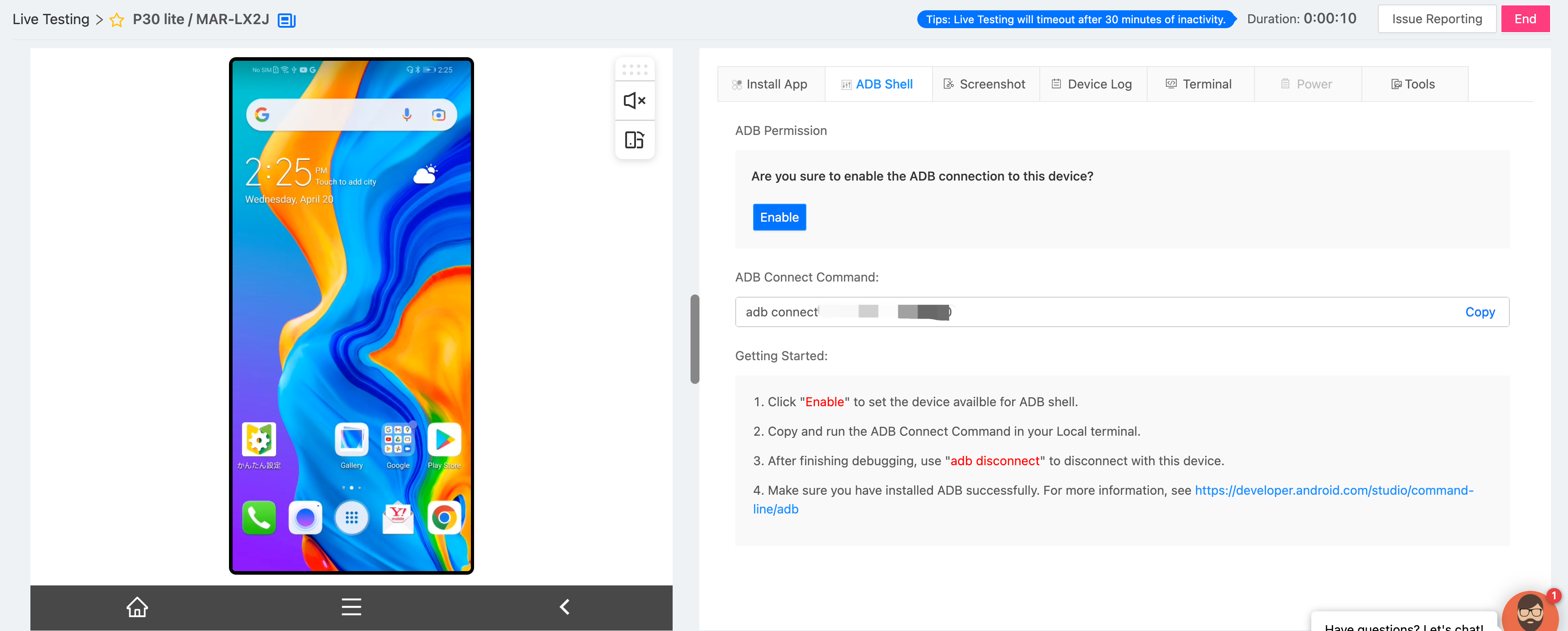
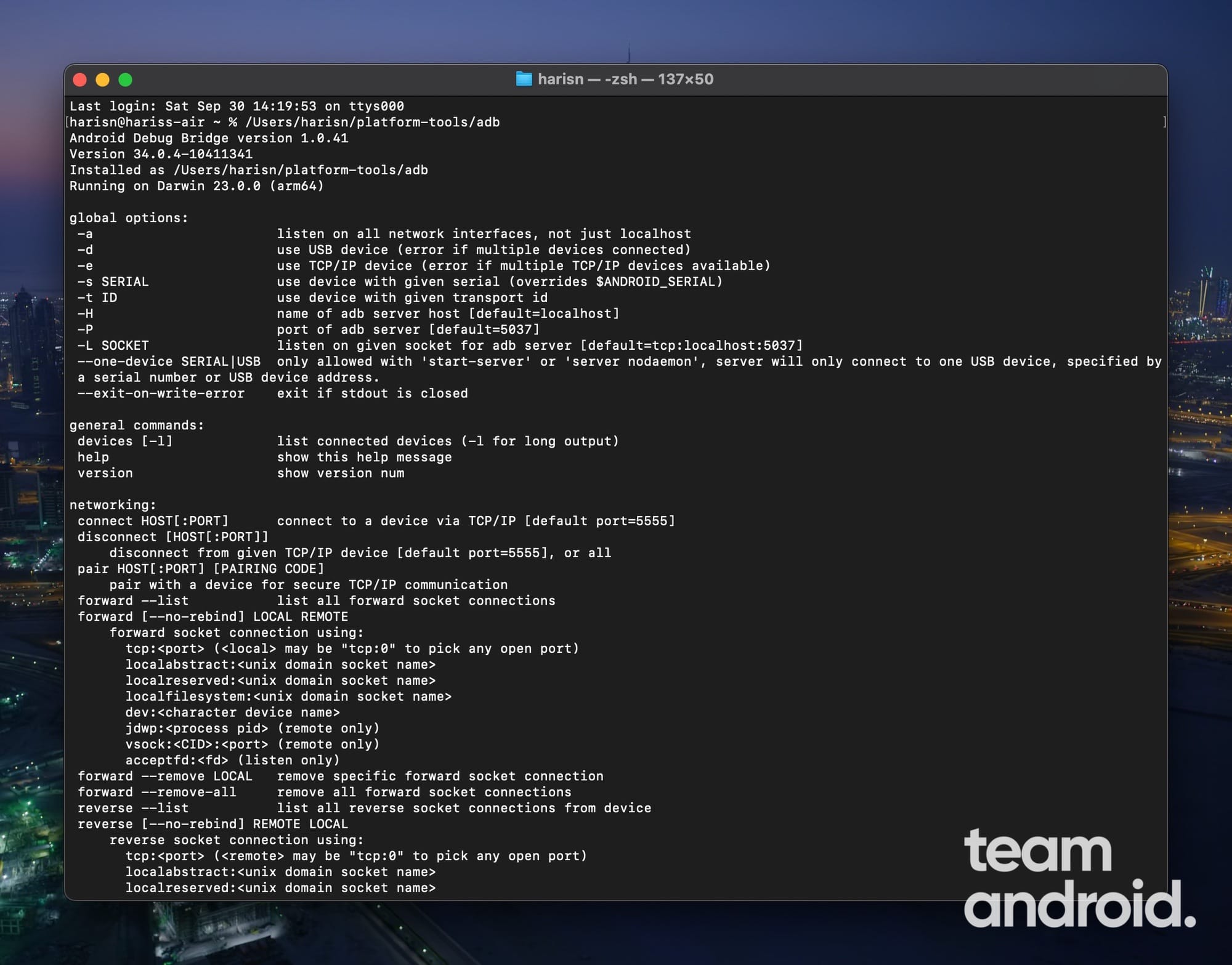
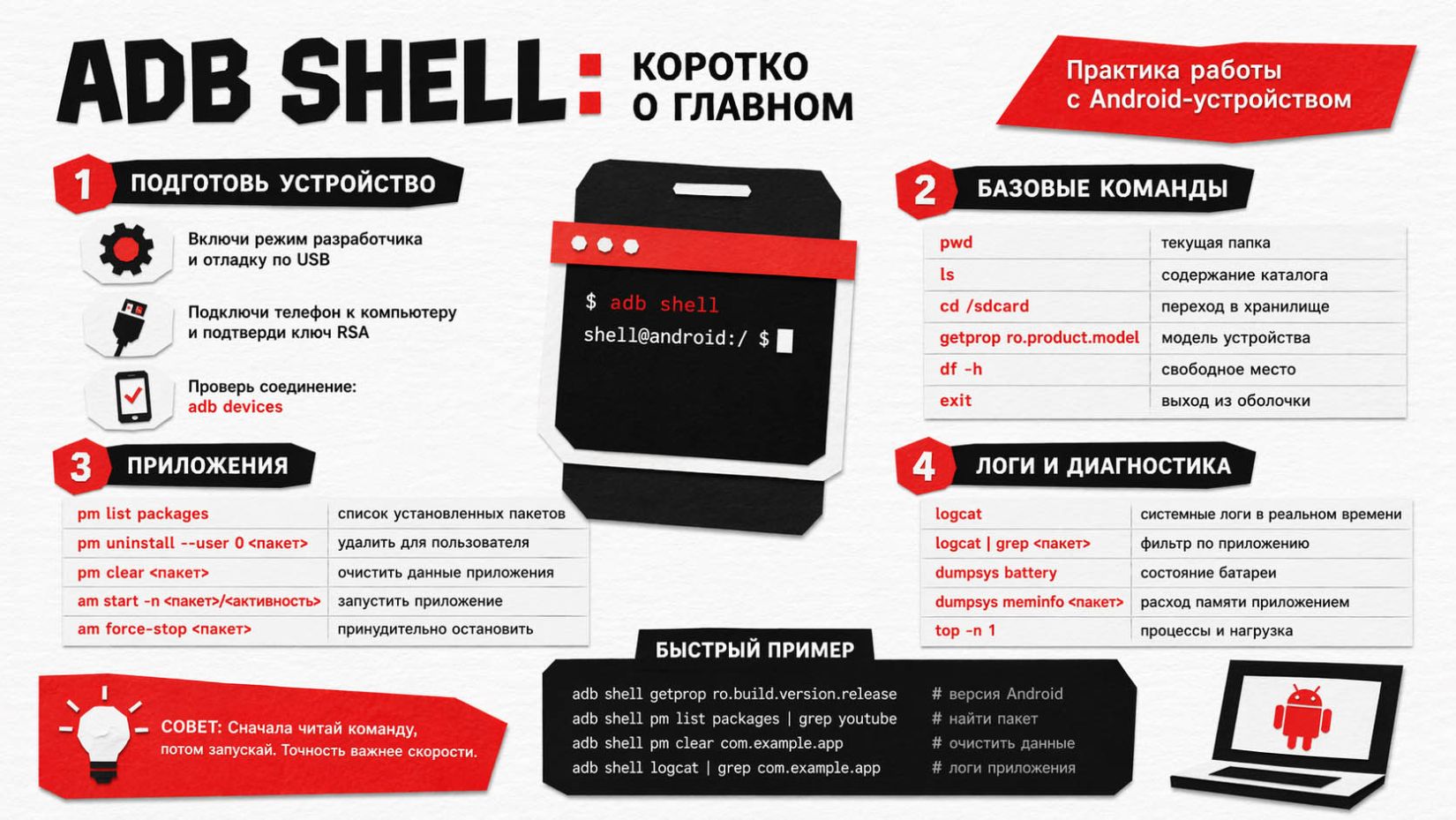
The adb shell command opens an interactive Unix command line interface directly on an Android device's operating system. Powered by the Android Debug Bridge (ADB), it enables developers, system administrators, and power users to execute low-level operating system commands, manage application packages, inspect system services, and modify configuration properties without requiring full system root access.
Understanding the Android Shell and ADB Architecture
The Android Debug Bridge is a versatile command-line tool that facilitates communication between a workstation (host computer) and an Android device, emulator, or embedded hardware instance. ADB operates on a classic client-server model consisting of three core components:
- The ADB Client: A background or foreground utility running on your development computer. Executing any
adbcommand in a terminal invokes the client, which forwards instructions to the background server. - The ADB Server: A background process running on the host machine that manages communication between the client on your host OS and the daemon executing on the target Android hardware.
- The ADB Daemon (
adbd): A background process running directly on the Android device's Unix kernel layer. When you execute anadb shellsession, the host server establishes a connection withadbd, providing access to a local Linux-based shell environment.
Android's kernel is built on Linux, but the user space differs significantly from traditional Linux distributions like Ubuntu or Debian. Instead of GNU core utilities, modern Android relies on Toybox (and historically BSD-derived Toolbox) to provide command-line utilities such as ls, grep, cat, ps, and top.
When invoking adb shell, commands are executed under the security context of the shell user account (POSIX User ID 2000), which possesses broad permissions to debug applications, inspect system performance, and read non-sensitive storage, while remaining restricted from kernel-level modifications reserved for root (UID 0).
Prerequisites and Connection Setup
Before accessing an Android device via adb shell, specific system parameters and developer toggles must be configured on both the target device and the host machine.
Host Workstation Configuration
To issue ADB commands, the Android SDK Platform-Tools package must be installed on your computer. Official platform tools binaries are maintained directly by the Android Open Source Project.
- Download the Platform-Tools zip archive for Windows, macOS, or Linux.
- Extract the archive to a designated system directory (e.g.,
C:\platform-toolsor/usr/local/bin). - Add the extraction path to your host operating system's environment variables (
PATH) so theadbexecutable can be called globally from any command prompt or terminal window.
Enabling Hardware-Side Debugging
To allow the host computer to establish an authenticated socket connection with adbd, prepare the Android target device with these steps:
- Navigate to Settings > About Phone.
- Tap the Build Number seven times consecutively until the system notification confirms that Developer Options have been enabled.
- Return to Settings > System > Developer Options.
- Locate USB Debugging and toggle the switch to the On position.
When connecting the Android device to your computer via USB for the first time, a cryptographic authorization prompt appears on the phone screen displaying the host computer's RSA key fingerprint. Select Always allow from this computer and accept the prompt to authorize the session.
Establishing Connections: Wired vs. Wireless Debugging
ADB supports both physical tethering and local network connections.
- Wired USB Connection: Connect the device via a USB-C or Micro-USB data cable. Verify recognition by entering
adb devicesin your terminal. The output should list your device's serial number followed by the statedevice. - Wireless Debugging (Modern Android): On devices running modern Android releases, physical cables are unnecessary. Ensure both the host machine and Android hardware share the same Wi-Fi network. Enable Wireless Debugging under Developer Options, click Pair device with pairing code, and run
adb pair :on your workstation. Once paired, connect usingadb connect :.
Interactive vs. Non-Interactive ADB Shell Execution
There are two primary modes for invoking commands within the target Android shell interface:
1. Interactive Mode
Entering adb shell without additional arguments establishes a persistent, real-time command session. The terminal prompt changes to a shell character—typically $ for standard shell user access or # if running in an elevated root context. In this mode, subsequent Linux and Android commands execute directly on the target hardware until you enter exit.
2. Non-Interactive Mode
To run a single command and return immediately to your host machine's command line, append the command directly to the binary invocation: adb shell . For example, running adb shell getprop ro.build.version.release queries the OS release version and returns the string output directly to your local workstation terminal, maintaining script automation continuity.
Core Command Categories in ADB Shell
The Android shell provides specialized commands designed specifically for platform maintenance, application lifecycle evaluation, process management, and OS telemetry.
- ADB SHELL LAYER
- Package Manager (
pm) - Activity Manager (
am) - Diagnostic Telemetry (
dumpsys,logcat) - Low-Level Linux & Native Utilities (
Toybox:ps,top,input,setprop)
- Package Manager (
Package Manager (pm)
The Package Manager daemon tool interacts with installed Application Packages (APKs), facilitating package enumeration, permission management, component toggling, and installation lifecycle inspections.
- List Installed Packages: Display all application package identifiers installed on the system using
adb shell pm list packages. To filter by specific criteria, use options such as-f(to view the backing APK path),-3(to show third-party user apps only), or-s(to isolate system packages). - Clear Application Data: Reset an application back to its post-installation state without uninstalling it by executing
adb shell pm clear. - Grant or Revoke Runtime Permissions: Grant runtime permissions manually using
adb shell pm grant(e.g.,android.permission.CAMERA). Conversely, remove permissions usingadb shell pm revoke. - Path Resolution: Locate the physical storage path of an installed application's base APK using
adb shell pm path.
Activity Manager (am)
The Activity Manager utility interacts with Android's application framework layer, enabling direct management of activities, services, intent broadcasting, and execution states.
- Start an Activity: Force launch an application component using
adb shell am start -n /. For example, launching a browser with a web URI usesadb shell am start -a android.intent.action.VIEW -d https://developer.android.com. - Force Stop Applications: Terminate an application process immediately along with all associated background tasks using
adb shell am force-stop. - Send Broadcast Intents: Dispatch custom system broadcasts to test receivers using
adb shell am broadcast -a.
System Diagnostics (dumpsys)
The dumpsys command is one of Android's most powerful diagnostic utilities. Running dumpsys queries all active system services running inside the system server process, yielding comprehensive status data.
- Battery Statistics: Analyze charge state, voltage, temperature, and battery health via
adb shell dumpsys battery. - Window Manager State: Inspect display configurations, screen focus, and active window layouts using
adb shell dumpsys window. - Memory Allocation: Inspect application memory consumption and heap allocation metrics using
adb shell dumpsys meminfo. - Network & Connectivity: View current cellular, network socket, and Wi-Fi state metrics using
adb shell dumpsys netstats.
System Log Capture (logcat)
The logcat command exposes the Android system's centralized log buffer, capturing diagnostic logs emitted by kernel services, the runtime environment, framework APIs, and user applications.
- Basic Streaming: View continuous live log outputs by executing
adb shell logcat. - Log Level Filtering: Filter output based on priority levels: V (Verbose), D (Debug), I (Info), W (Warning), E (Error), or F (Fatal). To isolate specific tags and priorities, pass arguments like
adb shell logcat MyAppTag:D *:S, which displays Debug-level logs matching "MyAppTag" while suppressing all other output tags (*:S). - Clearing Buffers: Clear existing log buffer history by running
adb shell logcat -c.
Environment Property Controls (getprop / setprop)
Android maintains a central system property service containing system-wide key-value configuration strings, including hardware board types, software build variations, and system performance flags.
- Query Properties: Inspect system configuration keys by running
adb shell getprop. To retrieve a single target property value, append its name, such asadb shell getprop ro.build.version.sdk. - Modify Properties: Update system settings dynamically using
adb shell setprop. Note that properties beginning withro.(read-only) cannot be modified after system initialization unless running on a customized, unlocked, or root-accessible build context.
Technical Comparison: Standalone ADB vs. ADB Shell
Understanding the distinction between commands executed on the local host machine versus those running inside the Android shell environment is critical for managing system operations successfully.
| Feature / Workspace | Standalone ADB Commands | ADB Shell Environment Commands |
|---|---|---|
| Execution Context | Executes on host computer workstation terminal. | Executes directly inside the Android operating system daemon (adbd). |
| Primary Scope | Connection management, file transferring, device state toggles, sideloading. | Application manipulation, low-level system diagnostic queries, OS property state flags. |
| File Systems Access | Bridges local host filesystem paths with target Android storage paths. | Interacts exclusively with internal Unix filesystem paths (/system, /data, /sdcard). |
| Typical Commands | adb devices, adb push, adb pull, adb install, adb reboot |
pm list packages, dumpsys battery, logcat, input tap, getprop |
| Privilege Requirements | Depends on workstation user permissions and local host environment. | Restricted by POSIX UID 2000 (shell) permissions unless device possesses root (root). |
Security Contexts: Shell Privilege (UID 2000) vs. Root (UID 0)
Security in the Android shell environment is constrained by Linux Security Modules (SELinux) and POSIX user isolation patterns.
- ANDROID SECURITY MAP
- User App Sandbox: Limited System Access
- Standard ADB Shell: UID 2000 Access (Can run: pm, am, dumpsys, logcat, getprop)
- Elevated Root Shell: UID 0 Full Access (Can run: remount /system, direct hardware access, raw memory)
Standard ADB Shell Context (shell - UID 2000)
When opening a shell session on a standard consumer phone, you operate under the shell user context. This permission layer allows extensive operational control, including:
- Managing app data and modifying permission configurations.
- Capturing screen video feeds or taking display screenshots via
screencapandscreenrecord. - Simulating user screen interactions (e.g.,
adb shell input tap x yoradb shell input text "string"). - Querying non-sensitive diagnostic services and hardware sensors.
However, standard shell permissions restrict access to private app sandboxes (/data/data/), kernel memory space, and protected OS mount targets (/system, /vendor).
Elevated Root Context (root - UID 0)
On engineering builds, custom ROMs, or rooted devices, user privileges can be escalated to root (UID 0). Executing adb root restarts the adbd background process with full administrative authorization. Alternatively, running su inside an interactive shell session elevates privileges to administrative access.
Elevated permissions grant:
- Direct read and write capabilities across protected system partitions.
- Capability to remount root partitions as read-write (
adb remount). - Unrestricted inspection of internal application databases, private key vaults, and raw block storage interfaces.
Automating UI Interactions and Hardware Simulation
The adb shell environment includes utility tools capable of simulating physical user input actions, touch inputs, and key presses without requiring direct interaction with the hardware display interface.
Touch and Motion Gestures
- Screen Taps: Simulate a touch gesture on explicit display pixel coordinates using
adb shell input tap X Y. For example,adb shell input tap 500 1200triggers a touch event at coordinates (500, 1200). - Swipe Gestures: Execute a drag or swipe motion by passing starting and ending coordinates along with motion duration timing:
adb shell input swipe X1 Y1 X2 Y2 [duration_ms].
Key Code Injections
Android assigns specific numeric key events to physical buttons and navigation events. Key events are injected using adb shell input keyevent :
- Home Button:
adb shell input keyevent 3 - Back Button:
adb shell input keyevent 4 - Power Toggle:
adb shell input keyevent 26 - Volume Control:
adb shell input keyevent 24(Volume Up) andadb shell input keyevent 25(Volume Down)
Text String Injection
Send text input directly to an active text field on screen using adb shell input text "YourTextInputHere". This feature simplifies automated testing and speeds up tedious setup configurations on headless testing instances.
Troubleshooting Common ADB Shell Errors
Working within command-line interfaces often presents connectivity issues, authorization blocks, or execution errors.
1. adb: command not found
- Cause: The directory housing the host computer's
adbbinary is not included in the environmentPATHconfiguration. - Resolution: Update your system environment variables to include the exact installation path of your Platform-Tools directory, or execute the command directly using relative folder paths (e.g.,
./adb shellon Linux/macOS or.\adb.exe shellon Windows PowerShell).
2. error: device unauthorized
- Cause: The host workstation has not established a trusted cryptographic handshake with the target Android device.
- Resolution: Unlock the Android device display, disconnect and reconnect the USB connection cable, and check for the authorization prompt. If issues persist, select Revoke USB debugging authorizations in Developer Options, then execute
adb kill-serverfollowed byadb deviceson your computer to reset the trust state.
3. error: device offline
- Cause: Communication between the host ADB server daemon and the mobile hardware transport layer has stalled or desynchronized.
- Resolution: Restart the host communications stack by running
adb kill-serverfollowed byadb start-server. If the device remains offline, verify cable integrity or toggle the USB Debugging switch off and back on.
4. Permission denied
- Cause: The executed shell command requires system modifications or directory access beyond the bounds permitted to POSIX user UID
2000. - Resolution: Ensure the requested command target does not require elevated root capabilities. If inspecting application sandboxes or system hardware files, verify that root access (
adb rootorsu) is active on the target hardware.
Frequently Asked Questions
Can I run adb shell directly on an Android device without a computer?
Yes. Applications such as local terminal emulators combined with modern Android Wireless Debugging support (or local debugging tools like LADB) allow you to run an adb shell context locally on the device itself. This approach loops back through local network interfaces without needing an external PC connection.
Is root access required to run adb shell commands?
No. Standard adb shell execution runs under the shell account profile (UID 2000), which grants broad system inspection capabilities, package management options, log viewing, and key input injections. Root access is only necessary when modifying system-protected partitions or inspecting private application databases.
How do I safely exit an interactive ADB shell session?
To exit an active, interactive shell session and return control back to your host machine's command line, type exit and press Enter. Alternatively, press Ctrl + D on your physical keyboard shortcut map.
How do I copy files into or out of the device while inside adb shell Table?
The standard file transfer utilities (adb push and adb pull) are host-level commands, not shell internal utilities. To transfer files, exit the interactive shell session (or open a separate terminal window on your computer) and run adb push local_filepath remote_filepath or adb pull remote_filepath local_filepath.
What is the difference between adb shell pm uninstall and standard app removal?
Using adb shell pm uninstall -k --user 0 removes an application for the primary active device user while preserving cached application data (if -k is appended). Power users often utilize this command to disable pre-installed system bloatware that lacks standard UI uninstall options, without permanently altering system kernel integrity.
Practical Recommendations and Next Actions
To establish an efficient, productive development workflow using adb shell, implement these practical steps:
- Maintain Up-to-Date Platform-Tools: Always source official SDK Platform-Tools binaries directly from the Android Developer repository to ensure compatibility with modern Android API releases.
- Leverage Command Chaining: Combine shell commands with Linux text processing utilities to streamline workflows. For instance, piping output to
grep(e.g.,adb shell pm list packages | grep "google") isolates targeted package names efficiently. - Automate Common Tasks with Shell Scripts: Write reusable
.shor.batbatch scripts on your host machine to execute sequential shell operations (such as resetting app states, injecting configuration properties, and pulling performance logs) with a single command. - Implement Security Practices: Disable USB Debugging and Wireless Debugging in Developer Options when not actively developing or diagnosing hardware to protect your device against unauthorized access over physical or local network interfaces.