Android USB connection settings control how your smartphone interacts with computers, external drives, audio equipment, and peripherals. You can configure USB modes—such as File Transfer (MTP), USB Tethering, MIDI, PTP, or Charging Only—via the swipe-down notification shade when connected, or set a permanent default through Android's hidden Developer Options menu.
Understanding Android USB Protocols and Modes
When you connect an Android device to a personal computer or peripheral using a USB cable, the operating system initiates a handshaking process to determine how data and power should flow between the two devices. Android uses standardized USB protocols to dictate whether the smartphone acts as a storage target, a network interface, an audio transmitter, or a simple electrical load.
Modern Android devices support several primary USB modes:
File Transfer / MTP (Media Transfer Protocol)
Media Transfer Protocol (MTP) is the primary method for moving files between Android devices and desktop operating systems. Unlike legacy USB Mass Storage (UMS)—which required the Android device to unmount its internal partition and hand direct file-system control over to the PC—MTP operates at the file level. The Android device maintains control over its storage volume while granting the connected computer permission to read, write, and delete specific files. This allows you to browse photos, music, and documents on your PC while keeping the phone fully functional.
Photo Transfer / PTP (Picture Transfer Protocol)
Picture Transfer Protocol (PTP) treats your Android phone like a digital camera. When PTP is selected, the connected computer only sees image files (typically JPEG, PNG, RAW) and video files stored in standard directories like DCIM and Pictures. PTP is particularly useful when connecting to older computers, smart TVs, photo kiosks, or macOS applications (such as Apple Photos) that lack native MTP drivers.
USB Tethering (RNDIS / Ethernet over USB)
USB Tethering transforms your Android smartphone into a USB cellular modem. By enabling this mode, your phone encapsulates its mobile data or local Wi-Fi connection through Remote Network Driver Interface Specification (RNDIS) or CDC-ECM protocols. The connected host computer recognizes your Android device as a wired Ethernet interface, providing a low-latency, stable internet connection without relying on wireless hotspot overhead.
MIDI (Musical Instrument Digital Interface)
The MIDI protocol allows your Android phone to interface with digital musical instruments, synthesizers, digital audio workstations (DAWs), and MIDI controllers. In this mode, the phone sends and receives low-latency control messages (such as note triggers, pitch bends, and velocity values) rather than continuous audio streams.
No Data Transfer / Charging Only
In this baseline state, the USB data lines (D+ and D-) are logically disabled or ignored by the Android kernel. Electrical current continues to flow through the power lines (VBUS and Ground) to charge the handset's battery. Android defaults to "No Data Transfer" upon every fresh physical connection to prevent unauthorized computer access to your device's filesystem.
USB Audio Source and DisplayPort Alternate Mode
On newer smartphones equipped with USB Type-C (USB 3.1/3.2/4 standards), the USB connection settings can route digital audio or video signals:
- USB Audio Source: Transmits uncompressed digital audio directly to an external Digital-to-Analog Converter (DAC), USB-C headset, or audio interface.
- DisplayPort Alternate Mode: Allows the phone to output raw DisplayPort video signals over USB-C to external monitors, TVs, or dock stations, powering desktop environments such as Samsung DeX or Motorola Smart Connect.
How to Access and Change USB Connection Settings
The method for modifying your USB connection mode depends on whether you want to make a temporary change for your current session or set a permanent system default.
- USB Connection Trigger (Plug USB-C Cable into Phone & Computer/Host)
- Android System Notification ("Charging this device via USB" / "USB preferences")
- Temporary Change Mode (Notification Panel)
- File Transfer (MTP)
- PTP (Photos)
- USB Tethering
- MIDI / Audio
- No Data Transfer
- Permanent Default (Developer Options)
- Open Settings
- System > Developer
- Select Default USB Configuration
- Temporary Change Mode (Notification Panel)
Accessing USB Preferences via Notification Panel
When you plug a USB cable into your Android device, the system automatically detects the electrical handshake. To switch modes on the fly:
- Unlock your Android device.
- Swipe down from the top of the screen to expand the Notification Shade.
- Locate the notification labeled Android System • Charging this device via USB (wording varies slightly across Samsung, Pixel, and Xiaomi interfaces).
- Tap the notification to expand it, then tap Tap for more options or USB preferences.
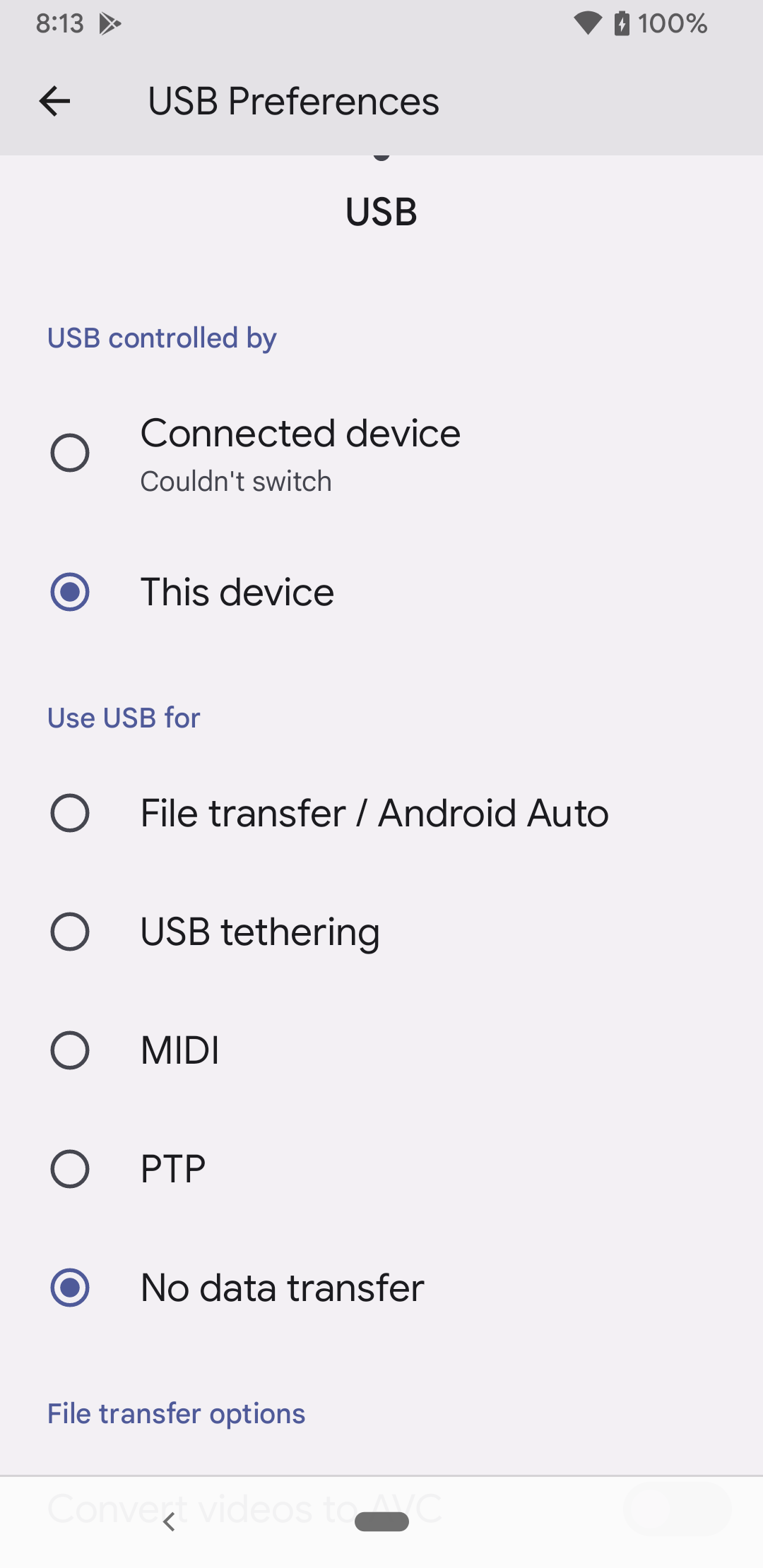
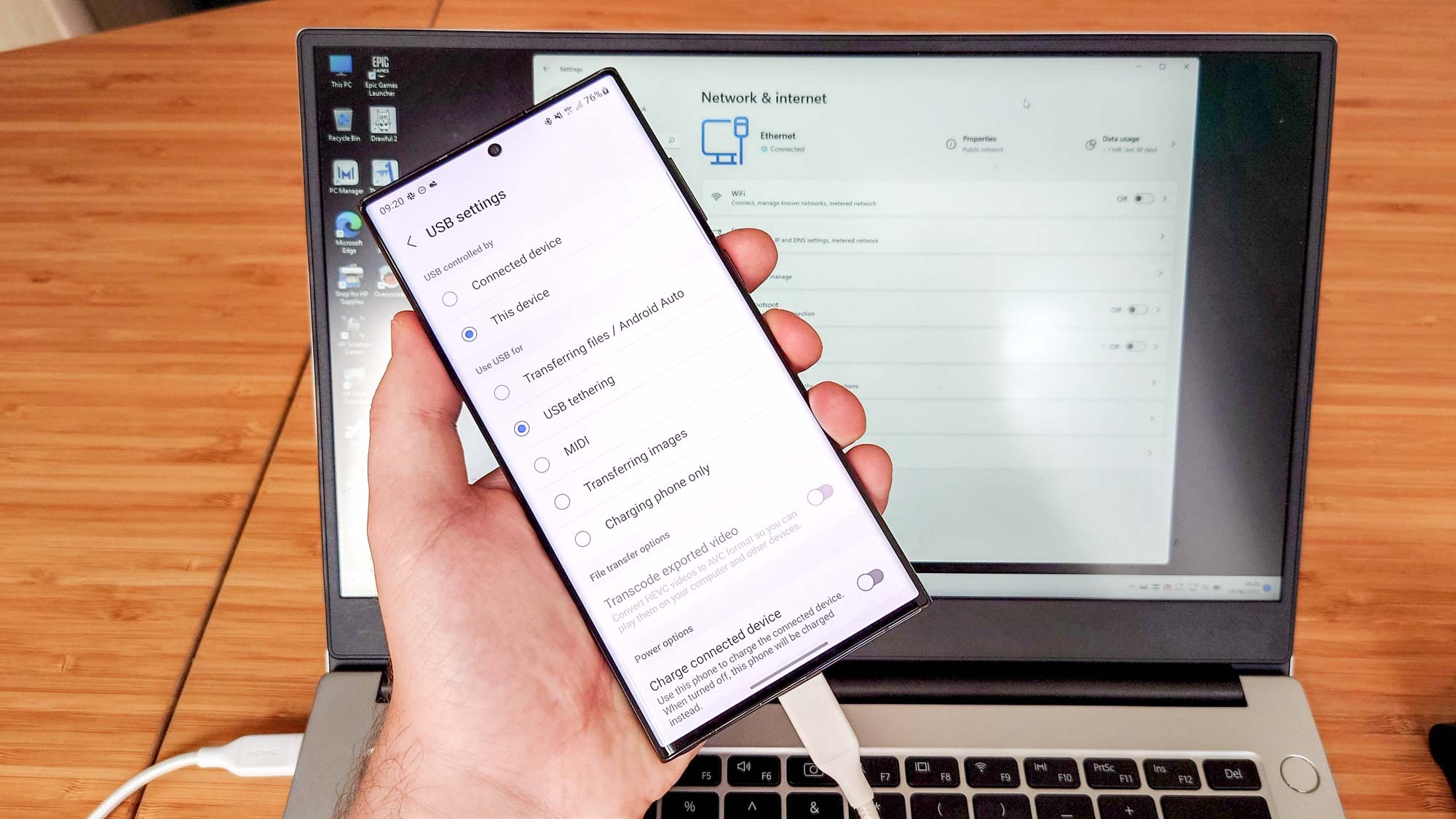
- Select your desired mode from the listed options: File transfer / Android Auto, USB tethering, MIDI, PTP, or No data transfer.
Note: If your phone's screen is locked when you plug in the cable, Android restricts access to the USB preferences menu until you enter your PIN, pattern, or biometric authentication.
Setting a Default USB Configuration in Developer Options
By default, Android resets the USB connection to No Data Transfer every time you disconnect the cable. This intentional security design protects user data from rogue charging stations ("juice jacking"). However, if you frequently transfer files or develop applications, manually changing the USB mode every time can be tedious. You can override this behavior by setting a custom default configuration.
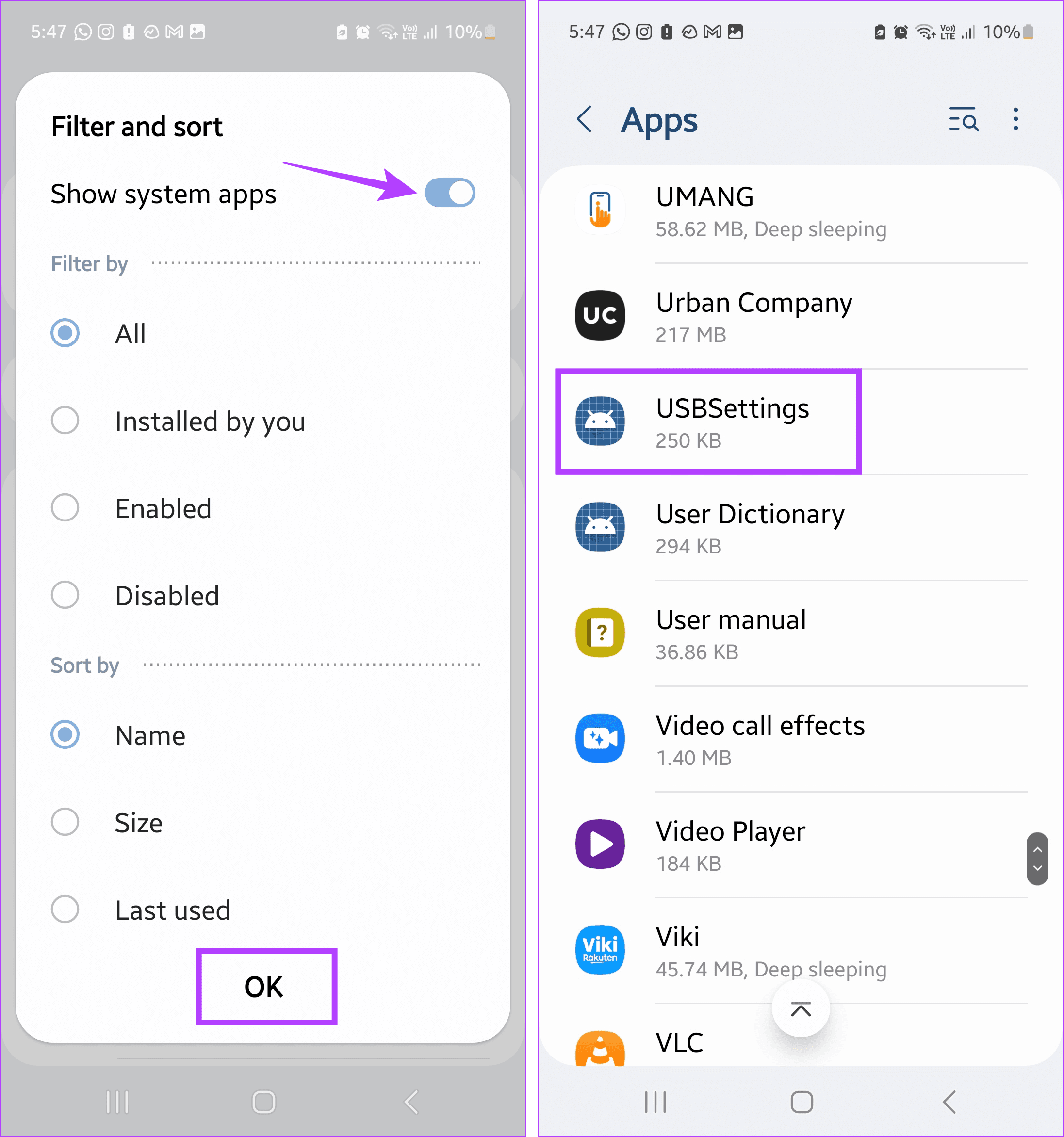
Step 1: Enable Android Developer Options
If you have not already unlocked Developer Options on your device:
- Open the Settings app on your Android device.
- Scroll down and select About phone (or System > About phone).
- Locate the Build number entry.
- Tap Build number rapidly seven times in succession.
- Enter your device's lock screen PIN or password when prompted. You will see a toast notification stating, "You are now a developer!"
Step 2: Configure the Default USB Mode
Once Developer Options are unlocked:
- Navigate back to the main Settings menu.
- Select System and tap Developer options (on Samsung Galaxy devices, Developer options appears at the very bottom of the main Settings menu).
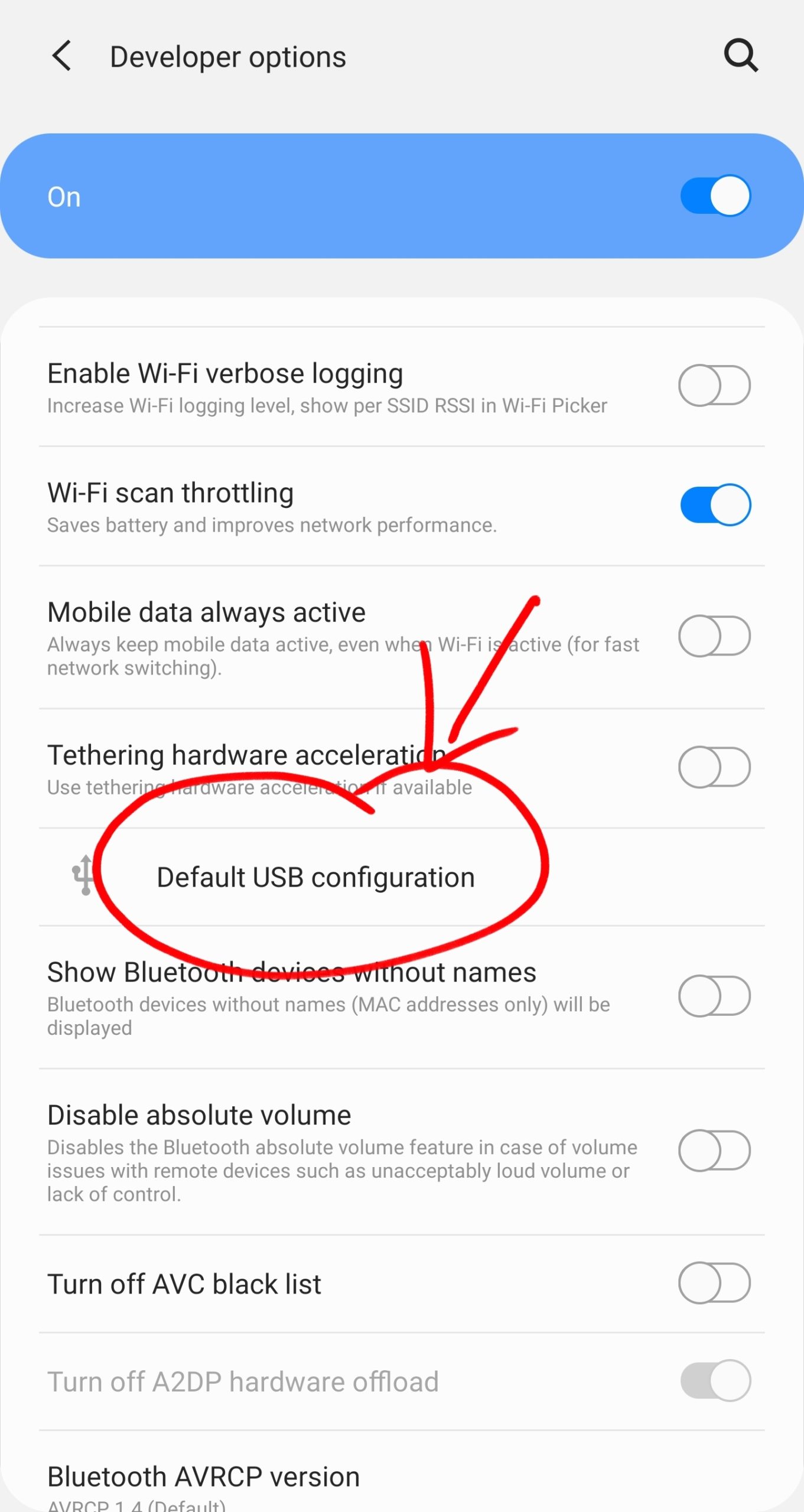
- Scroll down to the Networking section.
- Tap Default USB configuration.
- Choose your preferred default mode (e.g., File transfer, USB tethering, PTP, or No data transfer).
- Settings
- System (or General Management)
- Developer options
- [Networking Section]
- Default USB configuration
- File transfer / Android Auto
- USB tethering
- MIDI
- PTP
- No data transfer (Default Security Setting)
- Default USB configuration
- [Networking Section]
- Developer options
- System (or General Management)
After configuring this setting, your phone will automatically attempt to negotiate the selected mode whenever it detects a data-capable USB host connection.
Android USB Connection Modes Comparison
The following table breaks down the capabilities, data access parameters, and relative security risks associated with each USB mode.
| USB Mode Protocol | Data Access Level | Power Delivery | Ideal Use Case | Relative Security Profile |
|---|---|---|---|---|
| No Data Transfer | None (Data lines inactive) | Inbound charging only | Public charging stations, power banks | Highest (Prevents all data exfiltration) |
| File Transfer (MTP) | Full read/write access to internal & SD card user storage | Inbound/Outbound power | Transferring documents, videos, music, and backups to PC | Moderate (Requires unlocked phone screen) |
| Photo Transfer (PTP) | Read/write access limited strictly to DCIM and Pictures |
Inbound/Outbound power | Importing photos to camera software, legacy OS, photo printers | High (Restricts system file exposure) |
| USB Tethering | Virtual network adapter interface (No storage access) | Inbound/Outbound power | Providing mobile internet to laptops or desktop PCs | High (Monitored network tunnel) |
| MIDI | Real-time MIDI instruction packets | Power negotiated per spec | Connecting synthesizers, MIDI keyboards, and audio software | High (Non-filesystem protocol) |
| DisplayPort Alt Mode | Video/Audio stream out (No filesystem access) | Fast charging / Power delivery | Connecting to external monitors, TVs, and desktop docks | High (Display pipeline only) |
Advanced USB Functionalities: OTG, DACs, and External Displays
Modern Android platforms leverage USB Type-C hardware capabilities to perform operations beyond standard file transfers.
USB On-The-Go (USB OTG)
USB OTG allows your Android smartphone to act as a USB Host rather than a client peripheral. In host mode, the phone supplies power to external devices plugged directly into its port.
Common USB OTG applications include:
- External Flash Drives & SSDs: Mounting Portable NTFS, FAT32, exFAT, or ext4 storage drives directly in the Android File Manager.
- Input Devices: Connecting physical USB keyboards, mice, bar-code scanners, or wired gaming controllers.
- Digital Cameras: Importing RAW photos directly from a DSLR or mirrorless camera using a direct USB cable.
To learn more about implementing USB host capabilities in software, consult the official Android Developer Guide for USB Host Mode.
USB Audio Routing and USB DACs
Android features high-resolution audio routing over USB. When you connect an external USB Digital-to-Analog Converter (DAC) or audio interface, Android bypasses its internal headphone amplifier and sends raw PCM or DSD audio streams to the external hardware.
To configure audio behavior, go to Developer options and toggle Disable USB audio routing. When toggled On, Android will prevent automatic audio routing to newly connected USB audio devices, forcing sound through the built-in phone speakers instead.
USB Display Output (DisplayPort Alternate Mode)
Devices equipped with full-featured USB 3.1/3.2 Gen 2 ports support DisplayPort Alternate Mode (DP Alt Mode). This hardware specification passes native DisplayPort video signals across the USB Type-C high-speed lanes.
- Samsung DeX: Plugs into a monitor or TV to launch a multi-window desktop interface driven entirely by the phone's processor.
- Motorola Smart Connect: Extends mobile apps onto smart TVs or displays for media streaming, productivity, or desktop gaming.
- Stock Android Desktop: Accessible via Developer Options on modern Pixel devices running updated Android releases.
Troubleshooting Android USB Connection Problems
If your Android device fails to communicate properly with your computer or peripheral, work through these diagnostic procedures.
Issue 1: Device Only Charges and Shows No USB Notification
When you plug your phone into a PC, it charges, but no USB preferences pop up, and the PC does not detect a new device.
- Cause A: Power-Only USB Cable. Many inexpensive charging cables only wire the VBUS and Ground pins, entirely lacking the internal D+ and D- copper lines required for data transmission.
- Fix: Test with a known data-capable cable (such as the original cable included with your phone or a certified USB-IF cable).
- Cause B: Dirty USB Port. Lint, dust, and pocket debris compressed inside the phone's USB Type-C port can prevent the fine data pins from making electrical contact while allowing larger power pins to connect.
- Fix: Turn off the device and carefully clean the port using a non-conductive wooden or plastic toothpick under good lighting.
- Cause C: Disabled USB Host Ports or Hubs. Unpowered USB hubs or front-panel PC ports often fail to supply stable voltage for initial USB handshakes.
- Fix: Plug the USB cable directly into a motherboard port on the back of your desktop PC.
Issue 2: Computer Fails to Recognize Phone (Driver & MTP Issues)
The USB prompt appears on your phone, and you select File Transfer, but the computer displays an error like "Device Unrecognized" or fails to show up in File Explorer.
Troubleshooting on Windows:
- Open Device Manager on your Windows PC (right-click Start > Device Manager).
- Look under Portable Devices or Other devices for a yellow exclamation mark next to MTP Device or your phone's model name.
- Right-click the device and choose Update driver.
- Select Browse my computer for drivers > Let me pick from a list of available drivers on my computer.
- Select MTP USB Device or Standard USB Hub and click Next to reinstall the native Microsoft driver.
For official guidance on USB driver management, refer to Microsoft Support.
Troubleshooting on macOS:
macOS does not natively support MTP file browsing in Finder. Connecting an Android device to a Mac via USB for file transfer requires specialized software:
- Download and install a modern, open-source MTP utility such as OpenMTP or Android File Transfer.
- Ensure that apps like Smart Switch, Garmin Express, or Preview are closed, as they can lock the USB port and prevent MTP applications from establishing a connection.
Issue 3: Disconnections During Large File Transfers
If large file transfers drop mid-way or time out, power management settings may be putting your USB ports to sleep.
- Disable USB Selective Suspend (Windows): Open Control Panel > Power Options > Change plan settings > Change advanced power settings. Expand USB settings > USB selective suspend setting and set it to Disabled.
- Toggle USB Debugging: Open Developer options on your phone and enable USB debugging. This keeps the underlying Android Debug Bridge daemon active, which can stabilize communication during intensive MTP operations.
Security Best Practices for Android USB Connections
Connecting mobile hardware over physical USB interface channels creates potential security attack vectors if managed improperly.
Protecting Against "Juice Jacking"
Juice jacking is a security vulnerability where compromised public charging stations use hidden hardware attached to the USB port to steal personal data or deploy malware to connected mobile devices.
To safeguard your device:
- Keep the system default USB configuration set to No Data Transfer.
- Use a physical USB Data Blocker (often called a "USB Condom") when charging at public kiosks. These hardware adapters physically sever the D+ and D- pins, permitting power pass-through while blocking data transmission entirely.
- Lock your screen when charging. Modern Android operating systems automatically disable data endpoints while the device is locked.
USB Debugging Security
USB Debugging gives raw command-line access to your Android system through the Android Debug Bridge (ADB).
ADB Connection Flow:
- Enable USB Debugging in Developer Options
- Connect Cable to Computer running ADB Host Daemon
- System Prompts: "Allow USB Debugging? [RSA Key Fingerprint]"
- User Validates & Saves RSA Public Key to /data/misc/adb
- Authenticated Shell / File Access Granted
When connecting to an unauthorized computer with USB Debugging enabled, Android presents a prompt displaying the host computer's RSA key fingerprint. Never tap "Always allow from this computer" on public, shared, or untrusted machines.
If you suspect unauthorized ADB access, open Developer options and select Revoke USB debugging authorizations to immediately wipe all trusted host signatures.
Frequently Asked Questions
Why does my Android phone only charge when plugged into my computer?
Your phone is likely operating in the default No Data Transfer mode, or you are using a charging-only cable that lacks data wires. Verify that your cable supports data, unlock your phone screen, and swipe down the notification shade to switch the USB setting to File Transfer.
How do I stop Android from defaulting to "Charge Only"?
By security design, Android resets physical connection modes to "Charge Only" upon disconnection. To change the persistent default mode, unlock Developer options, navigate to Default USB configuration, and select File transfer.
What is the primary difference between MTP and PTP?
MTP grants access to your phone's internal storage directory (documents, downloads, audio, photos), operating at the file level. PTP restricts the computer's connection strictly to image and video directories (DCIM and Pictures), treating the phone like a digital camera.
Why won't my Mac recognize my Android device when plugged in via USB?
macOS lacks native system support for Media Transfer Protocol (MTP) in Finder. To transfer files, you must install an MTP software client designed for macOS, such as OpenMTP or Android File Transfer, and set your phone's USB mode to File Transfer.
How do I check if my Android device supports USB OTG?
Most modern Android smartphones natively support USB OTG. You can verify support by plugging in a USB-C flash drive or mouse using a passive USB-C to USB-A adapter. If the phone powers the accessory or prompts you to open a file browser, OTG is supported.
Summary and Next Steps
Understanding and configuring your Android USB connection settings allows you to seamlessly transfer media, tether internet access, link audio equipment, and output high-definition video while keeping your data secured.
Recommended Next Actions:
- Audit Your Cable Inventory: Separate power-only charging cables from certified high-speed USB data cables to avoid troubleshooting phantom connectivity errors.
- Set Your Preferred Configuration: If you regularly work with media files, navigate to Settings > System > Developer options > Default USB configuration and set your device to File transfer.
- Review USB Security Settings: Periodically revoke trusted USB debugging authorizations if you connect your phone to multiple desktop machines.