Android software update issues typically manifest as download freezes, installation failures, post-update system crashes, or endless boot loops. These errors usually stem from insufficient local storage space, corrupted system cache files, unstable network connections, or carrier provisioning conflicts. Most update problems can be resolved by freeing up storage, clearing system update cache, or re-installing updates through official recovery tools.
Categorizing Android Software Update Failures
Software updates on Android devices are designed to run smoothly in the background, downloading compressed OTA (Over-The-Air) packages and applying patches to system partitions. However, failures can happen at various stages of the update cycle. Understanding exactly when an update fails is key to choosing the right fix.
Update Lifecycle:
- Download Phase (Stuck %, timeouts)
- Verification & Staging (Corrupt package errors)
- Installation Phase (Aborted, status errors)
- Post-Update Boot (Boot loops, drain, bugs)
Pre-Installation Issues
Pre-installation failures occur before any actual modification is made to the operating system code. Symptoms include:
- The update download getting stuck at specific percentages (often 0%, 99%, or paused indefinitely).
- System messages stating "Software update failed to download" or "Network connection lost."
- The device repeatedly claiming the system is up to date, even though an update notification was delivered.
These failures are almost always related to network instability, server-side throttling, incorrect date and time configuration, or lack of local storage space required to download and uncompress the payload package.
Installation Phase Errors
Installation errors occur after the update package has downloaded and the device attempts to write data to system partitions. Common symptoms include:
- The device rebooting to apply the update, showing an error graphic (an Android logo lying down with a red exclamation point).
- Error codes such as "Error 7," "Package Verification Failed," or "System Update Aborted."
- The progress bar stopping midway through the reboot installation process, followed by an automatic rollback to the previous version.
Installation errors generally indicate a corrupted update file, digital signature mismatch, insufficient system partition space, or hardware memory degradation.
Post-Installation Bugs and System Instability
Post-installation issues occur after the update successfully completes and the device reboots into the updated OS. Symptoms include:
- Boot Loops: The phone repeatedly restarts without reaching the lock screen.
- Rapid Battery Drain: The battery discharges significantly faster than before the update.
- Performance Degradation: Severe UI lagging, delayed touch response, or app force-closures.
- Connectivity Dropouts: Wi-Fi, Bluetooth, or mobile data refusing to connect or dropping frequently.
These glitches often happen because residual cache files from the old OS conflict with the new system code, or because third-party applications have not yet updated to support the new API target levels.
Essential Prerequisites Before Attempting Fixes
Before performing troubleshooting steps—especially those involving system caches, partition wipes, or software rollbacks—you must complete basic pre-fix checks to prevent data loss or device damage.
1. Secure a Full Device Backup
Even standard update fixes carry a slight risk of system instability if interrupted.
- Google Cloud Backup: Navigate to Settings > System > Backup (or Settings > Google > Backup) and tap Back up now. Ensure photos, videos, call logs, contacts, and app data are synced.
- Local Storage / Desktop Backup: Connect the phone to a computer using a USB cable and transfer important photos, documents, and local files directly to an external drive. On Samsung devices, Samsung Smart Switch provides full-device desktop backups.
2. Verify Battery and Power Supply
Interrupting an Android update during partition writing can permanently damage your device's firmware (a condition known as "bricking"). Ensure your battery level is at least 50%, or keep the device connected to an official charger throughout the update process. Many Android OEMs (Original Equipment Manufacturers) intentionally block system update execution if battery levels drop below 30% to 40%.
3. Establish a Stable, Unmetered Wi-Fi Connection
Major Android OS upgrades range from 1.5 GB to over 5 GB in size. Metered mobile data connections or public Wi-Fi networks with captive portals (like hotel or coffee shop Wi-Fi) can drop packets or block background download streams, resulting in corrupted update files. Connect to a private 5GHz Wi-Fi network with strong signal strength.
Standard Troubleshooting Methods for Failed Android Updates
If your update fails to download or install, work through these standard fixes in order, from simplest to most advanced.
Troubleshooting Workflow:
- Free Storage Space
- Clear System Caches
- Reset Network Settings
- Safe Mode Diagnostics
- Recovery Mode Wipe
Method 1: Free Up Internal System Storage
Android system updates require significantly more space than the actual size of the update file. For example, a 2 GB update package often requires 8 GB to 12 GB of free internal storage to safely download, unpack, verify cryptographic signatures, and stage the files into system partitions.
- Open Settings > Storage.
- Review the breakdown of occupied space.
- Tap Free up space or manually delete large files, temporary media, downloaded videos, and unused apps.
- Clear the cached data of heavy storage consumers like media players and web browsers.
- Reboot the device and retry the software update.
Method 2: Reset Google Services and Update System Caches
Corrupted temporary files within Google Play Services or the device's update manager can cause persistent download loops or signature validation failures.
- Open Settings > Apps (or Apps & Notifications).
- Tap the menu icon (three dots) in the upper right corner and select Show system apps.
- Scroll down and locate Google Play Services.
- Select Storage & Cache, tap Clear Cache, then tap Clear Storage (or Clear All Data).
- Go back to the system apps list and locate Google Services Framework and Download Manager.
- Clear the cache and data for both applications.
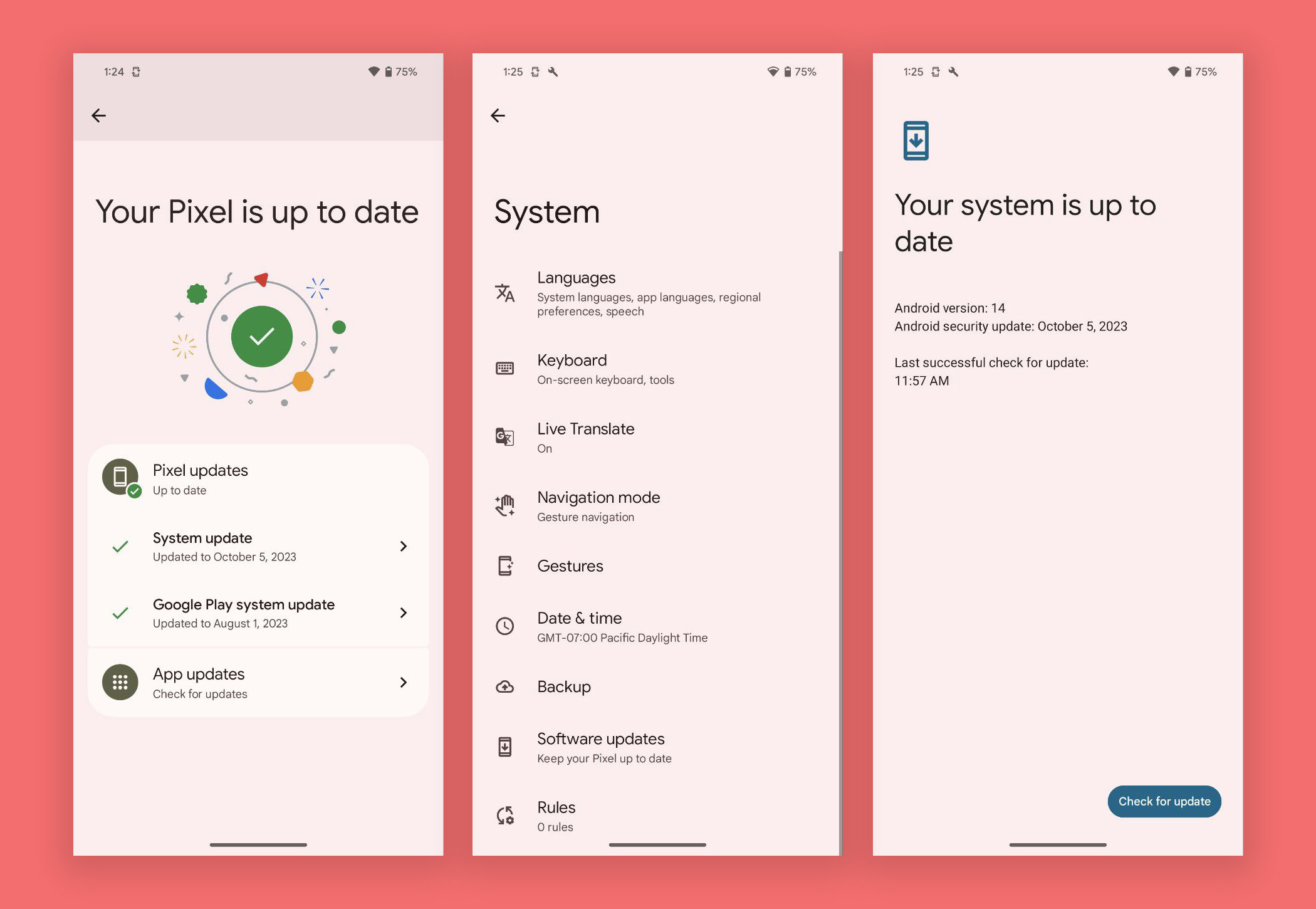
- Restart your device, reconnect to Wi-Fi, and navigate to Settings > System > Software Update to check for updates again.
Method 3: Correct Network Settings and Time Synchronization
Android security updates use encrypted SSL/TLS connections that rely on accurate time and date stamps. If your device's date or time is out of sync with network servers, security certificate verification will fail, causing update checks to stall.
- Navigate to Settings > System > Date & Time.
- Enable Set time automatically and Set time zone automatically.
- If already enabled, toggle both options off, wait 10 seconds, and toggle them back on.
- If network dropouts persist, navigate to Settings > System > Reset options (or General Management > Reset).
- Select Reset Wi-Fi, mobile & Bluetooth (or Reset Network Settings).
- Confirm the reset, re-enter your Wi-Fi password, and try updating again.
Method 4: Test in Safe Mode to Rule Out App Interference
Third-party applications—especially custom launchers, VPNs, ad-blockers, and system optimizers—can block background update daemons from establishing connections or modifying system files. Safe Mode disables all third-party software, leaving only essential system processes running.
- Press and hold the Power Button until the power options menu appears.
- Tap and hold the Power Off or Restart icon on the screen until the "Reboot to Safe Mode" prompt appears.
- Tap OK or confirm the reboot. The device will restart, showing a "Safe Mode" watermark in the bottom corner of the screen.
- While in Safe Mode, open Settings > System > Software Update and attempt to download and install the update.
- Once the update completes (or if it fails), restart the phone normally to exit Safe Mode.
Advanced System Recovery Procedures
If standard OS-level troubleshooting fails, or if your device is stuck in a boot loop after a failed update, you must use system recovery tools.
Method 5: Clear the System Cache Partition via Recovery Mode
On Android devices using traditional partition structures, clearing the system cache partition removes temporary operational files without touching your personal data.
Note on Modern A/B (Seamless) Partition Devices: Devices running Android 7.0 and newer that use Google's Seamless Updates feature (A/B partitions, such as modern Google Pixel devices) do not have a user-accessible "Wipe Cache Partition" option in recovery mode, as the system cache is handled dynamically across dual virtual system partitions. However, for Samsung Galaxy devices and older Android hardware, this process remains highly effective.
- Turn off the device completely.
- Press and hold the Power Button + Volume Up Button simultaneously (for older Samsung devices, press Power + Home + Volume Up; for Pixel devices, press Power + Volume Down).
- Release the buttons when the manufacturer logo or Android recovery screen appears.
- Use the Volume Up/Down keys to navigate the recovery menu and highlight Wipe cache partition.
- Press the Power Button to select it, then confirm by selecting Yes.
- Once the operation finishes, select Reboot system now.
Standard Hardware Recovery Keys Summary:
| Brand | Key Combination (From Powered-Off State) |
|---|---|
| Google Pixel | Power + Volume Down -> Select Recovery Mode |
| Samsung Galaxy | Power + Volume Up (while connected to USB-C cable) |
| Motorola | Power + Volume Down -> Select Recovery Mode |
| Xiaomi / Redmi | Power + Volume Up |
Method 6: Flashing and Recovery via Official Desktop Tools
If the operating system fails to boot or system files are heavily corrupted, desktop recovery software provided by smartphone OEMs can re-flash the stock firmware cleanly.
- Google Pixel Repair Tool: Owners of Google Pixel devices can connect their phone via USB to a computer using Chrome or Edge and visit the official Pixel Repair Tool web interface. This tool guides users through validating system firmware and re-installing current factory images safely over WebUSB.
- Samsung Smart Switch (Desktop): Download the Smart Switch client for Windows or macOS. Connect the device, click More Options, and select Emergency Software Recovery and Initialization. This forces the program to download full, official firmware and re-flash the partition layout cleanly.
- Motorola Rescue and Smart Assistant (RSA): For Motorola hardware, the desktop RSA suite automatically detects bricked or update-failed phones in Fastboot mode and restores the factory system image.
Method 7: Factory Data Reset (Last Resort)
If a major Android OS update causes persistent boot loops, system crashes, or irreparable errors, resetting the device to factory settings is the final troubleshooting step. This process completely erases internal storage, removing corrupted system configurations and conflicting app files.
Resetting via System Settings (If phone boots):
- Navigate to Settings > System > Reset options.
- Select Erase all data (factory reset).
- Authenticate with your PIN, pattern, or password, then confirm the reset.
Resetting via Hardware Recovery Mode (If phone will not boot):
- Power off the device completely.
- Boot into Recovery Mode using your device's hardware button combination.
- Navigate with Volume keys to select Wipe data/factory reset.
- Press the Power Button to confirm, then select Factory data reset.
- Once complete, select Reboot system now and set up the device fresh, restoring your data from your recent cloud backup.
Android Update Diagnostics & Troubleshooting Matrix
The following table summarizes common software update errors, their underlying causes, recommended solutions, and technical risk levels:
| Error Scenario / Symptom | Primary Root Cause | Recommended Resolution | Data Risk Level |
|---|---|---|---|
| Download Stuck at 0% / 99% | Network timeout, Google Play Services cache corruption, or server congestion | Clear cache for Google Play Services & Download Manager; toggle Wi-Fi. | None (Safe) |
| "Insufficient Storage" Error | Not enough unallocated space to decompress update payload | Delete unused media/apps; ensure 8–12 GB of free space before re-trying. | None (Safe) |
| "Installation Failed" / "Error 7" | Corrupted download file or signature key mismatch | Clear system update cache, verify date/time settings, or re-download on unmetered Wi-Fi. | Low |
| Reboot to Red Exclamation Mark | Broken write process to /system partition or low battery shutoff |
Connect to charger, boot into Recovery Mode, and perform a Cache Partition Wipe. | Moderate |
| Post-Update Boot Loop | Incompatible system code overlay or residual pre-update cache conflict | Perform a forced restart; if unresolved, perform a Factory Data Reset via Recovery Mode. | High (Erases local storage) |
| Severe Post-Update Battery Drain | Background ART (Android Runtime) compilation and app re-indexing | Allow 24–48 hours for background indexing to complete; update all apps via Play Store. | None (Safe) |
| Cellular / Wi-Fi Drops Post-Update | Corrupted modem firmware cache or radio configuration fault | Perform a Network Settings Reset; re-insert SIM card or request carrier APN refresh. | Low (Erases Wi-Fi keys) |
Managing Post-Update Performance Issues and Bugs
Even when an Android software update successfully completes, users occasionally experience secondary performance issues. Here is how to fix them efficiently:
Allow Time for ART (Android Runtime) Re-Compilation
Immediately after a major Android version upgrade, the system rebuilds its ART cache and re-compiles application code in the background using Ahead-Of-Time (AOT) and Just-In-Time (JIT) compilation. This process consumes extra CPU cycles and battery power for the first 24 to 48 hours. Keep your phone plugged in overnight to allow these background optimization tasks to complete uninterrupted.
Update All Installed Apps
Legacy application code designed for older Android API levels can cause memory leaks, severe background battery drain, or unexpected crashes on a newer operating system build.
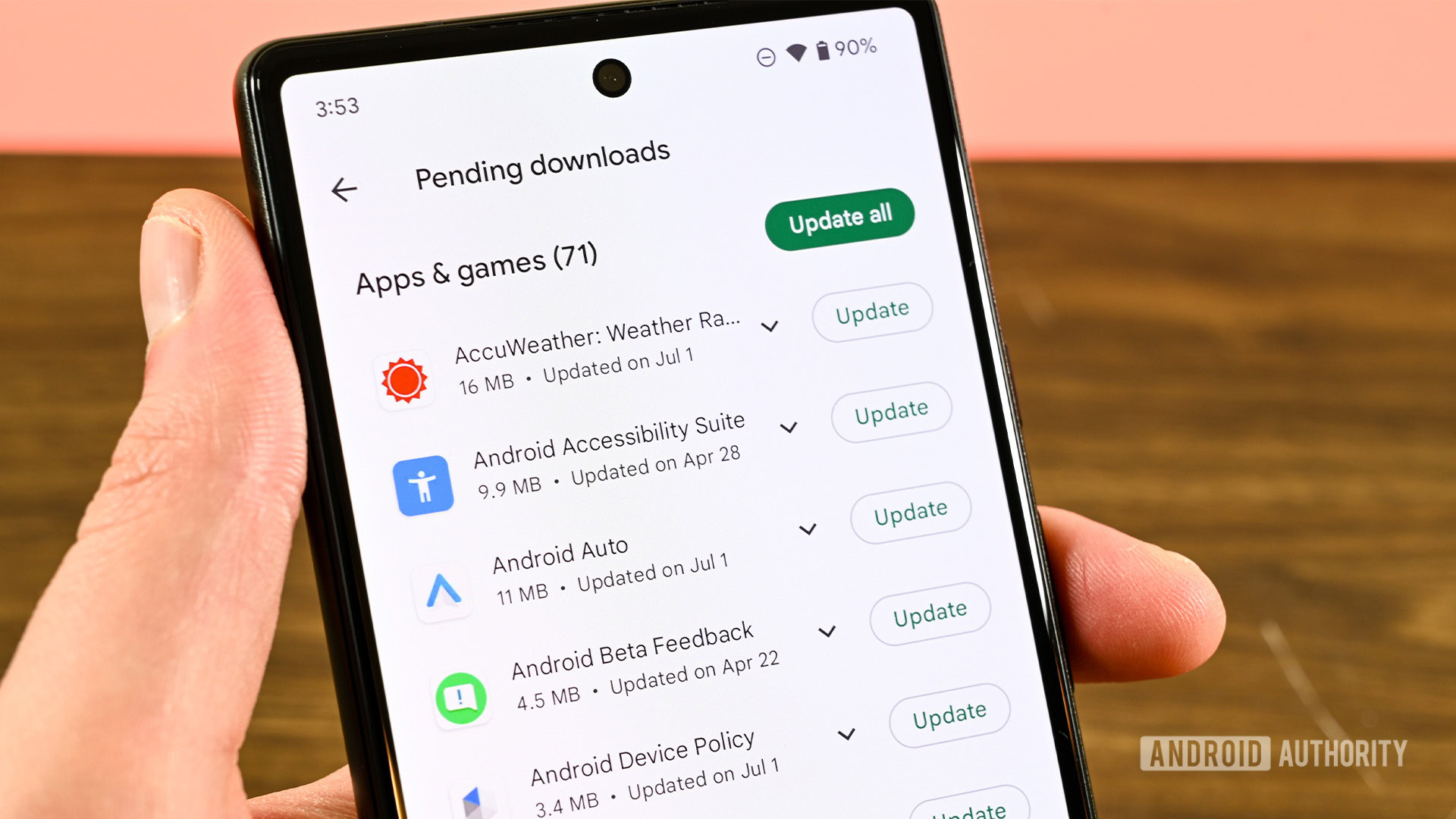
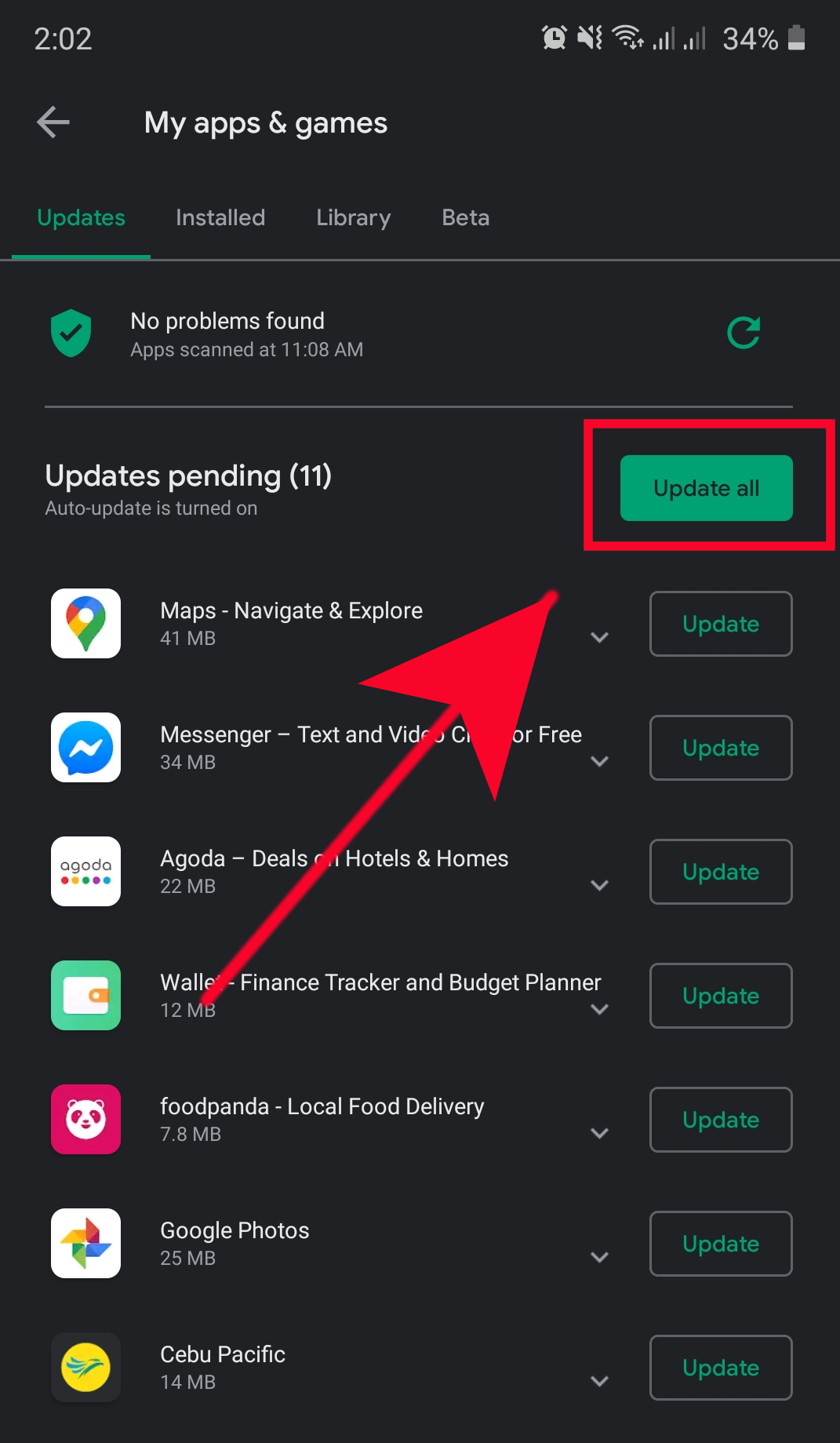
- Open the Google Play Store.
- Tap your profile icon in the upper-right corner and select Manage apps & device.
- Under Updates available, tap Update all.
Reset App Preferences
If specific system services (like camera access, storage permissions, or notification management) fail after an update, resetting app preferences restores default permissions and background data restrictions without deleting your personal app data.
- Go to Settings > Apps.
- Tap the Menu icon (three vertical dots) at the top right.
- Select Reset app preferences.
- Tap Reset apps to confirm.
Frequently Asked Questions
Why does my Android update get stuck at 99% or fail to install?
An update that stalls near completion usually fails during file verification or checksum validation. The update engine has finished downloading the raw payload, but it cannot verify the digital cryptographic signature due to missing data packets, an interrupted connection, or damaged local cache files. Clearing the cache and data for Google Play Services and Download Manager usually solves this problem.
What should I do if an Android update causes a boot loop?
If your phone continuously restarts and cannot reach the home screen after an update, force-restart the device by holding the Power + Volume Down buttons for 10–15 seconds. If the boot loop continues, boot into Recovery Mode using hardware buttons, attempt to Wipe cache partition (if available), or perform a Factory data reset.
Will troubleshooting or fixing a failed update erase my phone's data?
Standard troubleshooting steps—such as clearing app caches, resetting network settings, freeing storage space, or testing in Safe Mode—do not delete your personal data. However, advanced recovery steps like manual firmware re-flashing or selecting Wipe data/factory reset in Recovery Mode will completely erase all internal storage. Always maintain current backups.
Why is my phone not receiving official Android OS updates?
Software update availability depends on several factors: hardware manufacturer release schedules, device age (end of software support policy), region, and wireless carrier approval. Carriers often run additional network testing on firmware builds before pushing them Over-The-Air, causing delays of days or weeks compared to unlocked devices.
How do A/B (Seamless) updates affect how Android installs software patches?
Modern Android devices utilize an A/B partition system where the operating system runs on Partition A while the software update silently installs to Partition B in the background. When you restart the device, it simply switches boot targets to Partition B. If Partition B fails to boot, the hardware automatically rolls back to Partition A, drastically reducing the risk of a device becoming unusable ("bricked") during an update.
Recommended Next Actions
To resolve your current software update issue effectively, follow this systematic plan:
- Check Storage: Ensure your device has at least 10 GB of free internal storage. Clear unused media and cache if space is low.
- Clear Caches: Navigate to Settings > Apps, enable system apps, and clear the data for Google Play Services and Download Manager.
- Verify Connection: Switch to a stable, non-metered 5GHz Wi-Fi network and confirm your device's Date & Time settings are set to automatic synchronization.
- Try Safe Mode: Attempt the software update while running in Safe Mode to eliminate third-party software interference.
- Use Official Recovery Tools: If your phone is unresponsive or stuck, connect it to a computer and use official OEM desktop software (such as Google Pixel Repair Tool or Samsung Smart Switch) to safely repair system firmware.