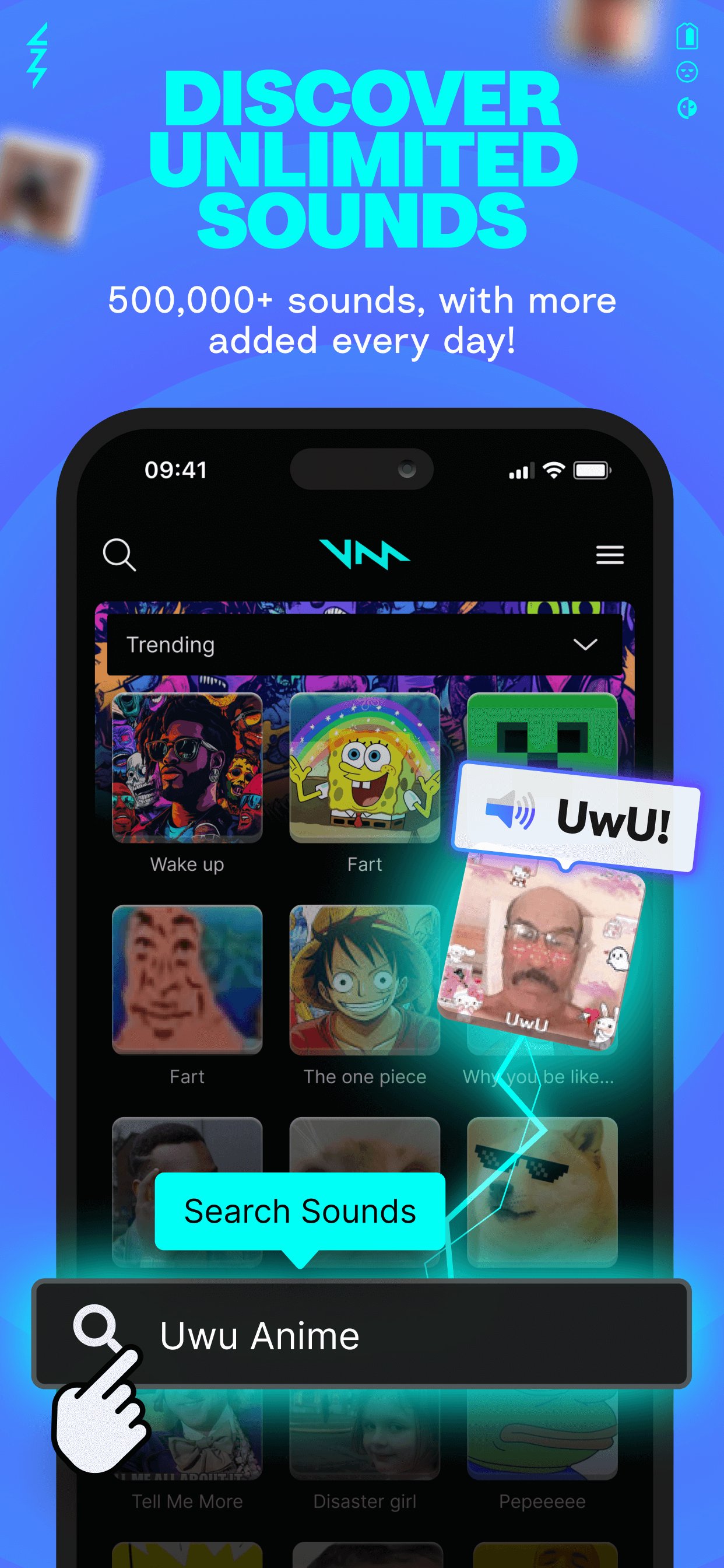
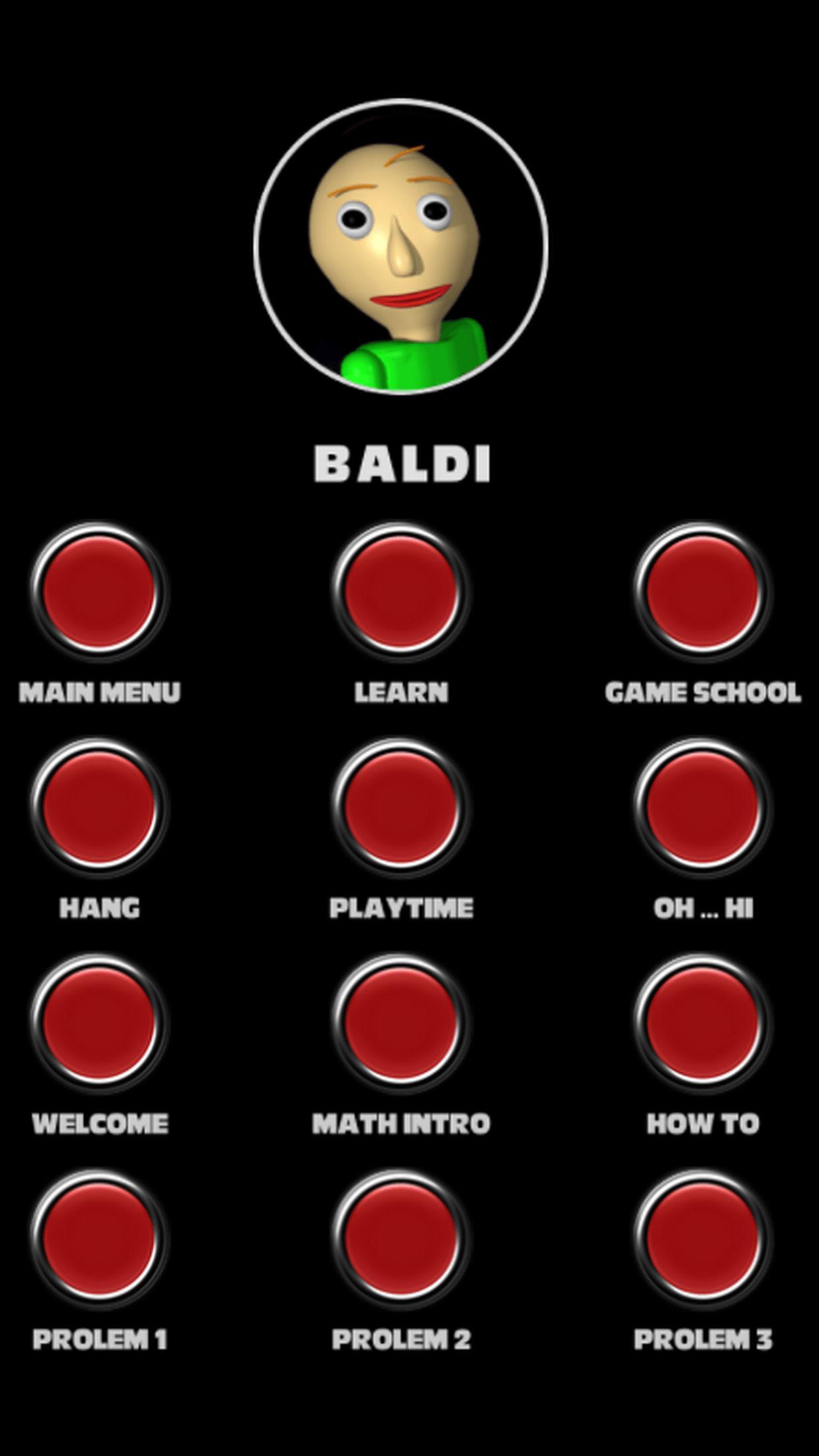
To create a native Android soundboard application, developer setup requires Android Studio, basic Kotlin knowledge, and properly formatted audio assets. By utilizing Android’s SoundPool API for low-latency audio playback and a RecyclerView with a GridLayoutManager for the button UI, you can build a responsive, low-overhead application capable of triggering multiple audio effects instantly.
Technical Overview: Selecting the Right Android Audio Engine
Before writing code, choosing the correct audio playback API is critical. Android provides multiple framework APIs for handling audio, but they serve vastly different operational use cases. For a soundboard application, immediate responsiveness upon tapping a button is the primary technical requirement.
- Android Audio Framework
- SoundPool
- Low latency (<50ms)
- Preloads into RAM (PCM)
- Ideal for short sound FX
- Simultaneous playback streams
- MediaPlayer
- Higher latency (>200ms)
- Streams from file/network
- Ideal for long songs/podcasts
- Single stream per instance
- SoundPool
SoundPool vs. MediaPlayer
- SoundPool: Loads audio clips directly into uncompressed memory (PCM format) via the Android Media Server. Because assets are decompressed during the initialization phase rather than at playback time, triggering a sound occurs with near-zero latency. It supports multi-stream audio, allowing multiple clips to overlap smoothly without clipping or stopping previous sounds. However,
SoundPoolhas a memory limit (typically a maximum of 1 MB per decompressed sound clip, or ~5-6 seconds of 44.1 kHz stereo audio). - MediaPlayer: Designed for streaming longer audio files, such as music tracks or podcasts. It decodes audio data on-the-fly during playback, which conserves RAM but introduces a noticeable start-up delay (100–300 milliseconds). Using
MediaPlayerfor rapid soundboard triggers creates noticeable lag and quickly consumes system resources if multiple instances are instantiated simultaneously. - AAudio / Oboe: C++ native audio libraries designed for high-performance audio synthesis and ultra-low latency. While powerful, using C++ bindings via NDK introduces unnecessary complexity for standard soundboard applications unless you are building a professional digital audio workstation (DAW).
For a native soundboard app containing short audio clips (effects, quotes, memes, or notification tones), SoundPool combined with Kotlin is the industry-standard architectural choice.
Prerequisites and Environment Setup
To follow this tutorial, prepare your development station with the following software configuration:
- Android Studio: Android Studio Ladybug or newer is recommended.
- JDK Target: Java 17 or Java 21 compatibility.
- Minimum SDK: API Level 21 (Android 5.0 Lollipop) or higher to ensure compatibility with modern
AudioAttributesbuilders. - Target SDK: API Level 34 or 35 (Android 14/15).
- Language: Kotlin 1.9+.
Audio File Preparation
Android enforces strict file-naming conventions inside its application resource folders. Prepare your audio files under the following rules:
- Supported Formats:
.ogg(Vorbis codec, recommended for high compression and quality),.wav(uncompressed, low CPU decoding load), or.mp3. - Naming Rules: Asset filenames must contain only lowercase letters, numbers, and underscores (e.g.,
effect_applause.ogg,sound_01.wav). Uppercase letters, spaces, and hyphens will cause resource compilation errors in Gradle. - Directory Location: Place audio files inside the app directory at
app/src/main/res/raw/. If therawdirectory does not exist, right-clickres-> New -> Android Resource Directory, and set Resource Type toraw.
Step 1: Configuring Application Layout & Data Models
A maintainable soundboard architecture separates data representation (sound metadata) from UI display elements.
Defining the Sound Item Model
Create a Kotlin data class named SoundItem.kt to represent each button in your soundboard grid:
data class SoundItem( val id: Int, val title: String, val rawResourceId: Int, var soundPoolId: Int = -1 )
Here:
titlerepresents the text printed on the UI button.rawResourceIdis the generated resource reference (R.raw.sound_file).soundPoolIdstores the handle returned bySoundPool.load(), which is used later to execute playback.
Creating the User Interface Layouts
Define the main interface layout inside res/layout/activity_main.xml. We use a RecyclerView configured as a dynamic grid:
Next, create individual button item layouts inside res/layout/item_sound_button.xml:
Step 2: Implementing the SoundPool Engine
Managing audio resources properly requires explicit lifecycle handling to avoid memory leaks or audio device lockups. We will encapsulate SoundPool operations within a dedicated class or directly inside MainActivity.
Initializing SoundPool with AudioAttributes
Using the modern SoundPool.Builder API ensures that Android routing policies treat soundboard triggers correctly (e.g., routing to game volume controls rather than ringtone channels).
import android.content.Context import android.media.AudioAttributes import android.media.SoundPool import android.util.Log class SoundManager(private val context: Context) { private var soundPool: SoundPool? = null private val soundMap = HashMap() // Maps rawResourceId to soundPoolId private var isLoaded = false init { val audioAttributes = AudioAttributes.Builder() .setUsage(AudioAttributes.USAGE_GAME) .setContentType(AudioAttributes.CONTENT_TYPE_SONIFICATION) .build() soundPool = SoundPool.Builder() .setMaxStreams(8) // Maximum concurrent playing sounds .setAudioAttributes(audioAttributes) .build() soundPool?.setOnLoadCompleteListener { _, sampleId, status -> if (status == 0) { Log.d("SoundManager", "Sample $sampleId loaded successfully.") isLoaded = true } else { Log.e("SoundManager", "Error loading sample $sampleId, status code: $status") } } } fun loadSound(rawResourceId: Int) { soundPool?.let { pool -> val soundId = pool.load(context, rawResourceId, 1) soundMap[rawResourceId] = soundId } } fun playSound(rawResourceId: Int) { val soundId = soundMap[rawResourceId] if (soundId != null && soundId != 0) { // play(soundID, leftVolume, rightVolume, priority, loop, rate) // volume scale is 0.0 to 1.0, loop 0 = no loop, rate 1.0 = normal playback soundPool?.play(soundId, 1.0f, 1.0f, 1, 0, 1.0f) } } fun release() { soundPool?.release() soundPool = null soundMap.clear() } }
Step 3: Setting Up the RecyclerView Adapter
To dynamically render audio buttons in a grid without clogging the Android UI thread, construct a RecyclerView.Adapter.
import android.view.LayoutInflater import android.view.View import android.view.ViewGroup import android.widget.TextView import androidx.recyclerview.widget.RecyclerView class SoundAdapter( private val soundList: List, private val onSoundClick: (SoundItem) -> Unit ) : RecyclerView.Adapter() { class SoundViewHolder(itemView: View) : RecyclerView.ViewHolder(itemView) { val soundTitle: TextView = itemView.findViewById(R.id.buttonTextView) } override fun onCreateViewHolder(parent: ViewGroup, viewType: Int): SoundViewHolder { val view = LayoutInflater.from(parent.context) .inflate(R.layout.item_sound_button, parent, false) return SoundViewHolder(view) } override fun onBindViewHolder(holder: SoundViewHolder, position: Int) { val item = soundList[position] holder.soundTitle.text = item.title holder.itemView.setOnClickListener { onSoundClick(item) } } override fun getItemCount(): Int = soundList.size }
Step 4: Integrating Everything in MainActivity
Now tie the UI components, adapter, dynamic asset loading, and lifecycle safety together in MainActivity.kt.
import android.os.Bundle import androidx.appcompat.app.AppCompatActivity import androidx.recyclerview.widget.GridLayoutManager import androidx.recyclerview.widget.RecyclerView class MainActivity : AppCompatActivity() { private lateinit var soundManager: SoundManager private lateinit var recyclerView: RecyclerView override fun onCreate(savedInstanceState: Bundle?) { super.onCreate(savedInstanceState) setContentView(R.layout.activity_main) soundManager = SoundManager(this) // 1. Prepare raw sound dataset val soundList = listOf( SoundItem(1, "Airhorn", R.raw.sound_airhorn), SoundItem(2, "Applause", R.raw.sound_applause), SoundItem(3, "Buzzer", R.raw.sound_buzzer), SoundItem(4, "Drumroll", R.raw.sound_drumroll), SoundItem(5, "Laugh", R.raw.sound_laugh), SoundItem(6, "Rimshot", R.raw.sound_rimshot) ) // 2. Preload sound assets into SoundPool memory soundList.forEach { soundItem -> soundManager.loadSound(soundItem.rawResourceId) } // 3. Set up RecyclerView with 2 columns recyclerView = findViewById(R.id.soundboardRecyclerView) recyclerView.layoutManager = GridLayoutManager(this, 2) recyclerView.adapter = SoundAdapter(soundList) { selectedItem -> soundManager.playSound(selectedItem.rawResourceId) } } override fun onDestroy() { super.onDestroy() // Release audio hardware resources on Activity teardown soundManager.release() } }
API Comparison: Android Audio Framework Options
Choosing the proper library depends on factors such as sound file duration, memory management strategies, and application requirements.
| Framework / API | Best Use Case | Playback Latency | Memory Footprint | Max Concurrency |
|---|---|---|---|---|
| SoundPool | Short audio FX (<6s), UI sounds | Ultra Low (<30 ms) | High per sound (Uncompressed PCM in RAM) | High (Configurable via setMaxStreams) |
| MediaPlayer | Background music, long podcasts | Moderate (~150-300 ms) | Low (Streamed from disk/network) | Low (Resource intensive per instance) |
| Jetpack Media3 (ExoPlayer) | Video streams, complex playlist playback | Moderate (~100-200 ms) | Moderate (Buffered chunk loading) | Controlled by player instance limits |
| AAudio / Oboe (NDK) | Real-time audio synthesis, DJ equipment apps | Lowest (<10 ms) | Low to Custom | Managed manually via C++ audio threads |
Advanced Features & Optimization
After building a basic working soundboard, adding professional-grade features improves user experience and application stability.
1. Pitch Modification and Variable Speed Playback
SoundPool allows real-time playback modification without consuming extra memory. You can adjust pitch and speed dynamically using the rate parameter in play() or via setRate():
// Change rate dynamically: 0.5 = half speed (octave down), 2.0 = double speed (octave up) fun playSoundWithPitch(rawResourceId: Int, rateFloat: Float) { val soundId = soundMap[rawResourceId] if (soundId != null) { soundPool?.play(soundId, 1.0f, 1.0f, 1, 0, rateFloat.coerceIn(0.5f, 2.0f)) } }
2. Adding a Global "Stop All Sounds" Action
If multiple audio streams overlap and turn into noise, users need a panic/stop button. SoundPool provides an explicit method to pause or halt stream playback immediately:
fun stopAllAudio() { soundPool?.autoPause() // Instantly pauses all active audio streams }
To permanently stop playback instead of pausing, track active stream IDs returned by soundPool.play() inside an array and call soundPool.stop(streamId).
3. Managing Audio Focus
Respecting device system volume rules and background playback state requires handling Audio Focus. If a phone call comes in or a user plays a YouTube video, your soundboard app should pause gracefully.
import android.media.AudioFocusRequest import android.media.AudioManager fun requestAudioPermissions(audioManager: AudioManager): Boolean { val focusRequest = AudioFocusRequest.Builder(AudioManager.AUDIOFOCUS_GAIN_TRANSIENT_MAY_DUCK) .setAudioAttributes( AudioAttributes.Builder() .setUsage(AudioAttributes.USAGE_GAME) .setContentType(AudioAttributes.CONTENT_TYPE_SONIFICATION) .build() ) .build() val result = audioManager.requestAudioFocus(focusRequest) return result == AudioManager.AUDIOFOCUS_REQUEST_GRANTED }
Common Pitfalls and Troubleshooting
During soundboard development, developers frequently run into specific system runtime limitations.
Invalid Sound ID or No Sound Playing
- Symptom: Tapping a button triggers no sound, and the logcat shows
sample sample_id not ready. - Cause:
SoundPool.play()was called beforeSoundPool.load()finished decoding the file into memory.SoundPool.load()operates asynchronously on a background thread. - Fix: Implement
setOnLoadCompleteListeneron yourSoundPoolinstance, and disable button clicks in your UI until all sample IDs are confirmed ready.
Out of Memory (OOM) Errors or Silent Failures on Large Files
- Symptom: App crashes or audio fails silently when registering more than 20–30 custom sounds.
- Cause:
SoundPooldecompresses raw compressed files (MP3/OGG) into uncompressed 16-bit PCM audio. A 1 MB compressed MP3 can expand into 10 MB+ of raw RAM usage. - Fix: Downsample audio files before adding them to your Android project. Convert audio to mono (1 channel), sample rate 22.05 kHz or 44.1 kHz, 16-bit resolution, and trim unnecessary silent padding from the file endpoints using tools like Audacity.
File Naming Invalid Identifier Exceptions
- Symptom: Build failure reporting
Invalid symbol name: 'sound-applause.mp3'. - Cause: The Android AAPT compiler rejects uppercase characters, spaces, and hyphens in the
res/rawdirectory. - Fix: Rename files using snake_case (e.g.,
sound_applause.mp3).
Frequently Asked Questions (FAQ)
Why is SoundPool preferred over MediaPlayer for a soundboard application?
SoundPool decompresses audio into RAM prior to playback, allowing sounds to trigger instantly with near-zero latency when buttons are pressed. MediaPlayer streams and decodes files dynamically from storage during playback, introducing a noticeable delay of up to 300 milliseconds.
What is the maximum recommended file size for SoundPool?
Keep individual audio files under 1 MB compressed, or under 5 to 6 seconds in total playback duration. Loading large audio files into SoundPool consumes excessive device RAM and will cause out-of-memory crashes or sound allocation failures.
Can I load sound files dynamically from device storage instead of res/raw?
Yes. SoundPool offers an overloaded load() method that accepts file paths: soundPool.load("/sdcard/Download/custom_sound.mp3", 1). When loading from local storage, ensure your app requests appropriate file access permissions (such as READ_MEDIA_AUDIO on Android 13+) and handles missing file exceptions cleanly.
How do I allow overlapping playback of the exact same sound effect?
Set a higher value in setMaxStreams() during SoundPool builder initialization (e.g., setMaxStreams(8)). When the user taps the sound button multiple times rapidly, SoundPool will spawn parallel streams of the same audio clip up to the maximum stream ceiling.
How can I implement long-press options, such as setting a sound as a ringtone?
Attach an setOnLongClickListener to your RecyclerView item view inside the adapter. Using Android system APIs, copy the raw resource file out to external cache storage, then invoke RingtoneManager.setActualDefaultRingtoneUri() or launch an intent asking the system for permissions to modify system settings (WRITE_SETTINGS).
Next Steps for Your App
Now that you have built a working, optimized soundboard using Kotlin and SoundPool, consider extending your application with these production-ready enhancements:
- Implement Custom Audio Categories: Group audio effects under tabs using a
TabLayoutwith aViewPager2to organize large collections into distinct themes. - Add a Favorites System: Use Android Room Database or DataStore to let users star frequently played sound effects and filter them to a top dashboard.
- Search Filtering: Implement a
SearchViewinside yourActionBarto filter items in yourSoundAdaptervia dynamic Kotlin filtering (soundList.filter { it.title.contains(query, ignoreCase = true) }).