Traveling internationally with an Android TV device—such as a Chromecast with Google TV, Nvidia Shield TV, or a portable streaming box—frequently leads to unexpected barriers when accessing the Google Play Store. Regional app availability restrictions, locked Play Store country profiles, hotel Wi-Fi captive portal log-ins, and IP address blocks often prevent travelers from downloading local apps or accessing their home streaming services abroad.
To maintain full access to the Google Play Store on Android TV while traveling, you should create a secondary Google account dedicated to your target region, use a travel router to bypass hotel Wi-Fi login pages, or install a reputable virtual private network (VPN) directly onto your streaming device. Avoid changing your primary Google Play country setting, as Google restricts account region updates to once every 12 months.
Understanding Android TV Geo-Restrictions and Google Play Country Settings
When you connect an Android TV device to an internet connection in a foreign country, your user experience changes due to two distinct layers of geographic restriction: physical IP-based detection and account-level region locking. Disentangling these mechanisms is essential for troubleshooting store access issues effectively.
- Network Layer (IP Address): Controls live content playback & location
- Account Layer (Play Profile): Controls app search visibility in Play Store
- Device Layer (System Locale): Controls language, time zone & regional UI
1. Account-Level Region Locking (Google Play Store Profile)
Your Google Play Store account is tethered to a specific billing country determined by your Google Pay profile. This setting dictates which applications appear in your Play Store search results. For instance, if your Play Store country is set to the United States, searching for region-specific streaming platforms like BBC iPlayer (UK) or Foxtel GO (Australia) will yield no results, even if your device is physically located in London or Sydney.
Google strictly enforces a 365-day rule on country profile modifications. You can only change your Google Play region once per calendar year, and doing so requires a valid payment method issued by a financial institution within that target country. Attempting to change your primary account's region while on a two-week vacation is impractical and risks locking your account into a foreign catalog for a full year.
2. Network-Level Geographic Blocking (IP Address Filtering)
Even if an application is already installed on your Android TV, streaming servers read your public IP address when you launch the app. If you travel from Chicago to Tokyo, your internet service provider (ISP) in Japan assigns your Android TV a Japanese IP address. When your home streaming app attempts to connect, the server detects the non-domestic IP address and blocks content playback, throwing location mismatch errors (e.g., "Content unavailable in your region").
3. Hardware Locale and System Metadata
Android TV devices read system locale, time zone, and connected Wi-Fi metadata. Certain system-level apps rely on these variables in tandem with your Google account permissions. If the system time zone mismatches the network location drastically, some secure handshakes with Google Play services may fail, resulting in store connection timeouts or download errors.
Overcoming Hotel Network Barriers and Captive Portals
Before resolving Google Play Store catalog restrictions, your Android TV must secure a reliable internet connection. Hotel, resort, and airport Wi-Fi networks present a unique challenge because they utilize captive portals—web-based authentication screens requiring room numbers, guest names, or accepted terms of service before granting internet access.
Android TV operating systems are notoriously poor at launching web browsers automatically to handle captive portal redirects. Consequently, the device connects to the Wi-Fi signal but reports "Connected, no internet," completely blocking Google Play Store communication.
- Hotel Wi-Fi Signal
- Captive Portal Web Page
- Blocked (No Browser)
- Captive Portal Web Page
- Travel Router
- Authenticated via Smartphone
- Android TV Online
- Authenticated via Smartphone
Solution 1: Use a Portable Travel Router (Recommended)
A portable travel router (such as devices from GL.iNet or TP-Link) acts as a bridge between public hotel Wi-Fi and your personal electronics.
- Supply power to the travel router and connect your mobile phone or laptop to its broadcasted Wi-Fi network.
- Open the travel router’s management console in your mobile browser and join the hotel’s public Wi-Fi network in Repeater (WISP) Mode.
- Complete the hotel’s captive portal authentication screen directly on your smartphone.
- Because the travel router shares its authenticated connection across all local devices, your Android TV will connect to your travel router's private Wi-Fi network with full internet access, bypassing the hotel's web browser portal entirely.
Solution 2: Smartphone Hotspot Login Trick
If you do not have a travel router, you can bypass captive portals using a secondary device:
- Connect your mobile phone to the hotel Wi-Fi and complete the login page.
- Share that connection via Wi-Fi Hotspot Sharing (supported on many modern Android devices) or Mobile Data Hotspot.
- Connect your Android TV to your smartphone’s hotspot. This bypasses local network blocks and presents a clean, authenticated connection to Google Play servers.
Solution 3: Force Browser Launch via TV Settings
On Android TV (Android 10 and newer versions), navigate to Settings > Network & Internet, select the connected hotel network, and look for an option labeled Sign in to network. If available, this forces a bare-bones system web view to render the hotel portal page so you can enter your credentials using your remote control.
3 Proven Methods to Access Apps Outside Your Home Country
Depending on whether you need to download home apps while abroad or install region-specific local apps in your destination country, select one of the following verified technical methods.
- Method 1: Secondary Regional Account: Best for downloading apps locked to different country Play Stores.
- Method 2: Android TV VPN App: Best for streaming home content and bypassing IP-based regional blocks.
- Method 3: APK Sideloading: Best when apps are hidden from store or Play Store access fails entirely.
Method 1: Set Up a Secondary Regional Google Account
To download region-restricted applications without disrupting your primary Google account, add a dedicated secondary account to your Android TV. This approach avoids triggering the 12-month lock on your main profile.
- Create a New Google Account: On a laptop or phone connected to a network in your target country (or using a VPN set to that country), register a brand-new Google account.
- Add Account to Android TV:
- Go to Settings > Accounts & Sign-In > Add Account on your Android TV device.
- Enter the credentials for your newly created regional Google account.
- Switch Play Store Profiles:
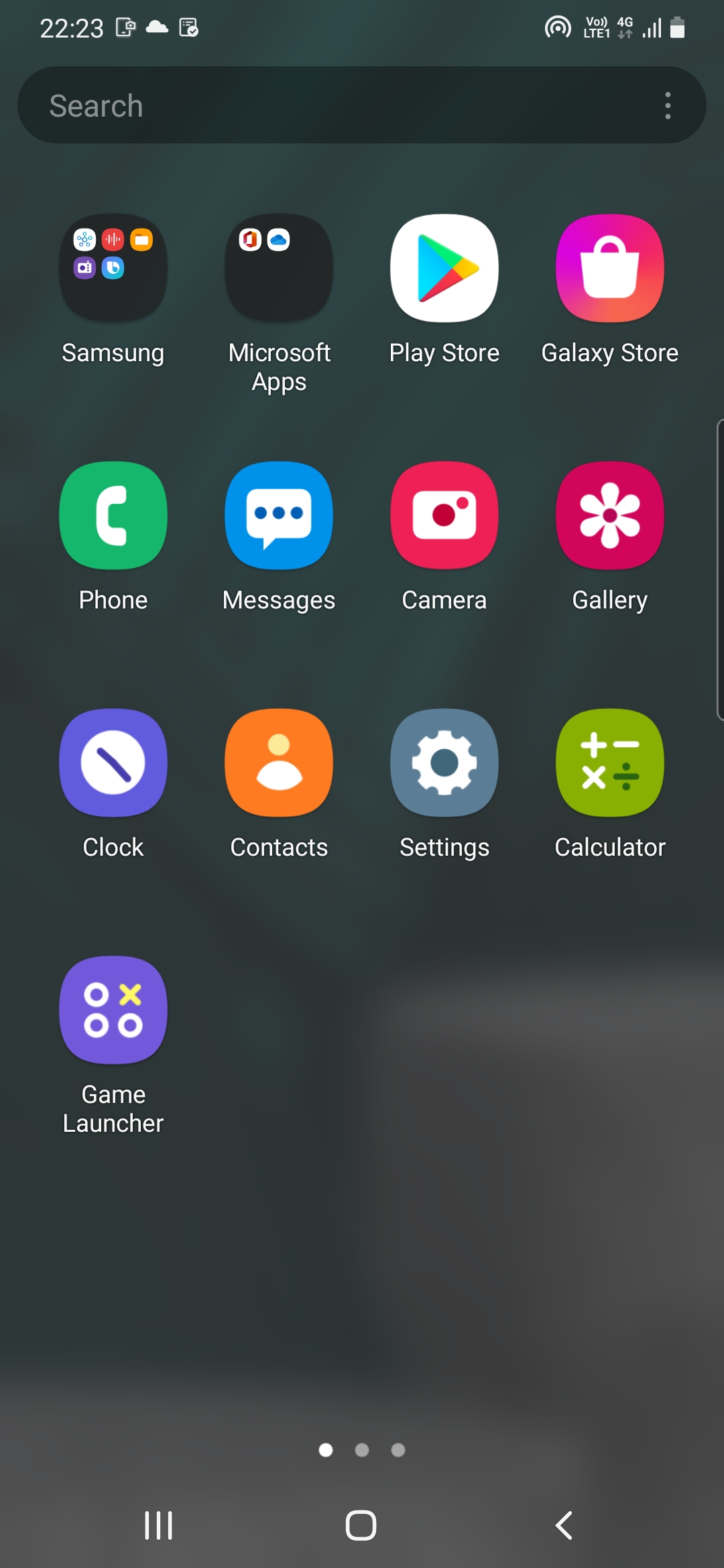
- Open the Google Play Store app on your Android TV.
- Select your profile icon in the top-right corner.
- Switch active profiles to your secondary regional account.
- Install Target Apps: The Play Store interface will update to show the app catalog corresponding to the secondary account’s region. Downloads linked to this account remain usable on the device even when you switch profile views back to your main account.
Method 2: Utilize a Dedicated Android TV VPN Service
A Virtual Private Network encrypts your internet traffic and routes it through a server situated in your home country (or any selected nation). This makes it appear to Google services and streaming providers that your device is accessing the network locally.
Android TV
Encrypted Tunnel
VPN Server in Home Country
Google Play / Streaming Service
Select an Android TV Native VPN: Ensure your chosen provider offers a native application in the TV-based Google Play Store (e.g., ExpressVPN, NordVPN, Surfshark, or ProtonVPN).
Install and Authorize: Download the VPN client from the Play Store on your TV. Open the app, log in, and grant the required Android system permissions to establish a VPN configuration.
Connect to Your Target Region: Select a server located in the country whose content or Play Store services you wish to access.
Clear Play Store Cache:
- Navigate to Settings > Apps > See all apps > Google Play Store.
- Select Force Stop, then select Clear Cache and Clear Data.
Relaunch Play Store: Reopen the store to view updated regional search listings and download your preferred applications.
Method 3: Sideload Applications (APK Installation)
When an app is unavailable in your current Play Store catalog and creating a secondary account is impractical, manual installation via sideloading bypasses Google Play Store storefront checks entirely.
- Install a File Transfer/Downloader Tool: Open the Play Store on your Android TV and install Downloader by AFTVnews or Send Files to TV (SFTV).
- Enable Installation from Unknown Sources:
- Go to Settings > Apps > Security & Restrictions > Unknown Sources (or Install Unknown Apps).
- Toggle the permission to Allowed for the file manager or Downloader app you installed.
- Obtain the APK File:
- Use the Downloader app's built-in web browser to visit verified, reputable APK repositories such as APKMirror or APKPure.
- Search for the required app (ensure you select the Android TV / Google TV version rather than the mobile touch-screen version, as standard mobile apps lack remote-control navigation interfaces).
- Execute and Install: Download the
.apkor.xapkfile and click Install. Once finished, the application will appear in your device's app drawer or under Settings > Apps.
Comparison of Access Solutions for Traveling Android TV Users
The following table evaluates the practical trade-offs among the three primary methods for maintaining app access on Android TV devices while traveling abroad.
| Feature / Criteria | Secondary Regional Account | Native Android TV VPN | Manual APK Sideloading |
|---|---|---|---|
| Primary Purpose | Access foreign Play Store app catalogs | Bypass streaming geo-blocks & encrypt traffic | Install unlisted or restricted app packages |
| Setup Complexity | Moderate (Requires account creation) | Low (Install and tap to connect) | Moderate-High (Requires third-party tools) |
| Play Store Access | Native access to alternate regional stores | Native access (requires clearing store cache) | Bypasses Play Store completely |
| Automatic App Updates | Yes (When logged into that account profile) | Yes (If installed via Play Store) | No (Requires manual updating of APKs) |
| Remote Control Compatible | 100% Native | 100% Native | Variable (Mobile APKs may require a mouse) |
| Impact on Main Account | None (Keeps primary account intact) | None | None |
| Cost | Free | Requires paid VPN subscription | Free |
Essential Tools and Hardware Checklist for International Travelers
To avoid common connectivity failures, prepare an hardware and software travel kit tailored for Android TV devices before departing.
- Micro Travel Router: Handles hotel Wi-Fi logins & creates private network
- 4K HDMI Extender Cable: Connects streaming stick to tight hotel TV ports
- Universal Power Adapter: Delivers reliable 5V/2A power to streaming hardware
- Wireless Mini Keyboard: Simplifies typing passwords and navigating APKs
- Downloader App: Utility for direct APK downloads without a PC
Hardware Requirements
- Compact Streaming Device: Portable form factors such as the Chromecast with Google TV, Amazon Fire TV Stick 4K (running Android-based Fire OS), or Xiaomi Mi TV Stick offer portability and built-in Wi-Fi flexibility.
- Micro Travel Router: A dual-band travel router simplifies connecting multiple devices to hotel Wi-Fi while running network-level VPN tunnels automatically.
- Flexible HDMI Extender Cable: Wall-mounted televisions in hotel rooms frequently block access to HDMI ports. A 6-inch to 1-foot flexible HDMI extension cable allows you to plug your streaming stick into tight spaces without straining the port.
- High-Output Power Adapter & Cables: Hotel USB ports integrated into televisions often fail to supply adequate amperage, causing Android TV devices to boot-loop continuously. Carry a dedicated 5V/2A (10W+) USB power adapter with interchangeable global plug prongs.
- Bluetooth Air Mouse / Wireless Mini Keyboard: Useful for navigating sideloaded mobile apps that do not natively support standard Android TV directional remotes.
Software Prerequisites
- Downloader App: Install this from the Play Store prior to departure.
- Alternative File Manager: Apps such as File Commander or AnExplorer allow easy navigation of local storage, cloud drives, and external USB storage on supported devices.
- Secondary Web Browser: Install a TV-focused browser such as TV Bro to handle manual captive portal sign-ins if public network login prompts fail to launch automatically.
Troubleshooting Common Android TV Play Store Errors Abroad
When managing an Android TV device on foreign networks, you may encounter specific error codes and system behaviors. Use the following diagnostic solutions to resolve them.
Error: "This item isn't available in your country"
- Cause: The Google Play account currently active on your device is registered to a country where the developer has restricted app distribution.
- Fix: Switch your Google Play Store active profile to a secondary regional account created for that specific location, or use a VPN combined with clearing the Play Store app data under Settings > Apps > Google Play Store > Clear Data.
Error Code 403 / Store Blank Screen
- Cause: The Google Play Store is detecting a proxy connection error, incomplete captive portal authentication, or an unstable VPN tunnel handshake.
- Fix: Disable your VPN temporarily to verify basic internet connectivity. Check your network status under Settings > Network & Internet. If connected without internet, disconnect and reconnect to prompt the captive portal login screen, or reboot your travel router.
Installed Streaming App Fails to Load Content
- Cause: The app was installed successfully, but its content delivery network (CDN) recognizes that your current IP address belongs to a foreign country or a blocked commercial VPN data center.
- Fix: Connect to a different VPN server node in your home country (preferably servers optimized for streaming). Clear the cache of the specific streaming app via Settings > Apps > [App Name] > Clear Cache, then relaunch the application.
Frequently Asked Questions
Can I change my Google Play Store country setting during a short travel trip?
You should not change your primary Google Play country setting during a short trip. Google restricts Play Store country updates to once every 12 months. Modifying this setting requires a valid local payment method for the new country and will lock your primary account to that region for a full year, preventing access to your home country's local app catalog upon return.
How do I log into hotel Wi-Fi using an Android TV device?
If the hotel Wi-Fi uses a captive portal (a web page requiring a room number or login), Android TV devices often fail to display the page automatically. You can resolve this by connecting your device to a portable travel router operating in Repeater Mode, sharing an authenticated mobile hotspot from your smartphone, or opening a TV-compatible web browser app to manually load the login page.
Is sideloading APK files on Android TV safe for travelers?
Sideloading APK files is safe provided you download installation packages exclusively from reputable, verified platforms like APKMirror or APKPure. Avoid downloading modified or cracked APKs from unverified forums, as unauthorized files can contain malware capable of compromising your streaming device and saved account credentials.
Will installing a VPN allow me to download geo-restricted apps from the Play Store?
A VPN alone changes your IP address, but it does not automatically alter your Google Play Store account country. To download geo-restricted apps, you must connect to the VPN and clear the Google Play Store app cache/data, or switch to a secondary Google account registered within the target region.
Why do some sideloaded apps look distorted or fail to respond to the TV remote?
Applications built exclusively for mobile phones or tablets rely on touchscreen inputs and portrait screen orientations. When installed on Android TV, they may render sideways or fail to register directional pad (D-Pad) commands from a standard remote control. To navigate these apps, connect a Bluetooth mouse, a wireless air mouse, or use an app that emulates mouse control.
Recommended Setup for Traveling Android TV Users
For an optimal balance of convenience, security, and content access while traveling, configure your hardware and accounts using this deployment strategy:
- Keep Your Primary Google Account Intact: Leave your main Google account assigned to your home country to retain access to your purchases, subscriptions, and regional applications.
- Deploy a Portable Travel Router: Use a travel router to handle hotel captive portals seamlessly, protecting your Android TV from public network exposure while broadcasting a secure, familiar Wi-Fi network to all your devices.
- Install a Native Android TV VPN: Set up a reputable VPN directly on your Android TV device before leaving home to ensure instant access to domestic streaming services from anywhere in the world.
- Use a Secondary Google Account for Local Apps: Add a secondary regional Google account to your device to download location-specific apps abroad without affecting your primary account's 365-day region lock.