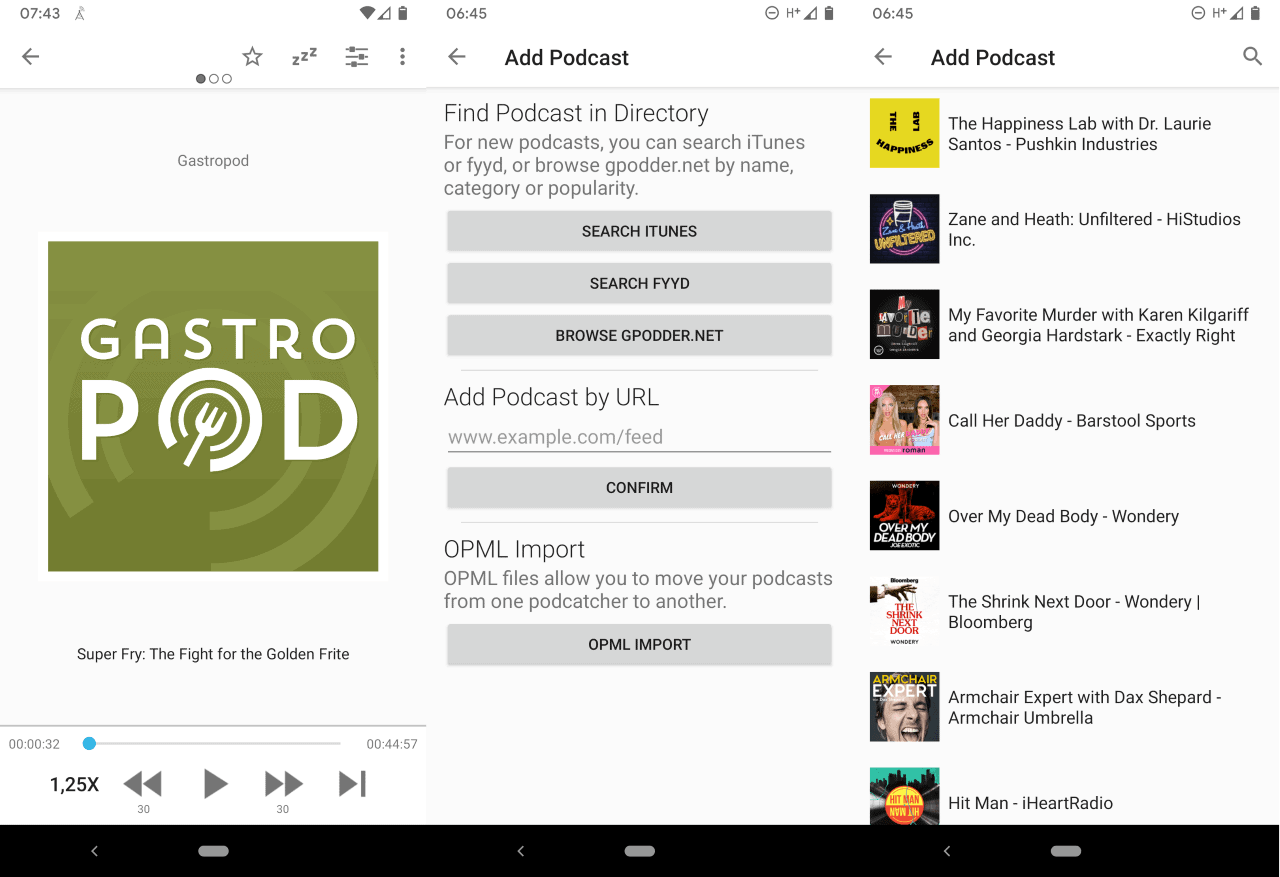
Listening to podcasts on Android requires choosing a dedicated player app, such as YouTube Music, Pocket Casts, AntennaPod, or Podcast Addict. Following the retirement of Google Podcasts, Android users stream episodes or subscribe via open RSS feeds to download files, automate queue playback, and sync progress seamlessly across devices and home audio hardware.
The Android Podcasting Landscape in 2026
The Android audio ecosystem provides more listening flexibility than any other mobile operating system. Unlike closed ecosystems that funnel listeners into a single pre-installed application, Android gives listeners the freedom to choose between closed proprietary streaming networks, standalone freemium power tools, and fully decentralized, open-source software.
For years, Google Podcasts served as the lightweight, native default player for millions of Android users. Following Google's transition to centralize spoken-word audio and music inside YouTube Music, the platform landscape shifted significantly. While YouTube Music serves as the out-of-the-box solution for users seeking video-podcast integration and standard catalog searches, third-party developers have filled the demand for dedicated, RSS-first podcast clients.
Modern podcast consumption on Android relies on two fundamentally different architectures:
- Open RSS (Really Simple Syndication): The traditional, open-web standard where creators host audio files on independent web servers and publish an XML feed. Any compliant Android podcast player can fetch this feed, stream the media, or download it for offline use without algorithmic curation, middleman gatekeepers, or required platform accounts.
- Proprietary Streaming Platforms: Walled gardens—such as Spotify and YouTube Music—that deliver audio via encrypted, proprietary streams. While they offer discovery algorithms, social sharing, and video feeds, they often restrict access to custom RSS links, limit offline file portability, and track user consumption metrics across their broader ad platforms.
Navigating this ecosystem requires identifying your primary listening priorities: algorithmic discovery and ecosystem convenience versus privacy, local file management, and advanced audio playback controls.
Top Android Podcast Apps
Selecting the right app determines your daily listening experience, battery consumption, and storage management. The following applications represent the standard-bearers for Android audio playback, spanning open-source tools, power-user utilities, and mainstream streaming networks.
Pocket Casts: Best for Cross-Platform Sync and Design
Pocket Casts remains one of the most polished podcast clients on Android. It features a clean Material You interface that dynamically matches your device's system theme, paired with a reliable cloud sync engine.
- Key Strengths: Cloud-synchronized listening history, playback queues, and custom episode filters that synchronize seamlessly across Android, iOS, Wear OS, and desktop web browsers.
- Audio Features: Built-in silence trimming, volume boosting, and variable playback speeds ranging from 0.5x to 3.0x with consistent pitch correction.
- Limitations: Accessing desktop players, Apple Watch/Wear OS standalone streaming, and cloud storage folders requires a paid Pocket Casts Plus subscription.
AntennaPod: The Best Open-Source, Ad-Free Client
AntennaPod is a community-driven, fully open-source podcast player available through the Google Play Store and the independent F-Droid repository. It operates without corporate tracking, centralized user accounts, or native advertisements.
- Key Strengths: Complete data sovereignty. AntennaPod contains no analytics frameworks or trackers. It supports open directory searches (including the Podcast Index and Apple Podcasts databases) and direct RSS imports.
- Sync Functionality: Users can synchronize playback progress across devices using self-hosted services like Nextcloud (via the GPodder API) or a dedicated GPodder.net account.
- Limitations: Lacks an official native desktop app; cross-device synchronization requires manual server configuration or third-party cloud setup.
Podcast Addict: The Ultimate Power-User Utility
Podcast Addict provides the most granular configuration options of any audio client on Android. Every setting—ranging from network download rules to audio equalization—can be configured globally or adjusted for each individual podcast subscription.
- Key Strengths: Exhaustive audio engine controls. It includes an advanced parametric audio equalizer, automatic chapter skip functions, automated backup to local storage or cloud drives, and full support for YouTube channels and Twitch audio streams alongside RSS feeds.
- Customization: Listeners can define custom download rules based on Wi-Fi SSID, battery charging status, or time of day.
- Limitations: The user interface has a steeper learning curve compared to minimalist competitors, and the free tier displays ad banners that require a modest annual subscription to remove.
YouTube Music: Google's Integrated Default
As Google's designated audio hub, YouTube Music serves users who consume both audio and video podcasts alongside their primary music library.
- Key Strengths: Native Android integration, seamless switching between video and audio-only playback, and deep compatibility with Google Assistant and Google Cast hardware.
- RSS Ingestion: Users can manually import external RSS feeds into their YouTube Music library, allowing private feeds to be streamed within the app.
- Limitations: Background playback for video-based podcasts occasionally defaults to video feeds, consuming higher network data. The app lacks granular playback features like automated silence skipping and custom per-feed skip timers.
Spotify: Best for Exclusives and Algorithmic Discovery
Spotify combines its global music catalog with a massive directory of podcasts, making it an attractive all-in-one media center for listeners who prefer not to manage multiple playback apps.
- Key Strengths: Advanced recommendation algorithms, social listening integration, integrated video podcasts, and interactive show features like Q&As and polls.
- Limitations: Spotify does not support open, manual RSS feed subscriptions within the app. It tracks user behavior extensively for targeted advertising, and audio processing options (such as voice leveling or custom trim) are minimal.
Technical Comparison of Android Podcast Players
The table below contrasts the technical capabilities, cost structures, and network requirements of the leading Android podcast clients:
| Feature / Metric | Pocket Casts | AntennaPod | Podcast Addict | YouTube Music | Spotify |
|---|---|---|---|---|---|
| License / Pricing | Freemium ($39.99/yr for Plus) | Free / Open Source (GPLv3) | Freemium ($11.99/yr to remove ads) | Free with Ads / Premium ($10.99/mo) | Free with Ads / Premium ($11.99/mo) |
| Account Required | Optional (Required for sync) | None (Local-first) | Optional | Google Account | Spotify Account |
| Custom RSS Feed Support | Yes (Free) | Yes (Free) | Yes (Free) | Yes (Manual import) | No |
| Open OPML Import/Export | Yes | Yes | Yes | Limited / Ingestion only | No |
| Silence Trimming Engine | Yes | Yes | Yes | No | No |
| Volume Boost / Speech Isolation | Yes | Yes | Yes | No | No |
| Cross-Platform Ecosystem | Android, iOS, Web, Wear OS | Android only (F-Droid & Play Store) | Android only | Android, iOS, Web, Cast | Android, iOS, Web, Smart TVs |
| Wear OS Standalone Playback | Yes (Plus tier) | No | No | Yes (Premium tier) | Yes (Premium tier) |
| Privacy / Tracking | Minimal analytics | Zero analytics / No trackers | Ad-supported analytics (Free tier) | Extensive Google telemetry | Extensive Spotify telemetry |
How to Subscribe and Manage Podcast Feeds
Managing a podcast library on Android can be handled automatically through built-in directories or configured manually using open-web protocols.
Subscribing via Directory Search
Most modern players query public podcast indexes—such as Apple Podcasts, the Podcast Index, or their own proprietary databases—to index public shows.
- Open your selected podcast player and tap the Search or Discover tab.
- Enter the show title, host name, or specific topic.
- Select the podcast from the query results to review show notes and episode archives.
- Tap Subscribe or Follow. When prompted, enable auto-download permissions if you plan to listen offline.
Adding Private or Paid RSS Feeds
Independent creators, Patreon campaigns, and premium networks often distribute private RSS URLs that require authentication or contain unique subscriber tokens.
- Copy the full RSS URL provided by the content creator (typically ending in
.xmlor including a unique token parameter). - Open your podcast player and navigate to the Add Podcast or Subscriptions screen.
- Locate the option labeled Add by URL or Add RSS Feed.
- Paste the copied link into the text field. If the feed requires authentication, enter your designated username and password in the provided fields.
- Tap Add. The player will validate the feed's XML structure and pull all associated audio metadata into your library.
Transferring Subscriptions Using OPML
If you change Android devices or switch between podcast players, you do not need to manually resubscribe to each show. You can migrate your entire library using an OPML (Outline Processor Markup Language) file, which is an industry-standard XML format for exchangeable subscription lists.
- Exporting OPML: Open your current podcast app's settings menu, select Storage, Backup, or Import/Export, and tap Export OPML. Save the generated
.opmlor.xmlfile to your local download folder or cloud drive. - Importing OPML: Open your new podcast client, navigate to the same Import/Export section, select Import OPML, and choose the saved file. The new app will read the feed addresses and populate your entire subscription list in the background.
Audio Quality and Playback Optimization on Android
Spoken-word audio presents unique listening challenges: production values vary widely between shows, background ambient noise can obscure dialogue, and standard speech rates can feel sluggish. Dedicated podcast engines on Android solve these issues using automated digital signal processing (DSP).
Variable Playback Speed and Pitch Correction
Standard speech is easily understood at speeds higher than real-time recording. High-quality players use time-stretching algorithms—such as WSOLA (Waveform Similarity Overlap-Add)—to accelerate or decelerate playback between 0.5x and 3.0x while maintaining accurate vocal pitch, preventing the unnatural distortion known as the "chipmunk effect."
Silence Removal (Skip Silence)
Silence trimming dynamically analyzes the incoming audio buffer for pauses, quiet transitions, and dead air. When speech drops below an audible decibel threshold for a set duration, the playback engine accelerates or splices out the gap. Across long shows, this feature can shave 10% to 20% off total listening time without cutting off syllables or rushing speech cadence.
Volume Boost and Dynamic Range Compression (DRC)
Podcasts recorded in untreated rooms or casual environments often have wildly fluctuating volume levels: one participant may whisper while another laughs loudly.
- Volume Boost amplifies the quiet vocal frequencies above the standard software gain limit.
- Dynamic Range Compression narrows the gap between the quietest and loudest parts of the track, ensuring speech remains intelligible in noisy environments like public transit or gymnasiums without forcing you to constantly adjust device volume buttons.
Hardware Codecs and Bluetooth Latency
Spoken-word audio does not require high-bitrate codecs like LDAC or aptX HD; standard Bluetooth profiles like AAC or SBC running at 128 kbps provide more than enough frequency response for human speech (which generally falls between 85 Hz and 255 Hz).
If you notice an audio-sync lag when watching video podcasts on Android, check your app's playback settings to ensure Bluetooth hardware offloading is enabled, or adjust your player's internal audio-video sync offset slider.
Storage Management and Battery Optimization
Podcast audio files can rapidly consume internal storage space. A typical 90-minute MP3 episode encoded at 128 kbps takes up roughly 80 MB to 100 MB of space. Subscribing to ten weekly shows can consume multiple gigabytes of local storage within a month if automated file management is not properly configured.
Automating Episode Cleanup
To prevent audio files from exhausting your device's internal storage:
- Enable Auto-Delete Upon Completion: Configure your app to delete downloaded audio files immediately after the episode status is marked as played, or within 24 to 48 hours of completion.
- Set Download Limits: Restrict subscriptions to keep only the newest 1 to 3 episodes of any given show, automatically deleting older, unplayed files.
- Manage Episode Caching: Periodically clear the temporary streaming cache within your app's settings menu or via Android system settings under Settings > Apps > [Your Podcast App] > Storage & cache > Clear cache.
Resolving Background Playback and Battery Restrictions
Modern Android versions feature aggressive background battery management engines (collectively referred to as Doze mode). If the operating system determines an app is consuming background CPU cycles while the screen is off, it may terminate the playback service or block background feed refreshes.
To prevent sudden playback drops:
- Open your Android device's Settings.
- Navigate to Apps (or Apps & notifications) and select your podcast player.
- Tap Battery or App battery usage.
- Change the setting from Optimized (or Restricted) to Unrestricted.
- Ensure that the Background data toggle under Mobile data & Wi-Fi is turned On, which allows the player to complete automated episode downloads and sync timestamps when connected to networks.
Troubleshooting Common Android Podcast Issues
Background Playback Stops When the Screen Turns Off
- Root Cause: The Android OS is putting the audio service to sleep to conserve battery, or a manufacturer-specific task killer (common on Xiaomi, Samsung, or OnePlus devices) is terminating background processes.
- Solution: Exempt the application from battery optimization (as outlined above). Additionally, verify within the app's settings that "Keep CPU awake during playback" or "Foreground audio service" is toggled on. This forces Android to display a persistent media notification, protecting the process from system termination.
Custom RSS Feed Fails to Update or Download Episodes
- Root Cause: Outdated feed URLs, expired security certificates on the host server, or network-level blocking from ad-blocking VPNs and private DNS services.
- Solution: Check if the host server uses HTTPS with a valid certificate. If you use a system-wide private DNS (like AdGuard or NextDNS), check your DNS logs to see if the podcast hosting domain (such as Libsyn, Megaphone, or Simplecast) is being inadvertently blocked. Temporarily switch your private DNS to automatic under Settings > Network & internet > Private DNS to isolate the problem.
High Mobile Data Consumption
- Root Cause: The application is streaming episodes at full bitrate over cellular networks or downloading scheduled episodes using mobile data.
- Solution: Open your podcast app's network settings and enable Download over Wi-Fi only. Additionally, disable automatic streaming while on cellular connections, ensuring the app only streams files that were cached over local Wi-Fi networks beforehand.
Cloud Sync Fails Between Devices
- Root Cause: Out-of-sync system clocks, failed background authorization tokens, or rate-limiting by the synchronization server.
- Solution: Navigate to Settings > System > Date & time and confirm your device uses Set time automatically. Next, open your podcast player, sign out of your platform account, restart the phone, and sign back in to force a fresh OAuth token exchange with the sync server.
Frequently Asked Questions (FAQ)
What replaced Google Podcasts on Android?
Google officially replaced Google Podcasts with YouTube Music. Users who prefer not to use YouTube Music can choose from third-party alternatives like Pocket Casts, AntennaPod, and Podcast Addict, all of which support standard RSS feeds and library imports via OPML files.
Can I listen to podcasts offline on Android?
Yes. Every major Android podcast client allows you to download individual episodes or automate full-show downloads over Wi-Fi. Once downloaded, files are stored locally in the app's sandboxed storage or local media directory, enabling full playback functionality without an active cellular or Wi-Fi connection.
How do I add Patreon or private podcast feeds to my Android phone?
Copy the private audio RSS feed URL provided in your Patreon account or membership portal. Open your podcast player, choose the option to add a show manually by URL, paste the link, and save it. The app will verify the address and populate the exclusive episodes into your primary subscription queue.
Why do my podcast downloads pause or fail halfway through?
Downloads usually stall due to aggressive battery savers cutting network access when the screen turns off, Wi-Fi networks disconnecting during idle periods, or insufficient local storage space. Set your podcast app's battery permission to Unrestricted, verify you have at least 2 GB of free internal storage, and confirm your Wi-Fi remains active during device sleep.
Can I transfer my podcast subscriptions between different apps?
Yes, using an OPML file. Export an OPML backup from your existing podcast app's settings menu, save it to your phone's storage, open your new podcast app, and select Import OPML. Your entire catalog of subscribed shows will transfer instantly without requiring manual searches.
Final Recommendations for Android Listeners
To get the most out of listening to podcasts on Android, choose an application that aligns with your specific priorities:
- For Privacy and Open Standards: Install AntennaPod. It requires no user account, serves zero ads, respects system resources, and gives you direct access to the open podcasting web without corporate tracking.
- For Cross-Device Sync and Simplicity: Choose Pocket Casts. It balances advanced audio processing tools (like silence trimming and speech enhancement) with a refined interface and rock-solid synchronization across Android, desktop, and Wear OS hardware.
- For Deep Audio Customization: Use Podcast Addict. Its granular automation options, custom network rules, and audio equalization capabilities make it the premier choice for heavy listeners managing extensive show archives.
After installing your chosen app, immediately navigate to your device's system settings to set App battery usage to Unrestricted, configure automated deletion rules for completed episodes, and set downloads to run over Wi-Fi only to keep your storage and data usage fully optimized.