To stop ads from popping up on your Android device, you must identify and uninstall the specific app responsible for the adware, revoke "Display over other apps" permissions, and clear intrusive browser notification settings. Usually, these ads are triggered by a recently downloaded third-party application or a website granted permission to send push notifications.
Persistent ad pop-ups on Android are rarely a "virus" in the traditional sense but are almost always the result of adware—software specifically designed to generate revenue by forcing advertisements onto your screen. By 2026, Android's security architecture has become significantly more robust, yet developers of intrusive apps continue to find creative ways to bypass user experience guidelines. These ads can appear on your lock screen, interrupt your navigation via full-screen overlays, or clutter your notification shade. This guide provides a systematic approach to identifying the source of these interruptions and securing your device against future intrusions.
Understanding Why Ads Keep Popping Up on Your Android Device
The presence of unexpected advertisements generally falls into three categories: malicious third-party apps, browser-based push notifications, or system-level adware that has exploited specific permissions. In the current 2026 mobile landscape, even legitimate apps from the Google Play Store occasionally push the boundaries of acceptable advertising, though most "pop-up" issues stem from apps installed via third-party APK mirrors or utility apps (like flashlight, battery saver, or PDF scanner apps) that have changed their behavior after an update.
Adware functions by requesting permissions that allow it to draw over other applications. When you grant an app the "Display over other apps" permission, you are essentially giving it a "layer" above your user interface. This is the same technology used by Facebook Messenger for "Chat Heads," but adware uses it to inject full-screen videos or banners while you are trying to use your phone for other tasks.
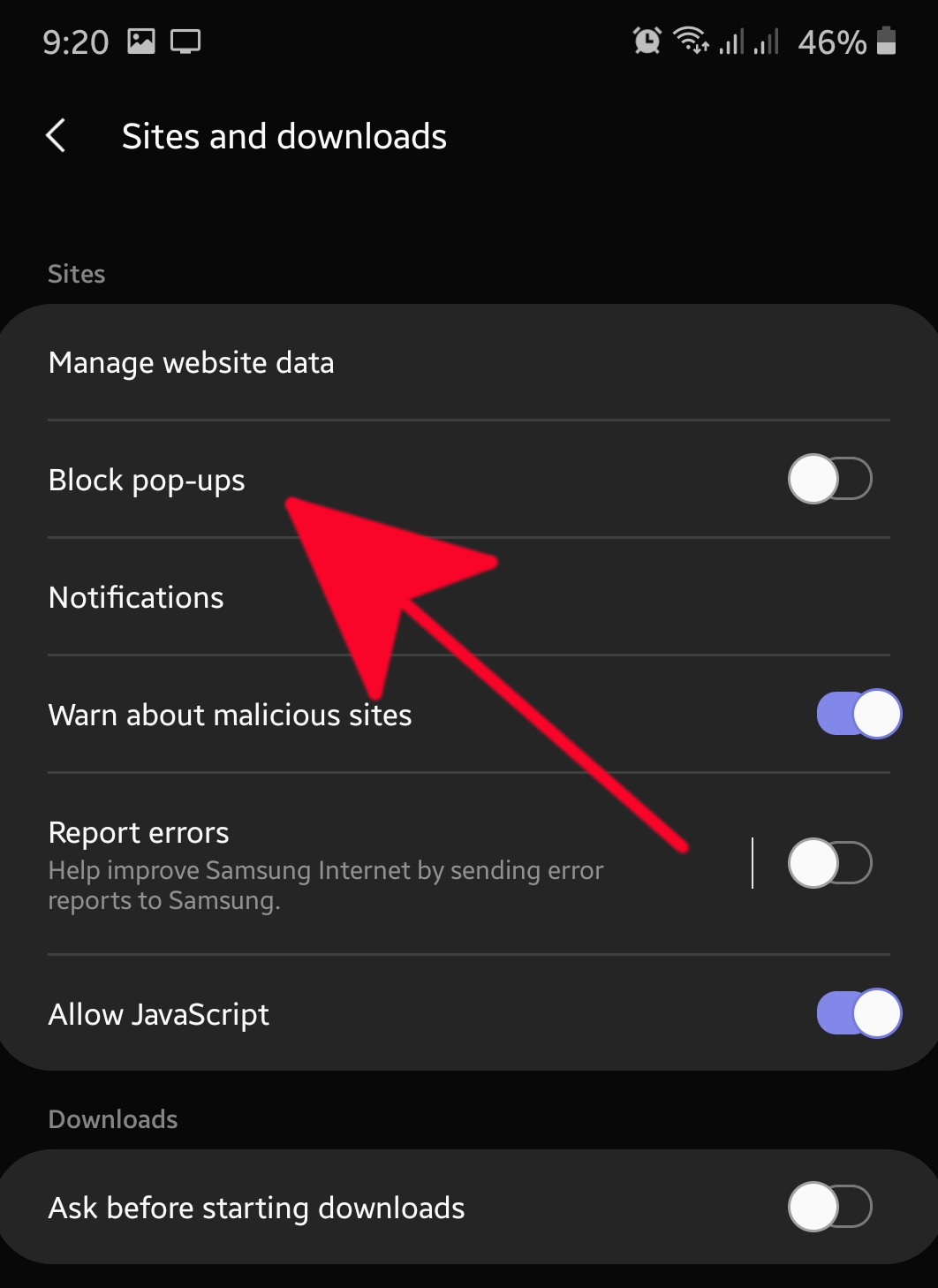
Another common culprit is the mobile browser. Modern versions of Google Chrome and other Chromium-based browsers allow websites to ask for permission to send notifications. If you accidentally tap "Allow" on a suspicious site, that site can send what look like system alerts but are actually advertisements for "security updates," "prizes," or adult content.
Immediate Steps to Identify the Culprit App
When ads start appearing out of nowhere, the most effective way to stop them is to find out which app was active at the exact moment the ad appeared.
Method 1: The "Recently Used Apps" View
The simplest way to catch a rogue app is to use the Android task switcher. When a full-screen ad pops up:
- Do not close the ad immediately.
- Swipe up from the bottom of the screen and hold (or tap the Square/Recent Apps button) to open the Recent Apps view.
- The app at the very top or front of the list is the one responsible for the ad.
- Look for apps that have no icon or a generic Android icon, as many adware developers try to hide their identity in the task switcher.
- Long-press the icon at the top of that app's preview and select App Info to uninstall it immediately.
Method 2: Using the Google Play Store to Sort by Last Used
If the ad disappears before you can check the task switcher, the Play Store provides a historical record of app activity.
- Open the Google Play Store.
- Tap your Profile Icon in the top right corner.
- Select Manage apps & device.
- Tap the Manage tab.
- Tap the sorting filter (usually set to "Recently updated") and change it to "Most used."
- Look for apps you don't recognize or apps that appear to have been used very recently despite you not opening them. This is a common sign of background adware execution.
Managing "Display Over Other Apps" Permissions
The "Display over other apps" permission (also known as "Draw over other apps") is the primary mechanism for intrusive pop-ups. Auditing this list is a non-negotiable step in cleaning your device.
To audit this permission on Android 14, 15, and 16:
- Open Settings.
- Navigate to Apps (or Apps & Notifications).
- Tap on Special app access. (Note: This is often hidden under an "Advanced" or "More" menu).
- Select Display over other apps.
- Review the list of apps that have "Allowed" status.
- Toggle the switch to Off for any app that does not strictly need this feature. Apps like calculators, weather widgets, and obscure utilities should never have this permission.
By revoking this access, you effectively strip the app of its ability to interrupt your workflow with visual overlays, even if the app remains installed on the device.
How to Stop Browser-Based Ad Pop-ups
If the ads appear primarily while you are browsing the web, or if they appear as notifications in your tray that look like they are coming from a browser, the issue is likely site-specific permissions rather than a malicious app.
Disabling Intrusive Notifications in Chrome
Google Chrome has integrated several protections against "abusive" notifications, but manual intervention is often required if a user has previously granted permission.
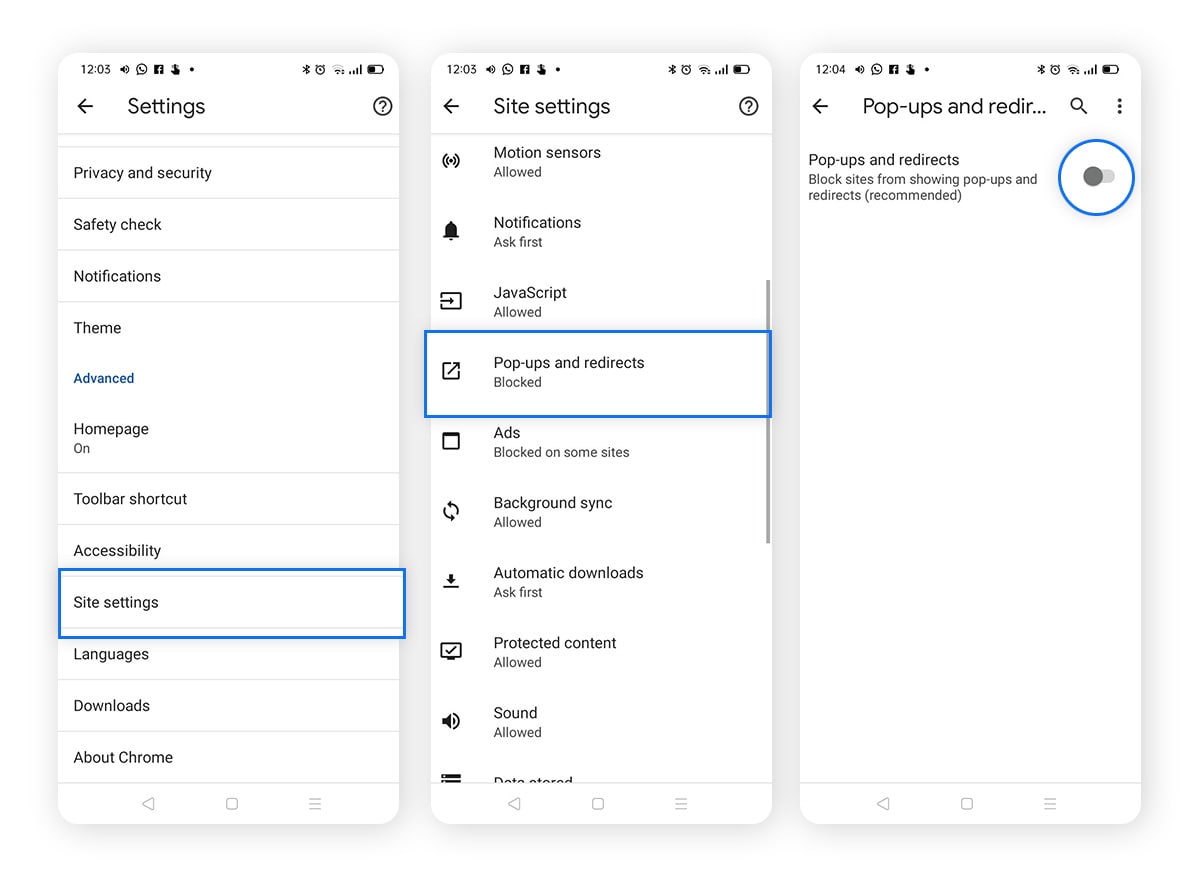
- Open Chrome on your Android device.
- Tap the three dots (Menu) in the top right and select Settings.
- Scroll down to Site Settings.
- Tap on Notifications.
- Check the "Allowed" section. If you see URLs you don't recognize (often ending in .top, .xyz, or .club), tap on them and select Remove or Reset.
- For a more permanent solution, you can toggle the top switch "Notifications" to Blocked or enable "Use quieter messaging" to prevent sites from showing intrusive permission prompts.
Clearing Browser Cache and Cookies
Sometimes, "adware" is simply a persistent script running in a background tab or stored in your browser's local storage.
- In Chrome Settings, go to Privacy and security.
- Tap Clear browsing data.
- Select "All time" as the time range.
- Ensure "Cookies and site data" and "Cached images and files" are checked.
- Tap Clear data.
Advanced Troubleshooting: Using Safe Mode
If ads continue to pop up and you cannot find the responsible app, Safe Mode is your best diagnostic tool. Safe Mode prevents all third-party applications from running, allowing only the original system software to operate.
How to Enter Safe Mode
- Press and hold the Power button (or Power + Volume Up, depending on your model) until the power menu appears.
- Long-press the Power Off or Restart icon on the screen.
- A prompt will appear asking if you want to Reboot to Safe Mode. Tap OK.
- Once the device restarts, "Safe Mode" will be displayed at the bottom of the screen.
What to do in Safe Mode
Observe your phone for 15–20 minutes. If the ads stop appearing while in Safe Mode, you have confirmed that a third-party app is the culprit. While still in Safe Mode, you can go to Settings > Apps and begin uninstalling suspicious apps one by one. Since the apps aren't running, they cannot "hide" or trigger ads to prevent their own uninstallation. To exit Safe Mode, simply restart your phone normally.
Technical Comparison of Ad-Prevention Methods
The following table compares the different layers of defense available on Android in 2026 to help you decide which approach fits your technical comfort level.
| Method | Primary Target | Difficulty | Effectiveness | Impact on Performance |
|---|---|---|---|---|
| App Uninstallation | Malicious Adware Apps | Easy | High | Improves Battery & Speed |
| Permission Revocation | Screen Overlays | Medium | High | Negligible |
| Browser Reset | Notification Spam | Easy | Moderate | Clears Saved Logins |
| Private DNS (Ad-Blocking) | In-App Ad Banners | Medium | High | Slightly improves loading |
| Play Protect Scan | Known Malware | Easy | Moderate | Background Process |
| Factory Reset | Persistent Infections | Hard | Absolute | Wipes All Data |
Using Private DNS for System-Wide Ad Blocking
In 2026, Android's "Private DNS" feature remains one of the most powerful tools for preventing ads before they even reach your screen. By routing your traffic through an ad-blocking DNS provider, you can stop many pop-ups from loading at the network level.
- Go to Settings.
- Tap Network & internet (or Connections).
- Tap Private DNS.
- Select Private DNS provider hostname.
- Enter a reliable ad-blocking hostname, such as
dns.adguard.comorp2.freedns.controld.com. - Tap Save.
This method is particularly effective against apps that are not inherently "malicious" but contain aggressive advertising SDKs. It works by blocking the requests the app makes to the ad servers.
Verification and Long-Term Prevention
Once you have stopped the pop-ups, it is crucial to ensure your device's built-in defenses are active. Google Play Protect is the primary shield for Android. Ensure it is enabled by going to Play Store > Profile > Play Protect > Settings and verifying that "Scan apps with Play Protect" is toggled on.
Additionally, be wary of "Free" versions of premium apps. In 2026, the trend of "fleeceware" persists—apps that are technically functional but serve an overwhelming number of ads to frustrate users into a subscription. Always read the most recent reviews in the Play Store, specifically looking for mentions of "too many ads" or "pop-ups."
For further information on mobile security, users should consult the official Android Security Hub or the Google Play Protect documentation.
FAQ
Q: Can a website infect my Android phone with a virus just by visiting it? A: It is extremely unlikely for a modern Android device to be infected with a traditional "virus" simply by visiting a site in 2026. However, sites can trigger "Social Engineering" attacks where they trick you into downloading a malicious file or granting notification permissions. The "pop-ups" you see after visiting a site are usually just browser notifications, not a system infection.
Q: I uninstalled the suspicious app, but the ads are still there. Why? A: There may be more than one rogue app, or the adware might have granted itself "Device Administrator" privileges. Check Settings > Security > Device admin apps to see if any unknown apps have elevated permissions. If so, deactivate them and then attempt the uninstallation again. Also, ensure you have cleared your browser cache as explained above.
Q: Is it safe to use third-party "Ad-Killer" apps from the Play Store? A: Exercise caution. Many apps that claim to "clean" or "boost" your phone and block ads are actually adware themselves. It is safer to use built-in system settings like Private DNS or reputable, well-known security suites from established cybersecurity firms rather than generic "Cleaner" apps.
Q: Why do ads appear on my lock screen specifically? A: This is usually caused by a utility app like a "Fast Charger," "Flashlight," or "Custom Lock Screen" app. In Android's settings, check which apps have the "Show on lock screen" permission and disable them. Google has strict policies against lock screen ads, so any app doing this is likely violating Play Store terms and should be reported.
Q: Will a Factory Reset definitely fix the problem? A: Yes, a Factory Reset will remove all third-party applications and return the device to its original state, which will stop any adware. However, this should be a last resort, as it deletes all your photos, messages, and data. Always ensure your data is backed up to Google Drive or an external source before proceeding.
Final Recommendation
To keep your Android device ad-free in 2026, adopt a "minimalist" approach to app installation. Regularly audit your app list and remove anything you haven't used in the last month. If you must download a new utility app, check the "Permissions" section in the Play Store before installing to see if it requests "Display over other apps" or "Modify system settings." If you find yourself frequently plagued by ads, switching your system to a Private DNS provider like AdGuard is the single most effective "set it and forget it" solution for 2026.