Importing data via CSV into Asana is a powerful method for migrating tasks from legacy systems, bulk-creating project backlogs, or syncing external spreadsheets. However, successfully navigating the platform’s technical constraints requires a clear understanding of Asana’s file structure requirements, character limits, and mapping protocols. By optimizing your CSV files before ingestion, you can prevent data truncation, eliminate errors, and maintain project integrity during large-scale imports.
Understanding Asana’s CSV Import Architecture
Asana is built upon a relational database structure where individual units of work (tasks) exist within projects, which are in turn contained within teams and organizations. When you use the CSV import function, you are essentially instructing Asana to parse your tabular data and map it to specific object attributes—most commonly task names, descriptions, assignees, and due dates.
The CSV import tool acts as a bridge. It does not replace native integration features but serves as a one-time data transformation utility. The import process is additive; it creates new records based on your CSV rows but does not inherently "sync" updates. Understanding this architecture is vital because it explains why Asana has strict limits on file size and row counts: the system must process each row as an individual API call or database insertion to ensure that data relationships remain valid.
Technical Prerequisites for Successful Imports
Before attempting to move data into Asana, your source file must adhere to standard formatting requirements to ensure the parser correctly identifies your columns:
- UTF-8 Encoding: To prevent character corruption—especially with non-English languages or special symbols—ensure your CSV is saved with UTF-8 encoding.
- Column Headers: Your first row must contain descriptive headers. Asana’s importer uses these headers to suggest field mappings, making the setup significantly faster.
- Data Uniformity: Ensure that columns like "Assignee" contain email addresses associated with active Asana users within your organization. If an email is not recognized, the task may default to being unassigned.
- Date Formats: Stick to ISO 8601 formats (YYYY-MM-DD) whenever possible to prevent the importer from misinterpreting day/month positions.
Navigating CSV Limits and Capacity Constraints
While Asana’s infrastructure is designed for high-volume task management, the CSV import tool has specific physical limits intended to preserve performance for all users. Exceeding these limits often results in "import timeout" errors or the partial truncation of descriptions.
Capacity Thresholds
- Row Limits: While there is no published "hard" cap on the number of rows per CSV in the standard documentation, imports exceeding 1,000–2,000 rows at once may experience processing delays or browser-side instability. For migrations involving tens of thousands of tasks, it is standard practice to break the data into smaller, manageable batches (e.g., 500 rows per file).
- Character Limits: Task names are typically constrained to 255 characters. If your CSV contains a task name exceeding this, the importer may reject the row or truncate the text. Similarly, while task descriptions can accommodate larger amounts of text, excessive data (often exceeding 64KB per description) may lead to performance degradation during the import.
- Attachment Handling: CSV imports do not support the direct upload of files or attachments. You can include a column for "URL" in your CSV, which will import as a clickable link in the task description, but you must host the files externally before initiating the import.
Managing System Performance
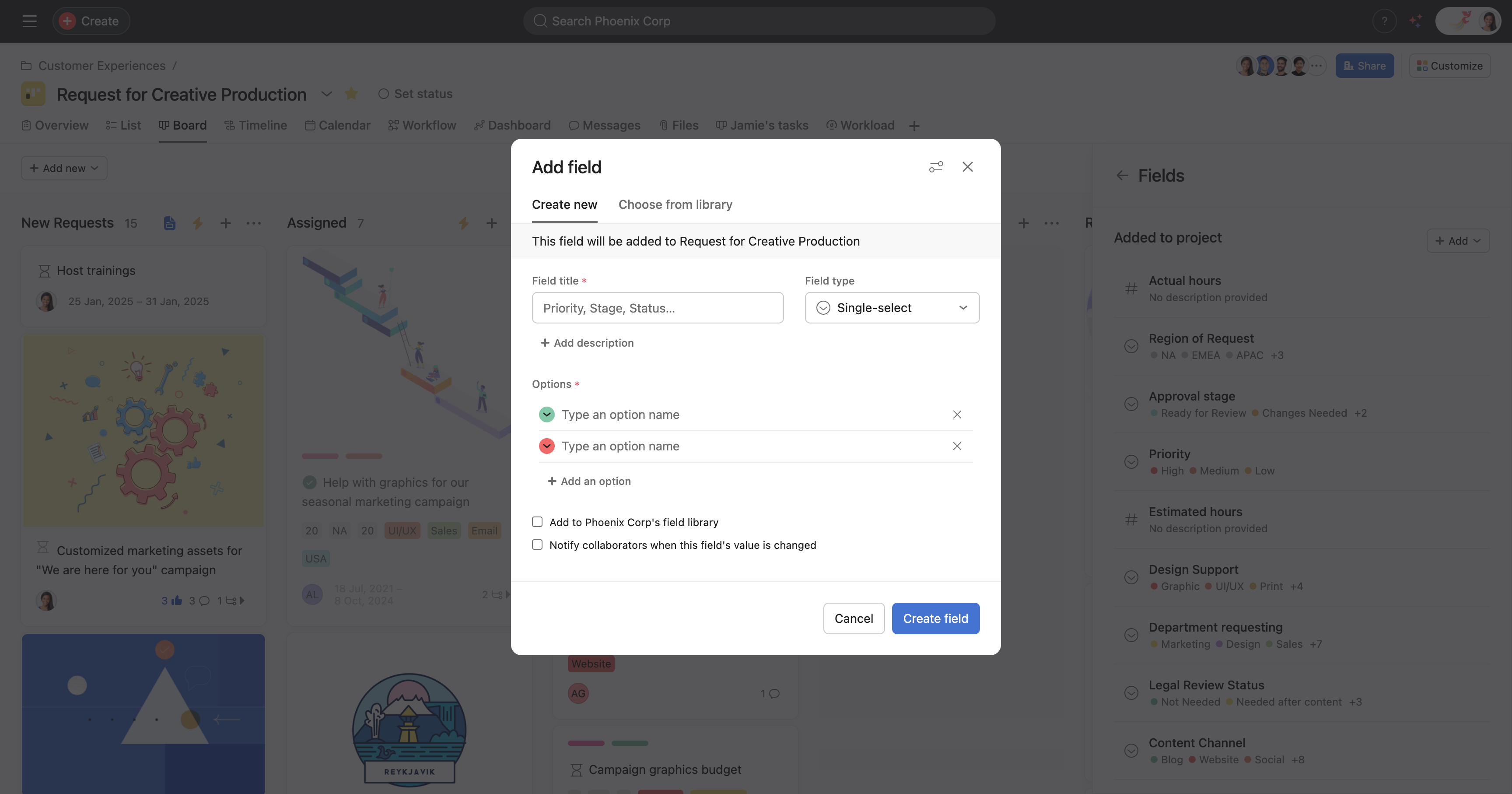
If you encounter errors during a large upload, the most common culprit is "Data Mapping Mismatch." This happens when your CSV structure differs from the fields available in your specific Asana project. If your project uses Custom Fields, you must ensure these are created in Asana before you initiate the import, otherwise, the data will simply be ignored or relegated to the task description.
Optimizing Workflows for Data Migration
The value of a CSV import is diminished if the resulting tasks are unorganized or lack the necessary context. Rather than treating an import as a simple data dump, approach it as a workflow design phase.
Pre-Import Mapping Strategy
Before uploading, create a mapping table to verify that your data aligns with Asana’s native capabilities:
| CSV Column Header | Target Asana Field | Required Format/Validation |
|---|---|---|
| Task Name | Task Name | Text; mandatory field |
| Assignee Email | Assignee | Email address; must exist in Org |
| Due Date | Due Date | YYYY-MM-DD format |
| Priority | Custom Field (Dropdown) | Must match dropdown options exactly |
| Description | Task Description | Plain text or HTML snippets |
By pre-creating your Custom Fields in Asana that exactly match the data labels in your CSV, you ensure that categorical data is actionable immediately. For example, if you have a "Priority" column in your CSV, creating a "Priority" dropdown field in Asana allows you to sort and filter your imported tasks instantly after the process completes.
Post-Import Cleanup and Verification
Once the import concludes, do not assume success without verification. Perform a "Spot Check" on the first and last five rows of your import. Check that:
- Assignees are correctly linked to user profiles.
- Dates were not shifted due to timezone parsing issues.
- Task descriptions contain all necessary information without trailing garbage characters.
Troubleshooting Common Import Failures
When a CSV import fails, Asana typically provides a generic error notification. Because the system does not always provide specific line-by-line debugging, you must adopt a systematic troubleshooting approach.
- The "Ghosting" Issue: If tasks appear to import but fields are blank, check your mapping during the second stage of the import screen. Often, the automatic mapper misidentifies a column; manually select the correct destination field for every column containing critical data.
- Permission Conflicts: If you do not have permission to edit or add tasks in a specific project, the import will fail. Ensure your user role in the target project is set to "Editor" or "Admin" before initiating the process.
- Encoding Errors: If you see "" or strange symbols where accented characters should be, your CSV is likely saved in a legacy format like Windows-1252. Resave your source file as "UTF-8 CSV" in your spreadsheet software and re-run the import.
- Invalid User Emails: If an assignee isn't populating, check for hidden spaces in the email column of your CSV. An email like "user@domain.com " (with a trailing space) will be rejected by the importer as an invalid user.
Comparing CSV Import vs. Native API Integration
It is important to recognize when a CSV import is the wrong tool for the job. CSV imports are best suited for one-time migrations or bulk setup of recurring project templates. If your workflow requires the constant, bidirectional syncing of data (e.g., updating a task status in Asana whenever a row changes in a database), CSV is insufficient.
In such cases, you should look toward the Asana API or third-party middleware tools like Zapier or Make. While these require more upfront technical configuration, they eliminate the "limitations" associated with CSV files by automating the ingestion process and maintaining real-time data integrity.
Decision Matrix for Data Movement
- Use CSV Import If: You have a one-time migration, a stable dataset, a bulk project launch, or a requirement for a quick, non-technical solution.
- Use API/Integration If: You require recurring data updates, need bidirectional data flow, have complex logic dependencies (e.g., if-this-then-that), or are managing thousands of tasks that change daily.
Best Practices for Scaling Projects in 2026
As of 2026, the complexity of project management software demands a cleaner approach to data hygiene. When managing imports at scale, keep your "Source of Truth" (the master spreadsheet) as the primary document. Never make edits directly to imported tasks in Asana if you intend to re-import the data later; doing so creates a "double-entry" problem where tasks are duplicated.
Always maintain a versioning system for your CSV files. Name your files with the date and version number (e.g., Project_Import_v01_2026-05-12.csv). This practice provides a clear audit trail if you need to delete and re-import tasks due to a configuration error.
Frequently Asked Questions
Can I import subtasks via CSV? Yes, but the structure is specific. You must include a "Parent Task" column in your CSV. When mapping, identify this as the parent task field. Asana will then interpret the hierarchy correctly, provided the parent task appears in the file before its corresponding subtasks.
What happens if my CSV has duplicate task names? Asana will create a separate task for every row in your CSV. It does not perform a "de-duplication" check. If your CSV contains duplicate rows, you will end up with duplicate tasks in your project. Clean your source file of duplicates using your spreadsheet's "Remove Duplicates" tool before uploading.
Are there limits to how many Custom Fields I can map? There is no hard limit on the number of fields, but every field you map increases the complexity of the processing. Map only the fields that are essential for project management and leave non-essential data in the task description or an attached document.
Why are my dates changing to the day before? This is often a result of timezone settings in your local computer software. CSV files are text-based and do not store timezone metadata. If your spreadsheet software saves a date in UTC but your Asana profile is set to a different offset, the system may adjust the date to ensure accuracy for the user's specific calendar view.
Can I update existing tasks using a CSV import? No. The standard CSV import tool in Asana is designed for creation only. It cannot be used to update existing tasks, change descriptions, or modify statuses of tasks already present in a project. For updates, you must use the API or manual intervention.
Next Steps for Project Migration
If you are currently preparing for a large-scale migration into Asana, begin by creating a "Sandboxed" project. Perform a trial import with five rows of data to verify that your column mapping is correct and that the data appears as expected in your project view. Once you have confirmed that your mapping strategy holds, proceed with your full dataset in increments of 500 to 1,000 tasks. This incremental approach limits the blast radius of any potential errors and keeps your workflow moving efficiently.