Archiving a conversation is a digital management technique that hides a chat or email from your primary view without permanently deleting its contents. This action preserves the entire message history, attachments, and media, moving them to a secondary storage area where they remain searchable and retrievable for future reference.
In the high-velocity communication environment of 2026, the "Archive" function has become an essential tool for maintaining digital productivity. Unlike the "Delete" command, which permanently purges data from your device and often the provider's servers, archiving acts as a filing system. It allows users to achieve "Inbox Zero" or a clean chat interface while ensuring that critical information remains accessible for legal, professional, or personal reasons. This guide explores the technical nuances, platform-specific steps, and strategic benefits of archiving across the most widely used communication services.
The Technical Distinction: Archive vs. Delete
Before implementing an archiving strategy, it is vital to understand the underlying mechanics of how data is handled. Most modern messaging and email platforms utilize a database-driven architecture where each conversation is assigned a status flag.
When you archive a conversation, the platform modifies the metadata associated with that thread. The message remains in the database, but its visibility status is changed from "Active/Inbox" to "Archived." Because the data is not removed, archiving does not typically free up significant storage space on your device or cloud account; it merely reclaims visual space.
Conversely, deleting a conversation initiates a purge sequence. Depending on the platform, this may involve moving the data to a "Trash" or "Recently Deleted" folder for 30 days or removing it immediately. Once the deletion is finalized, the cryptographic keys or database entries are often scrubbed, making recovery difficult or impossible without forensic tools or specific administrative backups.
Why Archiving is Essential for Digital Hygiene
The volume of digital communication in 2026—comprising personal chats, professional threads, and automated notifications—can lead to "cognitive overload." Archiving serves several strategic purposes:
- Reduced Visual Clutter: A streamlined interface helps users focus on active, high-priority tasks without being distracted by dormant threads.
- Data Retention and Compliance: For professional environments, archiving ensures that evidence of agreements, instructions, and feedback is preserved for accountability.
- Searchability: Archived content remains indexed. If you need to find a specific document sent three years ago, a global search will still locate it within the archives.
- Peace of Mind: Archiving removes the anxiety associated with permanent deletion. You can clear your screen knowing the information is safe.
How to Archive Conversations on Popular Platforms
Each platform handles archiving with slight variations in user interface (UI) and behavior. Below are the specific procedures for the dominant services as of 2026.
WhatsApp (Mobile and Desktop)
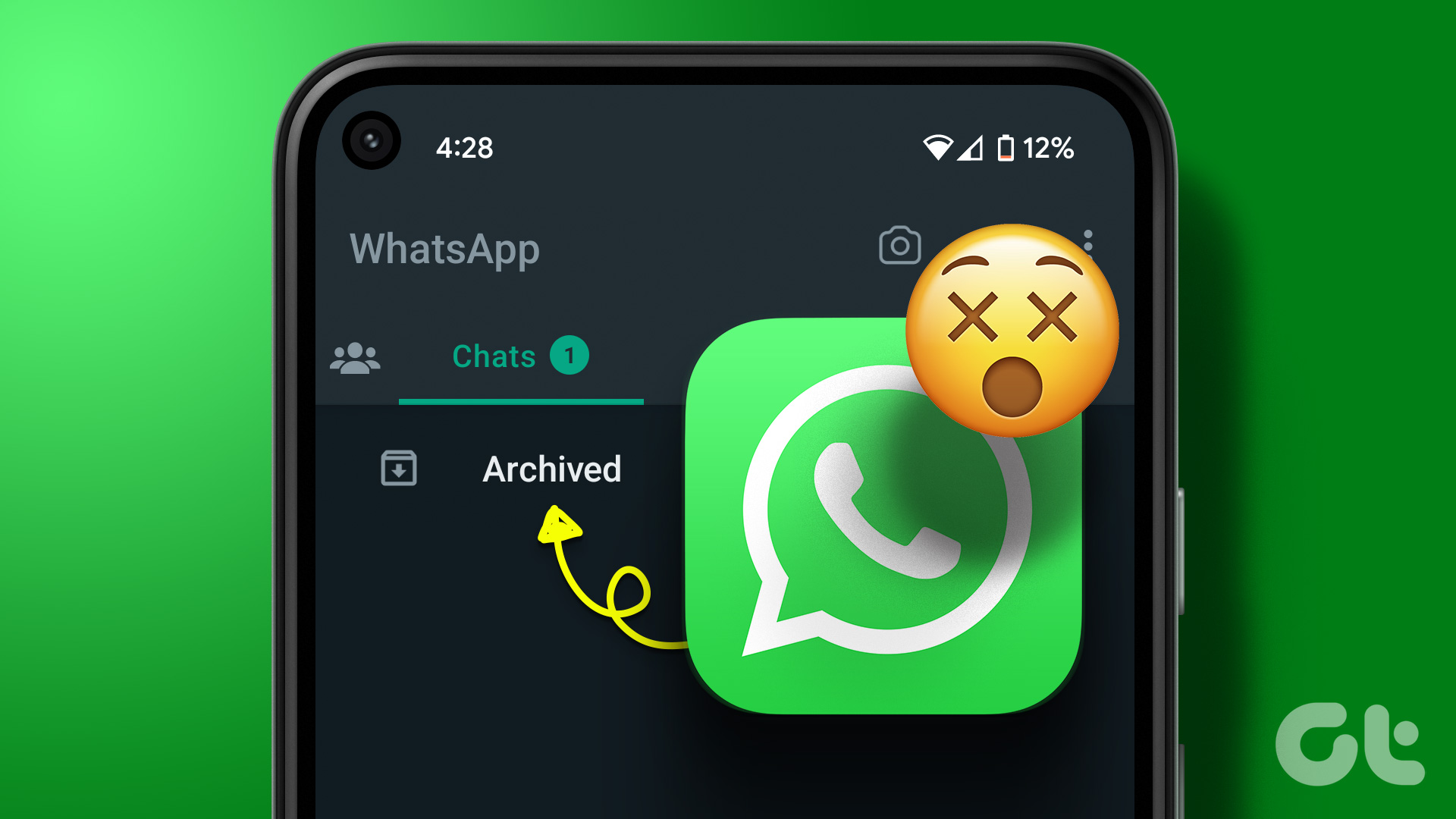
WhatsApp treats archived chats as a separate "folder" that sits at the top of your chat list.
- Android: Long-press the chat you wish to hide. Tap the Archive icon (a folder with a downward arrow) in the top toolbar.
- iOS: Swipe left on the chat thread and select Archive.
- WhatsApp Web/Desktop: Hover over the chat, click the down arrow (Menu), and select Archive chat.
Note on "Keep Chats Archived": By default, WhatsApp is often configured to "unarchive" a chat when a new message arrives. To keep them hidden regardless of new activity, navigate to Settings > Chats and toggle on Keep Chats Archived. This prevents archived threads from reappearing in your main list when someone sends a new message.
Facebook Messenger
Messenger utilizes a simplified archiving system that removes threads from the primary "Chats" view.
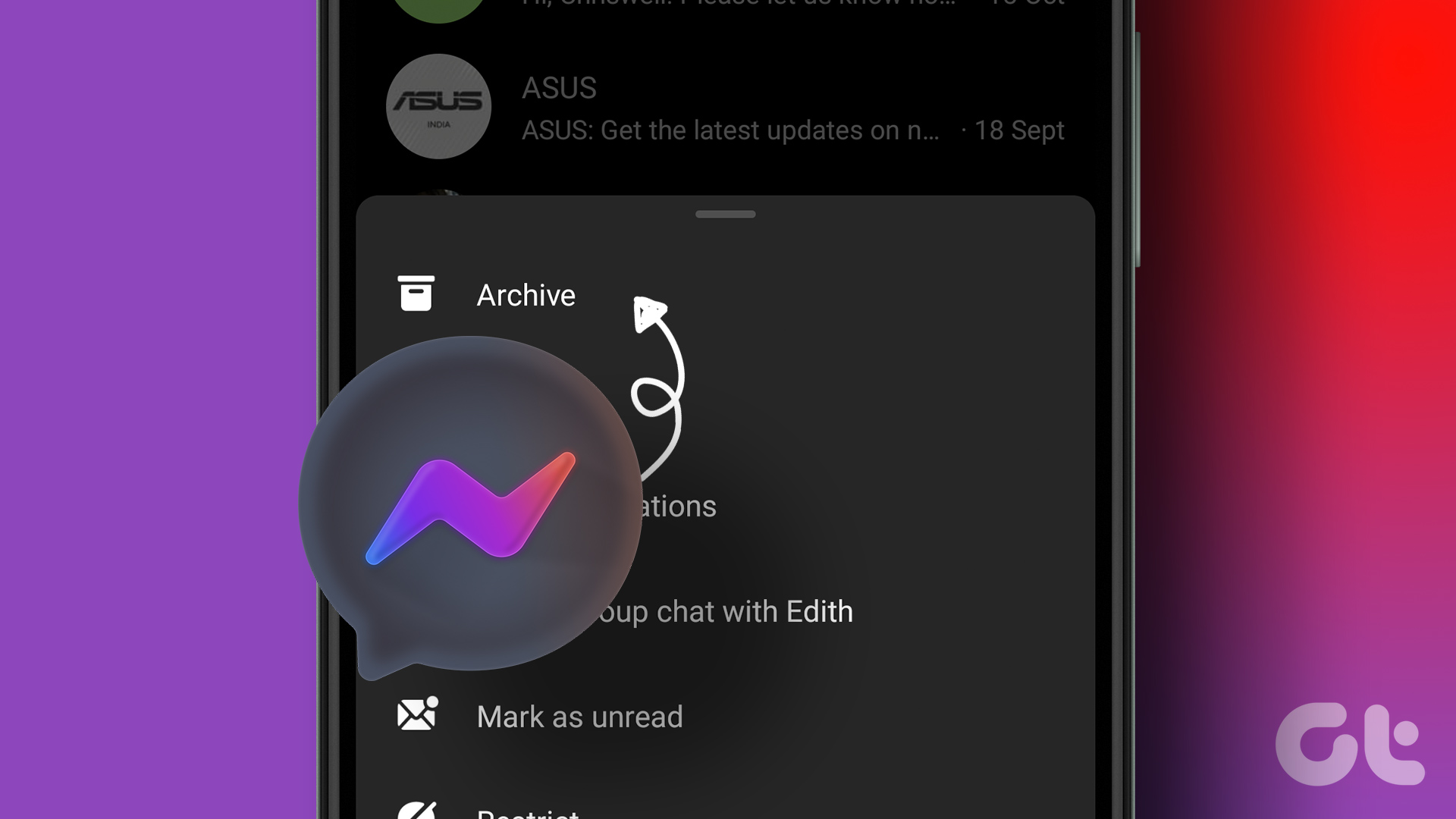
- Mobile App: Swipe left on a conversation and tap the Archive button (purple icon).
- Desktop/Browser: Click the three dots (...) next to a conversation name and select Archive chat.
Archived chats in Messenger are stored in a dedicated "Archived Chats" section accessible via the menu (your profile icon or the "hamburger" menu). Unlike WhatsApp, a new message in an archived Messenger thread will automatically move it back to the active inbox.
Telegram
Telegram offers "Archive Folders," which are particularly useful for power users managing hundreds of channels and groups.
- Mobile: Swipe left on the chat. On some versions, a short swipe offers several options, while a long swipe archives immediately.
- Desktop: Right-click the chat and select Archive.
Telegram allows you to "Pin" the Archive folder to the top of your list or hide it entirely. To hide the Archive folder, swipe left on the "Archived Chats" entry itself. You can reveal it again by pulling down on the main chat list.
Gmail and Outlook (Email Services)
Archiving in email is slightly more complex due to the use of "Labels" (Gmail) or "Folders" (Outlook).
- Gmail: Click the Archive button (the folder with a down arrow). In Gmail, archiving removes the "Inbox" label from the email. The message remains in the "All Mail" category. It will reappear in the Inbox only if someone replies to the thread.
- Outlook: Select the message and click Archive in the top ribbon. Outlook moves the message to a specific folder titled "Archive." This is a literal folder move rather than a label change.
Comparing Archiving Features Across Platforms
The following table summarizes how different platforms handle archived data, providing a quick reference for users managing multiple accounts.
| Platform | Location of Archived Data | Impact of New Message | Searchable? | Storage Impact |
|---|---|---|---|---|
| Archived Chats Folder | Stays archived (if set) | Yes | None (Data remains) | |
| Messenger | Archived Chats Menu | Moves to Inbox | Yes | None |
| Telegram | Archived Chats Folder | Moves to Inbox (unless muted) | Yes | None |
| Gmail | All Mail / Search | Moves to Inbox | Yes | None |
| Outlook | Archive Folder | Remains in Archive Folder | Yes | None |
| Archived Section (Profile) | N/A (Mostly for Posts/Stories) | Yes | None |
Privacy, Security, and Data Retention
A common misconception is that archiving a conversation makes it more secure. Technically, this is not the case. Archived conversations are stored with the same level of encryption and protection as active conversations.
Encryption and Backups
On end-to-end encrypted (E2EE) platforms like WhatsApp or Signal, archived chats are encrypted on your device and within your cloud backups (e.g., iCloud or Google Drive). If an unauthorized party gains access to your device or your unencrypted cloud backup, your archived chats are just as vulnerable as your active ones.
Legal Discovery
In legal or corporate settings, archived conversations are subject to "Discovery." If a court orders the production of communications, you cannot claim a chat was "deleted" if it was merely archived. Most enterprise-grade communication tools (like Slack or Microsoft Teams) have specific retention policies where archiving is used specifically to ensure compliance with financial or legal regulations.
Troubleshooting Common Archiving Issues
"I archived a chat and now I can't find it."
This is the most frequent user complaint. Most platforms hide the "Archived" folder to maintain a clean UI.
- On WhatsApp: Scroll to the very top of your chat list. The "Archived" header should appear.
- On Gmail: Use the search bar and type
in:archive(thoughis:allis more effective) or look for the "All Mail" folder in the sidebar. - On Telegram: Pull down on the main chat list screen to reveal the hidden Archive header.
"Archived chats keep coming back to my inbox."
As noted previously, this is usually caused by new incoming messages. To fix this, you must change the app settings to "Stay Archived" or "Mute" the conversation. If a conversation is muted and archived, it will typically stay out of sight until you manually intervene.
"Does archiving save phone storage?"
No. Because archiving preserves all text and media, it does not reduce the storage footprint of the app. If your goal is to save space, you must either delete the messages or use "Clear Chat" functions that remove media while keeping the text (available in some versions of WhatsApp and Telegram).
Expert Tips for 2026 Digital Management
To maximize the effectiveness of the archive function, consider these advanced strategies:
- The 30-Day Rule: Once a month, review your inbox. Any conversation that hasn't had activity in 30 days should be archived. This keeps your active workspace focused on current projects.
- Mute Before Archive: If you are archiving a high-volume group chat that you don't intend to participate in, Mute the notifications before archiving. This ensures your phone doesn't vibrate for a conversation you have intentionally hidden.
- Use Search Labels: In email, archive messages but apply a descriptive label (e.g., "Project X - 2025") first. This makes the archived data much easier to find via filtered searches later.
- Automated Archiving: Use filter rules in Gmail or Outlook to automatically archive newsletters or receipts the moment they arrive. They remain searchable if you need a confirmation number but never clutter your morning inbox.
Frequently Asked Questions
Does the other person know I archived our conversation?
No. Archiving is a local UI action. The other participants in the chat receive no notification, and their view of the conversation remains unchanged. There is no "Archived" status indicator visible to contacts.
Can I archive all my chats at once?
Most platforms allow bulk actions. In WhatsApp, go to Settings > Chats > Chat History > Archive all chats. In Gmail, you can select all messages and click the archive button. This is often referred to as a "Reset" and is a popular way to start a new productivity cycle.
Is there a limit to how many conversations I can archive?
Technically, there is no hard limit on the number of threads you can archive. However, having tens of thousands of archived threads can occasionally slow down the search indexing on older mobile devices.
What is the difference between Archiving and Muting?
Muting stops notifications from appearing on your lock screen or triggering sounds, but the chat stays in your main inbox. Archiving hides the chat from the list but doesn't necessarily stop notifications unless combined with a "stay archived" setting. For maximum silence, you should Mute and Archive.
How do I "Unarchive" a conversation?
To return a chat to your main list, go to the Archived folder, long-press or swipe the conversation, and select Unarchive. The conversation will immediately reappear in its chronological position based on the date of the last message sent.
Recommendation for Next Steps
To take control of your digital communications today, begin by performing a "Mass Archive." Rather than deleting old threads and risking the loss of important memories or data, archive every conversation that is older than two weeks. On platforms like WhatsApp, ensure you enable the "Keep Chats Archived" setting in your account preferences. This single change will transform your messaging app from a chaotic list of every person you’ve ever spoken to into a streamlined tool focused exclusively on your current, active relationships and tasks.