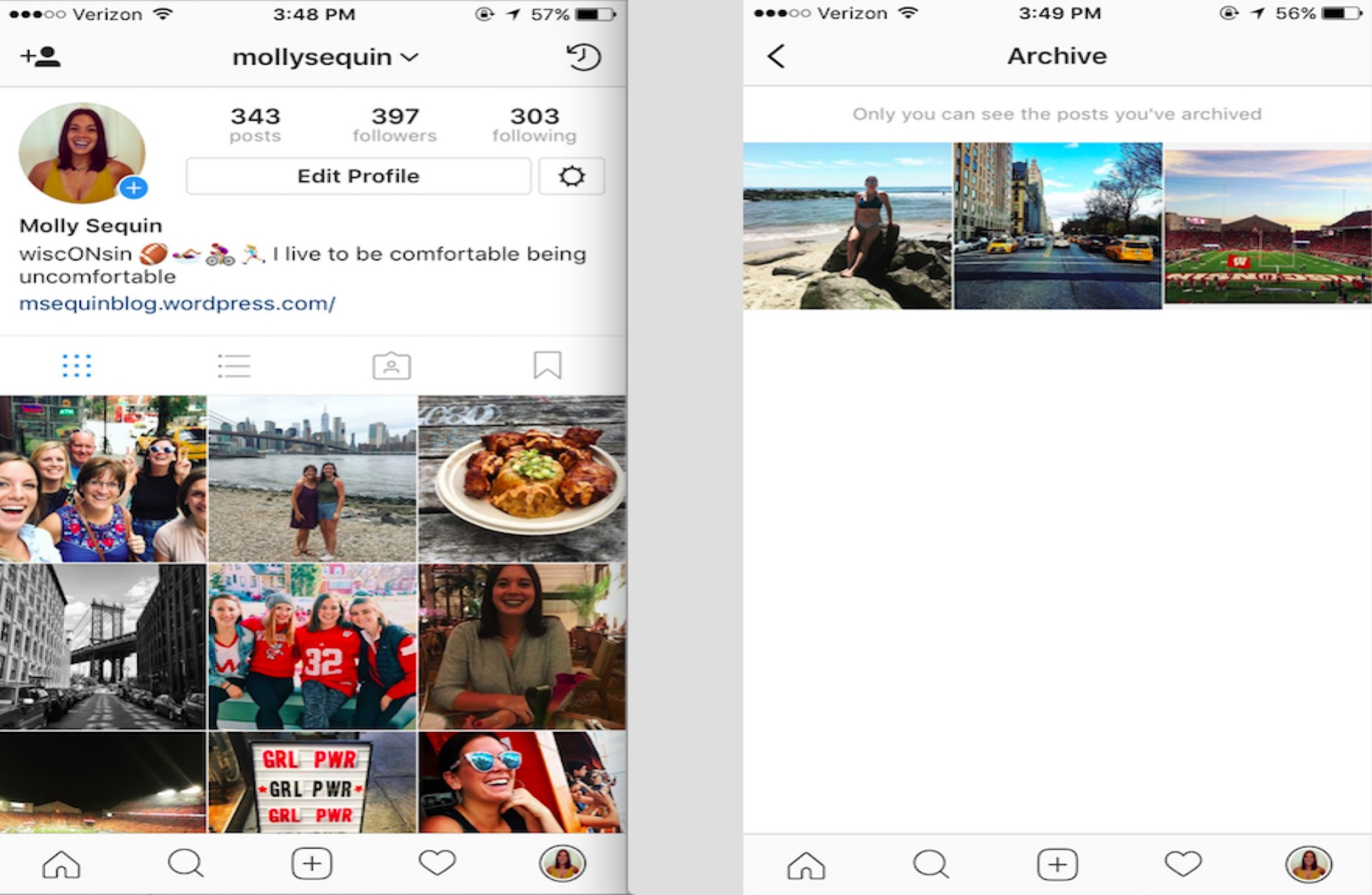
To archive your Instagram account, you can hide individual posts from your profile using the Archive feature or download a complete copy of your data through the Account Center. While individual posts are moved to a private folder, a full data archive provides a permanent offline record of your photos, messages, and history.
The concept of "archiving" on Instagram often refers to two distinct actions: hiding specific content from public view without deleting it, or performing a full export of your account data for safekeeping. As of 2026, Meta has centralized these management tools within the Account Center to streamline privacy and data portability. Understanding the nuances between archiving a post, deactivating a profile, and downloading an information backup is essential for maintaining your digital footprint.
Understanding the Instagram Archive Ecosystem
Instagram provides several layers of archival tools designed to give users control over their content's visibility and longevity. Unlike deletion, which is permanent, archiving is a reversible action that preserves the engagement data—such as likes and comments—associated with your content.
The Content Archive
This is the most common use of the term. It allows you to remove posts, stories, and reels from your main grid. The content is moved to a private section of your app that only you can see. This is ideal for users who want to "clean up" their aesthetic or hide personal memories without losing the post’s history.
The Data Archive (Download Your Information)
This is a more technical interpretation of archiving. It involves requesting a file from Meta that contains every interaction you have ever had on the platform. This includes your direct messages, followers, comments, and high-resolution versions of the media you have uploaded. This is a critical step for anyone planning to delete their account or those who want a local backup of their digital life.
How to Archive Individual Posts and Reels
Archiving a post is the primary method for curated profile management. When you archive a post, it disappears from your profile grid and the feeds of your followers, but it remains stored on Instagram’s servers.
Step-by-Step Archiving on Mobile
- Open the Instagram app and navigate to your Profile.
- Tap the specific post or Reel you wish to hide.
- Tap the three dots (...) in the top right corner of the post.
- Select Archive from the menu options.
The post will immediately vanish from your grid. If the post was part of a "Grid Aesthetic," the remaining posts will shift to fill the gap.
Bulk Archiving for Profile Resets
If you need to archive hundreds of posts at once—perhaps during a professional rebranding or a privacy sweep—Instagram’s "Your Activity" tool is the most efficient method.
- Go to your profile and tap the three-line menu (hamburger icon) in the top right.
- Select Your Activity.
- Tap on Posts or Reels.
- Tap Select in the top right corner.
- Check all the items you wish to hide.
- Tap Archive at the bottom left.
This method saves hours of manual labor and ensures that no content is missed during a large-scale account cleanup.
Managing the Story and Live Archive
By default, Instagram archives your Stories once they expire after 24 hours. This allows you to look back at past memories or add them to "Highlights" later.
Verification of Story Archive Settings
To ensure your Stories are actually being saved, you must verify your settings:
- Navigate to Settings and Privacy.
- Search for or scroll to Archiving and Downloading.
- Ensure the toggle for Save story to archive is turned on.
The Live Archive functions similarly, but with a significant limitation: Live broadcasts are typically stored in the archive for only 30 days before they are permanently deleted. If you wish to keep a Live stream, you must download it to your device or share it as a Reel within that 30-day window.
How to Download a Full Data Archive of Your Account
If your goal is to "archive the account" in its entirety to move to a different platform or keep a permanent record, you must use the Download Your Information tool. In 2026, this process is managed through the Meta Account Center, which links your Instagram and Facebook data management.
The Request Process
- Go to your profile and tap the three-line menu.
- Select Account Center.
- Under "Account settings," tap Your information and permissions.
- Select Download your information.
- Tap Download or transfer information.
- Select your Instagram account.
Choosing Your Data Format
Meta allows you to choose between two primary formats:
- HTML: Best for casual viewing. You can open these files in any web browser and navigate your history through a menu similar to the Instagram interface.
- JSON: Best for technical users. If you plan to import your data into another app or service, JSON (JavaScript Object Notation) is the standard machine-readable format.
You can also select the "Media Quality." If you are archiving for long-term storage, always select High Quality to preserve the resolution of your photos and videos.
Waiting Period and Security
Once the request is submitted, Instagram must compile the data. Depending on the size of your account (the number of high-resolution videos and years of messages), this can take anywhere from a few hours to several days. Once the file is ready, you will receive an email notification. For security reasons, the file will be available for download for only a few days before it is deleted from the server, and you will be required to re-enter your password to access it.
Comparison of Account Management Options
It is important to distinguish between archiving content and changing the status of your account. Use the table below to determine which action fits your current needs.
| Feature | Archive Post | Deactivate Account | Download Data | Delete Account |
|---|---|---|---|---|
| Visibility | Hidden from others | Profile is hidden | No change to profile | Profile is gone |
| Reversibility | Fully reversible | Fully reversible | N/A (Data copy) | Permanent (after 30 days) |
| Data Retention | Stored on IG servers | Stored on IG servers | Downloaded to your device | Erased from IG servers |
| Engagement | Likes/Comments kept | Hidden until return | Metadata preserved | All data lost |
| Best For | Curating your grid | Taking a mental break | Backing up memories | Leaving permanently |
How to Unarchive and Restore Content
Archiving is not a one-way street. If you change your mind about a hidden post, you can return it to your profile grid at any time, and it will reappear in its original chronological position.
- Go to your profile and tap the three-line menu.
- Tap Archive.
- Use the dropdown menu at the top to select Posts Archive.
- Tap the post you want to bring back.
- Tap the three dots (...) and select Show on Profile.
Note: When you restore a post, it does not send a notification to your followers, and it does not reappear at the top of their feeds. It simply slots back into its original date on your grid.
Technical Limitations and Considerations
While the archiving system is robust, there are several technical nuances that users should be aware of in 2026.
Storage and Server Side
Even when a post is archived, it remains on Meta’s servers. If you are archiving content for legal or privacy reasons, be aware that the data still exists within the company's infrastructure. Only a formal deletion (followed by the standard 30-day grace period) ensures the removal of content from Meta’s active databases.
Third-Party Apps
Beware of third-party apps claiming to "archive your account" or "download all photos." These apps often require your login credentials and can compromise your account security. Always use the official Meta Account Center tools for data exports.
Effects on Analytics
If you have a Professional or Creator account, archiving a post will remove its data from your public-facing insights. However, the historical data remains accessible in your internal "Account Insights" tool for the period during which the post was live.
Common Mistakes to Avoid
- Confusing Archiving with Deleting: Many users tap "Delete" when they simply want to hide a post. There is a "Recently Deleted" folder where you can recover items for 30 days, but after that, they are gone forever. Archiving is the safer choice for uncertain decisions.
- Forgetting the Live Archive Expiration: As mentioned, Live videos do not stay in the archive forever. If a broadcast is important, download it immediately after the stream ends.
- Ignoring Data Sizes: A full account archive can be several gigabytes. Ensure you have enough storage on your computer or cloud drive before downloading the ZIP file provided by Instagram.
- Not Updating the App: UI changes are frequent. If you cannot find the "Archive" button, ensure your Instagram app is updated to the latest version via the App Store or Google Play Store.
FAQs
Can people see my archived posts if they have a direct link?
No. Once a post is archived, the URL associated with that post becomes inactive for other users. If someone previously bookmarked the link or had it in a direct message, they will see a "Content Unavailable" message when they try to access it.
Does archiving a post affect my follower count?
No, archiving content has no direct impact on your follower count. It only changes what content is visible to those followers when they visit your profile.
How many posts can I archive?
There is currently no documented limit to the number of posts you can archive. Users with thousands of posts have successfully archived their entire grids to start fresh.
Can I archive someone else's post?
No, you can only archive content that you have posted. If you want to save someone else's post for later viewing without them knowing, you should use the Save feature (the ribbon icon), which places the post into your private "Saved" collection.
What happens to my messages when I download my data archive?
The data archive includes a full transcript of your Direct Messages (DMs), including text, links, and references to shared media. However, it will not include disappearing photos or videos that have already expired.
Is there a way to archive my account automatically?
Instagram does not currently offer a "one-click" archive for the whole account. You must either bulk-archive posts through the "Your Activity" section or deactivate the account entirely to hide the profile.
Final Recommendation
If you are looking to refresh your social media presence, archiving individual posts is the most flexible tool at your disposal. It preserves your history and metrics while allowing you to control your public image. However, for true digital sovereignty, we recommend performing a full data download at least once a year. This ensures that regardless of platform changes, technical glitches, or account issues, you possess a permanent, offline record of your digital life. Before making any major changes, always verify your email address in the Account Center to ensure you receive the download links for your data.